Grant skills from certificates
A certificate is proof of a skill, so flair can keep the two in step. Link one or more skills to a certificate type once, and every employee whose certificate of that type is approved gets those skills on their profile — dated to match the certificate, and removed again when the certificate goes.
HR Admins link skills to certificate types in Salesforce. Employees and Managers see the granted skills in the Employee Hub.
Before you begin
- The skills you want to link exist in your skill catalog, or you can import them from the ESCO catalog.
- Employee certificate uploads are routed for approval. See Create and manage employee certificates.
Link a skill to a certificate type
A certificate type can prove several skills. A first-aid certificate proves one; a full-stack development certificate can prove JavaScript, HTML, and CSS.
- In flair HR, open Certificates.
- Select the certificate type.
- On Linked skills, review Suggested skills. flair matches the certificate against your skill catalog and shows a Match score for each suggestion.
- To link a suggestion, click Confirm. The message Skill linked to the certificate appears, and the skill joins the pills at the top of the card.
- To discard a suggestion, click Reject.
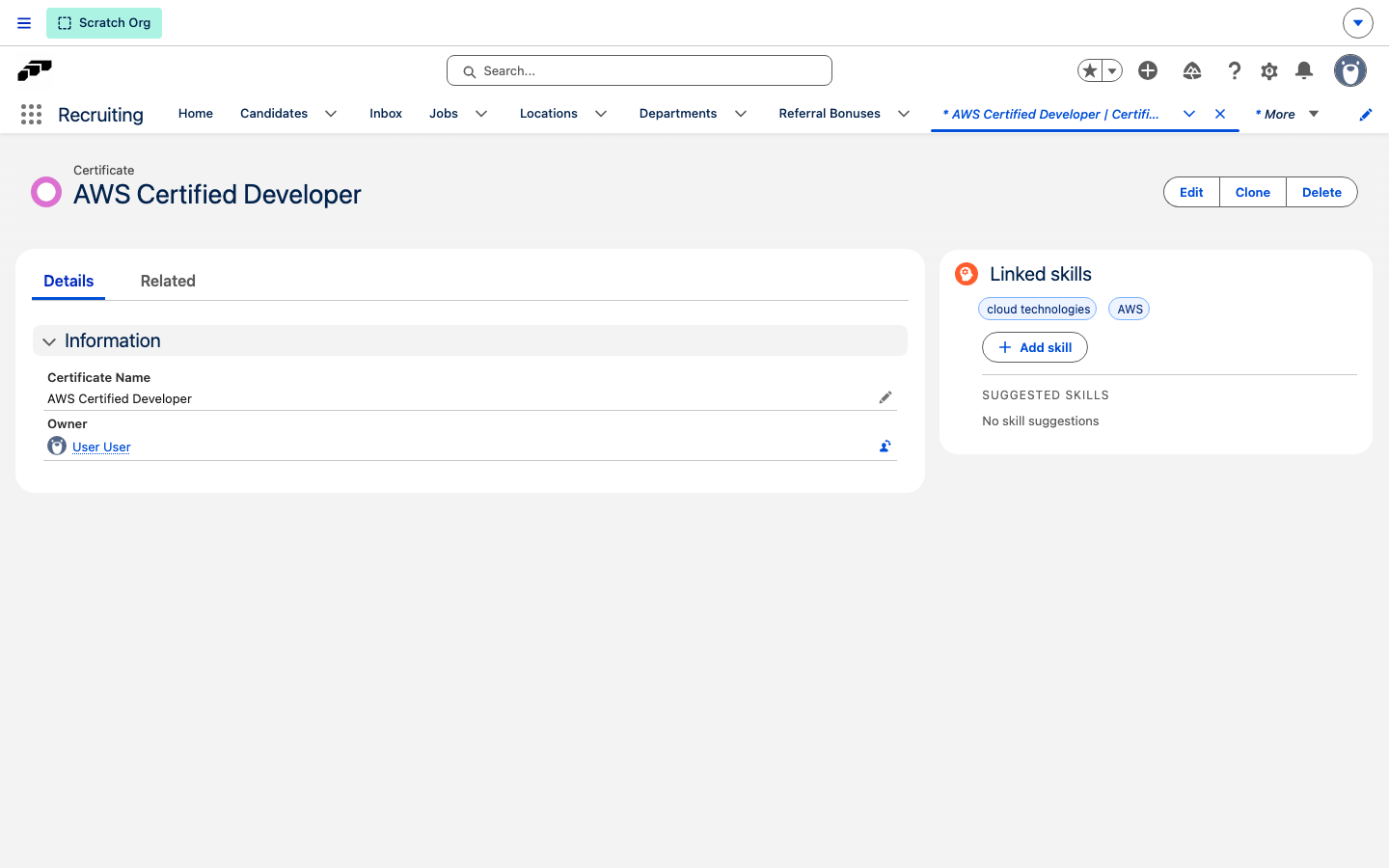
While flair looks for a match, the card reads Looking for a matching skill — this can take up to a minute. When there is nothing to review, it reads No skill suggestions.
Add a skill the suggestions missed
A certificate name an employee typed by hand produces no suggestions, and a suggestion can be wrong. Link the skill yourself instead.
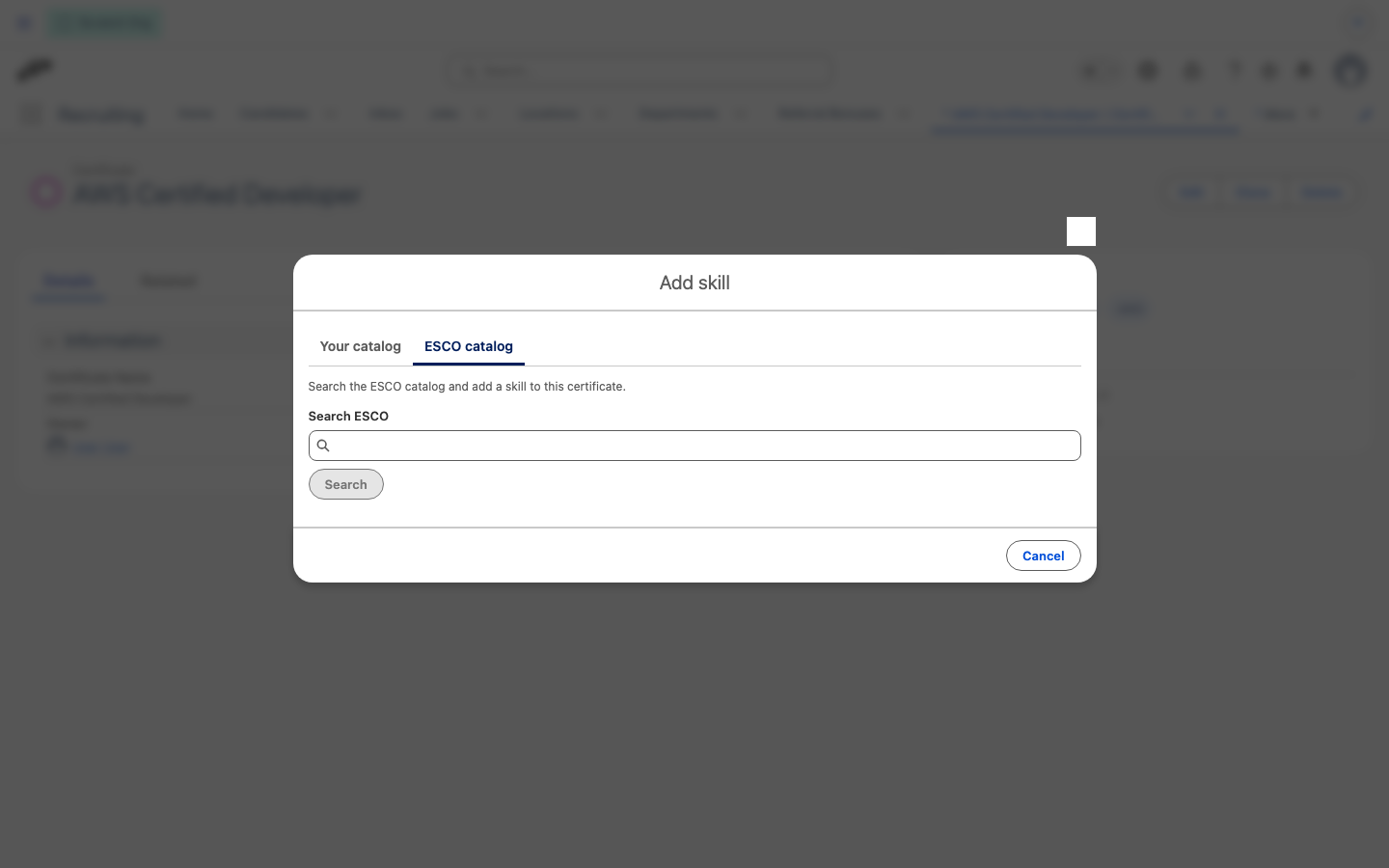
- On Linked skills, click Add skill.
- To use a skill you already have, open Your catalog, search in Skill, select the skill, and click Add skill.
- To use a skill from the ESCO taxonomy, open ESCO catalog, enter a term in Search ESCO, and click Search.
- For a result that is already in your catalog, click Link.
- For a result that is new, click Add, then choose Add skill only or Add with parent skills. The message Skill added and linked to the certificate appears.
Linking a skill changes the certificate type, not one employee's certificate. Everyone who already holds an approved certificate of that type gets the skill as well, which flair applies in the background.
Grant skills by approving a certificate
Approval is the moment someone has checked the certificate, so approval is the moment the skills are granted. Nothing is granted while a certificate is pending.
Two conditions both have to hold before a certificate grants anything:
| Approval status | Issue date | What the employee gets |
|---|---|---|
| Not approved | Any, or empty | Nothing. |
| Approved | Empty | Nothing. |
| Approved | Today or earlier | The linked skills, as soon as the certificate is saved. |
| Approved | In the future | Nothing yet. flair grants the skills on the day the issue date arrives. |
A certificate a Manager or an HR Admin enters for an employee is approved as it is saved, so it grants its skills straight away.
Granted skills arrive without a rating. A certificate proves that the employee holds the skill, not how good they are at it, so a Manager can rate it afterwards.
Check which certificate granted a skill
A granted skill looks like any other on the profile, so flair marks the ones a certificate added.
- In the Employee Hub, open the employee's skills list. An info icon beside the skill name reads Granted by the certificate «First Aid», naming the certificate it came from.
- In Salesforce, the skills card on the employee record shows the same tooltip.
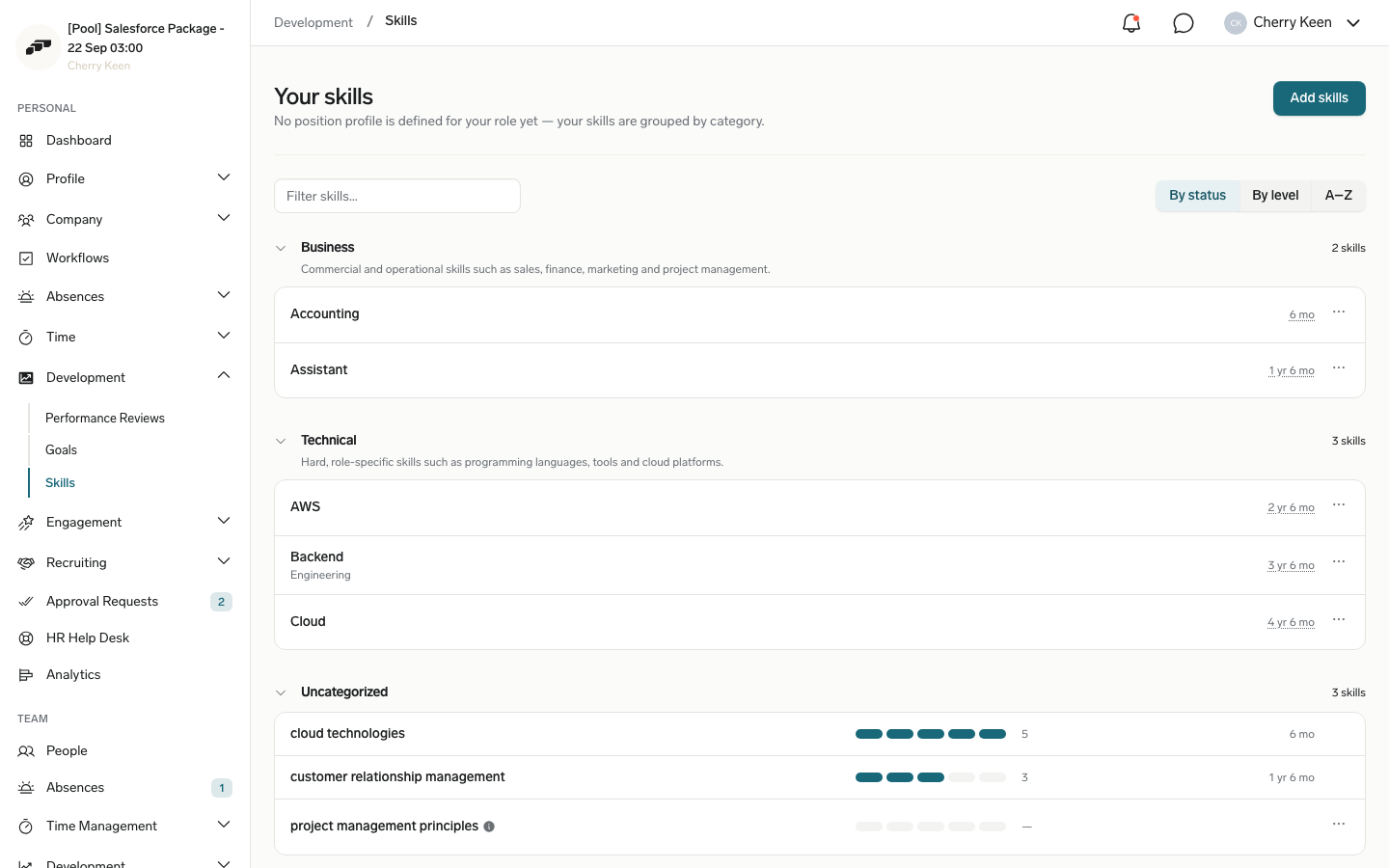
A skill the employee added themselves is never marked this way, even when a certificate later confirmed it.
A granted skill cannot be removed from the skills list. flair explains why: A certificate grants this skill, so it cannot be removed here. Remove the certificate from the employee, or unlink the skill from the certificate.
Track granted skills on the certificates list
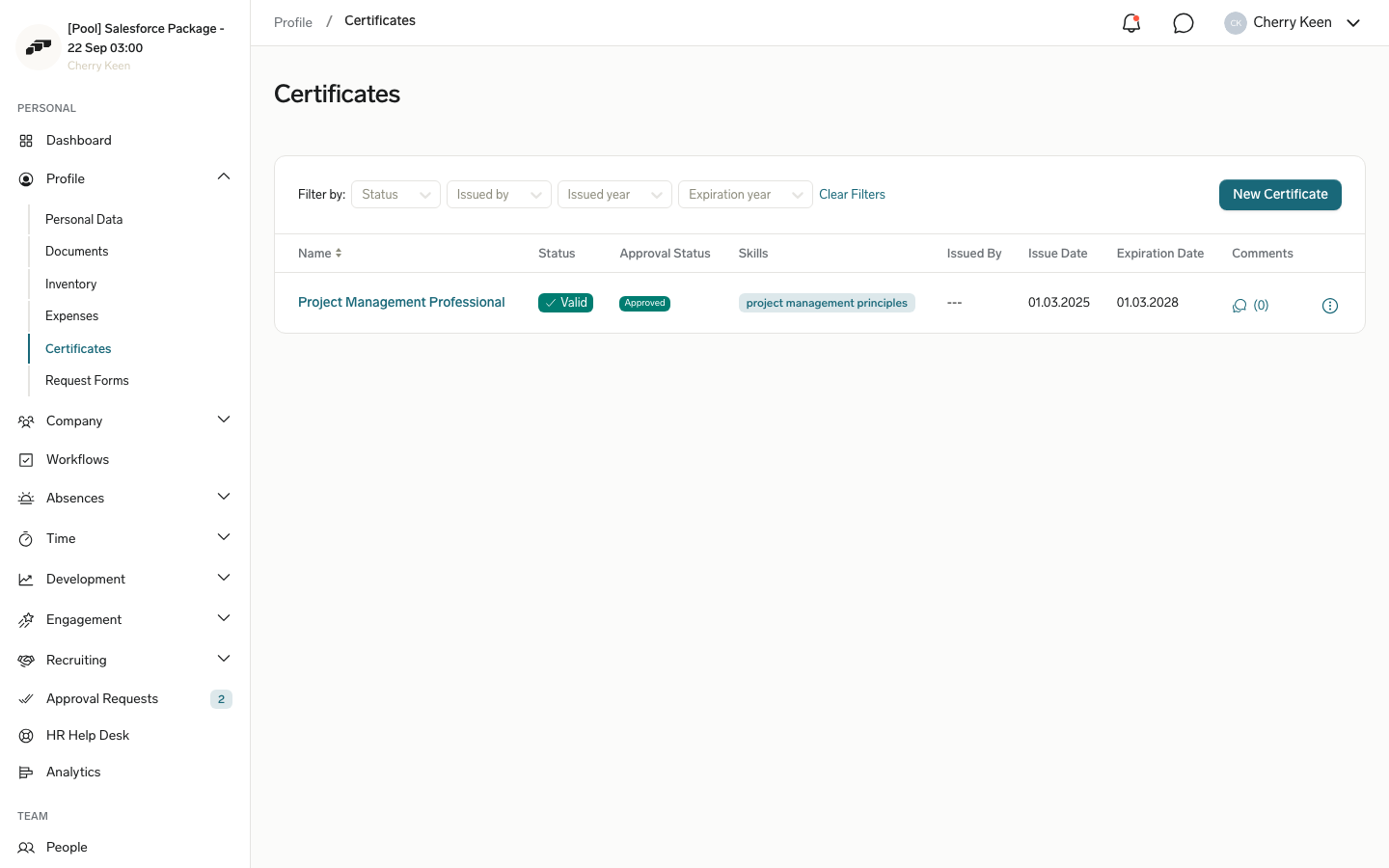
The certificates list in the Employee Hub carries a Skills column, so employees and Managers can see what each certificate brings without opening it.
- In the Employee Hub, open My Data → Certificates.
- Read the Skills column. Each linked skill appears as its own chip, and a + chip opens Granted skills with the rest.
- Click a chip to open that skill on the profile. flair scrolls to the skill and highlights its row.
A certificate type with no skills linked shows a dash. Chips on a certificate that has not granted its skills yet — one that is still pending, or dated in the future — appear without a link, because the skill is not on the profile to open.
Keep granted skills current
A granted skill carries the certificate's dates, and flair reads them to decide whether the skill still counts.
| Certificate date | Effect on the skill |
|---|---|
| Issue date | The skill starts counting from the oldest issue date among the employee's approved certificates of that type, so a renewal extends the experience instead of resetting it. |
| Expiration date | The skill runs out on that date. |
| No expiration date | The skill never lapses. A forklift licence expires; an English test does not. |
A renewal is a new certificate record, not an edit. An employee who holds the same certificate from 2019, 2022, and 2026 has three records, and their skill counts from 2019.
When the expiration date passes, the skill stays on the profile with an Expired badge reading Expired on and the date. It no longer counts toward shift and job matching, skill gaps, skills-matrix medians, or the skills radar chart, so a lapsed forklift licence cannot staff a forklift shift.
Remove a certificate or unlink a skill
Removing the reason a skill was granted removes the skill.
- In Salesforce, open the certificate type or the employee's certificate.
- Click Delete. The confirmation names the certificate and lists the skills under Skills being removed.
- Confirm the deletion. flair reports its progress under Removing granted skills and finishes with Certificate deleted.
To take one skill off a certificate type instead, click the remove icon on its pill under Linked skills and confirm Remove «skill» from «certificate»?.
A skill a certificate granted is deleted when the last certificate granting it is removed or rejected, even if someone has since rated it, recorded months of experience on it, or starred it. A skill the employee added by hand stays, and only the certificate's dates and link are cleared from it.
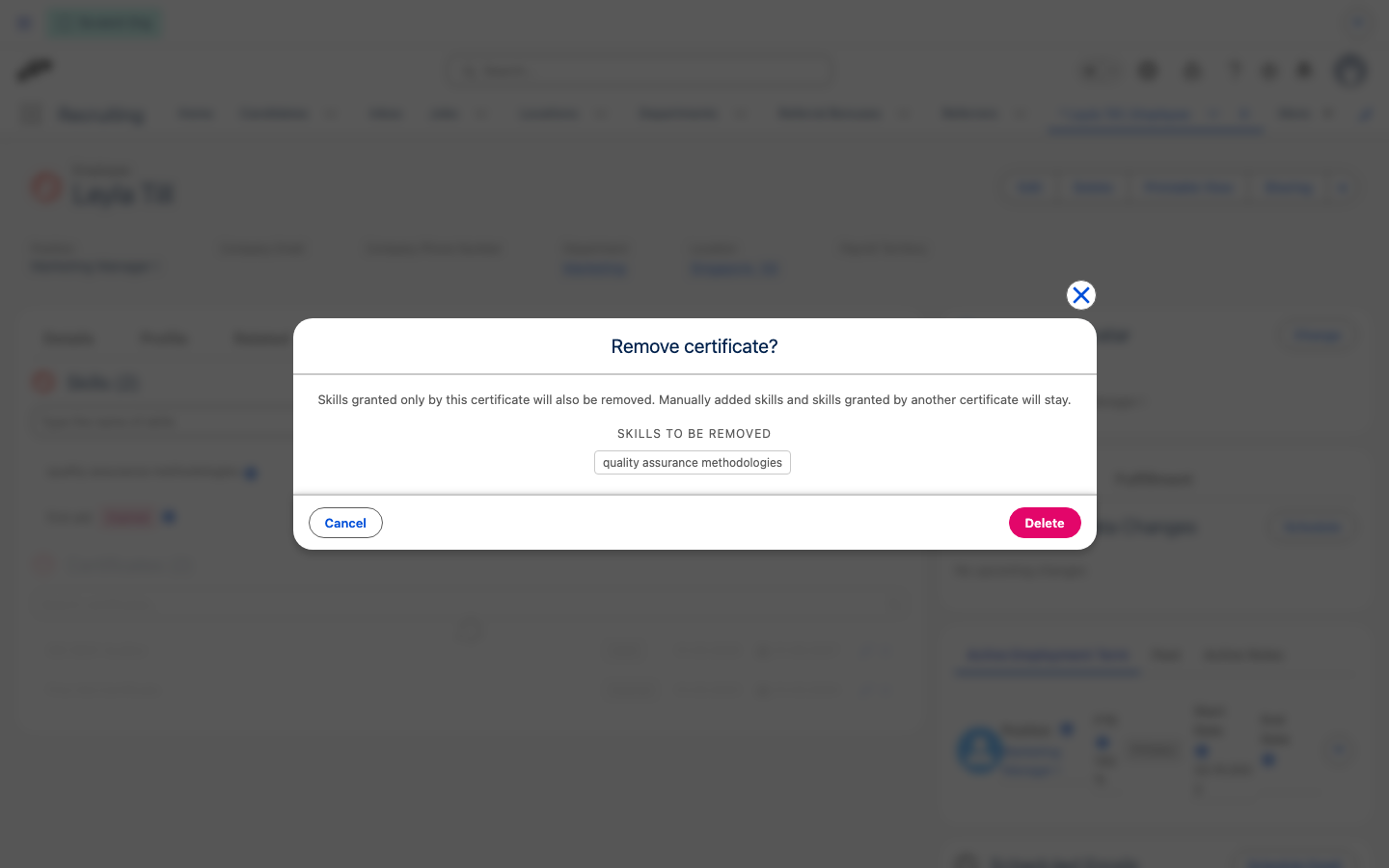
An employee keeps the skill if another certificate still grants it, or if they added it themselves.