Use Flair Doctor
Use the Doctor tools to find and repair patterned data or configuration problems in your Salesforce organization. Each tool targets one flair data area.
Salesforce Admins and HR Admins in the flair HR app in Salesforce. The Doctor tab requires the Use Doctor Tools custom permission, and most tools also require the Flair Doctor permission set.
Before you begin
- Make sure the user has the Use Doctor Tools custom permission. Flair Manager and Flair Employee Management include it.
- Assign the Flair Doctor permission set to the user who runs the tools. It grants access to every tool except TimeSheet Doctor and Accrual Scheduler, which Flair Manager grants.
- Identify the affected records and the problem that you expect the tool to repair.
- When a scan is available, review its results before running a repair.
- For a large production repair, back up the affected data and test the tool in a Sandbox first.
Open the Doctor tab
- In Salesforce, open the flair HR app.
- Open HR Admin.
- Click the Doctor tab. Each tool appears as a tile with its name and a short description.
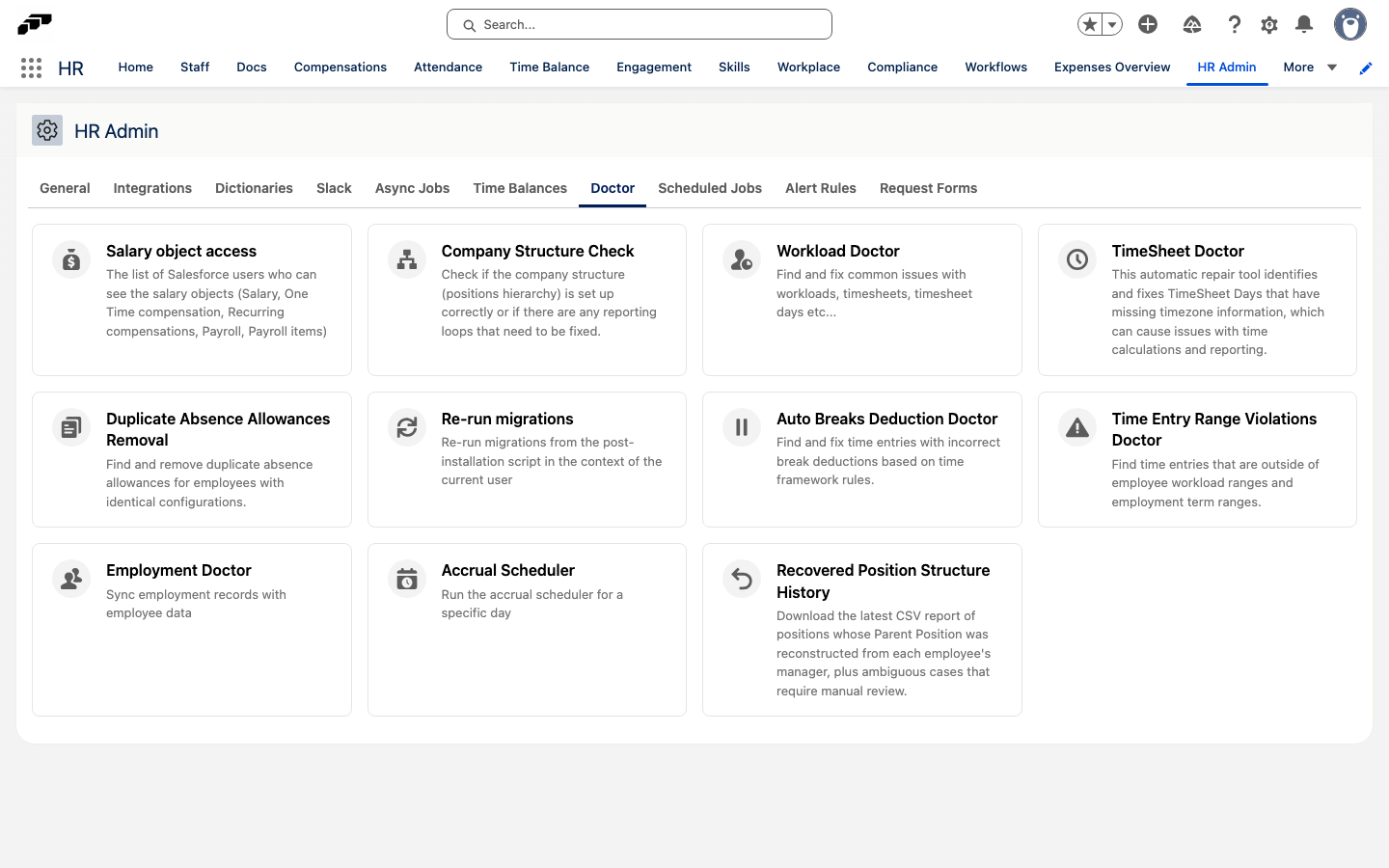
If the Doctor tab is missing, the user doesn't have the Use Doctor Tools custom permission.
Choose a tool
Select the tool that matches the affected data:
| Tool | What it checks or repairs |
|---|---|
| Salary object access | Lists the Salesforce users who can view the Amount fields for salaries, one-time compensation, additional compensation, and payroll items. |
| Company Structure Check | Checks the positions hierarchy for reporting loops. Positions in a loop can't be displayed correctly on the Company Structure tab. |
| Workload Doctor | Finds and repairs time sheet days that reference the wrong workload, typically after a time zone change or a transition between calendar years. |
| TimeSheet Doctor | Finds and repairs time sheet days with missing time zone information, which can break time calculations and reporting. |
| Duplicate Absence Allowances Removal | Finds and removes duplicate absence allowances, keeping the ones that come from a time balance withdrawal. |
| Re-run migrations | Re-runs a migration from the post-installation script in the context of the current user. |
| Auto Breaks Deduction Doctor | Finds and fixes time entries whose break deductions don't match the time framework rules. |
| Time Entry Range Violations Doctor | Lists time entries outside the employee's workload range or employment term range. |
| Employment Doctor | Synchronizes every employment record with employee data. |
| Accrual Scheduler | Re-runs the absence accrual scheduler for a specific day. |
| Recovered Position Structure History | Downloads the report of positions whose parent position was reconstructed during package installation. |
The available actions differ by tool. Review the displayed issues, and apply a fix only when the tool offers one for the problem.
Synchronize employments with employee data
Employment Doctor processes every employment record in the background. For each one, it updates the employee's start date, end date, and position from their employments, and recalculates the employee's manager from the position hierarchy.
- On the Doctor tab, click Employment Doctor.
- Click Fix Employments. A progress indicator shows the background job.
- When the job finishes, open an affected employee record and confirm that the Manager field is correct.
Remove duplicate absence allowances
Duplicate Absence Allowances Removal groups each employee's absence allowances by absence category, start date, end date, and amount. In a group that contains an allowance from a time balance withdrawal, it keeps the time balance withdrawal allowances and removes the others. A group without a time balance withdrawal allowance stays untouched.
The repair deletes allowance records. Run a scan and review the count before you run the repair.
- On the Doctor tab, click Duplicate Absence Allowances Removal.
- Optional: To ignore the amount when the tool compares allowances, select Delete allowances even with different amounts.
- Click Scan. The result shows the number of duplicate absence allowances found.
- Review the count.
- To delete the duplicates, click Fix. The result shows the number removed.
- Click Close.
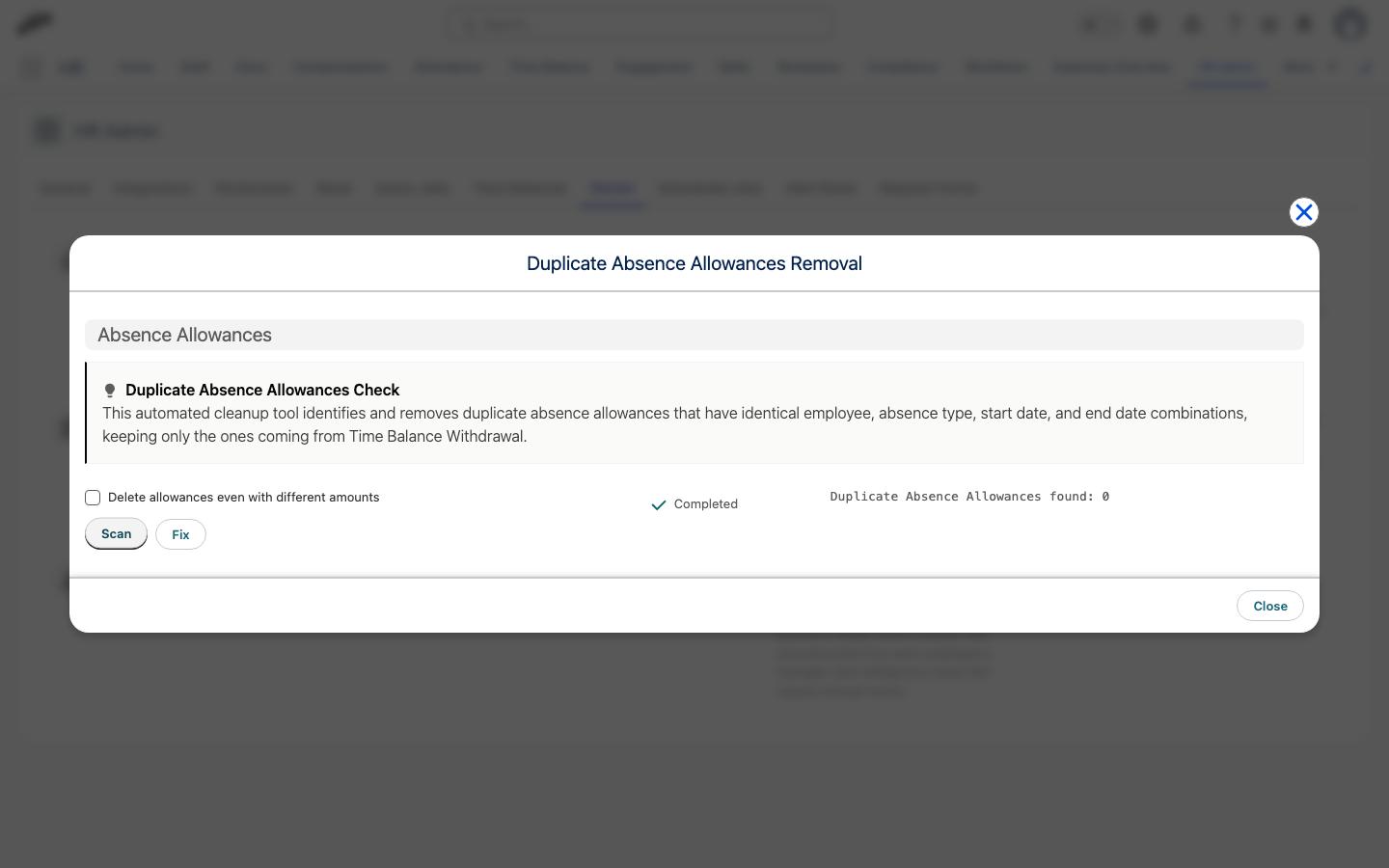
The scan can take a while in a large Salesforce organization.
Repair time sheet days with a missing time zone
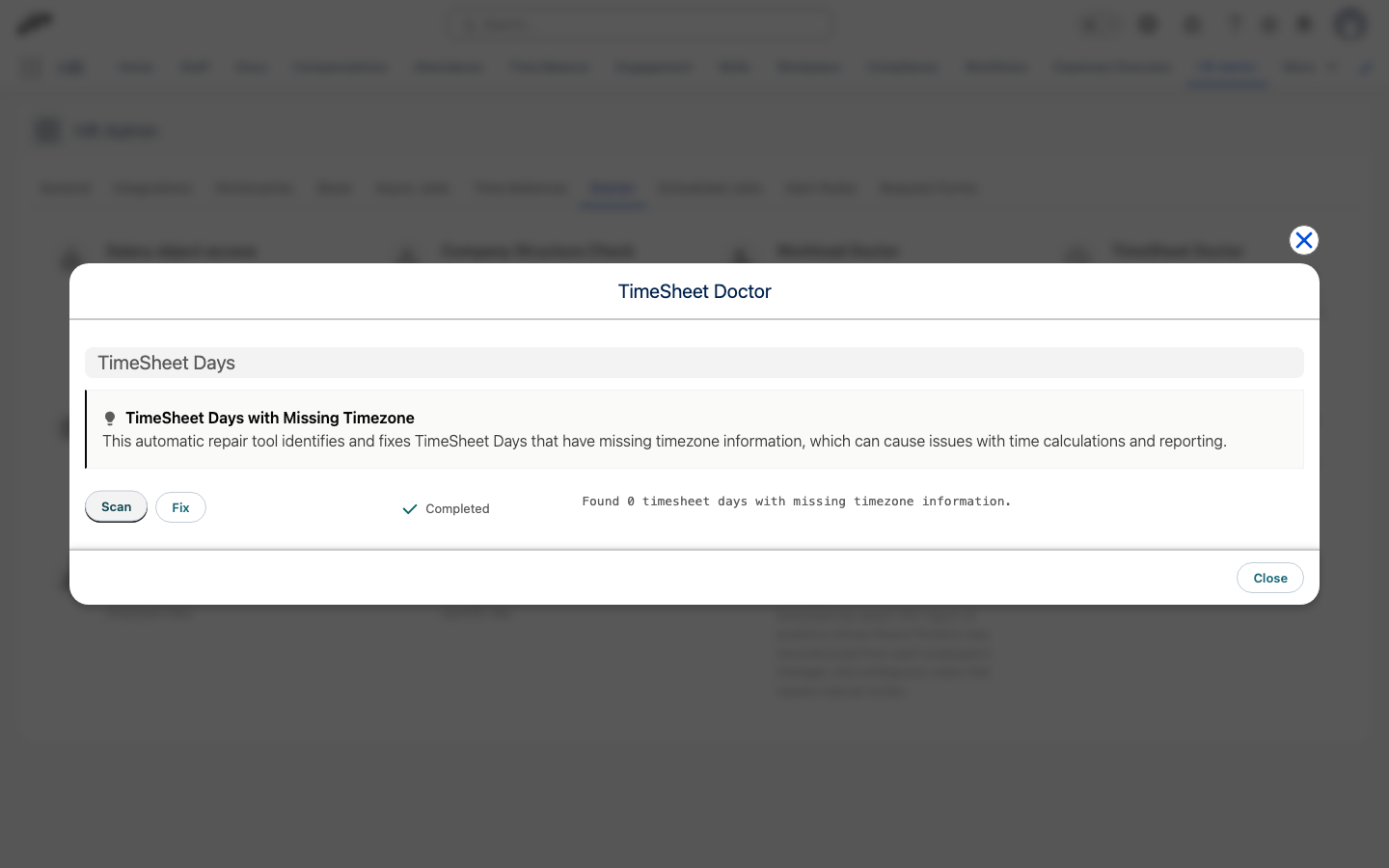
- On the Doctor tab, click TimeSheet Doctor.
- Click Scan. The result shows the time sheet days with missing time zone information.
- Click Fix to repair them.
- Click Close.
Find time entries outside a workload or employment range
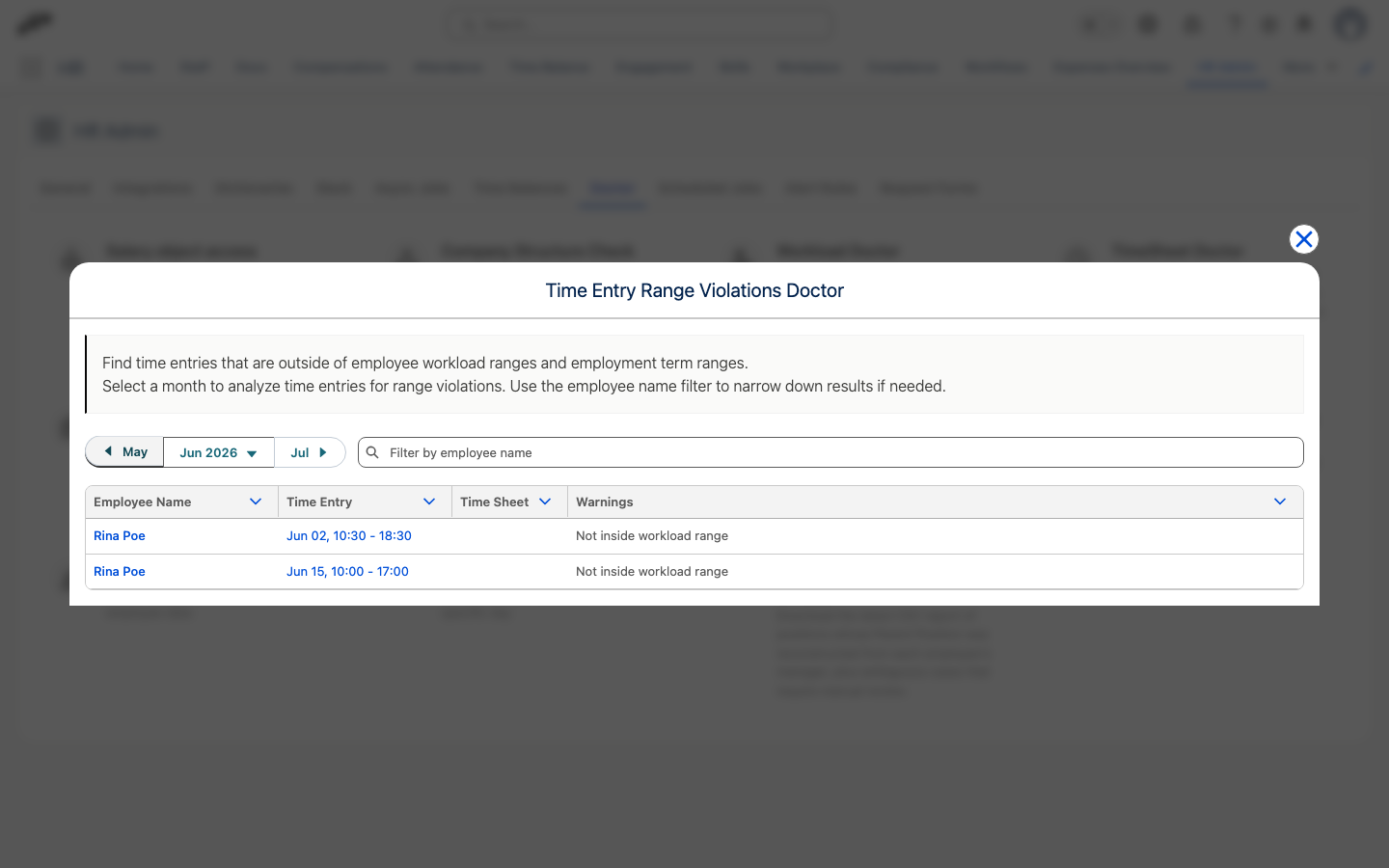
Time Entry Range Violations Doctor is read-only. It lists time entries for one month that fall outside the employee's workload or employment term.
- On the Doctor tab, click Time Entry Range Violations Doctor.
- Select the month to analyze.
- Optional: To narrow the results, enter an employee name in the search field.
- Review the Warnings column. Each entry shows Not inside workload range, Not inside employment term range, or both.
- To correct an entry, click its time entry or time sheet link. The record opens in a new tab.
Re-run the accrual scheduler for a day
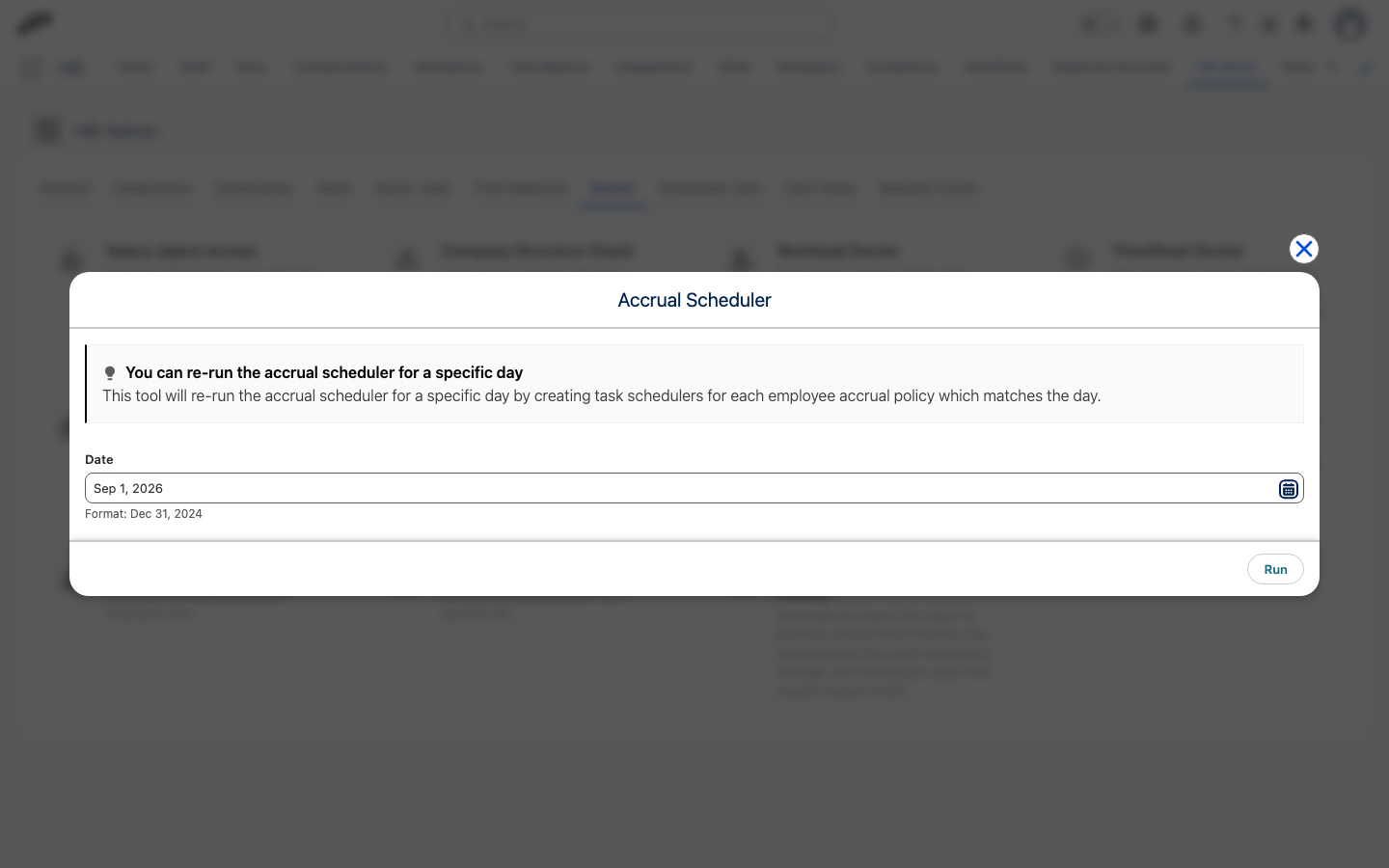
Use Accrual Scheduler when absence allowances didn't accrue on a specific day. The tool creates a scheduled task for each employee accrual policy that matches the day.
- On the Doctor tab, click Accrual Scheduler.
- In Date, select the day to re-run.
- Click Run. A confirmation appears. The background jobs take a few minutes to process.
Download the recovered position structure report
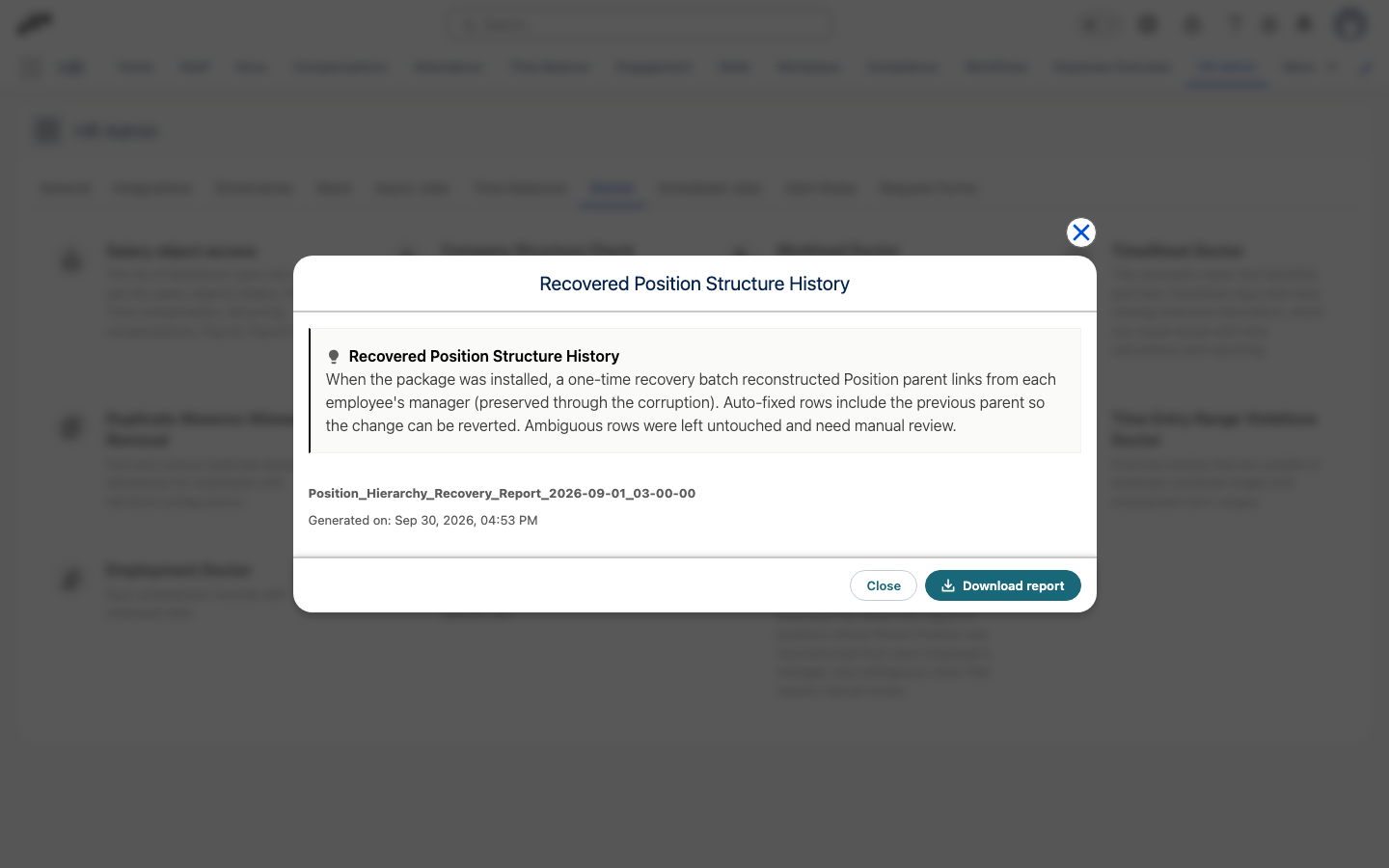
When flair was installed or updated, a one-time recovery batch reconstructed each position's parent position from the employee's manager. Recovered Position Structure History gives you the report of that recovery. Auto-fixed rows include the previous parent position so you can revert the change. Ambiguous rows were left untouched and need manual review.
- On the Doctor tab, click Recovered Position Structure History.
- Click Download report. The CSV report downloads.
- Review the ambiguous rows, and correct those positions on the Company Structure tab.
If no report exists, the modal shows No recovery report has been generated for this org.
Run another tool
For Salary object access, Company Structure Check, Workload Doctor, Re-run migrations, or Auto Breaks Deduction Doctor:
- On the Doctor tab, click the tool that matches the affected data.
- Run the available check or scan.
- Review every reported issue.
- Apply an available fix only when it matches the problem.
- Refresh the affected records, and verify the result.
Use the Doctor tools for patterned problems across multiple records. Use a manual correction when one record requires business judgment.
Troubleshooting
The Doctor tab is not available
- Confirm that the user has the Use Doctor Tools custom permission, for example through Flair Manager or Flair Employee Management.
- Ask a Salesforce Admin to review the user's access.
A tool shows an error when it runs
Confirm that the user has the Flair Doctor permission set. For TimeSheet Doctor and Accrual Scheduler, confirm that the user has Flair Manager.
A tool does not fix the issue
- Compare the problem with the tool's behavior in Choose a tool.
- Check the affected records for another underlying issue.
- Use a manual correction for an isolated edge case.
- If the issue persists, contact flair Support.
A repair produces an unexpected result
- Review the records changed by the tool.
- Compare the changes with the tool's documented behavior.
- Verify related employee, absence, position, salary, or workload records.
- If your backup supports it, restore the affected data.