Maintain your Salesforce organization
Maintain the Salesforce features that support flair. This guide covers flair scheduled jobs, async jobs, developer script exception emails, Salesforce Lightning Design System 2 (SLDS 2), and external calendar connections.
Salesforce Admins in Salesforce Setup and in HR Admin in the flair HR app. Einstein Activity Capture calendar sync requires Salesforce Enterprise or Unlimited Edition.
Before you begin
- Confirm that your Salesforce organization supports SLDS 2 before changing its theme.
- Test theme changes in a Sandbox before production.
- Review the system, Exchange Server, role, and setup requirements before enabling the Outlook integration.
Manage flair scheduled jobs
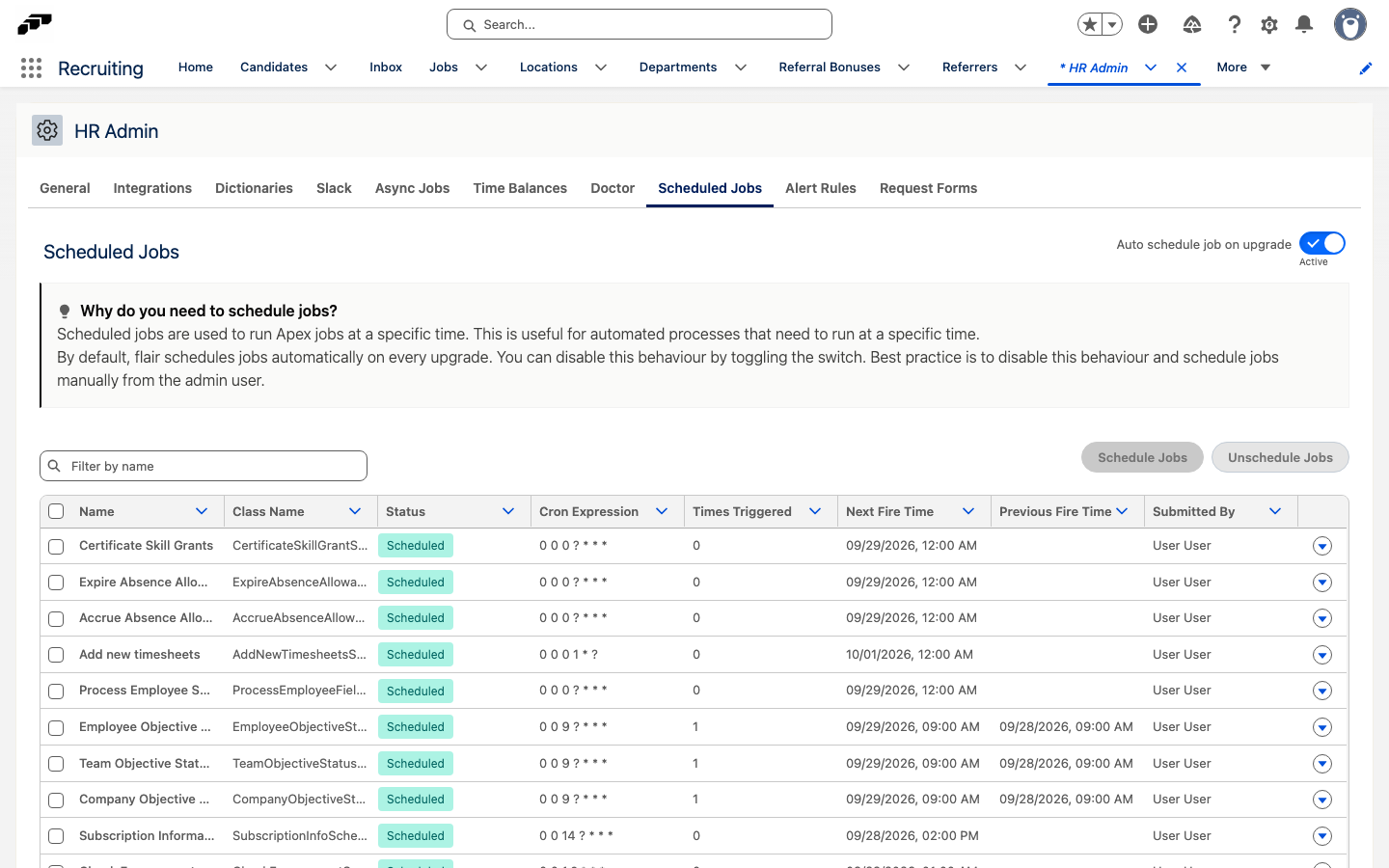
flair runs automated processes as scheduled Apex jobs. The Scheduled Jobs tab in HR Admin lists these jobs, shows whether each one is scheduled, and lets you schedule, unschedule, or run them. When a flair automation stops running, check here first: a job with the status Unscheduled does not run.
-
In the flair HR app, open HR Admin.
-
Click the Scheduled Jobs tab. The table shows each job's Status, Cron Expression, Next Fire Time, Previous Fire Time, and Submitted By.
-
Optional: In Filter by name, enter part of a job name.
-
In the job's row, click the row action menu and select an action:
Action What it does Schedule Schedules an unscheduled job. Unschedule Stops a scheduled job from running. Execute Once Queues a single run of the job now, without changing its schedule.
To change several jobs at once, select their rows, and then click Schedule Jobs or Unschedule Jobs.
Control automatic scheduling on upgrade
By default, flair schedules its jobs automatically on every package upgrade. To manage the schedule yourself, turn off Auto schedule job on upgrade at the top of the Scheduled Jobs tab. The tab recommends turning it off and scheduling jobs manually from the admin user.
With Auto schedule job on upgrade turned off, a job you unschedule stays unscheduled after upgrades, and the automation it runs stops until you schedule it again.
Rerun failed async jobs
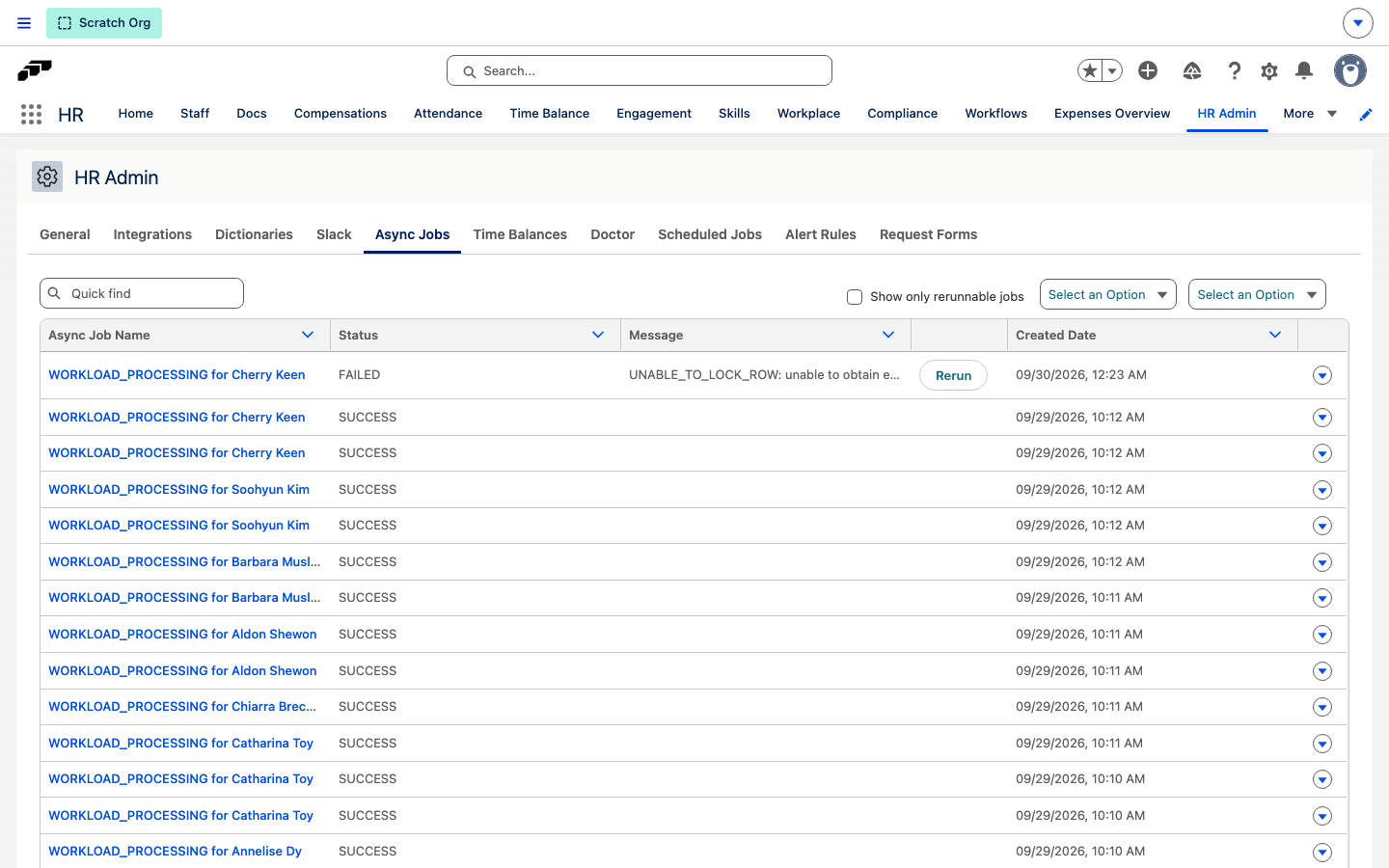
flair records the result of some background processes as async jobs. Today these are workload processing jobs, which recalculate an employee's timesheets after their workload changes. The Async Jobs tab in HR Admin lists these jobs, newest first, with each job's name, status, message, and creation date. When a timesheet recalculation fails, rerun it here.
The tab requires the HR Manager custom permission. Without it, the tab shows a message that you don't have permission to view the page.
- In the flair HR app, open HR Admin.
- Click the Async Jobs tab.
- Optional: To narrow the list, select Show only rerunnable jobs, select a job type such as Workload processing in the type list, or select a status in the status list: Done for jobs that succeeded, Failed, or Partial Success.
- In the row of a failed job, read the message to see why the job failed.
- Click Rerun. flair recalculates the timesheets for that job, and the list refreshes.
Rerun appears only on failed jobs that can be rerun. Each job can be rerun once. flair deletes async jobs older than six months with the Remove old async jobs scheduled job.
Review developer script exception emails
Salesforce can send automated developer script exception emails that require no immediate action. flair Support also monitors these notifications and contacts you when an exception requires attention or could affect your organization.
An email can occur when a user attempts an action without sufficient permission. For example, a user with read access can trigger an exception by trying to delete a job. The email contains the incident details.
- Identify the user in the email.
- Review the attempted action.
- If the action is appropriate, assign the required permission.
Review permissions or contact flair Support when you see repeated exceptions from the same user, exceptions in critical business processes, or a pattern of permission failures.
Update to Salesforce Lightning Design System 2
SLDS 2 uses the Salesforce Cosmos theme. The exact activation flow depends on your Salesforce edition and current configuration.
- Confirm that your Salesforce version supports SLDS 2.
- Review the Salesforce SLDS 2 documentation and compatibility requirements.
- Check custom components and pages for SLDS 2 compatibility.
- Save the current theme and design settings.
- In Salesforce Setup, enable SLDS 2.
- Test every custom component with the new design system.
- Inform users about the interface changes.
For edition-specific activation steps, use the official Salesforce documentation or contact Salesforce Support.
Connect Salesforce Scheduler to an external calendar
Einstein Activity Capture connects the Salesforce calendar with Microsoft Outlook or Google Calendar. Tell users where to edit events based on the configured sync direction.
Appointments created in Salesforce Scheduler are view-only on the Salesforce calendar. Modify or cancel them in Salesforce Scheduler. When those appointments sync to an external calendar, do not modify them there because the events can become out of sync.
Service Resources with the Asset type cannot sync with external calendars.
Choose a calendar sync direction
| Sync direction | Behavior | Where to edit events |
|---|---|---|
| Salesforce to External Calendar | Salesforce Scheduler events appear on the Salesforce calendar and sync to external calendars. External events do not sync to Salesforce and do not affect Service Resource availability. | Salesforce Scheduler |
| External Calendar to Salesforce | External events sync to Salesforce and affect Service Resource availability. Salesforce Scheduler events do not sync to the external calendar. | External calendar |
| Bidirectional | Salesforce Scheduler events sync to external calendars. External events sync to Salesforce and affect Service Resource availability. | Either calendar |
Enable the Outlook integration
Review the Salesforce requirements before setup:
- In Salesforce Setup, enter
Outlook Integration and Syncin Quick Find. - Open Outlook Integration and Sync.
- Select Let users access Salesforce records from Outlook.
Install the Salesforce add-in for Outlook
- Click Microsoft AppSource (Recommended). If company policy blocks AppSource, download the manifest and distribute it to Outlook users.
- On the Microsoft page, confirm the redirect.
- In Microsoft AppSource, click Get it now.
- Enter the email address for the account to connect with Salesforce.
- Click Sign in.
- Enter the required information.
- Click Get it now.
Configure the Email Application Pane
- In Salesforce, select Customize Content with App Builder.
- Click Create New Pane.
- If an error appears, click OK. Salesforce opens Lightning App Builder.
- Drag the flair component into the pane layout.
- Click Save.
- Click Activate.
- Select Set this page as the default Email Application Pane.
- Click Next.
- Click Activate.
- Click Save.
Troubleshooting
The Salesforce add-in does not appear in Outlook
Clear the Outlook browser cookies and cache, and then open the add-in again.