Configure candidates in flair Recruiting
Configure how recruiters track and evaluate candidates in flair Recruiting. Use a Salesforce Path for funnel stages, then assign evaluators and evaluation templates from candidate records.
Salesforce Admins configure the Candidate Path and candidate record types in Salesforce Setup. Recruiters assign evaluators and select a job's candidate record type in the flair Recruiting app.
Before you begin
- Confirm that you can manage Path Settings in Salesforce.
- Create any evaluation templates that recruiters need to assign.
Configure the Candidate Path
-
In Salesforce Setup, enter
Path Settingsin Quick Find. You can also open Platform Tools → User Interface → Path Settings.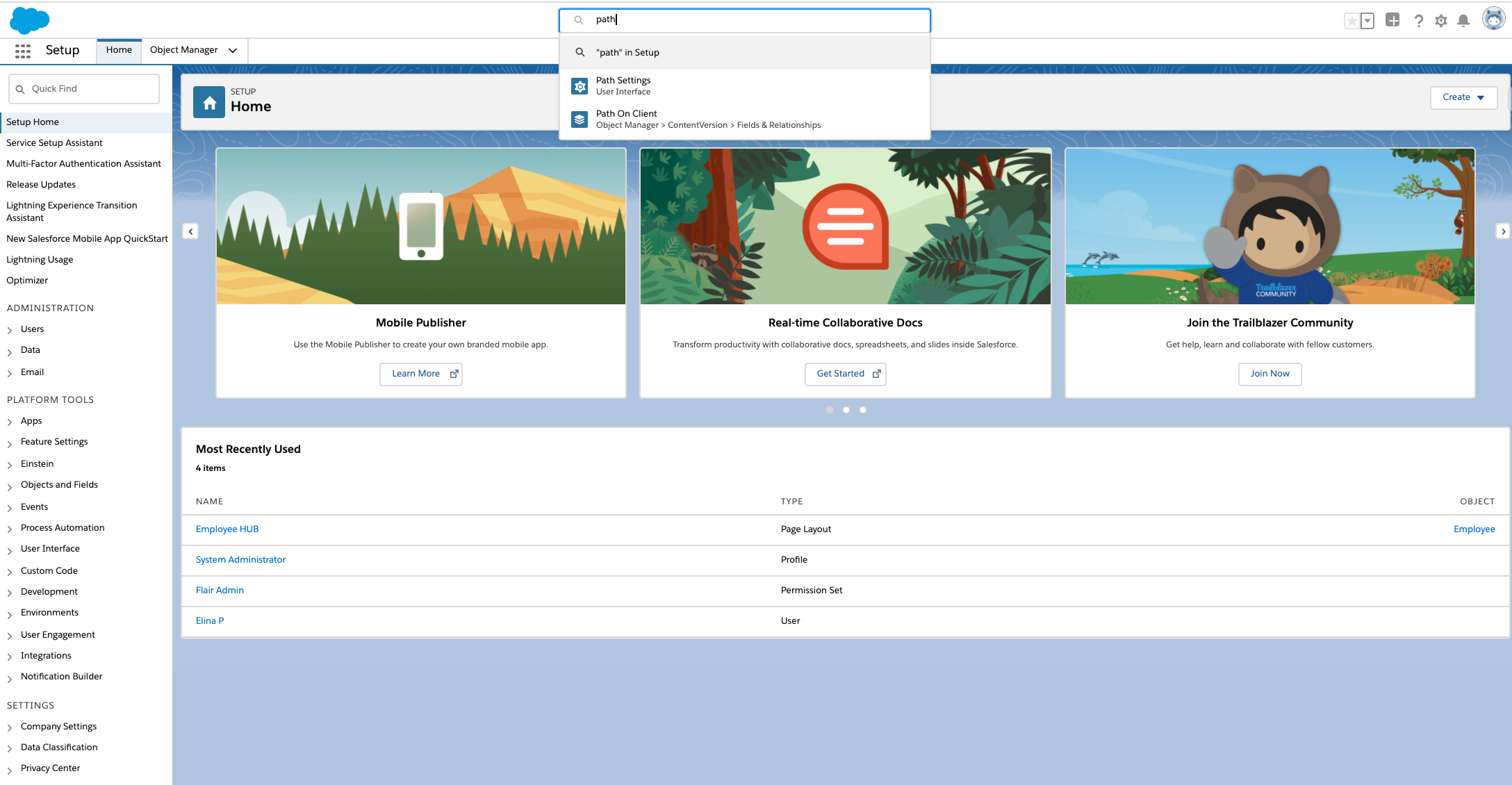
-
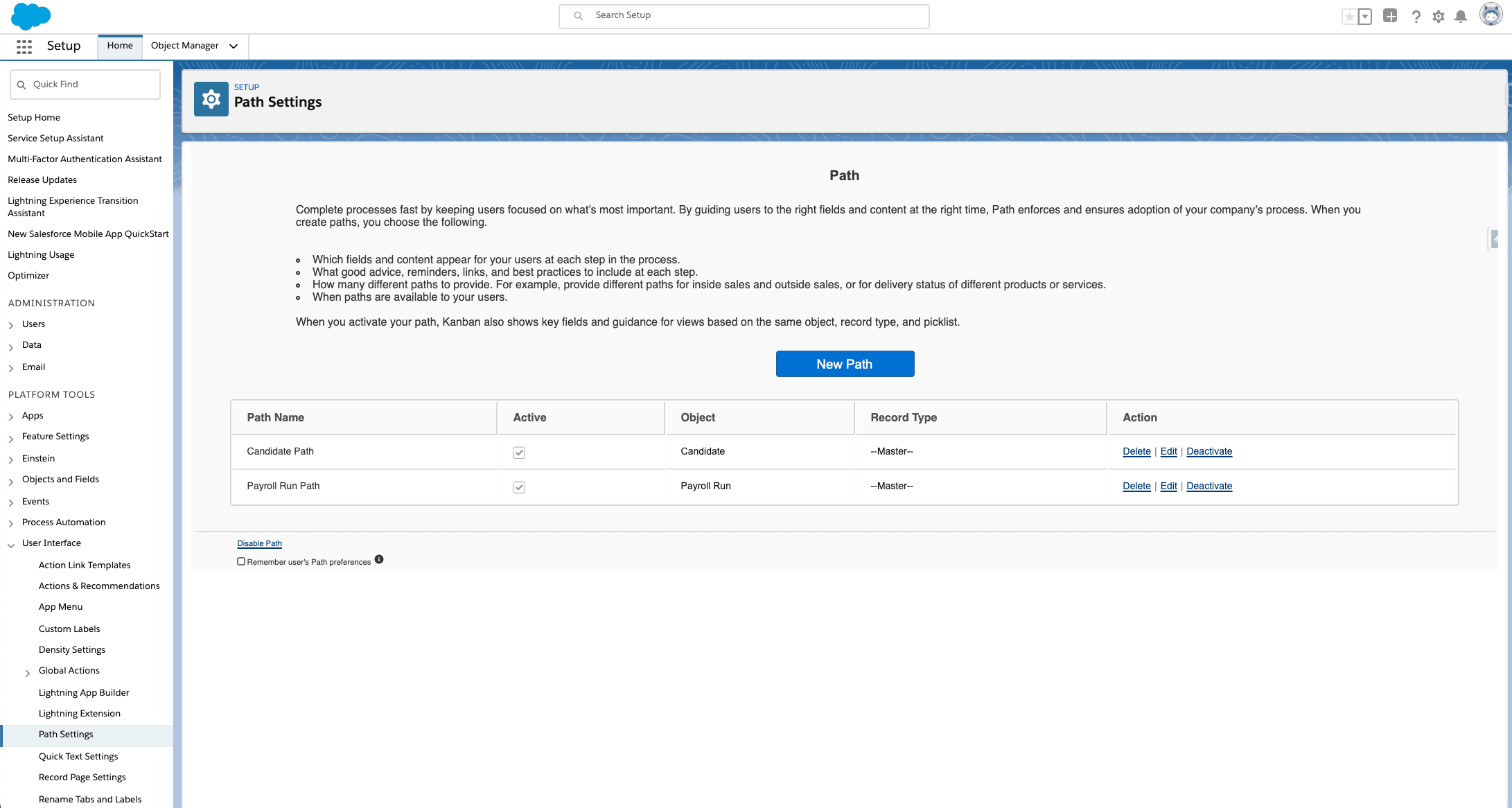
If Paths are disabled, click Enable.
-
Confirm that Candidate Path and Payroll Run Path exist.
-
Select Active for the paths that your organization uses.
-
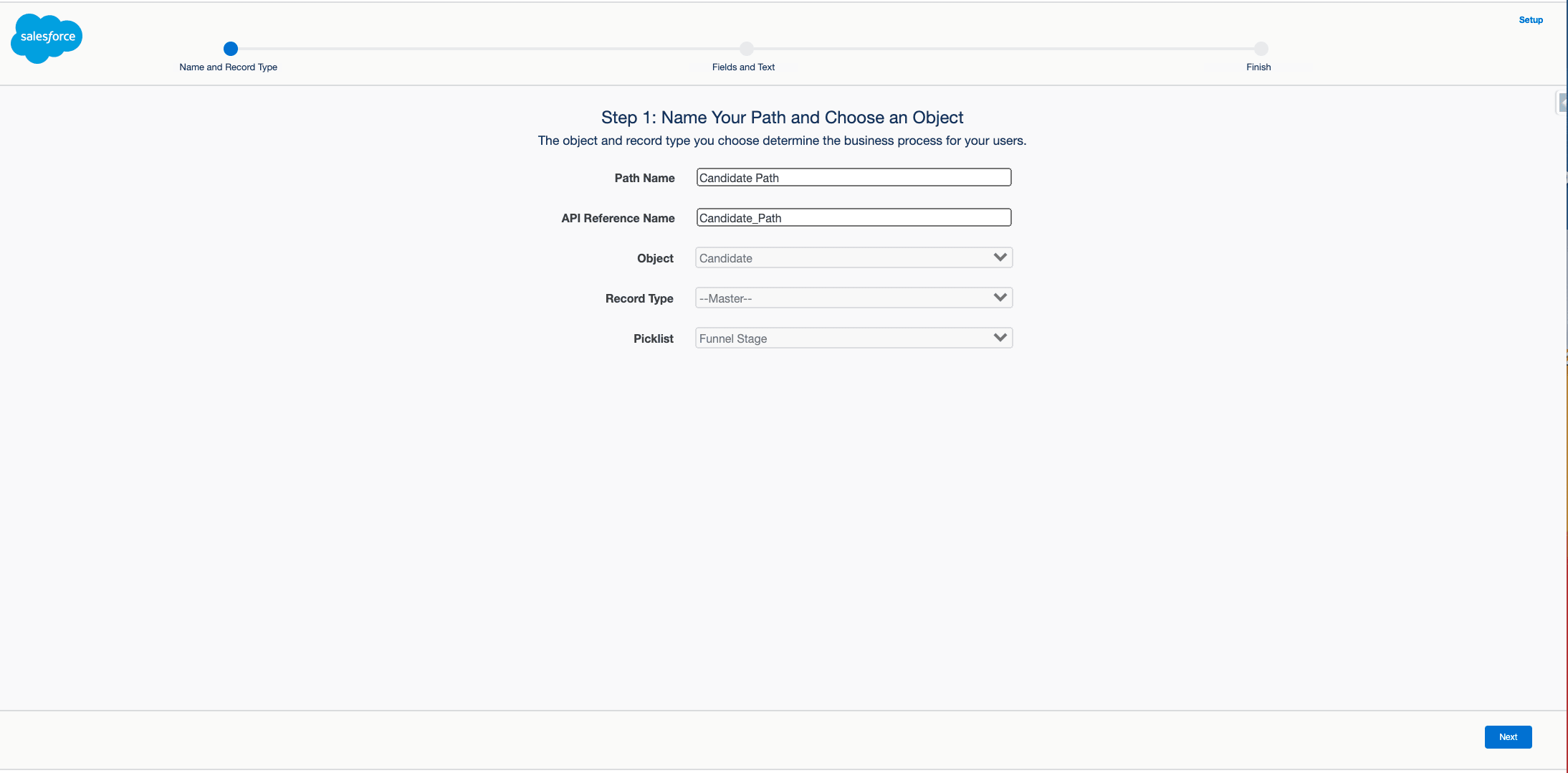
To update Candidate Path, click Edit. You can also create a path.
-
Click Next.
-
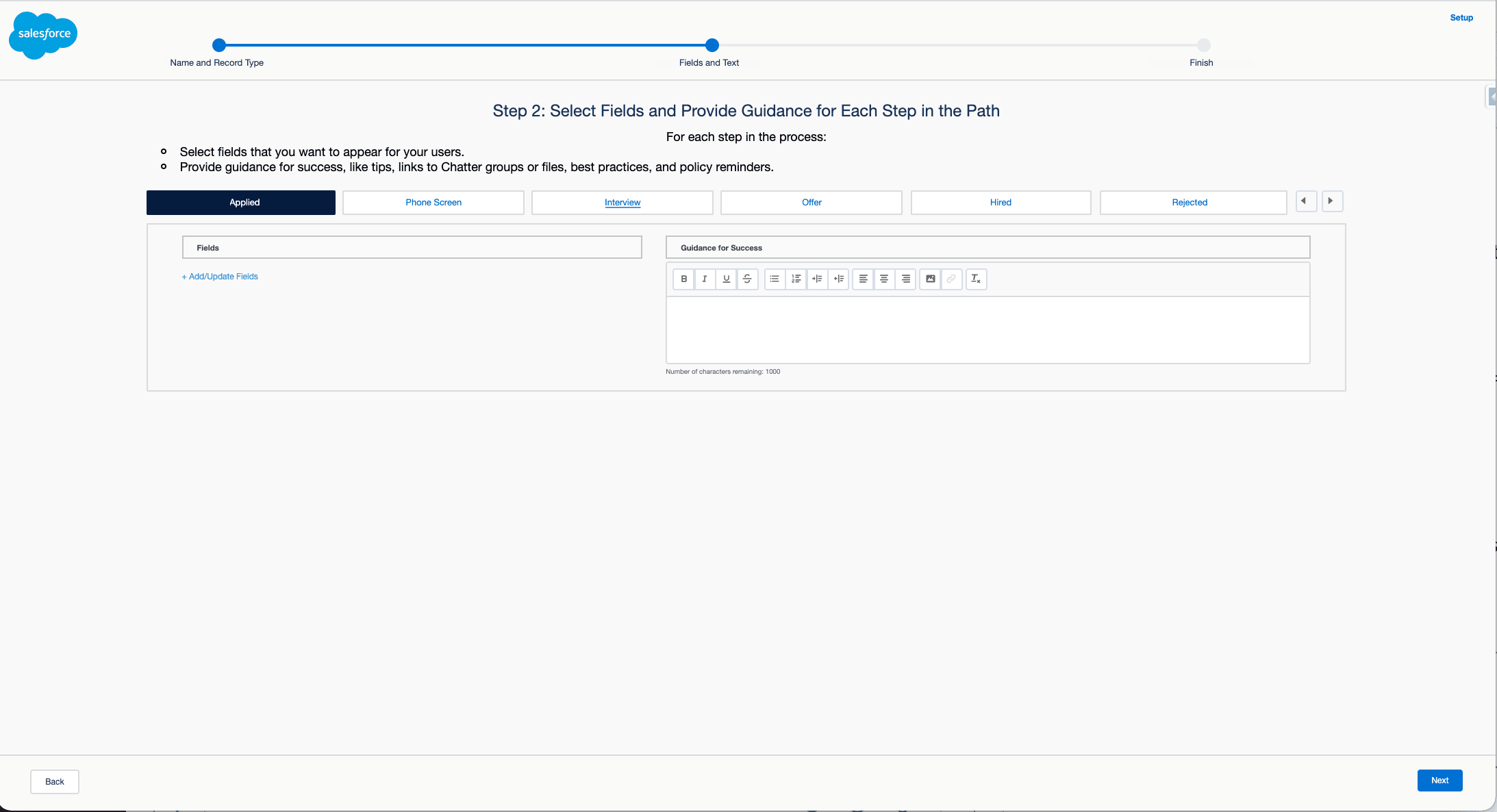
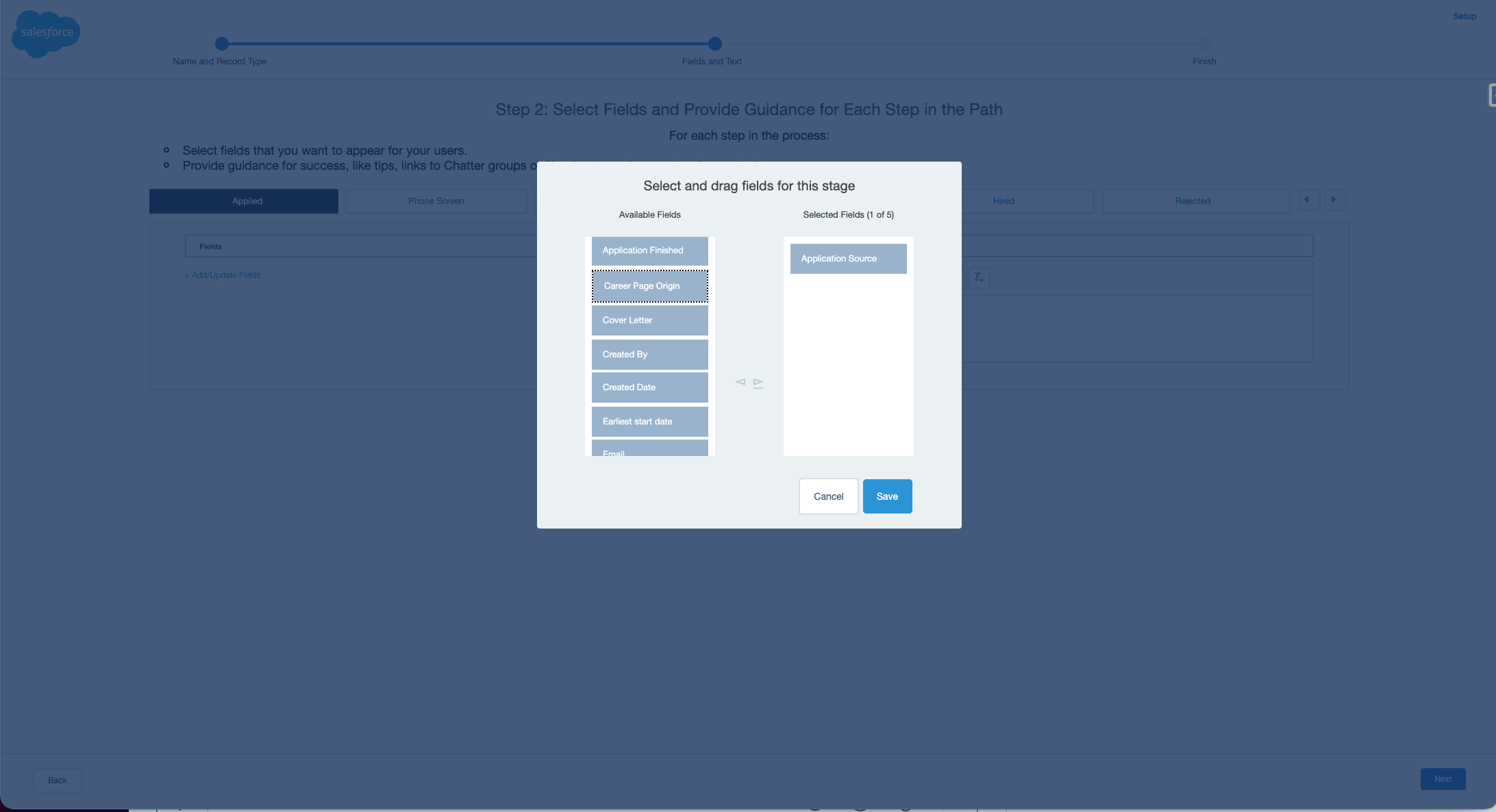
For each candidate stage, add the fields recruiters need.
-
Enter guidance for recruiters in the guidance panel.
-
To change fields, click Add/Update Fields.
-
Move up to five fields from Available Fields to Selected Fields by dragging them or using the arrows.
-
Click Save.
-
Click Next.
-
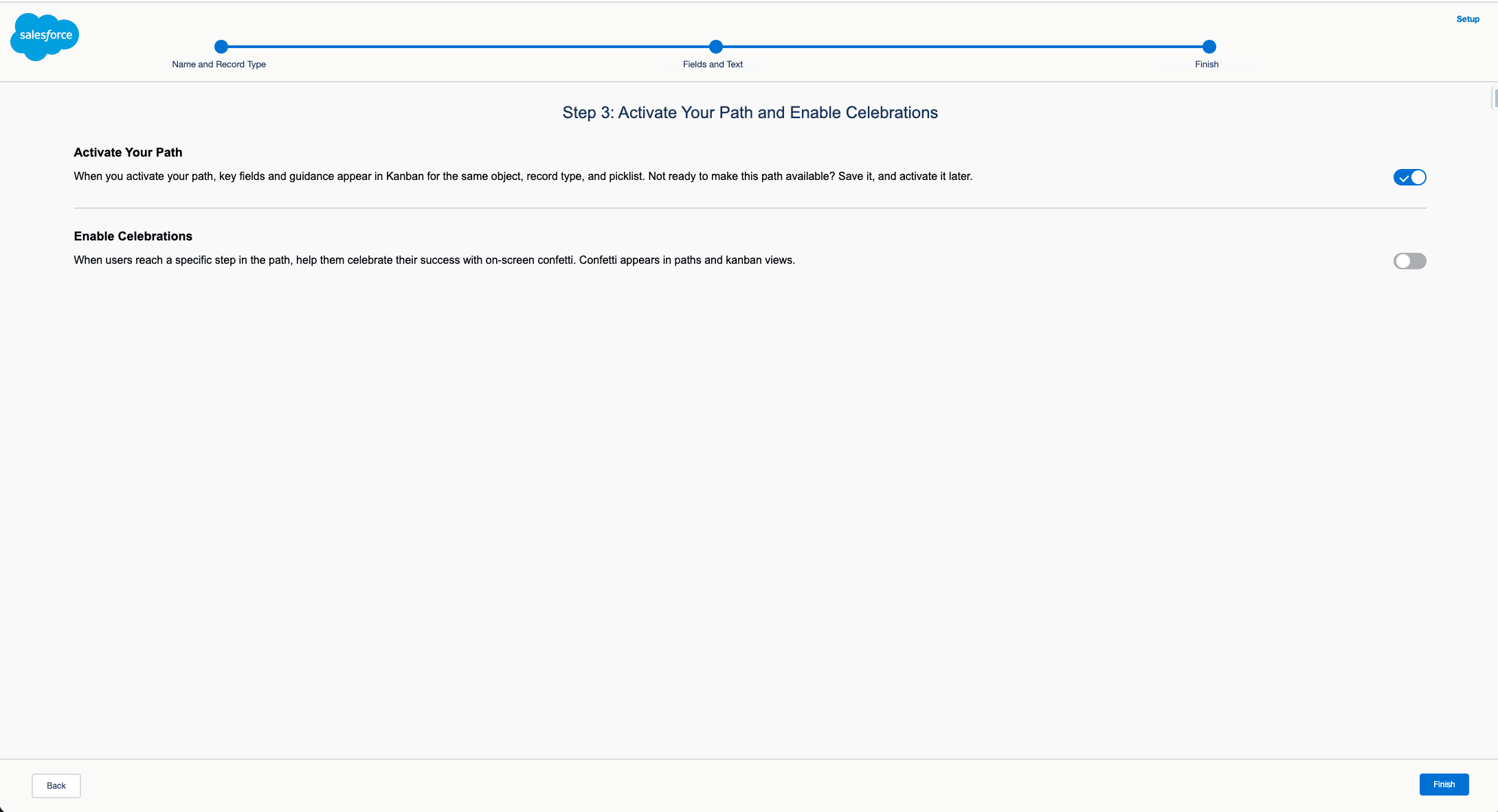
Turn on the activation toggle.
-
Optional: Enable Celebrations.
-
Select the funnel stages that trigger a celebration.
-
Choose how often celebrations appear.
-
Click Finish.
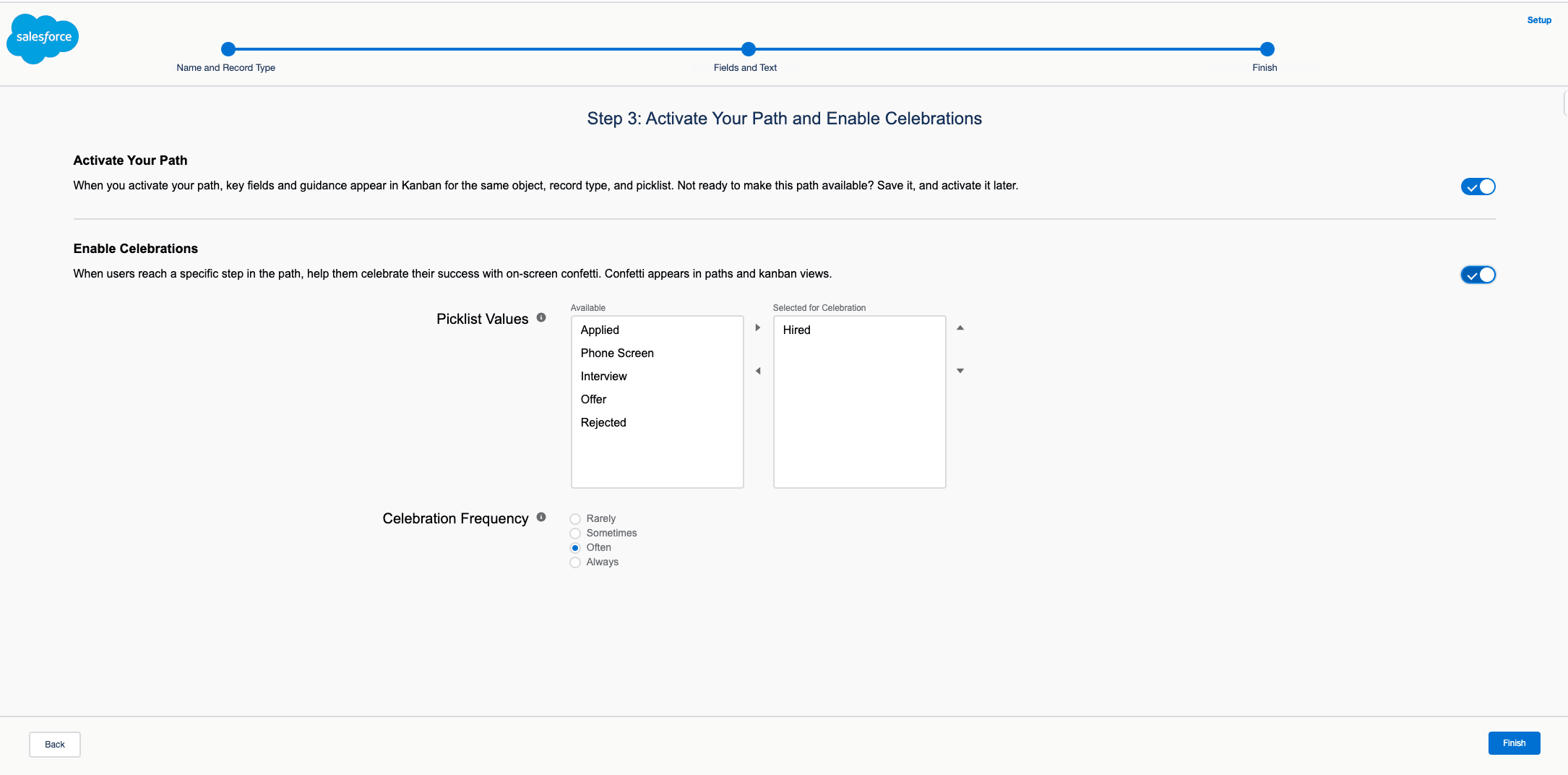
Celebrations display a confetti animation when a recruiter completes a configured action, such as moving a candidate to the next funnel stage.
Give a job its own funnel stages
All candidates use the same funnel stages unless you give a job a different candidate record type. Each Candidate record type can offer its own set of Funnel Stage values, so a job can run its own hiring pipeline.
Create a candidate record type
flair does not ship Candidate record types, so a Salesforce Admin creates them first.
- In Salesforce Setup, open Object Manager → Candidate → Fields & Relationships → Funnel Stage, and add any stages the new pipeline needs that don't exist yet.
- In Object Manager → Candidate, open Record Types, then click New.
- Name the record type, make it available to the profiles that work with candidates, and save it.
- On the new record type, click Edit next to Funnel Stage, and select only the stages this pipeline uses.
- Click Save.
- Optional: Configure a Candidate Path for the new record type.
Select the record type on a job
- Open the job record in the flair Recruiting app.
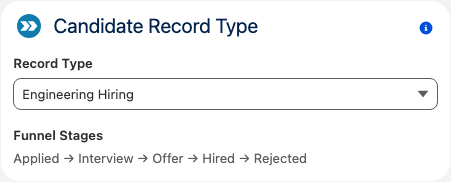
- In the Candidate Record Type card, select a record type in Record Type. flair saves the change and shows the record type's stages under Funnel Stages.
- In Update existing candidates?, choose which candidates use the new record type:
- Click OK to also move the job's existing candidates to it. flair updates them in the background, which can take a few minutes for large jobs.
- Click Cancel to apply it only to candidates created for the job from now on.
flair assigns the job's record type when a candidate is created. Moving an existing candidate to another job doesn't change the candidate's record type.
Configure the candidate traffic light
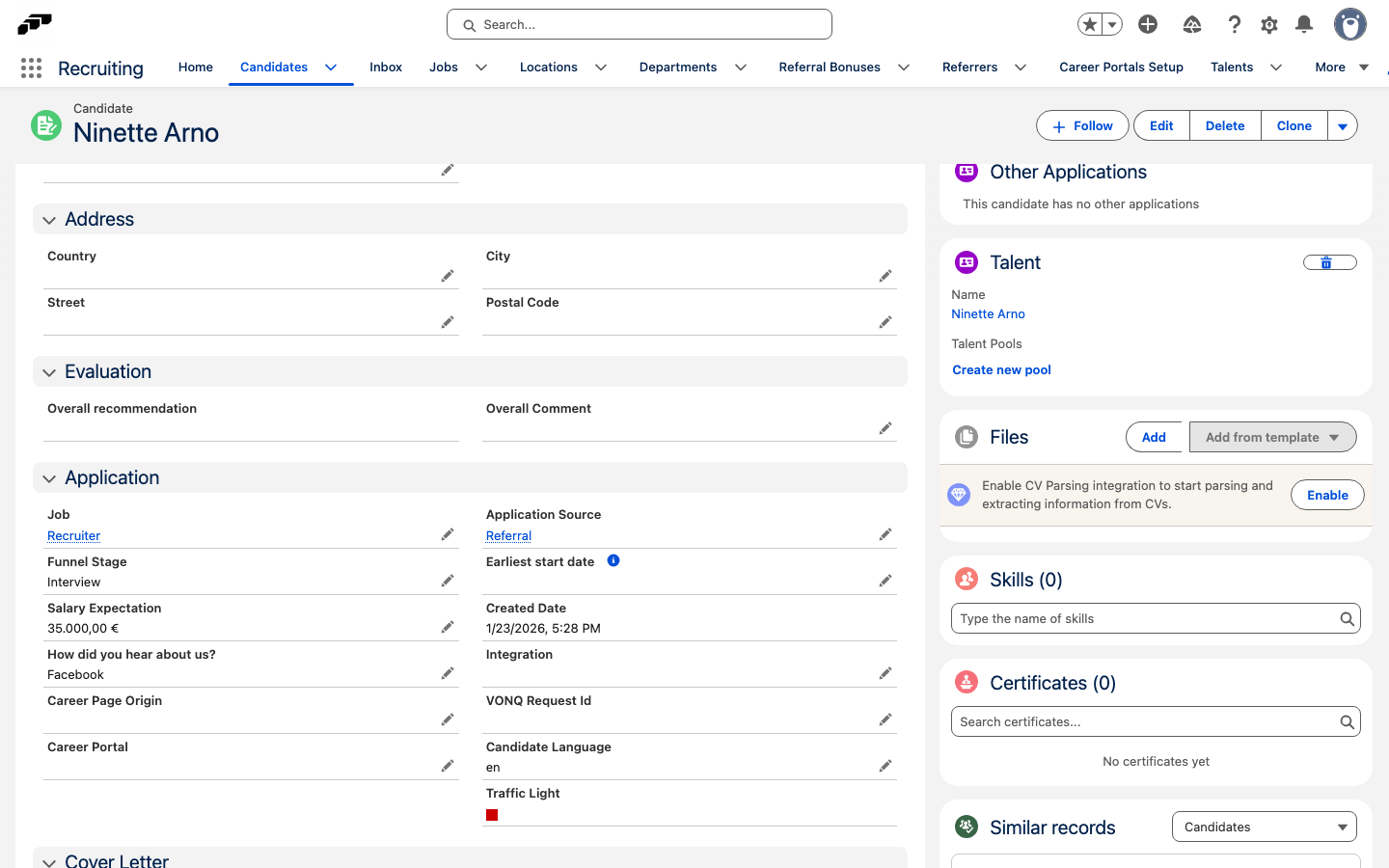
The Traffic Light field on a candidate record shows a green, yellow, or red indicator based on how many days have passed since the candidate's application stage last changed. It appears in the Application section of the candidate's Details tab. Hired and rejected candidates show no indicator.
| Indicator | When it shows |
|---|---|
| Green | Fewer days have passed than the Green Traffic Light Period. The default is 3 days. |
| Yellow | The Green Traffic Light Period has passed, and the time is at most the Yellow Traffic Light Period. The default is 5 days. |
| Red | More days have passed than the Yellow Traffic Light Period. |
To change the periods:
- In Salesforce Setup, enter
Custom Settingsin Quick Find, then open Custom Settings. - Next to Flair Candidate Settings, click Manage.
- Click Edit for the organization default. If no default exists yet, click New.
- Enter the number of days in Green Traffic Light Period and Yellow Traffic Light Period. Set the yellow period higher than the green period.
- Click Save. The traffic light on each candidate record uses the new periods.
If a period is empty, flair uses its default. You can also set both periods on the Privacy & Data Retention tab of Recruiting Admin.
Create candidate tags
Recruiters use tags to label candidates, for example by seniority or source. Only active tags with Use in Recruiting selected can be assigned to candidates.
- From the App Launcher, open Tags.
- Click New.
- Enter the Tag Name.
- Keep Active and Use in Recruiting selected. Both are selected by default.
- Click Save. Recruiters can now assign the tag. See Tag candidates.
To stop offering a tag without removing it from candidates, clear Active.
Assign an evaluator from a job
- In the flair Recruiting app, open Jobs.
- Select a job.
- Select the candidate.
- Open Evaluators.
- Click Add New Evaluator.
- Select an evaluator.
- Select an Evaluation Template.
- Optional: Set a Due Date.
- Click Save.
Assign an evaluator from Candidates
- In the flair Recruiting app, open Candidates.
- Select the candidate.
- Open Evaluators.
- Click Add New Evaluator.
- Select an evaluator and Evaluation Template.
- Optional: Set a Due Date.
- Click Save.