Configure Employee Hub email notifications
Configure and troubleshoot the emails that flair sends to employees and administrators from Salesforce. Most emails first create an Employee Email Notification record; Hub invitations are triggered directly and do not use that object.
Salesforce Admins and HR Admins who manage notification records, templates, permissions, and email settings in Salesforce.
Before you begin
- Confirm that your Salesforce user can send email and manage Employee Notification Settings.
- Verify the sender address and your organization's DKIM and SPF configuration.
Configure Employee Notification Settings
Control which employee notifications flair sends from Salesforce.
-
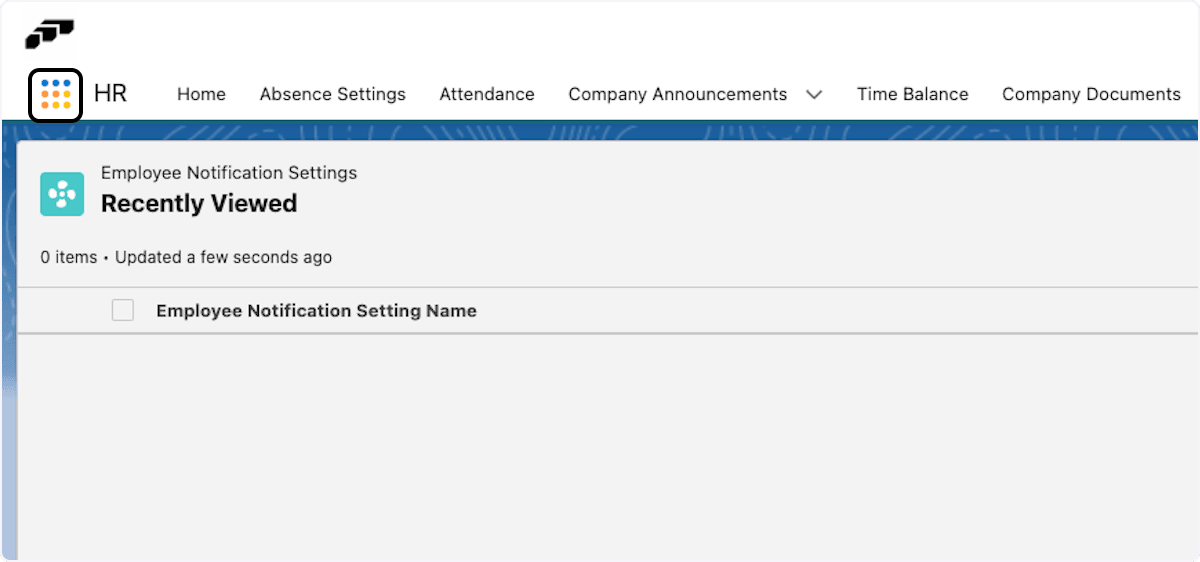
Open the App Launcher (⋮⋮ grid icon).
-
Search for
employee notification settings.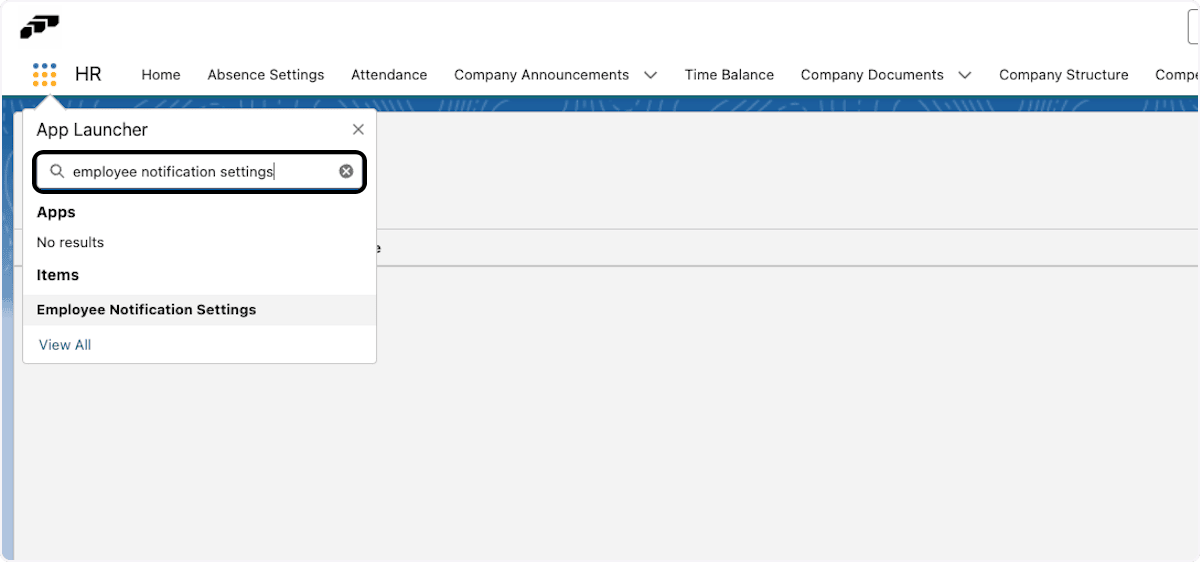
-
Open Employee Notification Settings.
-
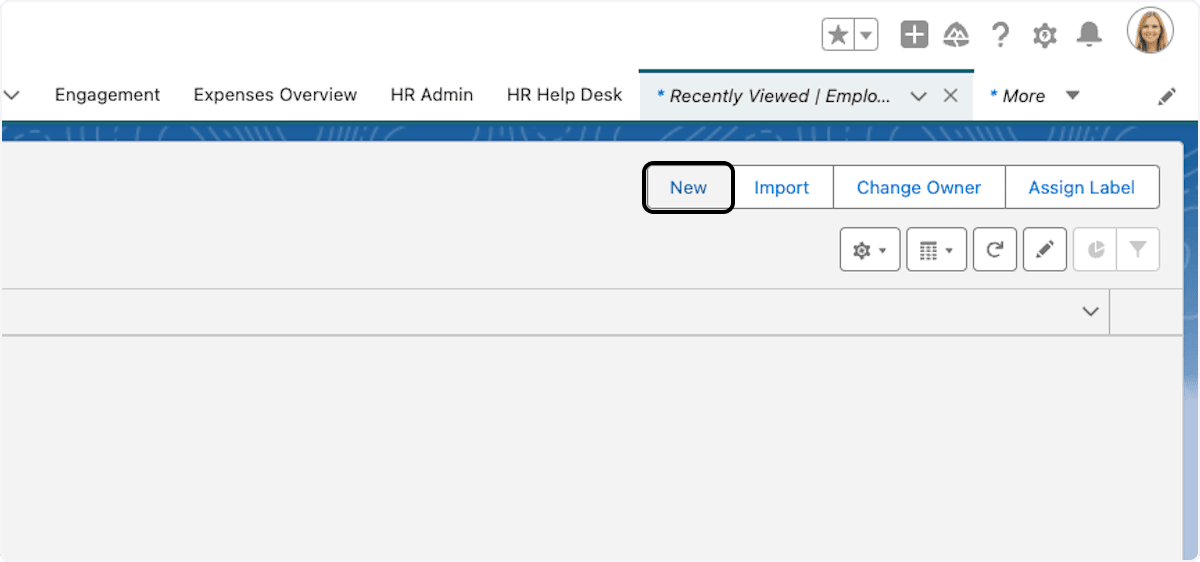
Click New.
-
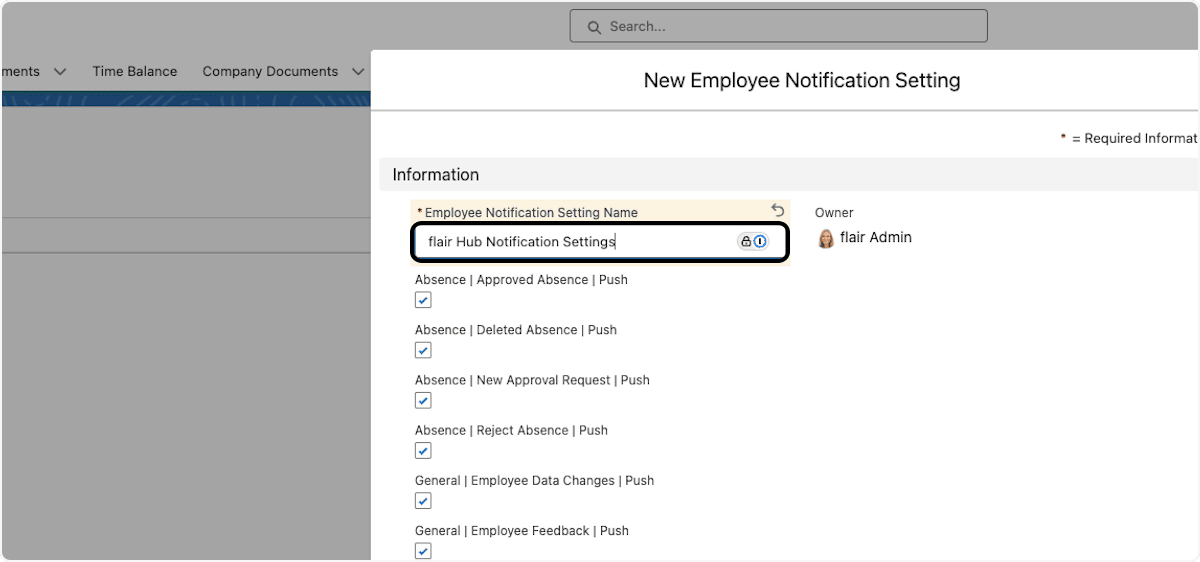
Enter a name for the setting.
-
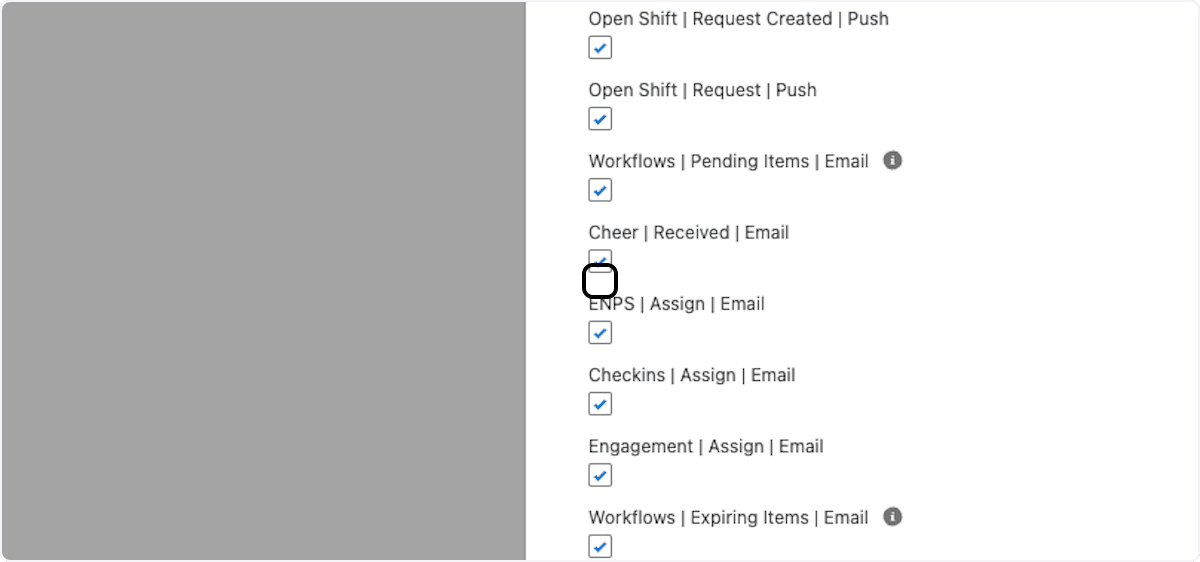
Select or clear each notification option to enable or disable it.
-
Click Save.

Set the notification sender address
Set a From Address for notifications managed by Employee Notification Settings, including absence approvals and deletions. This value overrides the organization-wide address and does not require a new Organization-Wide Email Address.
- In Salesforce Setup, enter
Custom Settingsin Quick Find. - Open Custom Settings.
- Next to Employee Notification Settings, click Manage.
- Click New, or edit an existing entry.
- In From Address, enter a verified email address that Salesforce is authorized to use.
- Click Save. The address applies to every notification managed by this custom setting.
Manage Lightning Email Templates
Lightning Email Templates support rich HTML, merge fields, images, and formatted content.
-
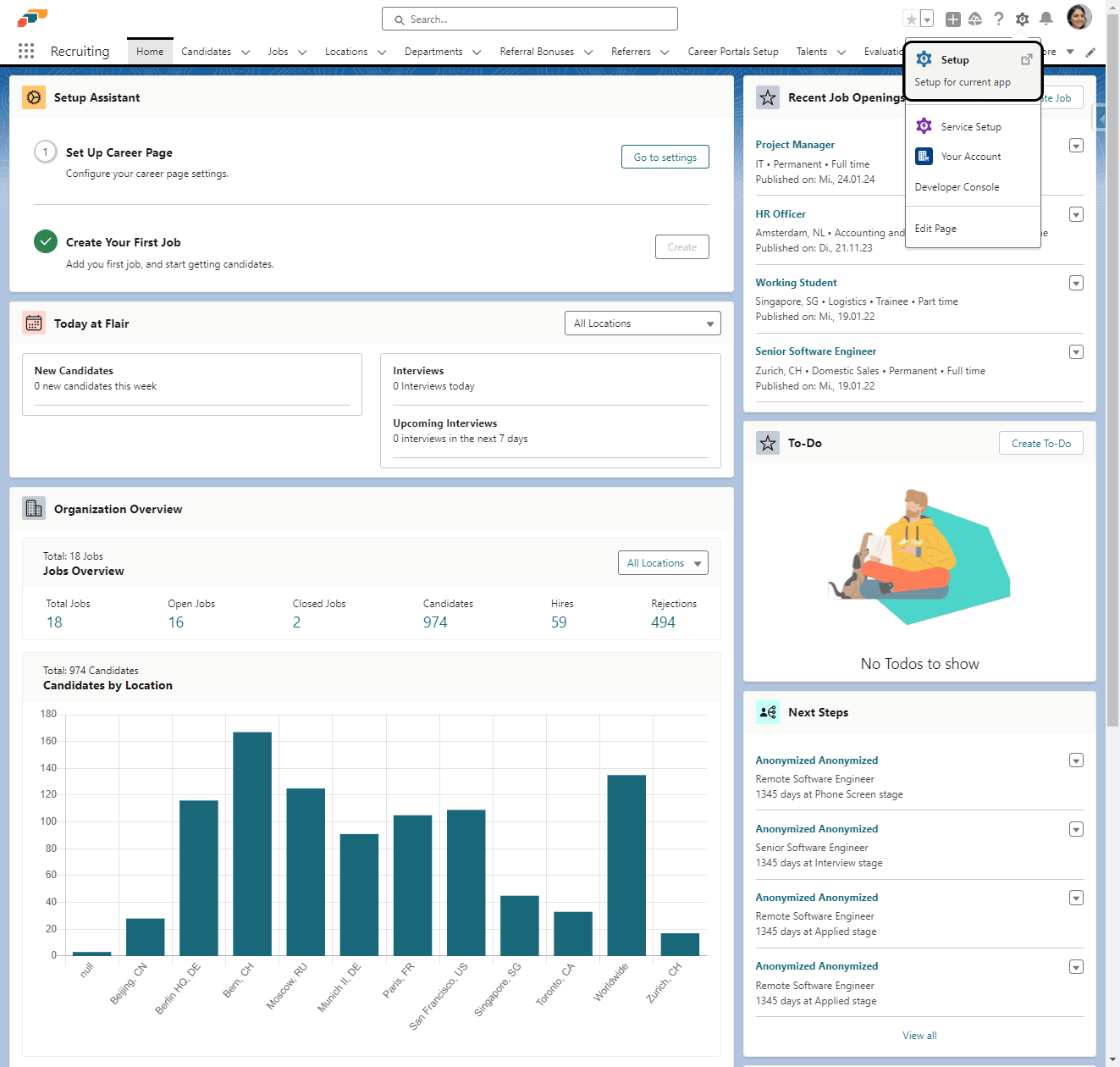
In Salesforce, click the setup gear.
-
In Quick Find, enter
Template.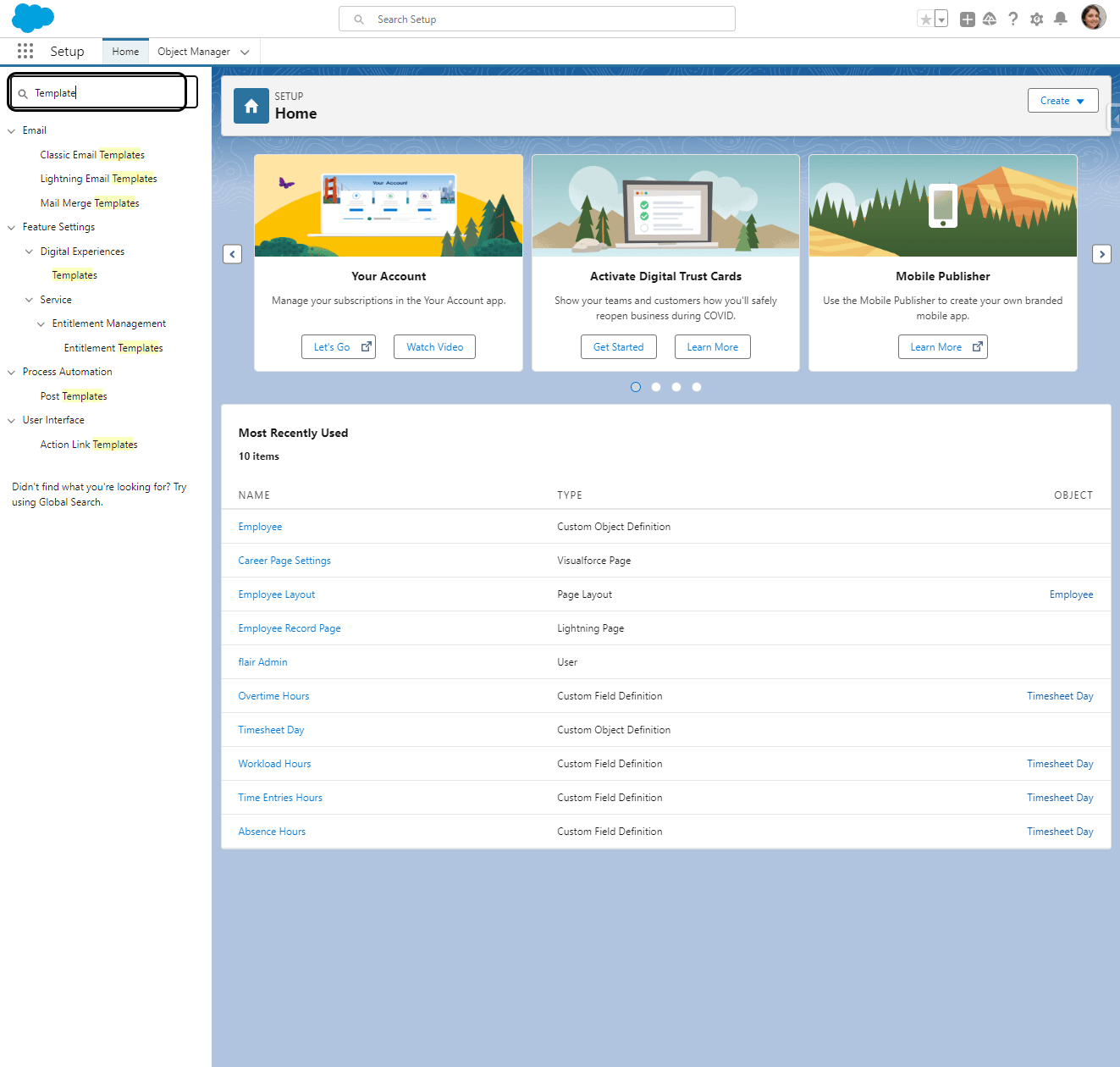
-
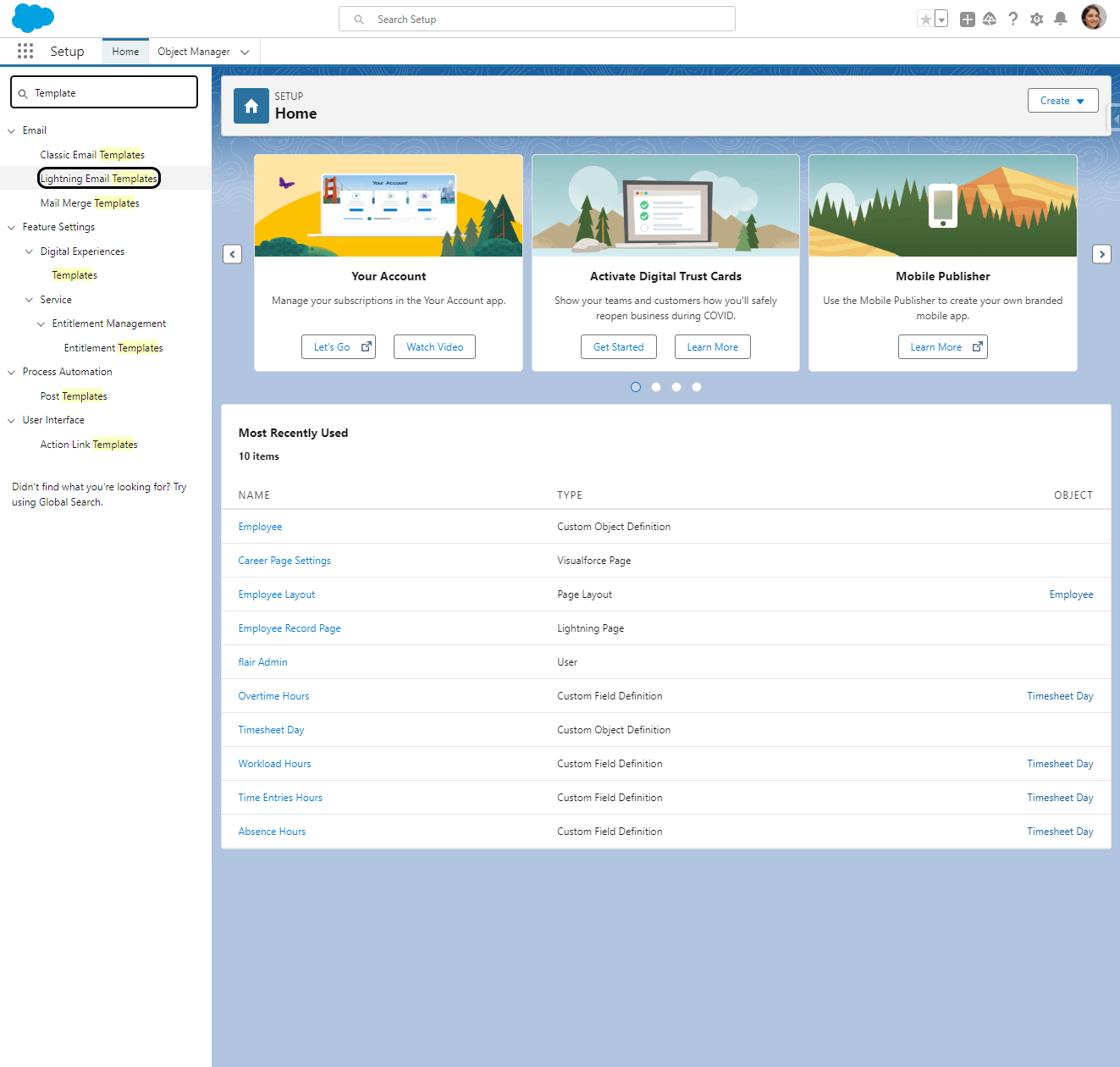
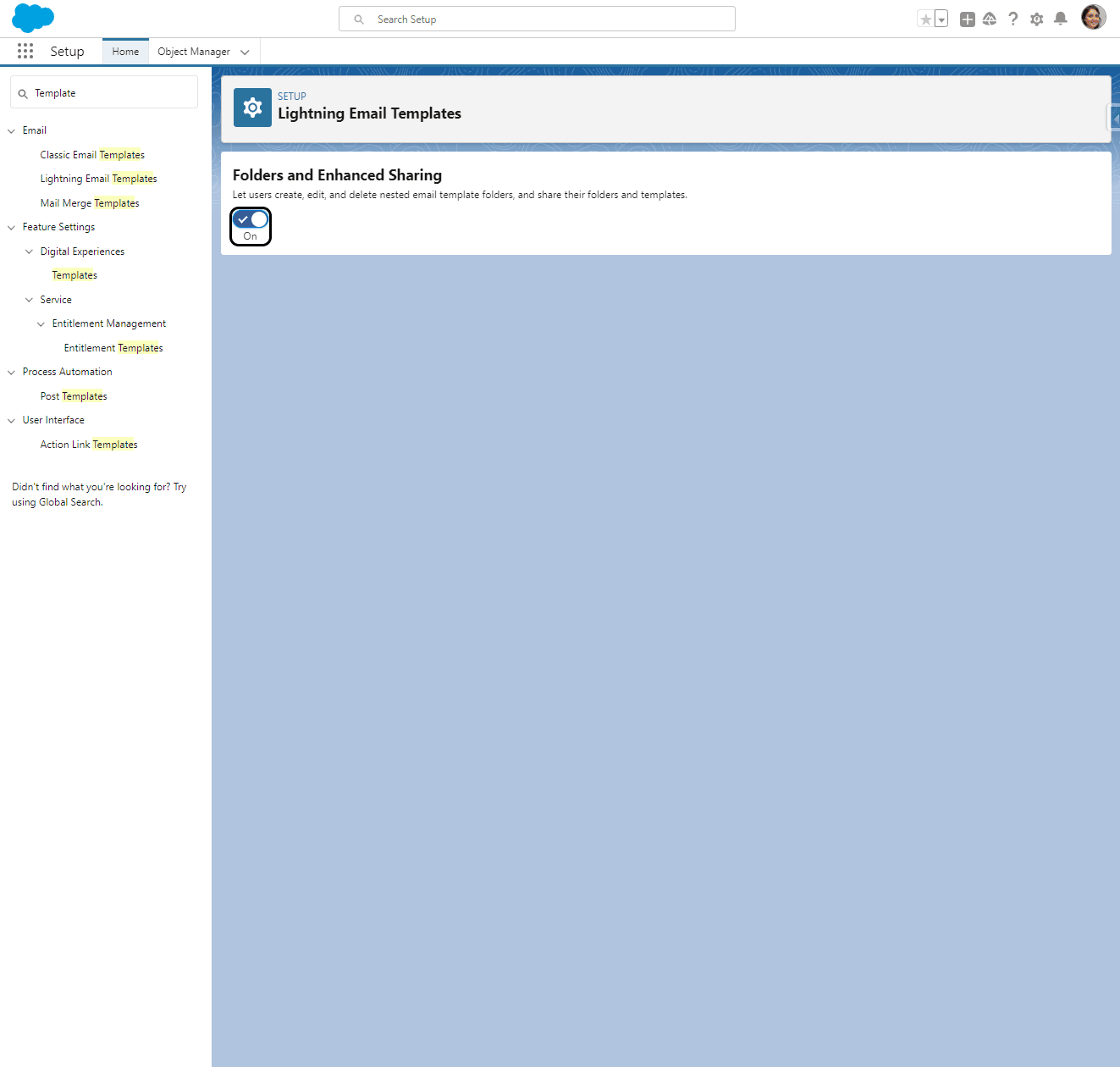
Open Lightning Email Templates.
-
Review Folders and Enhanced Sharing.
-
Create or edit the required templates.
-
Click Save.
Add merge fields to email templates
A merge field is a placeholder that Salesforce replaces with record data when it sends the email. More than 100 merge-field categories cover recruiting, employees, jobs, departments, talent, skills, evaluations, timesheets, payroll, and other areas.
Add merge fields to a Classic Email template
- Create or edit a Classic Email template.
- Under Available Merge Fields, open Select Field Type.
- Select the relevant type, such as Candidate Fields or Payroll Fields.
- Select a field, such as First Name, Employment Type, Job Name, or Contact ID.
- Copy the generated merge-field value into the template.
- Add any other required merge fields. Their types determine which record data Salesforce inserts.
- Click Save.
Add merge fields to a candidate email
- In the flair Recruiting app, open Candidates.
- Select a candidate.
- In Activity, click the Email icon.
- Click Merge Fields (
{ }). - Add any required sender, organization, or candidate fields.
- Click the eye icon to preview the email.
- Click Send.
Pause all Salesforce email
Use Salesforce Deliverability to pause every outbound email during an operation such as a bulk employee-document upload.
This setting blocks all outbound Salesforce email, not only flair notifications. Restore email delivery after the operation.
- In Salesforce Setup, open Email → Deliverability.
- Set Access Level to No access. Salesforce continues to send password-reset emails but blocks other outbound email.
- Complete the bulk operation.
- Return to Email → Deliverability.
- Set Access Level to All email.
Request an email log
Salesforce email logs show delivery status, bounces, and other events for a selected period and address.
-
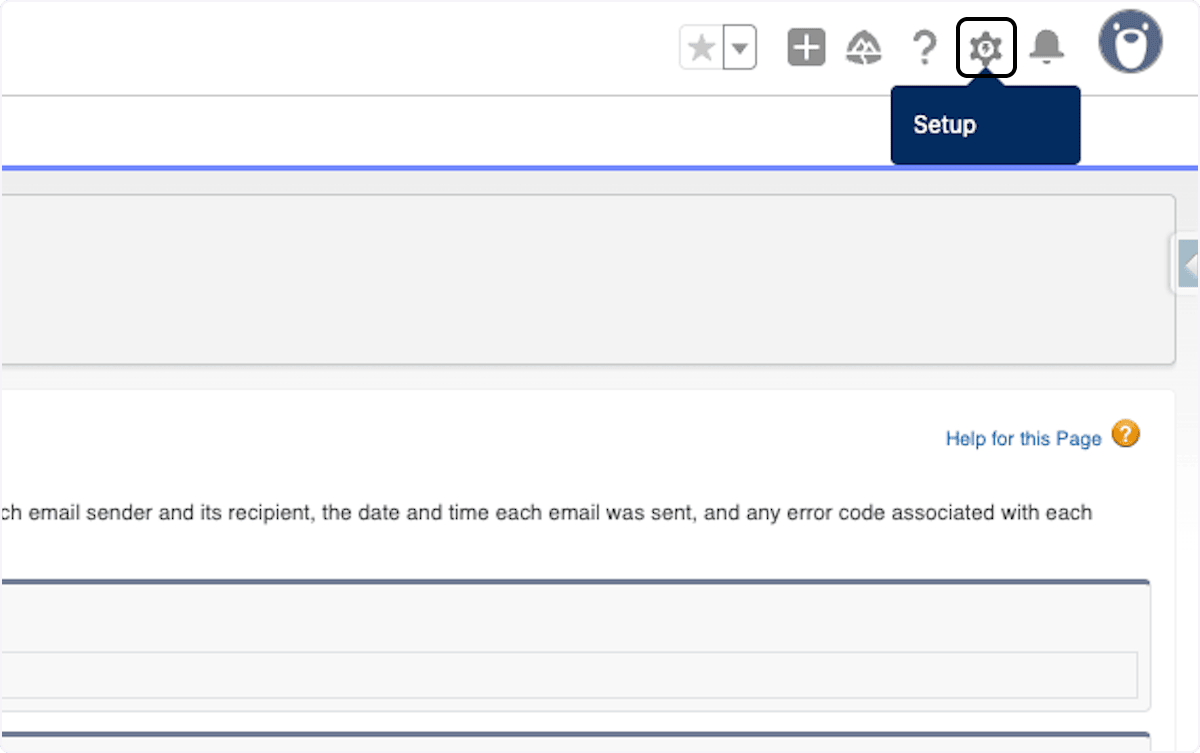
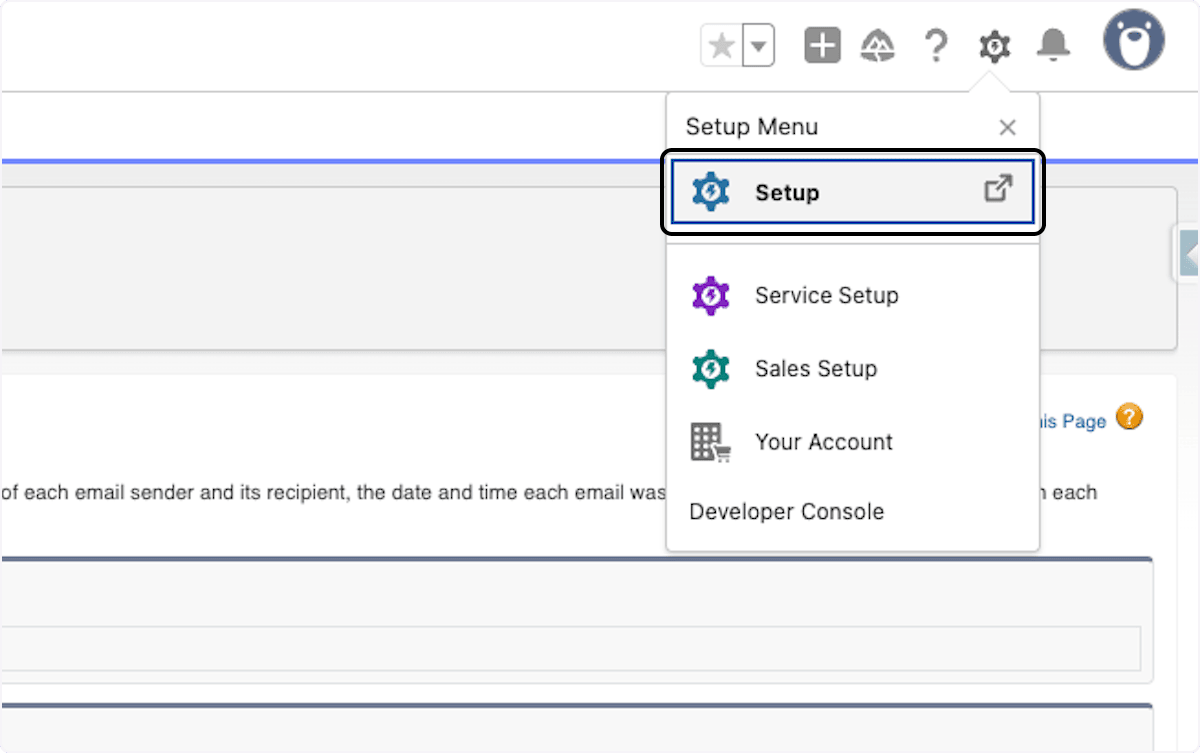
In Salesforce, open Setup.
-
In Quick Find, enter
logs.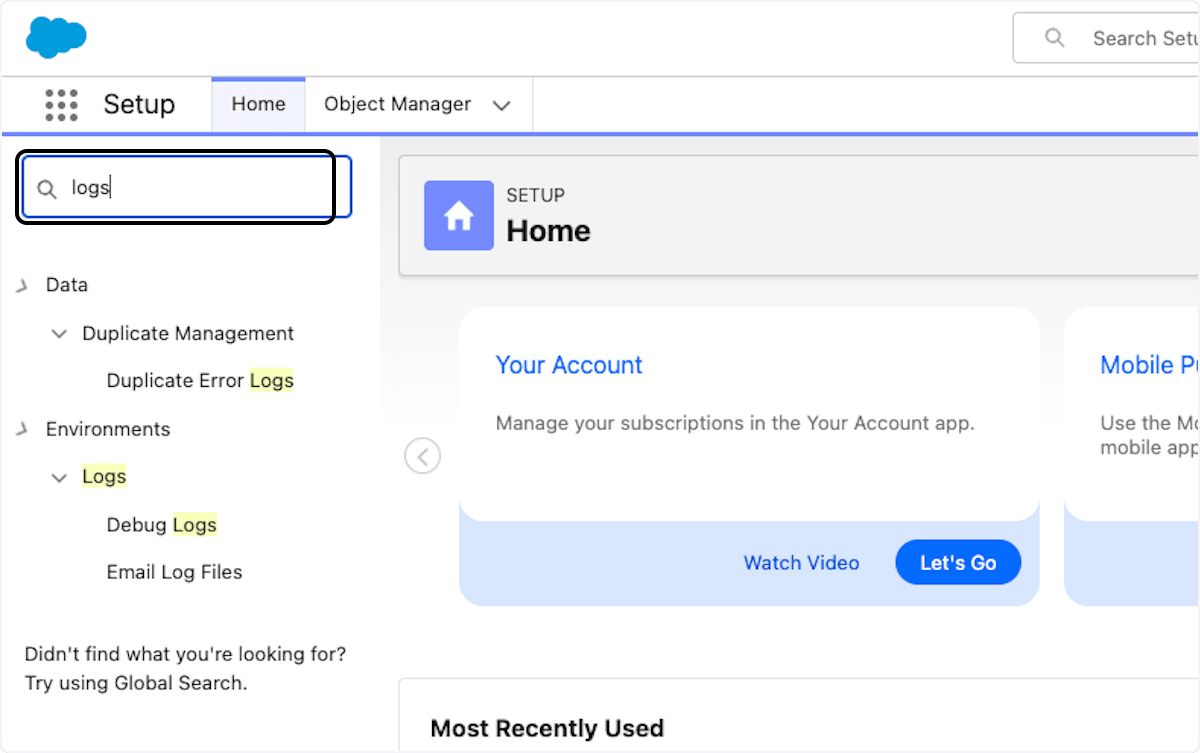
-
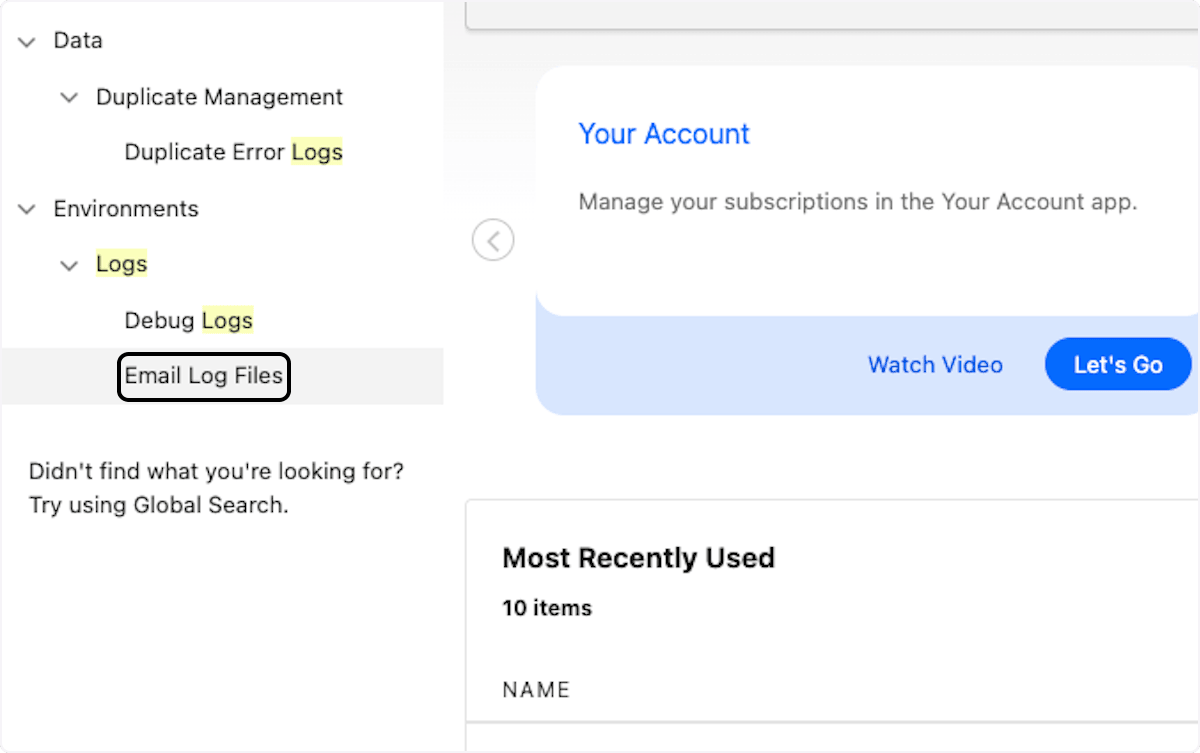
Open Email Log Files.
-
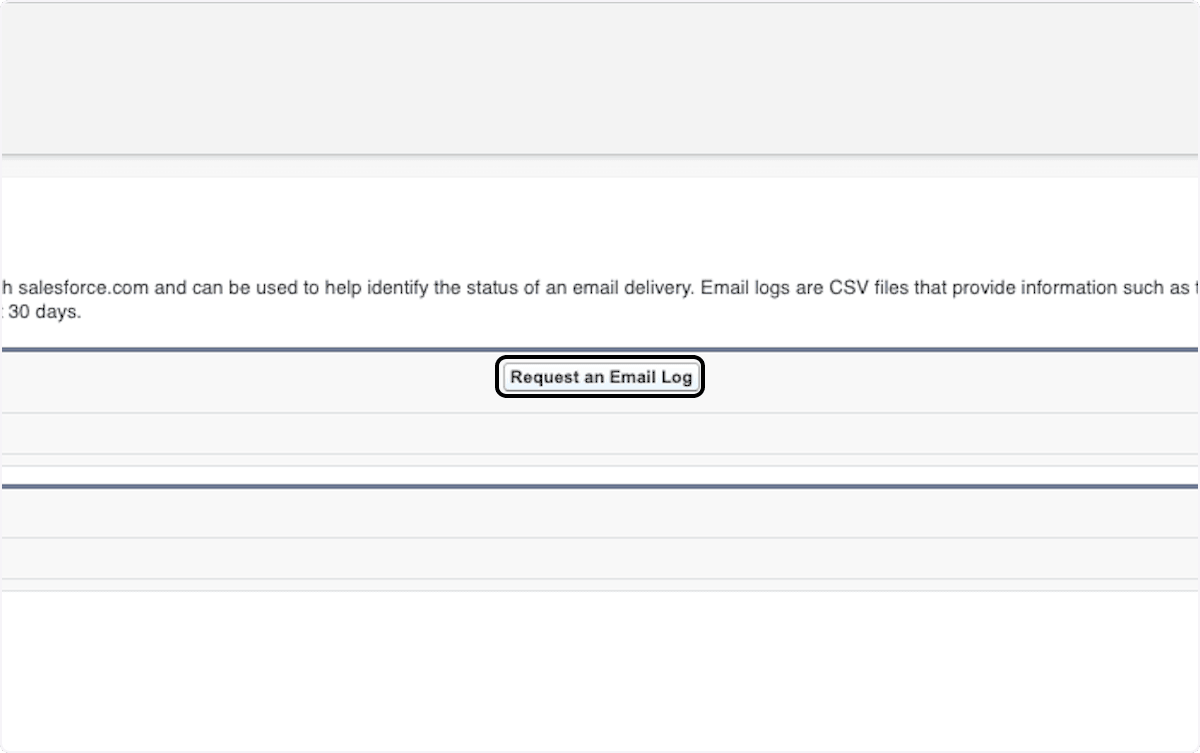
Click Request an Email Log.
-
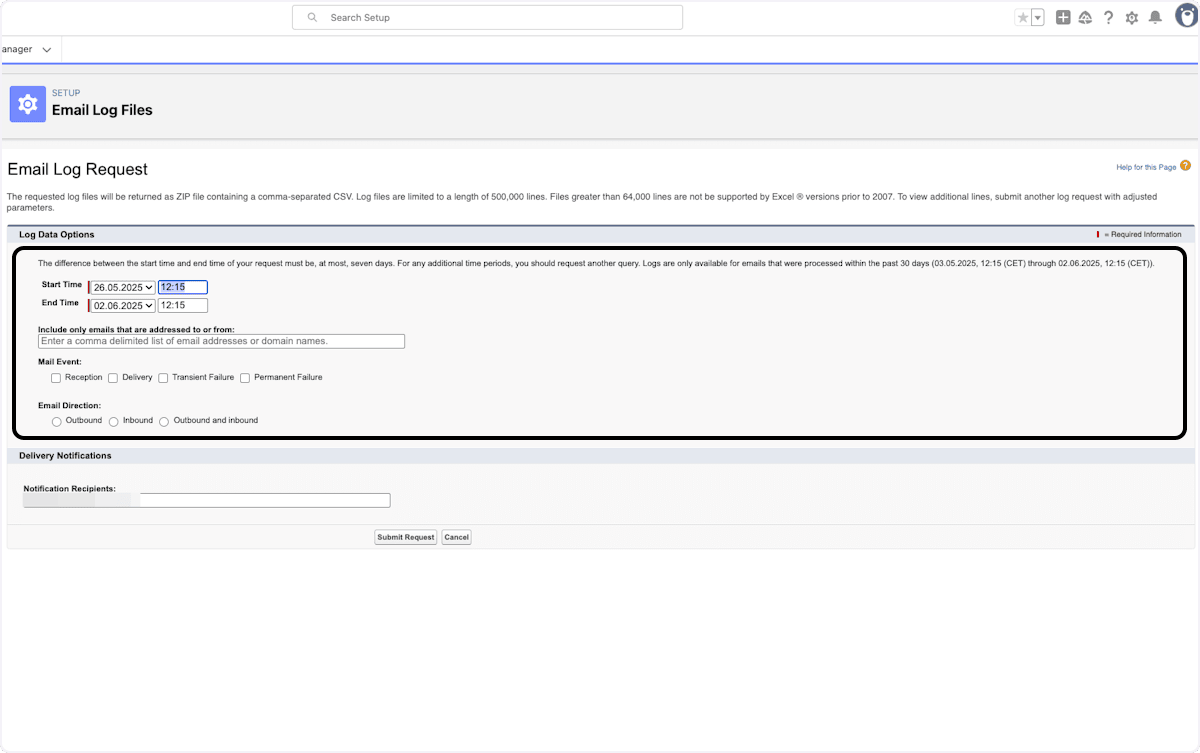
Enter the start and end time.
-
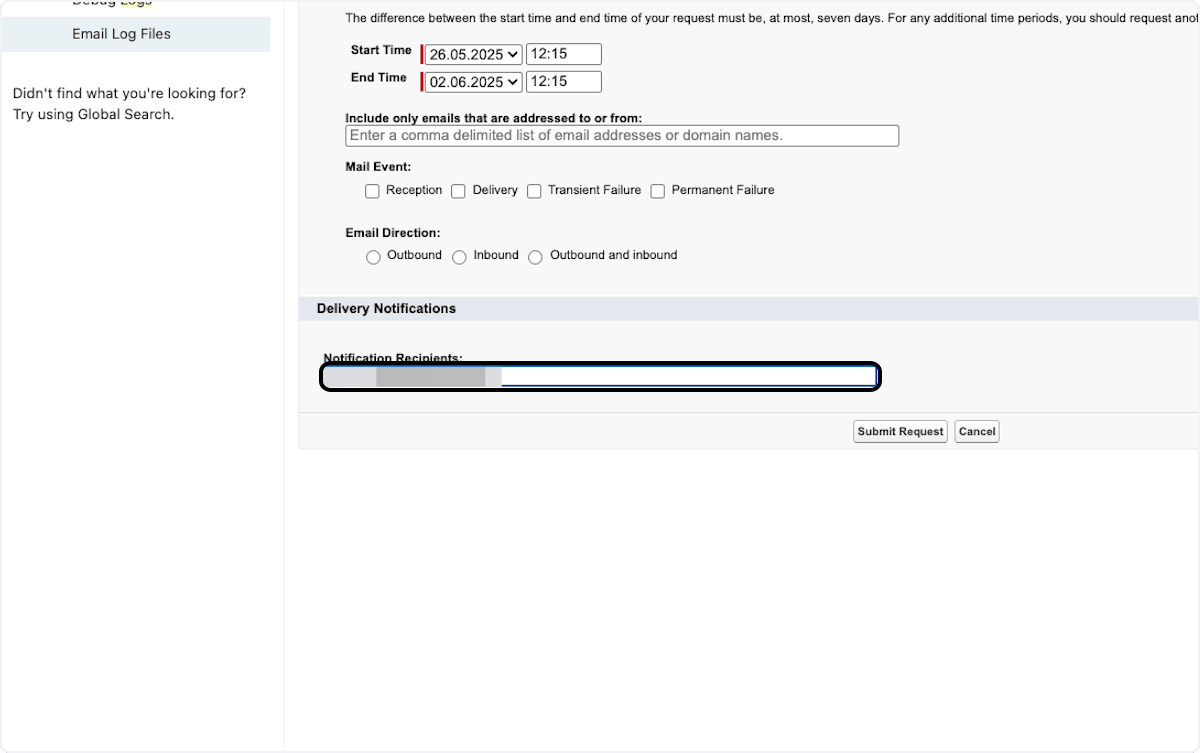
Enter the email address that receives the log file.
-
Click Submit Request. Salesforce emails the log when it is ready.

Configure DKIM for Salesforce email
DKIM lets Salesforce sign outbound email on your organization's behalf. The signature helps recipients verify that your organization handled the email.
Create the DKIM key
- In Salesforce Setup, enter
DKIMin Quick Find. - Open DKIM Keys.
- Click Create New Key.
- Set the key size to 2048-bit.
- Enter a Selector, such as
flair. - Enter an Alternate Selector, such as
flair-alt. - Enter your organization's domain.
- Keep the default Domain Match pattern unless your configuration requires another value.
- Click Save. Salesforce starts publishing the DKIM TXT records to DNS.
Publish and activate the DKIM key
- Wait for Salesforce to finish publishing the key.
- Open the new selector to view its CNAME record.
- Publish the CNAME records in your domain's DNS.
- Activate the DKIM key.
Salesforce does not let you activate the key before the CNAME records are published. Salesforce rotates DKIM keys every 30 days and creates a secondary inactive key for the next rotation.
Troubleshooting
Employees receive no notification emails
- Confirm that your domain's DKIM and SPF records are configured correctly.
- In Salesforce Setup, confirm that Deliverability is set to All email.
- Confirm that the sending user has permission to send email.
- Verify each employee email address on the employee record.
- Ask employees to check spam or junk folders.
- Request an email log to check delivery and bounce status.
Some notifications arrive but a specific notification is missing
This pattern usually indicates a Salesforce permission or notification-setting problem rather than domain authentication.
- Check the relevant Employee Notification Settings entry.
- Confirm that the sending user has the required permissions.
- For Hub invitations, check the inviter's permissions because invitations use the current user's context.
- Use Reset Password as a diagnostic step. Password resets run in the Hub integration-user context.
Absence notification emails are missing
- In the Employee Hub, confirm that the employee's notification settings are enabled.
- From the App Launcher (⋮⋮ grid icon), open Employee Notification Mails.
- Confirm that Salesforce creates notification records.
- If records exist but email does not arrive, ask your identity provider whether flair is allowlisted.
- Verify your Salesforce DKIM and SPF configuration.
- If records do not exist, check Employee Notification Settings in Salesforce Setup.
- If you changed the template, enter its API name without spaces. An unsupported template name prevents notifications from being triggered.
A password-reset email has no reset link
When SSO is active, employees authenticate through the identity provider and do not use a flair password. Direct the employee to the organization's SSO portal, or review the SSO settings if SSO is not intended.
License-assignment alert emails recur every 30 minutes
These security alerts come from Monitoring Integration. Follow Manage flair licenses to disable the integration or restrict license-assignment permissions.
A Hub invitation is missing
Hub invitations bypass the Employee Email Notification object and are currently managed by an Apex trigger. flair is gradually moving notifications to Salesforce Flows. Follow Configure the Employee Hub for invitation-link, permission, and authentication checks.