Correct absence allowances
Correct an automatically accrued allowance without editing the record value that the next accrual run replaces. You can add an adjustment or replace the accrued value completely.
HR Admins who manage employee absence allowances in the flair HR app in Salesforce.
Correct an allowance
- In the flair HR app, open the employee record.
- Open Absence Categories.
- Select the applicable absence category.
- In Allowances, click the menu beside the allowance.
- Select Add correction.
- In Correction Type, select Add or Replace.
- Enter the correction amount.
- Enter a Correction Reason.
- Click Save. The Available amount reflects the correction, and future accrual runs preserve it.
Choose a correction type
| Setting | What it does |
|---|---|
| Add | Adds a positive or negative amount. Adding 2 to 28 produces 30; adding -5 produces 23. |
| Replace | Replaces the accrued value. Replacing 28 with 20 produces 20. |
With Replace, the correction amount becomes the accrued value regardless of the previous amount.
Use a correction for a calculation discrepancy, one-time allowance, pre-policy circumstance, or policy exception.
Correct an allowance expiration date
To extend carryover or adjust how long an accrued allowance remains valid without recalculations resetting the date, set a corrected expiration date. Corrected Expiration Date is available only for allowances created by an accrual policy, not for manual allowances.
- Follow Correct an allowance steps 1–5. If the allowance already has a correction, select Edit correction instead.
- In Corrected Expiration Date, enter the new expiration date.
- Optional: To change only the date, set Correction Type to None. To also correct the amount, select Add or Replace and enter the correction amount.
- Enter a Correction Reason.
- Click Save. The allowance displays the corrected date, and automatic accrual recalculations preserve it.
To restore the expiration date calculated from the accrual policy, edit the correction and clear Corrected Expiration Date, or delete the correction.
Review allowances across employees
The Allowances tab in Attendance lists every employee's balance in one absence category on a date you choose. From there, you can open an employee's allowances and correct them without going to the employee record. The tab appears only when your permission sets include the Absences Manager custom permission, for example through Flair Absence Manager, Flair Manager, or Flair Employee Management.
- In the flair HR app, open Attendance.
- Click the Allowances tab.
- In Select category, select an absence category. The table shows Accrued, Available, Taken (in period), and Planned for each employee, with their location and department.
- Optional: Change the date in the date field. flair calculates the balances as of that date. The default is today.
- Optional: To narrow the list, enter a name in Quick find, or filter by entity, Filter By Location, or Filter By Department.
- Optional: To switch from the current absence period to all periods up to the date, select Total instead of Period. Accrued then covers every period, and Taken (in period) becomes Taken.
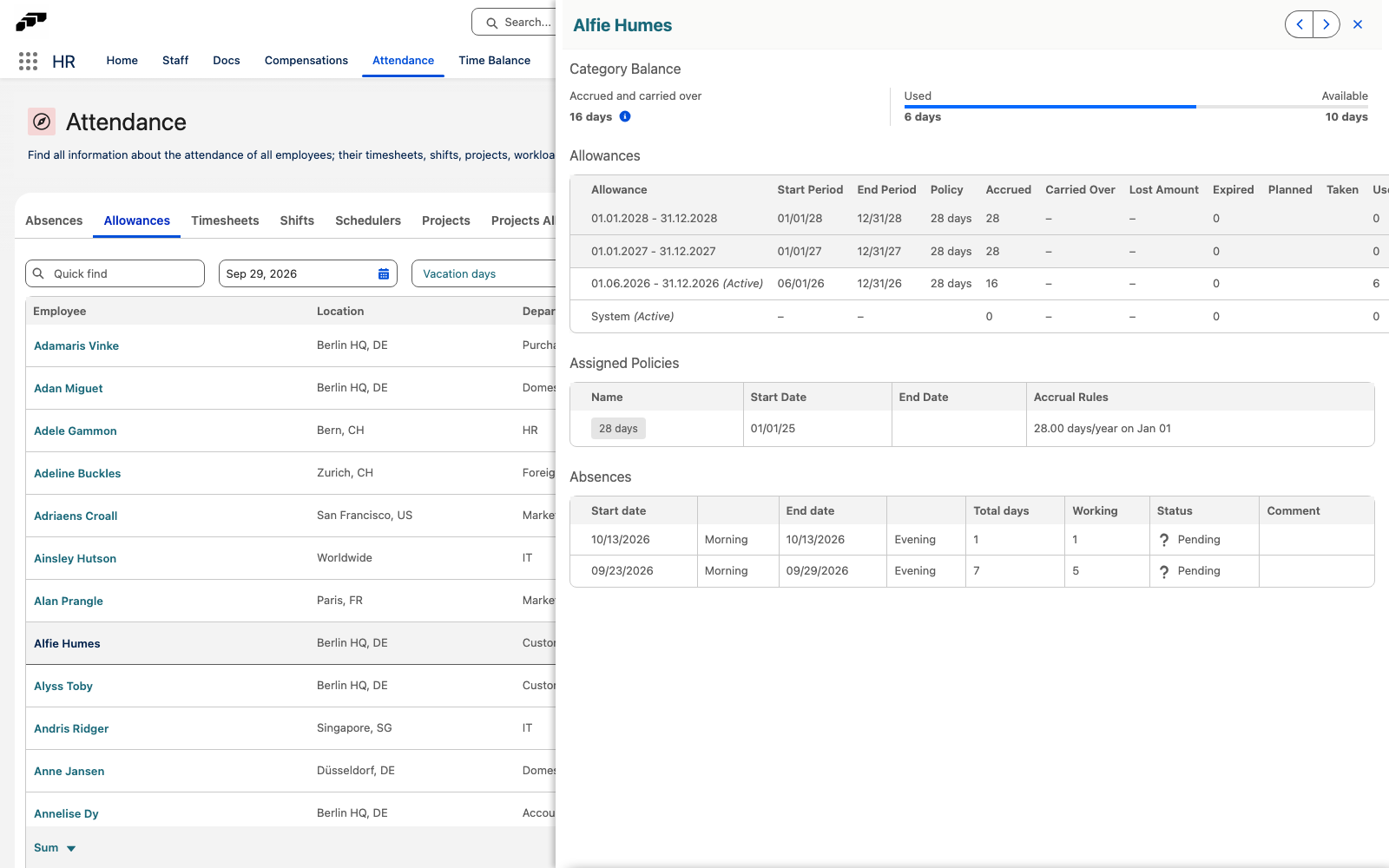
- Click an employee's name. A panel opens with the employee's details for the category.
The footer row totals each column. To show averages instead, open the footer menu and select Average instead of Sum. To export the filtered table, click the CSV or Excel icon.
The employee panel has these sections:
| Section | What it shows |
|---|---|
| Category Balance | Accrued and carried over, Used, and Available. Hover over the help icon for the carryover. Expired appears when carryover expired. |
| Allowances | The employee's allowances, with the same menu as on the employee record. To correct one, follow Correct an allowance from step 4. |
| Assigned Policies | Each accrual policy with its Start Date, End Date, and Accrual Rules. |
| Absences | The employee's absences in the category, with their status. Appears only when the employee has absences in the category. |
To move to the previous or next employee in the list, use the arrow buttons at the top of the panel.
Use correction fields in Salesforce
Correction fields support Salesforce workflows, Process Builder, Flow, and other automations:
| Field | What it records |
|---|---|
flair__Correction_Amount__c | The positive or negative correction amount. |
flair__Correction_Type__c | Add or Replace. |
flair__Correction_Reason__c | An optional explanation. |
flair__Correction_Datetime__c | The correction time, populated automatically. |
flair__Correction_User__c | The user who made the correction, populated automatically. |
After a correction, the accrued field can show an indicator. Correction history records the changed amount, time, and user.
Understand allowance order
When an employee has multiple allowances, flair uses them in this order:
- Allowances without start or end dates.
- Dated allowances, from the oldest start date to the newest.
- Allowances with the same start date, from the lowest weight to the highest.
For a future absence, flair initially reserves time from the future allowance. As the absence approaches, flair uses available carryover from the previous period first.
Pay out absence allowance
HR admins can pay out an employee's remaining absence balance (such as vacation or overtime) as a one-time monetary compensation for payroll.
The Payout menu item appears only when your permission sets grant create access to both Absence Allowance Payout and Employee One-Time Compensation. Create access to Employee One-Time Compensation comes only from the Flair Payroll Management, Flair Payroll Manager, or Flair Salary Manager permission sets.
- In the flair HR app, open the employee record.
- Open Absence Categories and select the category.
- Next to the allowance overview, open the Add menu and select Payout.
- Select the Payout date and click Next.
- Review the proposed balance and compensation details:
- Amount to pay out: The days or hours to pay out (cannot exceed the remaining balance on the selected date).
- Hours per day: For day-based categories, the employee's standard workday duration.
- Hourly rate: Calculated from the employee's salary and contracted hours, or entered manually.
- Pay type (optional): The payroll compensation pay type, pre-filled from the payout preview.
- Optional: Add Notes.
- Click Next.
- Confirm the total amount and currency, then click Finish.
flair automatically creates an Employee One-Time Compensation linked to the payout, which feeds into payroll runs, and deducts the paid-out amount from the employee's remaining absence allowance.