Calibrate Performance Review results
Use a Calibration Session to let Managers review and adjust employee ratings together across Performance Review sections, Objective Periods, Objective Categories, or manual topics. Calibrators can change ratings, while Observers have read-only access.
HR Admins configure Calibration Sessions in Salesforce. Invited Calibrators and Observers use the calibration workspace in the Employee Hub.
Before you begin
- Assign Flair Advanced Development Manager to users who create or manage Calibration Sessions in Salesforce.
- Create the Feedback Cycle, Objective Period, or Objective Categories that will provide the calibration topics.
The permission set grants access to the Calibration Session, Topic, Participant, Employee Topic, and Update objects and makes Calibration Sessions visible.
Create a Calibration Session
- In flair HR, open Calibration Sessions.
- Click New.
- Enter the session details.
- Link the relevant Feedback Cycle.
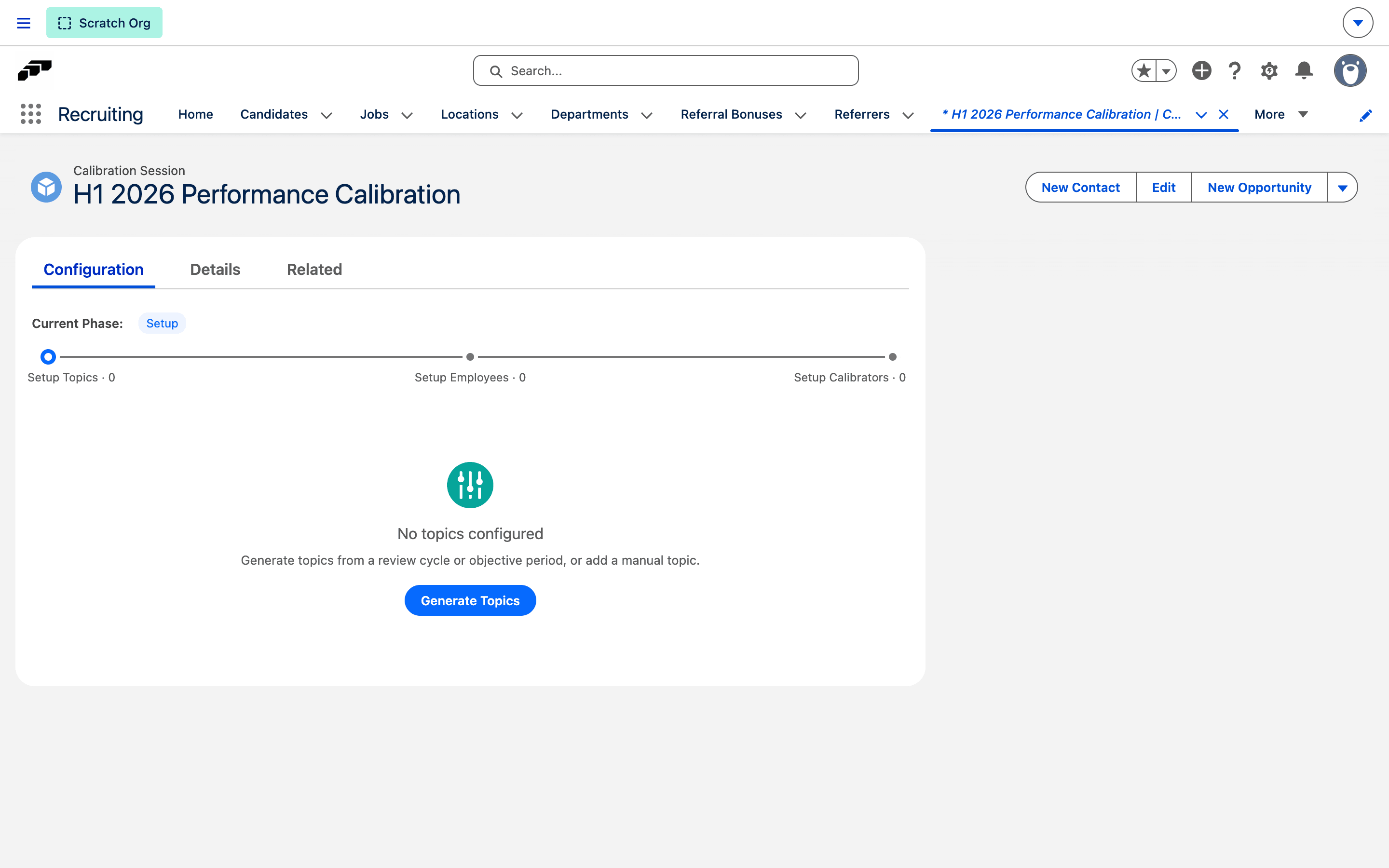
- Save the session. It starts in Setup.
To create a session without leaving the Performance Review:
- In flair HR, open Engagement → Performance Review, and open the review.
- Open the Calibration tab.
- In Calibration Sessions, click New. The current Performance Review is already linked.
- Enter the session details, and save the session. It starts in Setup.
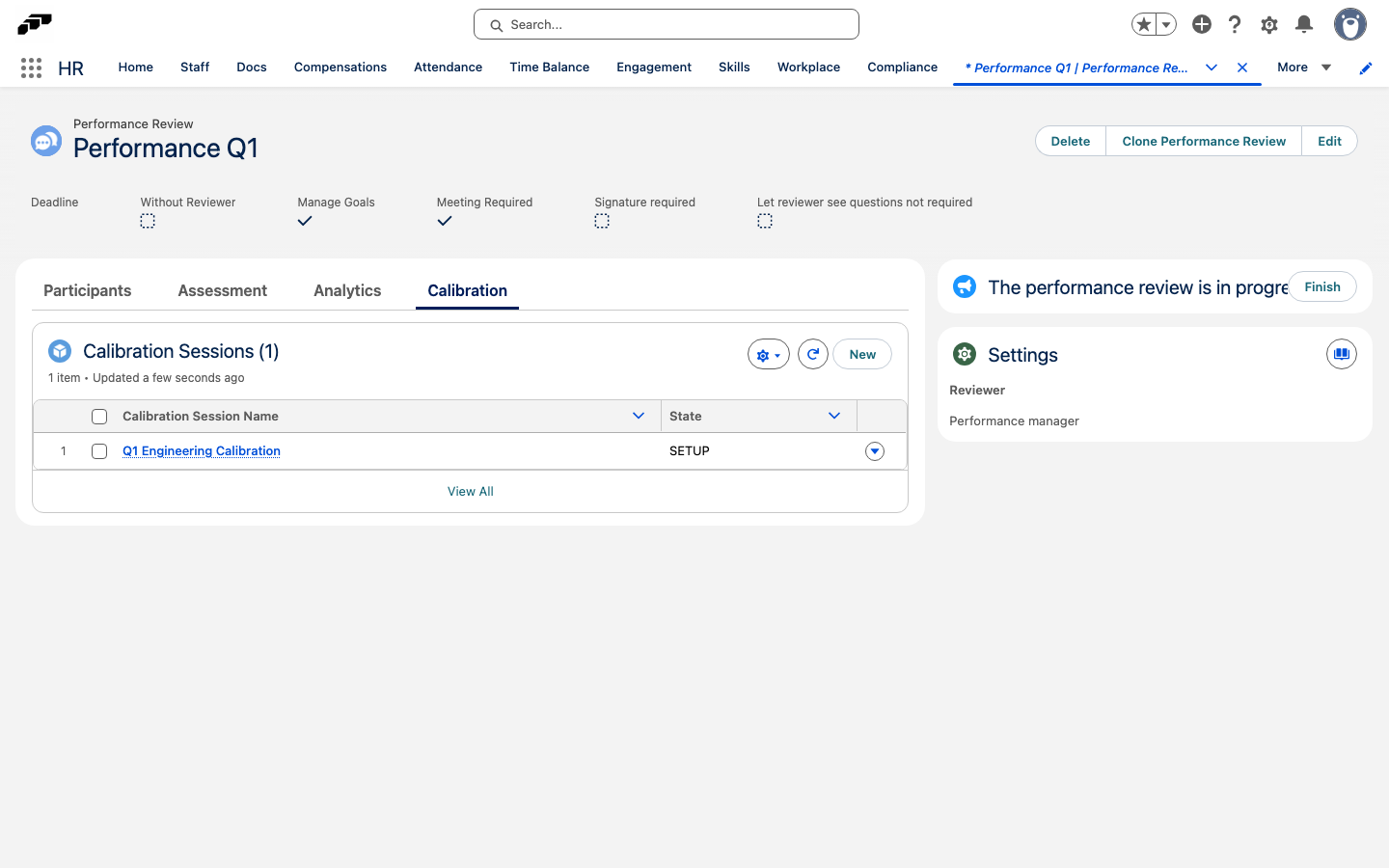
The Calibration tab also lists the sessions already linked to the review, so you can open them from there.
Calibration Sessions use these states:
| State | Available actions |
|---|---|
| Setup | Edit topics, Employee assignments, and Participants. |
| In Progress | Calibrators update ratings in the Employee Hub; setup is read-only; rating history is available. |
| Finished | All data is read-only, and the results matrix shows final ratings and audit history. |
Generate calibration topics
-
On the Calibration Session, click Generate Topics.
-
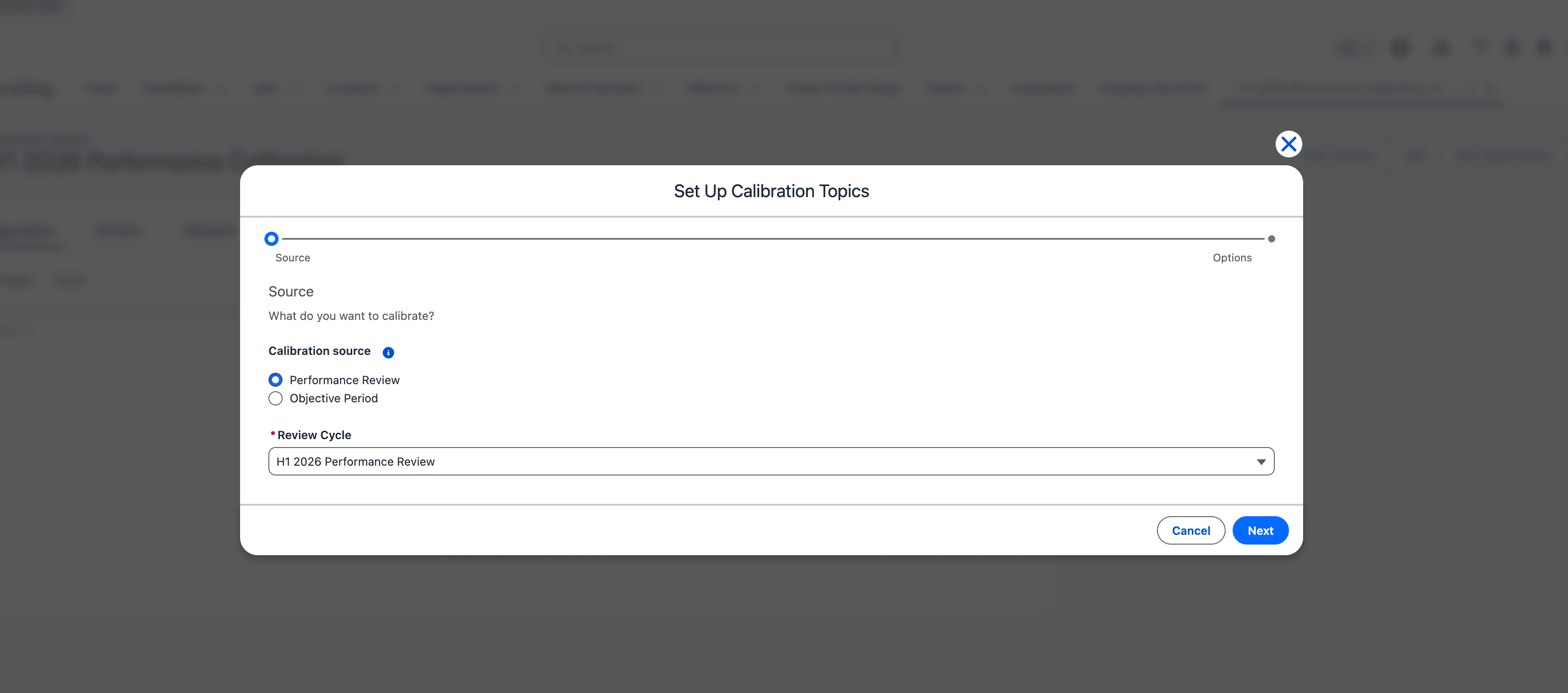
Select a source:
Source What flair generates Performance Review Topics from Feedback Cycle sections, Employees from participants, and initial ratings from Manager review answers. You can also generate topics from the linked Objective Period. Objective Period One topic for the period or one topic per Objective Category, with Employees from matching objective assignees and no automatic initial ratings. -
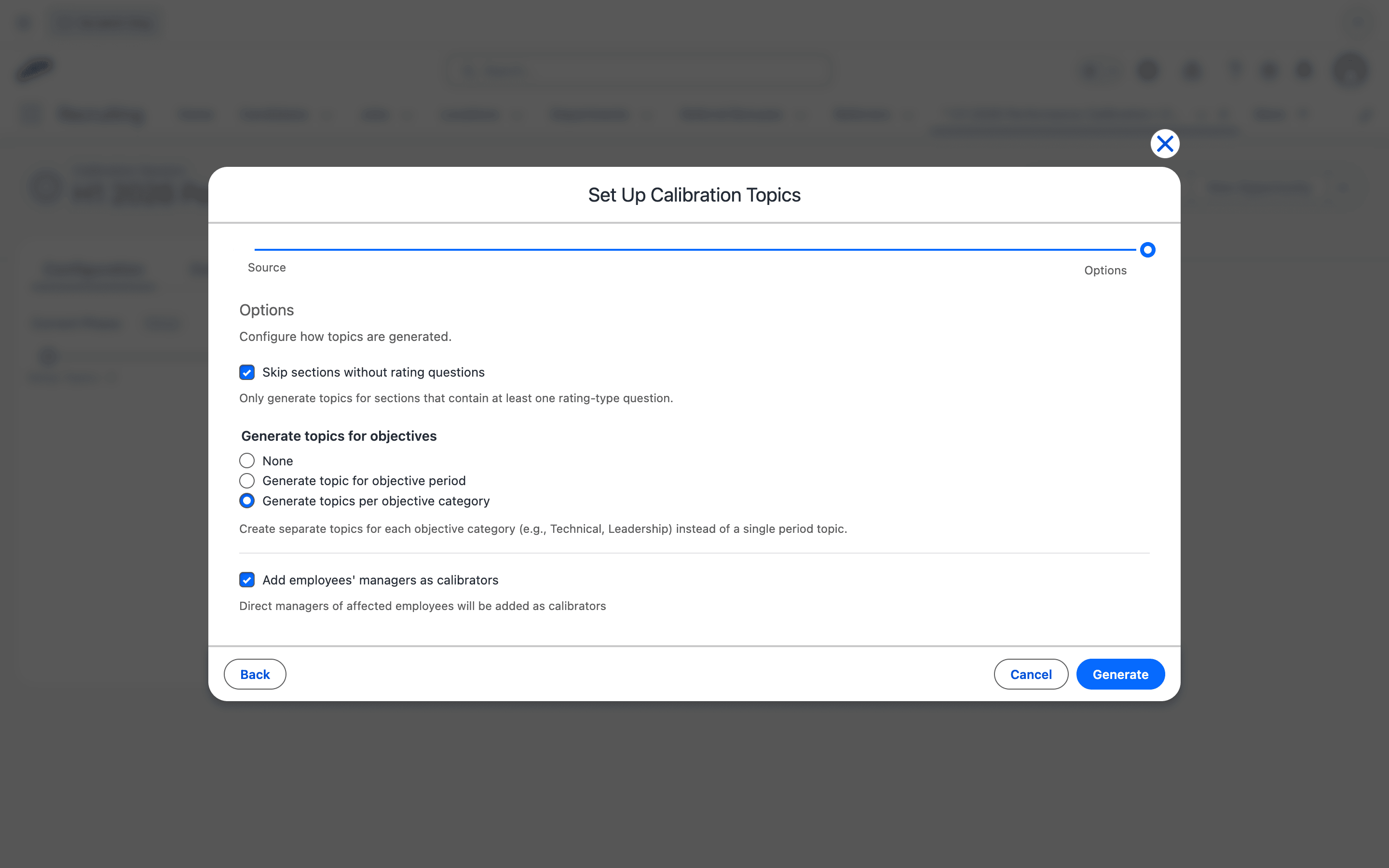
Configure the generation options:
Option What it does Skip sections without rating questions Generates only sections with at least one rating question. None Adds no objective topics. Generate topic for objective period Creates one topic for the Objective Period. Generate topics per objective category Creates one topic for each Objective Category, such as Technical or Leadership. Add employees' managers as calibrators Adds each affected Employee's direct Manager as a Calibrator. -
Generate the topics. They appear on the session.
If the session already has topics, remove them before generating another set. Merging or replacing topics requires direct edits to the calibration custom objects in Salesforce.
Manage calibration topics
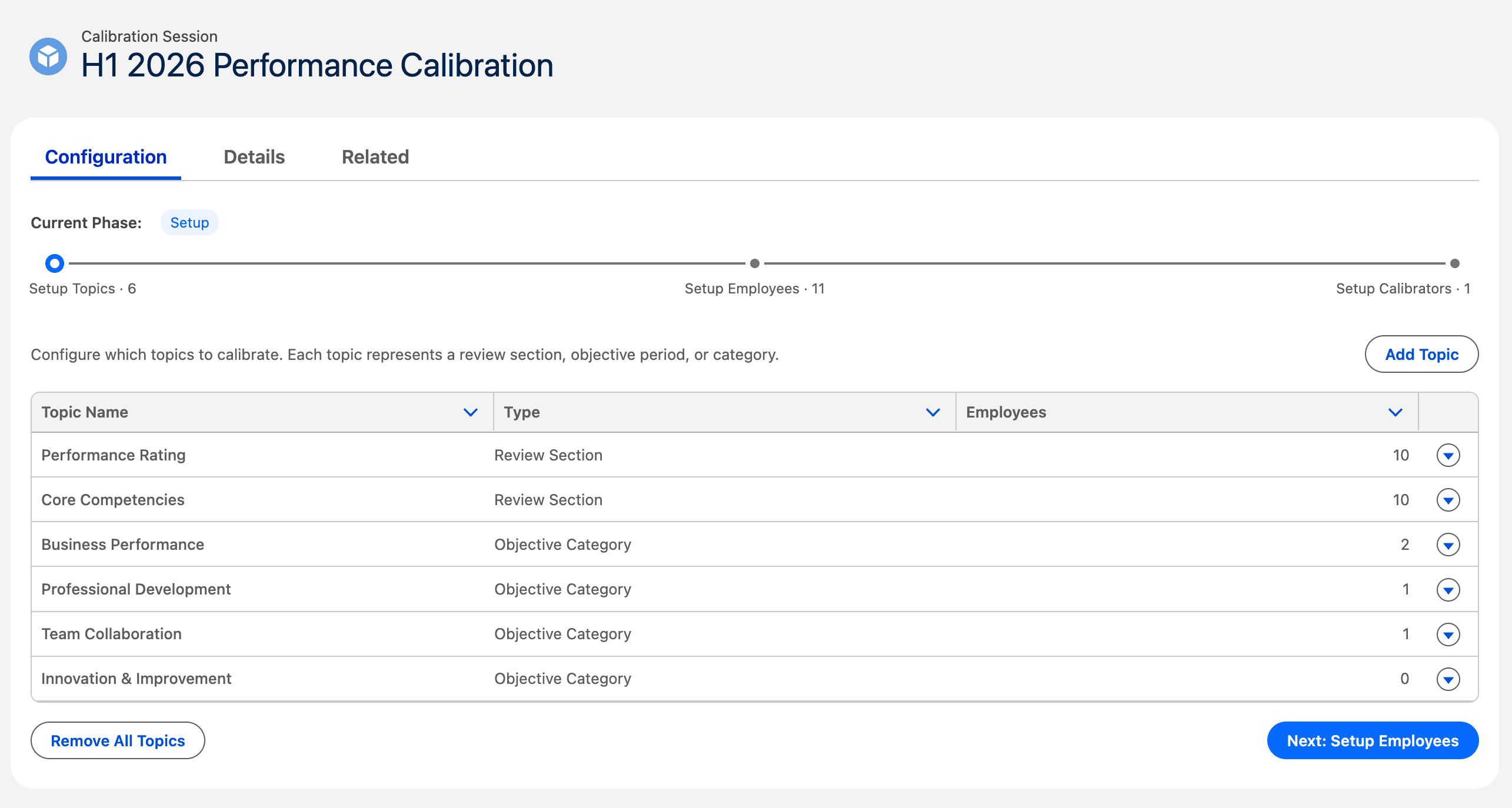
The topic table shows Topic Name, Type, and the Employee count.
- To add a manual topic, click + Add Topic.
- To remove a topic, click × in its row.
- When the list is complete, continue to Setup Employees.
Assign Employees to topics
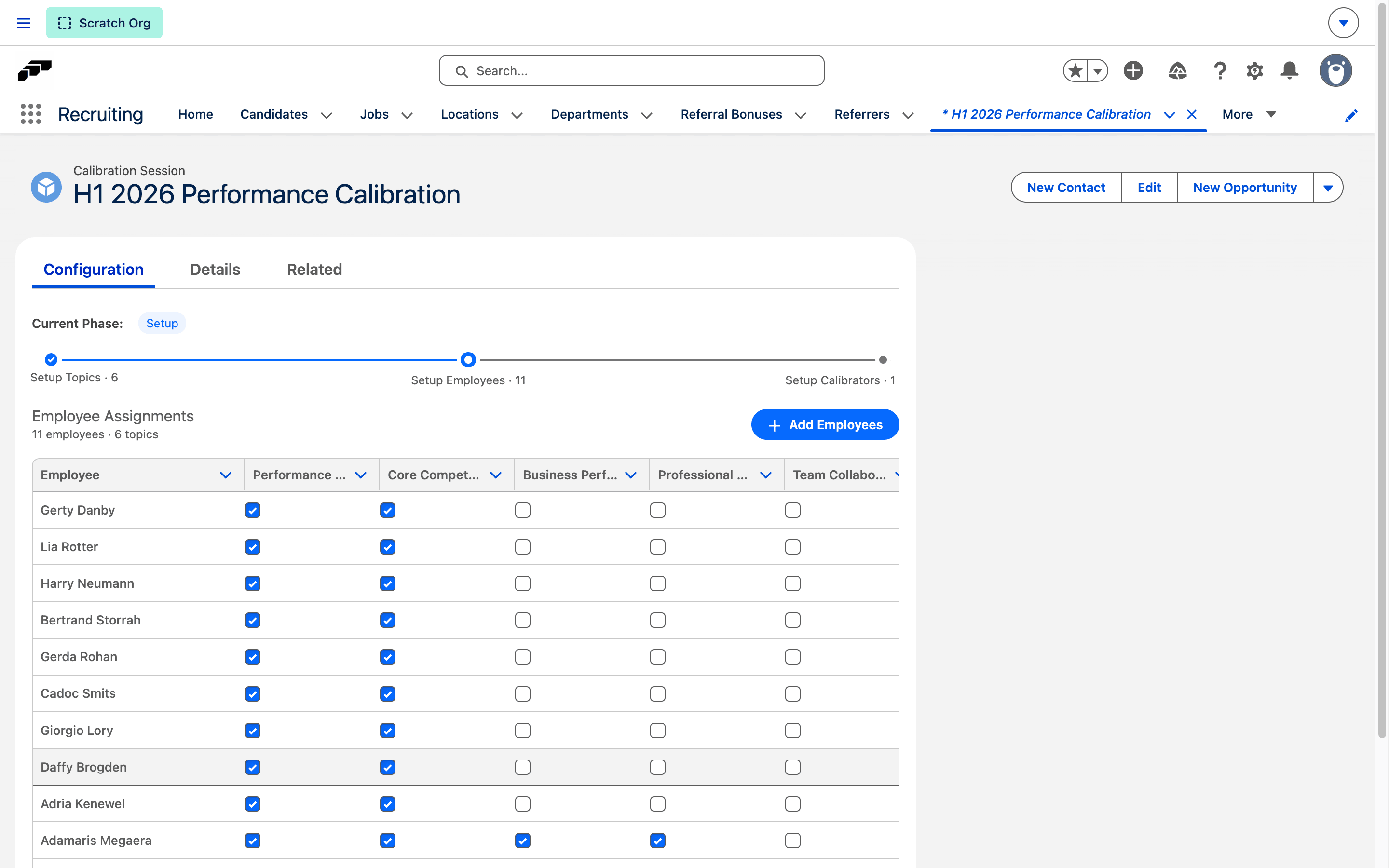
The Employee Matrix has Employees in rows, topics in columns, and a checkbox for each assignment.
- Under Setup Employees, select or clear a checkbox to assign an Employee to a topic.
- To add someone outside the matrix, click + Add Employees.
- Search for and select each Employee.
- Clear any topics that do not apply. A newly added Employee is assigned to every topic by default.
- Continue to Setup Calibrators.
Add Calibrators and Observers
Participants have these roles:
| Role | Permission |
|---|---|
| Calibrator | Views and updates Employee ratings while the session is in progress. |
| Observer | Views ratings without changing them. |
- Under Setup Calibrators, click + Add Calibrator.
- Search for and add the Participant. The default role is Calibrator.
- To change the role, open the row action menu, and select Change to Calibrator or Change to Observer.
- To remove a Participant, click ×.
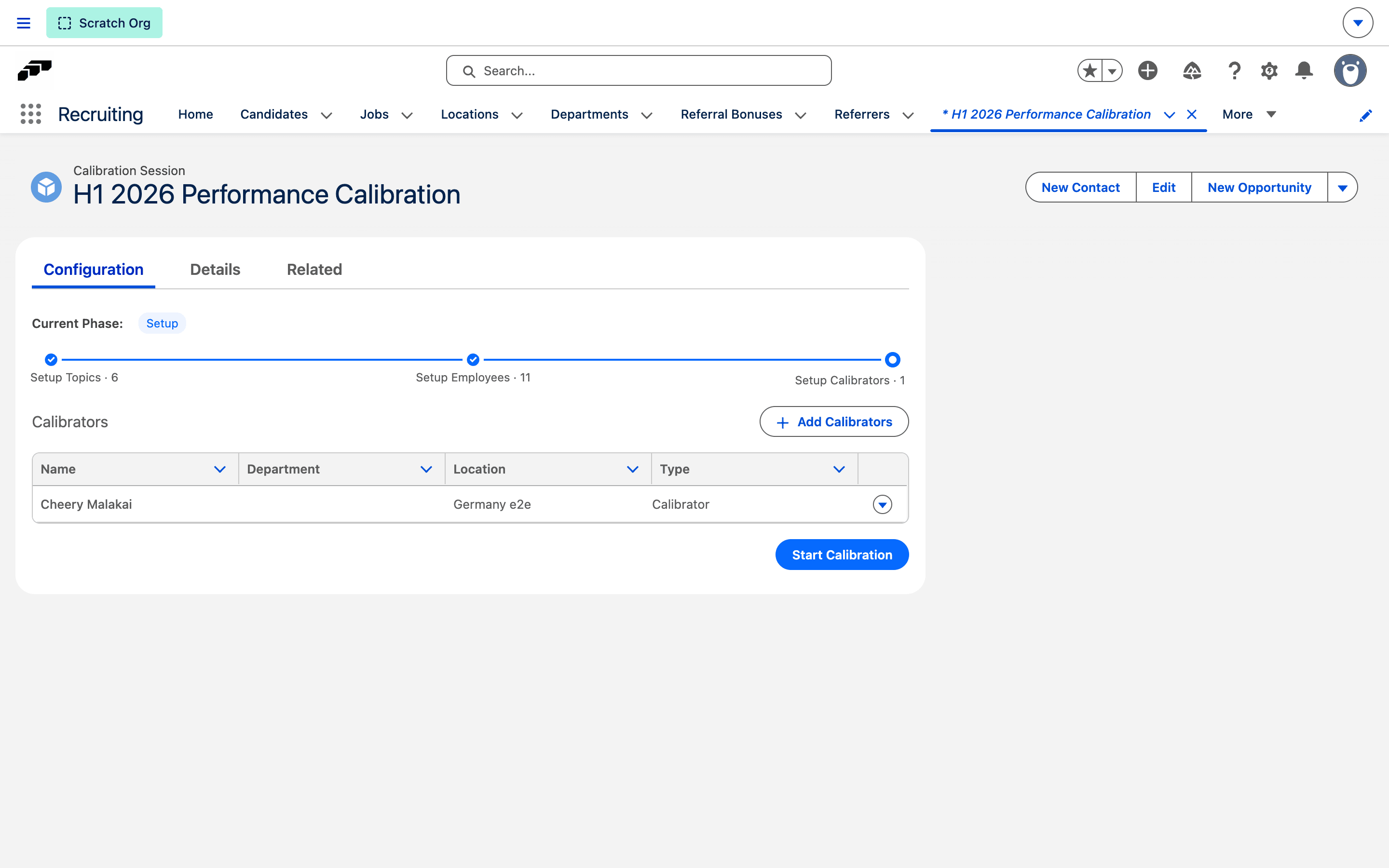
Managers already appear as Calibrators when you selected Add employees' managers as calibrators during topic generation.
Make a calibration mandatory
A mandatory Calibration Session holds up the linked Performance Review until calibration is finished. Sessions are not mandatory by default.
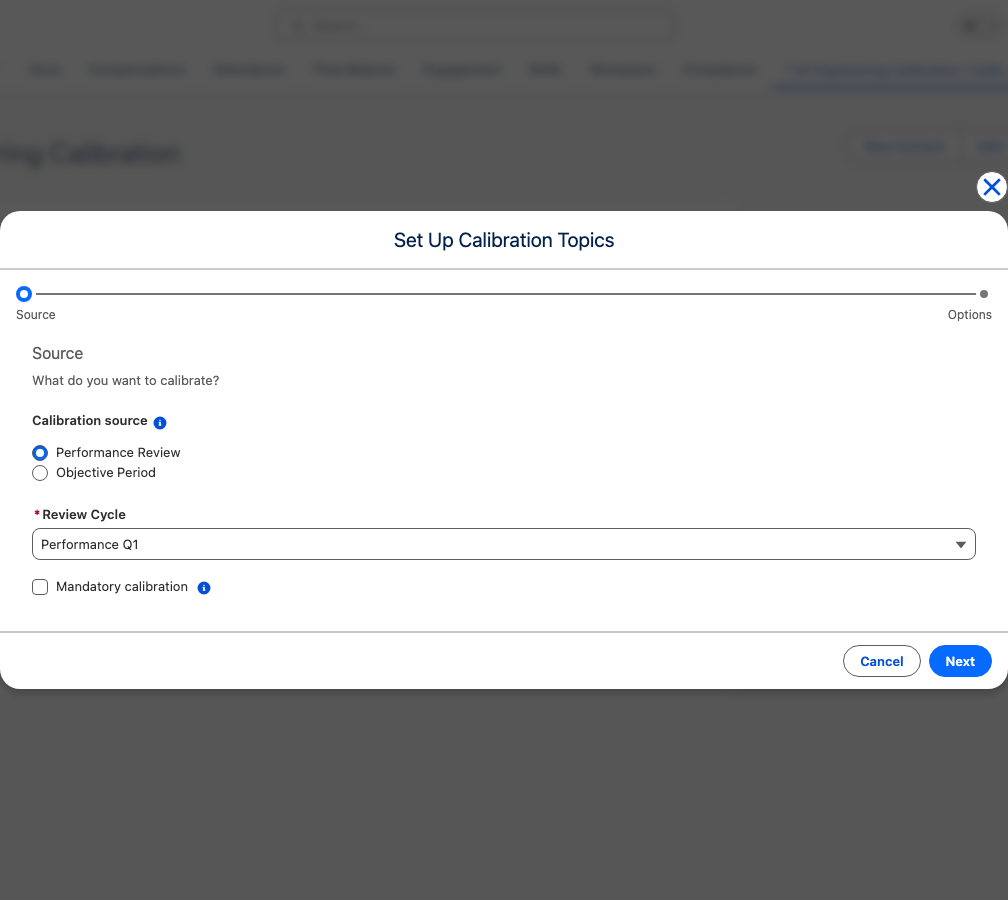
To mark a session as mandatory while you generate topics:
- On the Calibration Session, click Generate Topics.
- Under Calibration source, select Performance Review.
- Select the Review Cycle.
- Select Mandatory calibration.
- Click Next, and finish generating the topics.
You can also select Mandatory on the Calibration Session record. Mandatory calibration is only saved for the Performance Review source; generating topics from an Objective Period clears it.
While a mandatory session is In Progress:
| Action | Effect |
|---|---|
| Scheduling the review meeting | Blocked for Employees the session calibrates. |
| Completing or signing off the review | Blocked for Employees the session calibrates. |
| Finishing the Performance Review | Blocked while any mandatory session for the review is in progress. |
| Submitting evaluations | Still possible, because calibration needs the submitted evaluations. |
Reviews of Employees who are not part of the session continue as usual. A session that is still in Setup does not block anything, and publishing the Performance Review is never blocked.
In the Employee Hub, Managers see the scheduling and sign-off buttons disabled with the tooltip "Available once the mandatory calibration for this review cycle is finished." Participants see a notice in the calibration workspace until the session is finished. In Salesforce, a blocked change shows "A mandatory calibration for this performance review cycle is not finished yet."
Start calibration
- Review the topics, Employee assignments, and Participants.
- Click Start Calibration. The session changes from Setup to In Progress.
- Confirm the transition. flair records an initial-rating snapshot and makes the setup wizard read-only.
Initial ratings follow these rules:
| Topic source | Initial rating |
|---|---|
| Performance Review Section | The Manager review answer to the last ordered RATING question in the section. |
| Objective Period / Category | Empty until a Calibrator provides a rating. |
| Manual | Empty until a Calibrator provides a rating. |
After calibration starts, you cannot return to Setup to change topics, Employee assignments, or Participants.
Rate Employees in the Employee Hub
Only invited users with a Participant record can see the session. HR or admin access does not override this requirement.
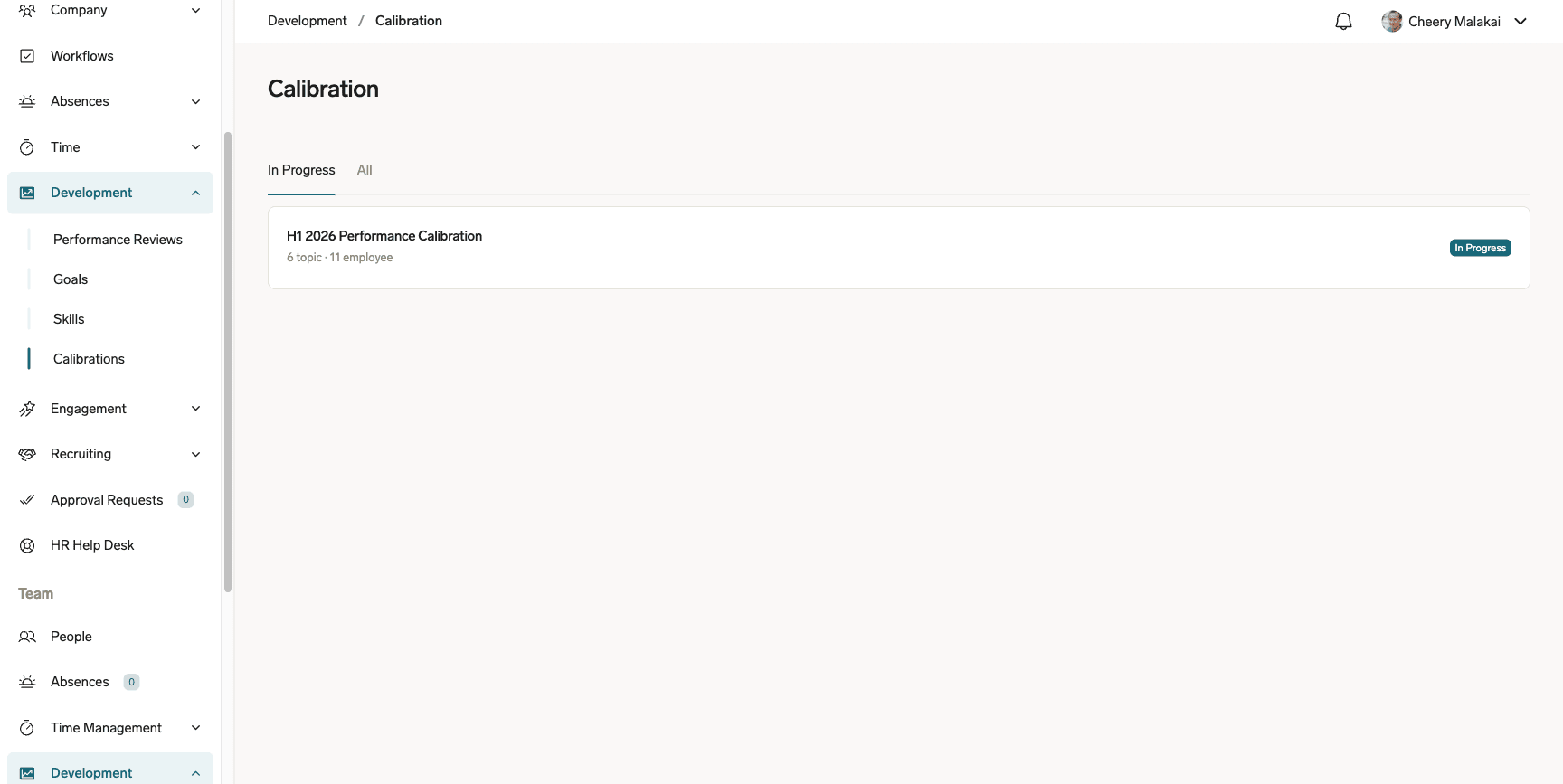
- In the Employee Hub, open the Calibration Session from In Progress or All. Each card shows the linked cycle, state, topic count, and Employee count.
- In the workspace, find the Employee row and topic column.
- As a Calibrator, select a color-coded rating from the cell menu.
- Optional: Add a note in the cell's note popover.
- Review the change count in the floating save bar.
- Save the ratings.
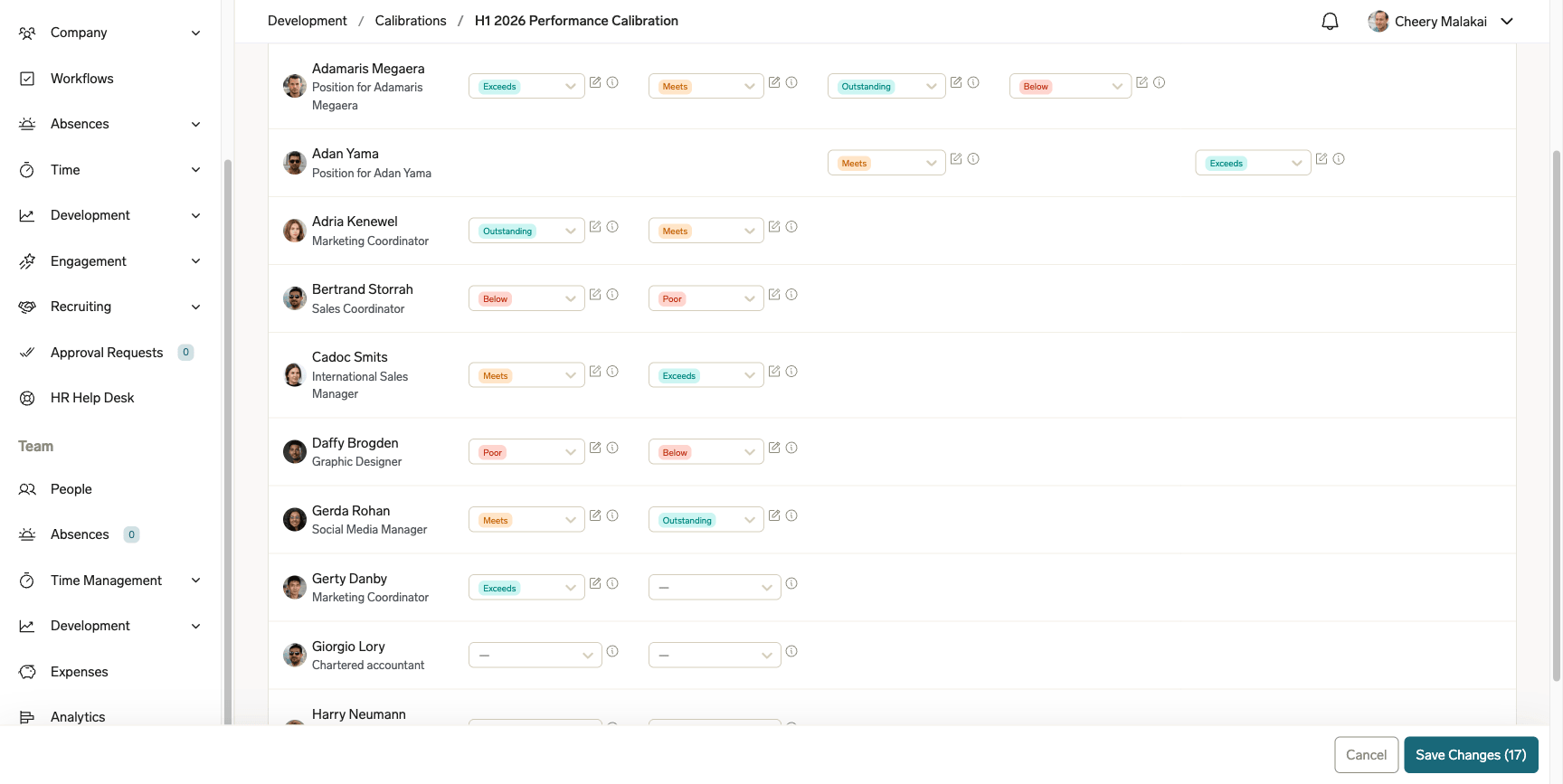
Observers see read-only rating badges without menus or a save bar. If a warning icon shows that another Calibrator changed the same cell, reload the page, and enter the rating again.
Review rating history
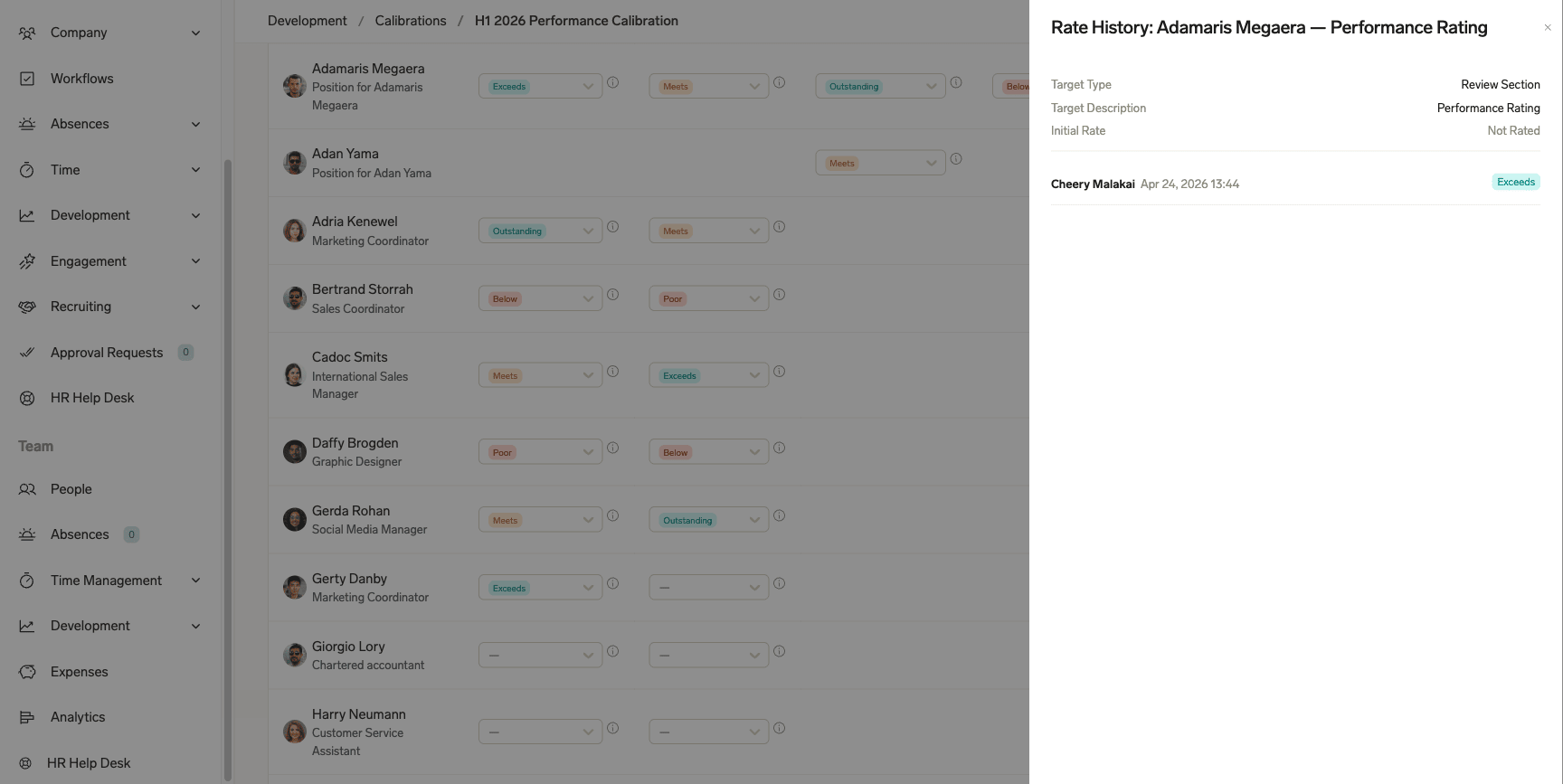
- In the calibration workspace, click a rating cell.
- In the side panel, review the Employee, topic, and current rating.
- Review the audit trail for who changed the rating, when it changed, its previous and new values, and any notes.
Finish calibration
- Review all ratings and unresolved concurrent-change warnings.
- Click Finish.
- Confirm the action. The session changes to Finished, locks all edits, and shows final ratings with the complete audit history.
Use the calibration object reference
For advanced configuration or troubleshooting, use these Salesforce custom objects:
| Object | Purpose |
|---|---|
Calibration_Session__c | Stores the calibration round. |
Calibration_Topic__c | Stores a rating dimension from a review section, objective category, period, or manual topic. |
Calibration_Employee_Topic__c | Stores one Employee in one topic, including initial and final ratings. |
Calibration_Participant__c | Stores an invited Calibrator or Observer. |
Calibration_Update__c | Stores the audit record for one rating change. |
Understand calibration limitations
- A Performance Review Section uses the Manager's answer to the last ordered RATING question. The initial rating is empty when that question or answer is missing.
- Objective-based topics provide only the Employee population and topic structure. Calibrators enter every rating.
- Final ratings remain on calibration records and are not written back to Performance Review records.