Configure the Development Framework
The Development Framework controls objective modes, weight rules, result permissions, phases, and Performance Review integration for flair Goals. Each Objective Time Period links to one Development Framework.
HR Admins with the Flair Advanced Development Manager permission set configure the Development Framework in Salesforce. It is a paid add-on to a flair subscription.
Before you begin
- Contact your flair Customer Success Manager or flair Sales to add and activate the Development Framework.
- Assign Flair Advanced Development Manager to each user who configures advanced Development features.
Choose an objective mode
The objective mode is configured on the Development Framework and determines how goals are managed across the organization. There are two modes:
- MBO (Management by Objectives): A top-down approach where managers and HR define specific, measurable objectives for employees. Goals are assessed qualitatively using predefined result options and achievement scales, with weighted scoring across categories. Best suited for organizations that want structured performance evaluation with clear scoring criteria.
- OKR (Objectives and Key Results): A collaborative approach where employees set ambitious objectives with measurable key results. Progress is tracked automatically as key results are updated. Best suited for organizations that want transparency, alignment, and continuous progress tracking.
MBO vs OKR comparison
| MBO | OKR | |
|---|---|---|
| Focus | Qualitative assessment and structured scoring | Measurable outcomes and continuous progress |
| How progress is tracked | HR or managers assess results at the end of a period using predefined options or numeric scores | Employees update key results throughout the period; progress is calculated automatically |
| Goal weighting | Goals and categories can be weighted to reflect relative importance in overall performance | Goals can be weighted, but emphasis is on alignment rather than scoring |
| Key Results | Not used | Each goal has measurable key results (numeric, percentage, or yes/no) |
| Scoring | Achievement scales translate results into scores; weighted scores roll up per employee | No scoring — progress is a percentage based on key result completion |
| Lifecycle | Managed through phases on the time period (Setup, Execution, Review) | Managed through status transitions on individual goals (Draft, On Track, Done) |
| Best for | Annual or semi-annual performance reviews with formal evaluation | Quarterly goal-setting with ongoing progress transparency |
Choose MBO for qualitative assessments with scoring and weighting. Choose OKR for measurable Key Results with automatic progress tracking.
Create a Development Framework
- In flair HR, open Development Frameworks.
- Click New.
- Configure the key fields in the table.
- Click Save. The Development Framework becomes available to Objective Time Periods.
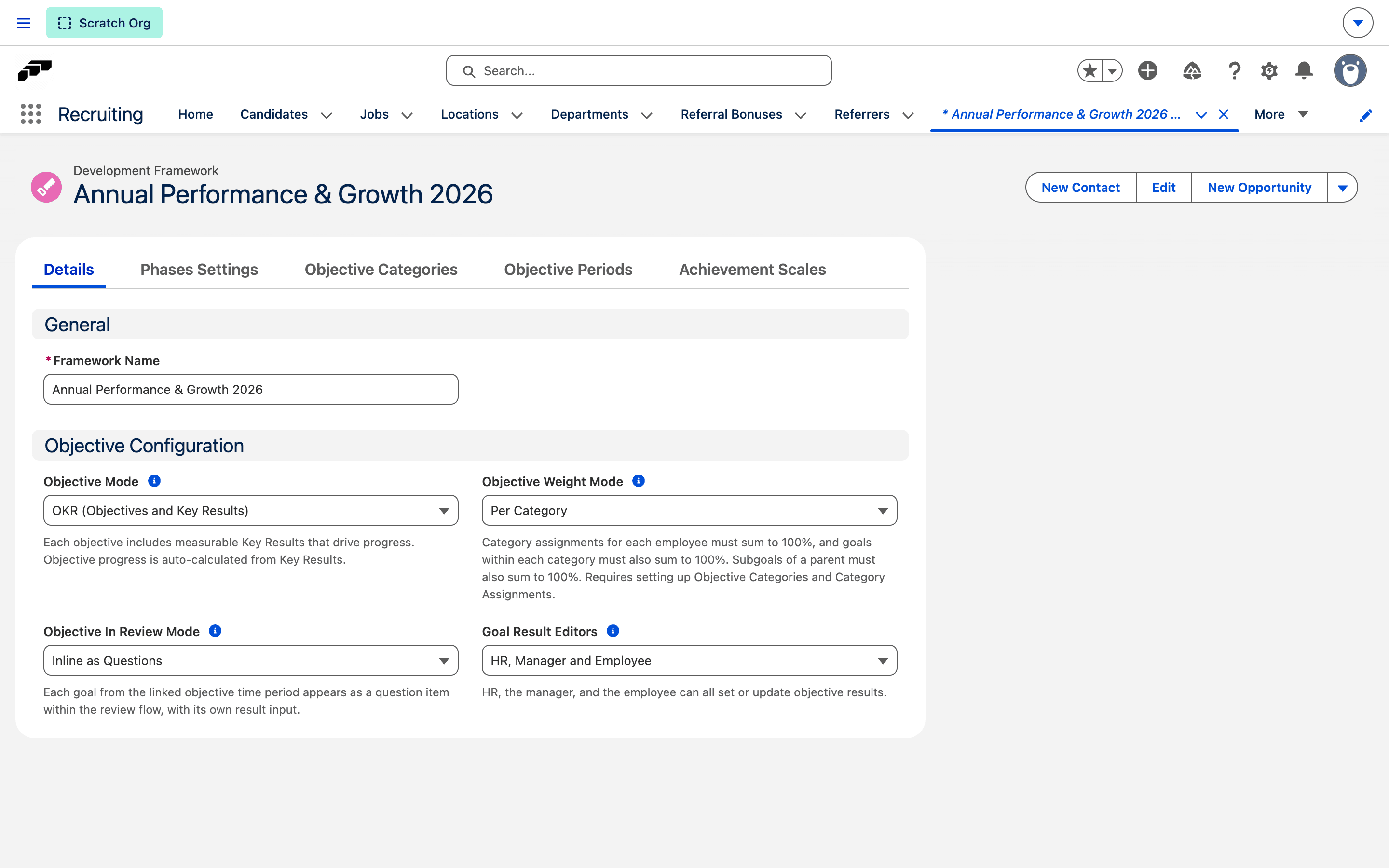
Configure the key fields
| Field | Values | Description |
|---|---|---|
| Objective Mode | MBO / OKR | Determines whether goals use Key Results (OKR) or qualitative assessment (MBO). See Choose an objective mode. |
| Objective Weight Mode | None / Per Employee / Per Category | Controls how Goal weights are validated. See Assign categories and weights. |
| Objective Result Update Mode | HR / HR and Manager / HR and Employee / HR, Manager and Employee | Controls who can update goal results |
| Objective Phases Settings | JSON | Defines phase permissions for Goal actions. See Configure objective phases. |
Create Objective Categories
Objective Categories group goals by type within a Development Framework — for example, "Business Performance", "Professional Development", or "Team Collaboration". Categories are used for organizing goals, assigning weights, and linking achievement scales. Company and Team goals can also be assigned an Objective Category directly, in addition to Employee goals.
- Open the Development Framework in Salesforce.
- Under Objective Categories, click New.
- Set Name and Order. Order controls display sorting.
- Optional: add a Description to explain the category's purpose.
- Select Available to All to make the category available without a position assignment.
- Click Save.
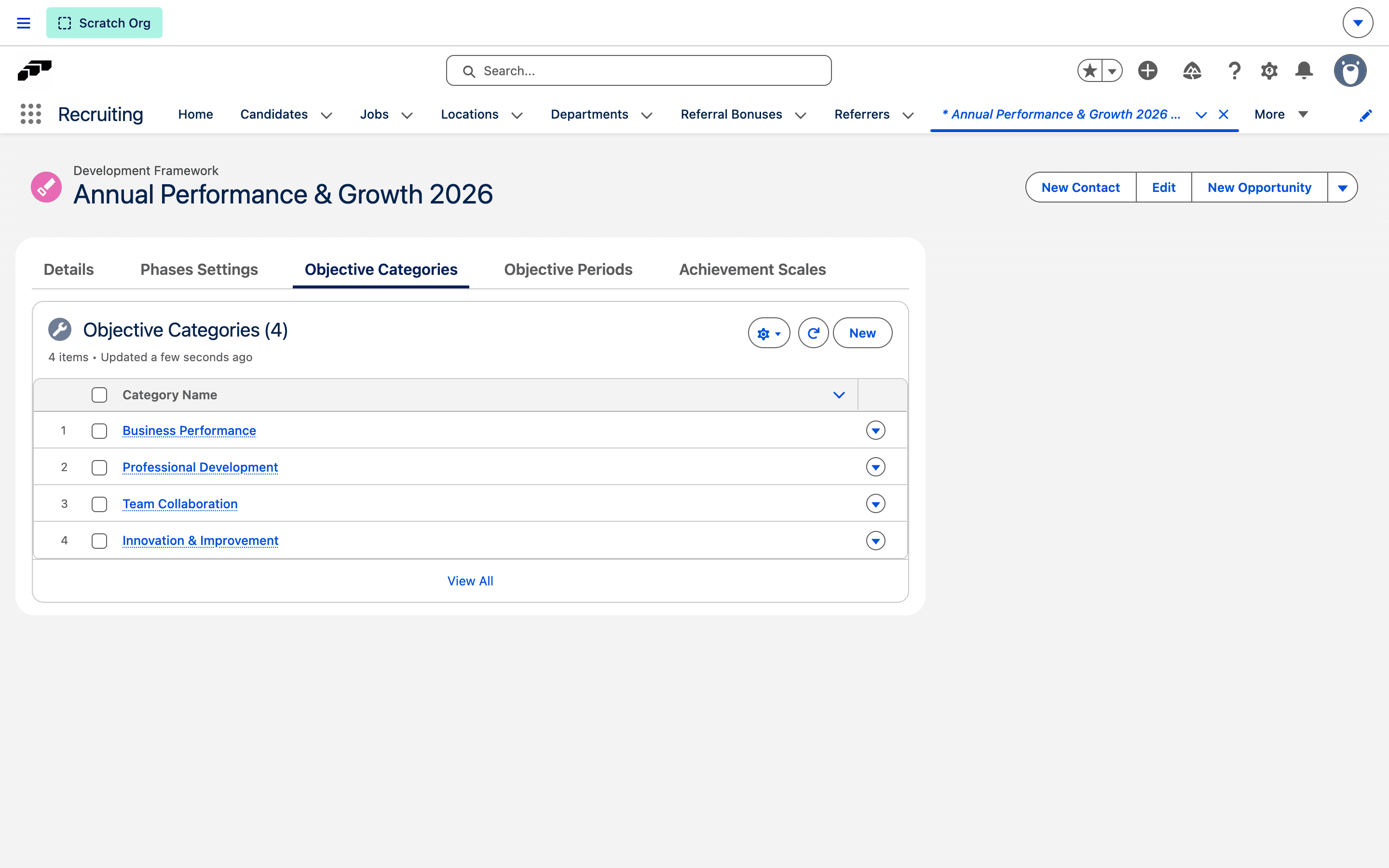
If Available to All is cleared, assign the category to specific Positions or Employees under Assign categories and weights.
Configure Achievement Scales for MBO
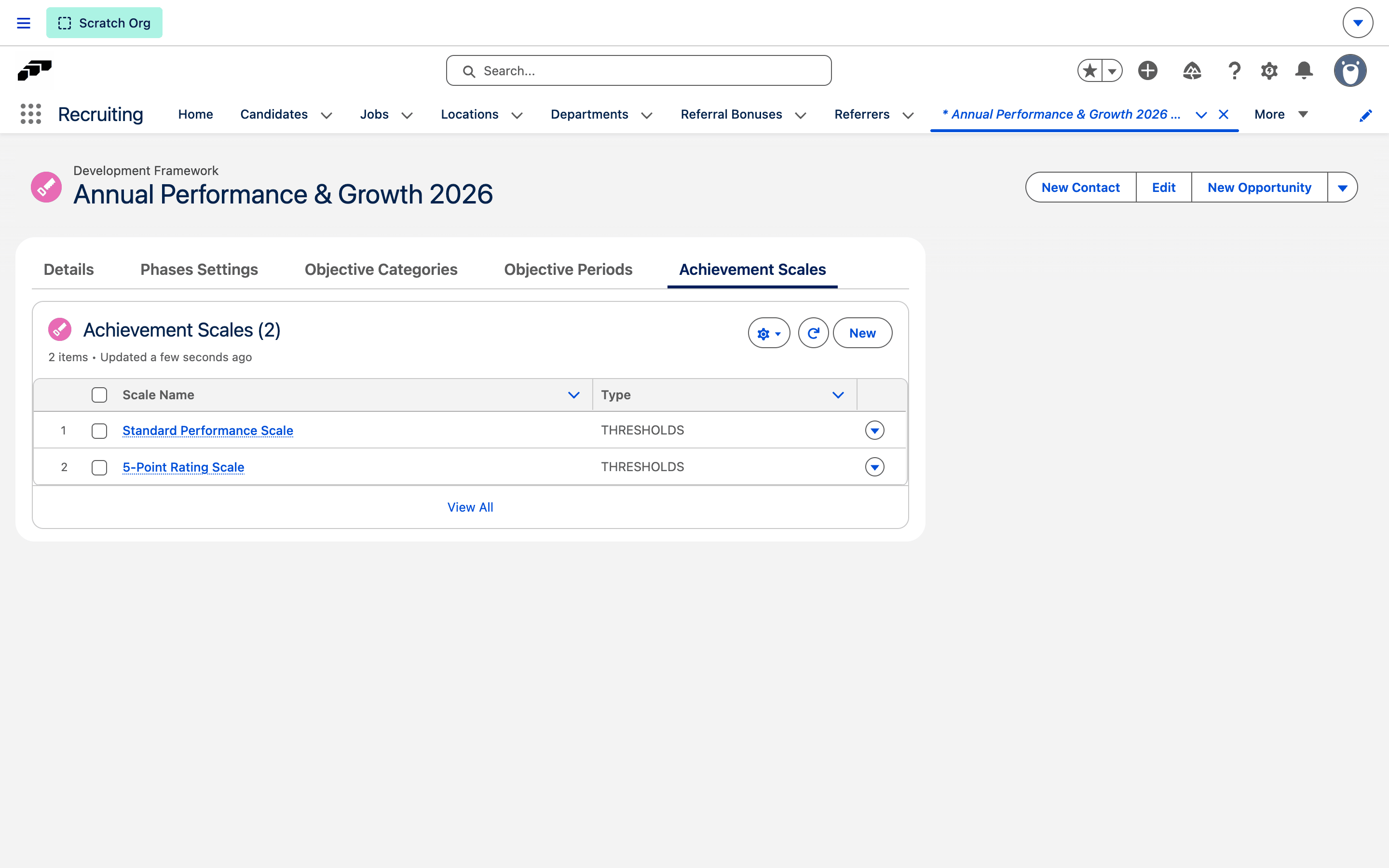
Achievement scales translate a goal's result value into an achievement score. They are defined on the Development Framework and linked to categories via junction records. When an employee creates a goal, they select one of the available scales for that category.
Achievement Scales are optional and available only in MBO mode. Without a scale, the Achievement Score equals the result value.
Scale types
| Type | Behavior |
|---|---|
| Thresholds | Range-based scoring defined via JSON. Each range maps a result interval to a fixed score or uses linear interpolation |
| Linear | Achievement score equals the result value (passthrough) |
Create an Achievement Scale
- Open the Development Framework in Salesforce.
- Under Achievement Scales, click New.
- Set Name and Type.
- For Thresholds, configure
Thresholds Json. - Save the scale.
- Create a Category Achievement Scale junction record for each category that uses the scale.
Define Thresholds JSON
The Thresholds JSON is an array of range definitions. Each range defines a half-open interval [from, to):
[
  { "from": 0, "to": 60, "score": 0 },
  { "from": 60, "to": 80, "score": 75 },
  { "from": 80, "to": 100, "score": 100 },
  {
    "from": 100,
    "to": 102.5,
    "score": "linear",
    "scoreFrom": 100,
    "scoreTo": 110
  },
  { "from": 102.5, "score": 150 }
]
| Setting | What it does |
|---|---|
from and to | Define the inclusive lower bound and exclusive upper bound. Omit to for an open upper bound or from for an open lower bound. |
score | Sets a fixed numeric score or uses "linear" interpolation within the range. |
scoreFrom and scoreTo | Set optional anchors for linear interpolation. |
| Unmatched result | Defaults to a score of 0. |
Review scoring fields on Employee Objectives
| Field | Description |
|---|---|
| Achievement Score | Calculated from the result value using the selected achievement scale |
| Weight | The goal's own weight (percentage) |
| Objective Category Weight | The effective category weight for this goal (from category assignment) |
| Final Weight | Objective Category Weight x Weight / 100 |
| Weighted Achievement Score | Achievement Score x Final Weight / 100 |
Add result options to an Achievement Scale for MBO
Result options define a fixed set of qualitative result choices for goals that use an Achievement Scale — for example, "Exceeds Expectations" or "Meets Expectations". Each option has a numeric value and a label, and you set the order of the options. Because options belong to the scale, one category can offer several scales with different options, such as a 1–5 rating and a yes/no scale.
- Open the Achievement Scale in Salesforce.
- Under Result options, click Add option.
- Enter a Value and a Label. Each value must be unique within the scale.
- Optional: Use the up and down arrows to change the order of the options.
- Click Save.
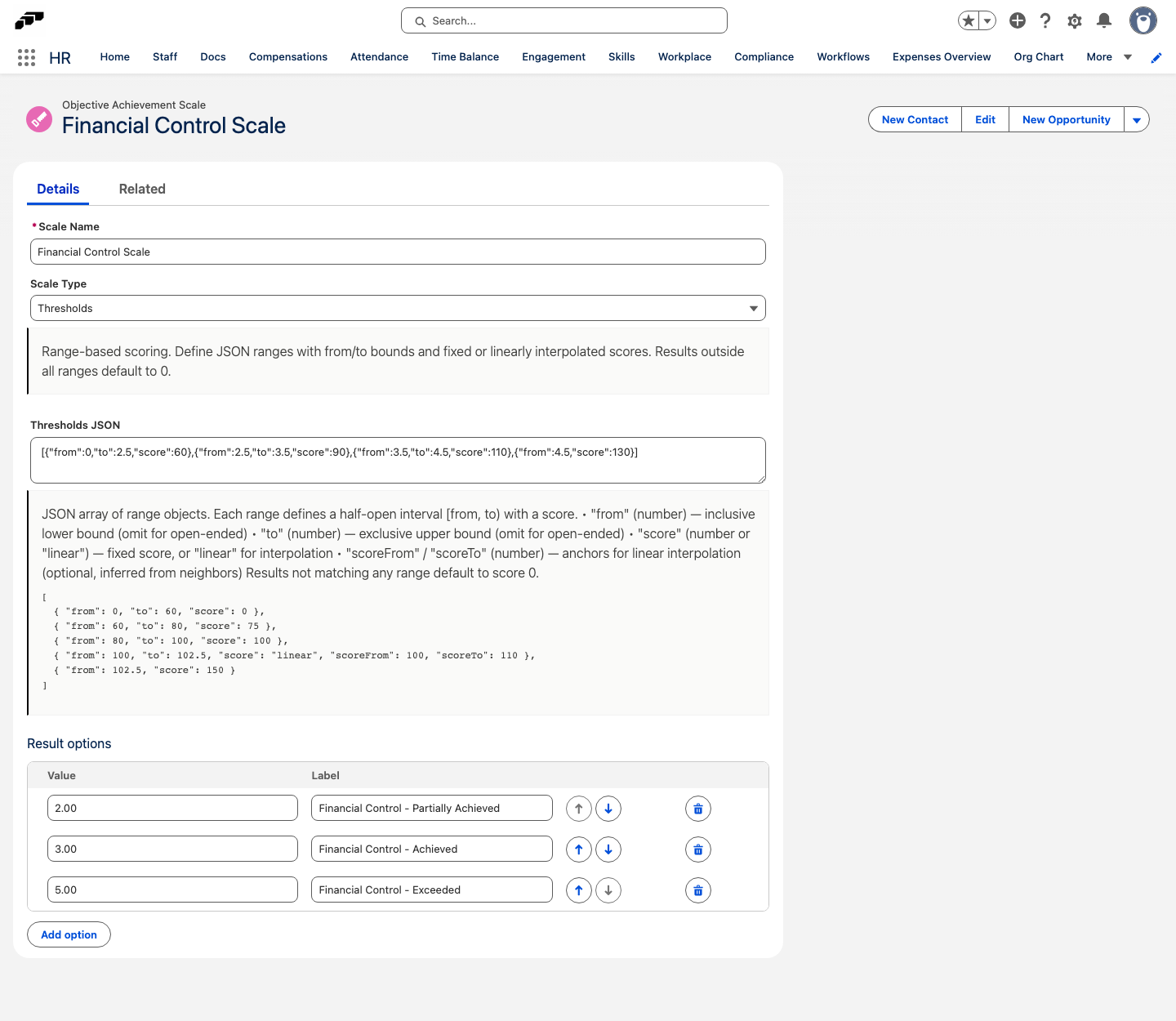
Result options and free numeric input are mutually exclusive. If the goal's Achievement Scale has result options, a goal's result must match one of them. If the scale has no options, any numeric result is allowed.
The numeric value of the selected option feeds into the scale to produce an achievement score. If you change a goal's Achievement Scale, a result that matches an option on the new scale is relabeled, and a result that does not match is cleared. If the new scale has no options, the numeric result stays and its label is removed.
Before result options moved to Achievement Scales, they were configured on each Objective Category. The package upgrade copied existing category options onto the linked scales and created a Linear scale for categories that had options but no scale. Saved results and scores stayed unchanged.
The Employee Hub doesn't use the result options on Achievement Scales yet. Until it does, it still offers each category's options from before the upgrade, so options you add or change on a scale don't appear there.
Create an Objective Time Period
Objective Time Periods define the timeframe for goals — for example, a quarter, a half-year, or a full year. Each time period links to a Development Framework, which provides the mode, categories, phases, and weight configuration for all goals within that period.
- In flair HR, open Objective Time Periods.
- Click New.
- Set Name, Start Date, and End Date.
- Select Active.
- Select a Development Framework.
- Set Current Phase, such as Setup.
- Click Save.
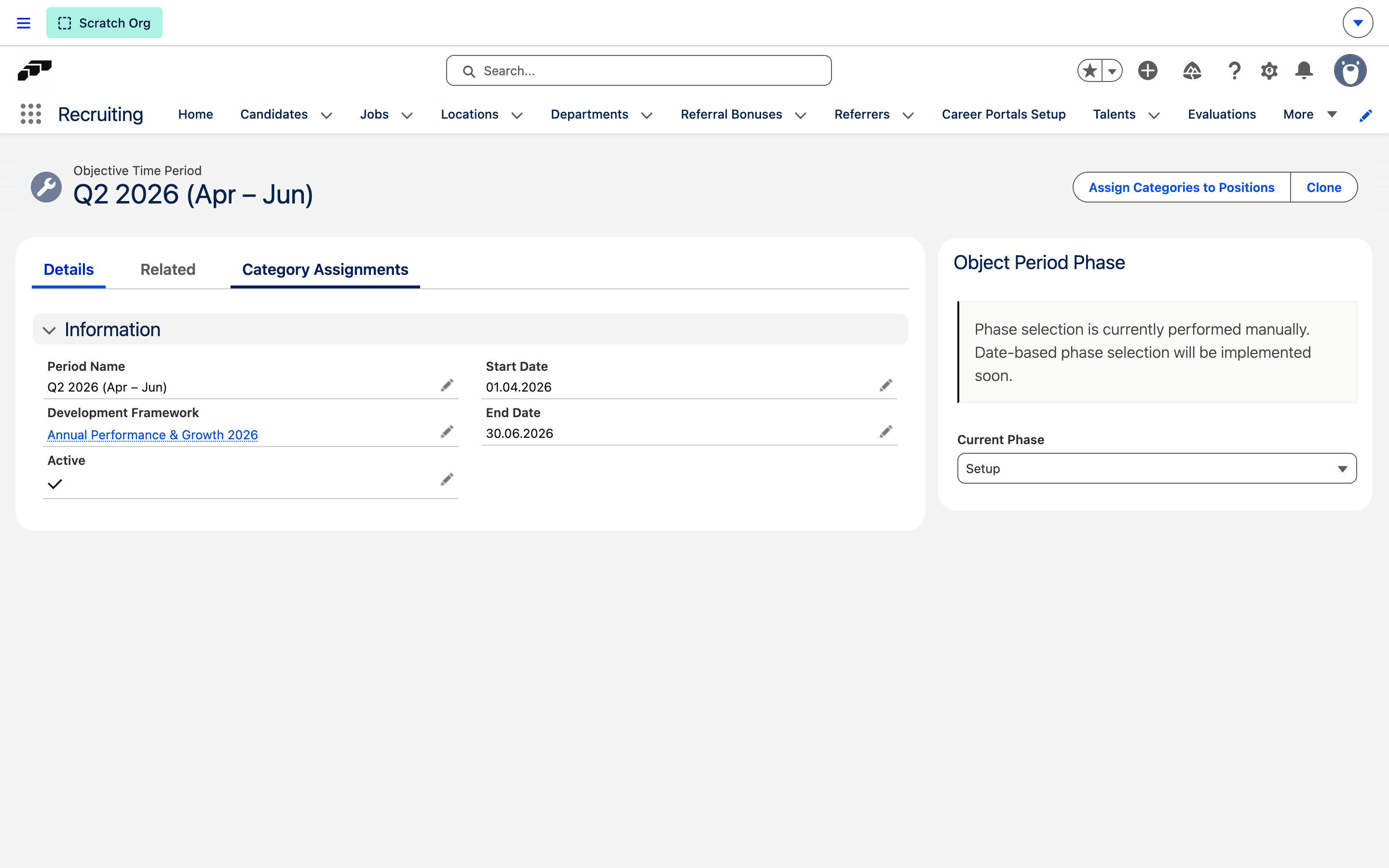
The Current Phase field determines which phase rules are active for this period. You must update this field manually as the period progresses through its lifecycle (e.g., from Setup to Execution to Review). Goals will not behave correctly if the current phase is not set.
Clone an Objective Time Period
When you clone an Objective Time Period, all category assignments — both position-level and employee-level — are automatically copied to the new period. This saves time when setting up recurring periods (e.g., creating Q3 from Q2).
Configure objective phases
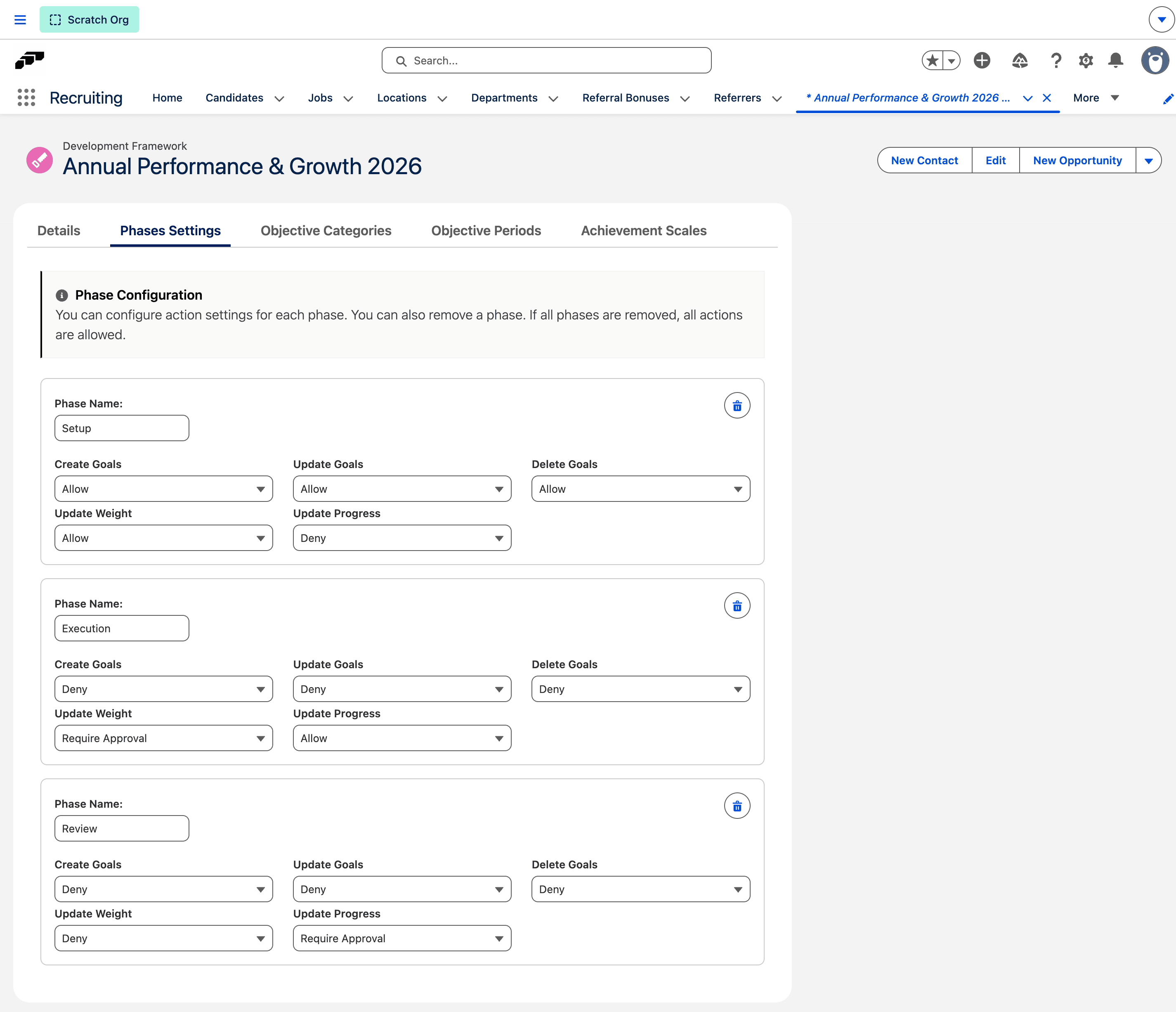
Phases control what employees can do with goals during different stages of an Objective Time Period. Each phase defines permissions for five action types.
Action types
| Action | What It Controls |
|---|---|
| Create Goals | Whether employees can create new goals |
| Update Goals | Whether employees can edit existing goals |
| Delete Goals | Whether employees can delete goals |
| Update Weight | Whether employees can change goal weights |
| Update Progress | Whether employees can update progress (key result values in OKR, results in MBO) |
Permission levels
Each action can be set to one of three permission levels:
| Level | Behavior |
|---|---|
| Allow | Changes are applied directly |
| Deny | Action is blocked; the UI proactively disables the corresponding buttons and fields |
| Require Approval | Sends changes through an approval workflow. See Configure approvals for Goal changes. |
Default phases
| Phase | Create Goals | Update Goals | Delete Goals | Update Weight | Update Progress |
|---|---|---|---|---|---|
| Setup | Allow | Allow | Allow | Allow | Deny |
| Execution | Deny | Deny | Deny | Require Approval | Allow |
| Review | Deny | Deny | Deny | Deny | Require Approval |
Choose a phase configuration method
Phases can be configured in two ways:
- From the UI: Open the Objective Phases tab in the flair HR app to configure phases visually
- Via JSON: Edit the
flair__Objective_Phases_Settings__cfield directly on the Development Framework record
Each phase entry defines the phase name and the permission level for each action type. Current Phase on the Objective Time Period determines which phase is active.
Configure approvals for Goal changes
When a phase action is set to Require Approval, employee-initiated changes go through an approval workflow instead of being applied directly. Manager and HR actions bypass the approval process entirely.
Apply approval actions
| Action | Behavior |
|---|---|
| Create | The goal is created immediately with a Pending approval status. On approval, it is confirmed. On rejection, it is removed |
| Update | The goal is not modified. Proposed changes are stored in a data change request. On approval, changes are applied to the goal. On rejection, nothing changes |
| Delete | The goal is soft-deleted (marked for deletion) with a Pending status. On approval, it is permanently deleted. On rejection, it is restored |
When one change affects multiple action types, the most restrictive permission wins: Deny over Require Approval over Allow.
Review approval status in the Employee Hub
- Goal cards show an approval status badge (Pending / Rejected) and a marked-for-deletion indicator
- Goal sidebar displays pending changes inline with per-field indicators, showing proposed values alongside current values
- Manager view includes a "Pending Approval" filter to surface goals awaiting approval
- When a goal is rejected, the employee can re-edit and re-submit, which creates a new approval request
To approve or reject one goal, a manager opens it in manager mode and clicks Approve or Reject in the goal sidebar.
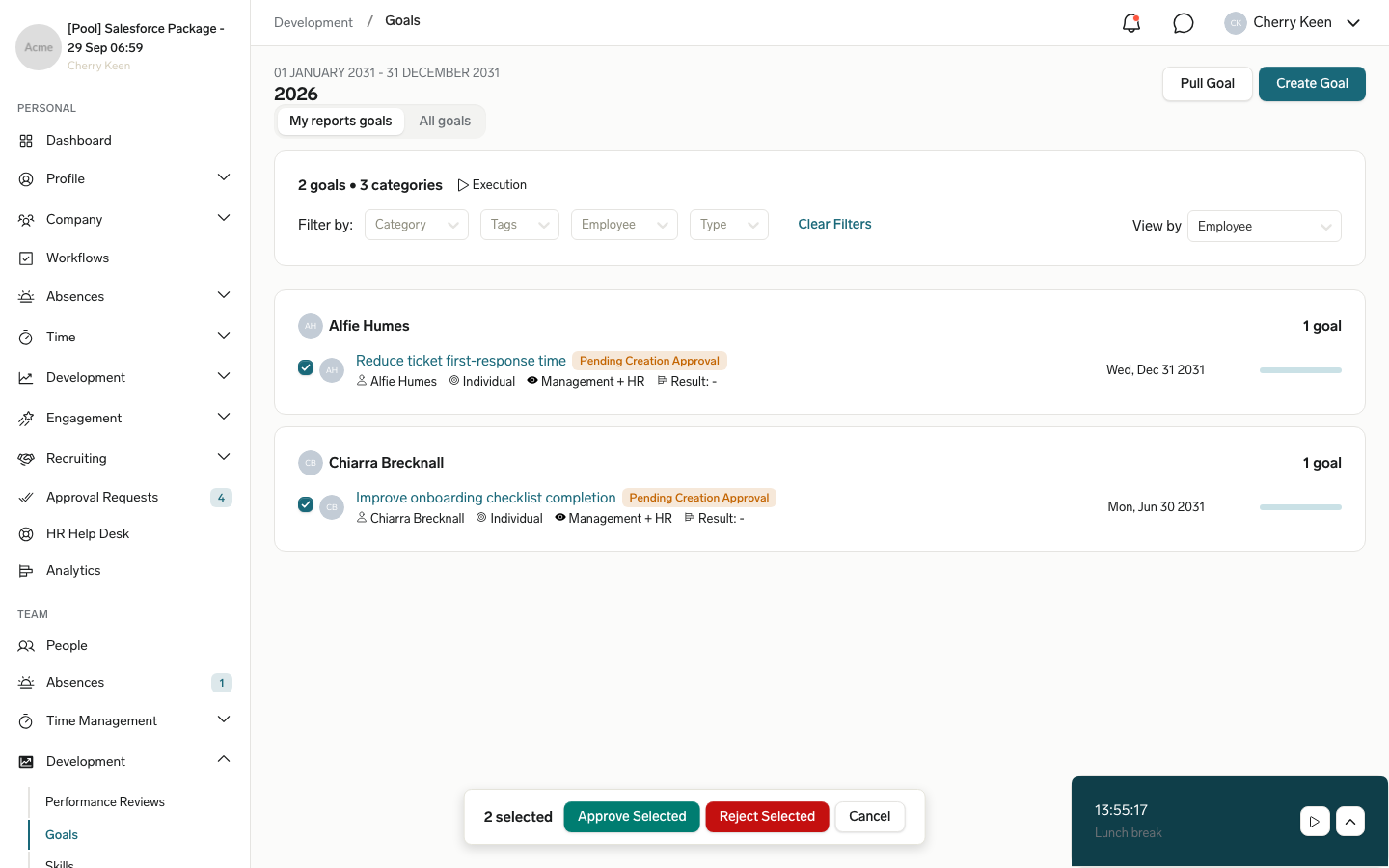
To approve or reject several goals at once:
- In manager mode, open Development → Goals.
- Select the checkbox on each goal you want to decide on, or click Select All on a group. Selected goals without a pending approval request are skipped.
- In the bar at the bottom of the page, click Approve Selected. To reject instead, click Reject Selected, optionally enter a reason in the text box that appears, and click Reject Selected again.
Understand approval limitations
Approvals do not currently support the following — these actions are automatically denied when the phase uses Require Approval:
- Tags
- Shares
- Alignments
- Key Results
- Key Result value updates
Assign categories and weights
Weight mode is configured on the Development Framework via the Objective Weight Mode field. It controls how goal weights are validated across employees.
Weight modes
| Mode | Description |
|---|---|
| None | Only subgoal weights are validated (children of the same parent must sum to 100%) |
| Per Employee | Root goals per employee must sum to 100% |
| Per Category | Category assignments per employee must sum to 100%, and goals within each category must also sum to 100% |
Weight validation rules
| Rule | None | Per Employee | Per Category |
|---|---|---|---|
| Subgoals of a parent = 100% | Yes | Yes | Yes |
| Root goals per employee = 100% | No | Yes | Yes |
| Category assignments per employee = 100% | No | No | Yes |
| Goals within category per employee = 100% | No | No | Yes |
Position-level assignments
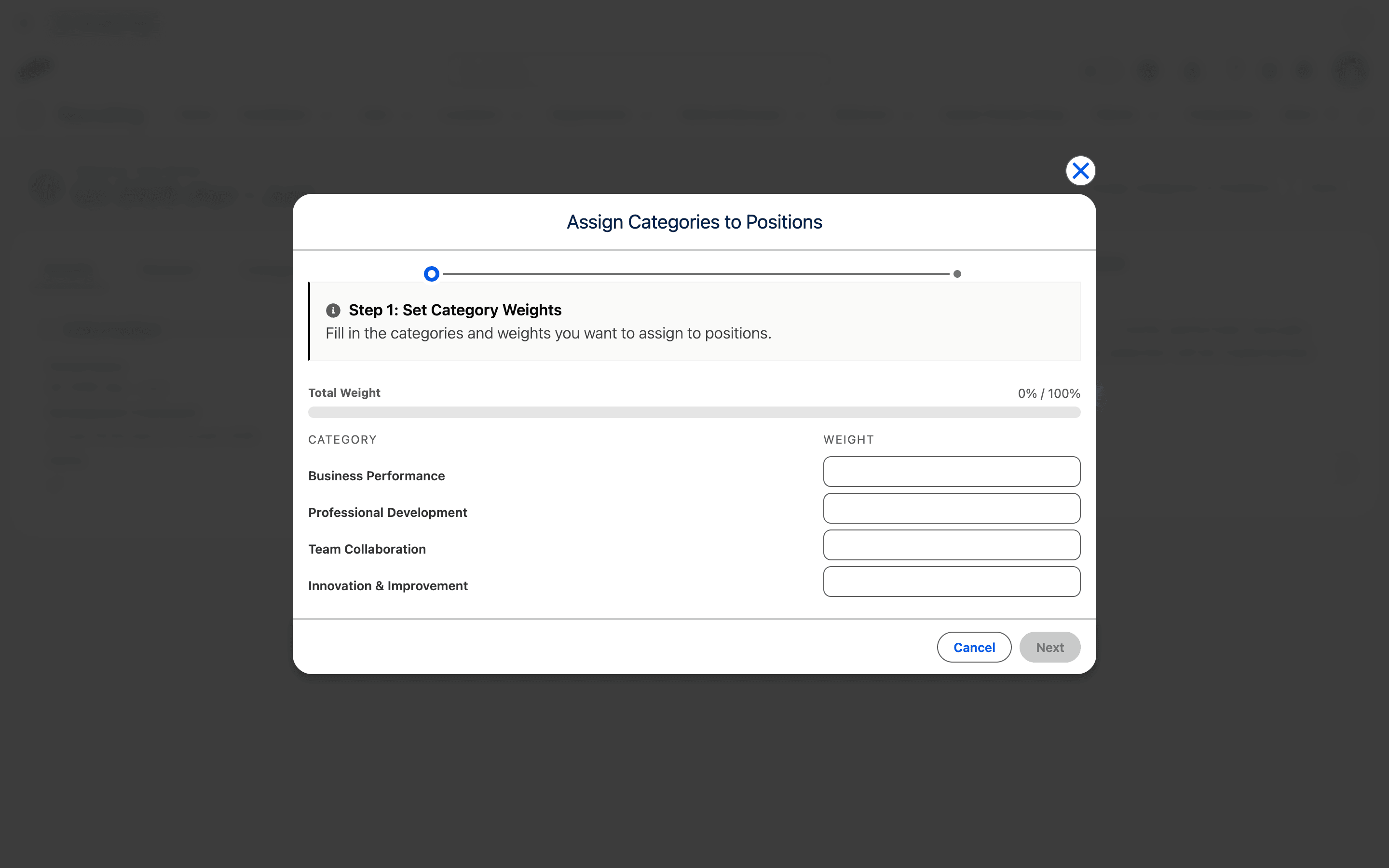
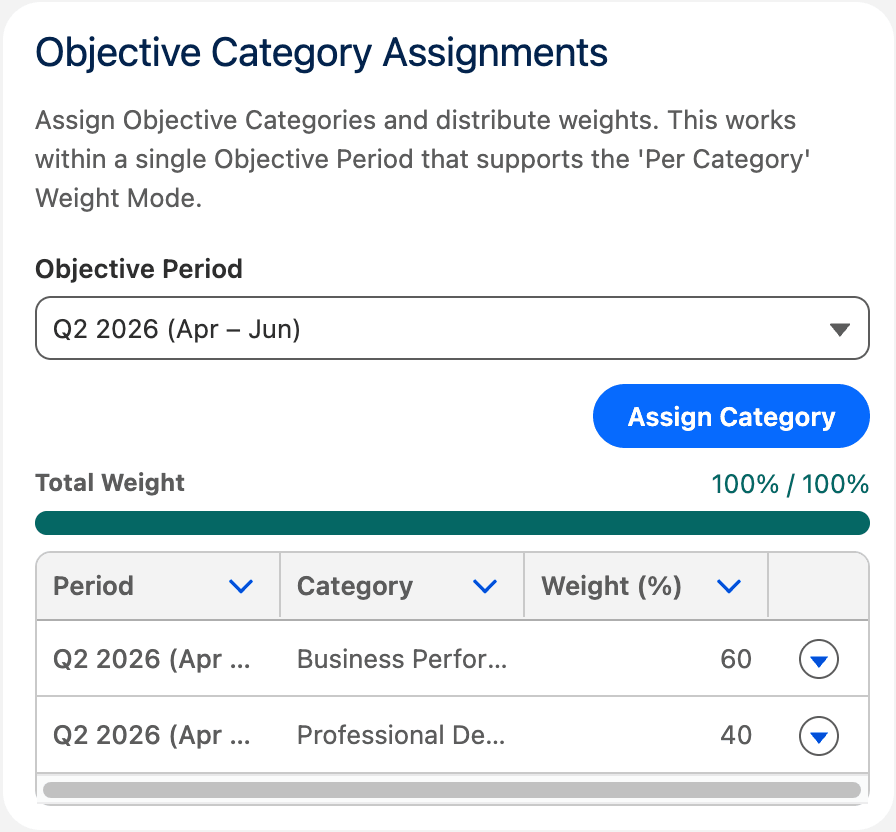
Position-level assignments define default category weights for all employees in a given position. For example, "Sales Manager" might have 60% Business Performance and 40% Professional Development.
Employee-level assignments
Employee-level assignments override position-level defaults for a specific employee within a given period. For example, a particular Sales Manager might have 70% Business Performance and 30% Professional Development instead of the position default.
Assign categories in bulk
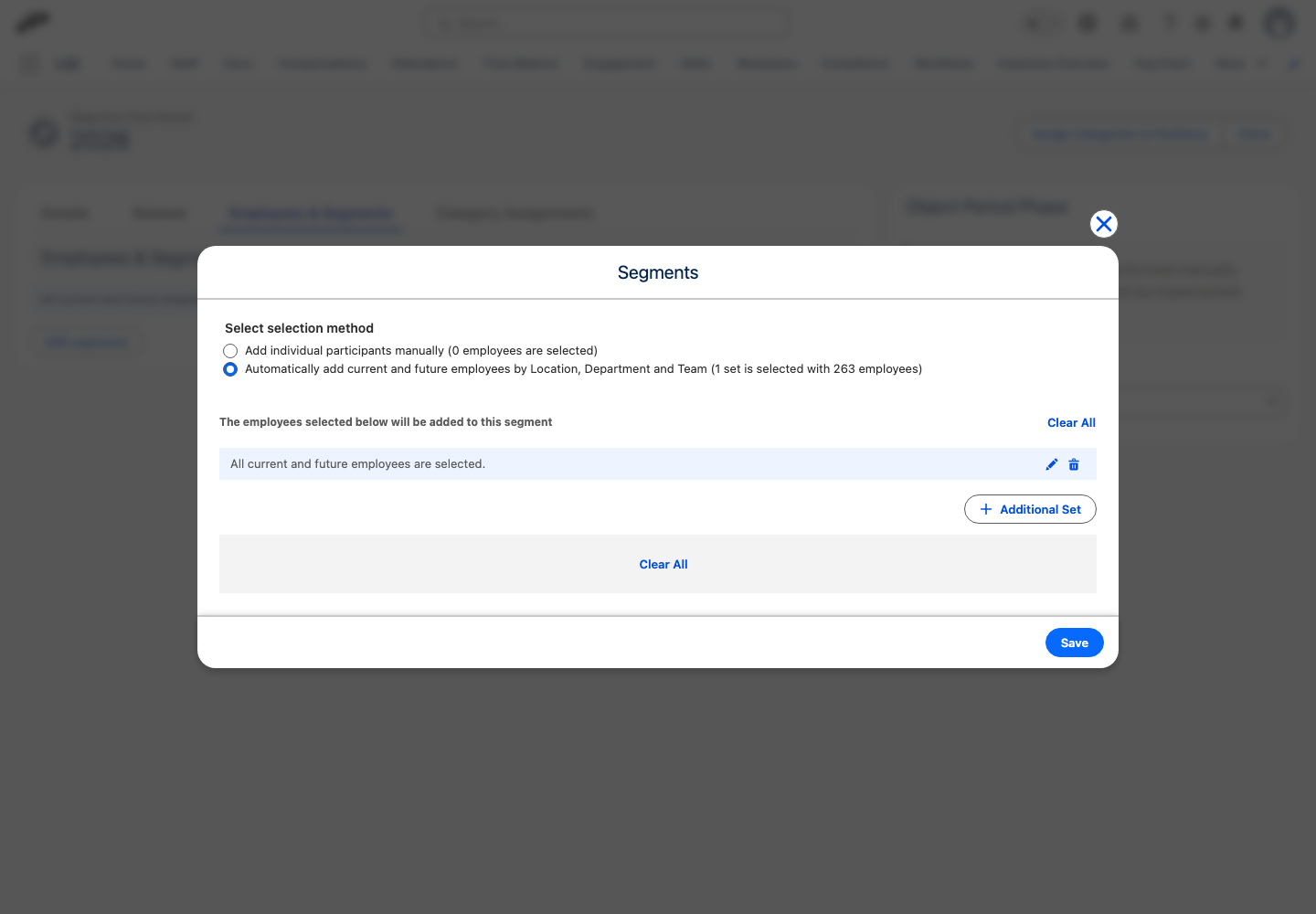
You can bulk-assign categories to positions from the Objective Time Period record page, then adjust individual weights from each Position record page. The positions offered for bulk assignment are limited to those held by employees in the period's configured segments — open the Employees & Segments tab on the Objective Time Period record and click Edit segments to restrict the period to specific locations, departments, teams, entities, or employees. A period keeps a default all-employees segment until you change it, and offers every position while that default segment is in place.
Choose which tags appear on Goals
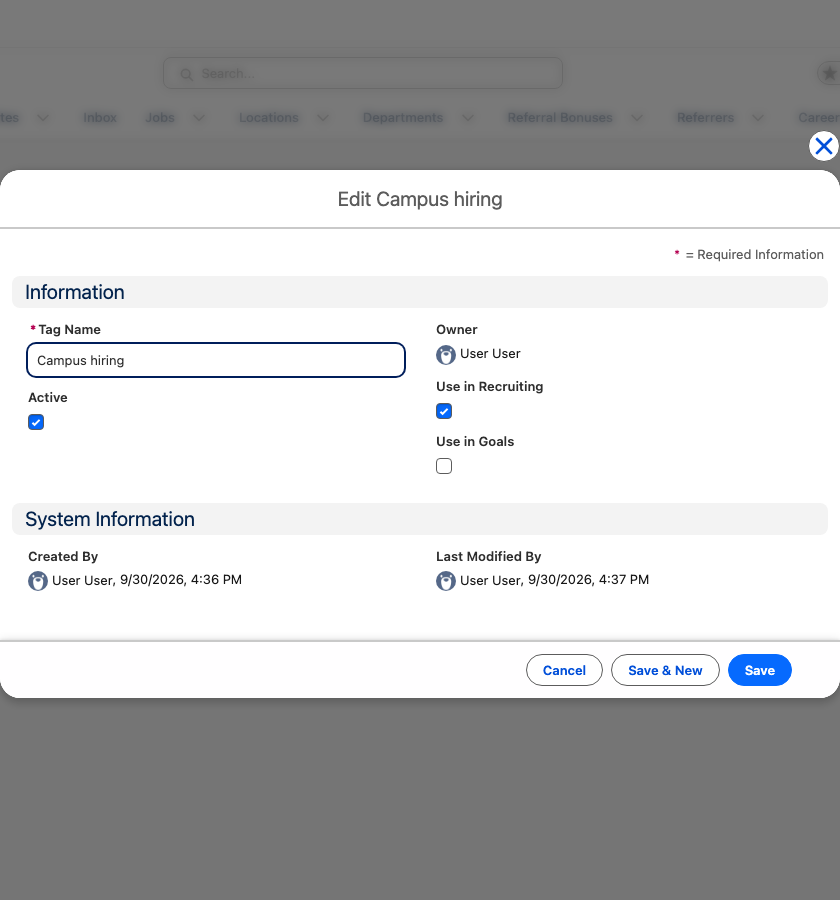
Tags are shared between Goals and Recruiting. The Use in Goals checkbox on a tag controls whether the tag appears in the Goal tag picker in the Employee Hub and in Salesforce, so recruiting-only tags stay out of Goals. New tags and tags that existed before the checkbox was added have it selected. Inactive tags never appear on Goals.
Users with the Flair Manager, Flair Employee Management, or Flair Engagement Manager permission set can change the checkbox.
- In Salesforce, open the Tags tab from the App Launcher.
- Open the tag.
- To hide the tag from Goals, clear Use in Goals. To offer it on Goals, select Use in Goals.
- Click Save.
Integrate Goals with Performance Reviews
Goals can be integrated with performance reviews by linking an Employee Feedback Cycle to an Objective Time Period. The display mode is configured on the Development Framework.
Display modes
| Mode | Behavior |
|---|---|
| None | Goals are not shown in performance reviews |
| Sidebar | Goals appear in a standalone section within the review, with a management sidebar for result entry |
| Inline as Questions | Goals from the linked time period render as question items within the review questions flow |
Control result updates in reviews
Who can update goal results during a review is controlled by the Objective Result Update Mode on the Development Framework.
If a Feedback Cycle has no linked Development Framework, Manage Goals provides backward compatibility: true behaves as Sidebar, and false behaves as None.
Use Goals in the Employee Hub
This section provides a brief overview of how goals appear to employees and managers in the Employee Hub after configuration.
Review the Goal list
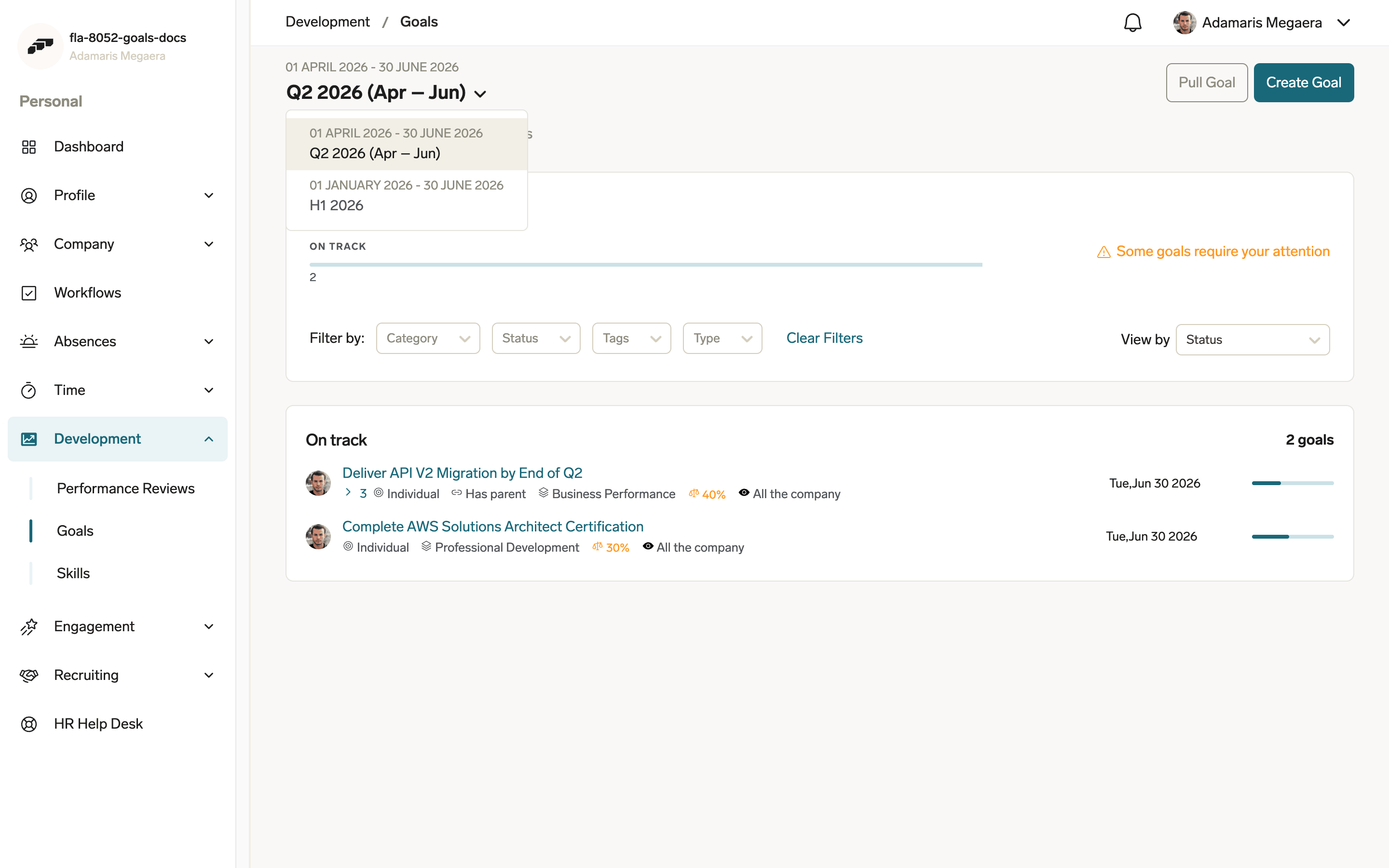
Employees and managers access goals from the Goals page in the Employee Hub. The goal list displays all goals for the selected time period.
- OKR mode: Goals show status pills (Draft, Behind, On Track, Done, Canceled) and can be grouped by status. Key result progress is visible on each goal card.
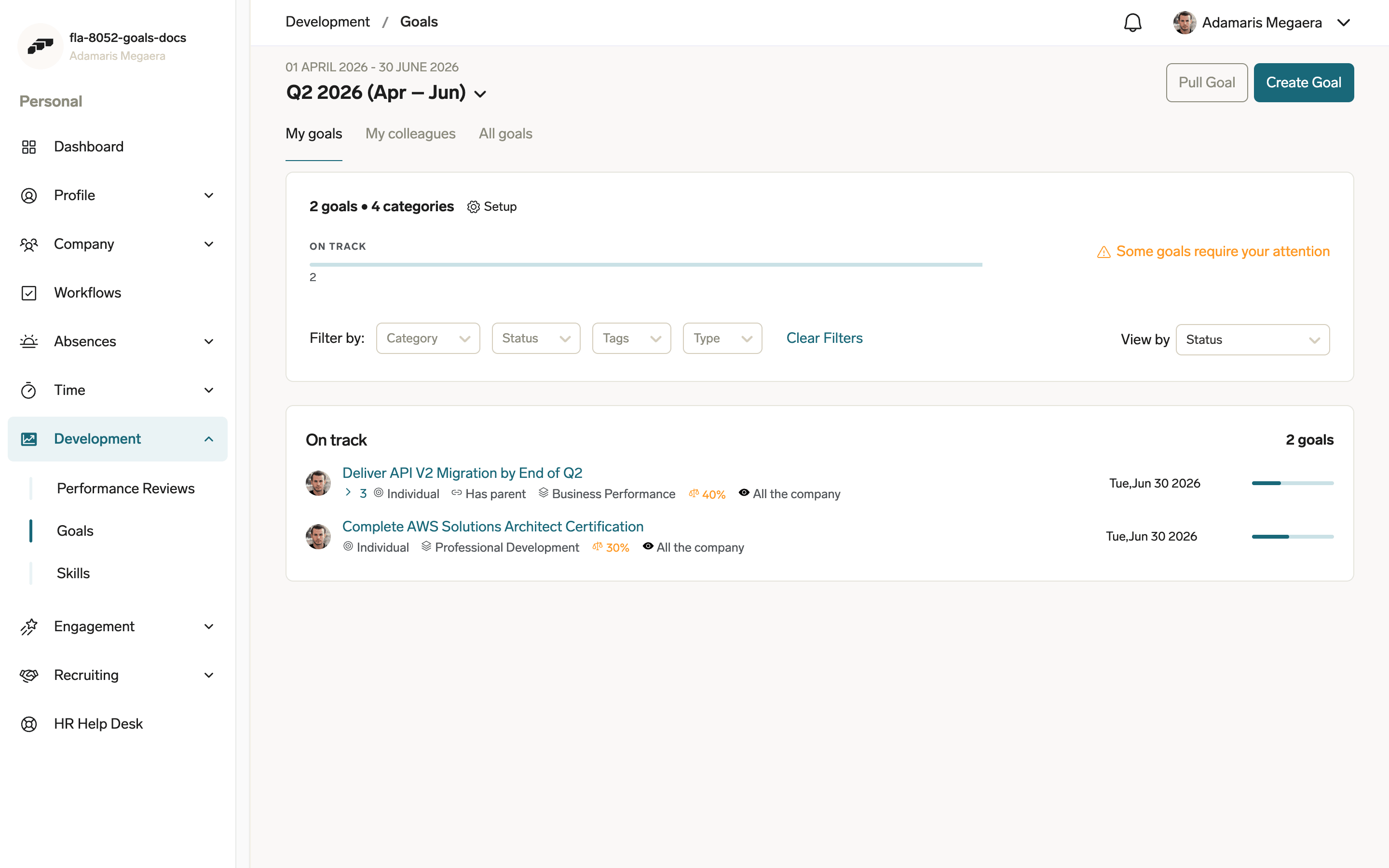
- MBO mode: Goals show achievement scores (when an Achievement Scale is set) and are grouped by category. Status pills are hidden.
Open the Goal sidebar
Clicking on a goal opens a sidebar where employees can view and edit goal details. The fields visible in the sidebar depend on the objective mode — see the MBO vs OKR Comparison table for details.
Pull or push a goal
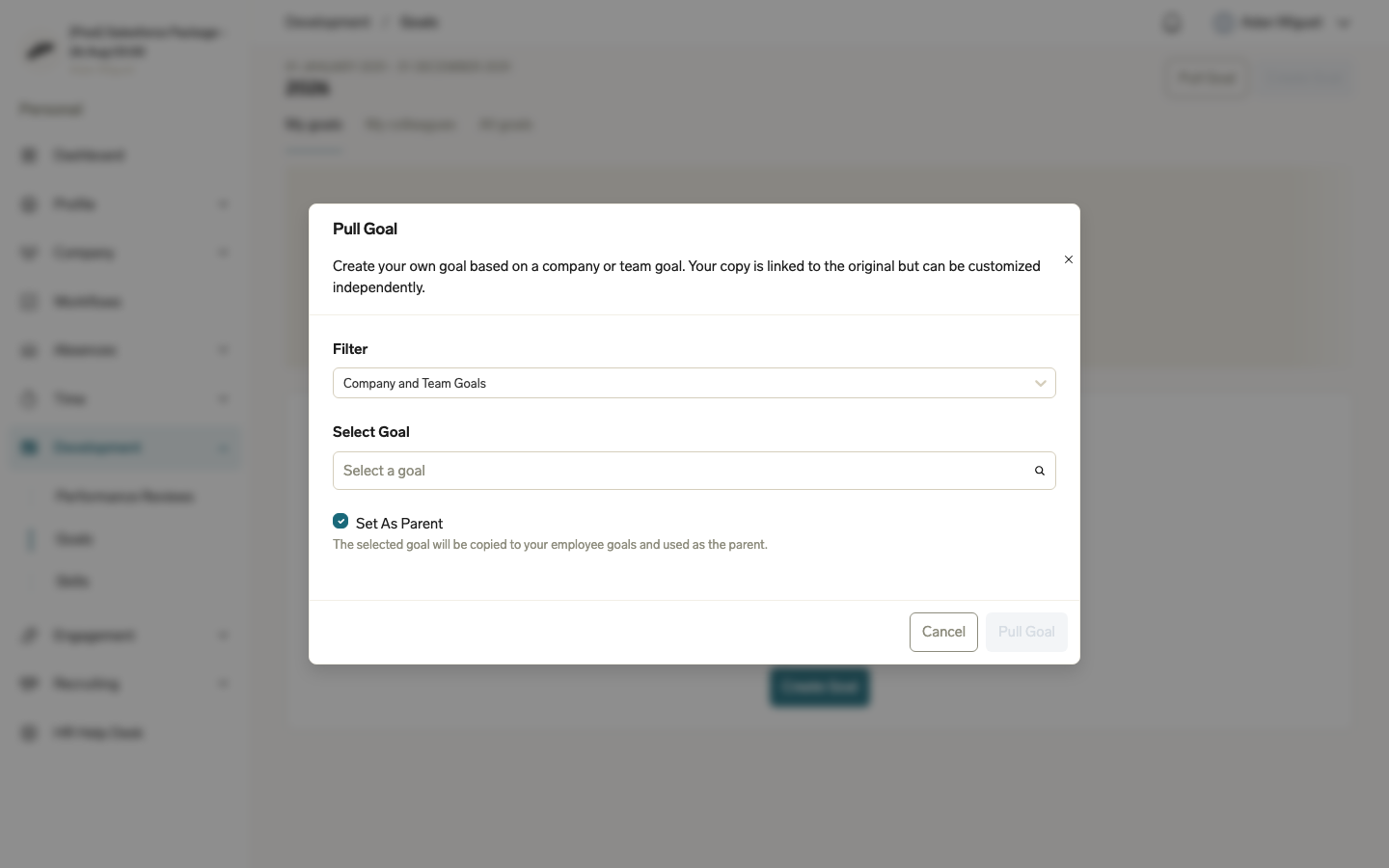
Employees can copy a company or team goal into their own goals, and managers can copy a goal to any employee across their reporting hierarchy — direct and indirect reports — or to another employee they can access through a role such as compensation, absence approval, time-entry approval, or HR management. Each copy stays linked to its source, and can be customized independently.
Pull a goal:
- On the Goals page, click Pull Goal.
- Select a company or team goal.
- Optional: Select Set As Parent to make the selected goal the parent of your copy.
- Click Pull Goal. The copy is added to your goals.
Push a goal:
- Open a goal in the sidebar and open its actions menu.
- Click Push.
- Select one or more employees.
- Optional: Select Set As Parent to make the goal the parent of each copy.
- Click Push Goal. A linked copy is added to each selected employee's goals.
Understand the Goal hierarchy
Goals exist at three levels:
- Company goals — organization-wide strategic goals (created by HR in Salesforce)
- Team goals — team-level goals (created by managers and HR)
- Employee goals — individual goals (created by employees, managers, and HR)
Company and Team goals can also be assigned an Objective Category, like Employee goals. See Create Objective Categories.
Employee goals can have sub-goals (nested goals within the same employee).
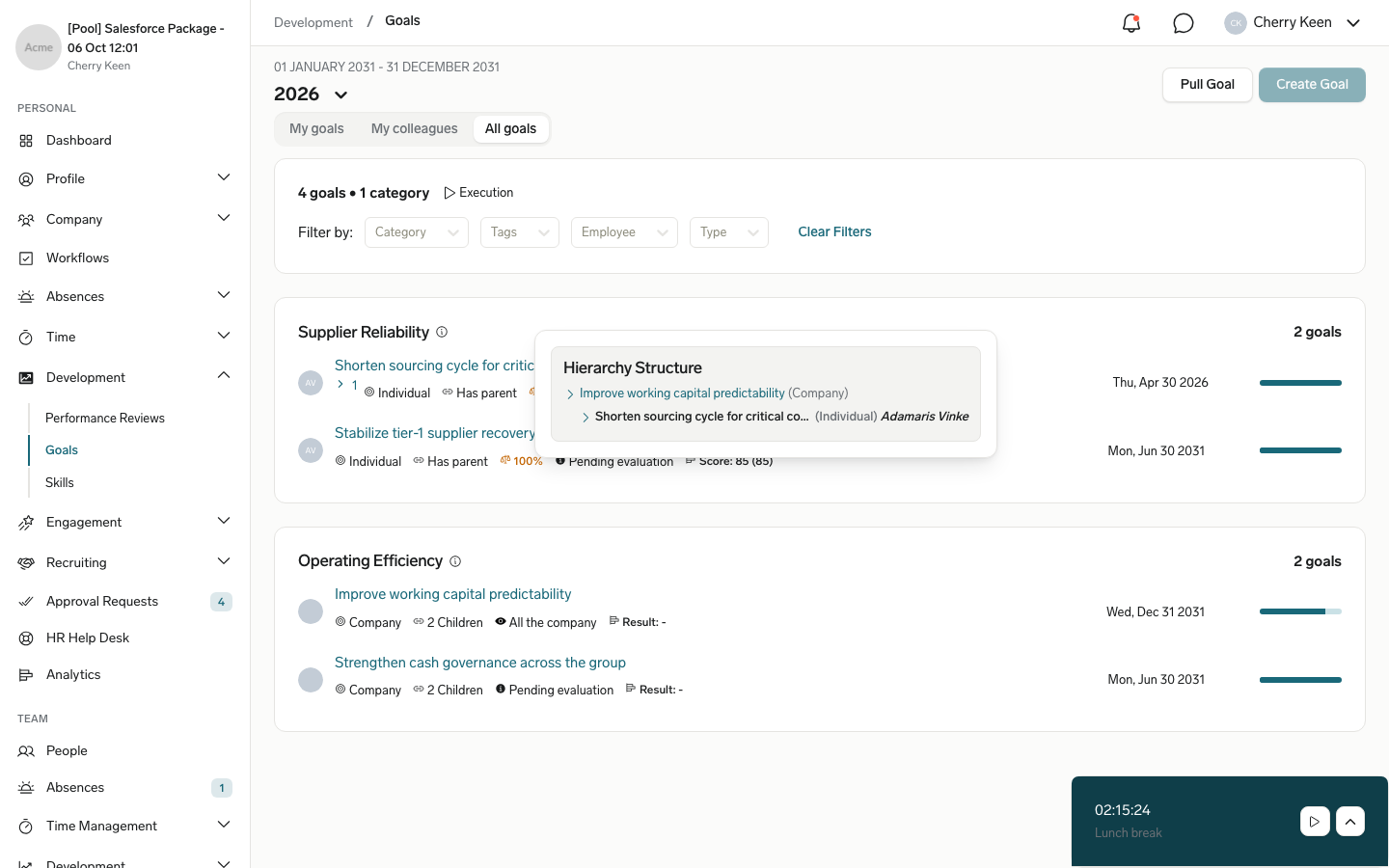
Goals can also be aligned to one or more company or team goals, showing how individual work contributes to organizational strategy. Open a goal's sidebar and use Aligned to to add an alignment — select a goal to align with — or to remove an existing one.
When a goal has a parent or children, its sidebar shows a Hierarchy Structure widget listing the full chain; each entry links to that goal's detail page. The same relationship also shows on the goal's card in the goal list as a count (for example, "Has parent" or "2 Children") — click it to open the hierarchy in a popover without leaving the list.
Control Goal visibility
| Option | Who Can See |
|---|---|
| All the company | All employees |
| Management + HR | Only managers and HR |
| Protected | Only explicitly shared users (OKR mode only) |
New goals created in the Employee Hub start with Management + HR. Employees can still select a wider visibility.
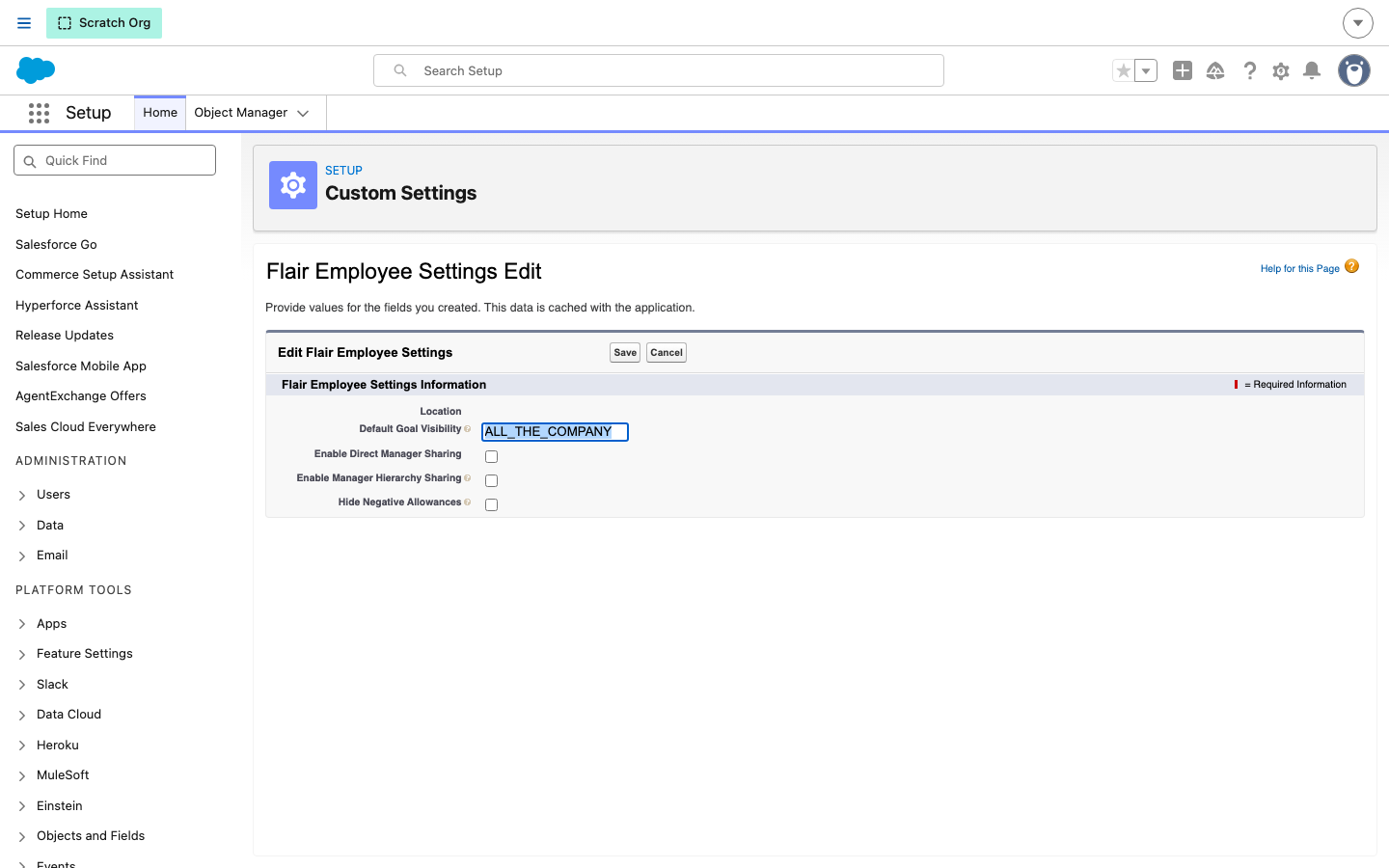
For goals created in Salesforce, and for goals created through Flow, Data Loader, or the API without a visibility, an admin can set the company default:
- In Salesforce Setup, enter
Custom Settingsin Quick Find, then open Custom Settings. - Next to Flair Employee Settings, click Manage.
- Edit the default organization level value, or click New if none exists.
- In Default Goal Visibility, enter
ALL_THE_COMPANYorMANAGEMENT_AND_HR. Any other value, including an empty field, counts asMANAGEMENT_AND_HR. - Click Save. New goals without an explicit visibility use this value.
The Employee Hub does not read this setting yet, so it always preselects Management + HR.
Track Key Results in OKR mode
In OKR mode, each goal can have measurable key results with three metric types:
| Type | Description |
|---|---|
| Numeric | Track progress from an initial value to a target value |
| Percentage | Track as percentage progress |
| Boolean | Yes/no completion |
Goal progress is auto-calculated from the average of its key results.
Review scoring in MBO mode
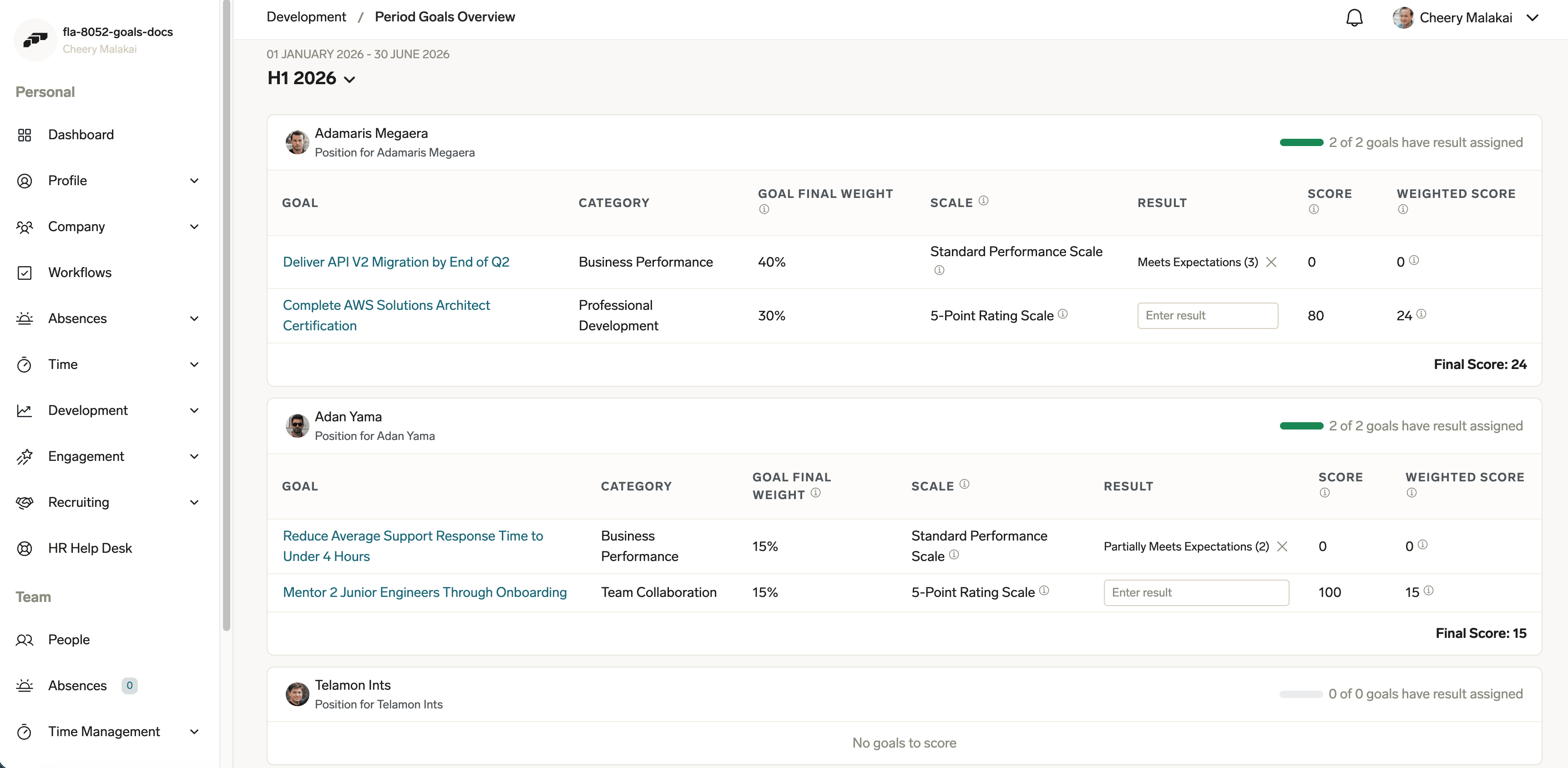
In MBO mode, managers can access the Period Goals Overview — a team view that shows each employee's goals with their category, final weight, achievement scale, result, score, and weighted score. Each employee card displays a progress indicator (e.g., "2 of 2 goals have result assigned") and a Final Score that rolls up all weighted scores.