Review employee Performance Reviews
Review an employee's self-assessment and peer feedback, add your Manager evaluation, and compare the responses. HR Admins can also inspect Feedback Cycle status and alignment in Salesforce.
Who can use this?
Managers review their team in the Employee Hub. HR Admins review Feedback Cycle outcomes in Salesforce.
Open an active Performance Review
- In the Employee Hub, open Team → Development.
- Select Performance Review. The page shows active reviews for your team.
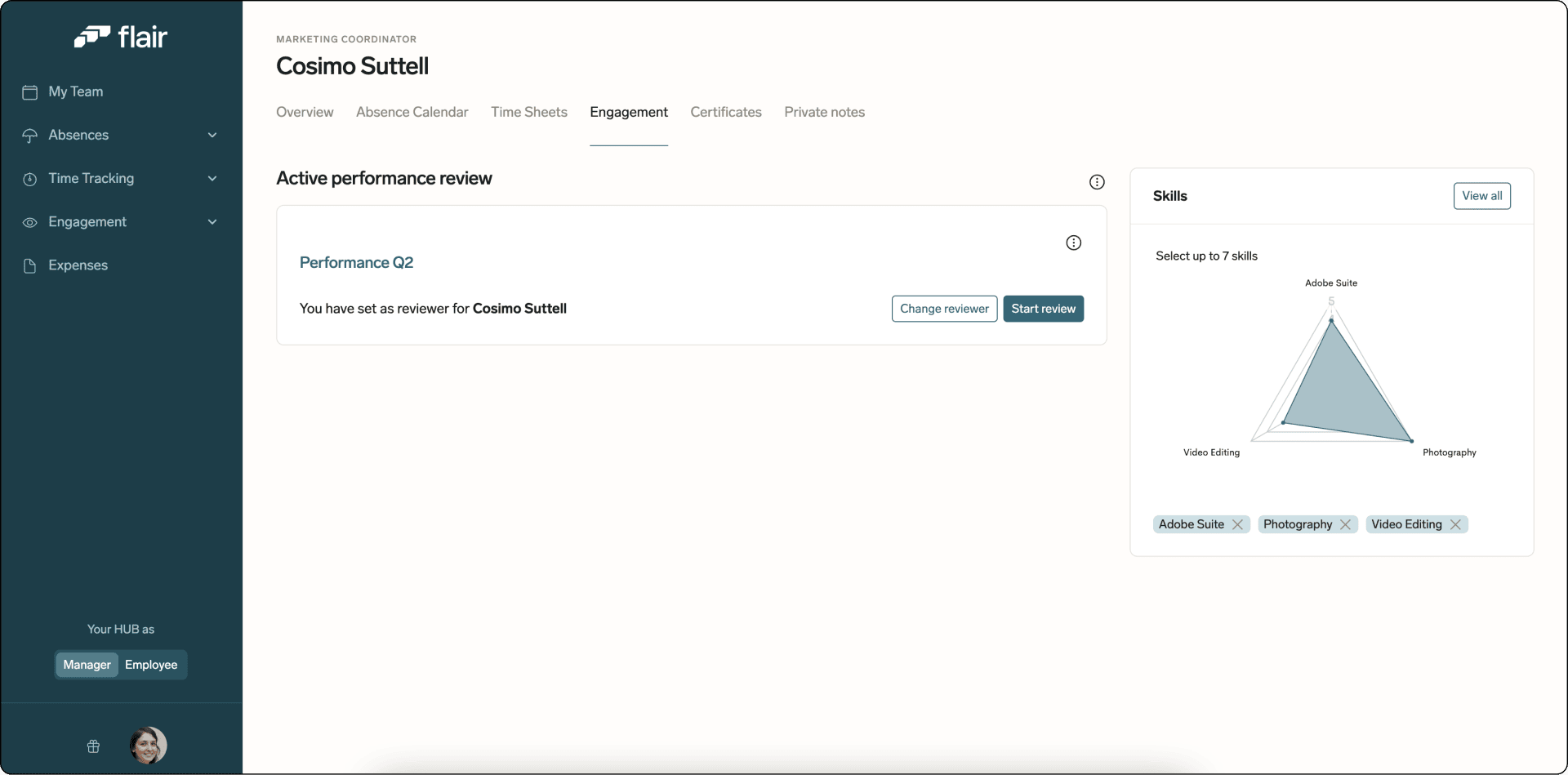
- Open the employee's review.
Complete the Manager review
- Review the employee's self-assessment answers.
- If peer reviews are enabled, review the peer feedback.
- Click Start review.
- Add your evaluation based on the employee and peer responses.
- Optional: If mandatory meetings are enabled, click Schedule Meeting.
- Optional: Click Manage Goals to review or update the employee's Goals.
- Finish the review.
Compare employee and Manager feedback
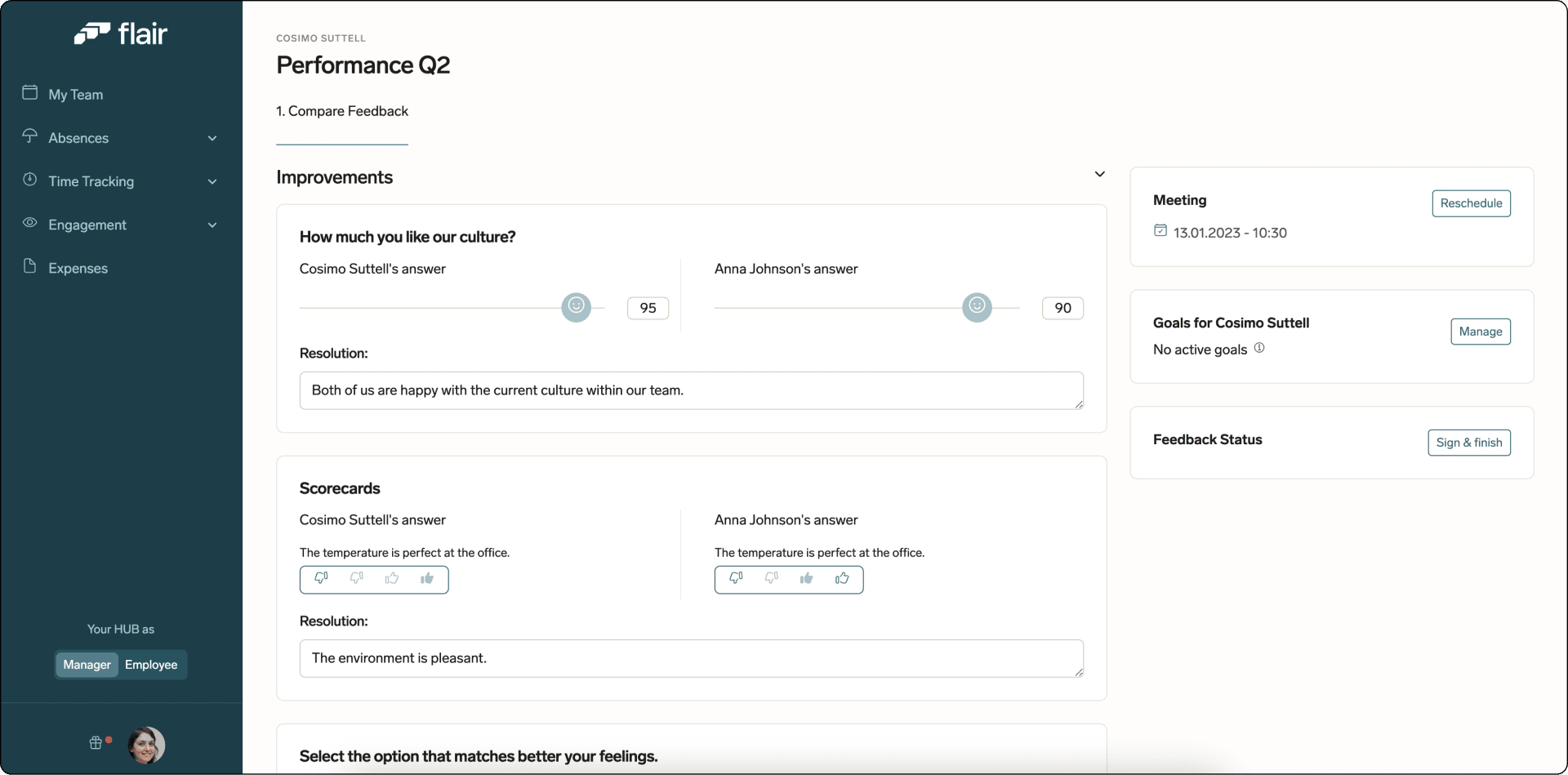
- On the review page, open the feedback comparison.
- Compare your evaluation with the employee's self-assessment.
- Add a resolution or comment under a question when responses differ.
Review a Feedback Cycle in Salesforce
- In flair HR, open Feedback Cycles.
- Open Participants to review completion statuses.
- Click the magnifying-glass icon for a participant.
- Review questions discussed by the Employee and Manager.
- Use the color indicator: green shows strong alignment, and red shows poor alignment.
Analyze Feedback Cycle results in Salesforce
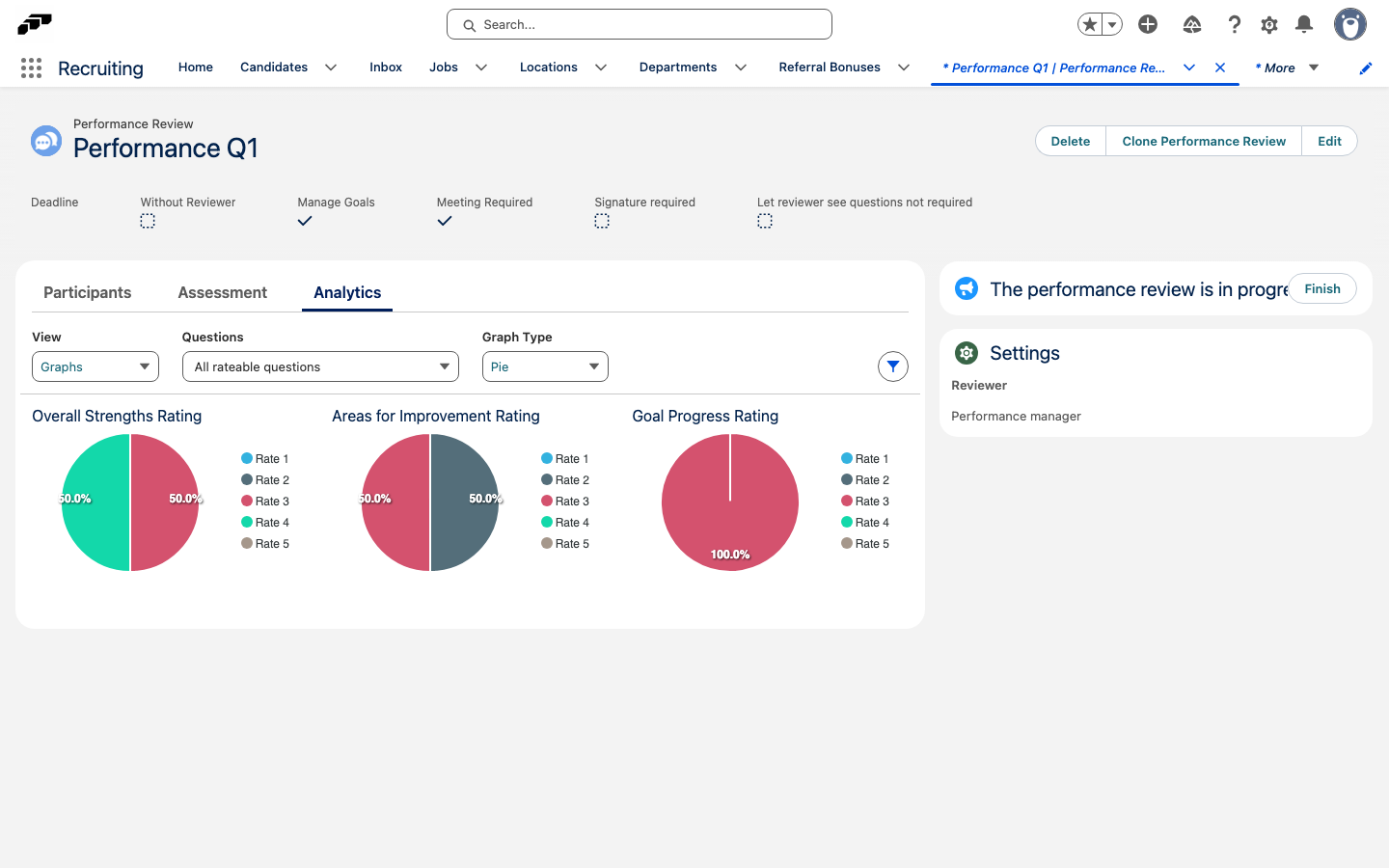
The Analytics tab summarizes the answers to rateable questions (Rating, Single Choice, and yes/no questions) for every participant. The tab appears when the Feedback Cycle is In Progress or Finished.
- In flair HR, open Feedback Cycles.
- Open the Feedback Cycle and select the Analytics tab.
- Under View, select Graphs to see one chart per question, or Table to see each participant's answers in a row.
- Optional: Under Questions, select the questions to include. By default, All rateable questions are shown.
- Optional: In the Graphs view, under Graph Type, select Pie, Radar, or Bar. The Radar chart shows only Rating questions and Single Choice questions with more than three options.
- Optional: To narrow the results by location or department, click the filter icon and select the locations and departments.
- Optional: In the Table view, click the Excel icon to export the table.