Connect Talent LMS to flair
Connect Talent LMS to run employee training courses and synchronize users, courses, enrollments, and training progress with flair. HR Admins manage the integration, while Employees and Managers access learning from the Employee Hub.
HR Admins with the Flair LMS Manager permission set configure Talent LMS in Salesforce. Employees and Managers use learning features in the Employee Hub.
Before you begin
- Obtain the API key and domain name from Talent LMS.
- Assign the Flair LMS Manager permission set to each user who manages the integration or individual employee connections.
Connect Talent LMS
- In Salesforce, open HR Admin, and open the Integrations tab.
- Under Add an integration, click TalentLMS.
- Click Connect via Integration Service, and allow access. The TalentLMS integration record opens.
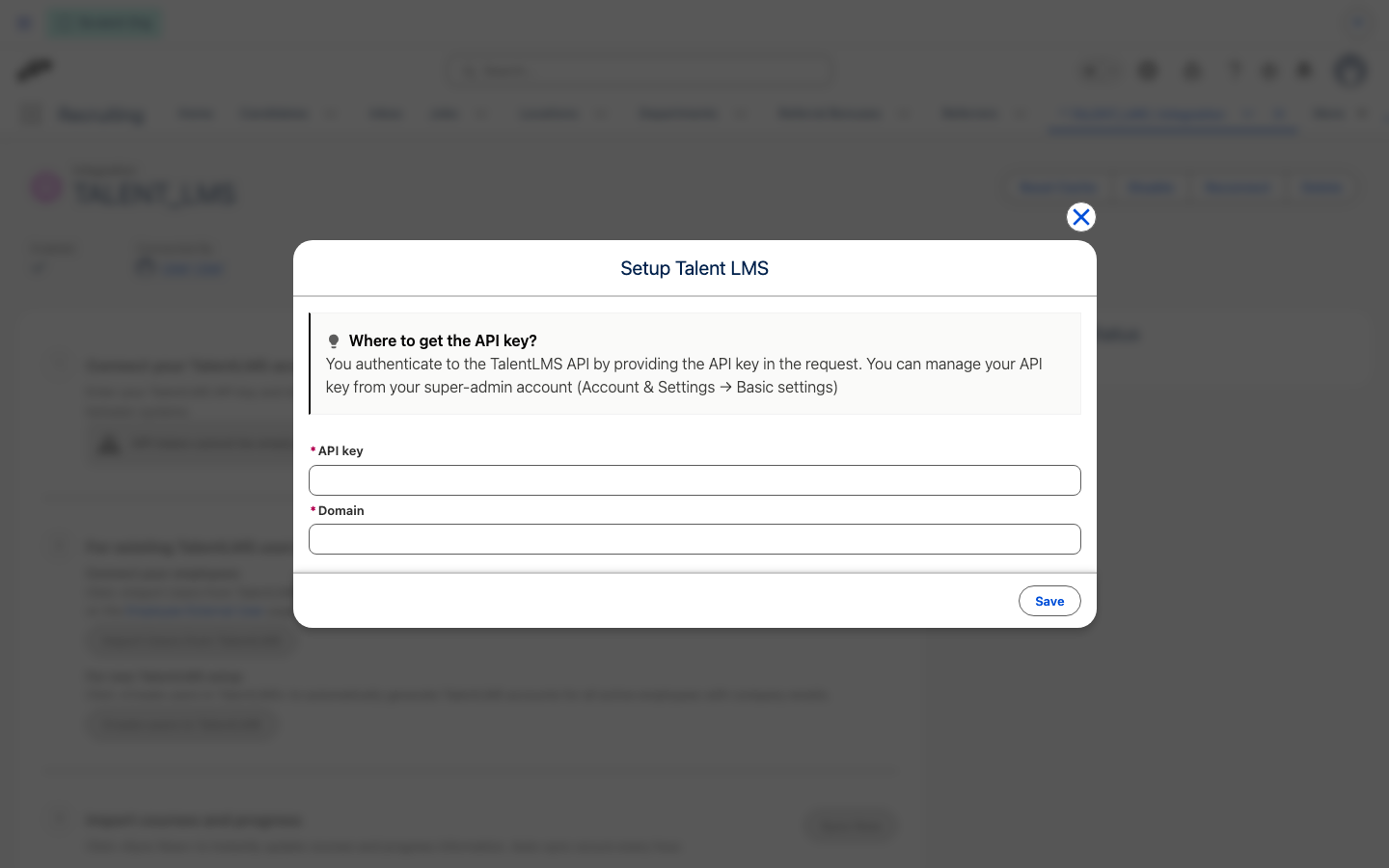
- Next to Connect your TalentLMS account, click Setup.
- Enter the Talent LMS API key.
- Enter the Domain.
- Click Save. flair validates the credentials and connects to Talent LMS.
Map Talent LMS users
- On the TalentLMS integration record, click Import Users from TalentLMS to pull Talent LMS users into flair, or click Create users in TalentLMS to add flair users to Talent LMS.
- Review the matches. flair matches users by email and supports a mix of imported and newly created users.
- Complete the mapping. flair stores the Talent LMS external role and unique identifier.
Connect or disconnect an employee
- In Salesforce, open the employee record.
- Find Employee Talent LMS Status. The widget shows the current connection status.
- Click Connect to link the employee, or click Disconnect to remove the connection.
The widget is visible only to users with LMS Manager or equivalent security access. It manages an individual connection without a Salesforce Flow or bulk operation.
Synchronize courses and progress
- Import Talent LMS courses into flair.
- Review the imported course title and external role information.
- Enroll Employees in the required courses through flair.
- Click Sync Now to synchronize progress.
- Ask Employees to complete their courses in Talent LMS. The next synchronization updates their progress in flair.
An automatic scheduler synchronizes data every hour.
Access learning in the Employee Hub
Open a course as an Employee
- In the Employee Hub, open Development → Learning.
- On the Courses tab, find the assigned course. To narrow the list, select a Status.
- Click Go to course. Talent LMS opens the course.
Review team learning as a Manager
- In the Employee Hub, open Team → Development → Learning to see completed and ongoing courses for each Employee.
Troubleshooting
A Talent LMS operation shows a missing-label error
The current integration has a label-definition issue that can cause errors during some operations. Contact flair Support with the operation and employee affected.
A course link shows the wrong text
The current Employee Hub integration can display incorrect text on course links. The link still identifies the connected Talent LMS course.
An integration login fails
Some login processes can fail because of local integration testing. Contact flair Support with the connection details.
Three updates for the integration, Salesforce, and Employee Hub were recorded as under review in the source article. Future changes are communicated through release notes.