Browse and search documents in the Employee Hub
flair organizes the documents you see in the Employee Hub into folders. This guide covers browsing company documents by folder, searching and organizing your own documents, uploading personal documents with the visibility you choose, and approving documents your team uploads.
Employees and Managers use Company → Documents and Profile → Documents in the Employee Hub. Managers upload and approve documents for a team member from that person's Documents tab. HR Admins can also approve uploaded documents in Salesforce.
Browse company documents by folder
HR Admins organize Company Documents into folders in Salesforce, and those folders appear the same way in the Employee Hub.
-
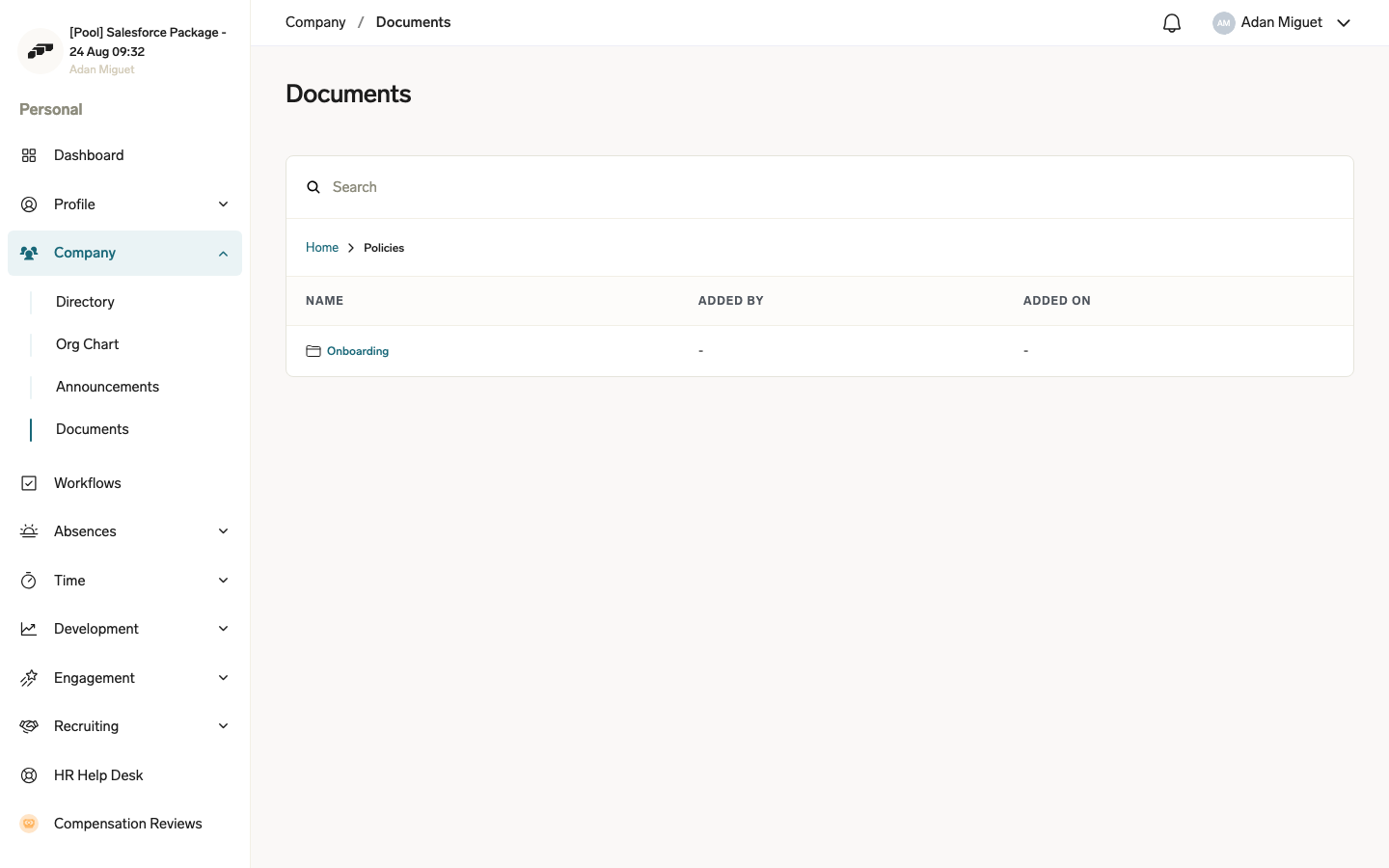
In the Employee Hub, open Company → Documents.
-
Click a folder to open it. The breadcrumb trail above the list shows your current location, starting from Home.
-
Click a breadcrumb to jump back to that folder, or click Home to return to the top level.
Enter a term in Search to find a company document by name; results come from every folder, not only the one you have open. You only see a folder if it contains at least one document you have permission to view — empty or fully restricted folders don't appear.
Search your personal documents across folders
Your Profile → Documents page also organizes personal documents, such as payslips and certificates, into folders.
-
In the Employee Hub, open Profile → Documents.
-
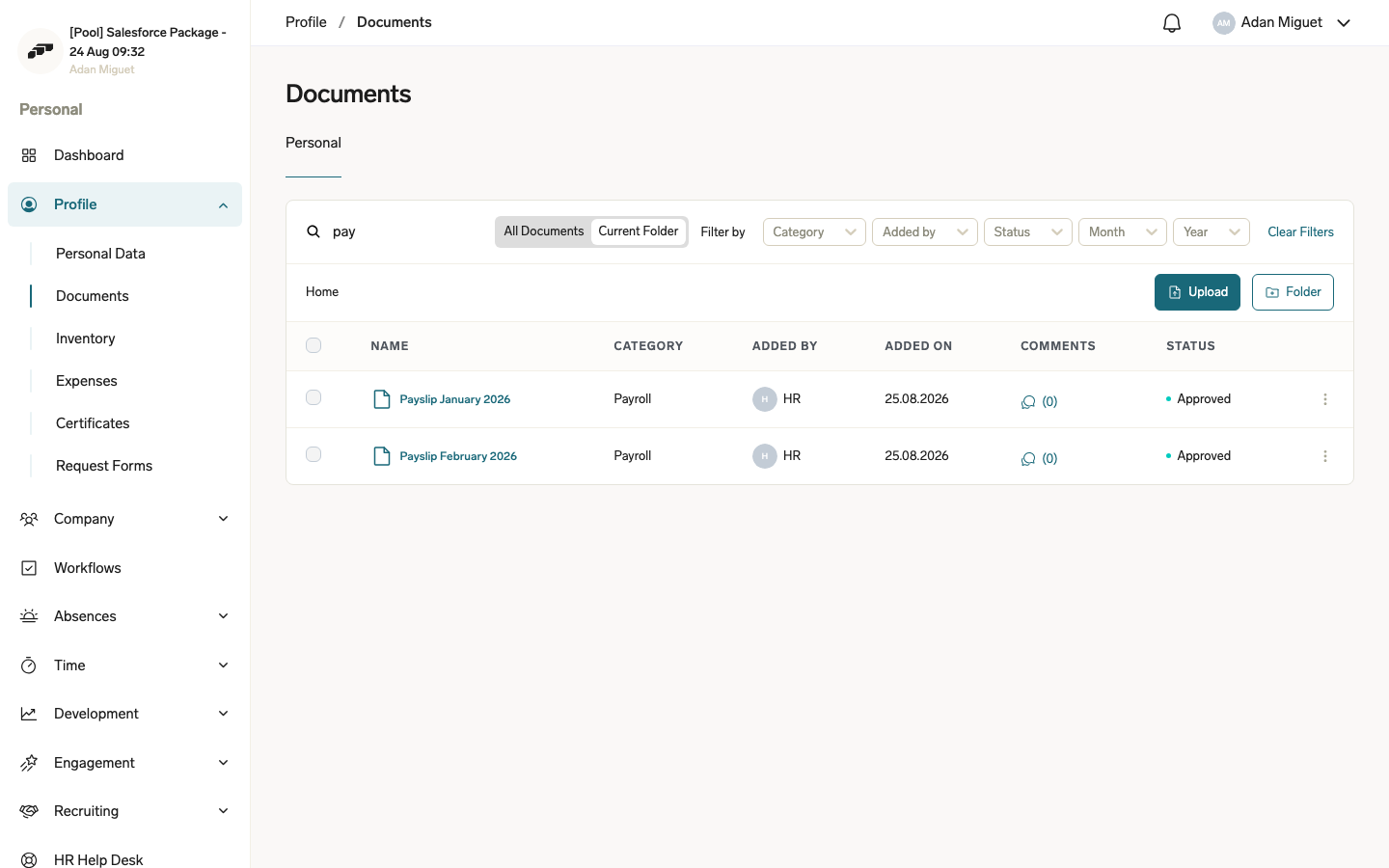
In Search, enter part of a document name. A scope toggle appears above the list.
-
Select All Documents to search every folder, or leave Current Folder selected to search only the folder you have open.
Clear the search field to return to browsing by folder.
Organize your personal documents into folders
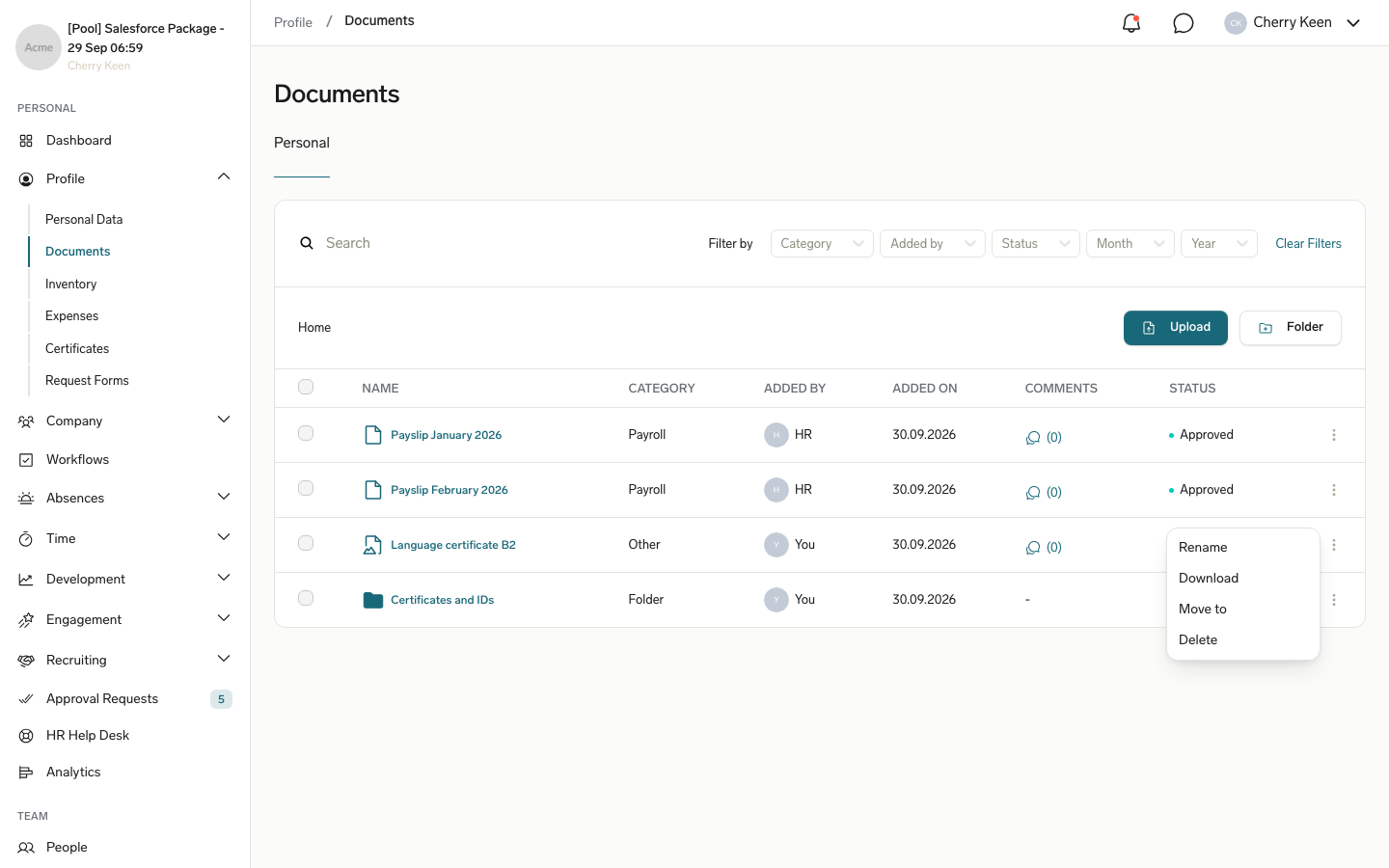
Create your own folders on Profile → Documents, and rename, move, download, or delete documents and folders from each row's actions menu.
Your organization can block some of these changes. If it does, Folder doesn't appear, or the blocked items in the actions menu are unavailable. An admin sets these restrictions per audience; see Restrict document and folder changes in the Employee Hub.
Create a folder
- In the Employee Hub, open Profile → Documents.
- Optional: Open the folder you want to create the new folder in.
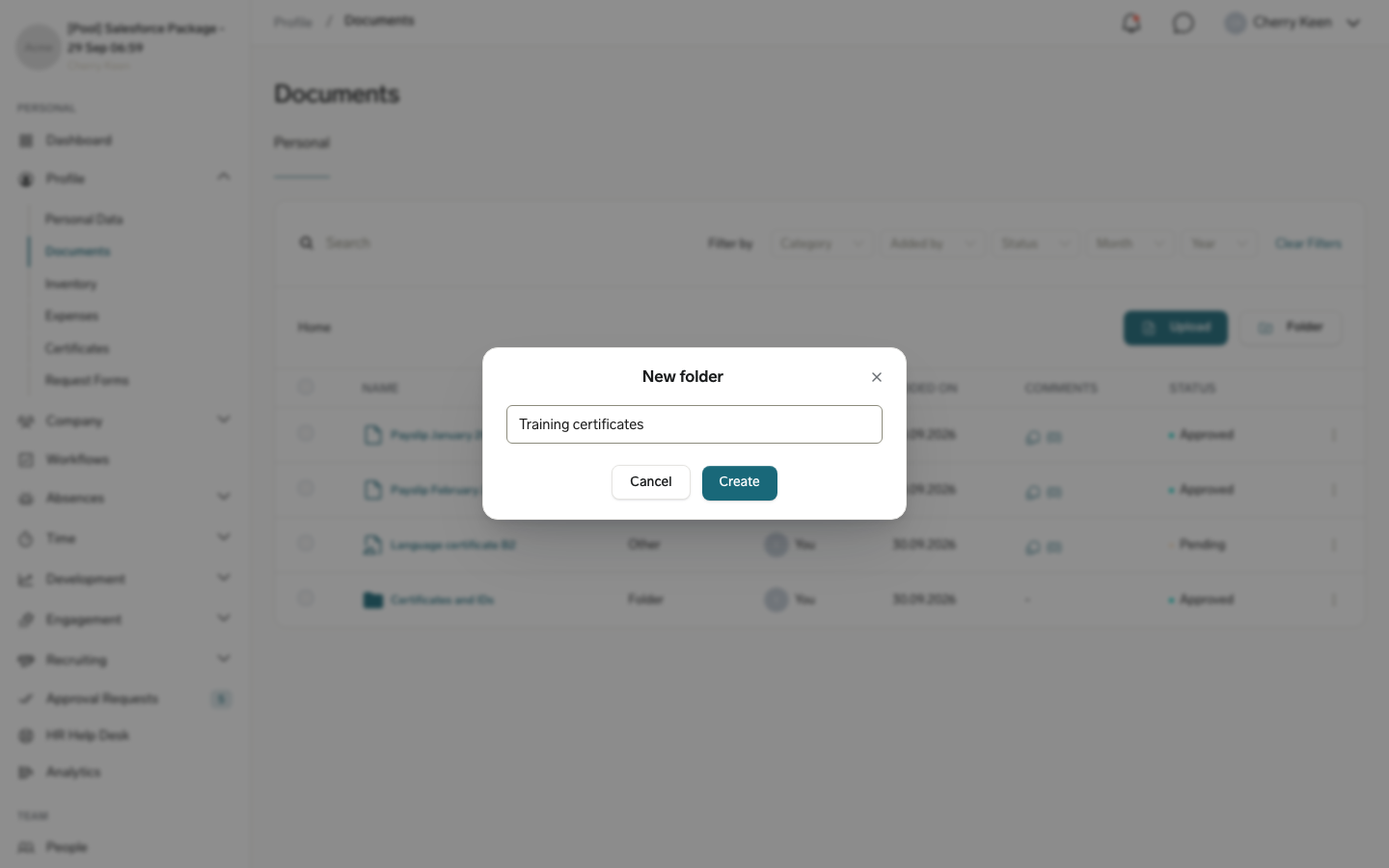
- Click Folder.
- In New folder, enter a name, and click Create. The folder appears in the list.
Rename, move, download, or delete an item
- In the Employee Hub, open Profile → Documents.
- Click the actions menu (three dots) at the end of the document or folder row.
- Select an action:
- To rename the item, click Rename, enter the new name, and click Rename.
- To move the item, click Move to, select the target folder, and click Move. To create the target folder on the way, click Add New Folder.
- To download a document, click Download. Folders can't be downloaded.
- To delete the item, click Delete, and confirm by clicking Delete. Deleting can't be undone.
To move or delete several items at once, select the checkbox of each row. Then click Move To or Delete in the panel that appears at the bottom of the page.
You can't delete approved documents or documents that HR uploaded, and you can't delete a folder that contains files only HR can see. In a team member's documents, managers don't see Folder or Delete.
Add a note or comment on a document
- In the Employee Hub, open Profile → Documents.
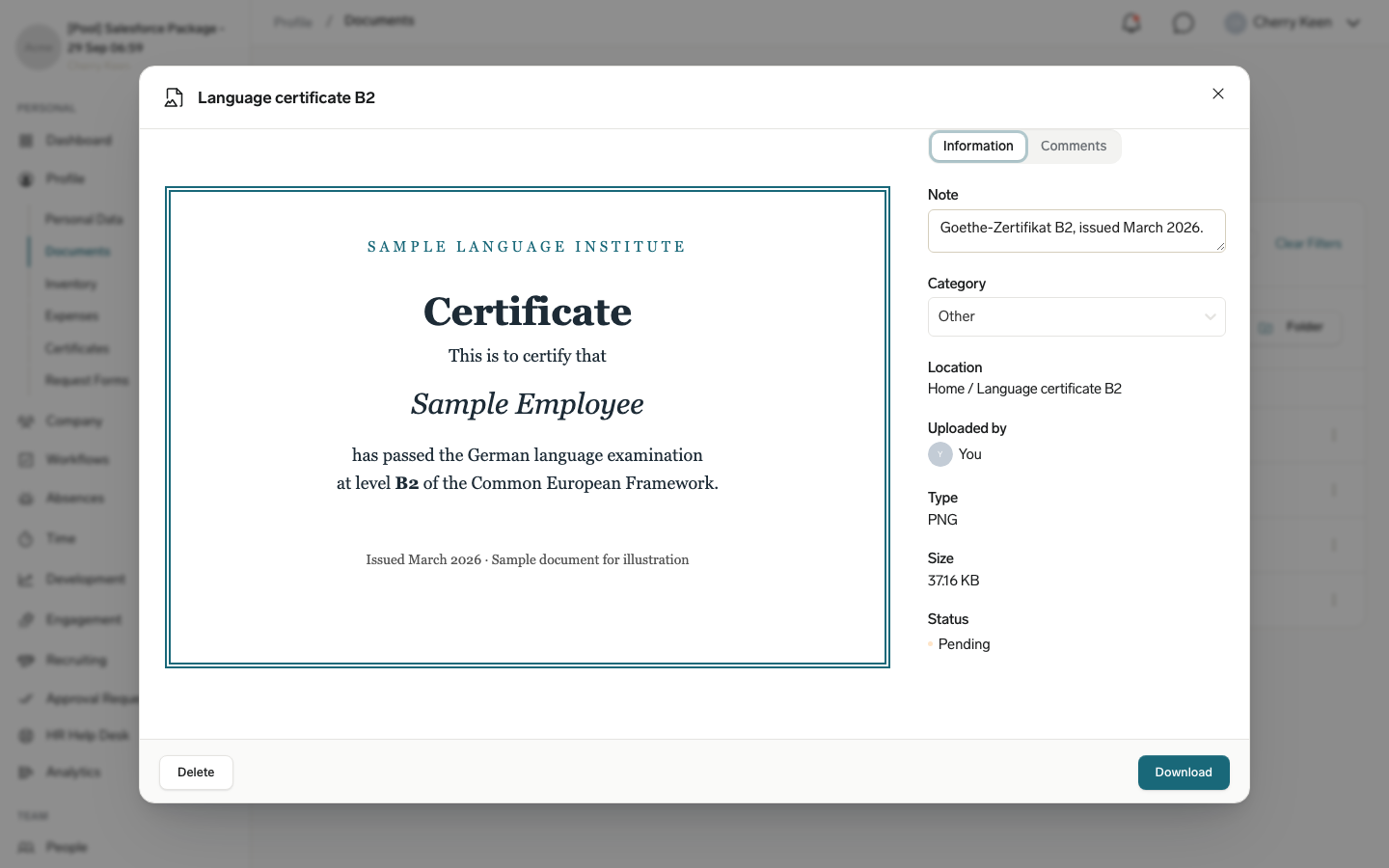
- Click a document. Depending on the file type, it opens in a preview or in a side panel.
- On the Information tab, review the document's category, location, uploader, type, size, and status. For documents you uploaded yourself, you can also edit Note and Category. Changes save automatically.
- Optional: To discuss the document, open the Comments tab.
Upload a document and choose who can see it
Each file you upload gets its own name, category, and visibility. The visibility decides who can see the document in addition to HR.
Upload your own document
- In the Employee Hub, open Profile → Documents.
- Optional: Open the folder you want to upload to.
- Click Upload.
- Drag your files into the upload area, or click choose file. Each file can be up to 4 MB.
- For each file, check the Document Name, and select a category in Select a category.
- In Select file visibility, select HR+Manager+Employee or HR+Employee.
- Click Upload. The documents appear in the folder.
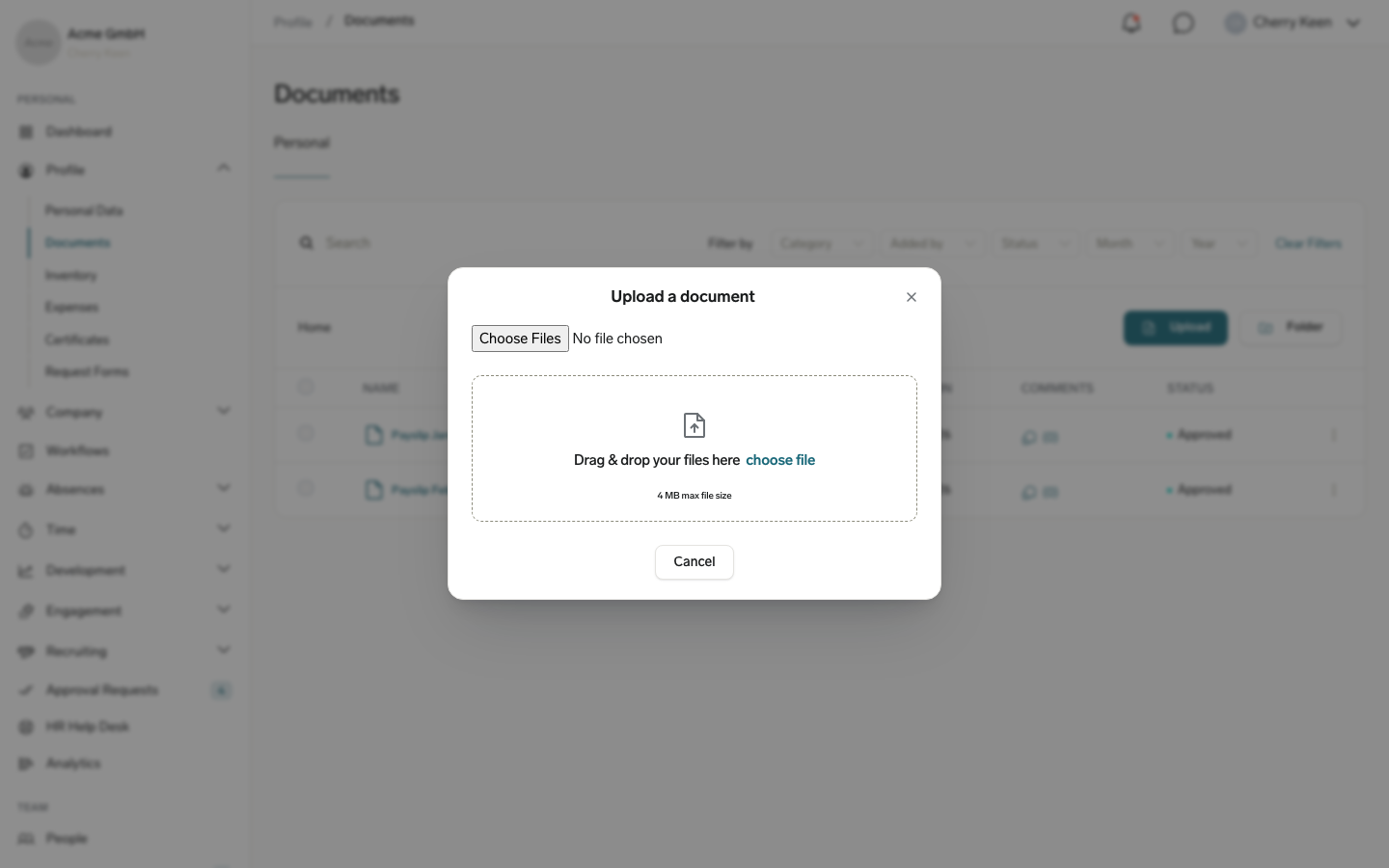
If you don't see Upload, your organization has turned off employee uploads. See Restrict Employee Document uploads.
Upload a document for a team member
- In the Employee Hub, open Team → People.
- Select the team member.
- Open the Documents tab.
- Click Upload, and add the files.
- For each file, check the Document Name, and select a category.
- In Select file visibility, select who can see the document: HR+Manager+Employee, HR, HR+Manager, or HR+Employee.
- Click Upload.
The visibility options also depend on the category. If HR has limited a category to certain visibilities, only those options appear, and changing the category clears a visibility the new category doesn't allow. Upload stays unavailable until every file has a name, a category, and a visibility.
Approve documents your team uploads
Documents that employees upload themselves start with the status Pending. The Default Document Policy sends a self-uploaded document to the employee's direct manager when its visibility is HR+Manager+Employee. Your organization can route documents differently with its own Approval Policies.
Approve in the Employee Hub
- In the Employee Hub, open Team → People.
- Select the team member.
- Open the Documents tab.
- Click the pending document.
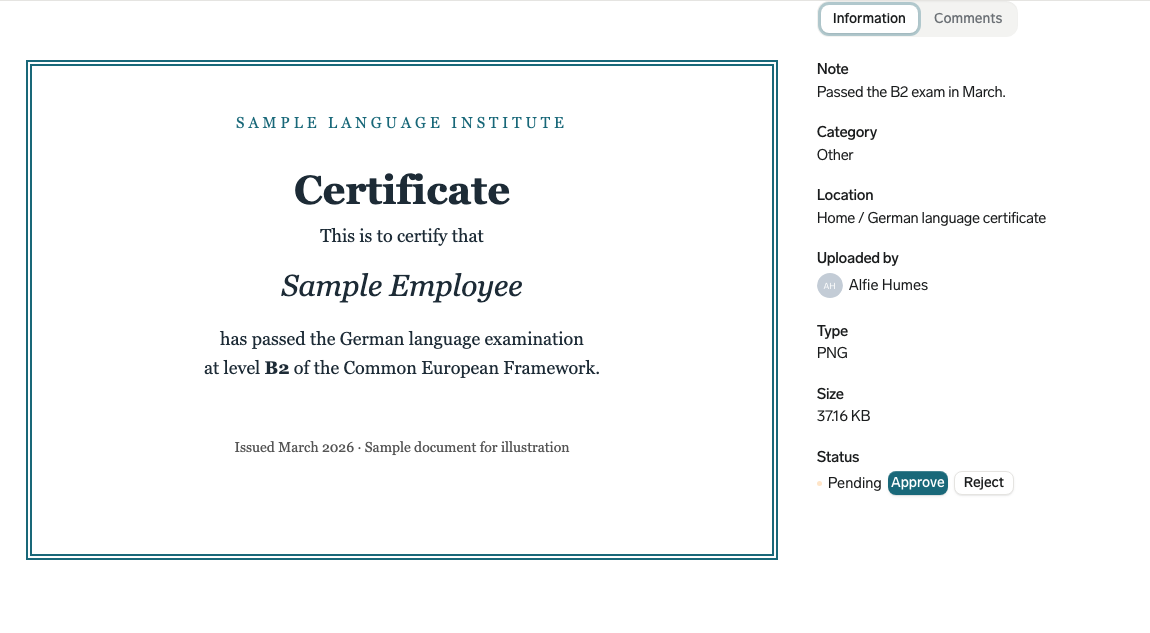
- On the Information tab, next to Status, click Approve or Reject. The status updates.
Approve and Reject appear only when you are the approver of the document's pending approval request.
Approve in Salesforce
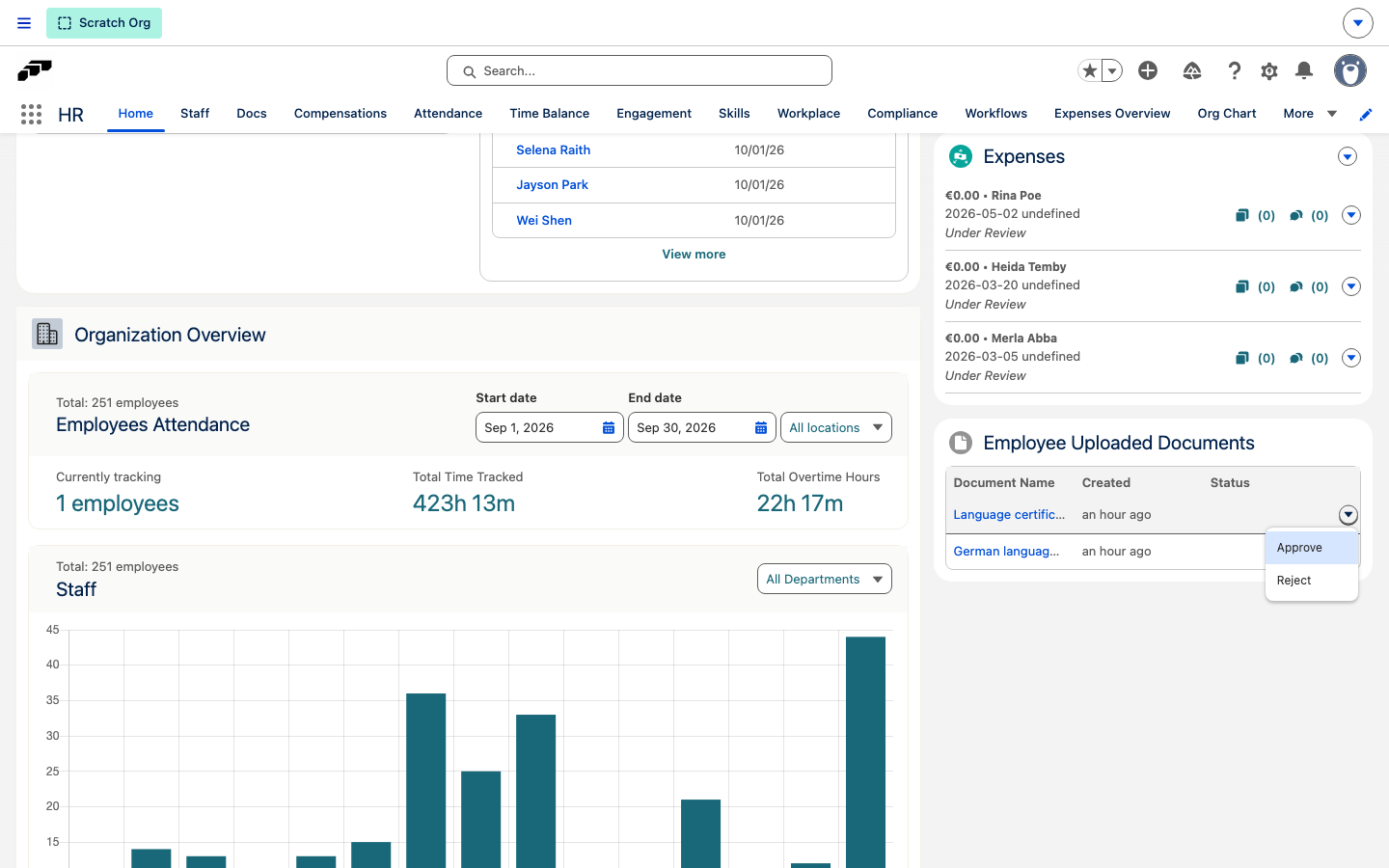
HR users with the Documents Manager custom permission see the Employee Uploaded Documents card on HR Home whenever documents are pending.
- In Salesforce, open HR Home in the flair HR app.
- On the Employee Uploaded Documents card, click the menu at the end of a document's row.
- Click Approve or Reject. The document leaves the card.
The card shows the three oldest pending documents. When more are pending, click View more to open the full Employee Documents list.