Chat with colleagues in the Employee Hub
Use Chats in the Employee Hub to message colleagues in direct or group conversations. This guide covers finding conversations, sending and managing messages, unread status, and group membership. Chat can also send email, Slack, and mobile alerts for unread messages.
Employees and Managers in the Employee Hub. Chat is available unless an HR Admin hides Chats for your audience in the Employee Hub feature settings.
Open Chats
In the Employee Hub, click Chats in the top navigation. The chat panel opens.
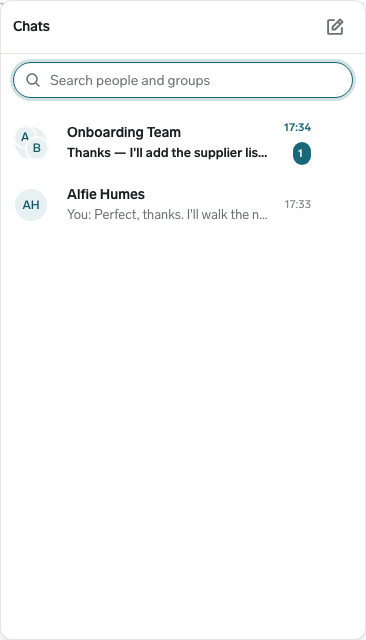
If Chats is not visible, ask your HR Admin whether Hide Chats is selected for your Employee Hub audience. See Configure the Employee Hub.
Search conversations
- In the chat panel, enter a colleague or group name in Search people and groups. The list filters to matching conversations.
- Click the conversation you want to open.
The search filters conversation and group names. It does not search message text.
Start a direct or group chat
- In the chat panel, click New chat.
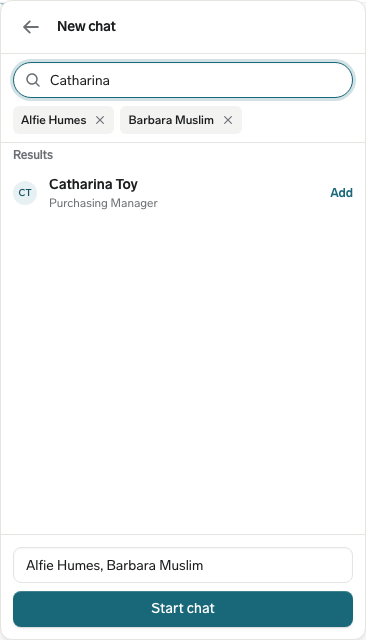
- In Search a colleague or select one below, enter a name, then click the colleague in the results. Selected people appear above the results.
- Repeat step 2 to select at least two colleagues for a group chat. Select one colleague for a direct chat.
- For a group chat, optionally enter a name in Group name (optional). Group names can contain up to 80 Unicode code points.
- Click Start chat. The new conversation opens.
Send messages
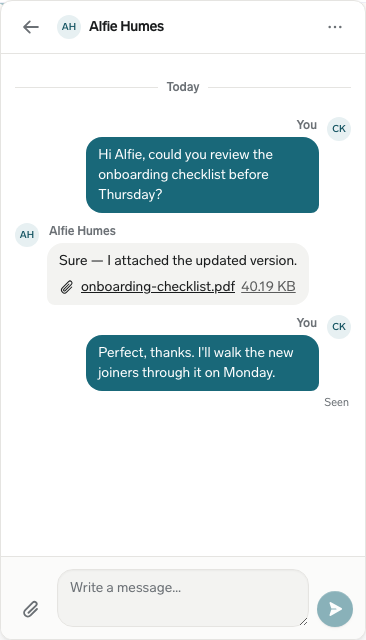
- In a conversation, enter your message in Write a message….
- Press Enter to send the message. Press Shift+Enter to add a line break without sending.
- Alternatively, click Send. The message appears in the conversation.
Chat has these limits:
| Item | Limit |
|---|---|
| Message text | 4,000 Unicode code points. Leading and trailing whitespace is removed when you send. |
| Group name | 80 Unicode code points. Leading and trailing whitespace is removed when you save it. |
| File attachments | 1–5 files per message, with a combined limit of 3.5 MiB. |
| Message rate | 30 messages per 60 seconds. |
Chat does not support files with the .html or .htm extension.
Click Attach files to choose up to five files. You can also paste a screenshot or image into the composer; it is added as an attachment. A message can contain attachments without any text. JPEG, JPG, GIF, and PNG images appear inline and open enlarged when clicked. Other supported file types open or download separately.
Message bodies are encrypted at rest by the Hub with a key for each chat group. This protection does not apply to attachment bytes or file names, which are stored as ordinary Salesforce files.
Edit or delete your message
You can edit text messages or delete messages that you sent while you remain a member of the conversation. Attachment-only messages cannot be edited.
- On your message, open Message options.
- To change the message, click Edit, update the text, and press Enter or click Save. Press Shift+Enter for a line break. Press Escape to cancel.
- To remove the message, open Message options, click Delete, and confirm the deletion. Everyone in the conversation sees that the message was deleted.
Check unread status
Chat shows unread messages in the Chats top-navigation badge and on each conversation in the chat list.
- Open a conversation. After the conversation is visible, its unread messages are marked as read.
- To mark a conversation without opening it, open its options menu and click Mark as read.
In a direct chat, a green dot marks a colleague who is Online. While someone types, Chat shows a typing indicator. Under your latest message, Seen appears in a direct chat after the other person reads it; group chats show Seen by with the readers' names. To configure email, Slack, or mobile alerts for new chat messages, see Get notified about new chat messages.
Manage group members
The employee who creates a group is its first admin. Group admins can rename a group and add or remove members. Members who are not admins can view the member list. If the last admin leaves or is removed, the oldest remaining member becomes an admin. Newly added members can see the existing conversation history.
- Open a group conversation and its options menu.
- To rename the group, click Rename group, enter a name in Group name, and press Enter. Press Escape to cancel.
- To manage members as an admin, click Manage members.
- In Search a colleague to add, enter a name, then click Add next to the colleague.
- To remove a member, click the remove control next to their name. The control is labeled Remove followed by the member's name.
- To view the members without admin actions, click Members.
To stop receiving messages, any group member can open the group's options menu and click Leave chat. This removes the group from that member's messages but does not delete it for other members.
Deleting a chat permanently deletes the chat and all its messages for everyone. This cannot be undone. Any participant can delete a direct chat. Only a group admin can delete a group for everyone. The confirmation says: “Delete this chat for everyone? This will permanently delete the chat and all its messages for everyone.”
To delete a direct chat, open its options menu, click Delete chat, and confirm. To delete a group for everyone, a group admin uses the same Delete chat action and confirmation.