Scheduled Employee Data Changes
Employee data changes all the time. Instead of editing an employee record the moment something changes, you schedule the change against the date it takes effect — a salary rise from the first of next month, or a new job title from the start of the quarter.
flair records the change in the employee's history with that effective date, so payroll and reporting see the right value for the right period. The history shows not only what a value is, but since when it applies.
In this guide, you'll learn how to schedule future changes, backdate corrections, and use the Apply directly to the employee record option.
Why Schedule Changes?
An immediate edit updates the value on the record, but it says nothing about when the change took effect. For anything that looks at a period rather than a single moment — payroll and reporting — that timing matters.
Scheduling ties the change to its effective date from the start. A salary rise counts from the date it takes effect, and a correction counts from the date it should have taken effect — not from the day somebody happened to enter it.
Because the change is recorded in the employee's history with its effective date, payroll and reporting always see the right value for the right period, even when the change was entered well before or well after it took effect.
Scheduling a Future Change
Scheduling a future change is the everyday case: you know a change is coming, and you record it now, against the date it becomes effective.
To schedule a future change:
- Open the employee record and find the Employee Data Changes card, which lists any upcoming changes.
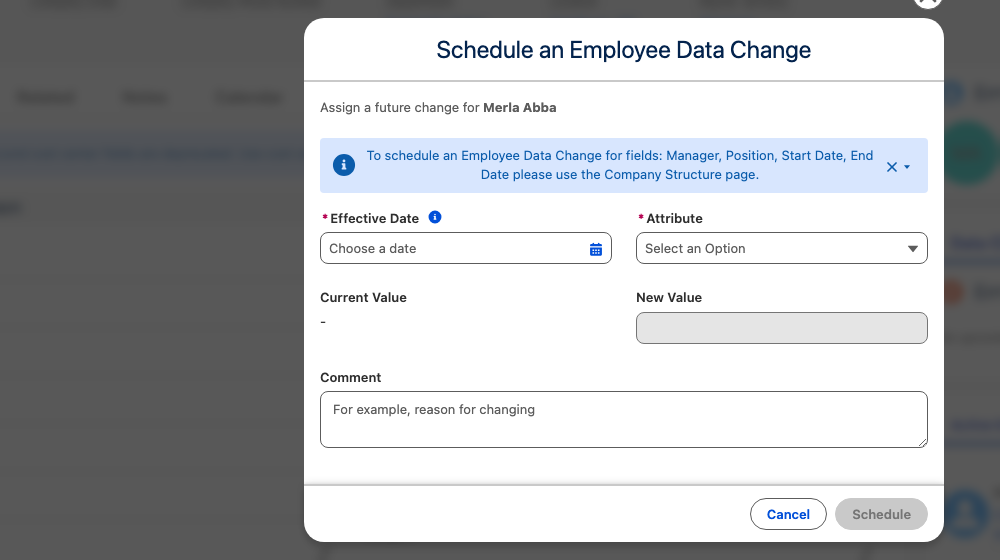
- Click Schedule. The Schedule an Employee Data Change dialog opens.
- Set the Effective Date — the day the change takes effect.
- Pick the Attribute you want to change. flair shows you the Current Value so you can see what you are replacing.
- Enter the New Value, and optionally a Comment explaining the reason.
Manager, Position, Start Date and End Date are not scheduled here. The dialog points you to the Company Structure page for those, because they belong to the employee's position rather than their personal data.
flair records the change in the employee's history with that effective date. When the day arrives, nothing has to be remembered or re-entered — the history already carries the change.
Backdating a Change
You can also give an effective date in the past. This is what makes corrections possible after the fact.
Imagine a raise that was agreed in March but only entered in May. The raise should count from March, and historical payroll runs should reflect it. Scheduling the change with the March effective date writes it into the employee's history from when it actually took effect — not from when you got around to entering it.
Backdating keeps the original effective date intact. If a change should count from an earlier date, schedule it with that date instead of editing the record today.
The Apply Directly to the Employee Record Option
When the effective date is in the past, the form shows an Apply directly to the employee record option, which is on by default. It decides what happens to the employee record itself:
- Left on — the employee record is updated immediately and the change is written into employee history with its original effective date.
- This is what you normally want: the record is correct now, and the history explains since when.
- Turned off — only the history record is written; the employee record itself is left alone.
- Use this when the current value is already right and you are correcting the record of when it changed.
Effective Dates at a Glance
The effective date may be in the past or the future, but not today — a change taking effect today is an ordinary edit to the record.
| Effective date | What it means |
|---|---|
| In the future | The change is recorded in the employee's history and takes effect on that date. |
| In the past | The change is recorded with its original effective date, and the Apply directly to the employee record option appears (on by default). |
| Today | Not an option — a change taking effect today is an ordinary edit to the record. |
In short: schedule changes that take effect on another day, and edit the record directly when the change applies today.