Run a Compensation Review
Run a salary-change workflow for a group of employees. Managers propose salaries in the Employee Hub, approvers review them, and approved changes take effect automatically.
HR Admins use Salesforce for Create the review, Reassign a review, Revert a review, and the budget tasks. Managers and assigned approvers use the Employee Hub for Complete a manager review, Delegate a review, and Approve or reject a review. The top manager of a budgeted review tree can Redistribute budget between teams in the Employee Hub or in Salesforce.
Create the review
-
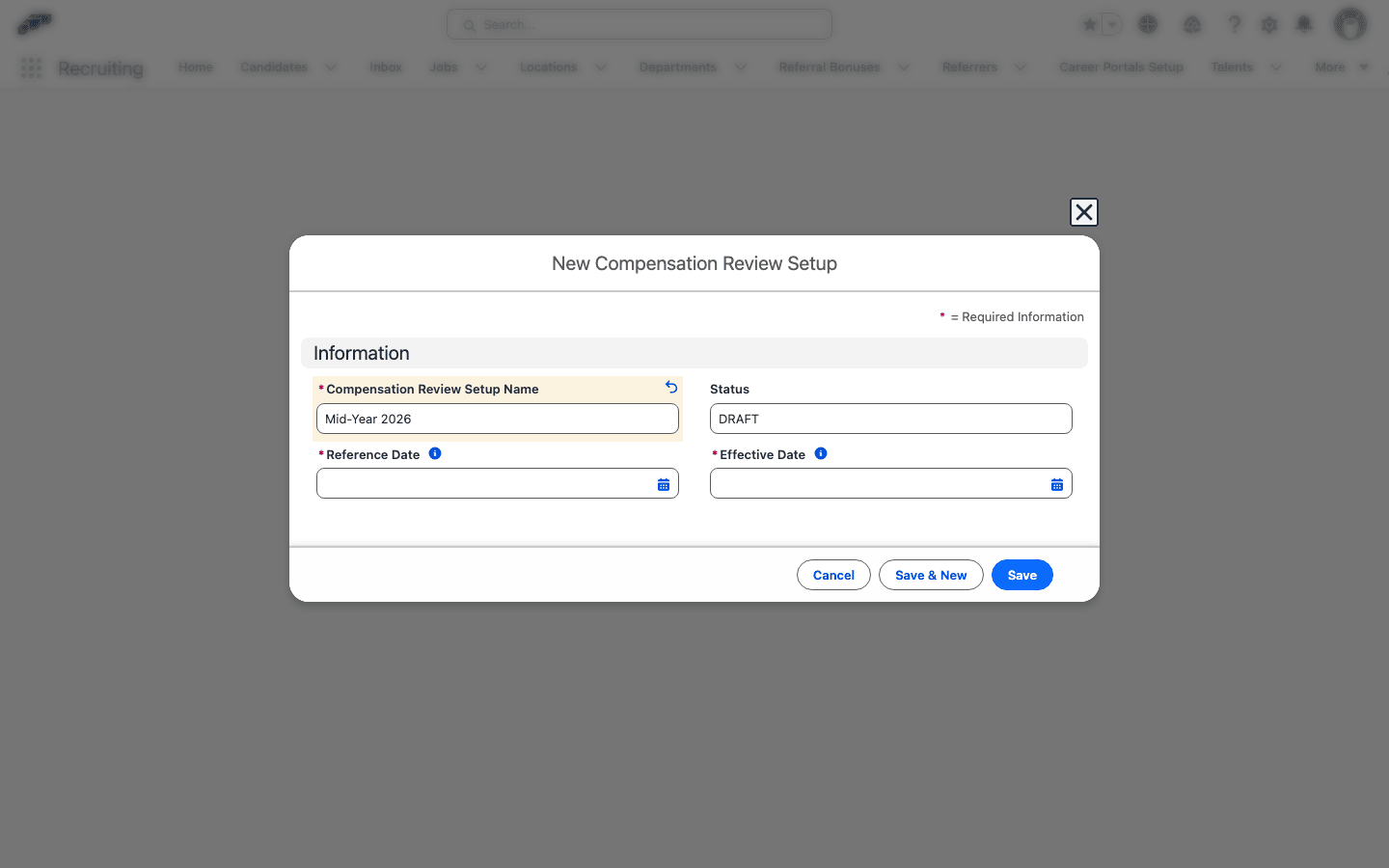
In Salesforce, create a Compensation Review Setup record.
-
Configure the review fields:
Setting What it controls Name The review-cycle label, such as Mid-Year 2026.Effective Date The date approved salaries take effect. Scope Employees selected by entity, department, location, or a custom employee list. Approval process The existing flair Approval Framework process used by the review. Default Currency The 3-letter currency code, such as EURorUSD, that the generated reviews use when no budget funds them. Leave it blank to use the company currency. -
Click Save.
-
Optional: On the Budgets subtab, assign a root manager and, optionally, a budget to each review tree. See Fund a review with budgets.
-
Click Create Reviews & Notify Managers. flair creates one review for each assessing manager.
Each manager review shows current salary, proposed salary, live percentage change, pay-band status, and the employees assigned to that manager.
A setup can cover up to 10,000 employees. For more than 1,000 employees, flair creates the reviews in the background: the setup shows a Creating compensation reviews banner and updates when the reviews are ready, and managers are notified only once all their reviews exist. If creation stops, the banner reads Creating the compensation reviews stopped and gives the reason. Click Create Reviews & Notify Managers again to continue where it stopped, without duplicating items.
Employees who leave before the review's Effective Date are added with Include cleared, so flair creates no new salary for them. In Salesforce, their row is greyed out with the note "This employee is not active on the effective date." Switch Include back on to review them anyway. An employee who leaves on the effective date itself counts as active.
Fund a review with budgets
Before generating reviews, decide how deep each manager's review hierarchy goes and, optionally, cap it with a budget.
- On the Compensation Review Setup record, open the Budgets subtab. flair shows the full manager tree for the setup's scope and reviewer.
- For each team, click Set as root manager on the manager whose tree should stop there — their reports roll up to them instead of continuing further up the chain. The node is then labeled Root manager, and click Remove root manager to undo it. Every employee must end up covered by exactly one root manager; flair tracks this live and shows either "Every employee is covered by exactly one root manager." or a count of teams still missing one.
- Optional: On a root manager's node, use Select a budget to fund its tree from an existing budget with Available status, or leave it set to No budget to review that tree without a spending cap. A budget funds only one review cycle, so budgets another setup already uses don't appear in the list.
- When you associate a budget, flair pre-fills a split across the tree. In Split, select By salary spend to split in proportion to each team's current monthly salary spend (equal shares if there's no spend to proportion by), or By headcount to split in proportion to each team's employees in scope. The root always equals the budget's full available amount, and each roll-up automatically equals the sum of its own tree.
- Optional: In Reserve (%), enter the share of the budget to hold back at the root. flair shows the held-back amount in the reserve field labeled with the budget's currency, for example Reserve (EUR), and you can edit that amount directly. The root manager can hand out the reserve from their own review until the teams submit — see Redistribute budget between teams.
- Adjust the leaf and Own team amounts as needed — the teams plus the reserve must match the budget exactly before you can create reviews. A tree whose budget is already smaller than its current monthly spend is flagged as starting over budget.
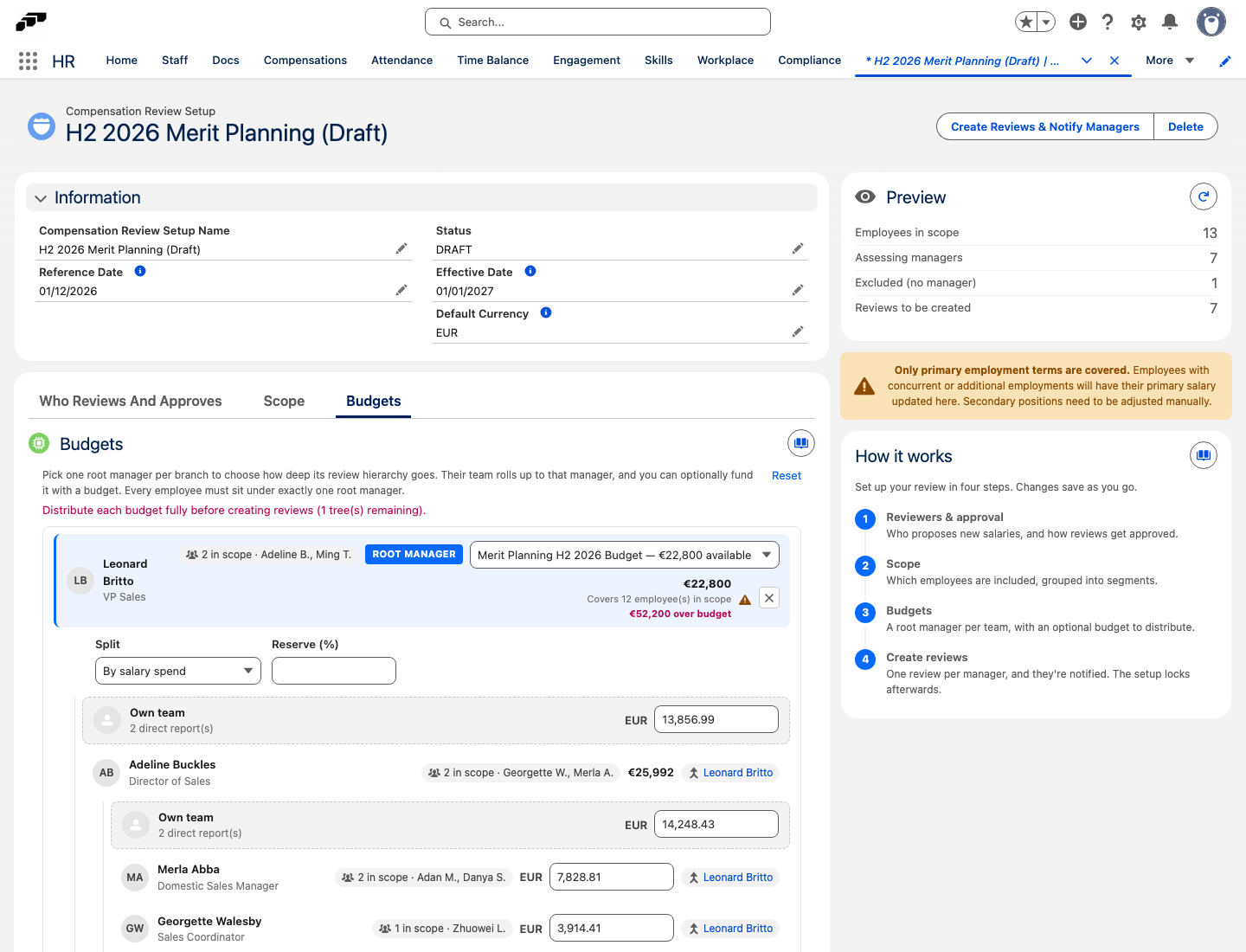
Create Reviews & Notify Managers stays disabled until every employee has exactly one root manager, no budget funds more than one root, and every associated budget is fully distributed across its tree. Changing the setup's scope or reviewer rebuilds the manager tree and clears any budget selections already made.
Complete a manager review
- In the Employee Hub, open People → Compensation Reviews. If you don't have access to People, open Compensation Reviews from the main menu instead.
- Select the active Compensation Review.
- For each employee, enter a new salary.
- Optional: In Apply merit %, enter one percentage and click Apply to all.
- Review current and proposed salaries, percentage changes, pay-band warnings, and the monthly team cost. When the review has an assigned budget, a budget overview and consumption breakdown appear alongside these figures — see Track budget consumption.
- Click Submit for Approval. The review enters its configured approval process.
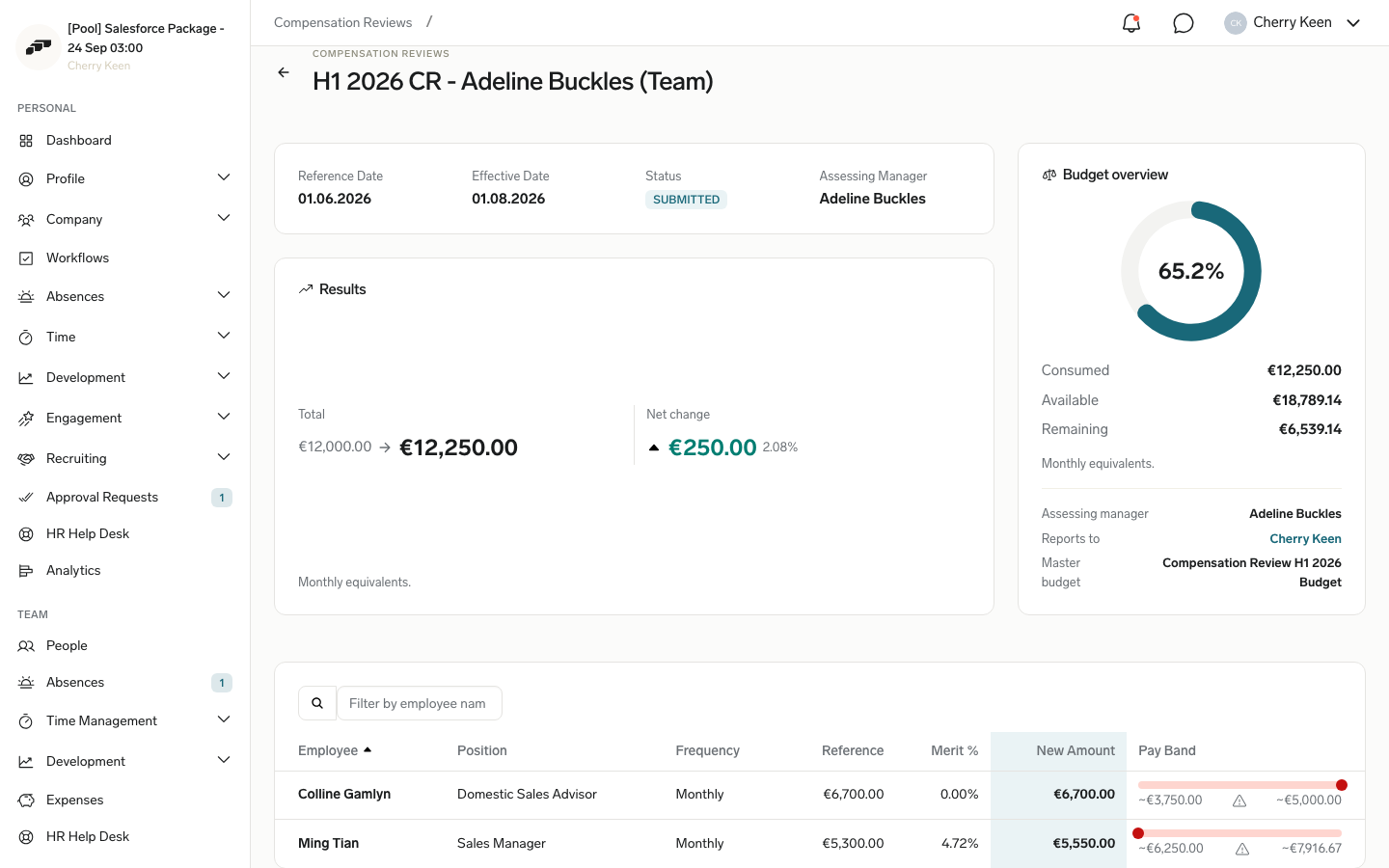
If a review's proposed salaries exceed its assigned budget, flair disables Submit for Approval and blocks the submission on the server too, so it can't be bypassed. Reduce the total to within the available budget to submit.
Delegate a review
An assessing manager can hand a team review they are still preparing to a colleague, who then prepares and submits it on their behalf. The delegate gets access to the review and its salaries.
- In the Employee Hub, open Compensation Reviews and open your team review. Its status must be Preparing.
- Click Delegate.
- Search for the colleague and select them.
- Click Delegate.
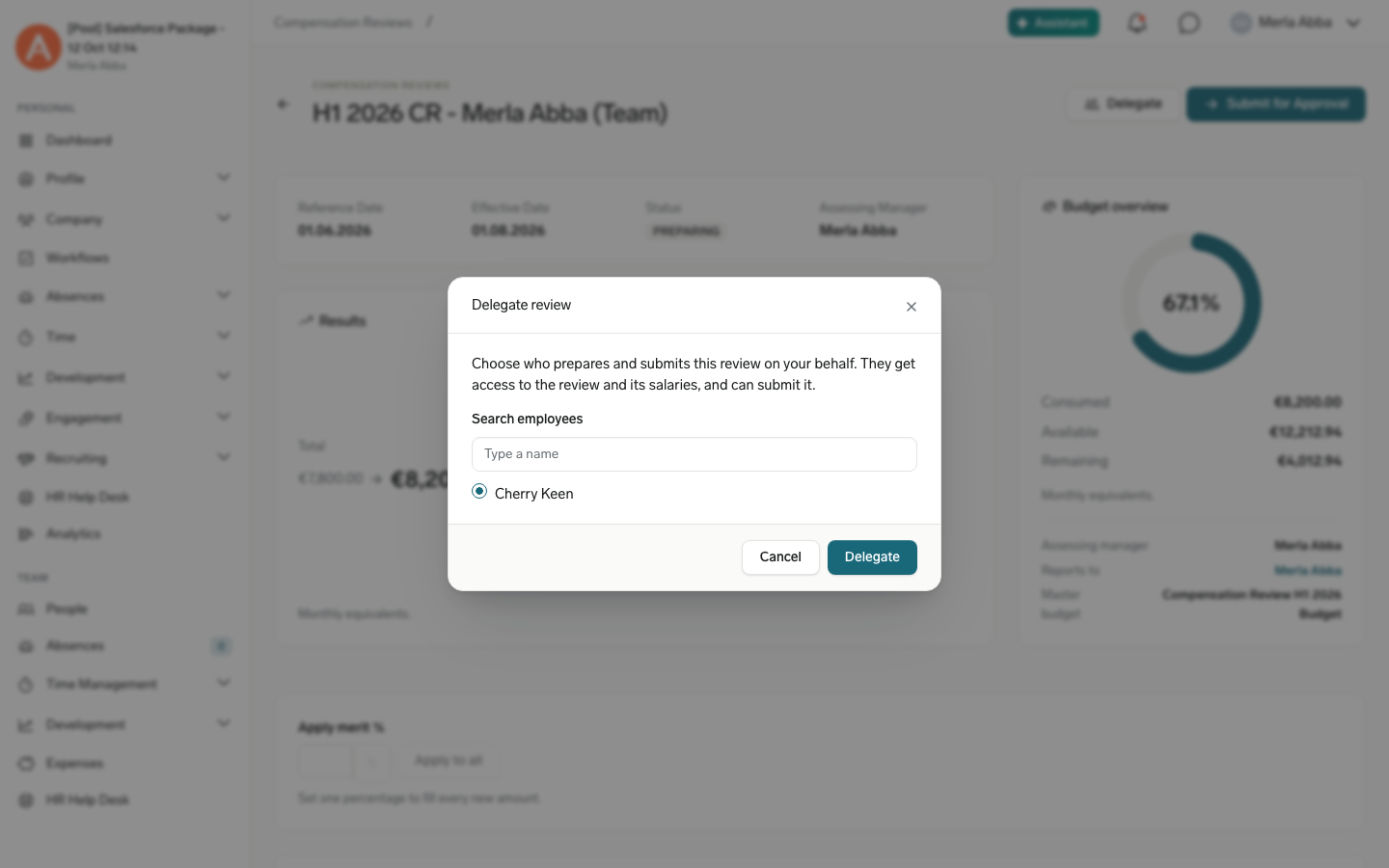
The delegate is notified, sees the review in their Compensation Reviews list with Delegate in the Your role column, and can edit the salaries and submit the review. The review's information card shows who it is delegated to.
- To hand the review to someone else, click Change delegate.
- To take the review back, click Remove delegate and confirm. You can't remove a delegate who has already submitted the review.
You can delegate to an active employee who can sign in to flair and isn't part of the review. You can't delegate to your own manager, who approves the review, and a delegate can't delegate the review further. In Salesforce, HR and the assessing manager can do the same with the Delegate quick action on the Compensation Review record.
Reassign a review
HR can move a team review that is still being prepared to another assessing manager, for example when the original manager leaves. You need the Reassign Compensation Review custom permission, which the Flair Manager permission set includes.
- In Salesforce, open the Compensation Review record. Its Status must be PREPARING.
- Click Reassign.
- Type the new assessing manager's name and select them. Only employees who have a manager are listed.
- Click Reassign, then click Reassign again to confirm.
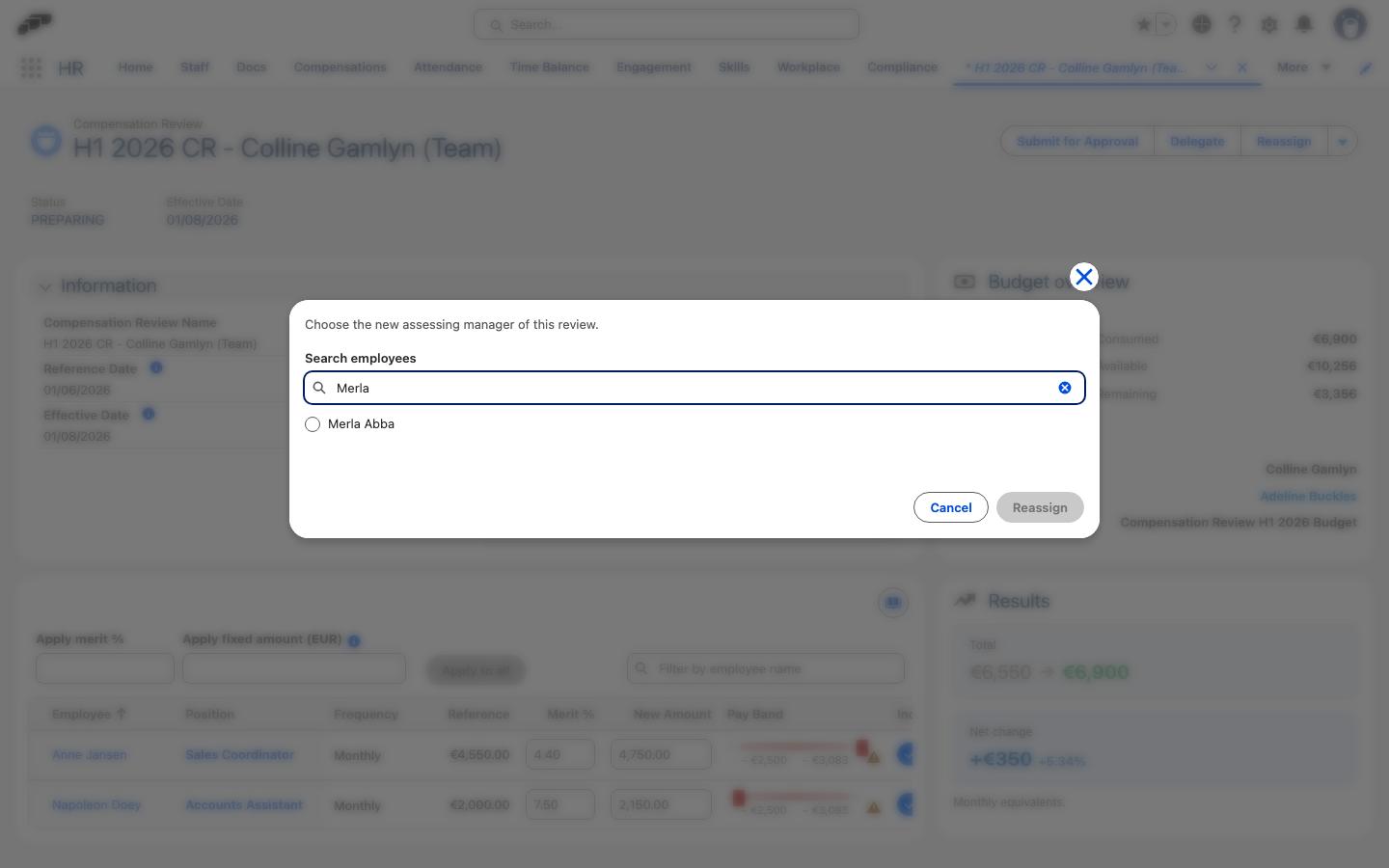
flair renames the review after the new assessing manager, removes any delegate, and moves access to the review and its salaries to the new manager. Both the new and the previous assessing manager are notified. The review tree and its budgets stay the same, and on submission the review goes to the new manager's own manager for approval, so the new assessing manager must have a manager.
Adjust salaries in Salesforce
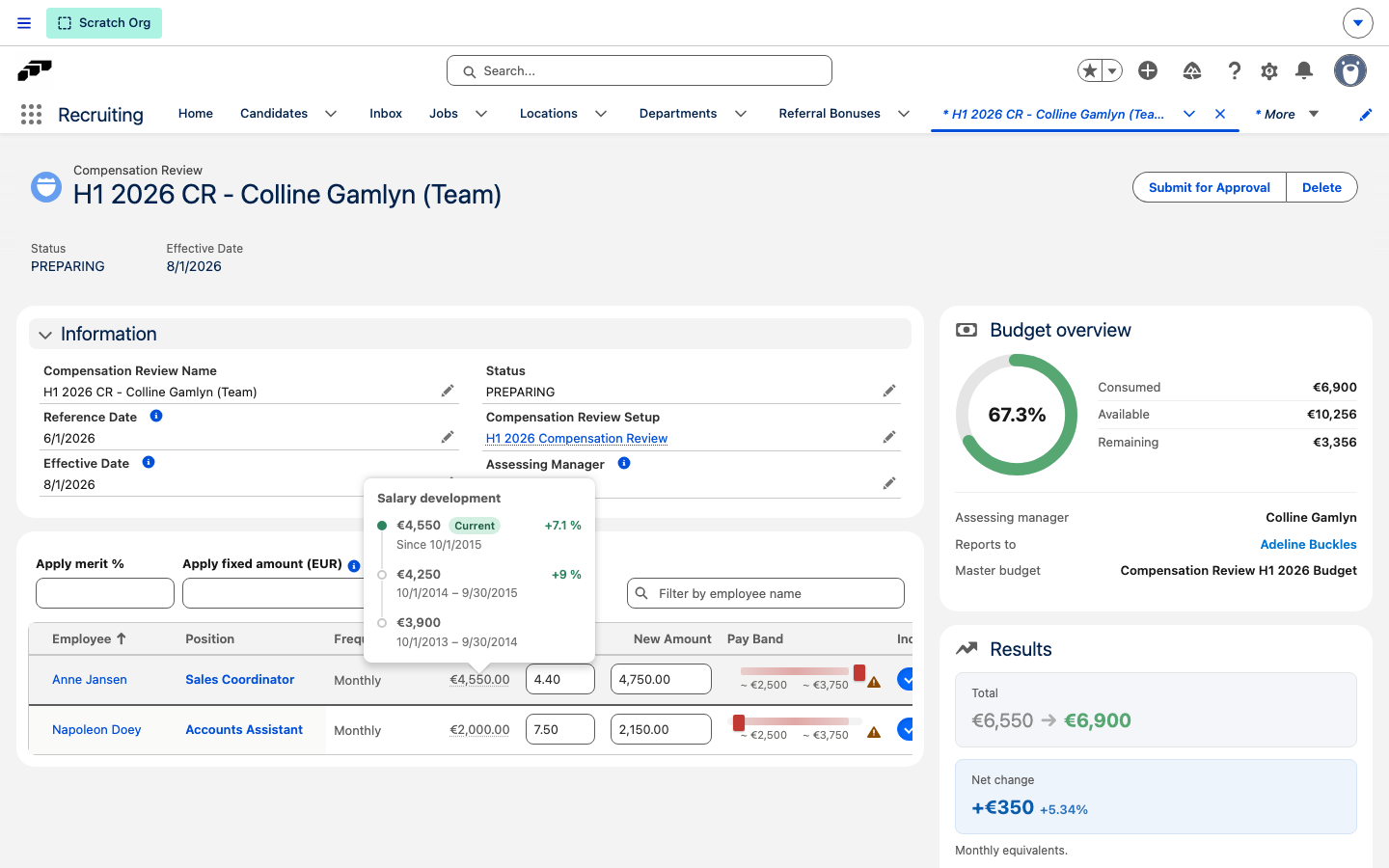
The Compensation Review record in Salesforce shows the same review table. While the review isn't submitted yet and you have edit access, you can change salaries there too:
- In Salesforce, open the Compensation Review record.
- Enter an increase in Apply merit %, or a flat raise in Apply fixed amount. Filling one clears the other.
- Click Apply to all. flair updates the new amount of every included employee.
A fixed amount is entered in the review's currency as a monthly amount. The label shows that currency, for example Apply fixed amount (EUR), and flair converts the raise into each employee's salary currency and pay frequency.
To see how an employee's pay developed, hover over their amount in the Reference column. The Salary development popover lists past, current, and upcoming salaries for that pay frequency, newest first, with dates and the percentage change between steps.
Track budget consumption
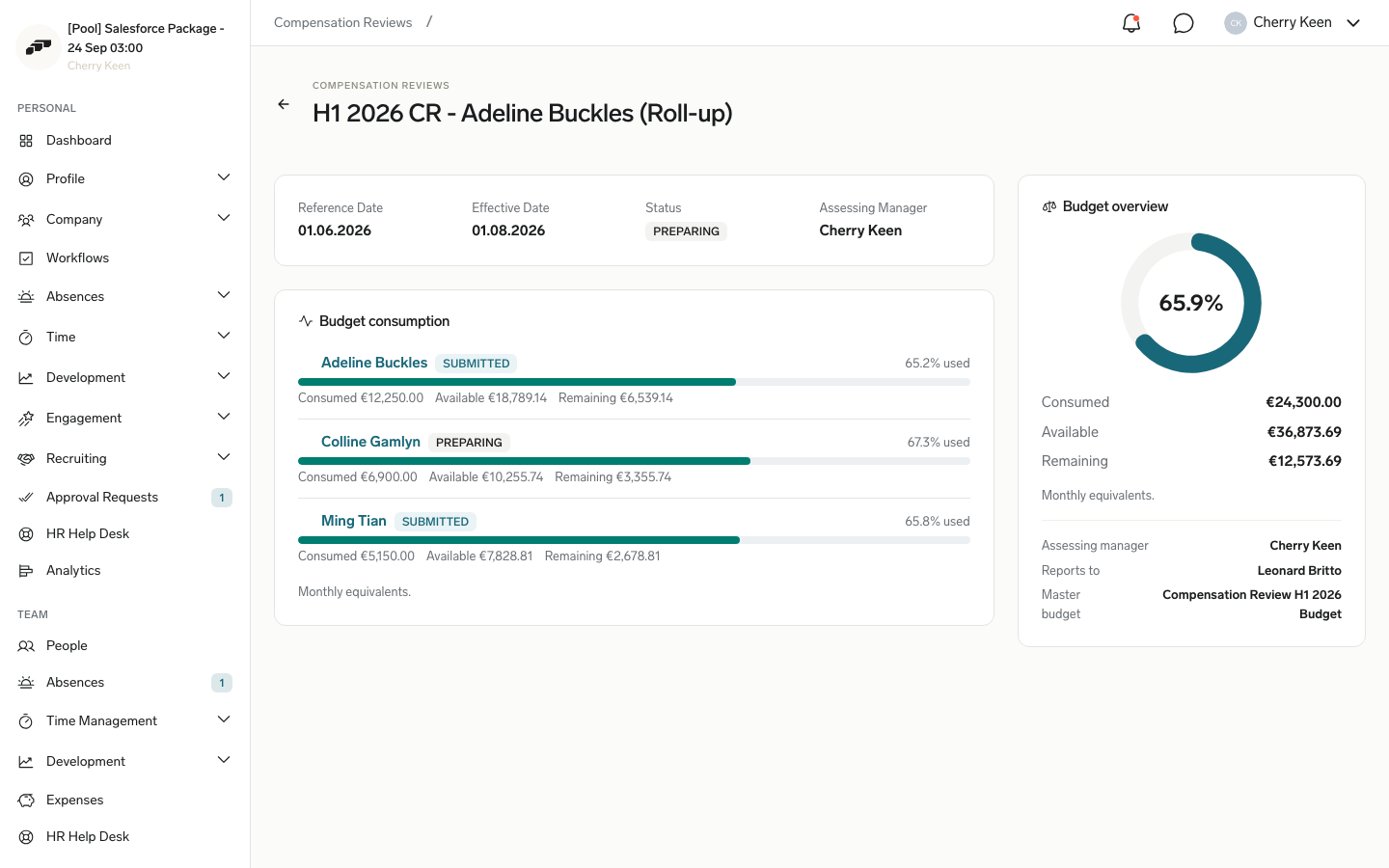
A review with an assigned budget shows how much of it is used. On a review that aggregates other managers' reviews, flair shows a budget consumption breakdown instead of an items table — only reviews with their own salary items carry an items table and a Submit for Approval action.
- Budget overview — a sidebar card on any review with a budget, showing Consumed, Available, and Remaining amounts, the Assessing manager, who they Reports to, and the Master budget funding the tree. The card turns red when the review is over budget.
- Budget consumption — on a review that aggregates other managers, a bar for each direct report comparing consumed to available. Click a bar to expand and drill into that manager's own sub-tree, or click their name to open their review.
- Consumed is the full proposed new salary for every included employee in the tree, not only the increase. Clearing Include for an employee removes their raise from the total, but their current salary still counts against the budget — an excluded employee reads as no change, not as freed-up budget.
- Hourly salaries count at the employee's contracted working time, not full time: flair scales the hourly rate by the FTE of their active employments. A blank FTE counts as 100%, and an hourly employee without an active employment counts at full time. The same rule applies to budget splits, review totals, and a budget's Actual Spend.
A manager who oversees other managers can open the reviews beneath their own to check details, but only as a Viewer — they can't edit them. Their own review stays editable as before, and reviews higher up the chain remain out of reach.
Redistribute budget between teams
The manager at the top of a budgeted review tree can move budget between the reviews below them until each team submits. The total budget never changes.
- Open your top review: in the Employee Hub under Compensation Reviews, or as the Compensation Review record in Salesforce.
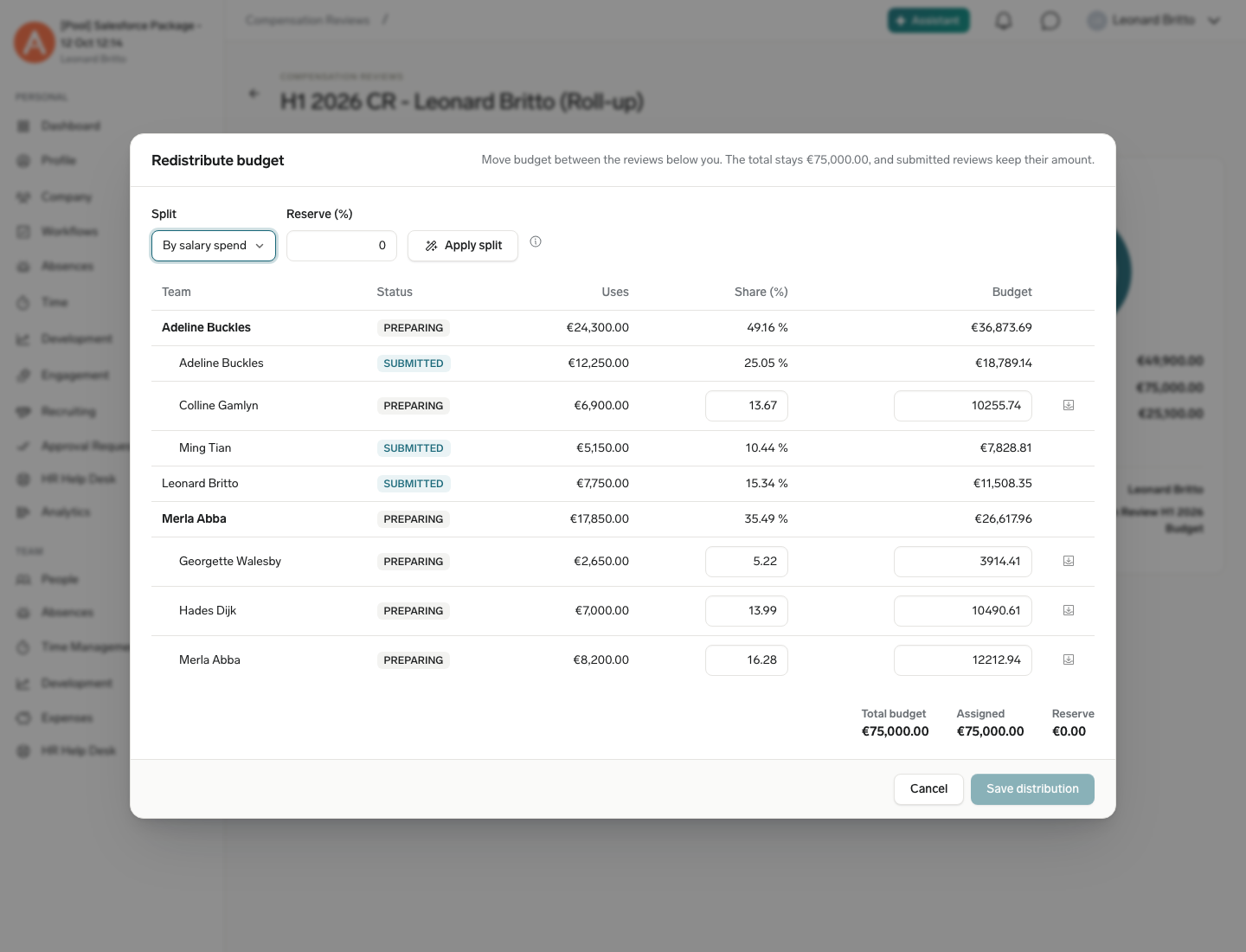
- On the Budget consumption card, click Redistribute budget.
- Enter each open team's new amount in Budget, or enter it as a Share (%) of the total. To give all of the unassigned budget to one team, use the button on that team's row.
- Optional: To re-split the open teams' budgets, select By salary spend or By headcount in Split. If the budget has a reserve, adjust Reserve (%). Click Apply split. Nothing is saved yet.
- Click Save distribution.
- A submitted review keeps its amount.
- You can't lower a team's budget below what its review already uses. Raising it is always possible.
- Without a reserve, the teams must use the whole total. With a reserve, whatever you don't assign stays in the reserve.
- A tree whose reviews use budgets in different currencies can't be redistributed.
Approve or reject a review
- In the Employee Hub, open Compensation Reviews.
- Open the review awaiting your decision.
- Click Approve to confirm every salary change, or Reject to return the review.
Salesforce records the approval history and comments on the review, and the Submitted By field shows who submitted it: the assessing manager, the delegate, or HR.
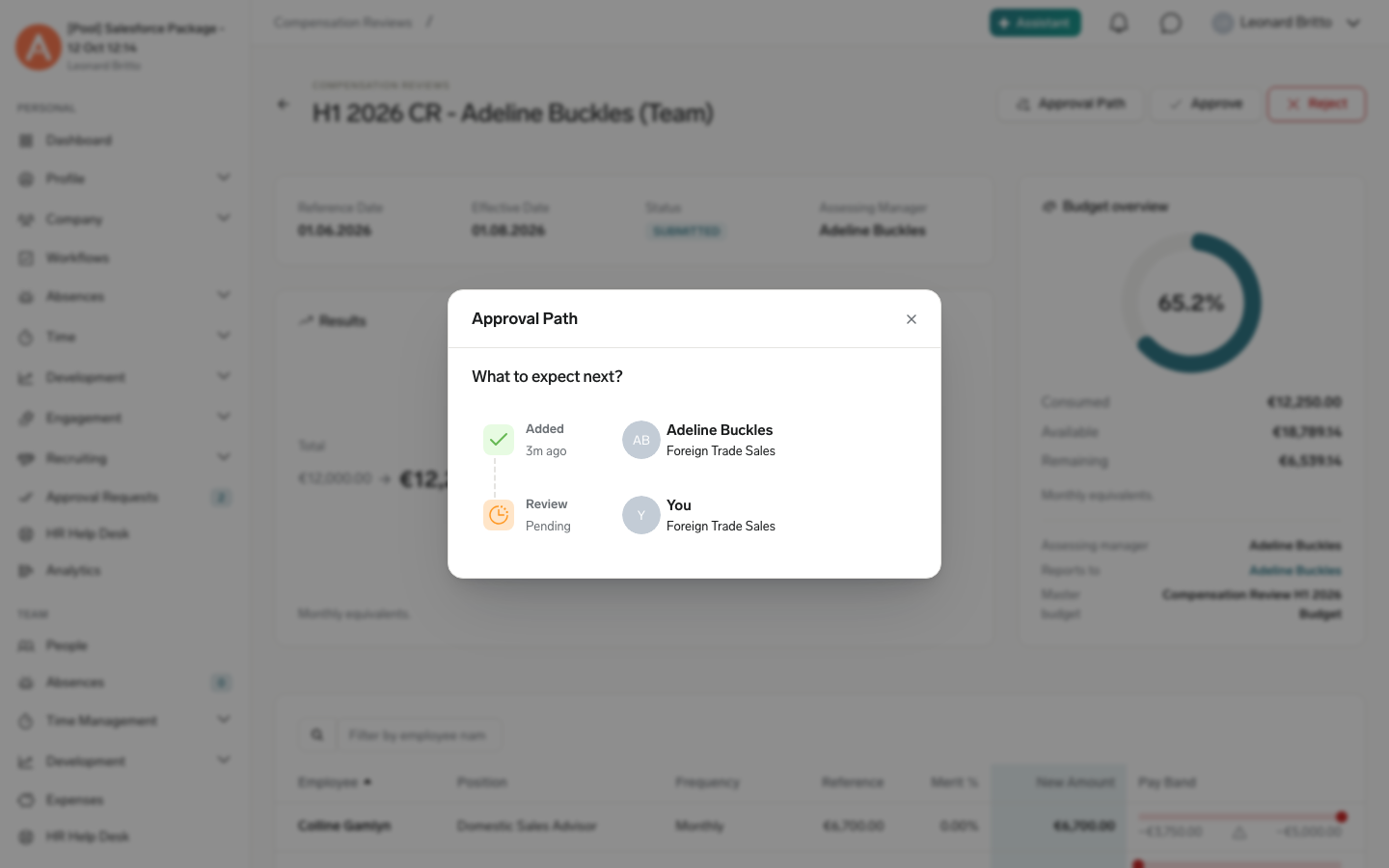
To see who has been asked to approve a submitted team review and who approved or rejected it, click Approval Path on the review in the Employee Hub, or use the Approval Path quick action on the Compensation Review record in Salesforce. Approval Path is available from submission on, including after the review is decided. It shows only the approvers asked so far, so later levels of an employee-hierarchy step appear once they are asked.
After approval, new salaries start on the effective date, and flair ends the previous salary records automatically.
Revert a review
- In Salesforce, open the Compensation Review record.
- Click Revert.
- Confirm the action. flair rolls back every salary change from the review and restores the previous salaries.
You cannot revert part of a Compensation Review. Revert undoes the complete review.
Track what a review spends from its budget
When a review funded by a budget takes effect, flair links each new salary to that budget through the salary's Budget field. The budget record then shows:
| Field | What it shows |
|---|---|
| Actual Spend | The monthly equivalent of every linked salary, converted into the budget's currency. |
| Available Amount | The budget's Amount minus its Actual Spend. |
| Status | Changes to Depleted once Actual Spend reaches the Amount. |
The Employee Salaries related list on the budget shows the salaries it funds. If you revert a review, flair deletes its salaries and gives their amount back to the budget.
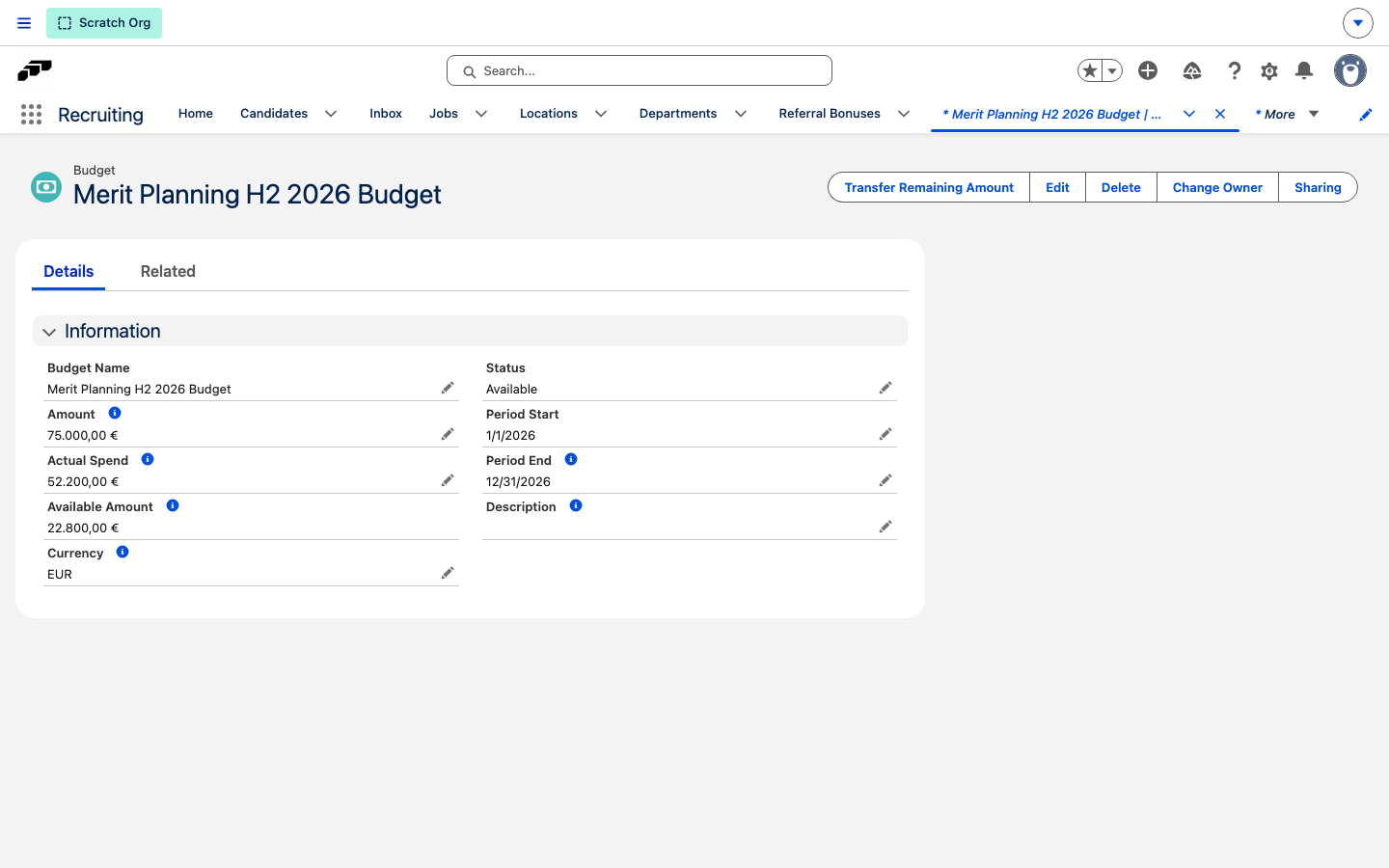
Once a Compensation Review uses a budget, you can't edit the budget's name, amount, currency, period, description, or status. flair keeps updating Actual Spend and the derived status.
Transfer a budget's remaining amount
A budget funds only one review cycle. When every review on it is executed, reverted, or failed, move what's left into another budget:
- In Salesforce, open the budget record. Its Status must be Available or Expired.
- Click Transfer Remaining Amount.
- Under Move it into, select An existing unused budget, A new budget, or A copy of this budget.
- Select or fill in the receiving budget. It must use the same currency, and its period must not have ended.
- Click Transfer amount. flair lowers the source budget's amount to its Actual Spend, which sets it to Depleted, and adds the remainder to the receiving budget.
You can also start a transfer with Transfer remainder on the budget's row in Compensations → Budgets → Budgets.
Sort the review table
- Click a column header to toggle ascending or descending order. You can sort by employee, position, frequency, reference amount, merit percentage, or new amount.
When an employee has several salary lines, the lines remain grouped after sorting.
Review salaries in several currencies
For organizations using several currencies, each salary appears in its own currency with an approximate conversion to the viewer's currency. In the Employee Hub, totals use the viewer's currency.
Each review also has its own currency. flair takes it from the budget that funds the review, otherwise from the setup's Default Currency, otherwise from the company currency. The review stores its current and new salary totals as monthly equivalents in that currency, and the Results panel on the Salesforce record shows them. Executed and reverted reviews keep the currency their salaries were booked in.
Pay-band guidance adjusts for each salary's currency and pay frequency and identifies conversions. Single-currency organizations see no behavior change.
Control manager visibility
By default, managers can see their employees' base salaries in the Employee Hub. On the Employee HUB Feature record, configure these independent settings:
| Setting | What it hides |
|---|---|
| Hide Employee Salaries | Base salary values. |
| Hide Recurring Compensation | Recurring components, such as scheduled bonuses. |
| Hide One-Time Compensation | Single-payment components. |
Generate a pay analysis snapshot
Save a permanent pay analysis for a single Worker Category as of a chosen date — the group of employees doing the same work or work of equal value, see Group roles into Worker Categories. The snapshot records gender headcounts and average and median pay per gender, so the figures stay fixed as evidence even after the population behind them changes. For the other features that support the EU Pay Transparency Directive, see Prepare for pay transparency with flair.
- In Salesforce, open the Worker Category record you want to analyze.
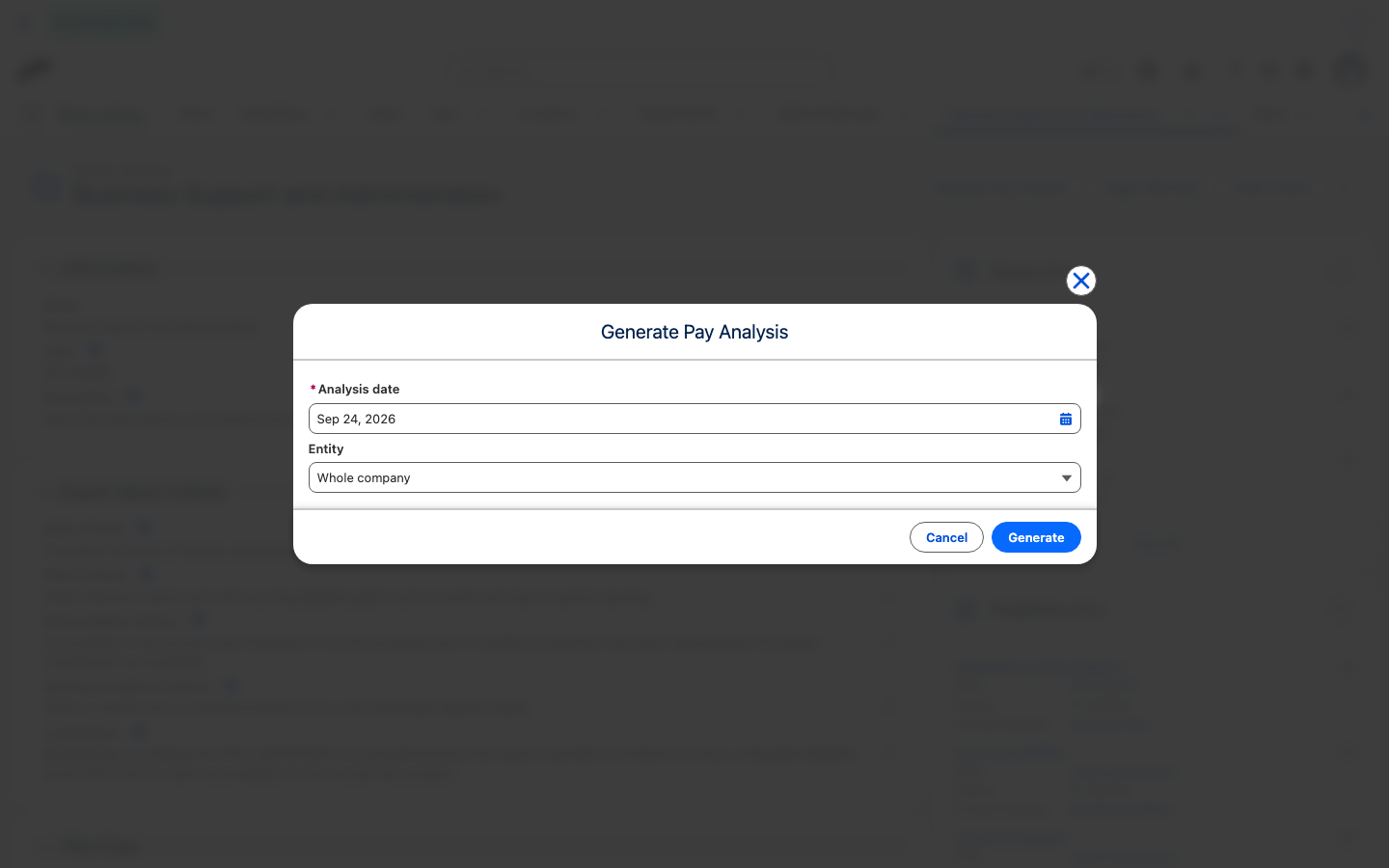
- Click Generate Pay Analysis.
- In Analysis date, set the date the analysis represents. flair defaults to today. The snapshot counts the employees active on this date and reads the salaries in effect on it.
- Optional: In Company Pay Analysis, select a completed company run. flair adopts that run's date and uses its quartile thresholds to fill the quartile headcounts. Without a company run, the quartile counts stay empty.
- Click Generate. flair stores a Worker Category Pay Analysis record and opens it.
The stored analysis keeps these results for the run date:
| Field | What it records |
|---|---|
| Female Headcount, Male Headcount, Other Gender Headcount, Total Headcount | The employees counted in the category on the run date, by gender. |
| Female Average, Male Average | Average pay for each gender, in the analysis currency. |
| Female Median, Male Median | Median pay for each gender, in the analysis currency. |
| Analysis Currency | The currency the pay figures are expressed in. |
| Below Comparison Threshold | Marked when either gender has fewer than six employees — too small a group to compare, so a pay gap is withheld rather than published. |
When you link a completed company run, flair also stores the female and male headcounts split across the run's four pay quartiles.
Each snapshot is permanent. Running the action again on the same date creates a new record rather than replacing the previous one, so a change to the population never rewrites an earlier analysis.