Manage compensation
Build a pay framework and connect it to your company hierarchy so Positions inherit the appropriate pay configuration, then group roles into Worker Categories so flair can compare pay across employees doing work of equal value.
Salesforce Admins assign Flair Compensation Management permission sets in Grant access. HR Admins use Salesforce for all other sections.
Grant access
- Assign Flair Compensation Management for full read and edit access, or Flair Compensation Management Read for read-only access.
Open Compensation Management
- In Salesforce, open the flair HR app.
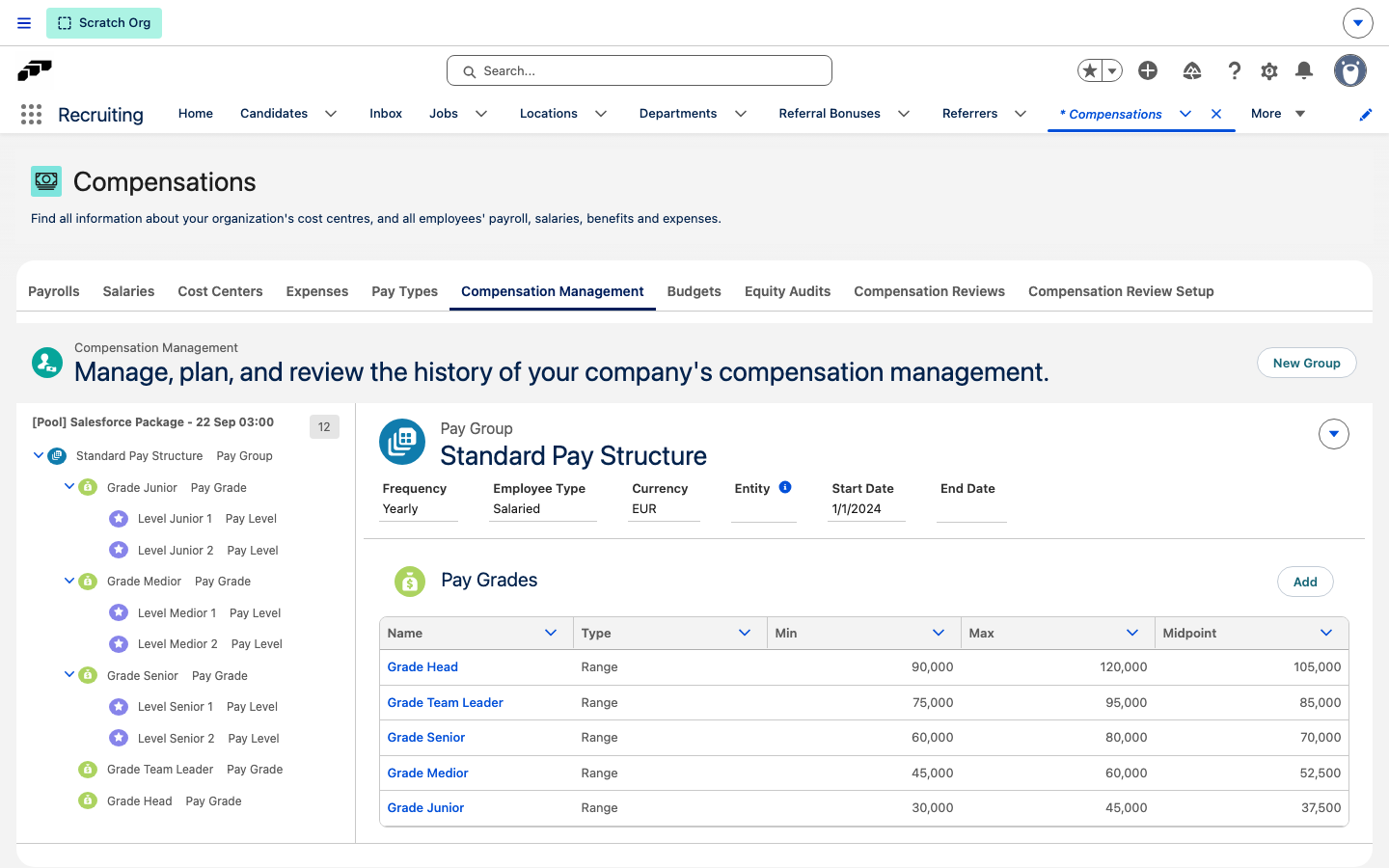
- Open Compensations, then select the Compensation Management tab.
Build the pay structure
Create the hierarchy in this order: Pay Group → Pay Grade → Pay Level. To see how these features support the EU Pay Transparency Directive, see Prepare for pay transparency with flair.
Create a Pay Group
Pay Groups are top-level containers for a pay program or employee category, such as full-time or part-time staff.
- In Compensation Management, click New Group.
- Enter a name, then click Save.
Create a Pay Grade
Pay Grades are bands within a Pay Group, such as Junior, Mid, Senior, or Lead.
- Open the Pay Group.
- Click Add.
- Enter a name, then click Save.
Create a Pay Level
Pay Levels are sub-tiers within a Pay Grade for salary steps or ranges.
- Open the Pay Grade.
- Click Add.
- Enter a name, then click Save.
Connect pay configurations to Career Levels
- In the flair HR app, open Career Levels.
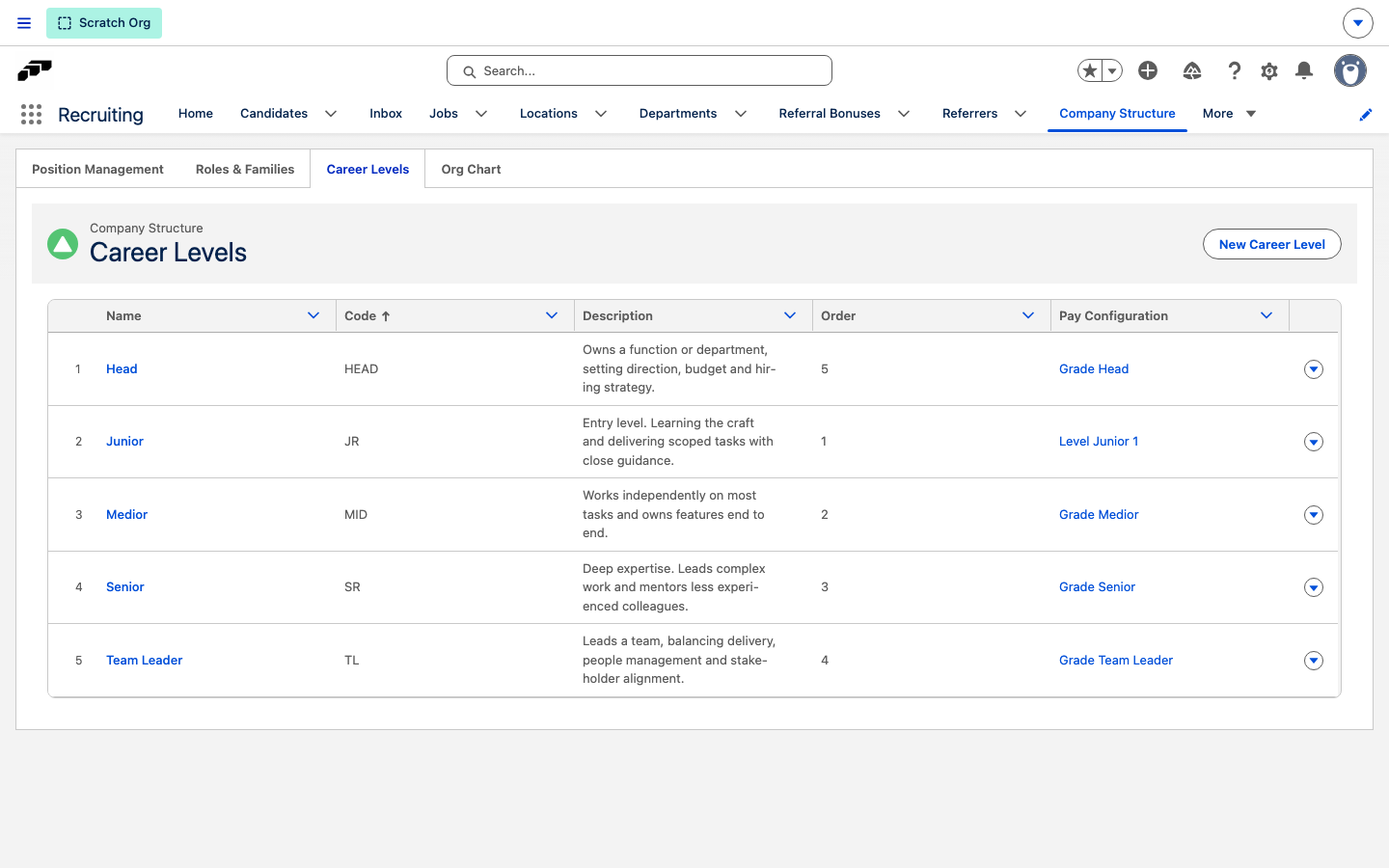
- For each Career Level, click Edit, then set Pay Configuration to a Pay Grade or Pay Level.
- Click Save. The table's Pay Configuration column links to the assigned Pay Grade or Pay Level. Linked Positions inherit the pay configuration through this relationship:
Employment → Position → Role → Career Level → Pay Configuration.
Changes to a Career Level's pay configuration, a Role's Career Level, or a Position's Role propagate to affected Positions. A Position without a role-controlled value remains manually editable.
Override an individual Position when it falls outside the standard hierarchy, such as a contractor role with a unique pay structure.
Group roles into Worker Categories
A Worker Category is the group of employees doing the same work or work of equal value, and it is the unit the pay gap analysis compares pay within. Several Roles can share one category, which is how a senior individual contributor and a team lead end up compared with each other when their work is of equal value. A category carries only its identity and the criteria behind it — pay bands stay on the Pay Configuration, and Career Levels stay a progression ladder.
Worker Category records are private by default. Access comes from the Flair Manager, Flair Employee Management, and Flair Position Job Management permission sets; Flair Hub grants read-only access.
- In Salesforce, open Worker Categories.
- Click New.
- Enter a Name for the group, such as
Software Delivery - Expert. - Optional: In Code, enter a stable key for imports and reporting that survives a rename.
- In Description, describe in plain language what the category covers.
- Fill in the four equal-value criteria — Skills Criteria, Effort Criteria, Responsibility Criteria, and Working Conditions Criteria. Describe the work itself in objective, gender-neutral terms, never the person holding it and never the pay.
- In Justification, record why the member roles are the same work or work of equal value, plus any differentiating factor that applies to the whole group.
- Click Save.
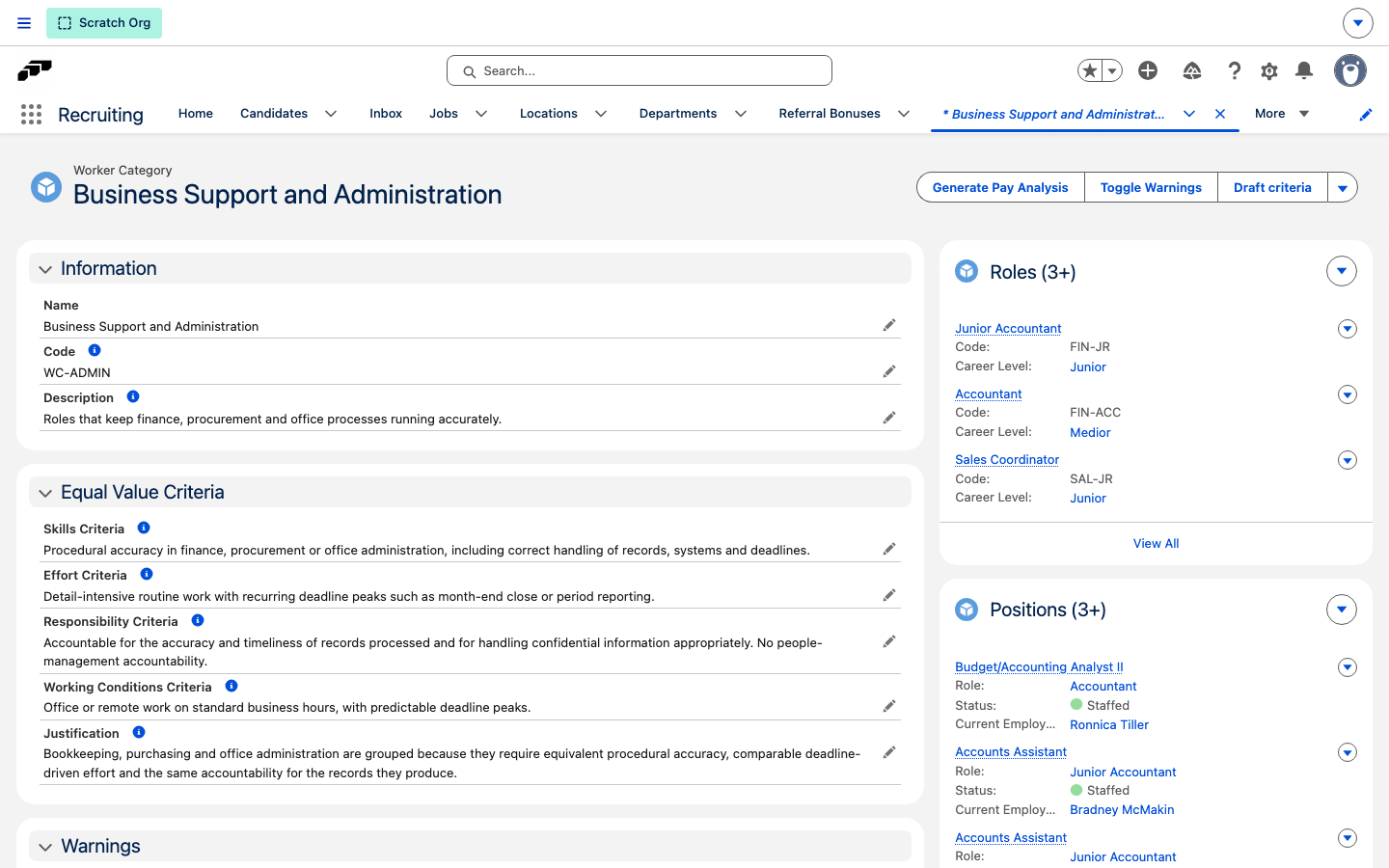
flair tracks field history on the description, the four criteria, and the justification, so every change to this evidence stays traceable. The record page also lists the Roles, Positions, and Employees currently in the category.
You do not have to write the description and the four criteria from scratch: flair can draft them from the roles already in the category, and you review and edit the wording before it is saved.
Group roles with the worker category wizard
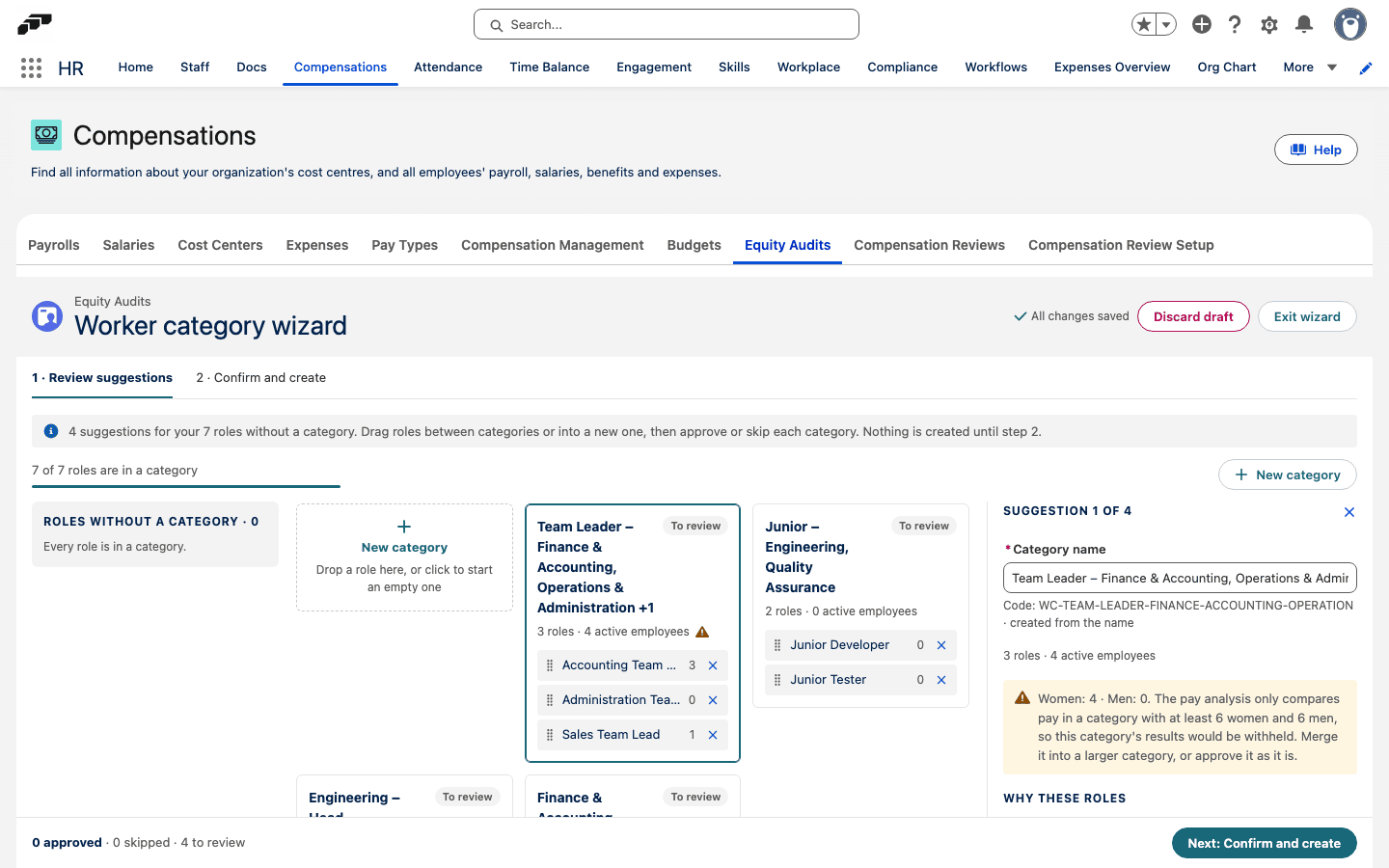
If you have roles that do not belong to a worker category yet, the worker category wizard suggests categories for them, lets you regroup roles on a board, and creates the categories you approve.
HR Admins in Salesforce with the Flair Manager permission set. It grants access to the wizard and the Pay Transparency Manager permission that the Equity Audits tab requires.
- In Salesforce, open the flair HR app, go to Compensations, and open the Equity Audits tab.
- On the Worker categories card, click Open worker category wizard (or Continue wizard if a run is already in progress).
- In step 1, Review suggestions, check the suggested categories and the roles without a category. Drag roles between categories, or into a new one, to group roles of equal value together.
- Click a category to open its details. Edit the Category name, the Description, and the Art. 4 criteria, or click Draft with flair AI to have flair AI draft the texts from the category's roles. Drafting requires the flair AI integration to be active.
- Click Approve and next to approve the category and move to the next suggestion, or Skip for now to keep it for later.
- When you have reviewed the suggestions, click Next: Confirm and create.
- In step 2, Confirm and create, check the approved categories and click Create n worker categories. flair creates the Worker Category records and assigns them to their roles; positions and employees on these roles follow automatically.
Assign a Worker Category
You set the category on a Role or a Position, and flair resolves it down to the employee. The highest level that has a category wins and overwrites the levels below it.
| Situation | Result |
|---|---|
| The Role has a category | Copied to the Role's Positions, and on to Employees through their active employment. Not editable at either level. |
| The Role has none, the Position has one | Set manually on the Position and copied to Employees. Not editable on the Employee. |
| Neither has one | Editable manually on the Employee. |
When an employee holds more than one employment, the main employment decides the category, the same way it decides the main role.
Set the category on a Role
- In Salesforce, open the Role.
- Set Worker Category, then save. flair stamps the Role's Positions and the employees holding them.
Set the category on a Position
Use this when a Position has no Role, which is common after a migration that brought positions across without roles.
- In Salesforce, open the Position.
- Set Worker Category, then save. flair stamps the employees on active employments for that Position.
Giving a Role a Worker Category replaces the values manually set on its Positions. A manual Position value is only ever a fallback for a Role that has no category.
If you edit a category that a Role or Position supplies, flair refuses the save and explains where to change it instead — "The Worker Category is managed by the Position or Role of this employee and cannot be updated manually" on an Employee, and "The Worker Category is managed by the Role of this Position and cannot be updated manually" on a Position.
Find employees without a category
Uncategorized employees are the coverage gap in the pay gap analysis, so flair ships a list view that names them.
- In Salesforce, open Employees.
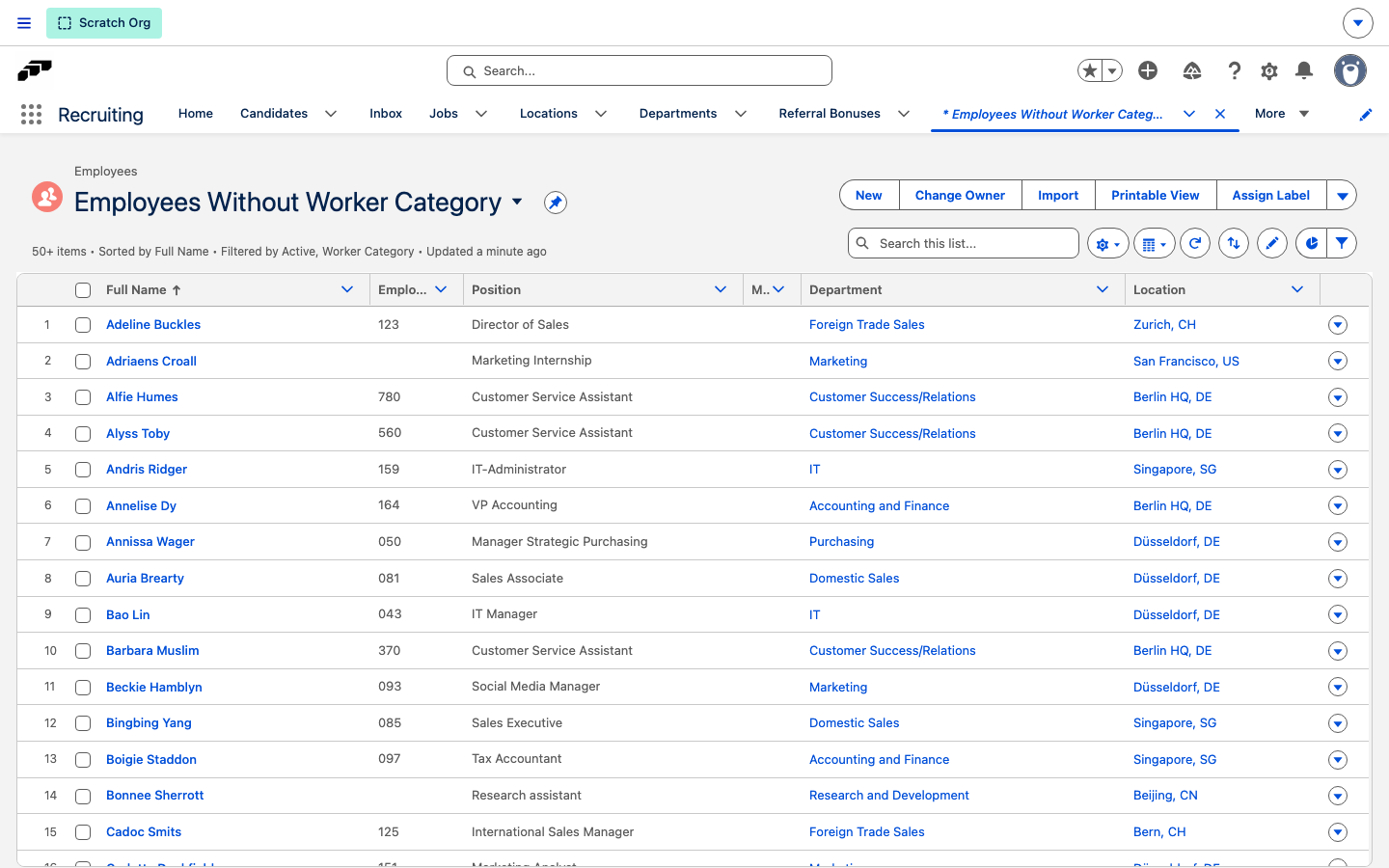
- Select the Employees Without Worker Category list view. It shows every active employee with no Worker Category, alongside their position, main role, department, and location.
Draft worker category criteria with AI
A Worker Category groups roles of equal value for pay-equity work, and each category carries a description plus the four equal-value criteria: Skills Criteria, Effort Criteria, Responsibility Criteria, and Working Conditions Criteria. flair can draft all five texts from the roles already in the category, so you review and edit wording rather than write it from scratch.
HR Admins in Salesforce with edit access to Worker Categories. Requires the flair AI integration to be active.
- In the flair HR app, open the Worker Category record whose criteria you want to draft.
- In the highlights panel, click Draft criteria. The Draft description and criteria panel opens and lists the roles in the category and which of their fields carry usable text.
- Click Generate draft. flair drafts the description and the four criteria from the roles' descriptions, responsibilities, and expectations.
- Review the Drafted from list. Each role shows a fit score out of 10, indicating how well the drafted texts cover that role.
- If any roles fit poorly, review them in the low-fit warning and select I have checked this role for each one before you continue. Open a flagged role in a new tab to check whether it belongs in this category.
- For each field, compare the current value with the draft and turn on Replace the text on the record for the texts you want to accept. Edit the drafted wording directly where needed.
- Click Save. flair writes the accepted texts onto the Worker Category's fields.
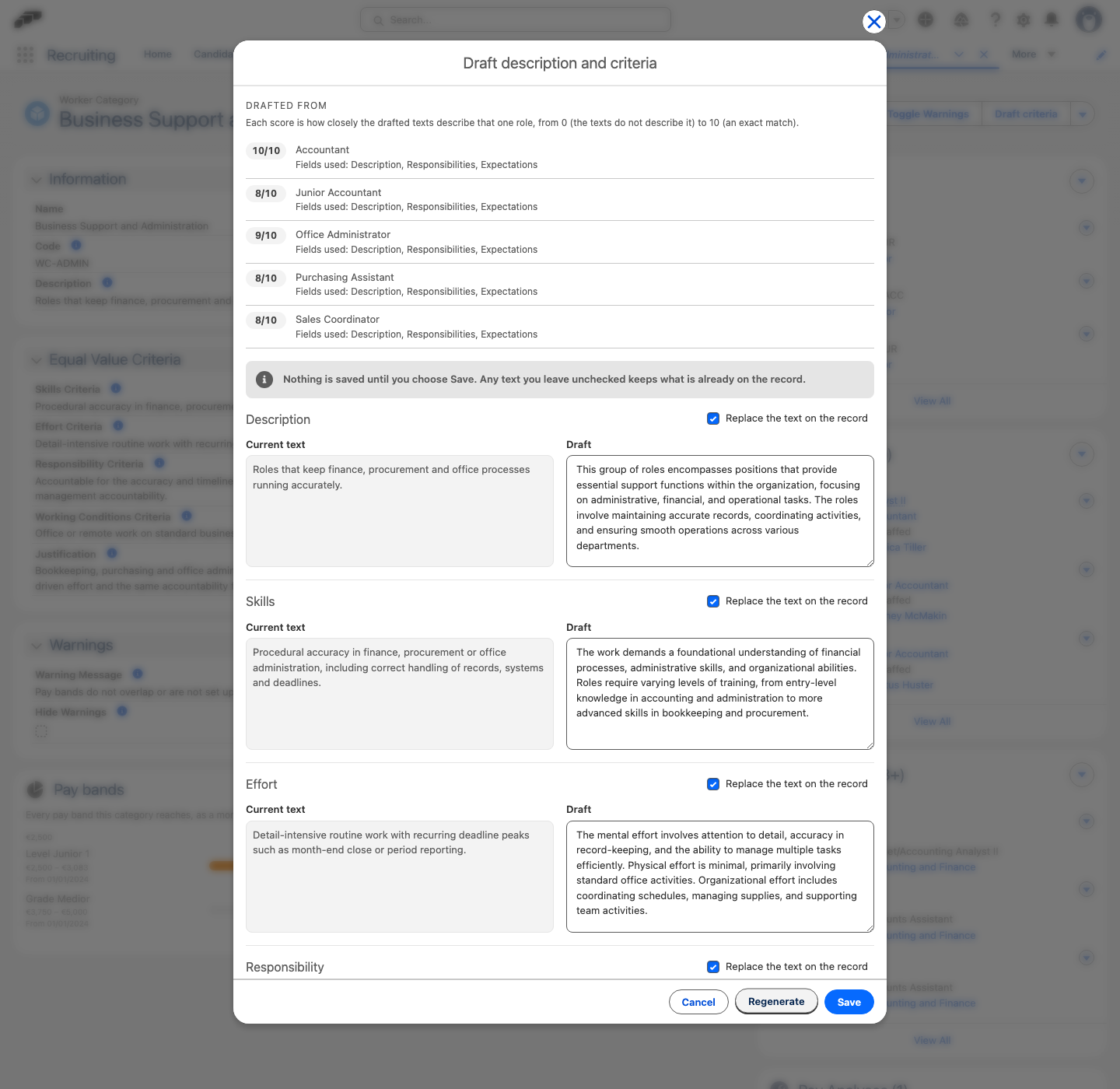
The draft is staged until you save it, so Regenerate never overwrites text you have already accepted or edited. Closing the panel without saving discards an unaccepted draft.
Categories with more than 50 roles are drafted from the first 50; the panel names the roles left out so you can check them. A category whose roles carry too little text to describe is refused rather than drafted from invented detail.
Run a company pay gap analysis
The Equity Audits tab runs a company-wide pay gap analysis, keeps each completed run as evidence, and exports it as a CSV. Results are gender pay gaps by pay quartile and by worker category, reported as aggregates and quartile headcounts only — never individual salary amounts.
HR Admins in Salesforce with the Pay Transparency Manager permission, granted by the Flair Budget Manager, Flair Manager, or Flair Salary Manager permission set. Without it, the tab names itself and explains which permission set to request, but shows no data.
Open the Equity Audits tab
- In the flair HR app, open Compensations.
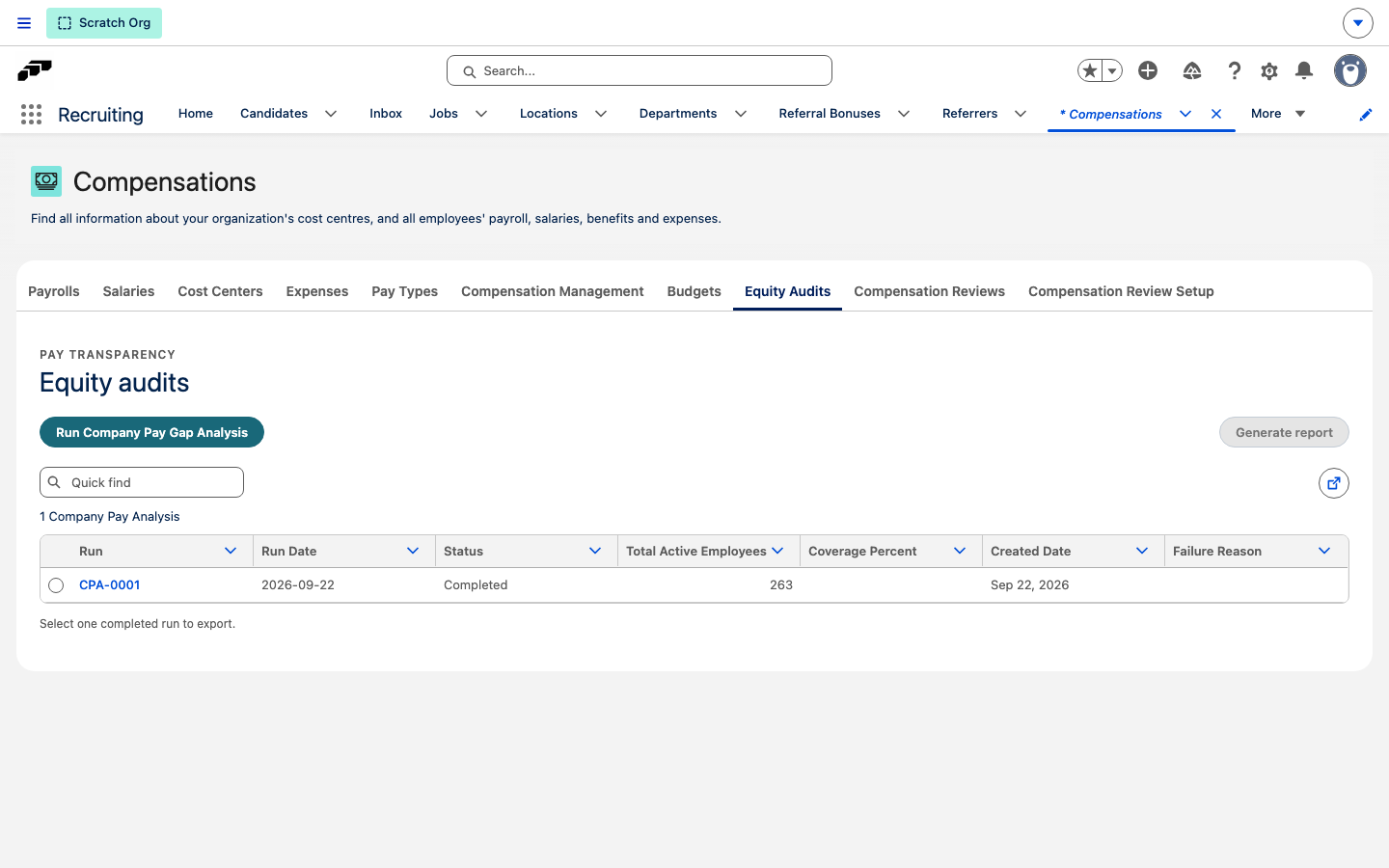
- Open the Equity Audits tab. The runs table lists past runs with their Run Date, Status, Total Active Employees, Coverage Percent, Created Date, and, for a failed run, Failure Reason.
If your org has entities, a row of pills below Run Company Pay Gap Analysis switches between Whole company and each entity, and the runs table gains an Entity column. A whole-company run leaves Entity blank.
Read the last completed analysis
The Last completed analysis panel draws the newest completed run for the selected scope, so you can read the result without exporting it. Until a run completes for that scope, the panel shows Not generated yet. The same panel appears as This analysis on each completed run's own record page.
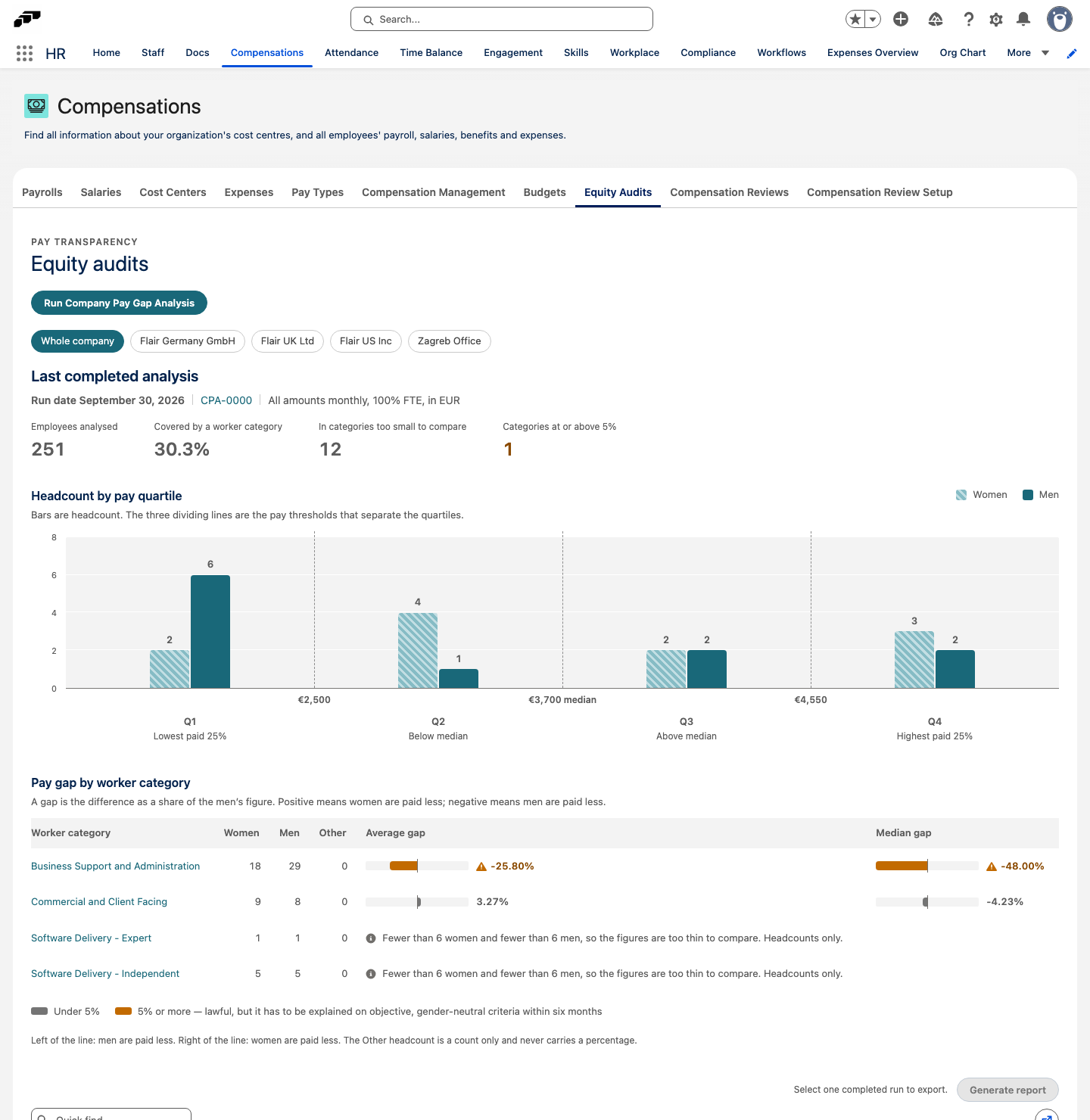
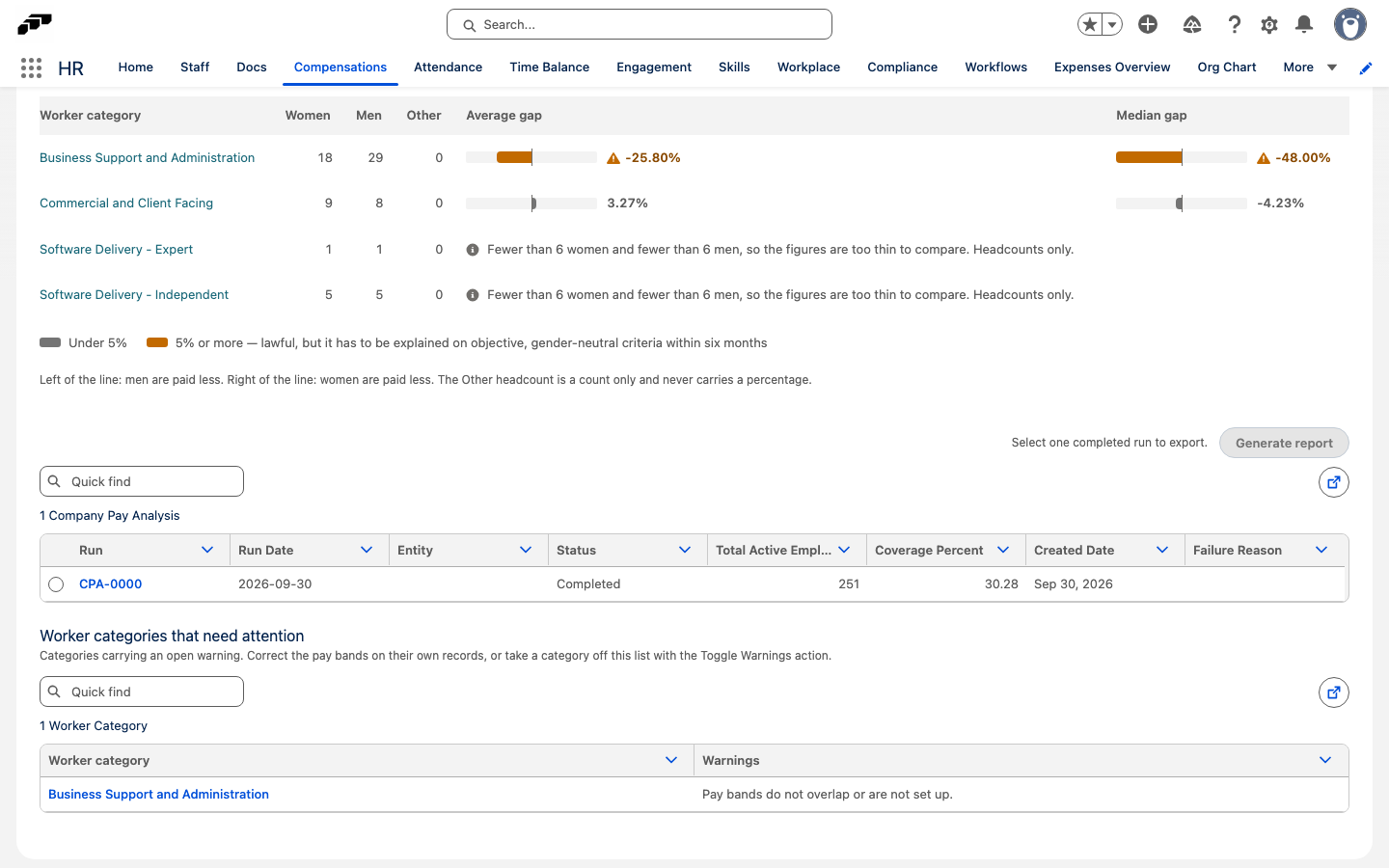
The panel shows four figures — Employees analysed, Covered by a worker category, In categories too small to compare, and Categories at or above 5% — followed by two views:
| View | What it shows |
|---|---|
| Headcount by pay quartile | Bars for Women and Men in each quartile, from Q1 (lowest paid 25%) to Q4 (highest paid 25%). Three dividing lines mark the pay thresholds between the quartiles. All amounts are monthly, at 100% FTE, in the run's currency. |
| Pay gap by worker category | One row per worker category with its Women, Men, and Other headcounts, plus the Average gap and Median gap drawn on a scale centered on zero. |
A gap is the difference as a share of the men's figure. A bar to the right of the zero line means women are paid less, and a bar to the left means men are paid less. A gap of 5% or more is drawn in amber with a warning icon, whichever side it falls on; a smaller gap stays neutral. The Other headcount is a count only and never carries a percentage.
A category with fewer than six women or fewer than six men shows its headcounts only, unless you have the Flair Salary Manager permission set, which already shows individual salaries. The gap columns name which group is too small instead of showing a percentage. When one side has no pay data at all, the cell reads Not enough pay data to compare.
Run an analysis
- On the Equity Audits tab, click Run Company Pay Gap Analysis.
- In Analysis date, set the date the analysis reports on. It defaults to today. Salaries active on this date are the ones analyzed.
- Optional: If your org has entities, select an Entity to analyze only the employees in it, or Whole company. The field starts on the scope of the pill you're viewing.
- Click Start run. The run starts and its status shows In Progress while flair processes the population. Only one analysis can run at a time.
The analysis runs in the background and can take several minutes for a large population. The tab updates the status on its own — you don't need to reload. When it finishes, the status becomes Completed, or Failed with the reason shown on the run's row.
Export a completed run
Generate report turns a stored run into a CSV so you can file or share it. Only a Completed run can be exported.
- In the runs table, select a run with Completed status.
- Click Generate report. flair downloads a file named
pay-gap-analysis-<run date>.csv.
The CSV holds the run date, currency, and employee counts, followed by female and male headcounts across quartiles Q1 to Q4, the quartile pay thresholds, and a row for each worker category. Each category row reports female and male headcounts, average and median gap percentages, and a finding that names any gap of 5% or more. A category with fewer than six employees of either gender is withheld rather than published, and the finding says so.
Exported figures are read from the stored run, so the file keeps reporting what was true on its run date even after the underlying population changes.
Track pay gap trends across runs
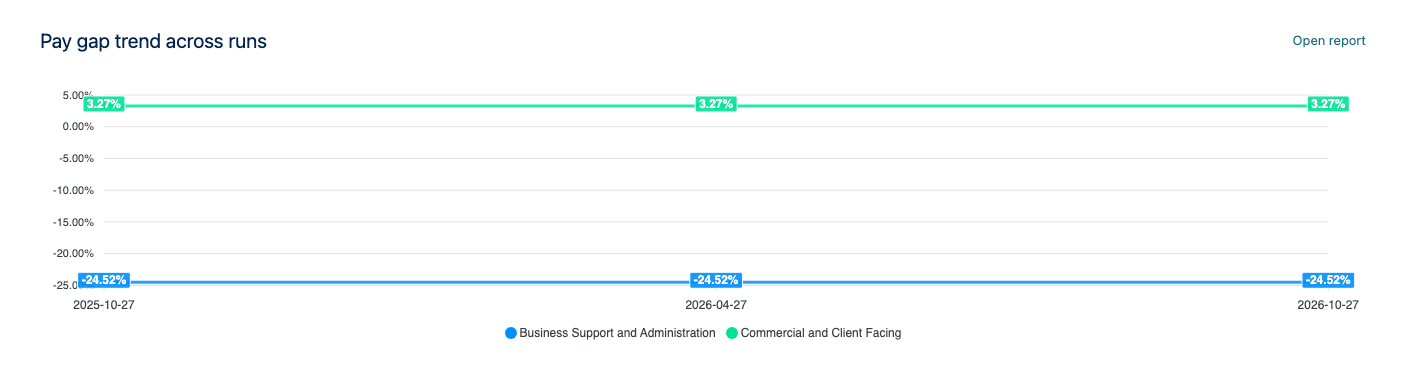
At the bottom of the Equity Audits tab, the Pay gap trend across runs card charts the average gender pay gap per worker category over time. Each point is one completed whole-company run, plotted on its run date, with one line per worker category.
- Whole company only: The card reads whole-company runs only, so it shows while the Whole company pill is selected and is hidden while you view an entity.
- Withheld categories stay out: A category below the comparison threshold in a run, with fewer than six women or fewer than six men, is left out of that run's point, so the trend never shows a gap the run itself withheld.
- Median gap: The card shows the average gap. Click Open report in the card header to open the full report, where you can switch the measure to the median gap.
Schedule an annual analysis
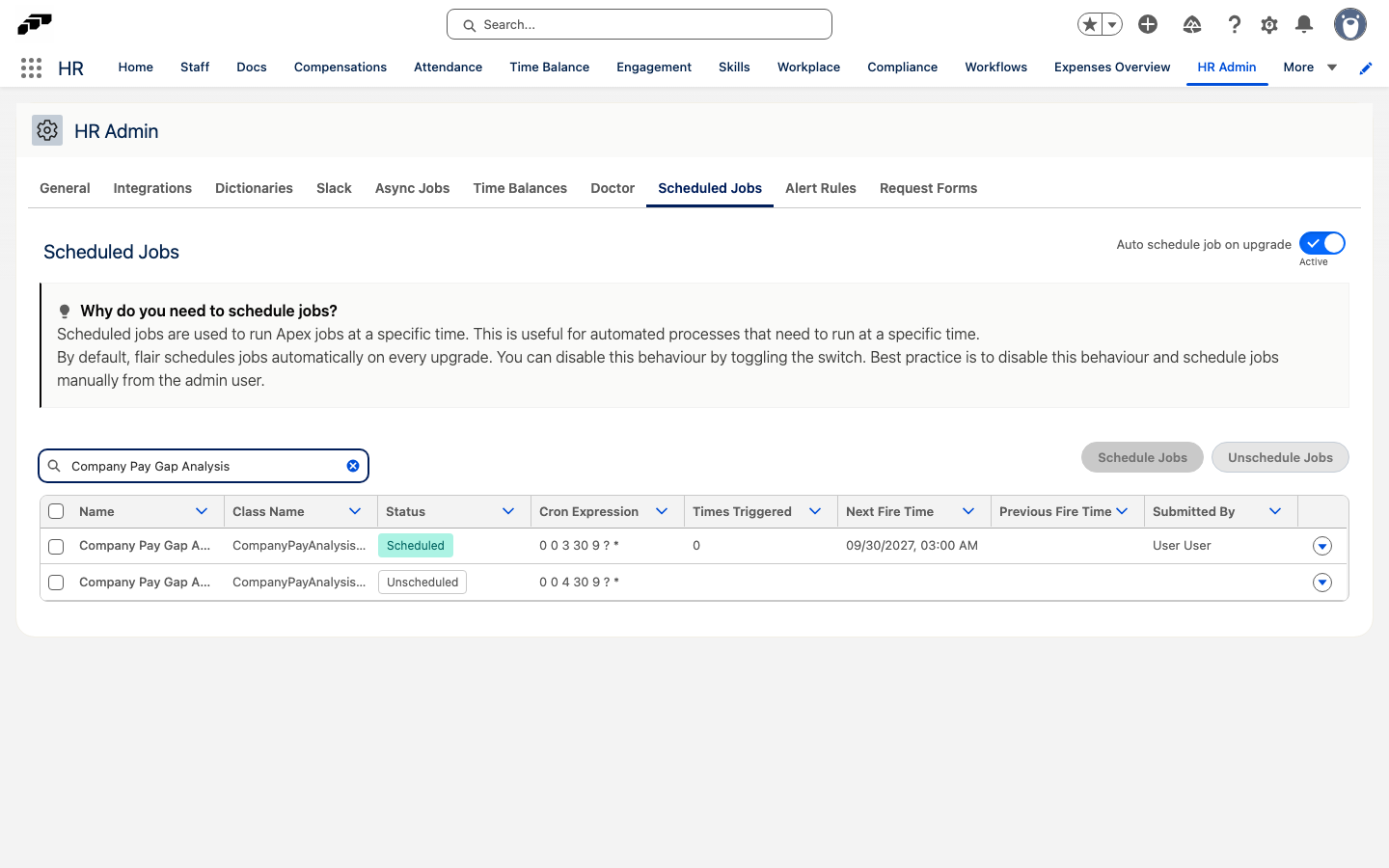
flair can run the analysis for you once a year. Two scheduled jobs ship with the package, and neither runs until an admin schedules it. Automatic scheduling on package upgrade never turns them on.
| Job | What it files |
|---|---|
| Company Pay Gap Analysis | One whole-company run, at 03:00. |
| Company Pay Gap Analysis per Entity | One run per entity, worked through one after another, starting at 04:00. |
Each job fires every year on the day and month you schedule it, in the time zone of the admin who schedules it, and reports as of that day. If you schedule on 29 February, it runs on 28 February instead. You can schedule both jobs; the per-entity job starts an hour later so the two don't collide. A scheduled run is skipped when another analysis is already in progress.
- In the flair HR app, open HR Admin, then click the Scheduled Jobs tab.
- In Filter by name, enter
Company Pay Gap Analysis. - In the row of the job you want, open the row action menu and select Schedule.
To stop the annual run, select Unschedule in the same menu. For the full list of actions on this tab, see Manage flair scheduled jobs.
Resolve pay band warnings on a worker category
Roles in one Worker Category do work of equal value, so their pay bands must share at least one amount. flair checks this whenever the data behind a category changes and stores a warning on any category whose bands can't all be met. Overlapping bands are normal and never flagged.
HR Admins in Salesforce with the Pay Transparency Manager permission, granted by the Flair Budget Manager, Flair Manager, or Flair Salary Manager permission set.
A category gets the warning Pay bands do not overlap or are not set up. when either of these is true:
- Two of its bands share no amount at all, such as 3,000–4,000 for one role and 5,000–7,000 for another.
- A band is missing its Min, its Max, or a recognized Frequency, or its currency has no conversion rate. flair reports such a band as needing setup rather than guessing a value.
Bands are converted to monthly amounts in one currency — your corporate currency in a multi-currency org — before they are compared. Two fixed-amount bands are never compared with each other, because paying two fixed rates is normal in a collective agreement — but a fixed amount outside a range still warns. A band that has ended is ignored, and a band that starts in the future is drawn but only compared from its start date.
flair recalculates the warning when a pay band, role, career level, position, or employee's Worker Category changes, and a corrected band clears the warning by itself. Existing categories aren't checked on upgrade: a category gets its first warning the next time something behind it is saved.
Find categories that need attention
- In the flair HR app, open Compensations, then the Equity Audits tab.
- Scroll to Worker categories that need attention. It lists each category with an open warning, with its Warnings.
- Click a category name to open its record.
Review the pay bands on the record
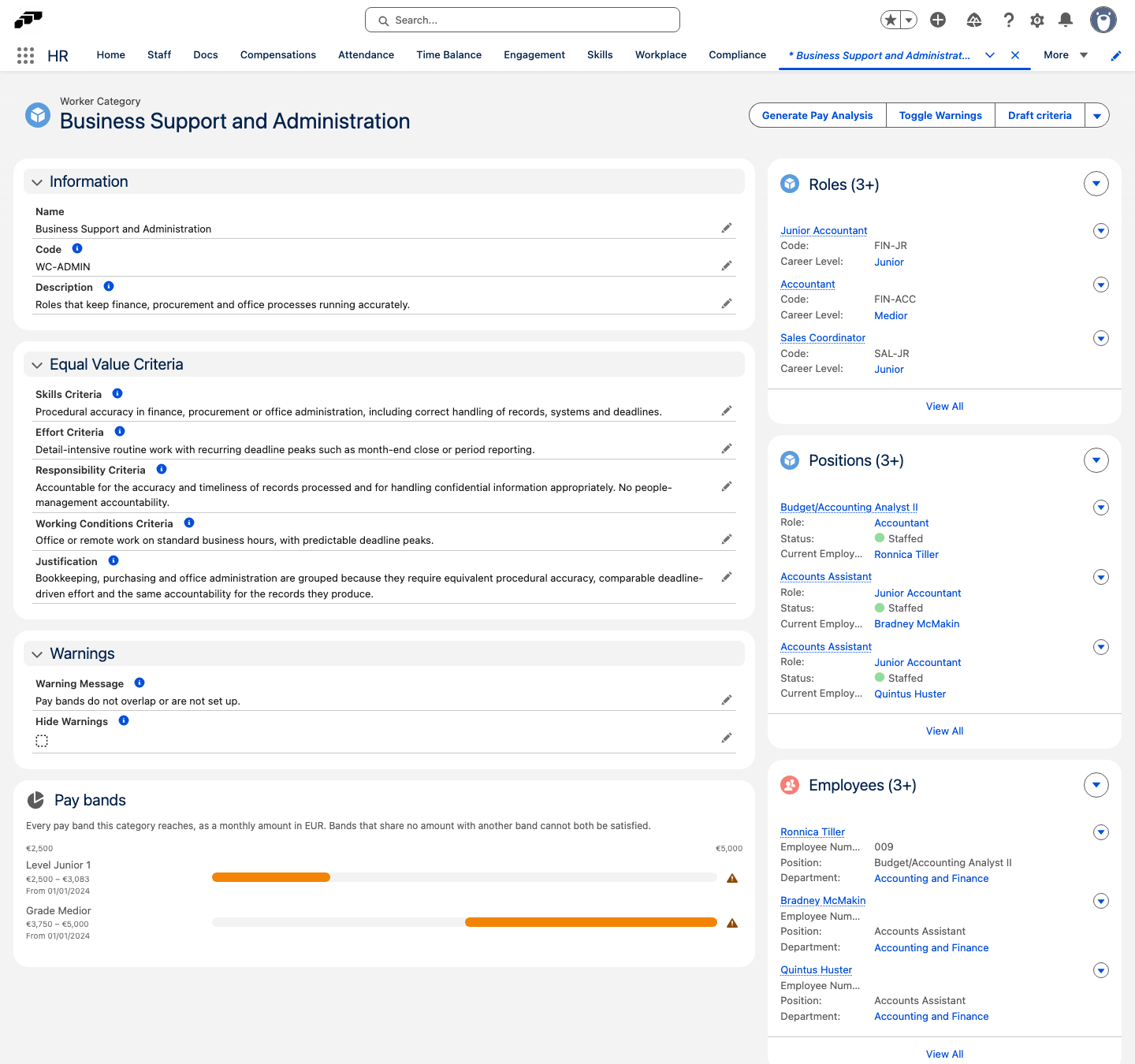
The Pay bands card on the Worker Category record draws every band the category reaches on one axis, as monthly amounts. A band that overlaps all the others is blue. A band that doesn't overlap at least one other band is orange, with a warning icon. A band that can't be compared shows the reason instead of a bar, and a future band shows a clock icon.
The stored warning appears in the Warnings section of the record, under Warning Message. To clear it, correct the band on its Pay Grade or Pay Level in Compensation Management, or move the role out of the category.
Hide warnings for a deliberate difference
When a difference is deliberate, take the category off the attention list.
- On the Worker Category record, click Toggle Warnings.
- Review Current warnings.
- In Justification, explain why the roles are work of equal value and why the difference is deliberate. flair saves this text to the category's Justification field.
- Click Hide warnings.
The warnings are still calculated and still shown on the record, and a banner there notes that warnings are hidden. If the category picks up a warning it wasn't already carrying, flair switches its warnings back on automatically. To switch them back on yourself, click Toggle Warnings, then Show warnings — no justification is needed.