Review timesheets and Change Requests
Review employee working hours, approve or reject timesheets, and process corrections through Change Requests. This guide also covers reapproval, reports, workload assignment, and common record problems.
Managers and HR Admins review timesheets in Salesforce, the Employee Hub, or the mobile app. Employees submit Change Requests in the Employee Hub or the mobile app. Managers can also approve timesheets and Change Requests in the mobile app.
Before you begin
- Employees have an active workload and time-tracking access.
- Approvers have the assigned role and permissions for the relevant employees.
Review a timesheet in Salesforce
-
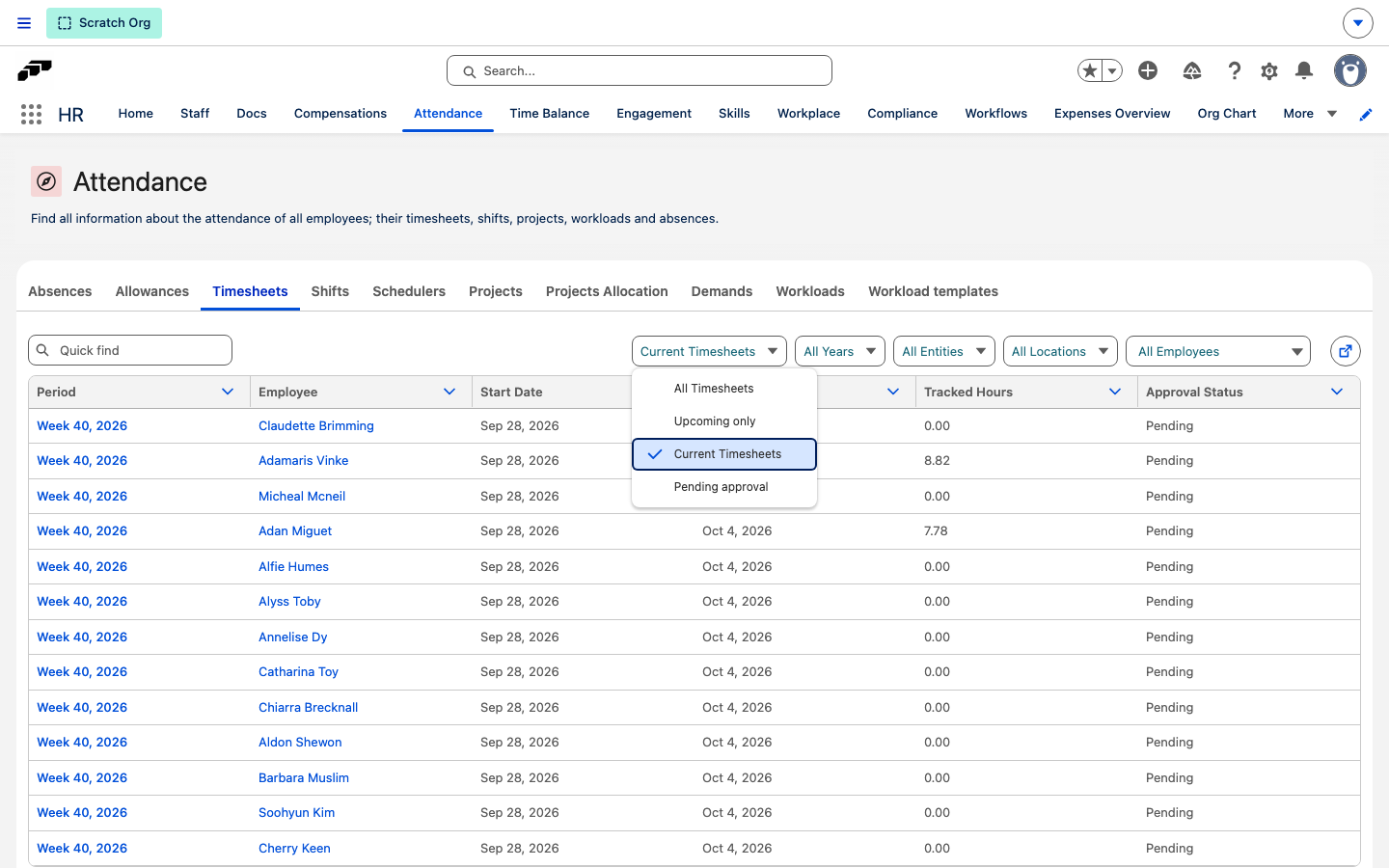
In the flair HR app, open Attendance → Timesheets. The list opens on Current Timesheets, the timesheets whose period includes today.
-
Optional: To change which timesheets the list shows, select All Timesheets, Upcoming only, Current Timesheets, or Pending approval in the first dropdown.
-
Optional: Narrow the list by year, entity, location, or employee with the dropdowns next to it.
-
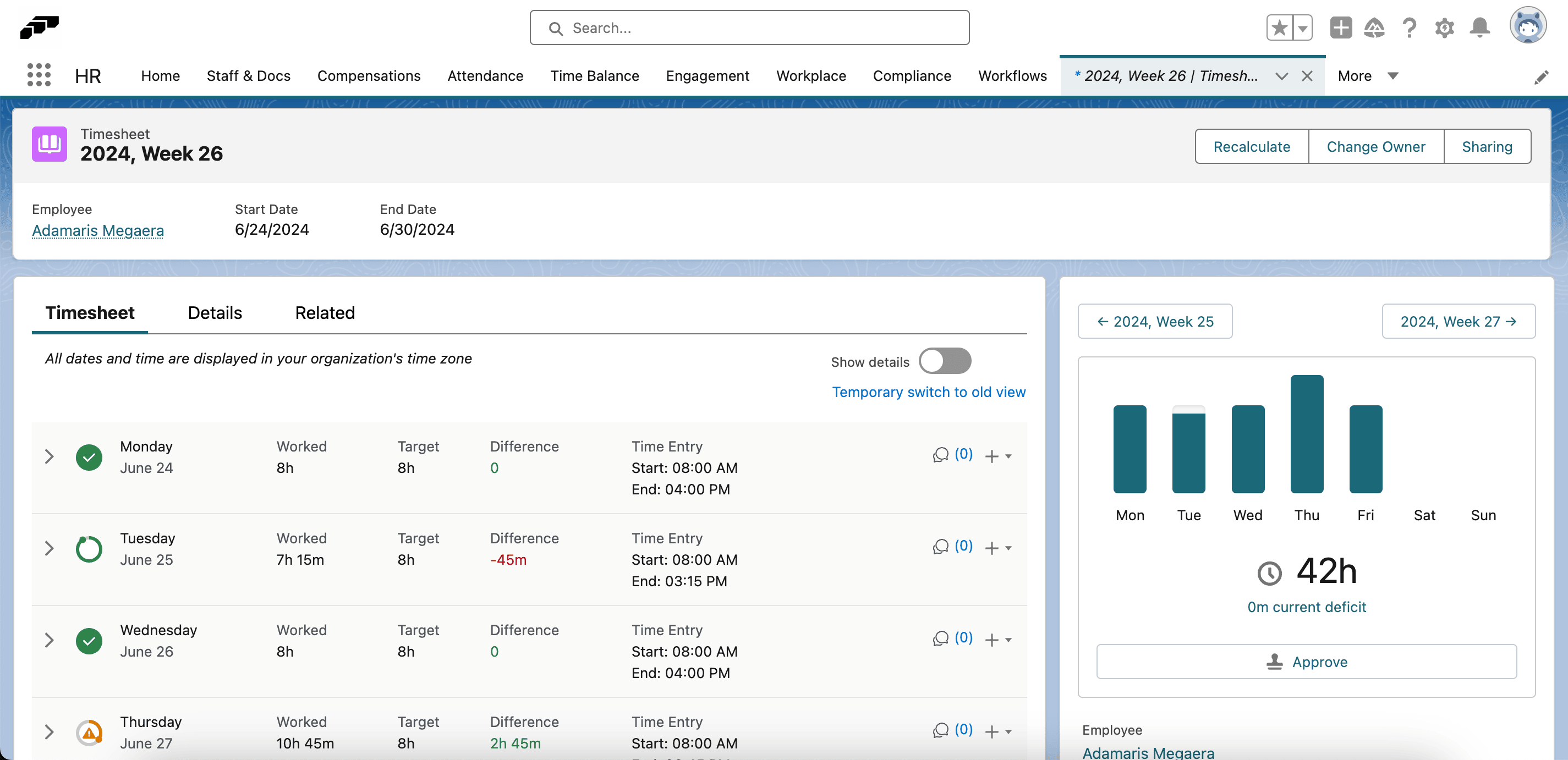
Click a timesheet's Period to open it.
-
Review the employee, period, total hours, daily breakdown, breaks, overtime, cost centers, and notes.
-
Compare anomalies, such as excessive hours or missing breaks, with the expected schedule.
-
To approve the record, click Approve. flair notifies the employee.
-
To return the record, click Reject, and enter the correction required. flair sends the feedback to the employee for resubmission.
The Timesheets tab in Attendance appears only if your permission sets include the HR Manager, Attendance Manager, or Shift Planner Manager custom permission.
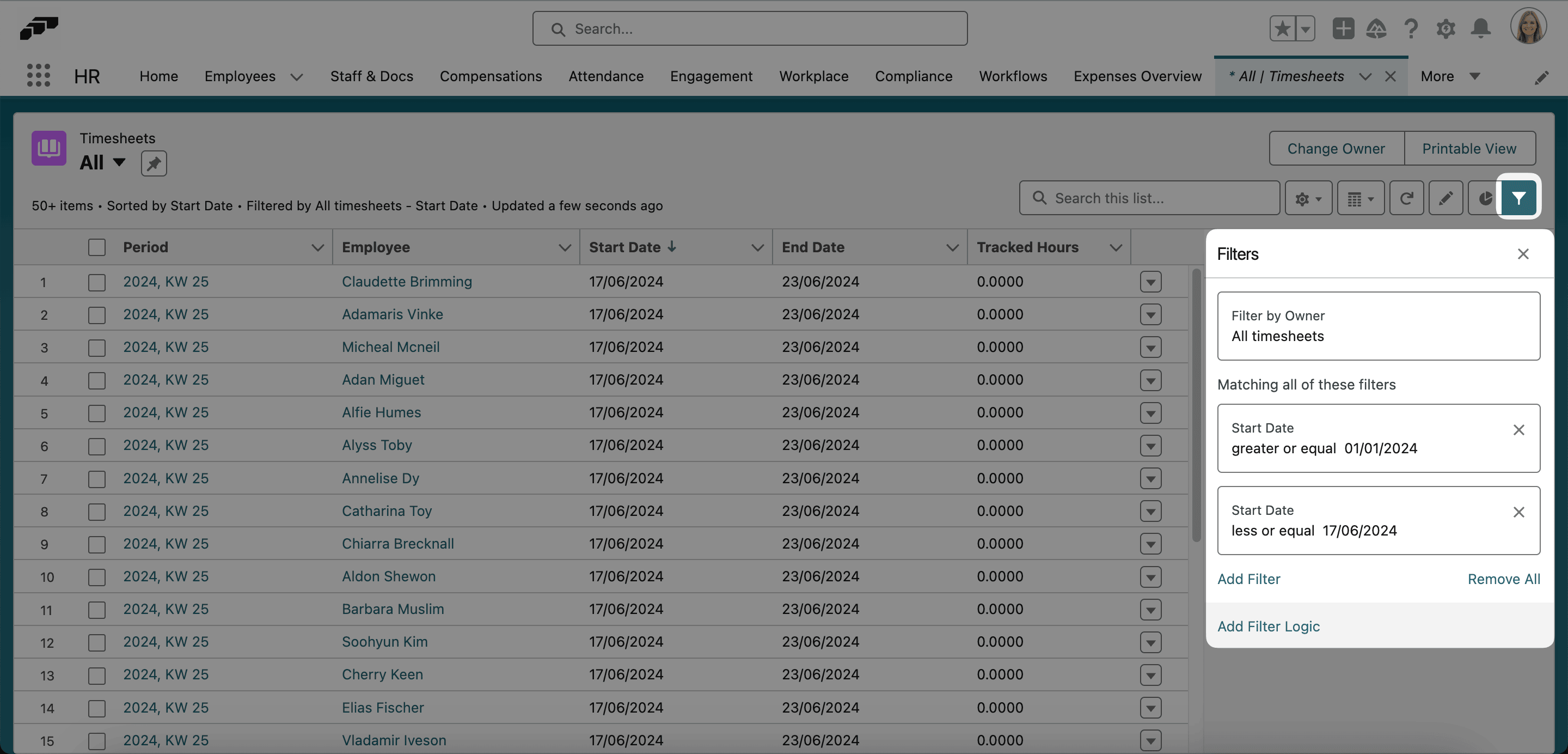
To build your own filters, such as a start-date range, open the App Launcher (⋮⋮ grid icon), select Timesheets, and use the list view's filter panel instead. This list also lets you select several timesheets at once.
Approve multiple timesheets
- In the Timesheets list, select the timesheets.
- If available, click Bulk Approve.
- Confirm the approval. flair notifies the selected employees.
Review a timesheet in the Employee Hub
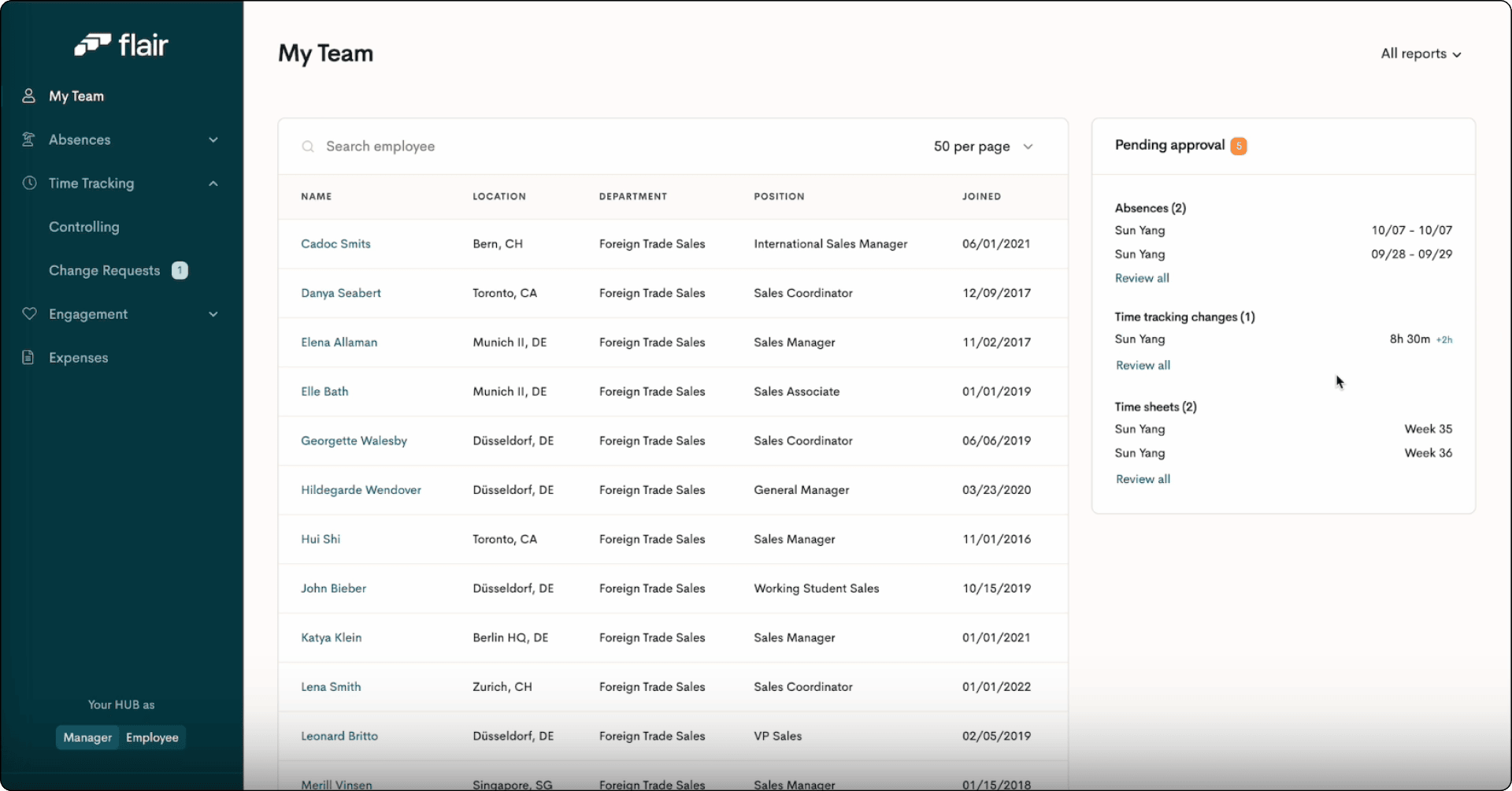
Managers review their team's timesheets on the Controlling page in Manager view. The Employee Hub can approve timesheets but can't reject them. To reject a timesheet, use Salesforce.
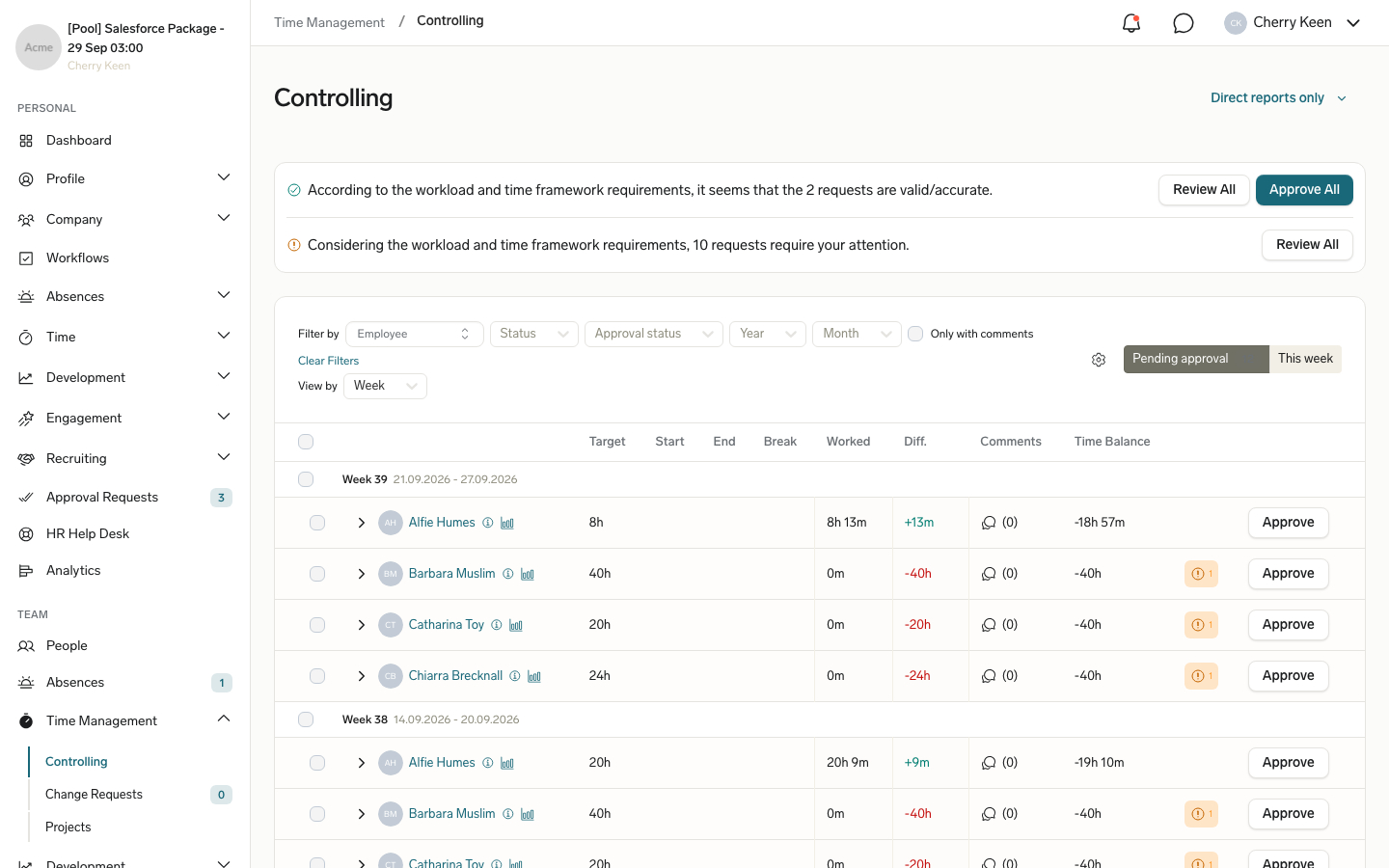
- In Manager view, go to Time Management → Controlling. The Pending approval tab opens.
- Optional: To see only your direct reports, switch from All reports to Direct reports only.
- Review the summary above the table. It counts the pending timesheets that are accurate and those that need attention, based on the workload and Time Framework requirements.
- To list only one group, click Review All next to its count. The table filters to Accurate or Attention required timesheets.
- Optional: Next to Filter by, narrow the table by Employee, Status, Approval status, Year, or Month, or select Only with comments.
- Optional: In View by, select Employee or Week to group the rows.
- To review a timesheet's days, click the arrow next to it. To see its Daily progress and Time distribution charts, click the chart icon.
- To approve the timesheet, click Approve in its row. The status changes to Approved.
Who is asked to approve a timesheet follows your company's timesheet approval policy. If the policy asked someone else but not you, the row shows only Details. Click Details, and open Approval Path to see who still has to approve. Pending timesheet approvals also appear on the Approval Requests page. For the default policy, see Understand default Approval Policies.
To approve several timesheets at once, select their checkboxes and click Approve in the bar that shows the number selected. To approve every accurate timesheet, click Approve All in the summary. Approve All is unavailable while an Employee, Year, or Month filter is active.
If a timesheet you approve has pending time entry change requests, flair asks what to do with them. Click Yes, approve all changes or No, reject time changes. flair then approves the timesheet.
A warning icon in a day's time cell marks a pending Change Request. Click it to see the requested start time, break, and end time, and to approve or reject that request on its own.
To choose which columns the table shows, such as Target, Break, Worked, Diff., Comments, or Time Balance, click the column settings icon next to the filters. The Customize columns dialog opens.
Check the current week
- On the Controlling page, click This week. The tab shows each team member's Time fulfillment, Days worked, and Today status for the current week. Use the search field to filter by employee name.
Review in the mobile app
Managers who can manage their team's time entries can approve pending timesheets in the mobile app. The mobile app can't reject a timesheet.
- On the mobile home screen, tap Time Tracking. The Time Entries screen opens.
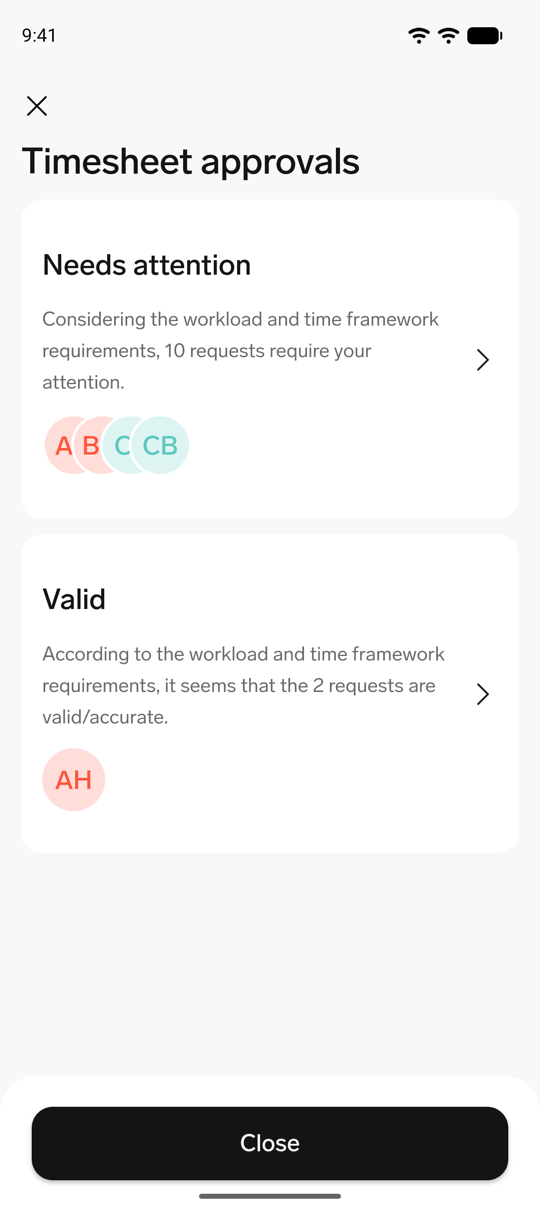
- Under Team time tracking, tap Timesheets. The Timesheet approvals screen opens.
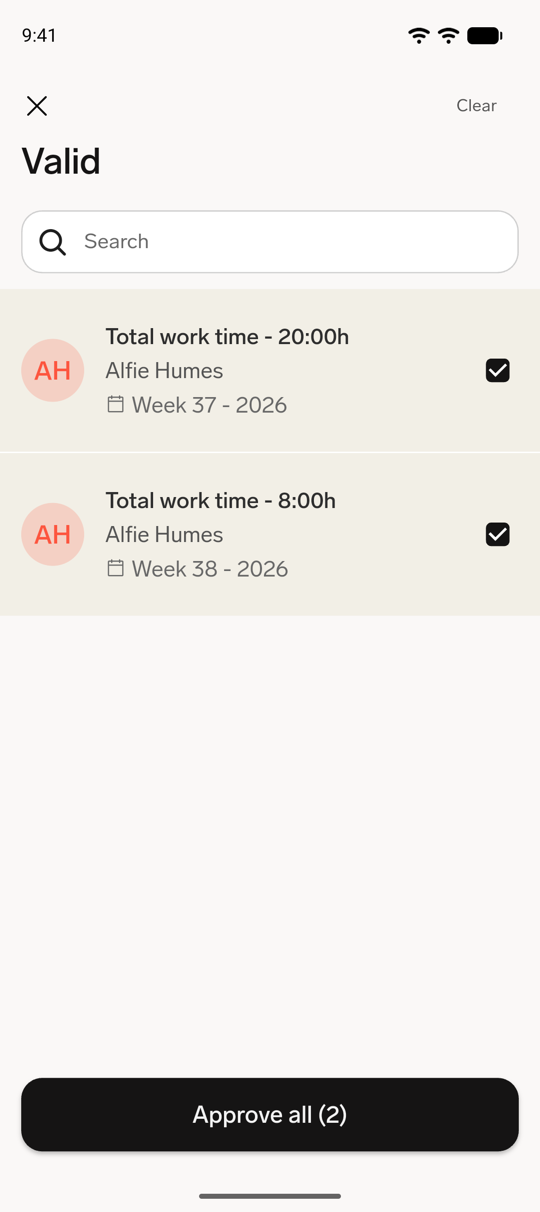
- Tap Needs attention or Valid. Needs attention lists the timesheets with warnings based on the workload and Time Framework requirements. Valid lists the others.
- Review each timesheet's total work time and week.
- Optional: To approve only some timesheets, tap them to select them. The button changes to Approve all with the number selected.
- Tap Approve all, and then tap Approve to confirm. If you selected nothing, flair approves every timesheet the list shows. After a search, that is only the timesheets that match it.
You can also open the Timesheet approvals screen from Notifications → Tasks.
Submit a Change Request
A Change Request keeps an audit trail when an employee corrects a submitted time entry.
- In the Employee Hub, go to Time → Time Tracking, and find the day in Overview.
- In the day's card, change the Start time, End time, or Break. Cancel and Save Changes appear below the card.
- Optional: To explain the correction, click + Add Notes, and enter your note.
- Click Save Changes. The entry shows Pending changes, and the assigned approver receives the Change Request.
To add a forgotten entry, click + Add time entry in the day's card, fill in the times, and click Save Changes.
To withdraw a pending Change Request, click the X on Pending changes, and click Confirm. The entry returns to its previous values.
Whether an employee's own change becomes a Change Request depends on the Can change own time entries checkbox on the employee record. If it's off, flair creates a Change Request for the approver. If it's on, flair saves the change directly. This applies in the Employee Hub and the mobile app. To add or correct an entry in the mobile app, see Add or correct a time entry.
Edit or delete a pending Change Request in the mobile app
- In the mobile app, open the day with the pending entry.
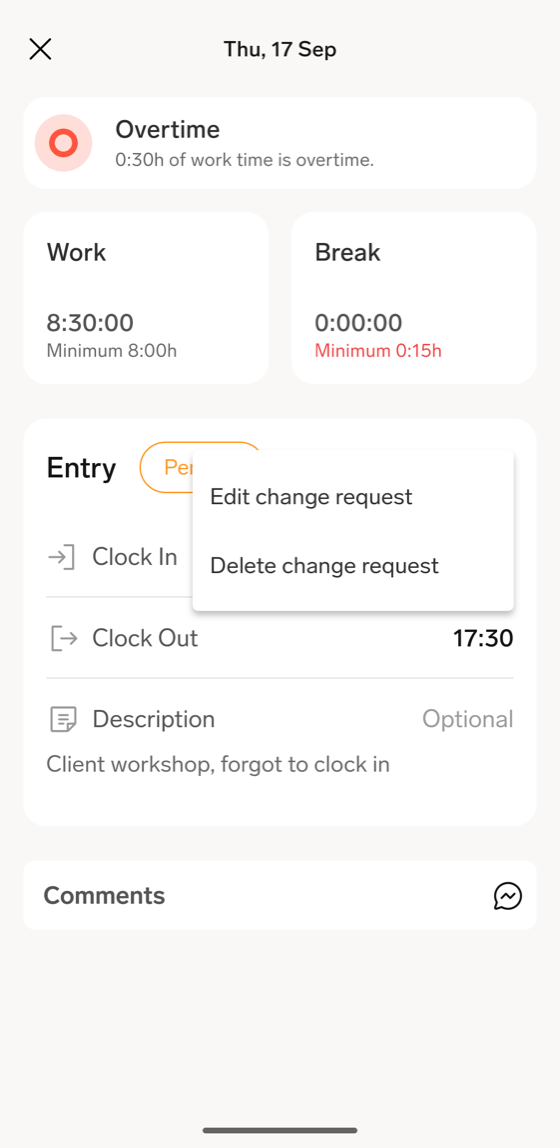
- On the entry, tap the menu icon (three dots).
- To change the requested times, tap Edit change request.
- To withdraw the request, tap Delete change request, and then tap Delete to confirm.
Review a Change Request
Review in Salesforce
- In Salesforce, open the App Launcher (⋮⋮ grid icon), and select Time Entry Change Requests.
- Open a pending request.
- Compare the original entry, requested values, employee reason, and effect on total hours.
- Approve or reject the request.
- If you reject it, enter a reason.
Review in the Employee Hub
- In the Employee Hub, under Team, open Time Management → Change Requests. Pending Change Requests also appear in Approval Requests.
- Open a pending request.
- Compare the original and requested values.
- Approve or reject the request, and add an optional comment.
Review in the mobile app
Managers who can manage their team's time entries see a Team time tracking section in the mobile app.
- On the mobile home screen, tap Time Tracking. The Time Entries screen opens.
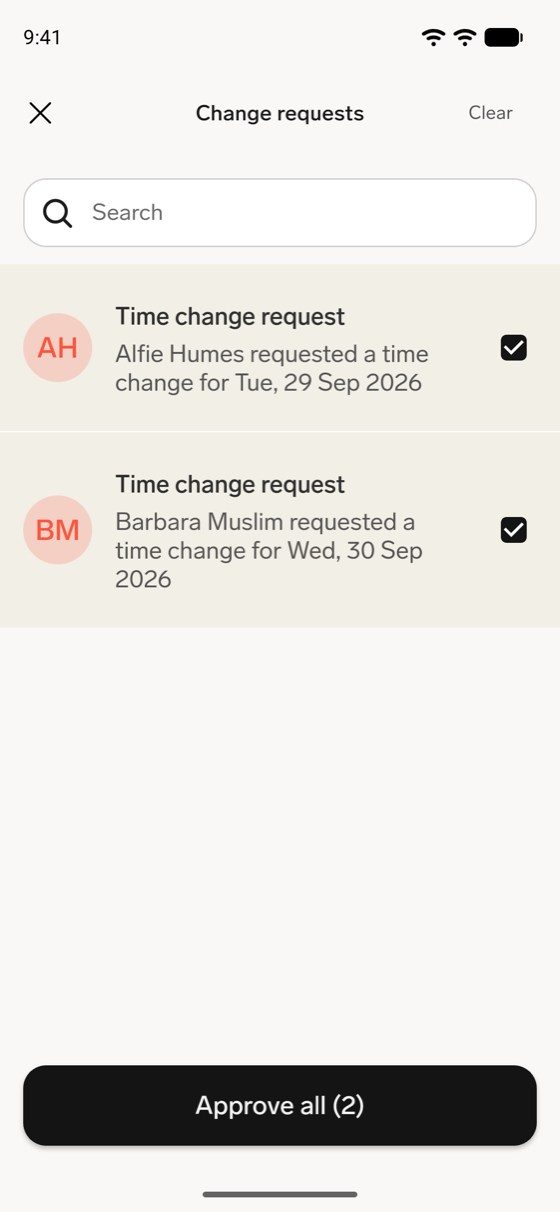
- Under Team time tracking, tap Change requests. The list shows each pending Time change request.
- Tap a request. It shows the requested Work and Break time and the difference from the original entry.
- Tap Approve, and then tap Approve again to confirm.
To approve several requests at once, select them with their checkboxes in the Change requests list, tap Approve all, and confirm. The button shows the number of selected requests. If you select nothing, Approve all approves every request the list currently shows, including after a search.
You can also open a pending Change Request from Notifications → Tasks.
The mobile app can't reject a Change Request. To reject one, use Salesforce or the Employee Hub.
The audit trail records the original author and submission, requester, changed values, decision, approver, and decision time.
Reapprove a changed timesheet
flair changes an approved timesheet to Pending Reapproval when an administrator edits an approved entry, an approved Change Request modifies it, or someone adjusts its hours or calculations.
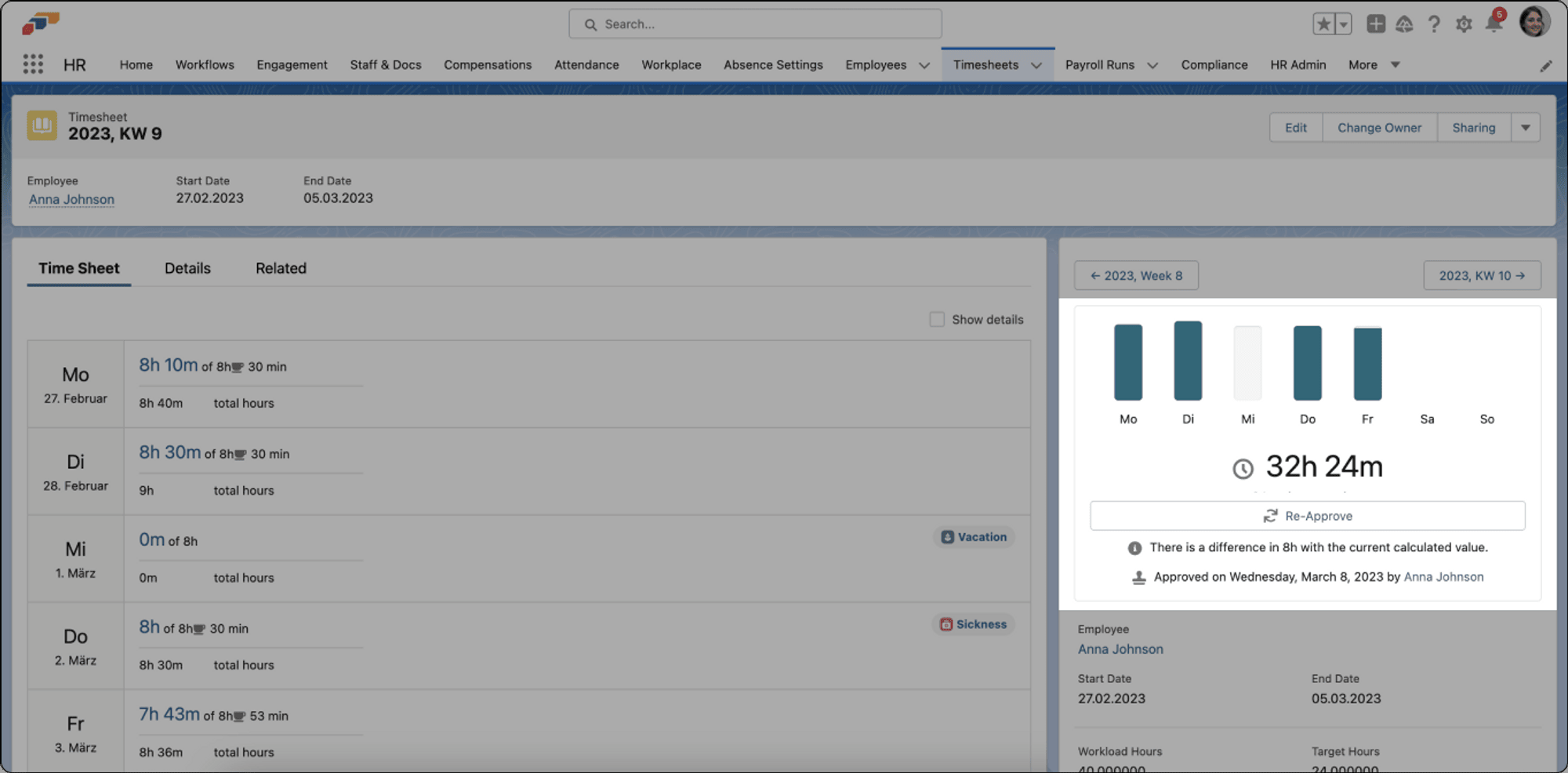
- Open the Pending Reapproval timesheet from the notification.
- Review the highlighted difference, original values, author, and reason.
- Check whether the change affects payroll or compliance.
- Approve or reject the modified timesheet.
- If the change affects payroll, notify the payroll team.
Assign another timesheet approver
Timesheet approval follows an approval policy. The default policy asks the employee's direct manager and the Additional Managers with Time Entries Approval. The first approval completes the step. flair raises the approval request on the day the timesheet period starts. To change who approves, see Approval Policies.
The direct manager comes from the Parent Position on Company Structure and appears in the employee record's Contract section.
- In the flair HR app, open the employee record.
- Open Staff & Docs → Additional Managers.
- Add the manager.
- Grant Time Entries Approval. Under the default policy, the additional manager is asked to approve the employee's timesheets along with the direct manager.
Configure timesheet rules
Administrators can configure these timesheet behaviors:
| Group | Available rules |
|---|---|
| Approval workflow | One approver, multiple approval levels, or automatic approval after a configured period. |
| Submission | Deadlines, reminders, and escalation for missed deadlines. |
| Locked periods | Locks for approved or payroll periods and administrator-controlled unlocking. |
| Notifications | Pending, approved, and rejected timesheets; Change Requests; deadlines; and reapproval. |
Enforce a minimum rest period
- In HR Admin, open Time Frameworks.
- Select the Time Framework, then open More → Time Limits.
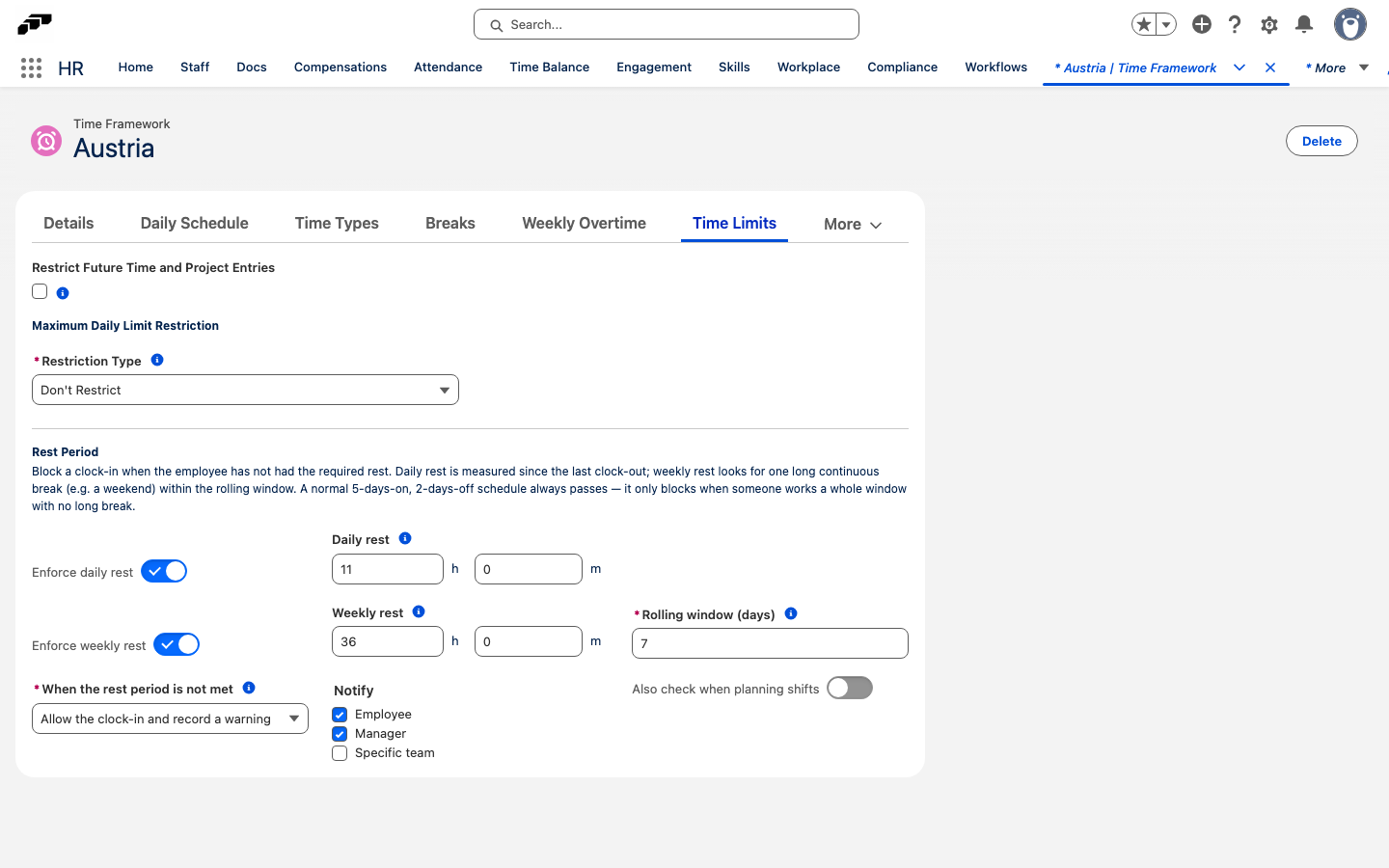
- Under Rest Period, turn on Enforce daily rest and set Daily rest to the continuous rest required since the last clock-out.
- Optional: turn on Enforce weekly rest, then set Weekly rest and the Rolling window (days) it is measured over, for example 36 hours within 7 days.
- In When the rest period is not met, select Block the clock-in or Allow the clock-in and record a warning.
- Optional: In Notify, select Employee, Manager, or Specific team. If you select Specific team, choose the team in Team.
- Optional: To apply the same rule when shifts are planned, turn on Also check when planning shifts.
- Click Save. The rule applies to employees assigned to the Time Framework.
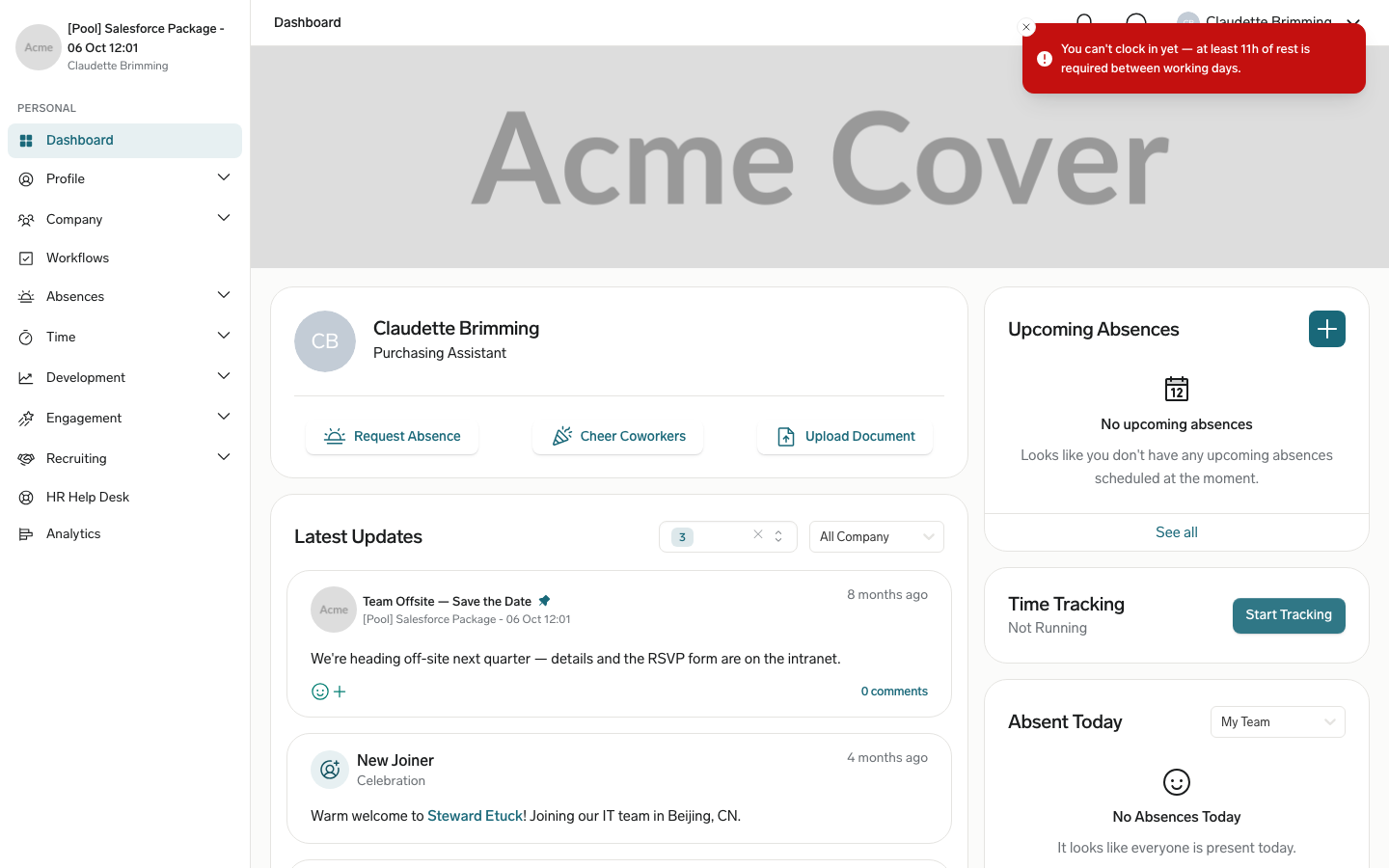
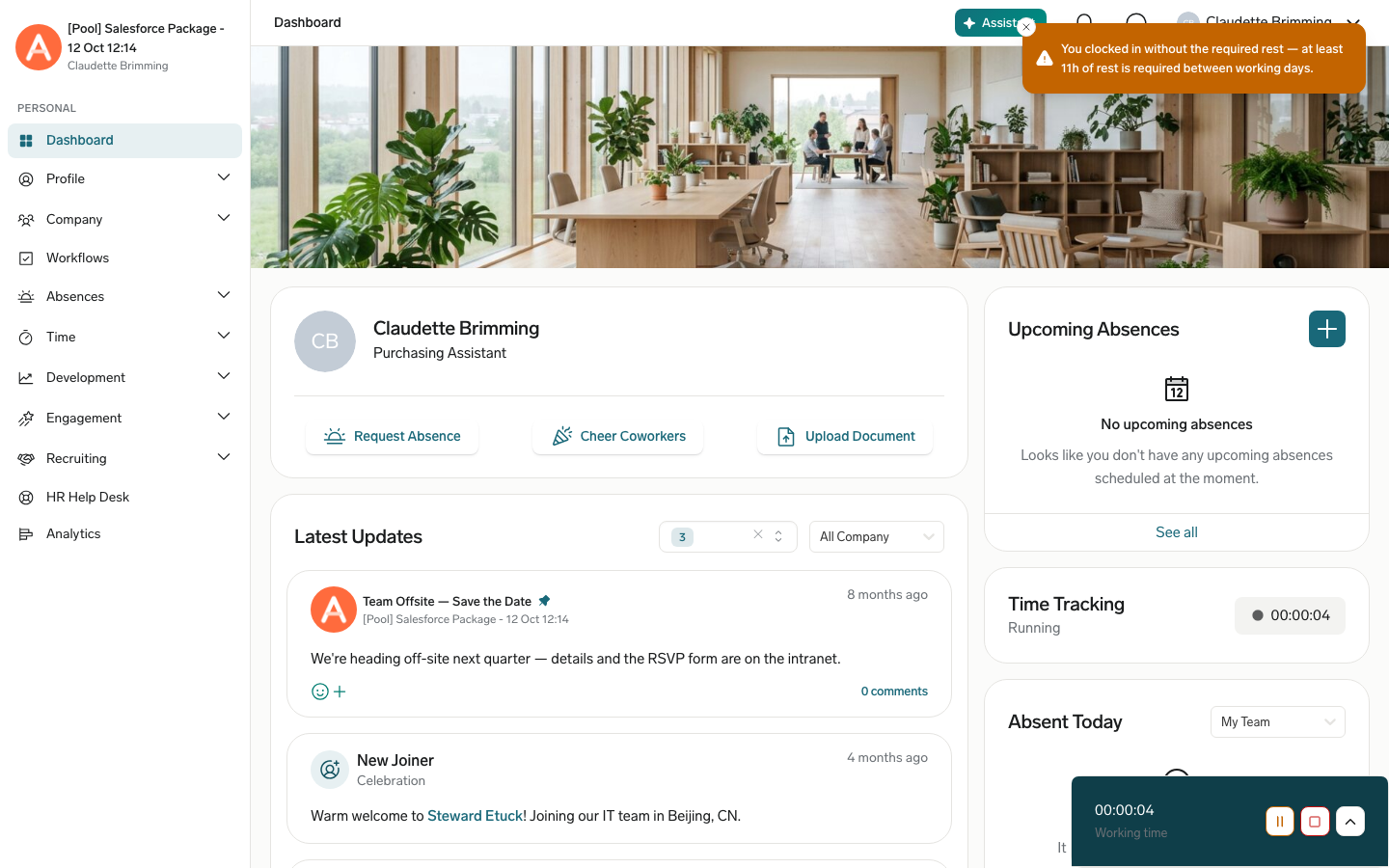
flair checks the first clock-in of each day. Later clock-ins that day and manually added entries are unaffected. If an employee clocks in too early:
- With Block the clock-in, flair rejects the clock-in and states the rest that is required. This is also the behavior when no action is selected.
- With Allow the clock-in and record a warning, the clock-in succeeds, the Employee Hub and the kiosk show a warning with the required rest, and flair notifies the recipients selected in Notify.
With Also check when planning shifts on, the rule also applies to shifts in the Shift Planner. With Block the clock-in, a shift that leaves the employee too little rest can't be saved. With Allow the clock-in and record a warning, the shift is saved, the Shift Planner shows a warning on it, and flair notifies the selected recipients.
Report on timesheets
Available reports include the following data:
| Report | Data |
|---|---|
| Hours worked by employee | Total hours for each employee in a period. |
| Overtime | Overtime by employee or department. |
| Approval status | Timesheets awaiting approval. |
| Cost center breakdown | Hours grouped by cost center. |
| Attendance trends | Patterns in clock-in and clock-out times. |
| Compliance | Adherence to working-time rules. |
You can export timesheets to CSV, Excel, PDF, a payroll integration, or another accounting and reporting system.
Print a Working Time Report
- In Salesforce, open the App Launcher (⋮⋮ grid icon), and select Employees.
- Open the employee record.
- Click Working Time Report.
- Select the period.
- Print the report.
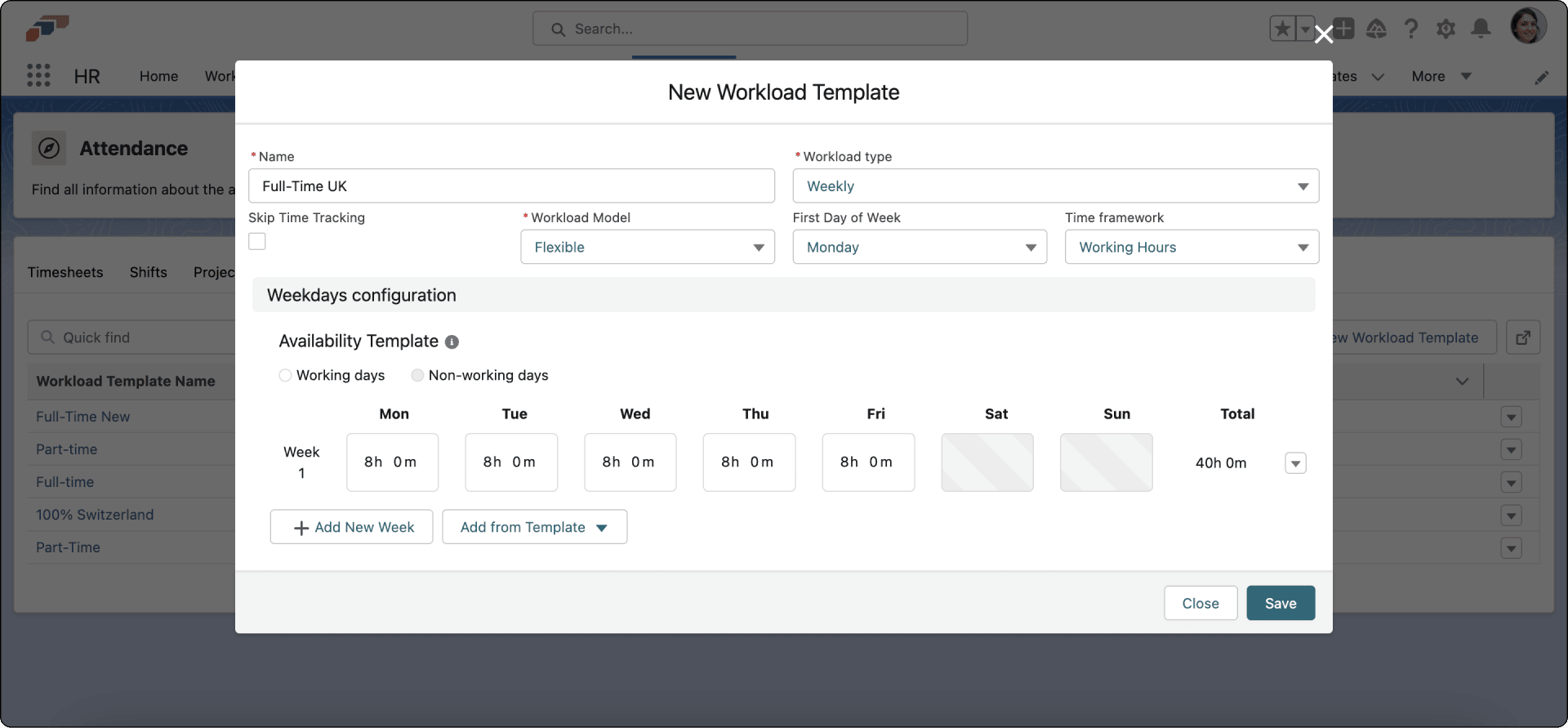
Create a Workload Template
Workloads define expected hours and schedules for time tracking and absence allowance calculations.
- In the flair HR app, open Attendance → Workload templates.
- Click New record.
- Enter a name, such as
Full-Time Office Worker. - Select whether to count hours by week or month.
- Select the first day of the week and the Time Framework.
- In Skip Time Tracking, choose whether the workload tracks time.
- For a fixed weekly workload, enter each day's hours, start and end times, and break length.
- For a flexible workload, enter the hours per working day.
- Optional: for a flexible workload, set Working Days per Week. flair uses this to prorate absence accrual when the accrual policy prorates by working days.
- Save the template.
Assign a workload
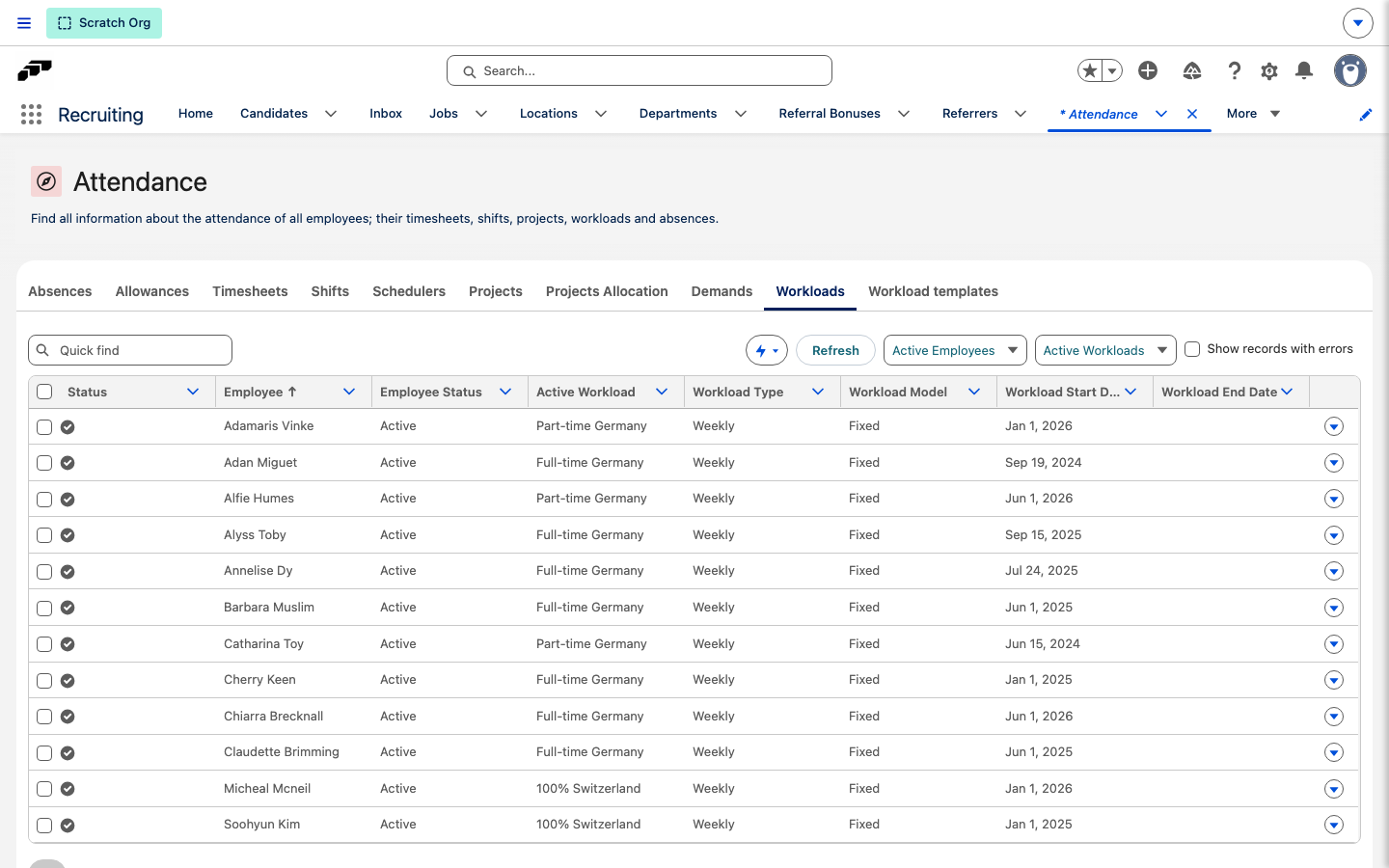
The Workloads list shows every workload record for each employee, not only the most recent one.
-
In the flair HR app, open Attendance → Workloads.
-
In the workload filter, select Active Workloads (default), Expired Workloads, Future Workloads, No Workloads, or All Workloads.
-
Optional: Select Show records with errors to list workloads with a calculation issue, employees with no active workload assigned, and terminated employees who still have an active workload.
-
Select the employees. A warning icon identifies employees without a workload.
-
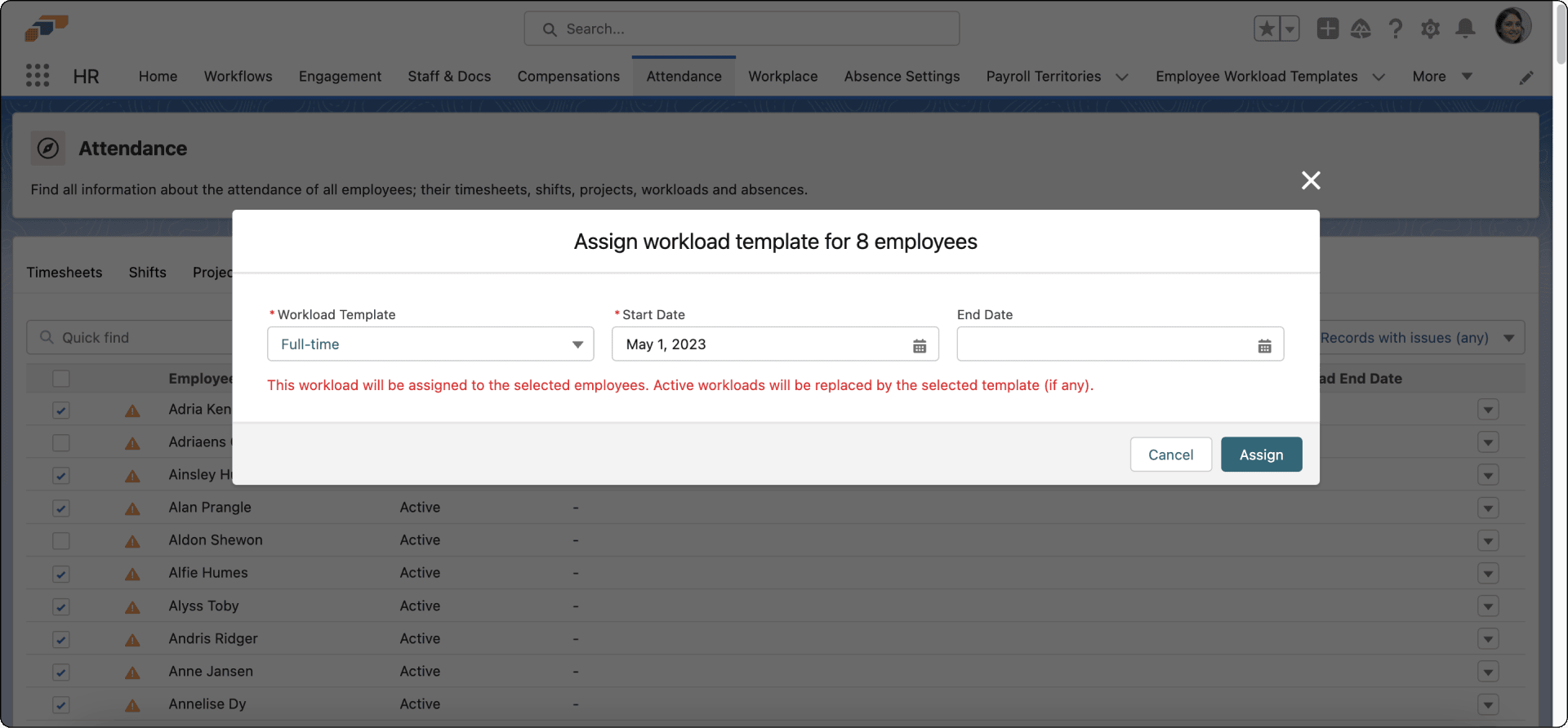
Click Assign Workload Template.
-
Select the template.
-
In Start Date, enter the employee's contract start date for an established flair setup.
-
When migrating to flair and calculating vacation from the start of the year, enter January 1 instead.
-
Optional: Enter an End Date.
-
Click Assign. The workload applies for the selected dates.
Create a flexible workload
-
In the flair HR app, open the employee record.
-
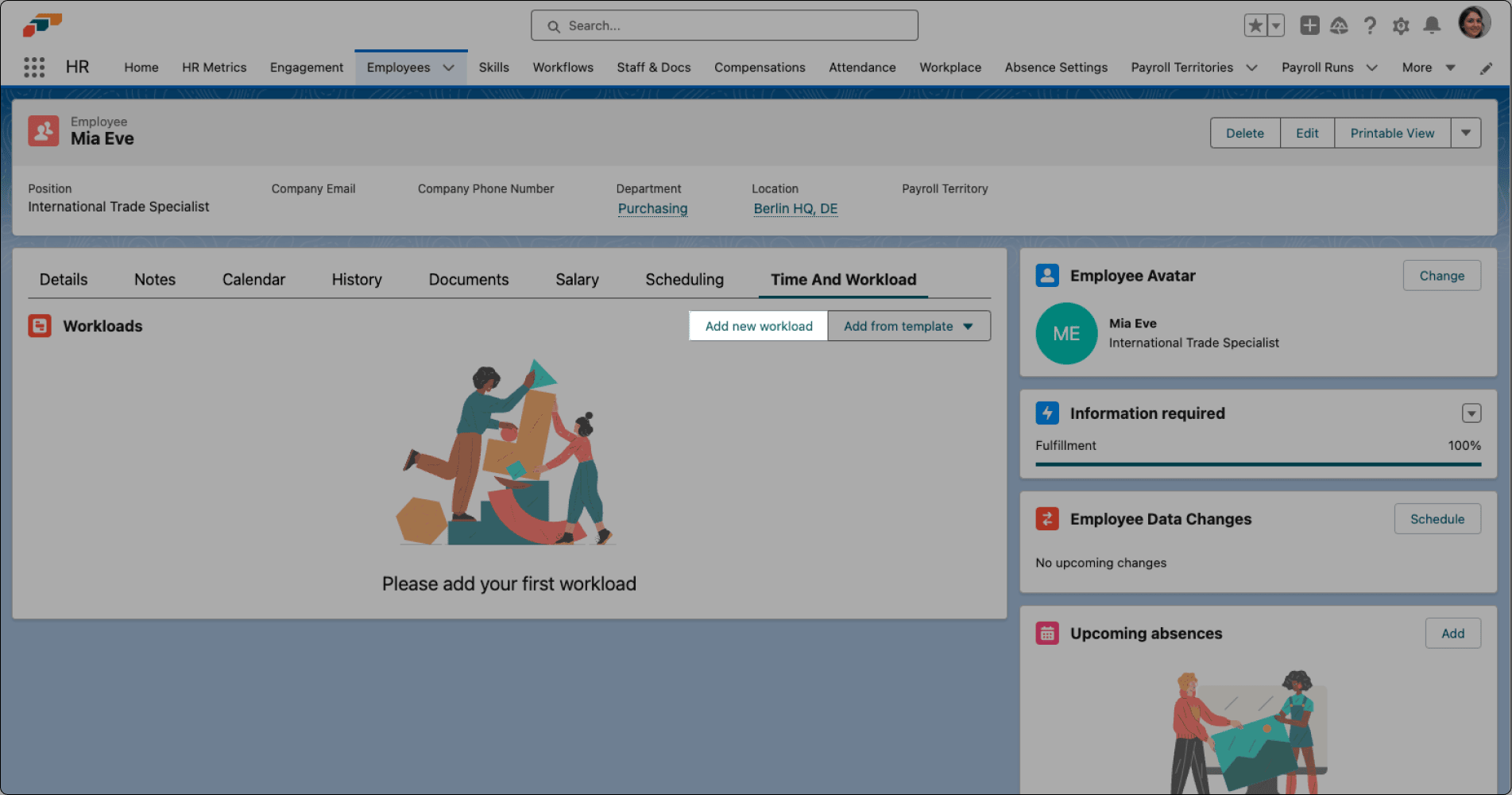
Open Time And Workload.
-
Click Add New Workload, or click Add From Template.
-
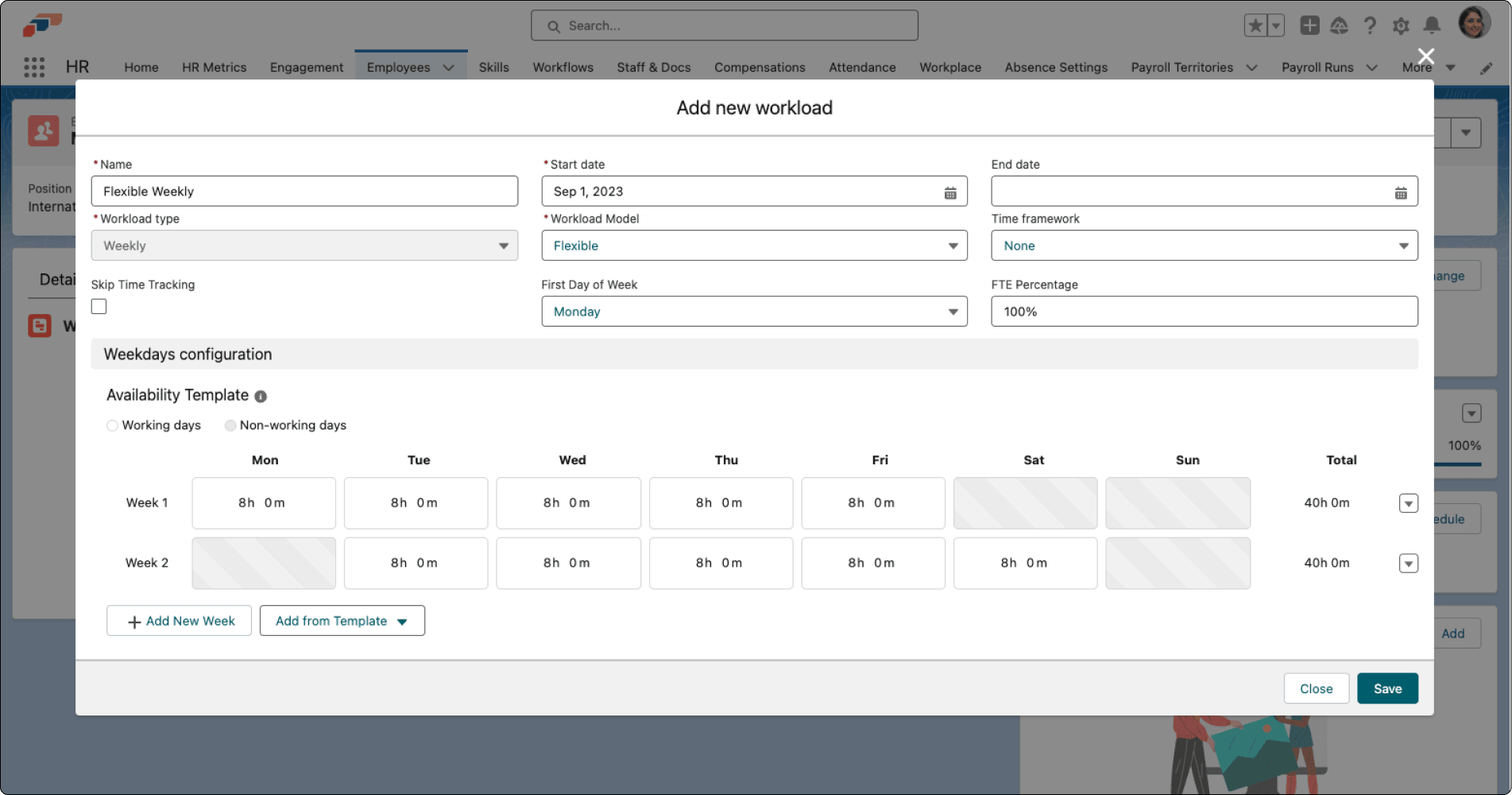
Enter the name and start date.
-
Select a weekly or monthly workload type.
-
Change Workload Model from Fixed to Flexible.
-
Confirm FTE: use
100%for full-time or the applicable proportion for part-time work. -
Optional: set Working Days per Week. flair uses this to prorate absence accrual when the accrual policy prorates by working days.
-
For fully flexible work, keep the Monday-to-Friday Availability Template, and adjust daily hours to reach the weekly total.
-
For a rotating schedule, click Add New Week, and configure each week.
-
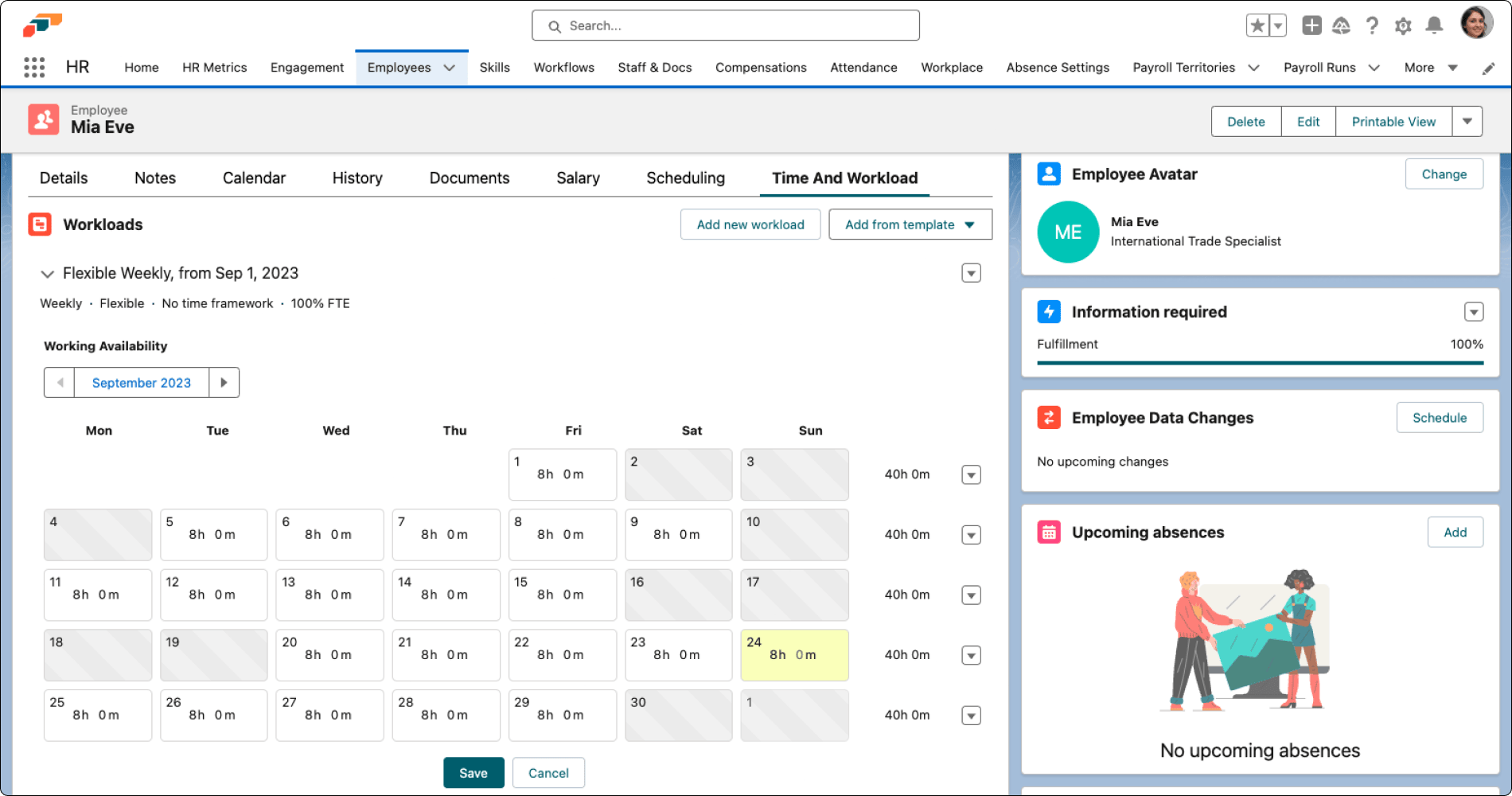
Click Save. The employee's calendar displays the flexible workload.
Enter actual working hours in the workload calendar when the employee's days change. This keeps vacation and sick-day calculations accurate.
For absence management, configure the accrual policy with Prorate based on FTE percentage in Workload Proration Type. See Configure accrual and proration.
Calculate monthly hours from working days
A monthly workload doesn't need a fixed number of monthly hours. flair can calculate each month's target from the daily hours and that month's working days, so the target follows months with more or fewer working days.
You can add a new workload only after the employee's current workload has an end date. See End a workload.
- In the flair HR app, open the employee record, and open Time And Workload. To change a template instead, open Attendance → Workload templates.
- Click Add new workload. For a template, select Edit in the template's row actions.
- On the Basics step, set Workload type to Monthly.
- On the Schedule step, under Monthly workload configuration, keep Calculate monthly hours from working days turned on. It's on by default for new workloads.
- Enter the hours for each working day. Monthly workload shows the current month's result, for example
October 2026: 22 working days × 8 h = 176 h. - Complete the remaining steps, and click Save.
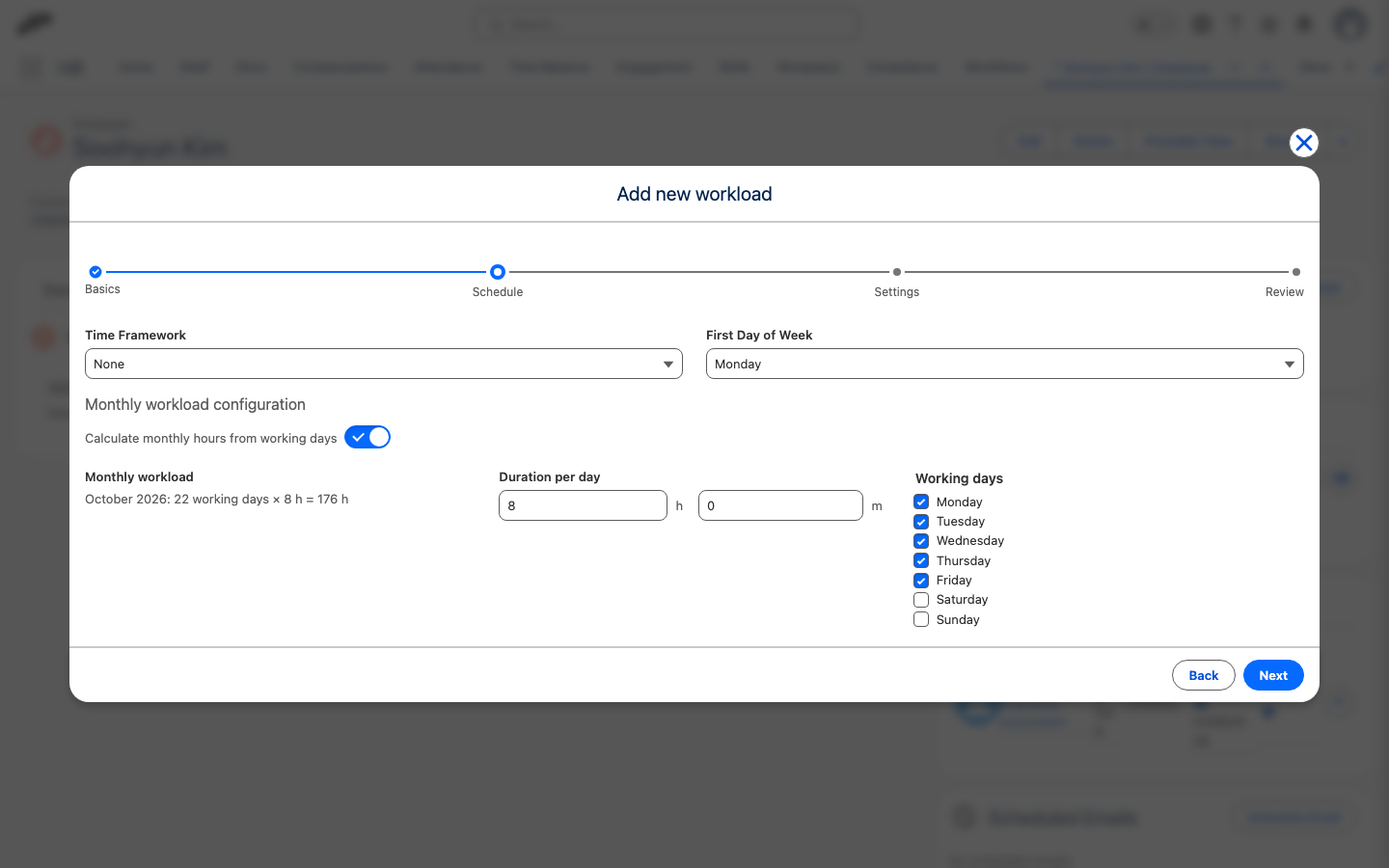
To set a fixed monthly figure instead, turn off Calculate monthly hours from working days, and enter Monthly workload.
Without a fixed figure, each monthly timesheet's target is the sum of its working days' hours. Payroll contracted hours and the hourly rate for time balance payouts use the daily hours multiplied by the working days per week. Monthly workloads that already have a fixed figure keep it.
Keep the time balance when assigning a new workload
By default, a new workload starts the employee's time balance at 0. To carry over the balance from the previous workload, keep it when you create the new workload. First, end the current workload. See End a workload.
- In the flair HR app, open the employee record, and open Time And Workload.
- Click Add new workload, or Add from template.
- Complete the Basics and Schedule steps.
- On the Settings step, select Keep previous time balance. The option appears only if the employee already has a workload.
- Review the workload, and click Save. The carried-over balance appears in the timesheet and in the Employee Hub.
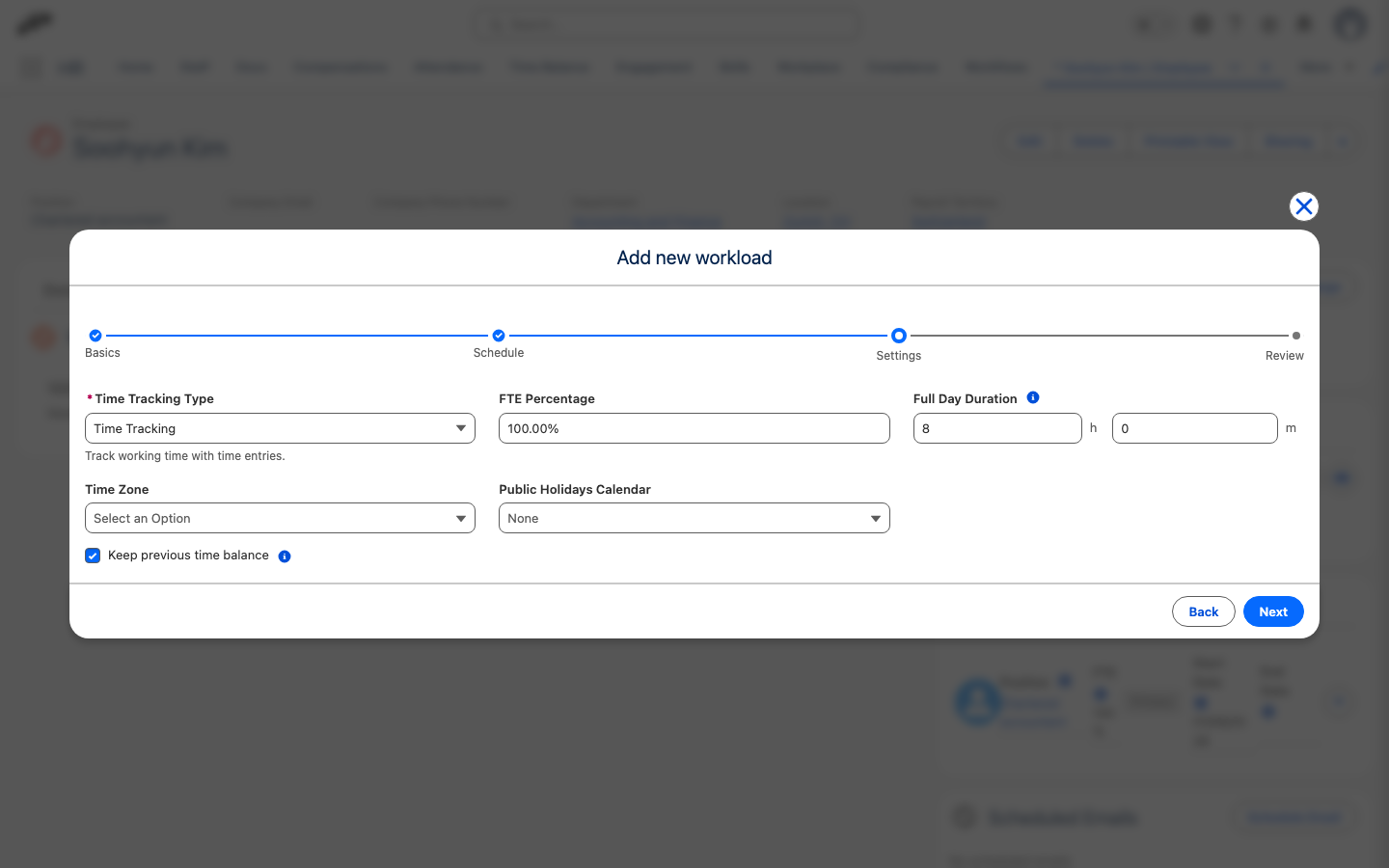
You can't change this setting after the workload is created. The workload's details show Keep previous time balance as Yes or No.
Recalculate workloads and timesheets
Recalculate after a deleted timesheet, workload change, incorrect absence balance, or another discrepancy between scheduled and actual hours.
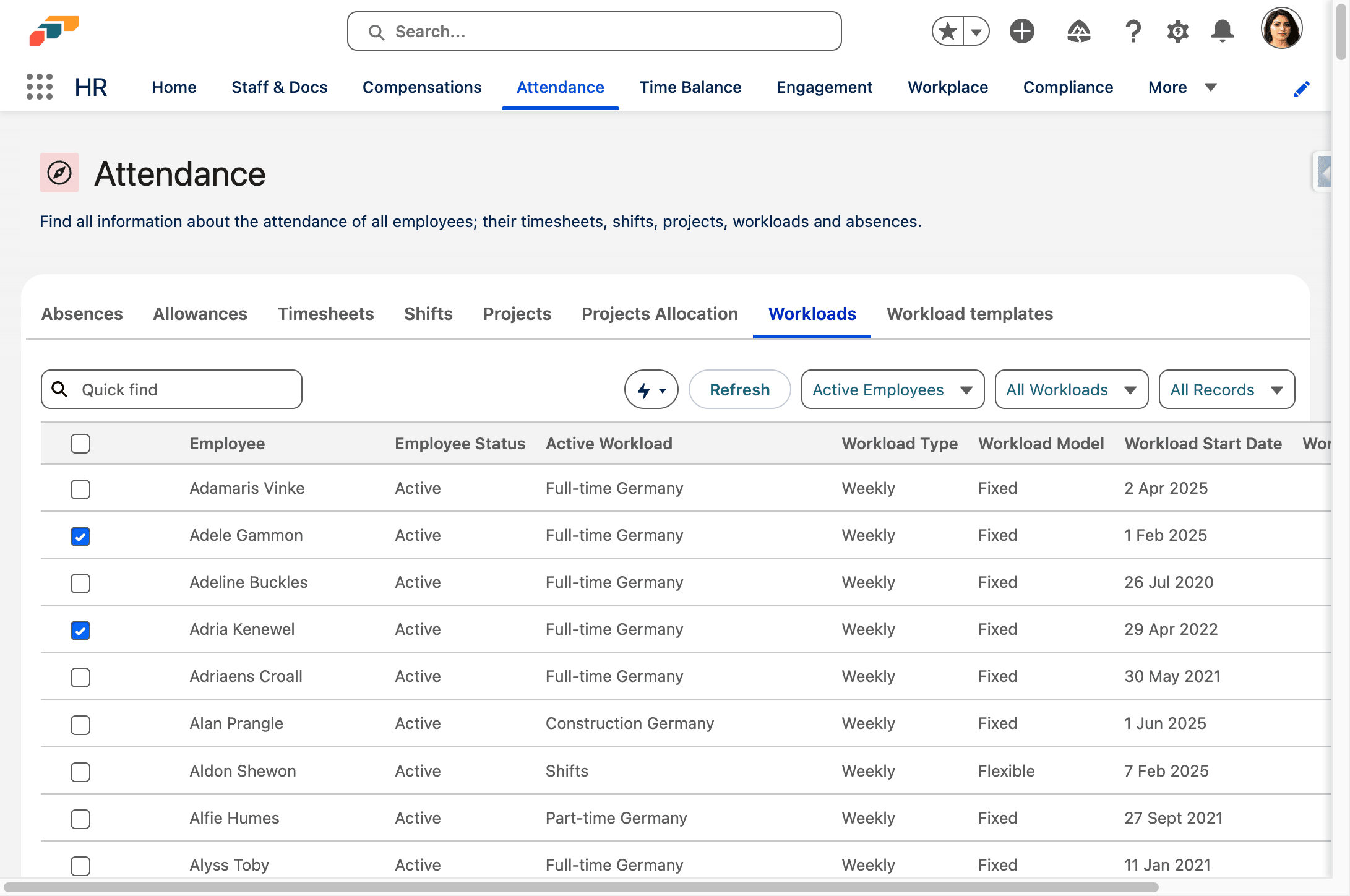
-
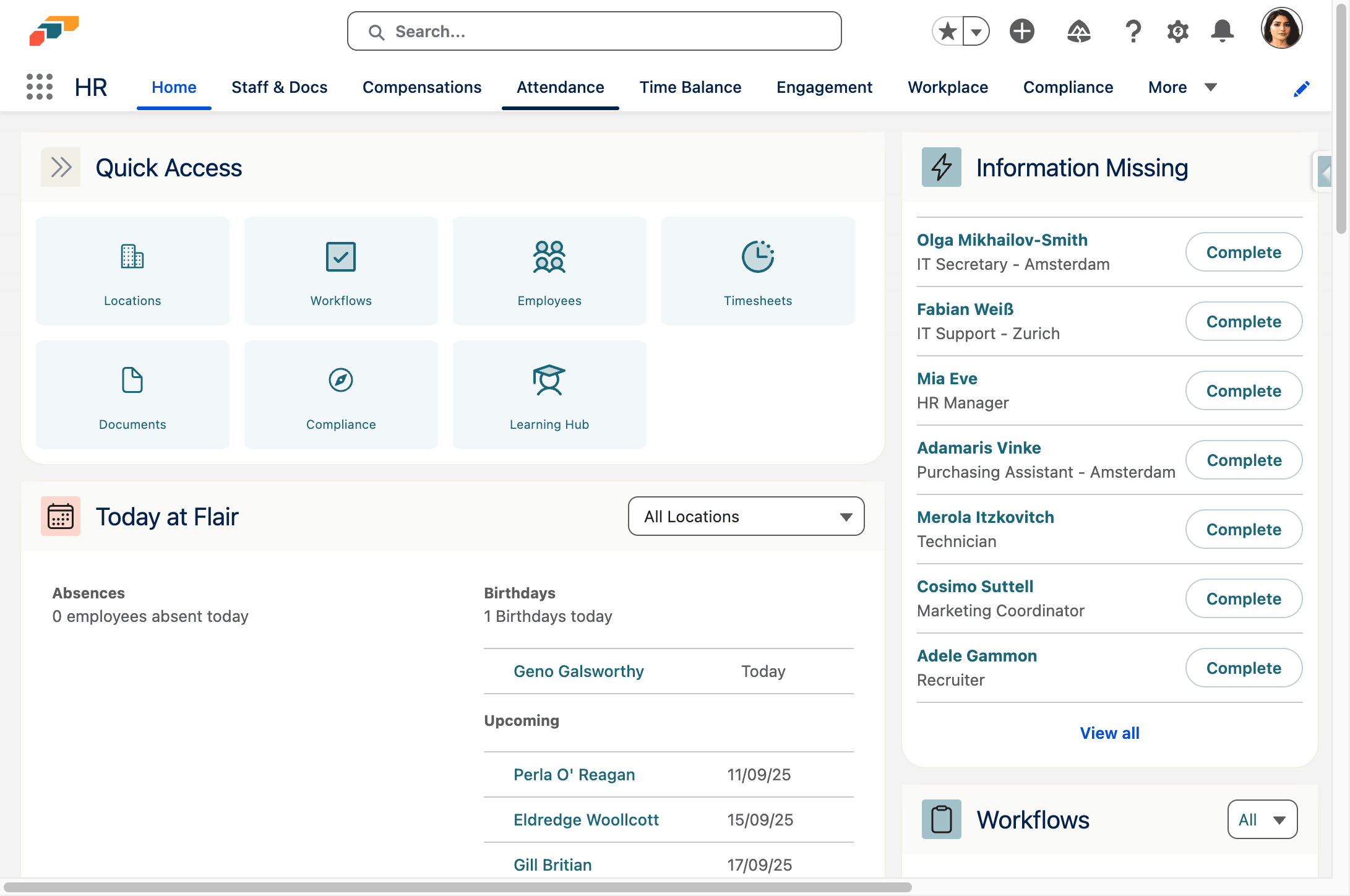
In the flair HR app, click Attendance.
-
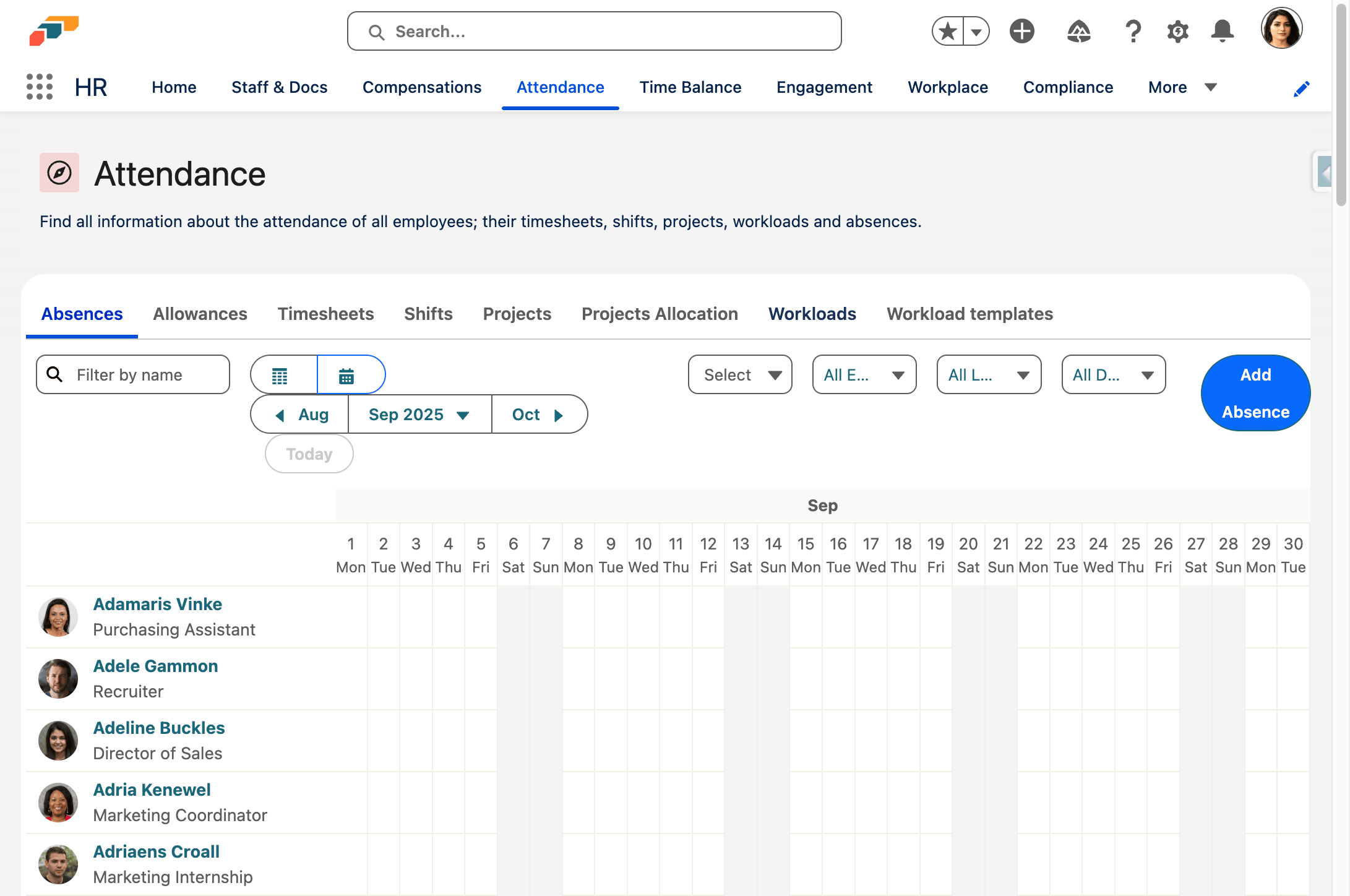
Click Workloads.
-
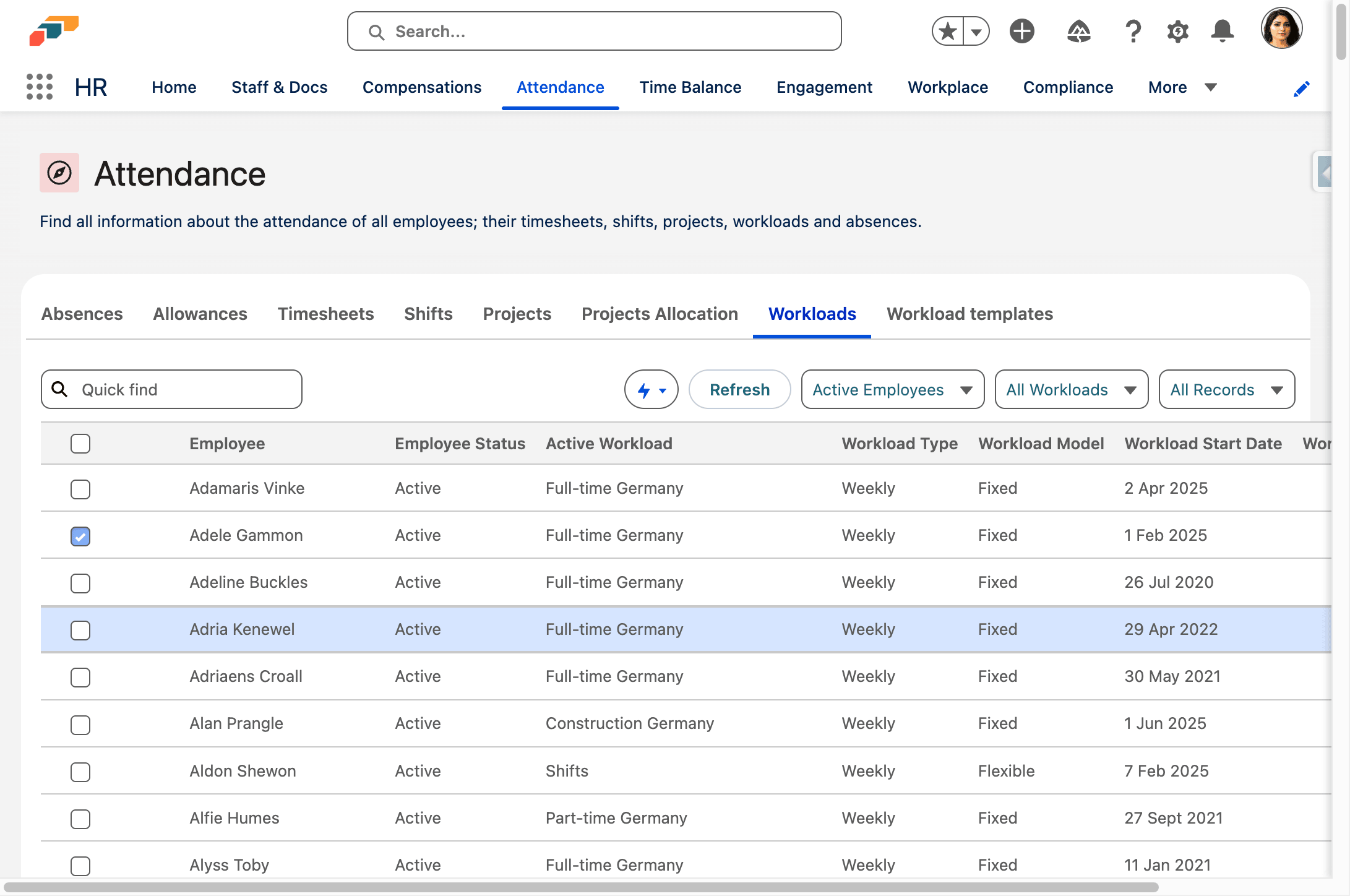
Select the workloads.
-
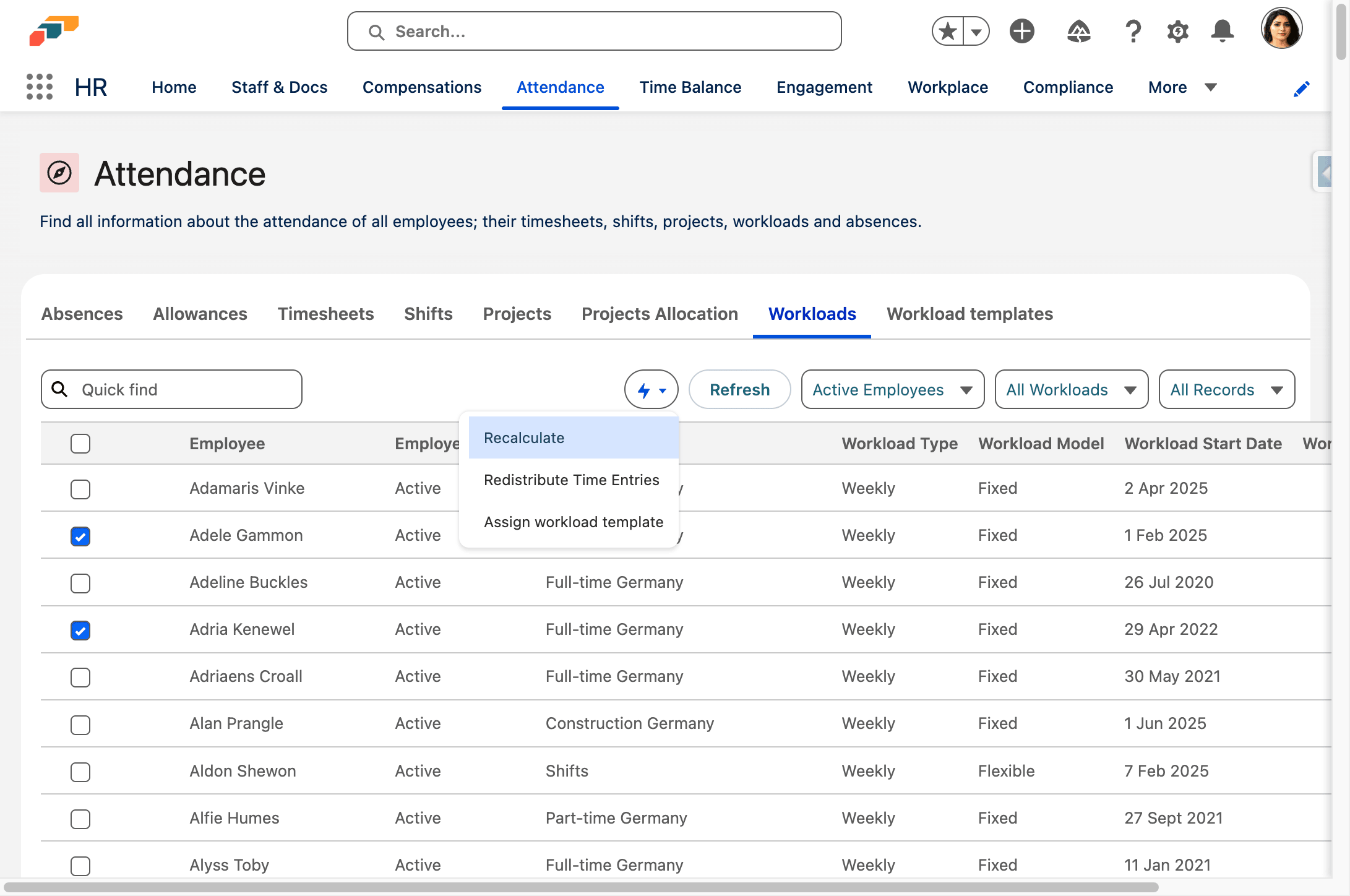
Click the flash icon.
-
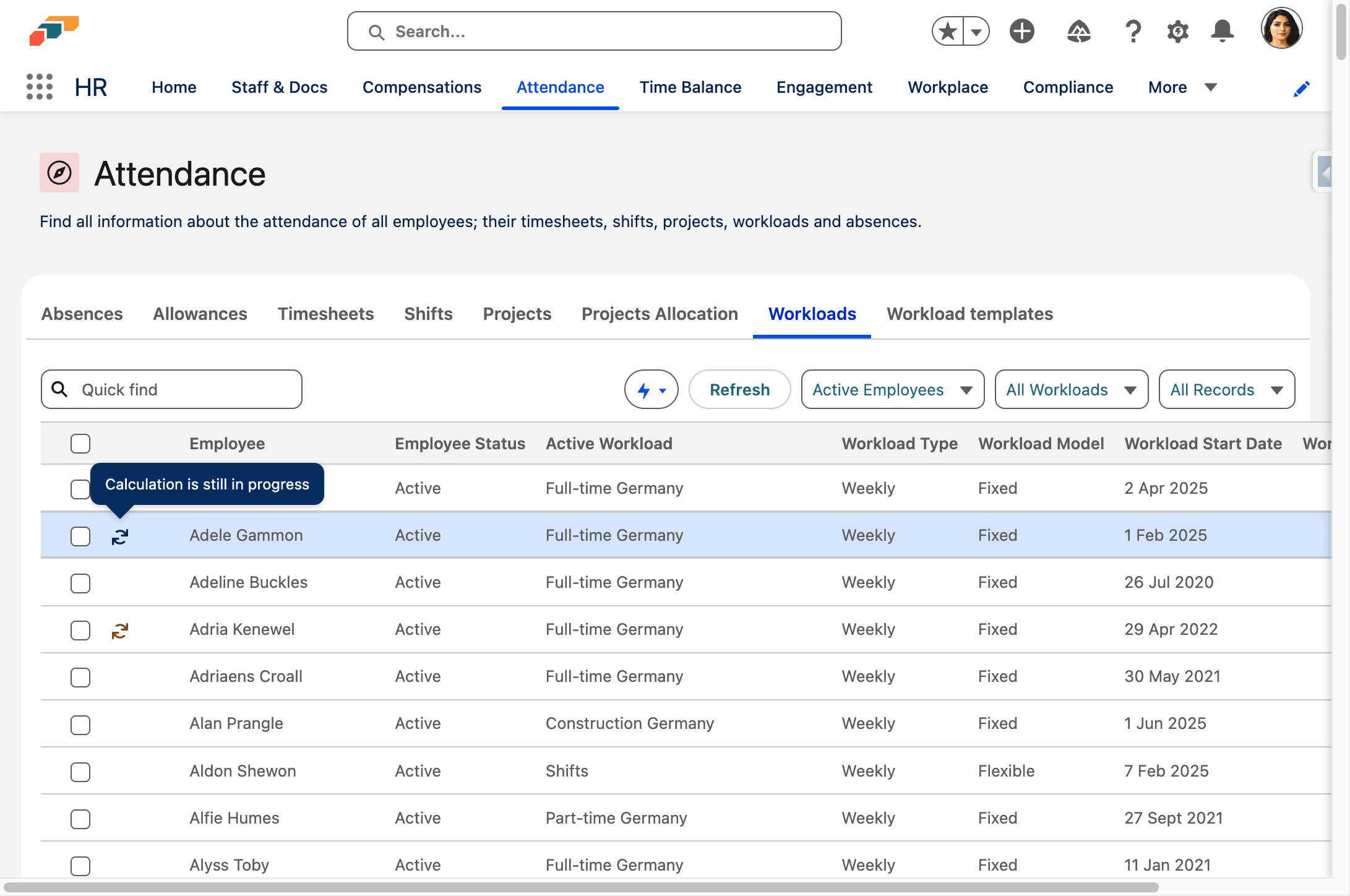
Click Recalculate. flair recalculates the workloads and related timesheets in the background.
-
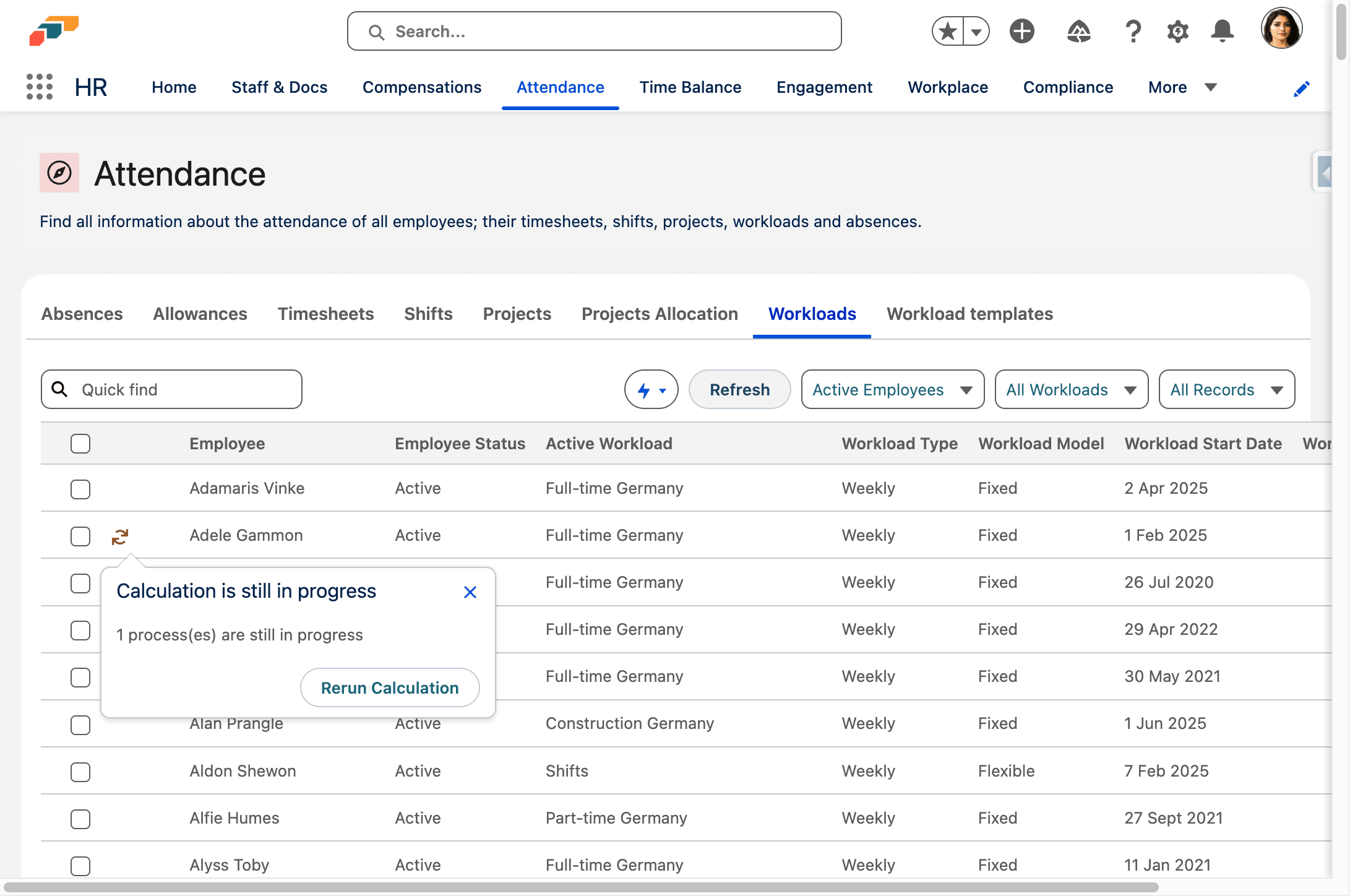
After processing finishes, click Refresh to display the updated records.
Troubleshooting
Time entries or timesheets are missing
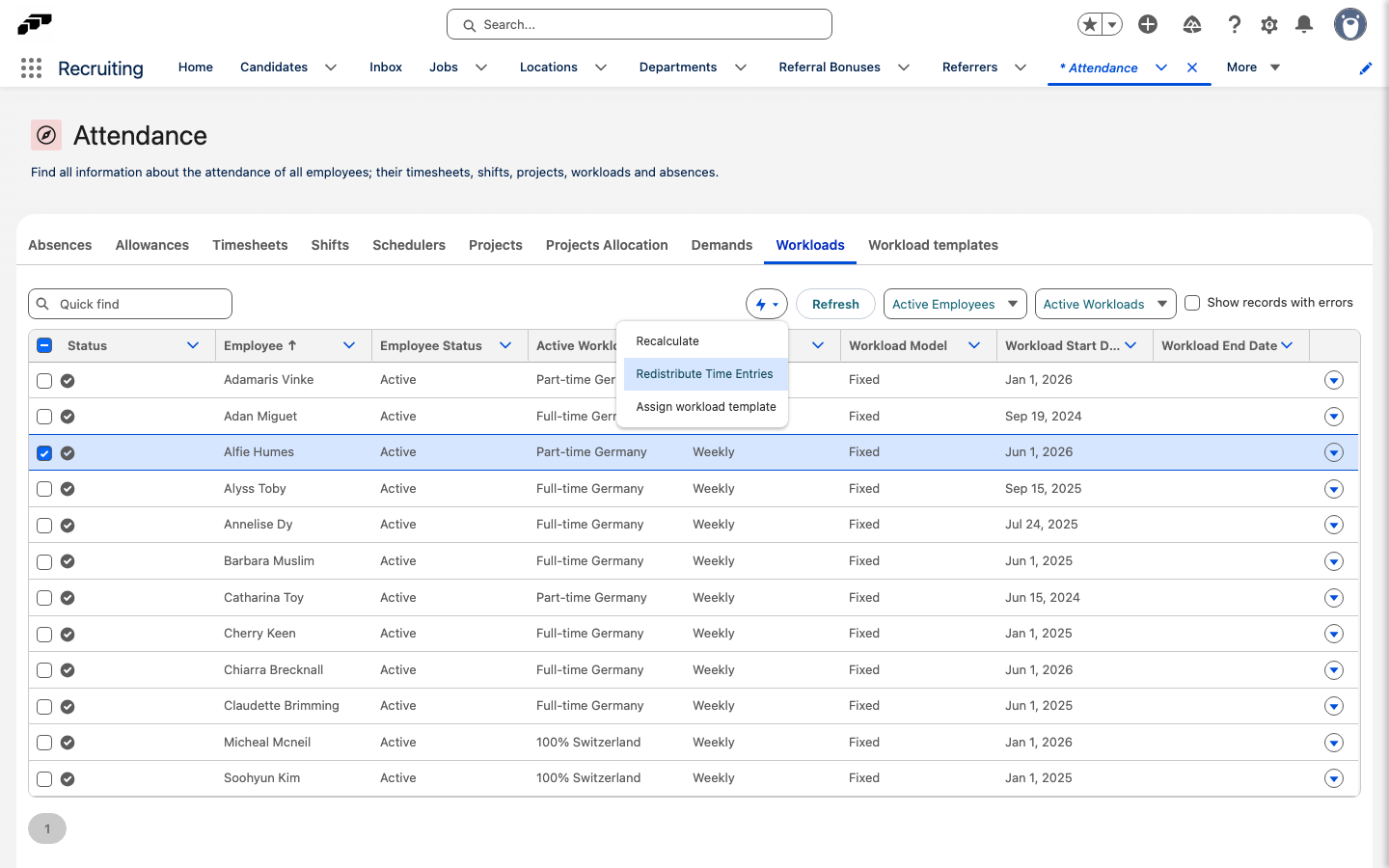
An employee can submit a manual entry for a missed clock-in or clock-out. To retrieve missing records in Salesforce:
- Open Attendance → Workloads.
- Select the employee.
- Click the flash icon.
- Select Redistribute Time Entries. flair starts an Apex Job that retrieves and displays missing Time Entries.
Time entries overlap
- Review the flagged entries, and remove or correct the duplicate.
A time entry exceeds the maximum hours
- Review the submission alert, confirm whether the overtime is authorized, and correct an error or approve valid time.
A required break is missing
- Review the flagged break, document a valid exception, or correct the time entry.