Set up physical time tracking
Set up on-site time tracking with RFID tags, fingerprint scanners, or flair Kiosk. This guide covers the Salesforce records, physical enrollment, kiosk access, and employee use.
Salesforce Admins and HR Admins set up physical tracking in Salesforce. Employees use connected readers, flair Kiosk on an Android tablet, or their Kiosk pass in the flair mobile app, and find their kiosk PIN in the Employee Hub.
Before you begin
- For RFID or fingerprint tracking, you have a supported access-control device and an RFID tag for each employee.
- For flair Kiosk, the Employee Hub is enabled, and you have an Android tablet.
- For flair Kiosk, you have administrator access and the Flair Kiosk Manager or Flair_Beta permission set.
- For face-scan kiosk login, an HR Admin has enabled the Kiosk Face integration. This capability is currently a pilot.
Create RFID Tag records
An RFID tag lets an employee clock in and out by scanning a badge at a reader.
- In Salesforce, open the App Launcher (⋮⋮ grid icon), and select RFID Tags.
- Click New.
- In RFID Tag ID, enter the number printed on the tag or card. The ID must contain only numbers and cannot start with
0. - In Employee, select the employee. Each employee needs a unique RFID tag.
For a batch of employees, use the Salesforce Data Import Wizard to create multiple RFID Tag records.
Enroll employee fingerprints
The device stores a numerical biometric key, not an image of the fingerprint. This behavior follows ISO 19794-4 and ANSI 378 and lets the device associate a timestamp with the correct employee.
Start enrollment
- On the access-control device, open the fingerprint menu.
- Enter the administrator PIN for the fingerprint menu.
- Tap Learn Finger.
- Enter the employee's RFID tag ID.
- Select Enroll.
- Select the finger to enroll.
Capture the fingerprint
- Follow the instructions on the device display.
- Ask the employee to keep their finger straight, still, and vertical with light pressure.
- Ask the employee to place the selected finger on the scanner until the device sounds.
- Repeat the scan twice.
- Confirm that the device reports a successful scan and a quality score of at least
80%. - Repeat the enrollment on every access-control device the employee uses.
Fingerprint quality can decrease when a finger is damp, dry, or cold. If repeated scans fail, enroll another finger.
Create a flair Kiosk
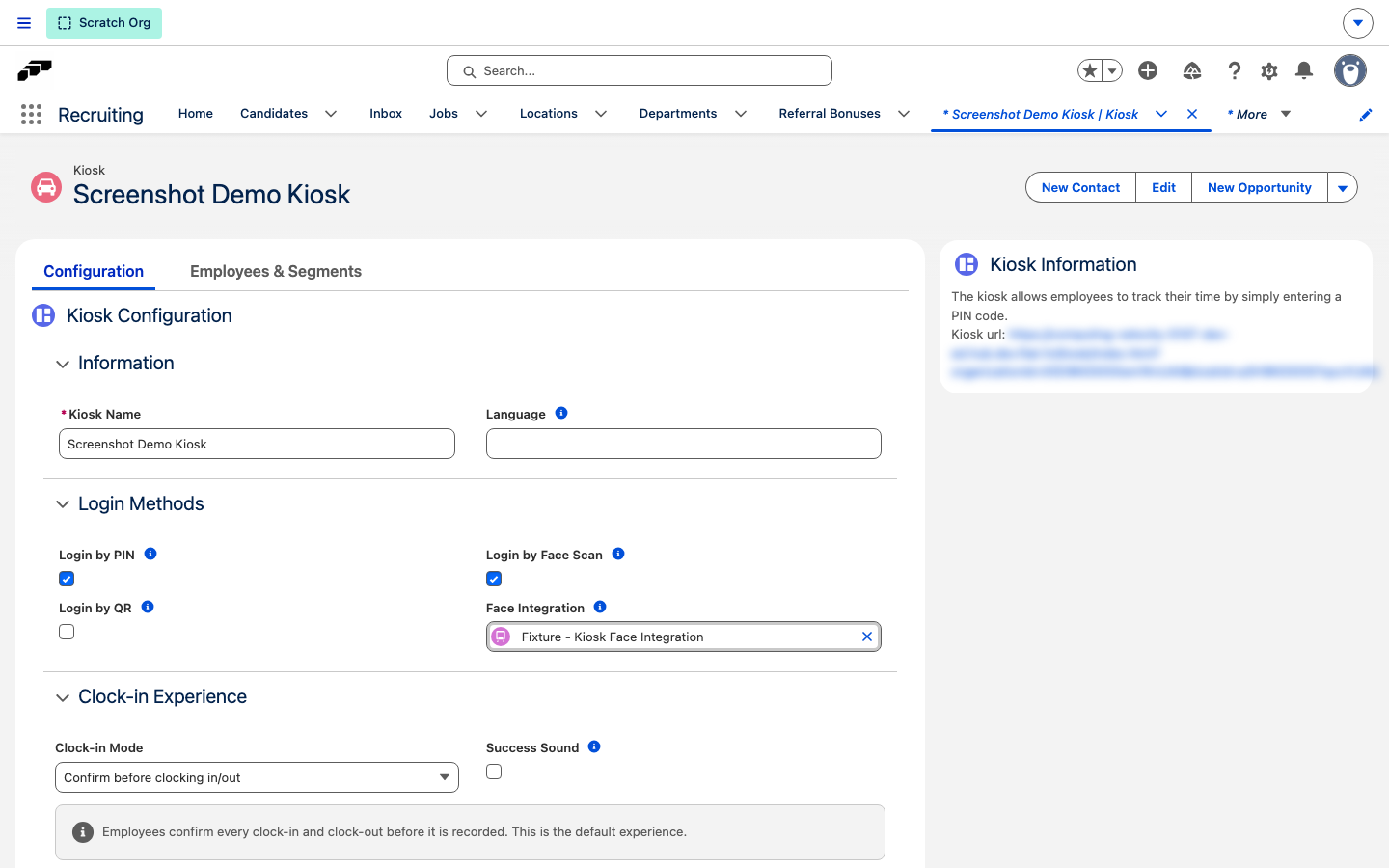
Once the record exists, everything about the kiosk lives on its Configuration tab, in a single Kiosk Configuration card with an Information, Login Methods, Clock-in Experience, and Scheduler section. The whole card saves at once: Save and Cancel appear at the bottom as soon as you change a field.
Create the kiosk record
-
In Salesforce, open the App Launcher (⋮⋮ grid icon), and select Kiosks.
-
Click New.
-
Enter a descriptive name, such as
Office Main Entrance.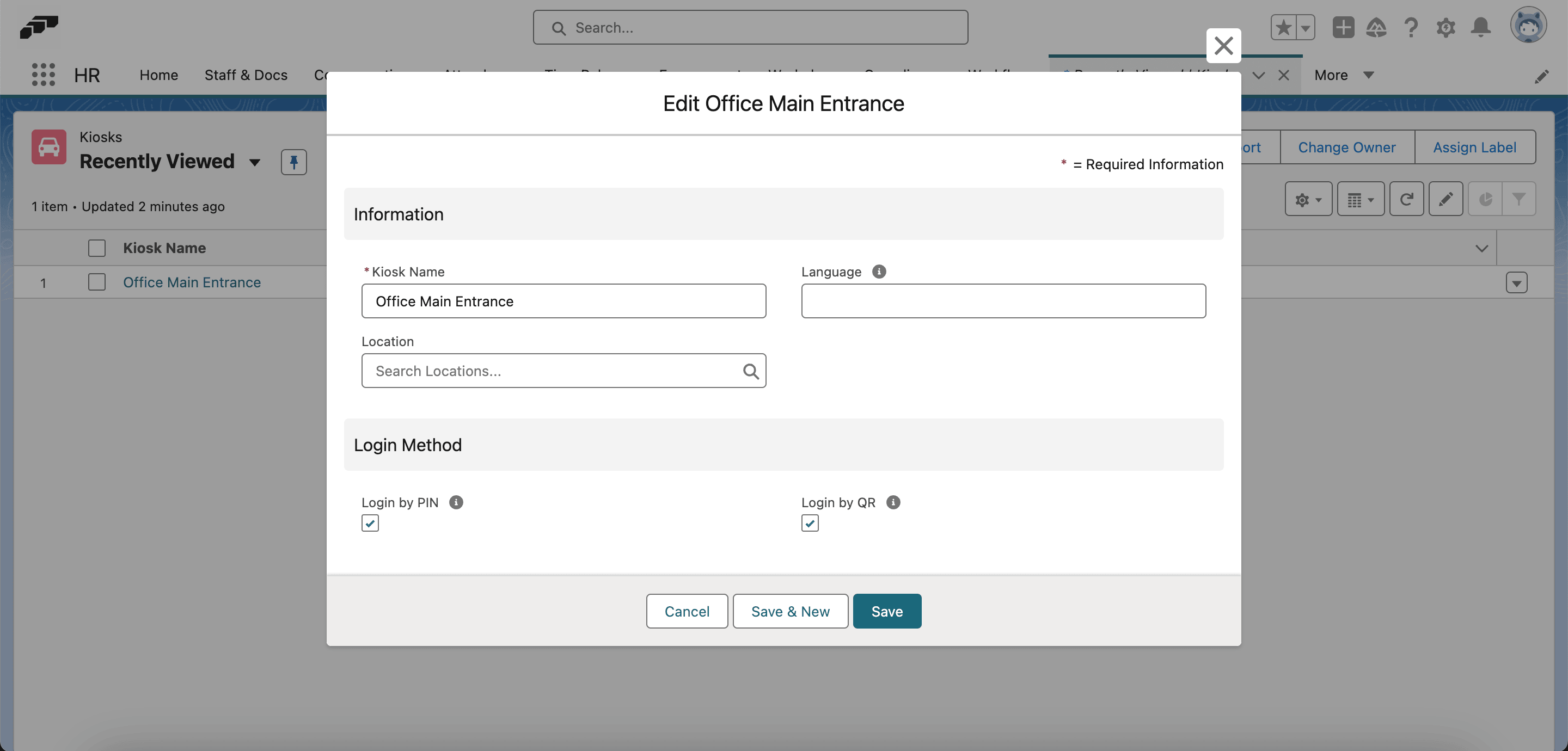
-
In Language, keep English or enter a supported two-letter language code, such as
de. -
Click Save. The kiosk opens on its Configuration tab.
Choose the login methods
-
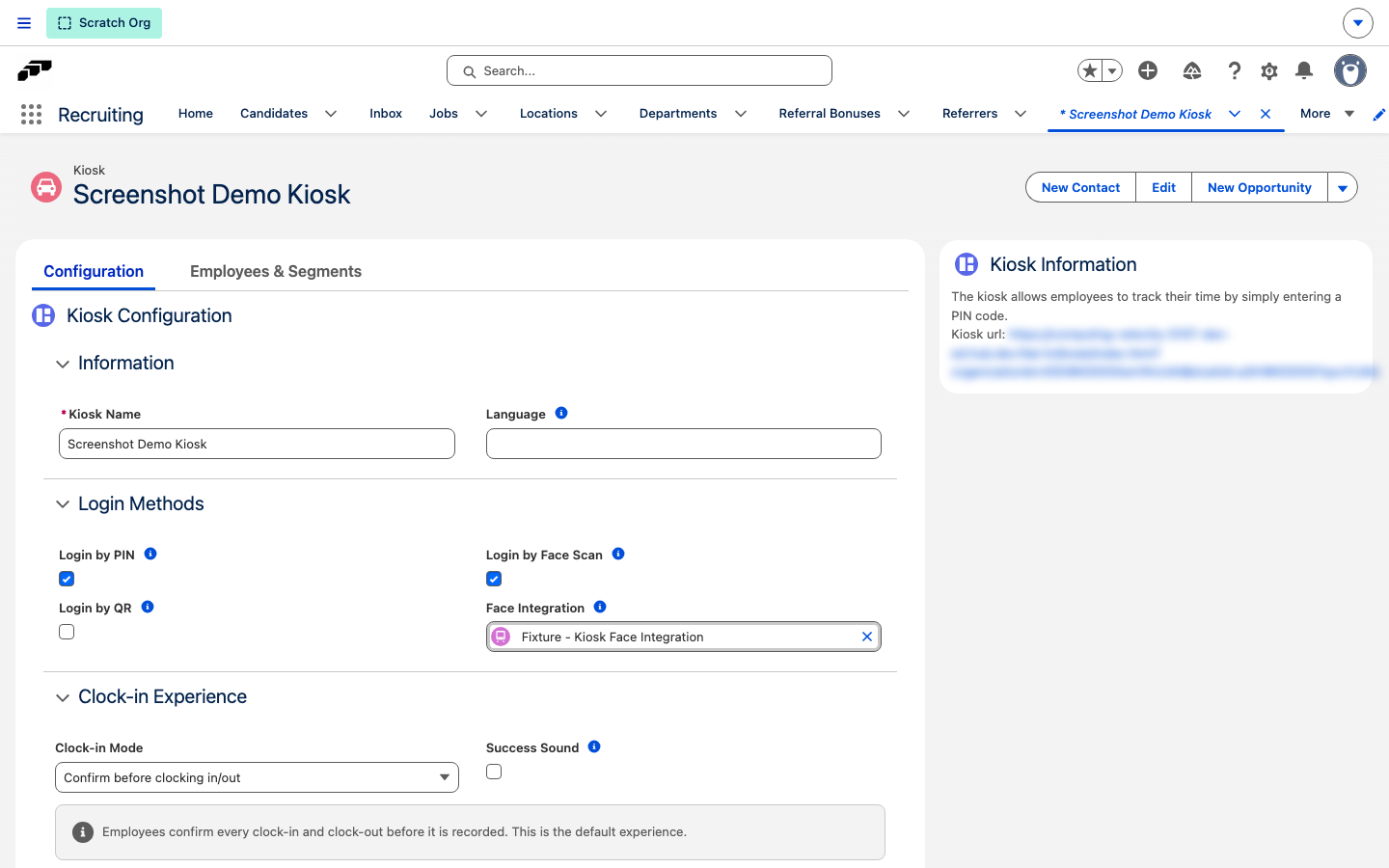
On the Configuration tab, open Login Methods.
-
Select Login by PIN, Login by QR, or both, to enable that sign-in option.
-
Click Save.
Login by Face Scan appears in Login Methods only when the Kiosk Face integration is enabled for your organization, and it is currently a pilot capability. Enabling it requires manager override for time tracking for every employee at that kiosk who still signs in by PIN or QR, not only employees enrolled for face login.
Choose the clock-in experience
Clock-in Mode decides how many taps an employee needs at the kiosk. Empty and legacy kiosks behave as Confirm before clocking in/out, so existing kiosks keep the experience they have today.
-
On the Configuration tab, open Clock-in Experience.
-
In Clock-in Mode, select the mode for this kiosk:
Clock-in Mode What happens at the kiosk Confirm before clocking in/out Employees confirm every clock-in and clock-out before flair records it. This is the default. One tap without confirmation Clock-in, clock-out, and break buttons apply immediately, with no confirmation step. Automatic clock-in after login Employees without a running time entry are clocked in as soon as they identify themselves. Clocking out and starting a break still need a tap, so a second scan can never end a shift. -
Optional: Select Success Sound to make the kiosk play a short sound after a successful clock-in, clock-out, or break action. It's off by default, and the device needs working speakers with the volume turned up.
-
Click Save.
Restrict access with Employee Segments
New kiosks include an All Employees segment for all current and future employees. A migration added this segment to existing kiosks for backward compatibility.
- In Salesforce, open the kiosk record.
- Open Employees and Segments.
- Review the default All Employees segment.
- To restrict access, click Add Segment or Edit Segment.
- Add criteria based on Location, Department, or another employee field.
- Save the changes. Employees who do not match see
You are not authorized to access this Kiosk.
For example, set Location = Amsterdam to limit the kiosk to employees in Amsterdam.
Show a shift schedule on the kiosk wallpaper
flair Kiosk can show shifts from a Shift Planner as a full-screen wallpaper while the kiosk is idle, so employees see who's working without signing in. This requires Shift Planner to be active for your organization.
- In Salesforce, open the kiosk record.
- On the Configuration tab, open Scheduler.
- Select Show Scheduler. A Display Type list appears.
- In Scheduler, select the Scheduler whose shifts to display.
- In Display Type, select Today, 2 Days, or Week.
- Click Save.
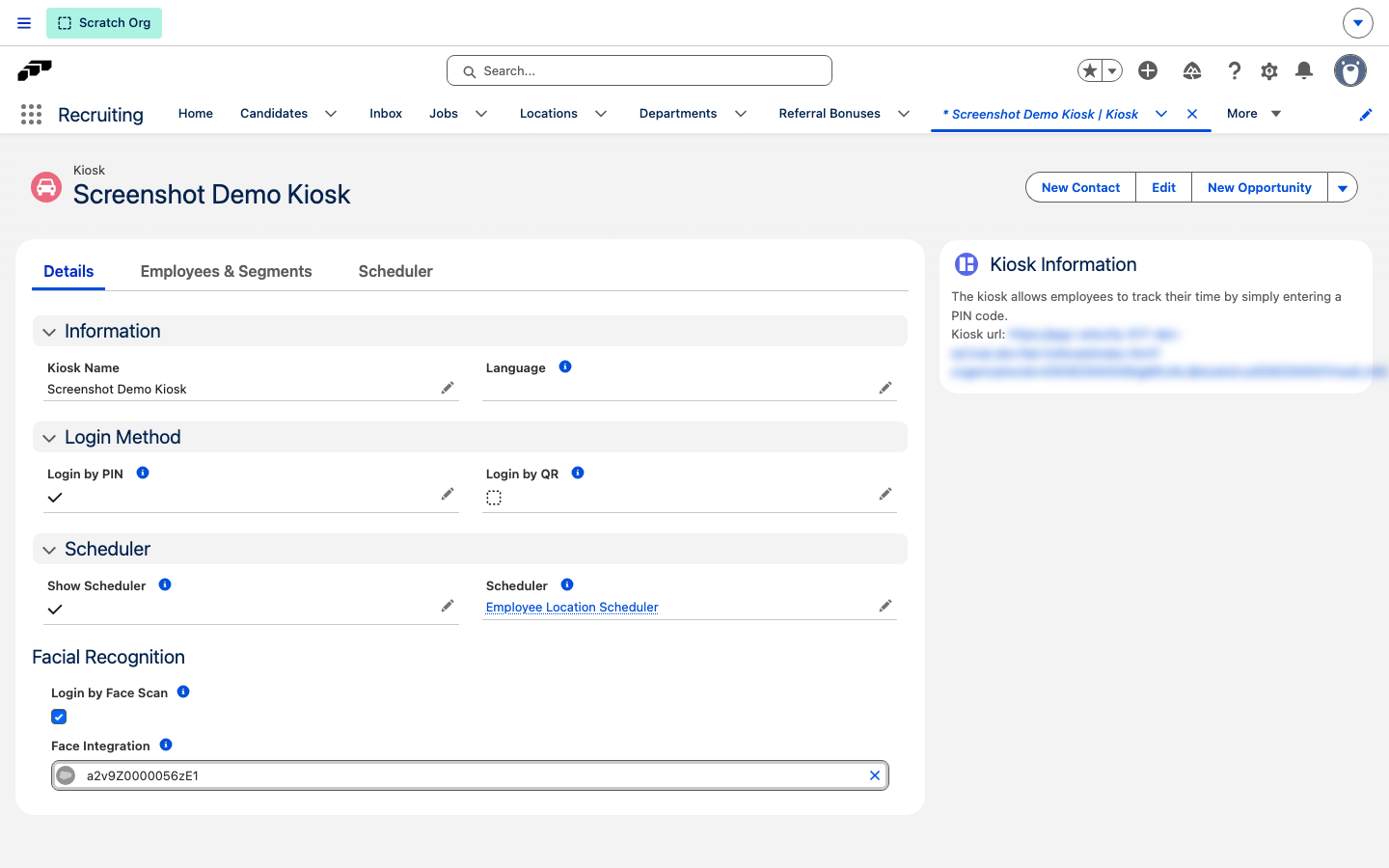
The wallpaper only shows shifts for employees in the segments configured in Employees and Segments, and it refreshes automatically about every five minutes. Employees tap anywhere on the wallpaper to reach the kiosk sign-in screen.
Generate employee credentials
Every employee who uses the kiosk needs a PIN or QR code.
-
In Salesforce, open the employee record.
-
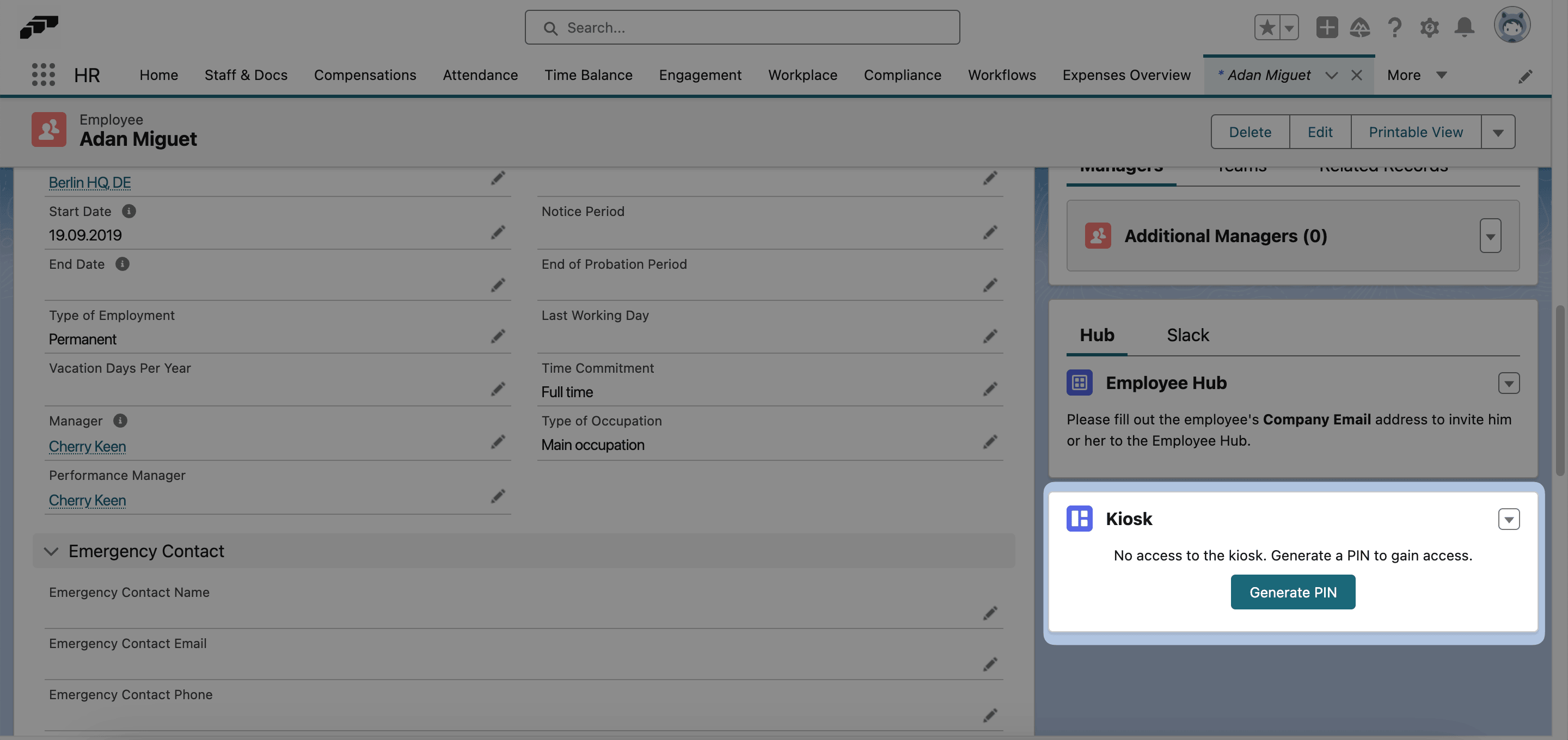
Find the Kiosk widget.
-
Click Generate PIN.
-
Click the eye icon to reveal the PIN.
-
Give the PIN to the employee through a secure channel.
-
For QR login, print or email the QR code.
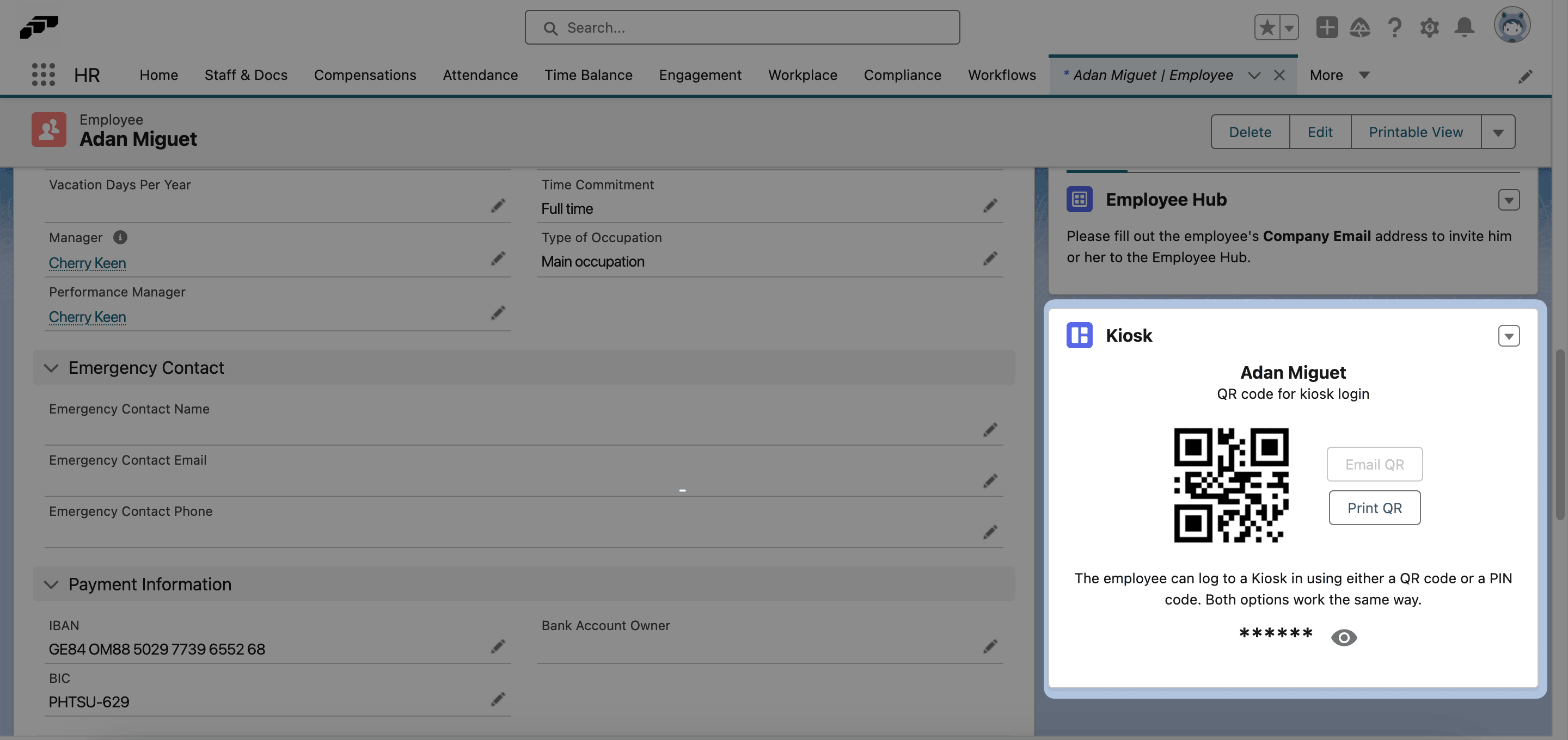
To replace credentials, in the employee record's Kiosk widget click the down arrow, and select Regenerate PIN. Keep PINs, QR codes, and the kiosk URL confidential.
Find your kiosk PIN in the Employee Hub
Employees who have a kiosk PIN can look it up in the Employee Hub instead of asking an administrator.
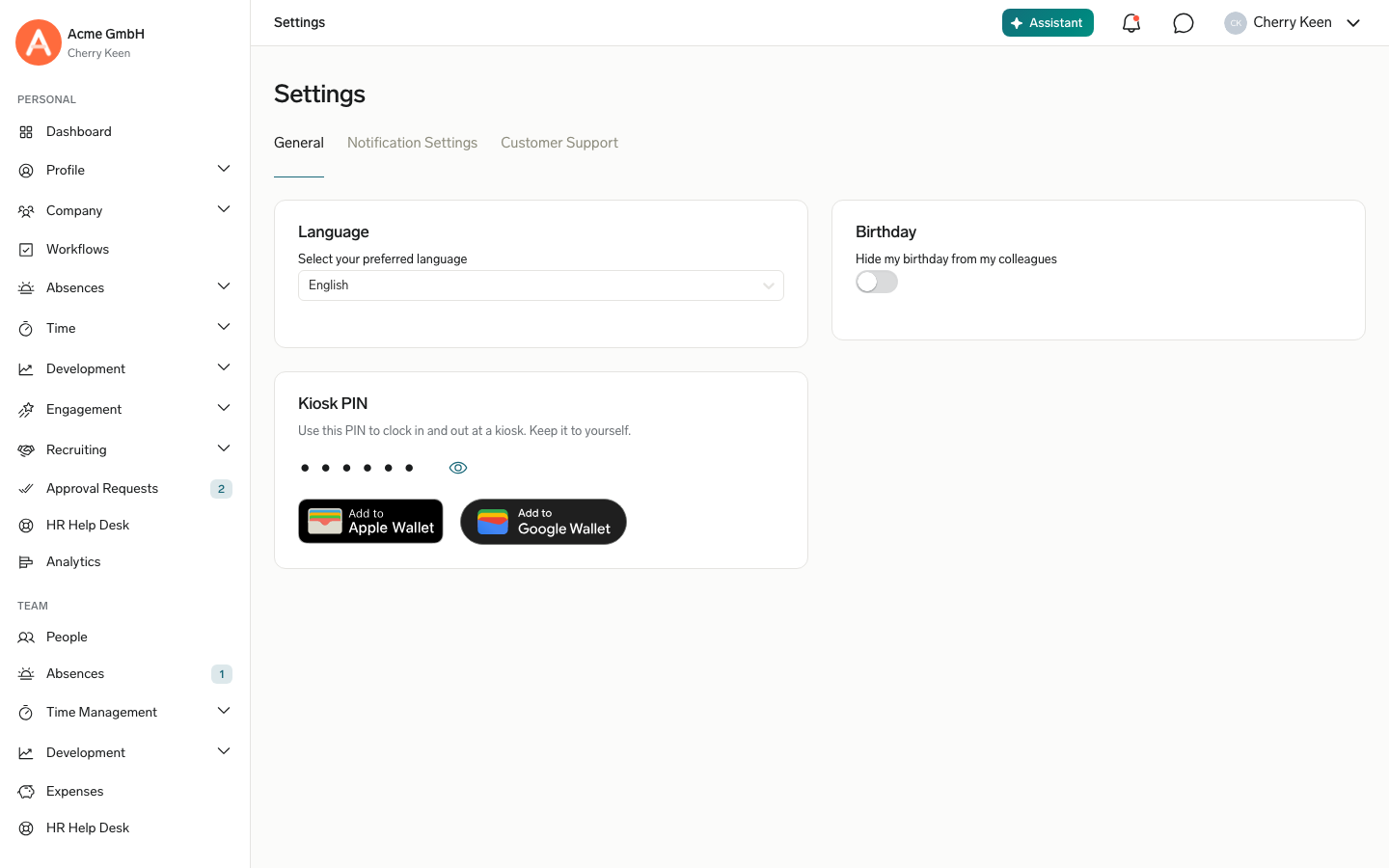
- In the Employee Hub, go to Settings → General.
- In Kiosk PIN, click the eye icon to show the PIN. To hide it again, click the icon again.
- Optional: To keep the PIN on your phone, click Add to Apple Wallet or Add to Google Wallet. At the kiosk, scan the saved pass with the QR reader to sign in.
The Kiosk PIN card appears only if an administrator has generated a PIN for you.
Enroll an employee's face for kiosk login
When a kiosk has Login by Face Scan enabled, enroll each employee's face from their Employee record so they can sign in without a PIN or QR code.
-
In Salesforce, open the employee record.
-
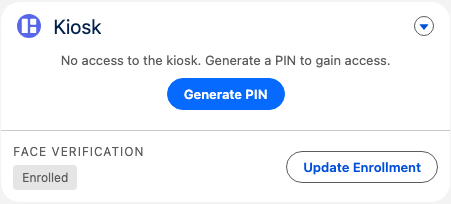
In the Kiosk widget, review Face Verification. The status shows Not enrolled, Pending, Enrolled, or Failed.
-
Click Enroll Face, or Update Enrollment if the employee already has an enrollment record.
-
In the Face Enrollment dialog, upload a JPG or PNG reference photo of the employee.
-
Click Save. The status changes to Pending, then to Enrolled or Failed once the flair Integration Service processes the photo.
To remove an enrollment, click Update Enrollment, then click Remove current enrollment.
The uploaded photo is stored as a file on the employee record, and the flair Integration Service computes and stores a biometric face template used to verify future kiosk logins. Removing the enrollment deletes both.
Install flair Kiosk on Android
-
In Salesforce, open the kiosk record.
-
In Kiosk Information, copy the URL.
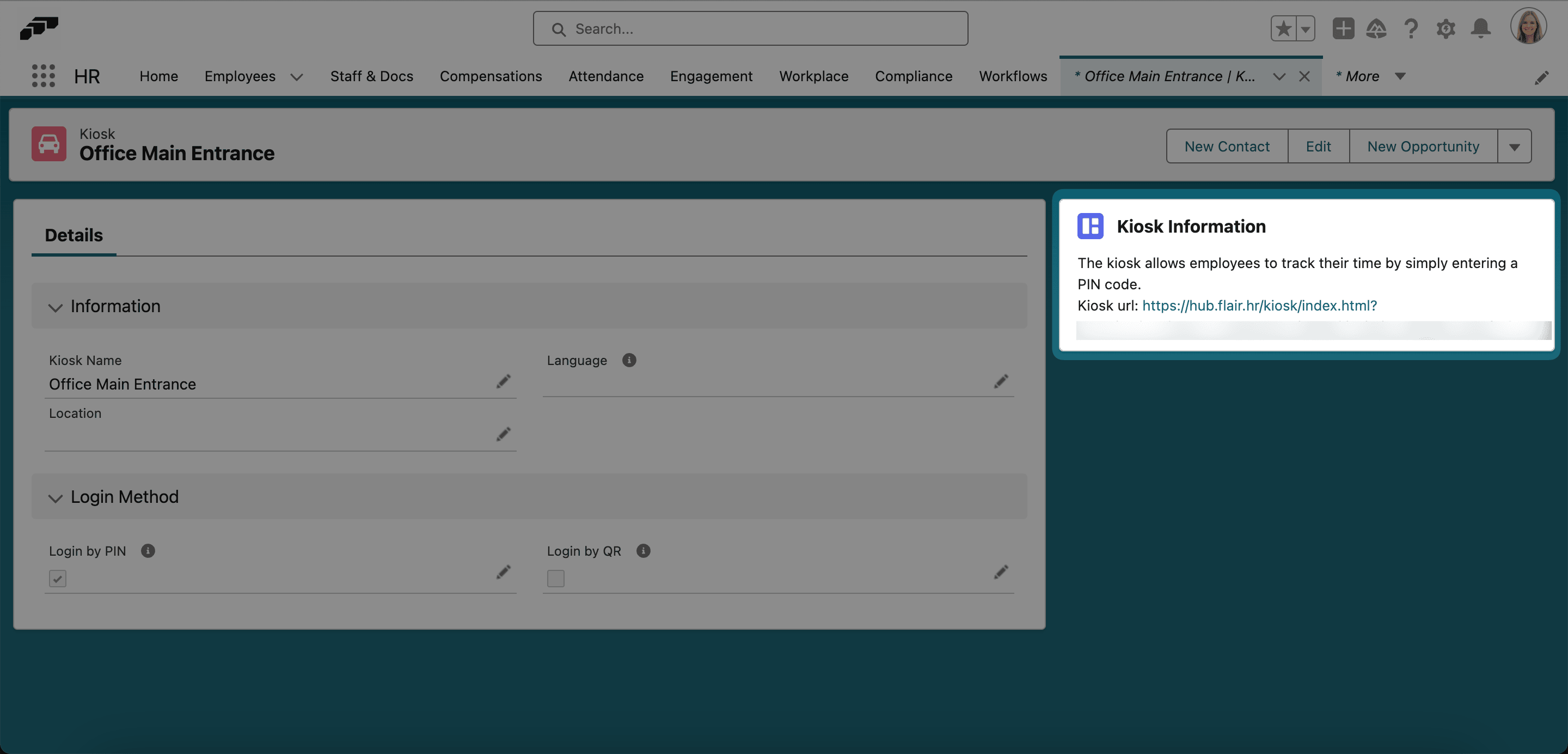
-
On the Android device, open the URL. flair Kiosk opens.
-
Tap ⋮.
-
Select Add to Home Screen.
-
In the prompt, tap Add. flair Kiosk appears on the home screen.
Open your Kiosk pass on mobile
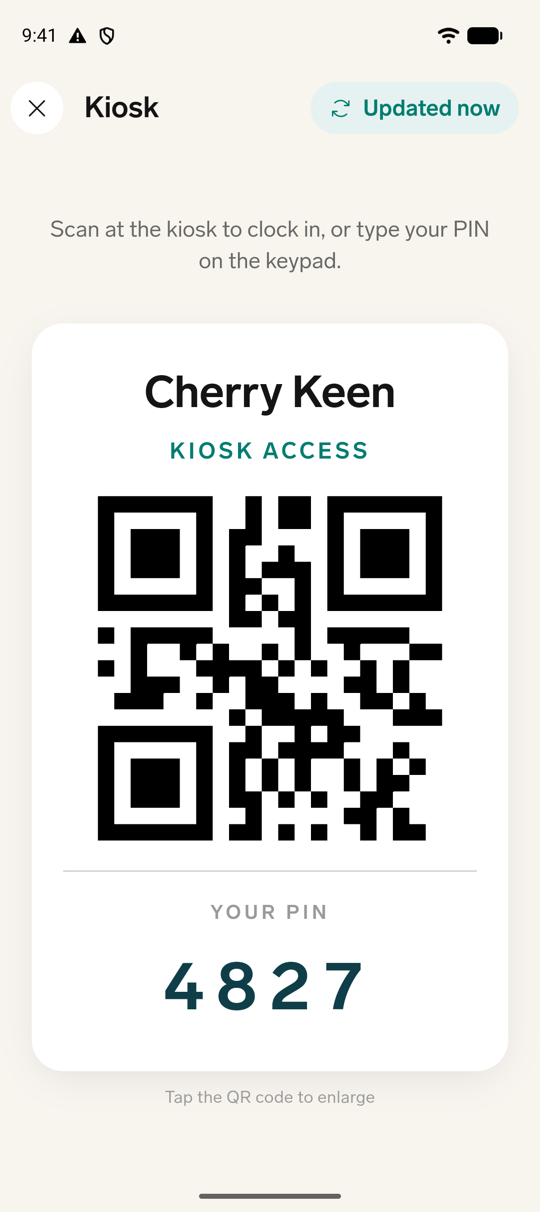
If you have a kiosk PIN, you can open a Kiosk pass in the flair mobile app that shows the PIN as legible text and as a scannable QR code, so you can clock in at a shared kiosk without carrying a badge.
-
In the flair mobile app, open your profile.
-
Tap Kiosk. This tile only appears when you have a kiosk PIN.
-
To sign in at the kiosk, hold your phone up to the kiosk scanner, or type the digits under Your PIN on the kiosk keypad.
-
Tap the QR code to enlarge it before scanning.
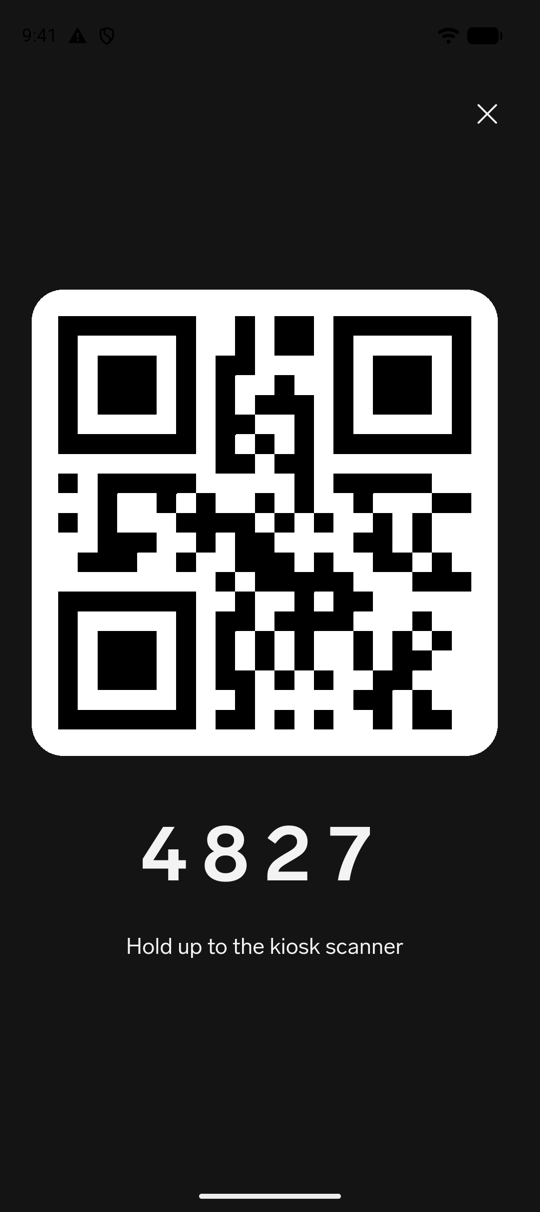
Your Kiosk pass keeps working offline, showing your last saved PIN with an Offline badge until your phone reconnects and refreshes it.
Track time at a kiosk
How many taps you need depends on the Clock-in Mode an admin set for the kiosk.
Clock in
-
On the kiosk home screen, enter your PIN or scan your QR code.
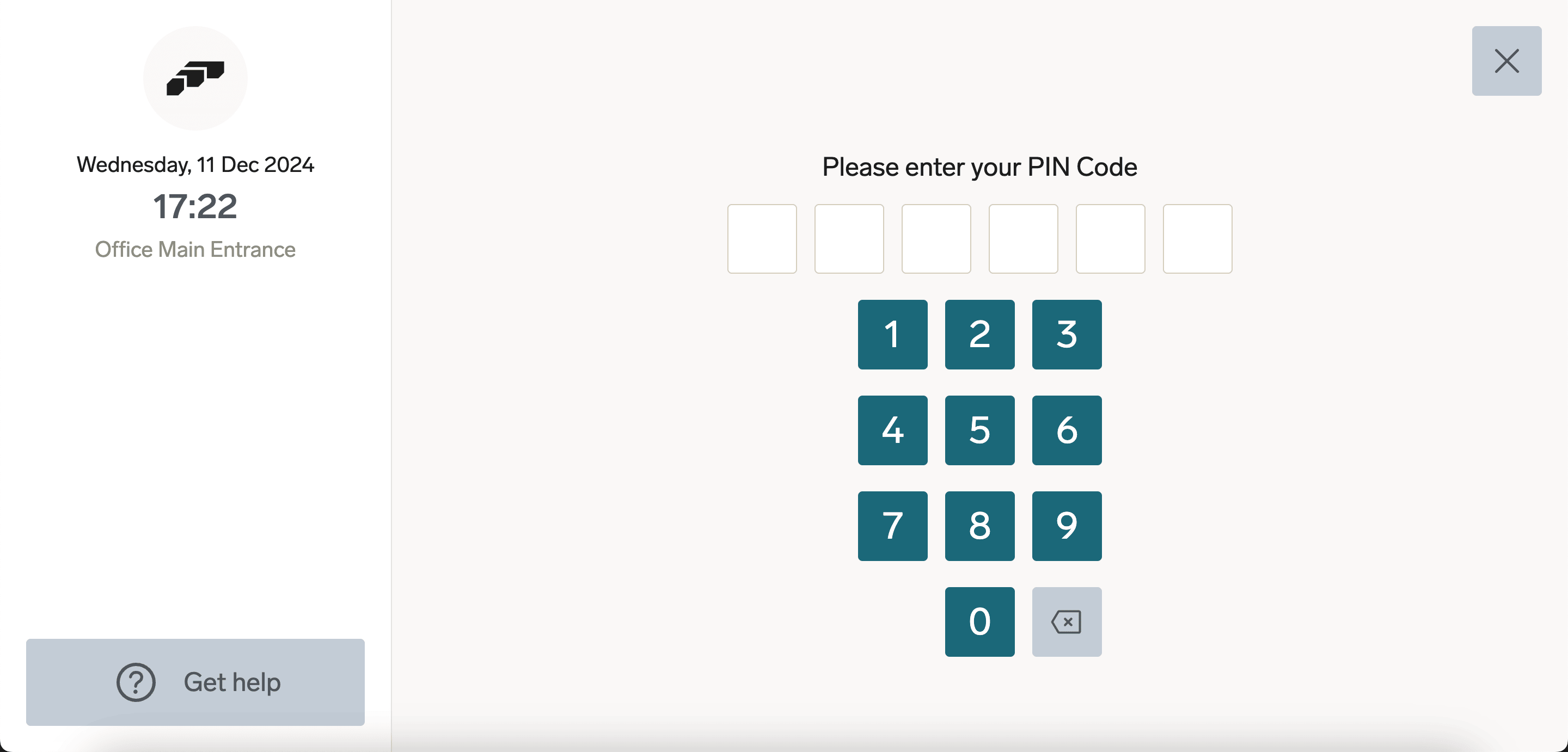
-
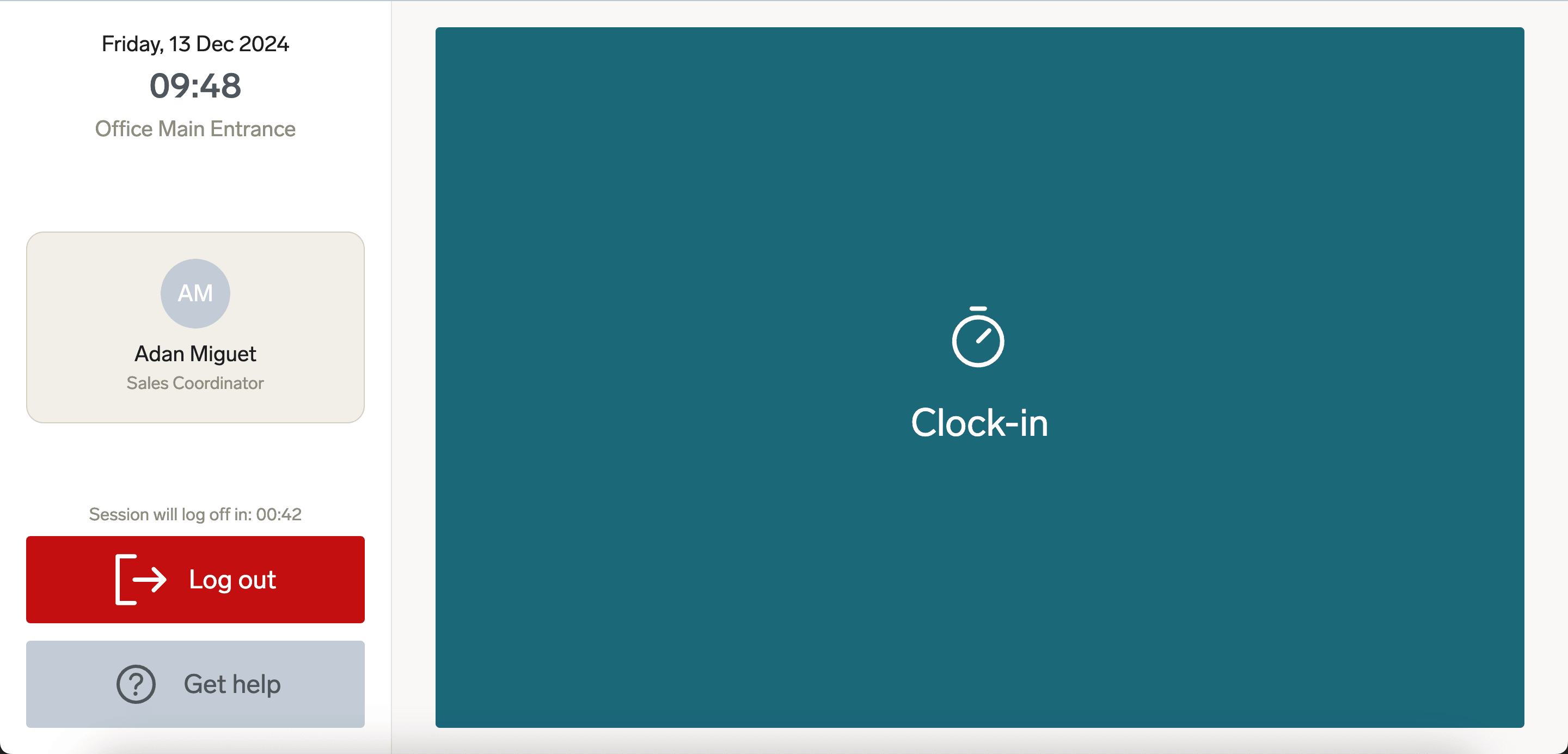
Tap Clock-in.
-
When the kiosk asks
Are you sure you want to clock-in?, tap Yes, clock-in. The kiosk shows Clock-in Successful and signs you out after ten seconds.
On a kiosk set to One tap without confirmation, the question in step 3 doesn't appear and your tap records the action straight away. On a kiosk set to Automatic clock-in after login, flair clocks you in the moment you identify yourself, with no tap at all, and signs you out after five seconds.
If you take no action after entering your PIN or QR code, the kiosk signs you out after three minutes.
Track a break or clock out
The active session shows your total working and break time.
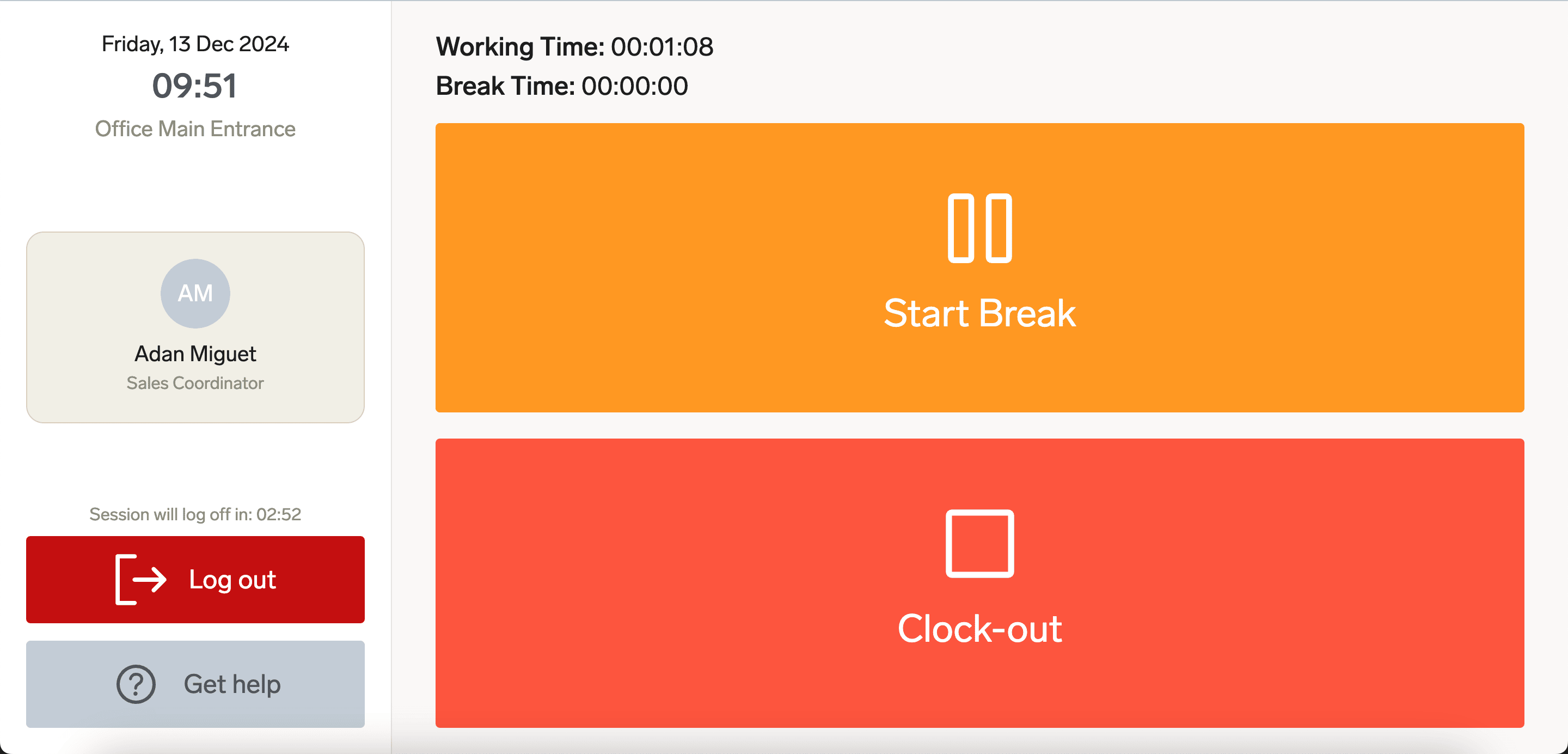
- To start a break, tap Start Break.
- To resume work, tap End Break.
- At the end of your shift, tap Clock-out.
Breaks and clock-out follow the same Clock-in Mode as clock-in, and they always need a tap even on a kiosk set to Automatic clock-in after login. When the kiosk has Success Sound turned on, it plays a short sound after each successful action, so you can hear that it worked without watching the screen.
Troubleshooting
The kiosk does not open
- Confirm that the Employee Hub is enabled.
- Confirm that the device has an internet connection and uses the URL from Kiosk Information.
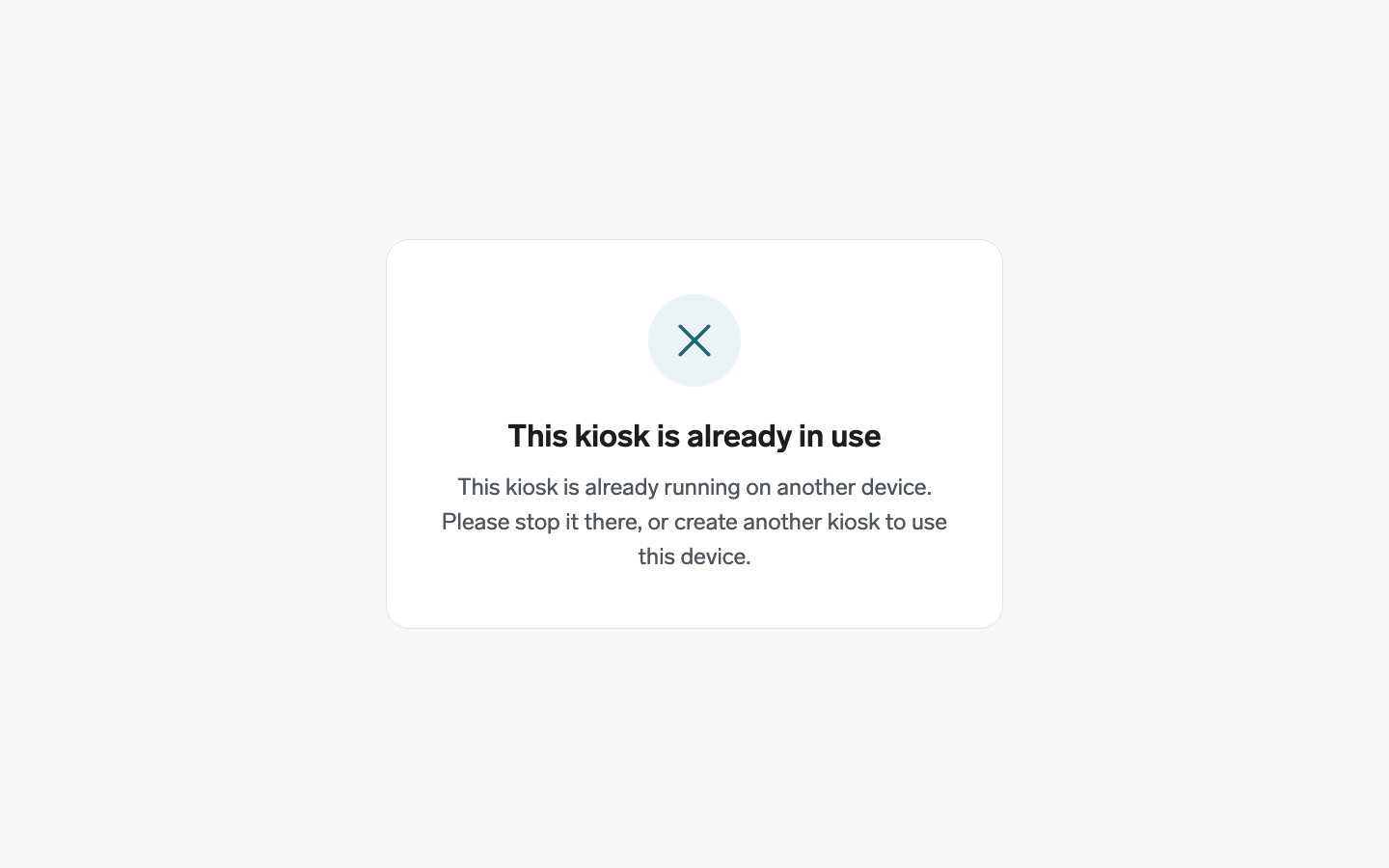
- Confirm that no other device is running the same kiosk. The second device shows This kiosk is already in use instead of the sign-in screen.
- Use a compatible Android device.
- Clear the browser cache and cookies, or try another browser.
- If the installed app fails, remove it, and install it again.
The kiosk says it is already in use
Each kiosk record runs on one device at a time. When a device opens a kiosk URL that is already running somewhere else, it shows This kiosk is already in use instead of the sign-in screen, and asks you to stop the kiosk on the other device or create another kiosk.
This is the expected behavior, not an error: a kiosk URL is tied to its kiosk record, so opening the same URL on a second tablet does not give you a second kiosk.
To use a second tablet, create a second kiosk record and open that kiosk's own URL on it. Each tablet that should run at the same time needs its own kiosk record.
To move a running kiosk to a different device instead:
- Close flair Kiosk on the device that currently runs it.
- Open the kiosk URL on the new device. It takes over within about two minutes, once the previous device stops sending its heartbeat.
If you already ran one kiosk URL on several tablets, the first device to reconnect keeps the kiosk and the rest switch to this message. Give each of those tablets its own kiosk record.
The PIN or QR code does not work
- Confirm that Salesforce generated the credential for the correct employee.
- Confirm that the employee uses the current PIN or an undamaged QR code.
- For scanning problems, clean the camera, improve the lighting, or display the QR code at a larger size.
- In the employee's Kiosk widget, regenerate the credential.
The kiosk says the employee is not authorized
- On the kiosk record, open Employees and Segments.
- Confirm that the employee matches the configured location, department, or other criteria.
- Add the employee to an applicable segment, or adjust the criteria.
The automatic sign-out is too fast or slow
- Review the timeout settings on the kiosk record.
- Contact flair Support if you need to change a timeout that is not available in the record.