Configure and manage Time Balance
Configure how flair compares recorded working time with an employee's target time to produce a Time Balance, and how that balance is compensated. This guide covers the Time Framework settings, balance management in Salesforce, and the Employee Hub views.
HR Admins configure and adjust Time Balance in Salesforce. Employees and Managers view balances in the Employee Hub; employees also see their balance in the mobile app.
Before you begin
- Time tracking is enabled for your organization.
- Employees have workloads assigned to a Time Framework.
Configure Time Balance in a Time Framework
-
In the flair HR app, open the App Launcher (⋮⋮ grid icon), and select Time Frameworks.
-
Open the Time Framework.
-
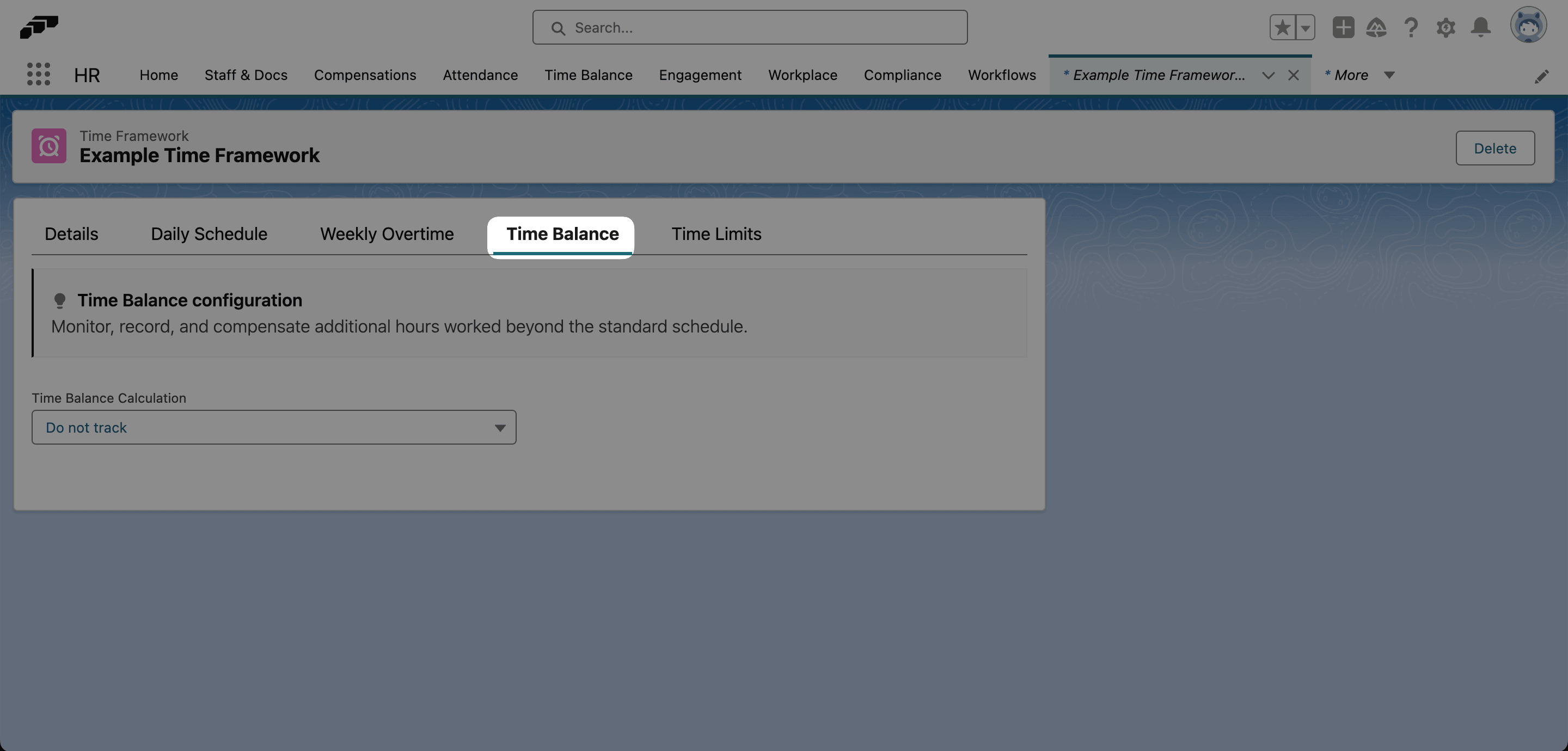
Open Time Balance.
-
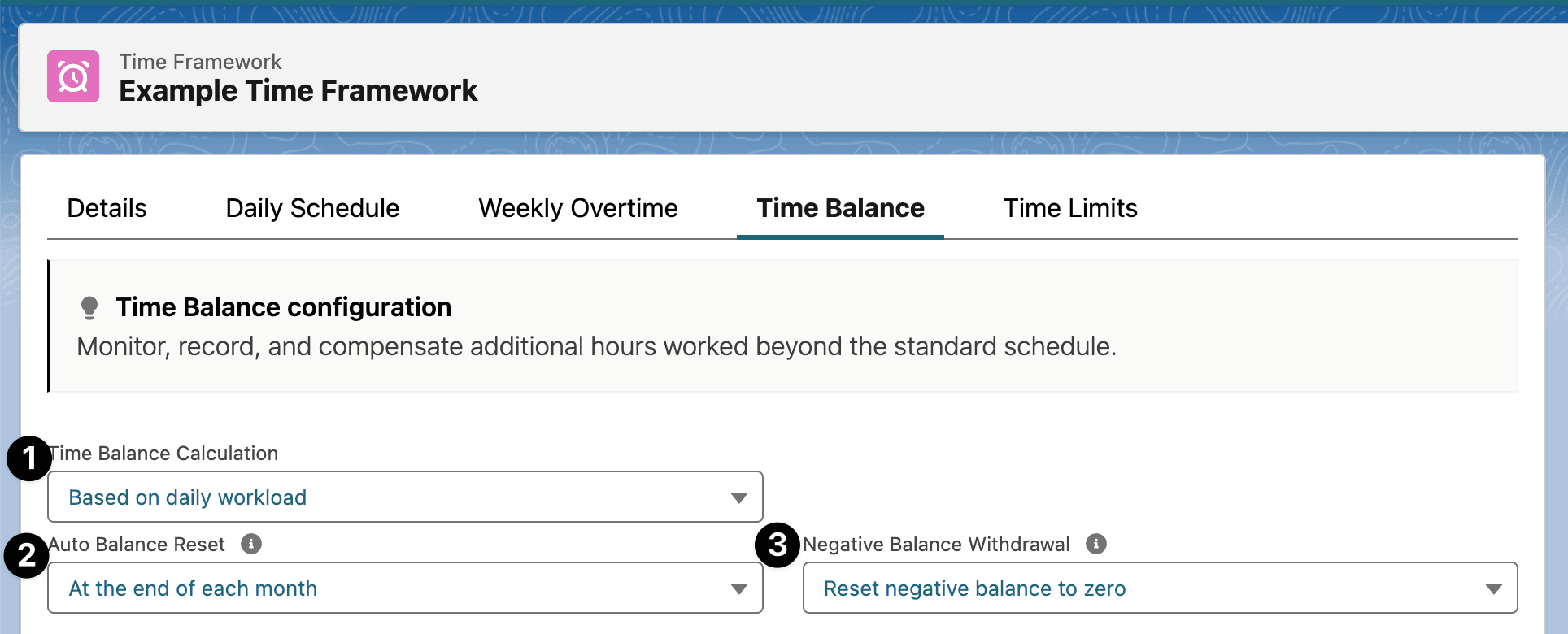
In Time Balance Calculation, select a calculation method. Selecting a method other than Do not track displays the remaining settings.
-
Configure the remaining settings, and click Save.
Changing Time Balance settings on a Time Framework that is already in use affects the calculation for every workload that uses it. Create a new Time Framework instead if you need to keep balances that flair already calculated.
Choose a calculation method
Time Balance Calculation controls what flair compares recorded time against:
| Setting | What it does |
|---|---|
| Do not track | Does not calculate a balance. This is the default. |
| Based on daily workload | Compares recorded time with the workload's target time for the day. Recording 8h 30m against an 8h target adds 30m. |
| After a specific amount of time | Compares recorded time with Start Calculating After, regardless of workload. Against 7h, recording 6h produces -1h, and 8h produces +1h. |
Use After a specific amount of time when an employee's contract already includes a set amount of overtime.
Choose when the balance resets
Auto Balance Reset sets how often flair compensates a positive balance. A negative balance is handled by Negative Balance Withdrawal.
| Setting | What it does |
|---|---|
| At the end of each month | Resets and compensates monthly. |
| At the end of each quarter | Resets and compensates quarterly. |
| At the end of each year | Resets and compensates yearly. |
| When timesheet is approved | Resets and compensates each time a timesheet is approved. |
This value also drives Accumulation Period and Auto Withdrawal Period, which are read-only.
Choose what happens to a negative balance
Negative Balance Withdrawal controls the end of an accumulation period when the balance is below zero:
| Setting | What it does |
|---|---|
| Carry over negative balance to next period | Keeps the negative balance and continues in the next period. |
| Reset negative balance to zero | Clears the negative balance. |
| Withdraw negative balance to compensation and reset | Deducts the negative balance from the compensation, then clears it. |
Configure daily calculation
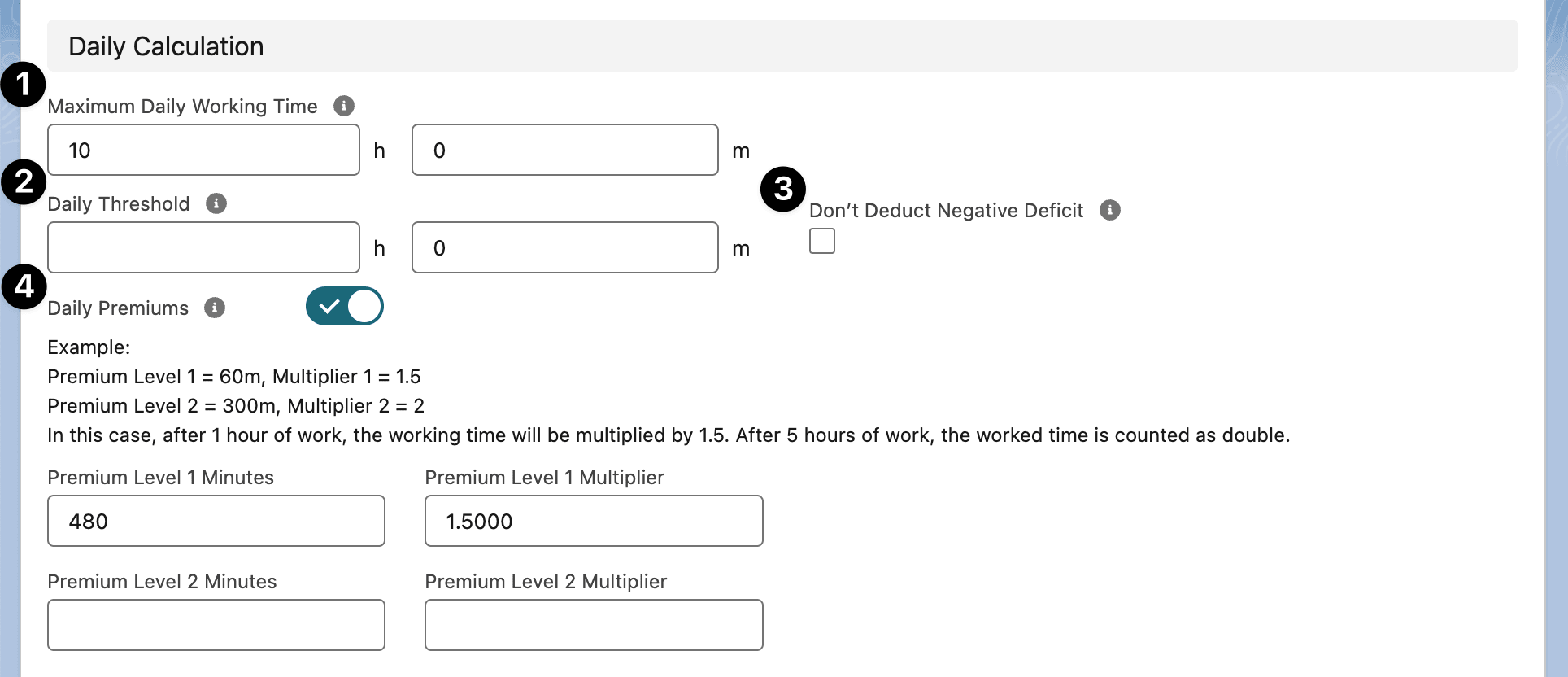
The Daily Calculation settings decide which of a day's recorded minutes reach the balance.
| Setting | What it does |
|---|---|
| Maximum Daily Working Time | Sets the most working minutes per day that count toward the balance. Minutes beyond this limit are ignored. |
| Daily Threshold | Starts the balance calculation only after the recorded time passes this daily limit. |
| Don't Deduct Negative Deficit | Prevents minutes from being deducted when a day ends in a deficit, so the balance can only grow. |
| Daily Premiums | Applies a multiplier to overtime minutes after a configured amount, which increases the time added to the balance. |
Set daily premiums
Enable Daily Premiums to weight a day's overtime in two tiers. Each tier takes a minute count and a multiplier that applies to everything past it.
- Turn on Daily Premiums.
- In Premium Level 1 Minutes, enter the minutes after which the first multiplier applies.
- In Premium Level 1 Multiplier, enter the multiplier, such as
1.5. - Optional: complete Premium Level 2 Minutes and Premium Level 2 Multiplier for a second tier.
- Click Save.
With 60 minutes at 1.5 and 300 minutes at 2, working time is multiplied by 1.5 after one hour of work, and counted double after five hours.
Configure accumulation
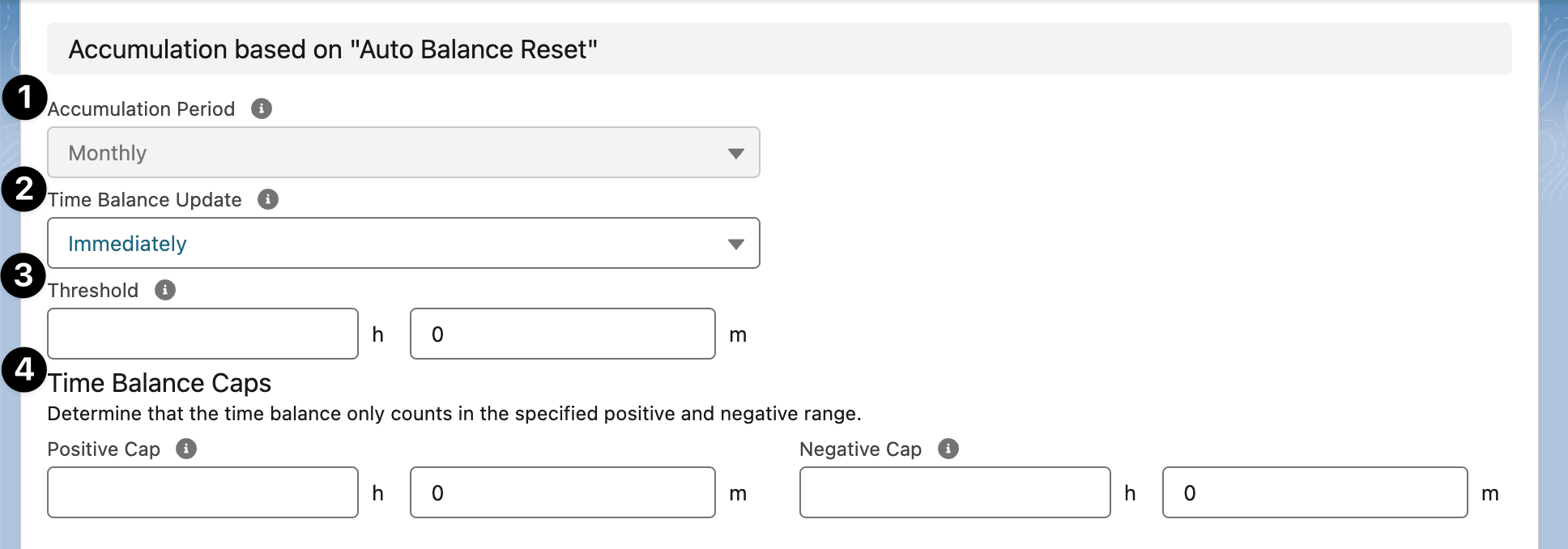
The Accumulation settings decide when daily time reaches the stored balance and how large that balance can get.
| Setting | What it does |
|---|---|
| Accumulation Period | Shows the period flair accumulates over. This is read-only and follows Auto Balance Reset. |
| Time Balance Update | Sets when accumulated daily hours transfer into the balance: Immediately, or When the timesheet is approved. |
| Threshold | Counts the balance only after total overtime passes this amount. It resets with Auto Balance Reset. |
| Positive Cap | Sets the maximum accumulated positive minutes. Anything above the cap is ignored. |
| Negative Cap | Sets the lowest possible negative minutes. The value must be zero or negative, where zero means the balance cannot go negative. |
Positive Cap and Negative Cap appear together under Time Balance Caps.
An employee's raw time balance is the value before flair applies the threshold, the caps, and any multipliers.
Configure overtime compensation
The Withdrawal (Overtime Compensation) settings decide what an employee receives when flair withdraws from the balance.

Choose a compensation method
Compensation Method controls what the withdrawn balance converts into:
| Setting | What it does |
|---|---|
| No Compensation | Withdraws the balance without granting time off or pay. Use this to clear a balance without compensating the employee. |
| Compensatory time | Adds the withdrawn time to an absence allowance, so the employee takes it as leave. |
| Monetary compensation | Pays the withdrawn time out as a one-time compensation. |
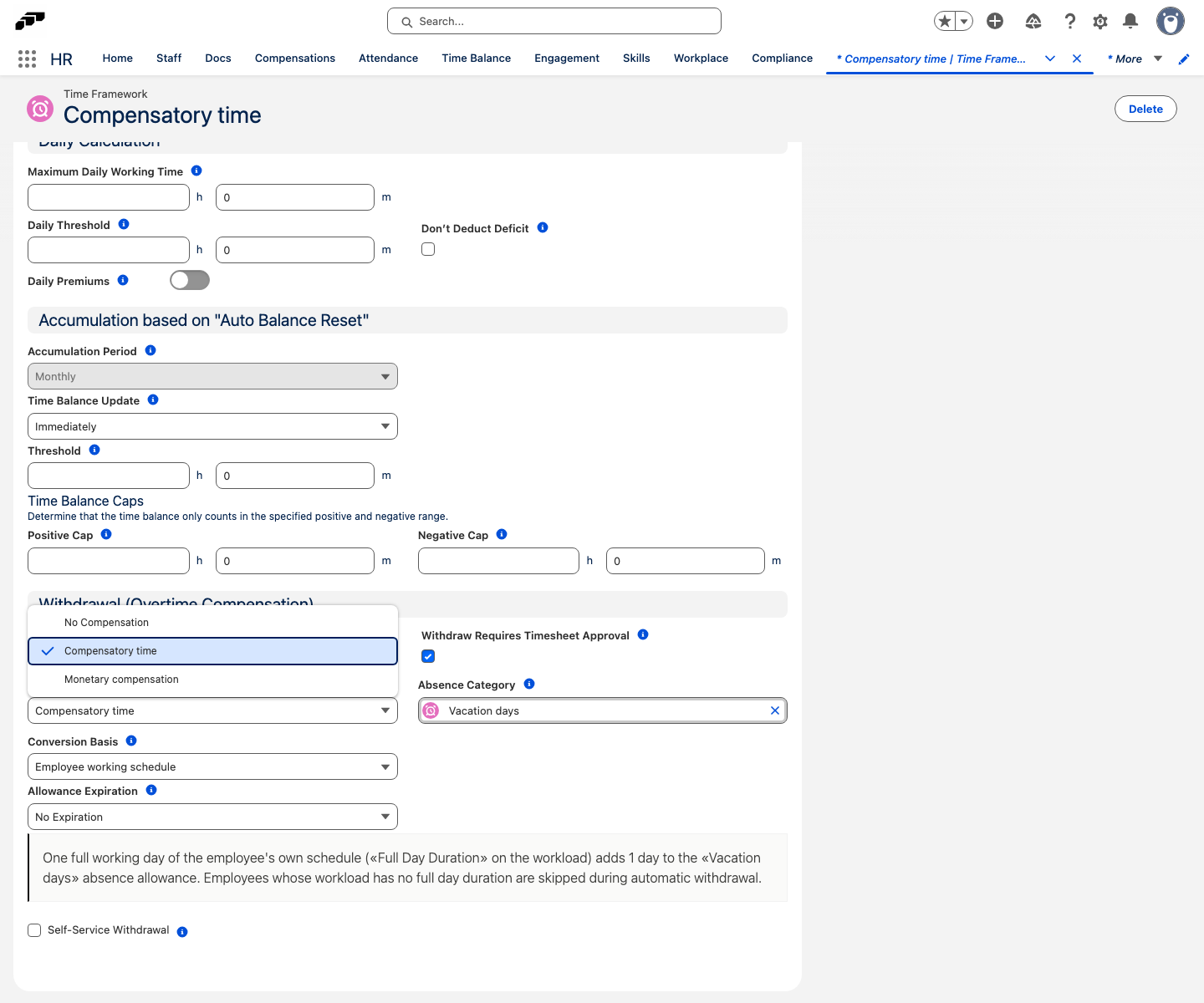
Auto Withdrawal Period, above it, is read-only and matches Auto Balance Reset.
Set the conversion rate
Minutes of Time Balance Spent sets how many balance minutes buy one unit of compensation — one absence day, one absence hour, or one currency unit. One absence day is 480 minutes, and one absence hour is 60 minutes.
- In Compensation Method, select Compensatory time.
- In Absence Category, select the category that receives the allowance.
- For a daily absence category, in Conversion Basis, select Fixed number of minutes or Employee working schedule.
- If you use a fixed number of minutes, in Minutes of Time Balance Spent, enter the minutes per unit.
- Optional: in Allowance Expiration, choose when the granted allowance expires.
- Click Save. The form confirms the conversion, for example
60 minutes of time balance adds 1 hour to the "Overtime" absence allowance.
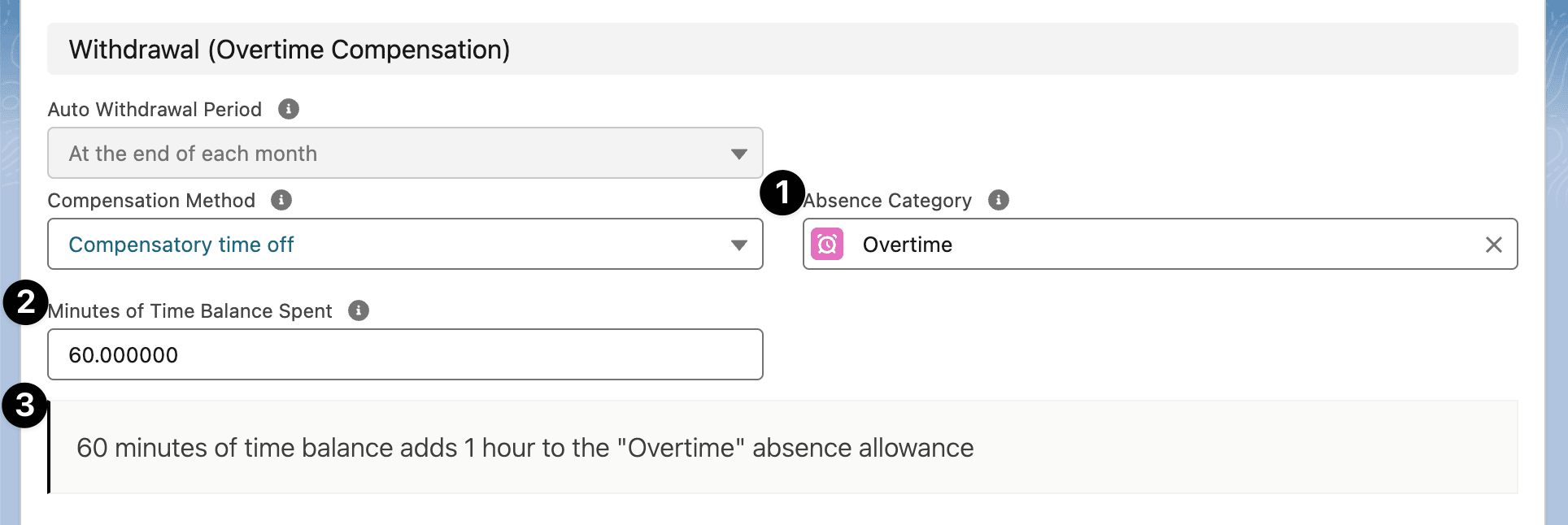
Conversion Basis decides how many balance minutes one absence day costs. It appears only for a daily absence category:
| Setting | What it does |
|---|---|
| Fixed number of minutes | Every employee spends the value in Minutes of Time Balance Spent per absence day. This is the default. |
| Employee working schedule | Each employee spends the Full Day Duration of their own workload per absence day, and Minutes of Time Balance Spent is hidden. |
With Employee working schedule, 360 minutes of balance adds one day for an employee with a 360-minute Full Day Duration, and 0.75 days for one with 480 minutes. If the category's Amount Unit is Hours or Minutes, flair converts the balance into that unit instead, and Conversion Basis has no effect. Employees with mixed day lengths can share one Time Framework. Set Full Day Duration on every affected workload: flair skips the automatic withdrawal for an employee whose workload has none, and the balance stays unchanged.
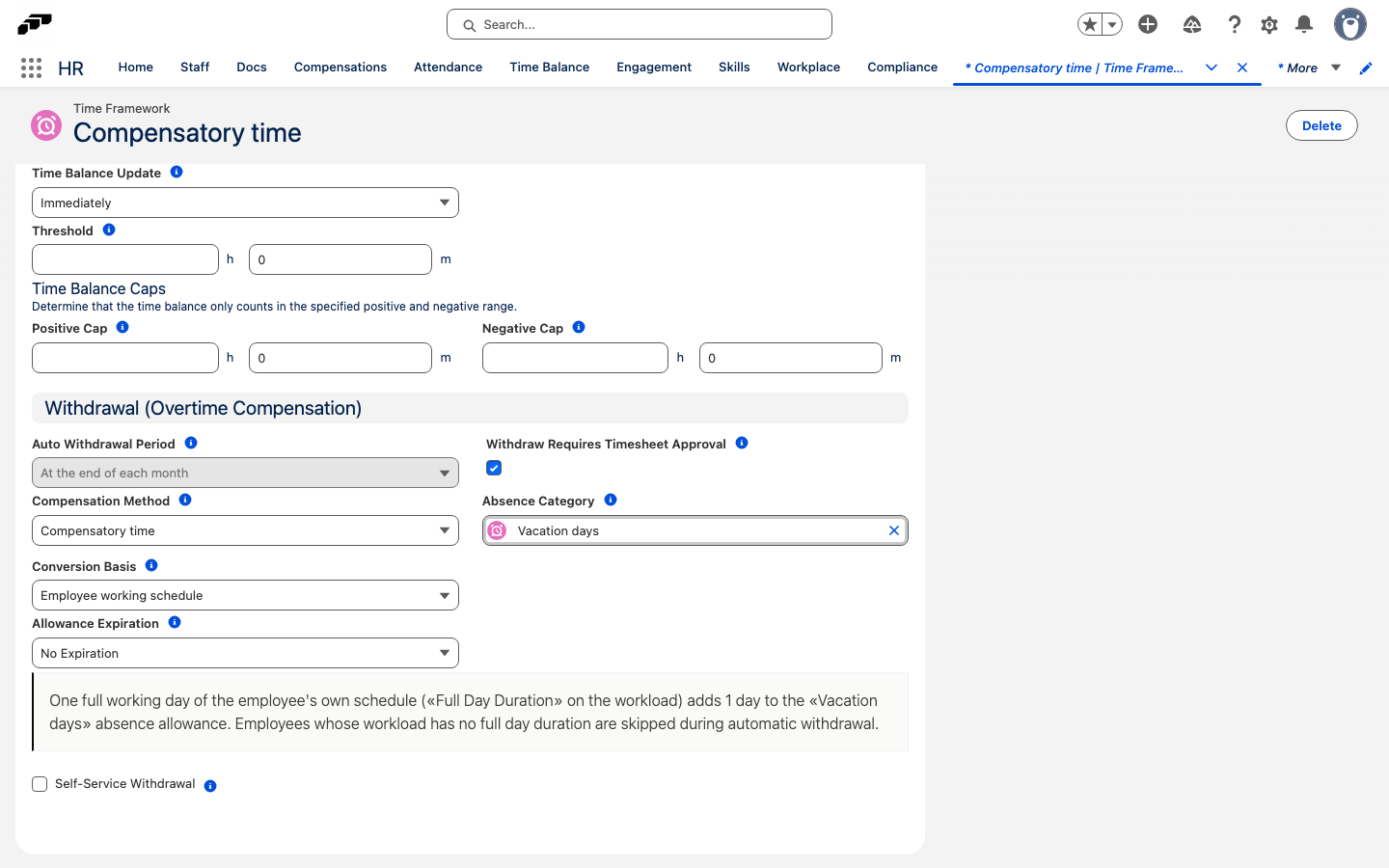
Allowance Expiration controls when a compensatory-time allowance expires:
| Setting | What it does |
|---|---|
| No Expiration | The allowance never expires. |
| After Allowance End Date | Expires the allowance a number of Weeks, Months, or Years — set in Expiration Offset and Expiration Unit — after its end date. |
| Fixed Date | Expires the allowance on a specific Expiration Month and Expiration Day (or Last Day of the month), applied the number of years set in Year Offset after the withdrawal period. |
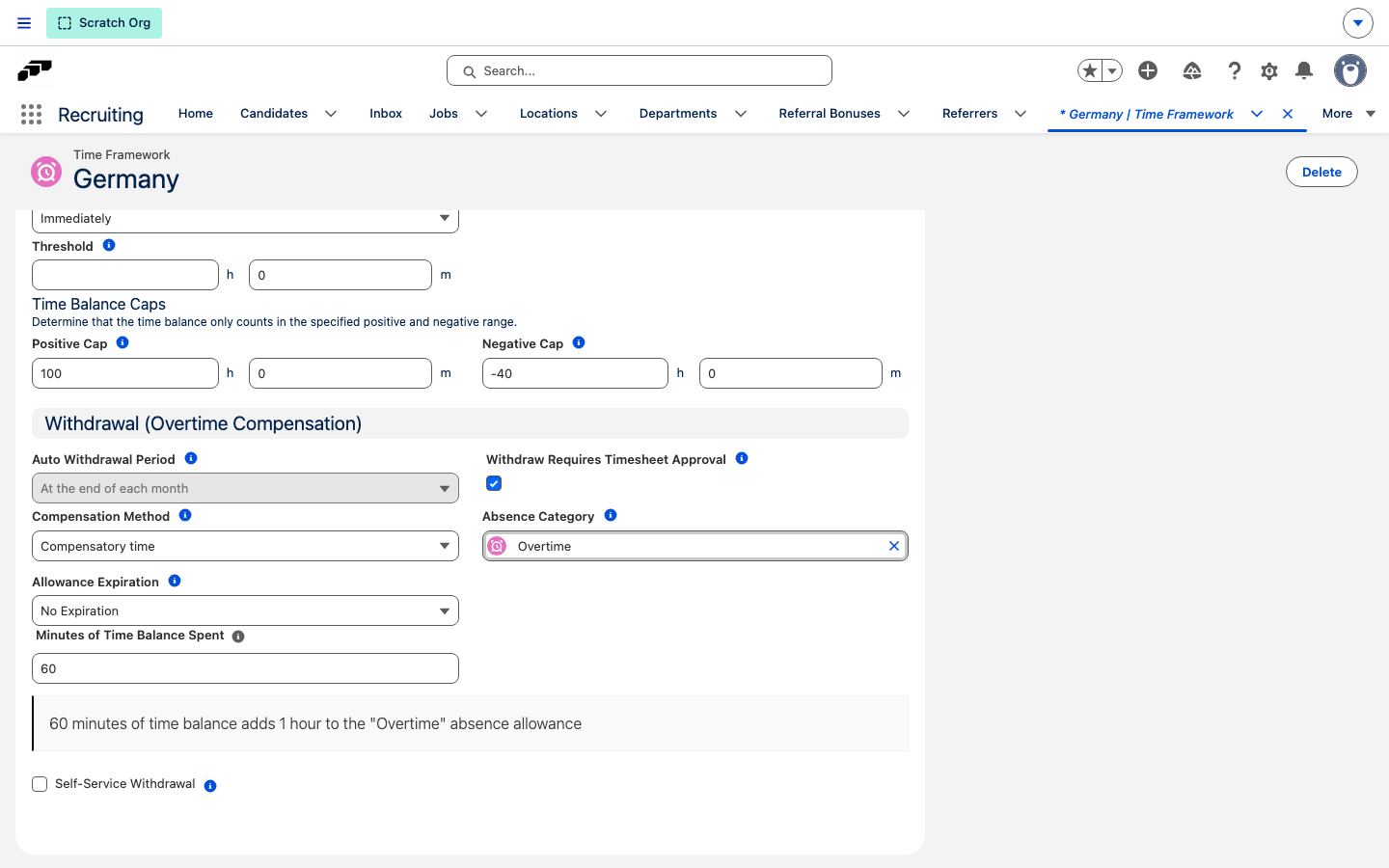
Select Withdraw Requires Timesheet Approval to hold a withdrawal until every timesheet in the period is approved. Reapproving a timesheet then triggers a new withdrawal automatically.
Set the payout rate
For Monetary compensation, Payout Rate decides how flair calculates the amount paid for the withdrawn balance:
| Setting | What it does |
|---|---|
| Fixed conversion rate | Pays one currency unit per Minutes of Time Balance Spent. With 60, a 360-minute balance pays 6. This is the default. |
| Employee overtime rate | Pays the employee's Overtime Hours Employee Rate that applies on the withdrawal date, per hour of withdrawn balance. |
| Employee salary | Pays the employee's hourly salary per hour of withdrawn balance. flair converts a weekly, bi-weekly, monthly, or annual salary to an hourly amount using the employee's contractual workload hours. |
- In Compensation Method, select Monetary compensation.
- In Payout Rate, select a rate.
- If you select Fixed conversion rate, in Minutes of Time Balance Spent, enter the minutes per currency unit.
- Click Save.
With Employee overtime rate or Employee salary, flair skips the automatic withdrawal for an employee without an applicable rate, salary, or workload hours, and the balance stays unchanged.
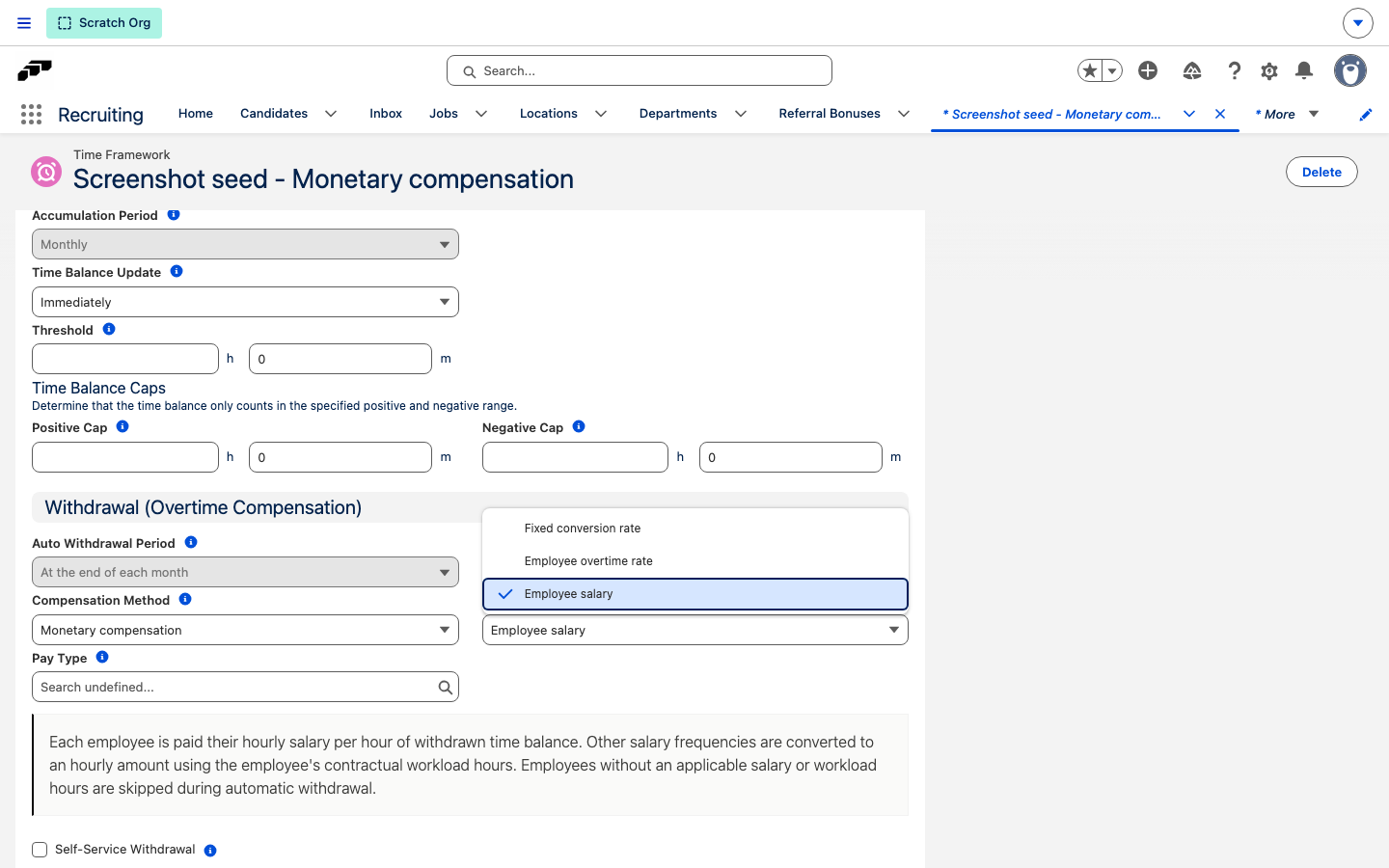
Set the pay type for a monetary withdrawal
For either monetary withdrawal type, set a Pay Type so the resulting one-time compensation carries the pay type through to payroll automatically. The field appears only for Monetary compensation and is set separately for automatic and employee-requested payouts.
- In the Time Framework, open Time Balance.
- For automatic payouts, in the Withdrawal (Overtime Compensation) settings with Monetary compensation selected, select a Pay Type.
- For employee-requested payouts, in the Self-Service Withdrawal settings with Allow monetary withdrawal selected, select a Pay Type.
- Click Save.
When flair creates the one-time compensation for a monetary withdrawal, it applies the pay type you selected for that payout type. Leave Pay Type empty to create the compensation without a pay type.
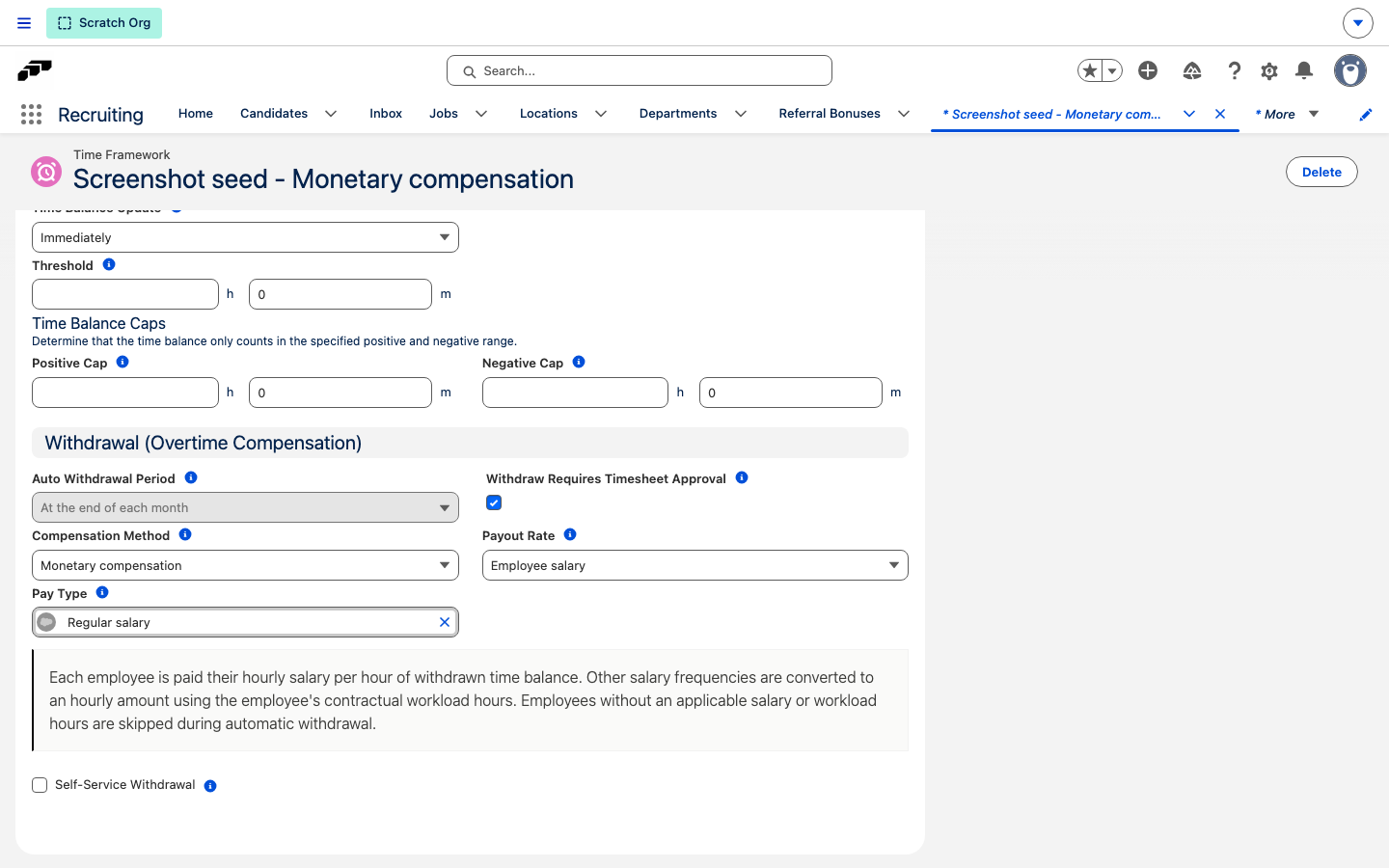
Let employees withdraw in the Employee Hub
Beyond the automatic withdrawal, you can let employees convert their own balance from the Employee Hub.
- In the Time Framework, open Time Balance.
- Select Self-Service Withdrawal.
- Select the destinations employees can choose: Allow compensatory time withdrawal, Allow monetary withdrawal, or both.
- For compensatory time, select an Absence Category and a Conversion Basis. For Fixed number of minutes, also enter Minutes of Time Balance Spent.
- For monetary compensation, select a Payout Rate. For Fixed conversion rate, also enter Minutes of Time Balance Spent.
- Optional: set the allowance expiry so the granted allowance expires after a period or on a fixed date.
- Click Save. Employees see a withdrawal option in the Employee Hub.
Review and adjust balances in Salesforce
The Time Balance page has three tabs: Time Balance for current balances, Auto Withdrawals for past and upcoming automatic withdrawals, and Withdrawals to Review.
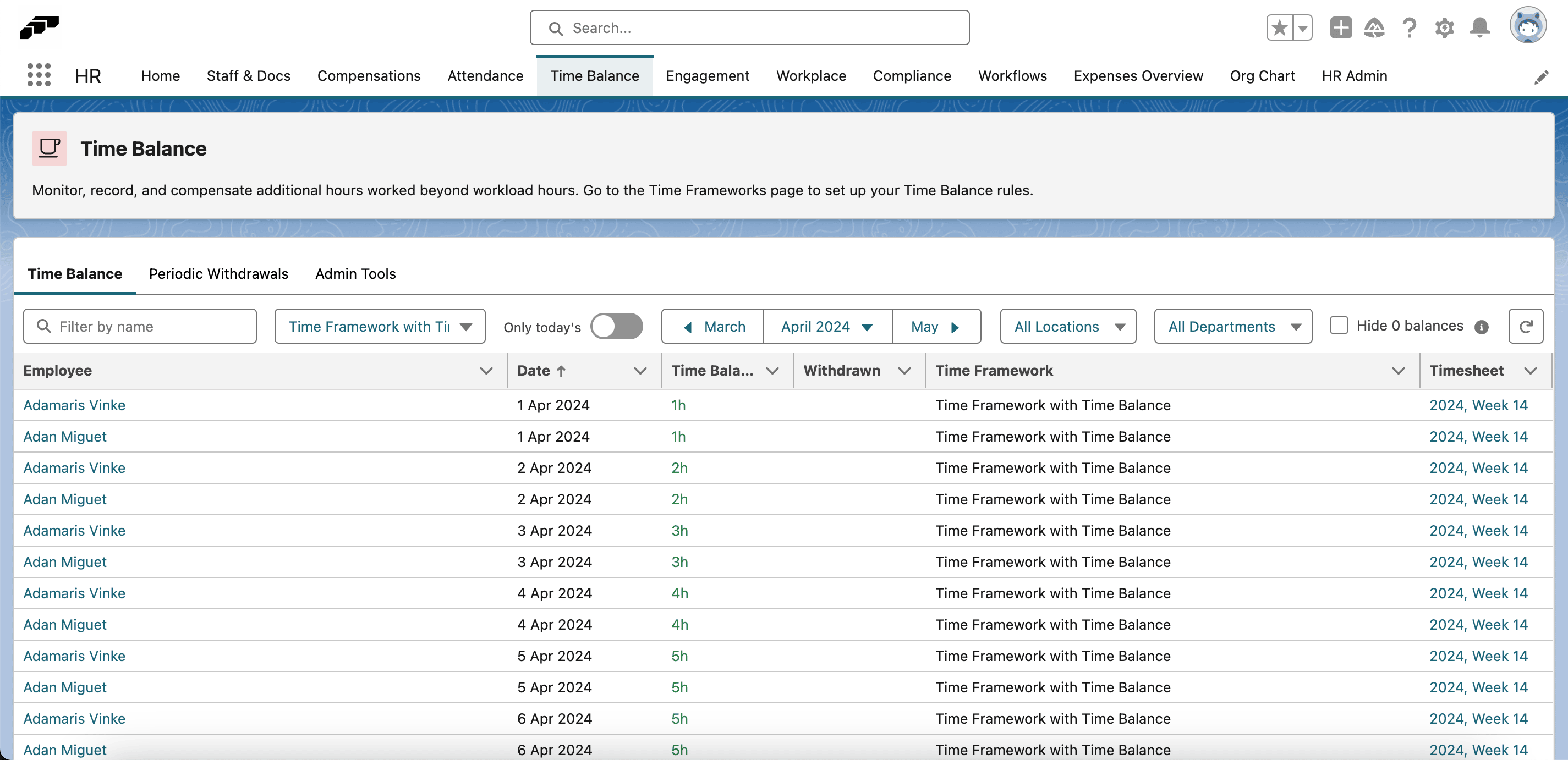
Review balances
- In the flair HR app, open Time Balance.
- On the Time Balance tab, filter by name, time framework, month, location, or department.
- Review the Time Balance and Withdrawn columns per employee and date.
- Optional: select Hide 0 balances to show only rows with a non-zero balance.
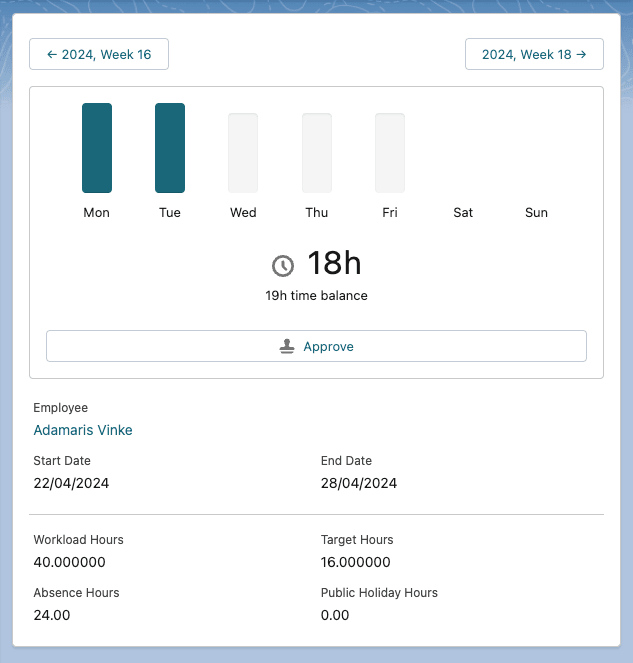
A balance also appears on the timesheet it came from, alongside the daily and weekly totals.
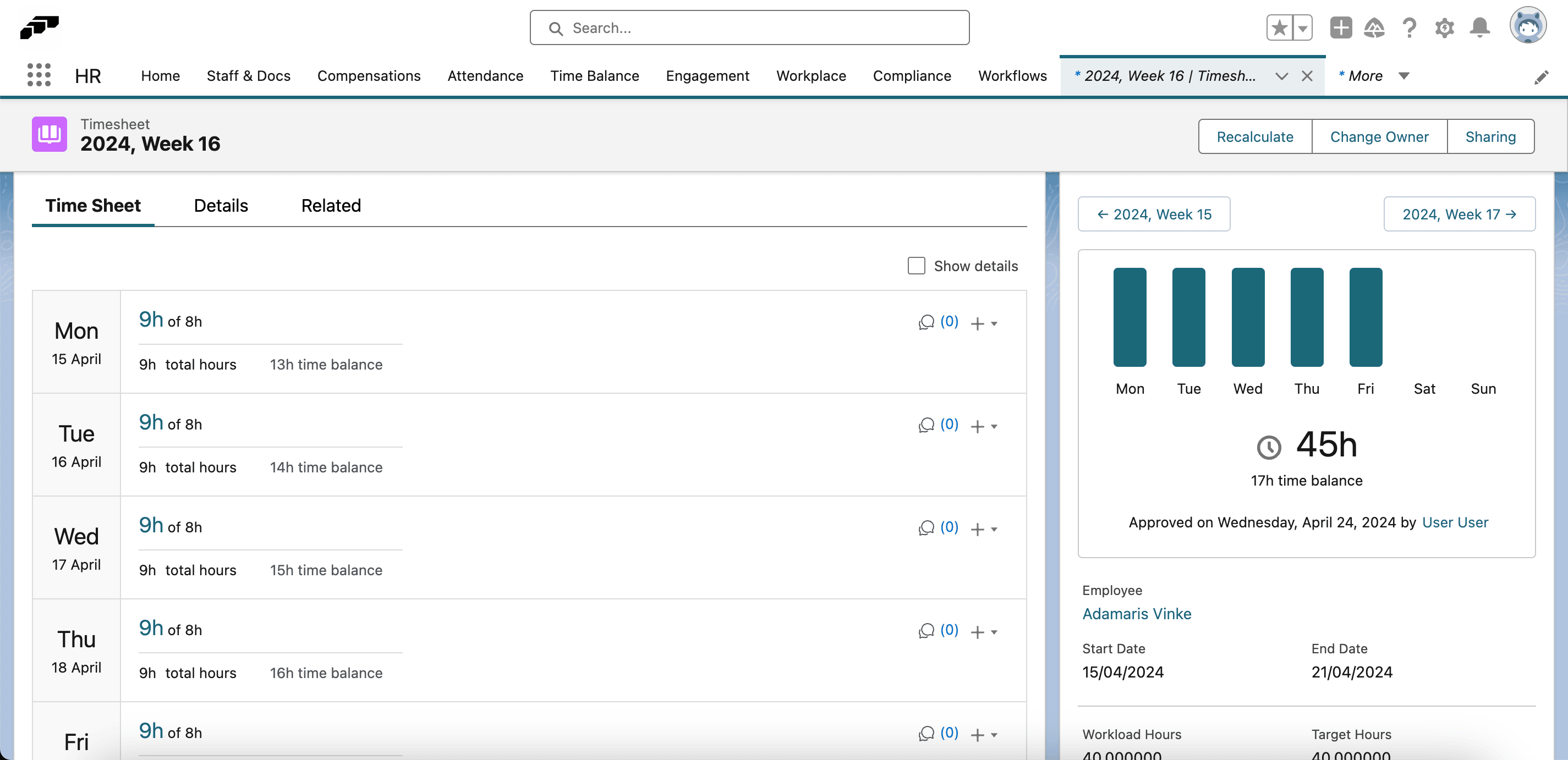
The timesheet summary also shows how flair derives the target it compares against: Workload Hours minus Absence Hours and Public Holiday Hours give Target Hours. A 40-hour workload with 24 absence hours leaves a 16-hour target for that week.
Adjust a balance
- On the Auto Withdrawals tab, select the employees to adjust.
- Click the actions menu (⚡ icon), and select Adjust Time Balance.
- Enter the target value, and confirm. flair records the change as a Time Balance Adjustment.
Withdraw from one employee's balance
The Time Balance component on an employee record shows the balance and the configured compensation.
- In Salesforce, open the employee record.
- In Time Balance, review Available, Compensation, and Method.
- Click Withdraw, and confirm the conversion.
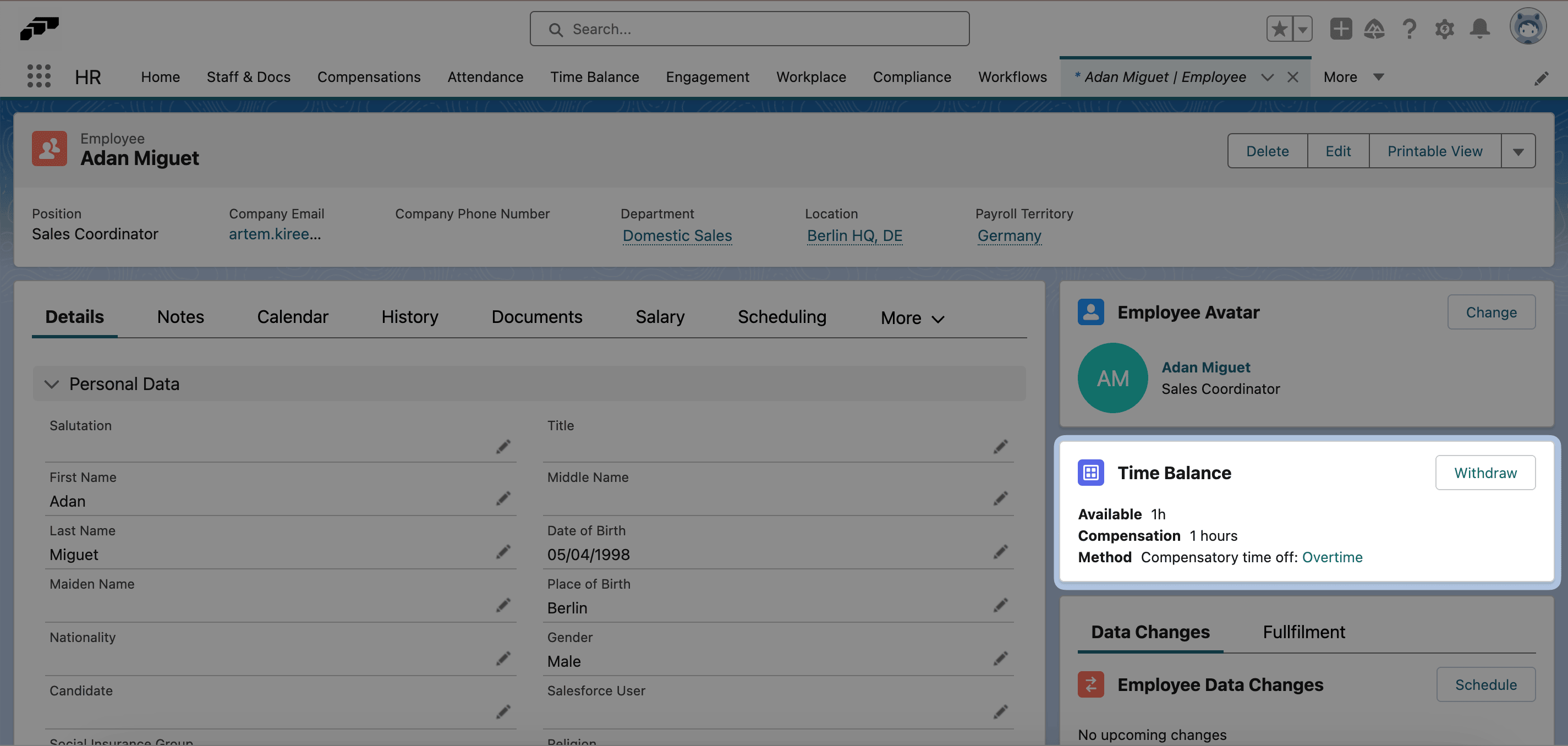
If Withdraw is unavailable, the component states why — for example Not enough time balance available, or No applicable rate or salary found to calculate the monetary compensation.
Create a withdrawal manually
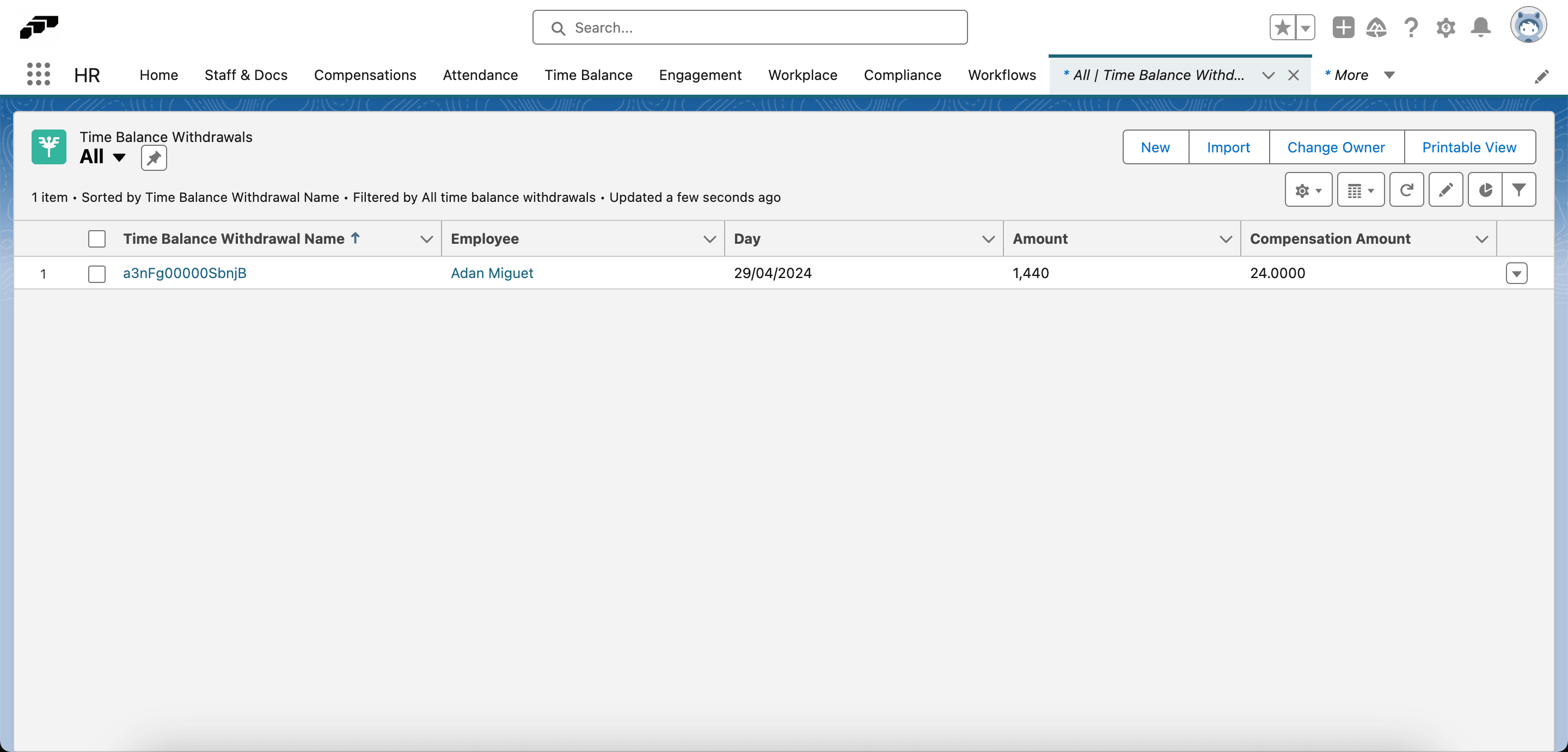
- In Salesforce, open the App Launcher (⋮⋮ grid icon), and select Time Balance Withdrawals.
- Click New.
- Complete Employee, Day, and Amount. Amount is in minutes.
- Optional: add Notes.
- Click Save.
Re-run an automatic withdrawal
When time entries change after a withdrawal, re-run it so the compensation matches the corrected balance.
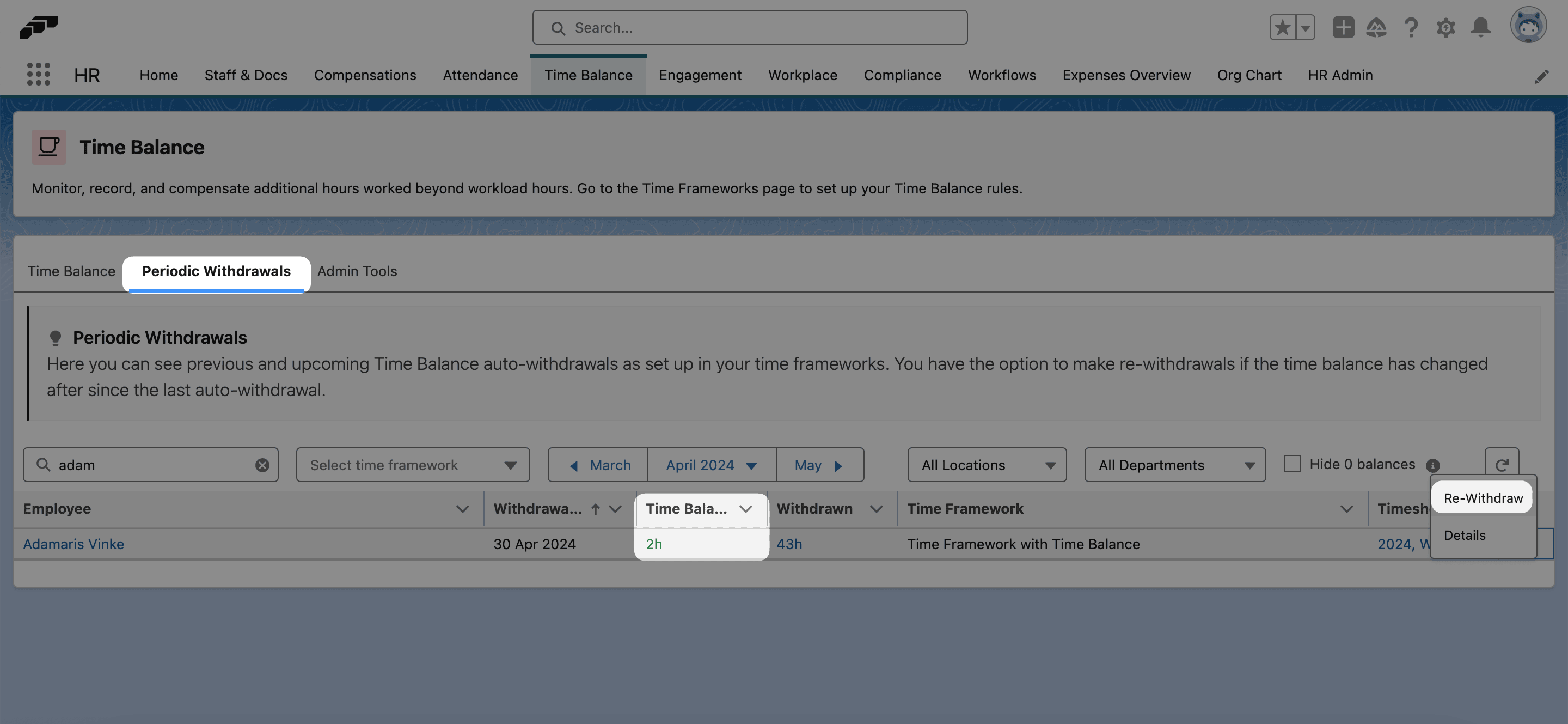
- On the Auto Withdrawals tab, find the withdrawal.
- Open the row menu, and select Re-Withdraw. flair recalculates the affected timesheets.
Fix Auto Withdrawals, in the actions menu, deletes the selected employees' withdrawals and recreates them asynchronously.
Approving a timesheet again triggers a new withdrawal automatically when Withdraw Requires Timesheet Approval is on. For monthly, quarterly, and yearly periods, re-run the withdrawal yourself.
Recover a stuck Time Balance calculation
If a background recalculation is interrupted, an employee's Time Balance can stay on Calculating… instead of showing a value, even after you refresh the page.
- In Salesforce, open Time Balance → Auto Withdrawals.
- Select the employees whose balance is stuck on Calculating….
- Click the actions menu (⚡ icon), and select Fix Stuck Time Balance.
- Wait for the confirmation message, and refresh the list to confirm that a balance value appears.
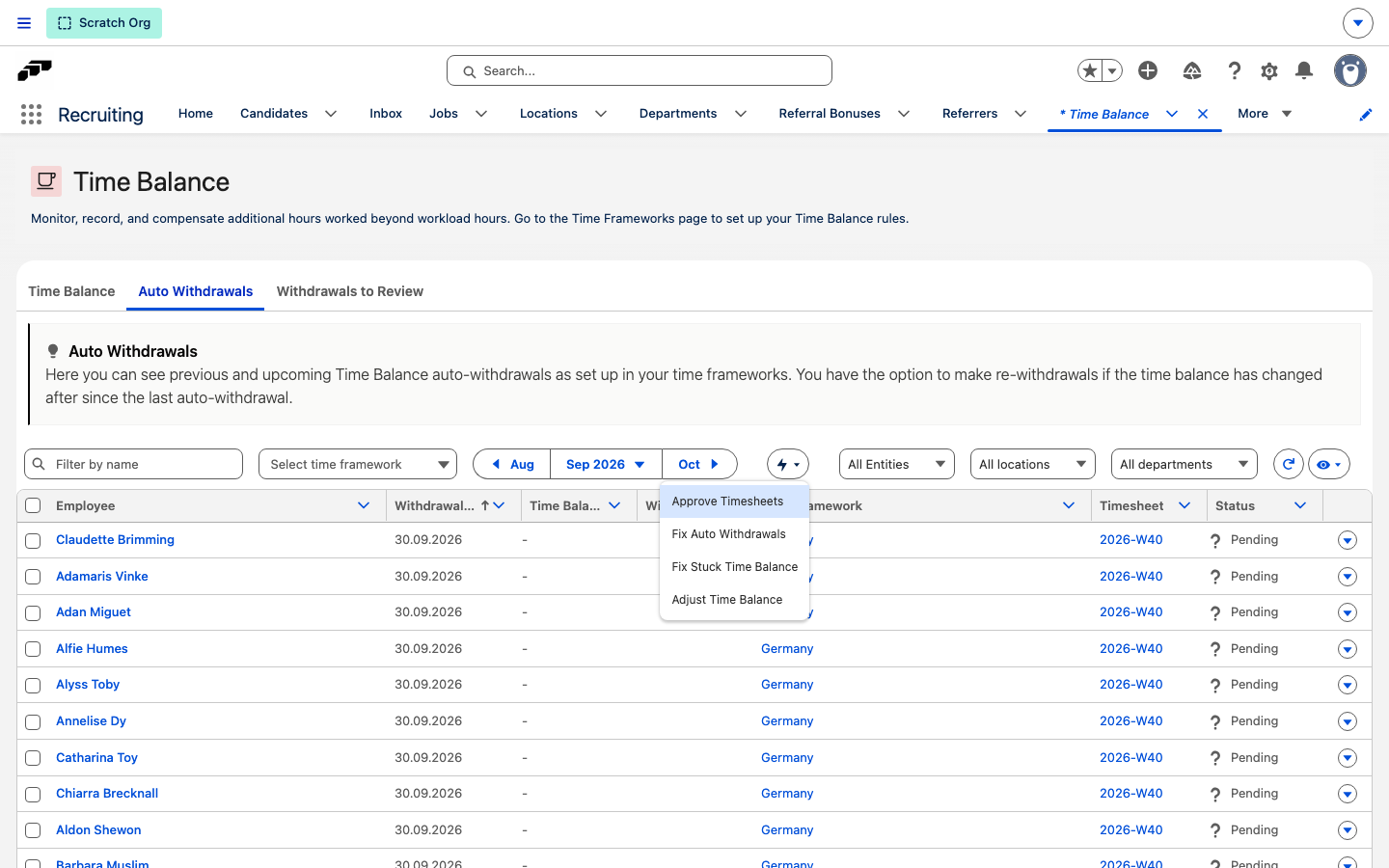
Fix Stuck Time Balance clears only the stalled calculations among the employees you select — a calculation still in progress is left alone. Fix Auto Withdrawals, next to it in the same menu, recreates withdrawal records instead and does not resolve a stuck calculation on its own.
Fix Stuck Time Balance recalculates the Time Balance for the employees you select. Run it only for employees confirmed to be stuck on Calculating…, not as a general recalculation tool.
Run the Time Balance vs. Absence Category report
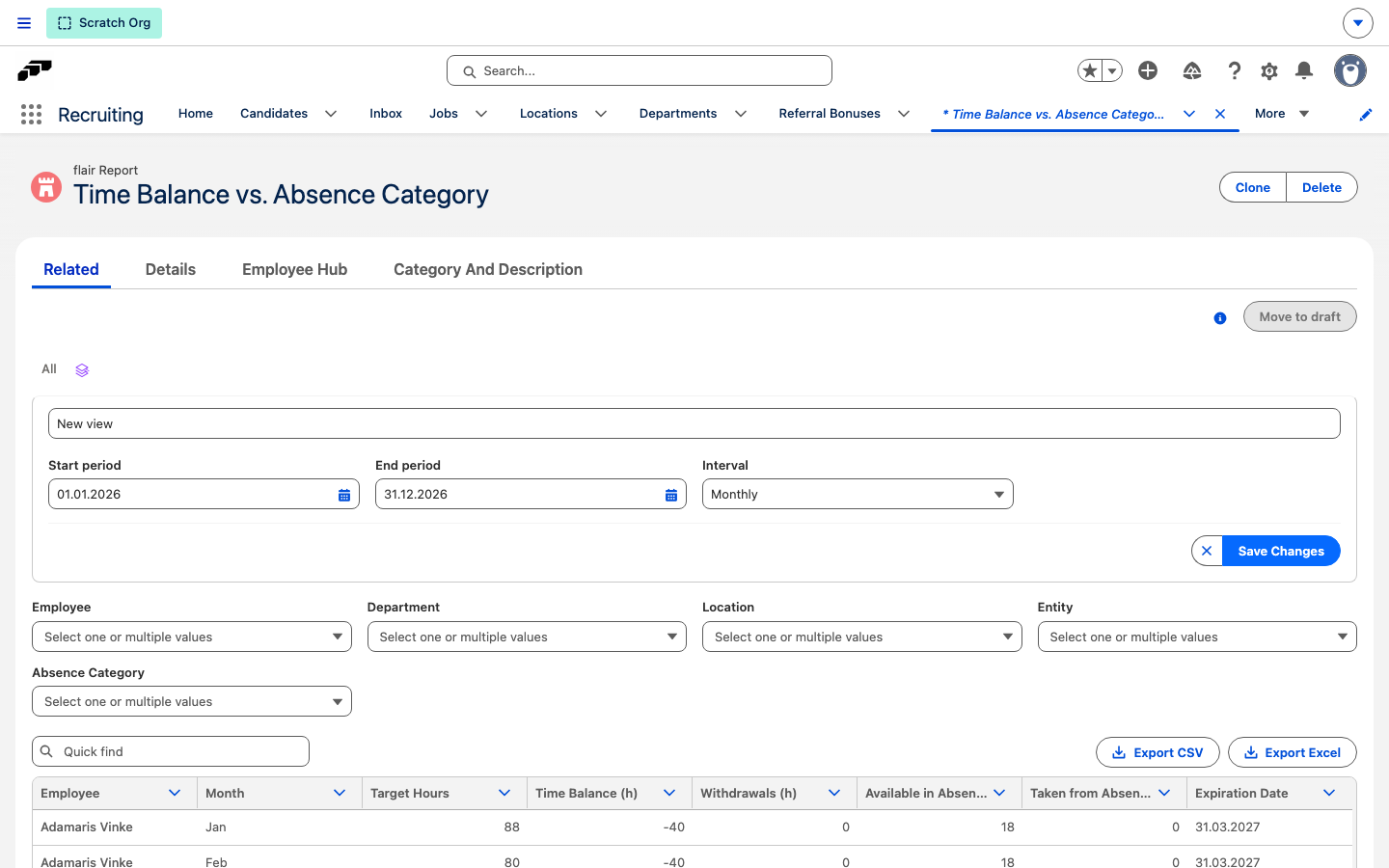
The Time Balance vs. Absence Category report shows each employee's target hours, time balance, and withdrawals for a period, next to the available and taken amounts — and the earliest expiration date — in their absence category.
- In the flair HR app, open the App Launcher (⋮⋮ grid icon), and select Metrics.
- Find and open Time Balance vs. Absence Category.
- Optional: filter the results by Employee, Department, Location, Entity, or Absence Category.
- To change the period, next to the All tab, click the stack icon, and in the panel that opens, set Start period and End period, and choose an Interval of Weekly, Monthly, Quarterly, or Annually.
- Review the table: Employee; a period column labeled Week, Month, Quarter, or Year to match the interval; Target Hours; Time Balance (h); Withdrawals (h); Available in Absence Category; Taken from Absence Category; and Expiration Date.
- To export the results, click Export CSV or Export Excel.
Run the Employee Time Balance report
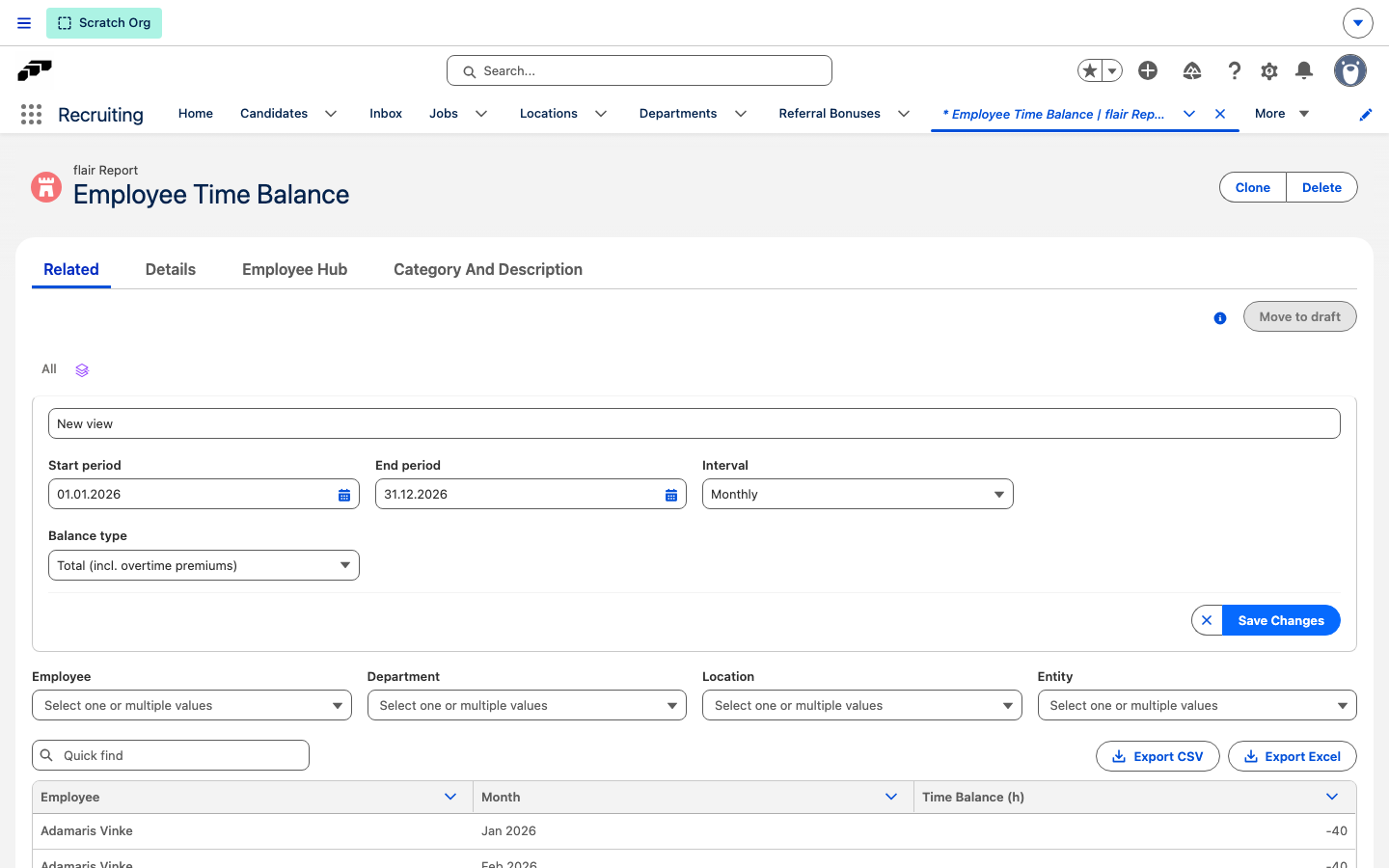
The Employee Time Balance report shows each employee's Time Balance as of a date you choose, or at the end of each week, month, quarter, or year — for example, to review balances at month-end before payroll.
- In the flair HR app, open the App Launcher (⋮⋮ grid icon), and select Metrics.
- Find and open Employee Time Balance.
- Optional: filter the results by Employee, Department, Location, or Entity.
- Next to the All tab, click the stack icon.
- In the panel that opens, set Start period and End period. For a snapshot, set End period to the date you want the balance for.
- In Interval, select As of date (no breakdown) for one row per employee, or Weekly, Monthly, Quarterly, or Annually for one row per employee per period.
- Optional: in Balance type, select Total (incl. overtime premiums) or Base only (excl. overtime premiums).
- Review the table: Employee; As of, or a period column matching the interval; and Time Balance (h).
- To export the results, click Export CSV or Export Excel.
With As of date (no breakdown), each row shows the latest calculated balance on or before End period, and As of shows the day it comes from. A period breakdown shows the balance at the end of each period. Days without a calculated balance are left out rather than reported as zero.
View Time Balance in the Employee Hub
View your balance
- In the Employee Hub, go to Time → Time Tracking.
- Open All timesheets.
- Review Current balance for the total, and the Time Balance column for the running balance per timesheet.
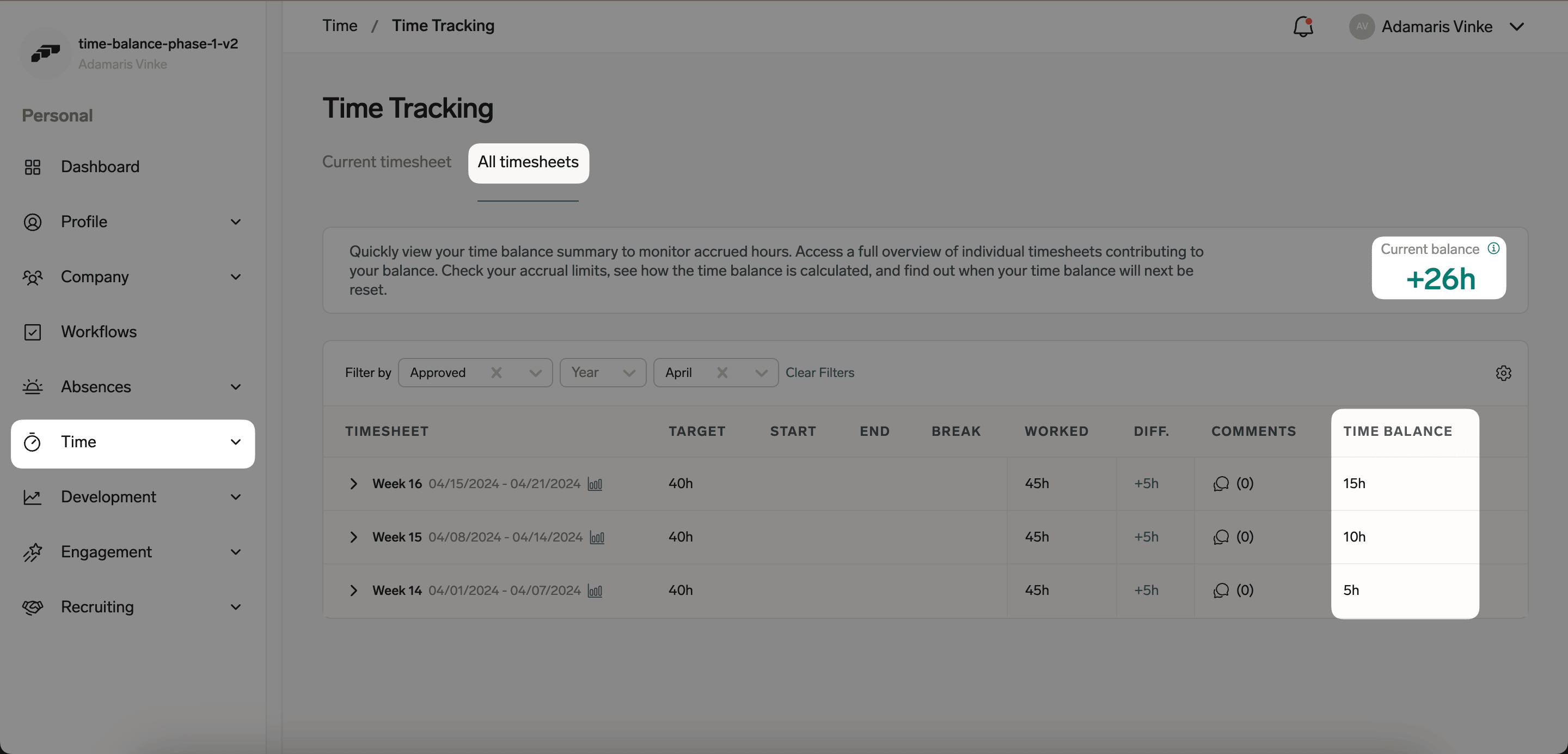
A positive balance means you recorded more than your target time and can use the extra time. A negative balance means you recorded less, and zero means recorded and target time match.
View your balance in the mobile app
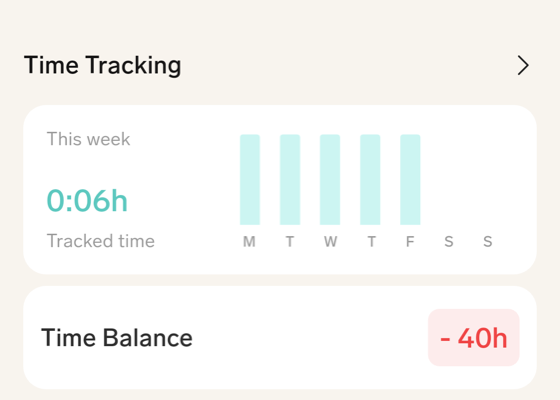
On the mobile home screen, the Time Balance card below Time Tracking shows your current balance. A negative balance appears in red. The card appears only when your Time Framework uses Based on daily workload or After a specific amount of time, and it disappears with the Time Tracking card when time tracking is hidden for you in the app.
Under the total, the card lists one tile for each of your absence categories marked as compensatory time, with the amount available in the current period. Tap a tile to open that category's details.
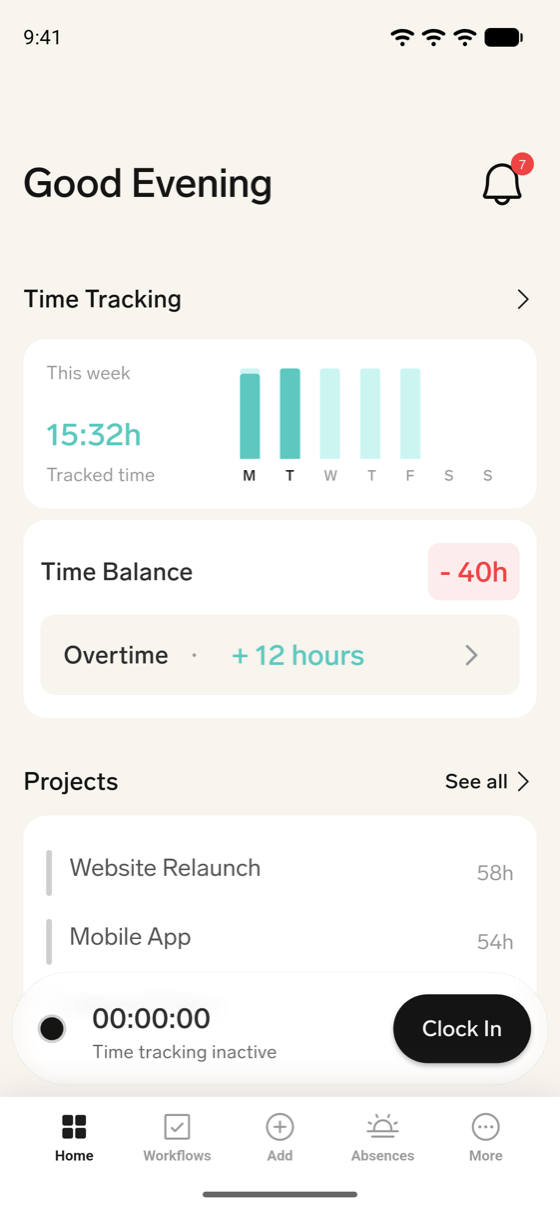
You can't request a withdrawal from your balance in the mobile app. When flair converts part of your balance into absence allowance or a one-time compensation, a Time balance transfer notification appears in the app's notifications. Other changes, such as a reset or a manual adjustment of the balance, don't send this notification.
View your team's balances
-
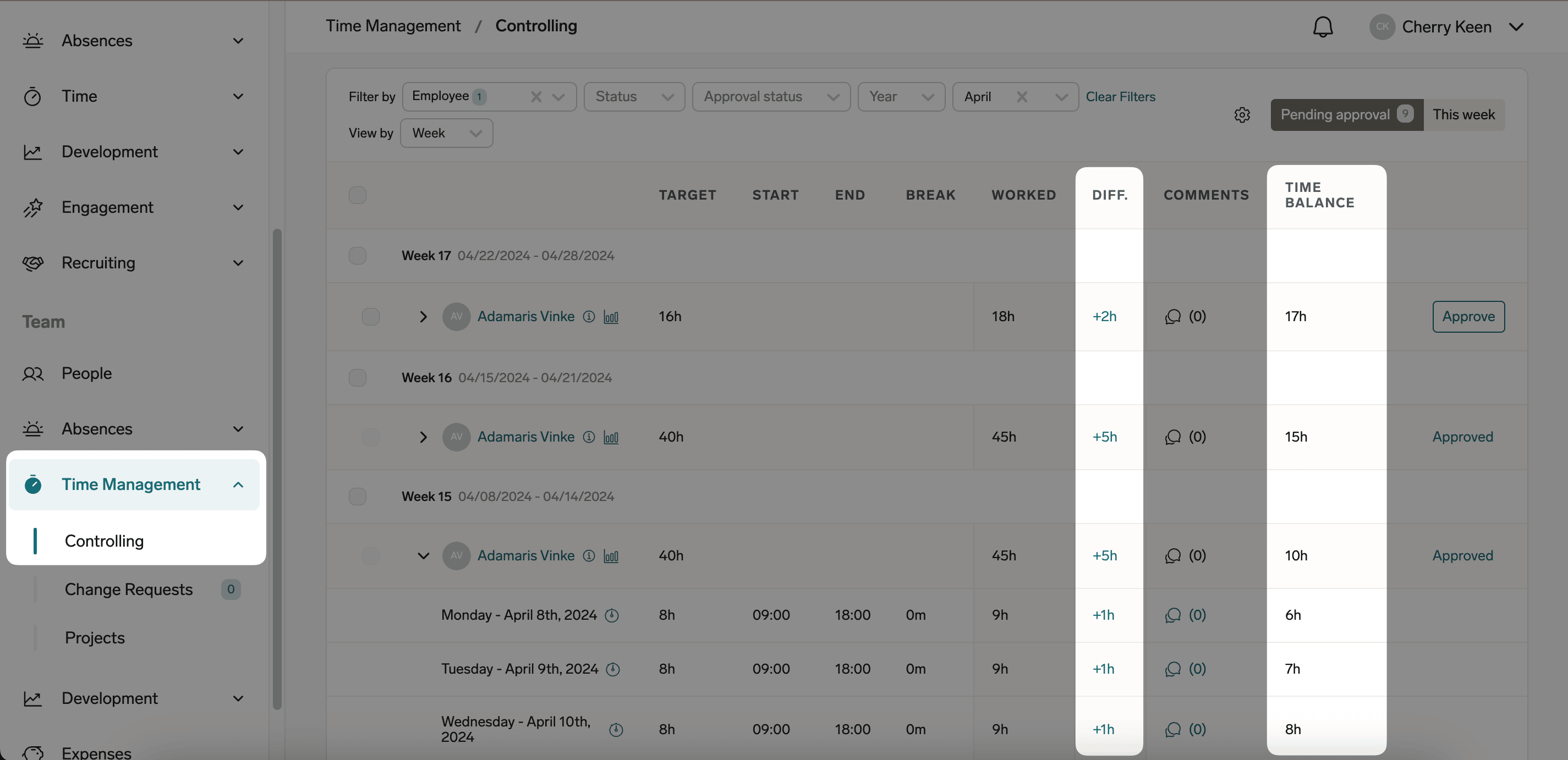
In Manager view, go to Time Management → Controlling.
-
On Pending approval, review each team member's Diff. and Time Balance per timesheet.
-
To see where the team stands before the week closes, open This week. The Time Balance column shows each member's balance accrued up to today, next to Days worked and Today.
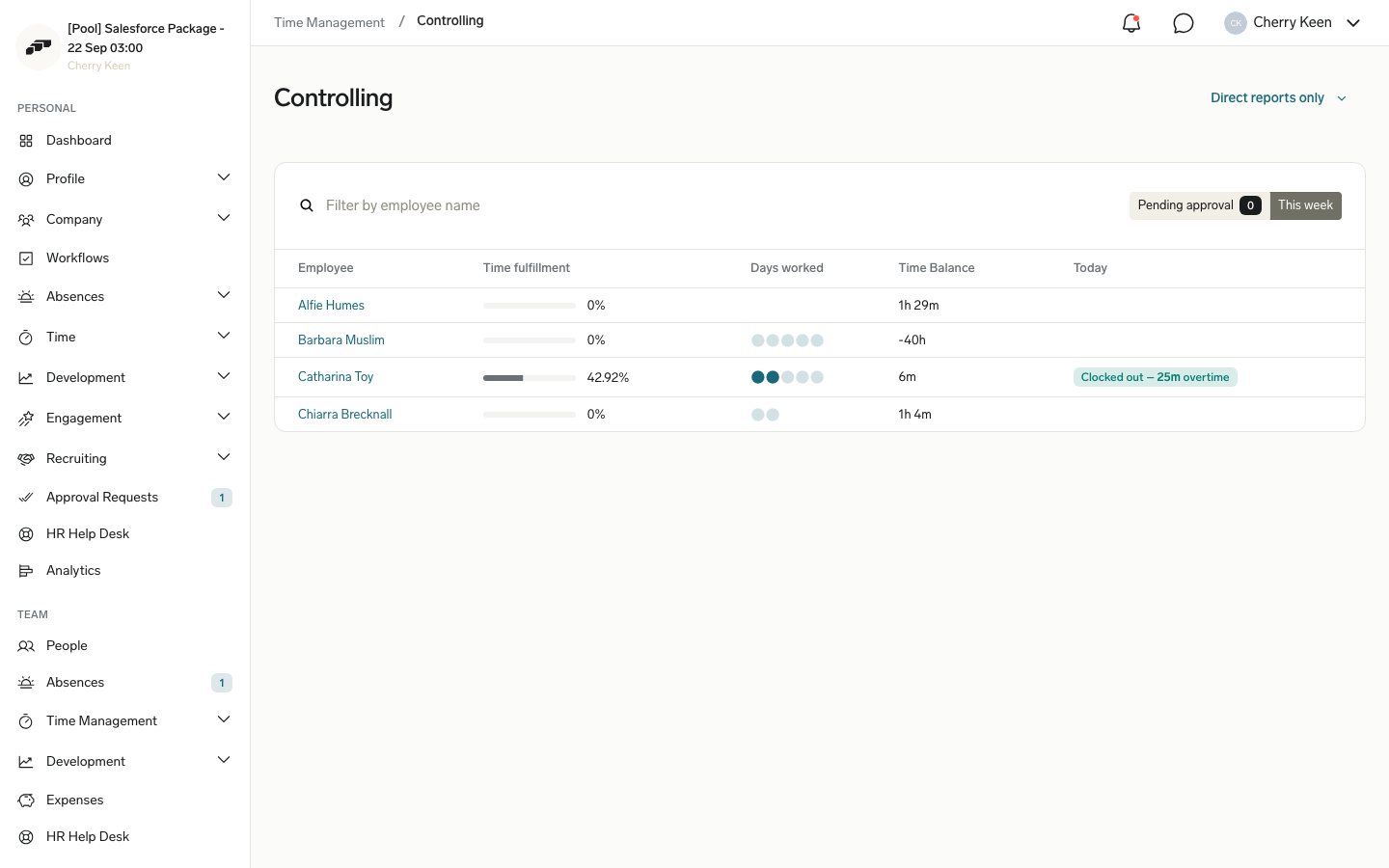
This week has no approve action: you approve a timesheet only after its period ends, and until then the timesheet's Approve button stays disabled and says why. Both Time Balance columns appear only when Time Balance is enabled in the Time Framework.
Withdraw from your balance
Available when an HR Admin turns on self-service withdrawal for your Time Framework.
- In the Employee Hub, open your Time Balance.
- Click Withdraw.
- In Withdraw to, select compensatory time or monetary compensation.
- Confirm the conversion. flair confirms with
The withdrawal was successful.
Compensatory time lands in the absence allowance the HR Admin selected, and you request it like any other absence.
Troubleshooting
The balance does not update
- Confirm that the time entries are approved when Time Balance Update is set to When the timesheet is approved.
- Confirm that Time Balance is enabled on your assigned Time Framework.
- Wait up to an hour. flair updates the stored balance automatically, and you can also recalculate a timesheet directly.
The balance is lower than expected
- Check Maximum Daily Working Time and Daily Threshold, which drop minutes before they reach the balance.
- Check Positive Cap, which ignores anything above the limit.
- Check Threshold, which counts the balance only after total overtime passes it.
- Review the raw time balance, which excludes the threshold, caps, and multipliers.
You cannot withdraw from a balance
Not enough time balance available— the balance does not cover one unit of compensation."<absence category>" is not enabledorAbsence category is not found— fix Absence Category in the Time Framework.No applicable rate or salary found to calculate the monetary compensation— add a rate or salary for the employee.The working schedule has no full day duration to calculate the absence compensation— add a Full Day Duration to the employee's workload, or set Conversion Basis to Fixed number of minutes.Already exists— a withdrawal for that period is already recorded.
An automatic withdrawal is missing for an employee
- If Conversion Basis is Employee working schedule, confirm that the employee's workload has a Full Day Duration.
- If Payout Rate is Employee overtime rate or Employee salary, confirm that the employee has an applicable rate or salary, and workload hours.