Configure overtime
Configure how flair calculates overtime, assigns employees to the applicable Time Framework, and handles accumulated balances. You can also use an Hourly Workload Template for employees without fixed hours.
HR Admins configure overtime in the flair HR app in Salesforce. Employees see the resulting time and absence balances in the Employee Hub.
Before you begin
- Time tracking is enabled for your organization.
- You can manage absence categories, Time Frameworks, and workloads in the flair HR app.
Create a compensatory absence category
- In HR Admin, open Absence Categories and Policies.
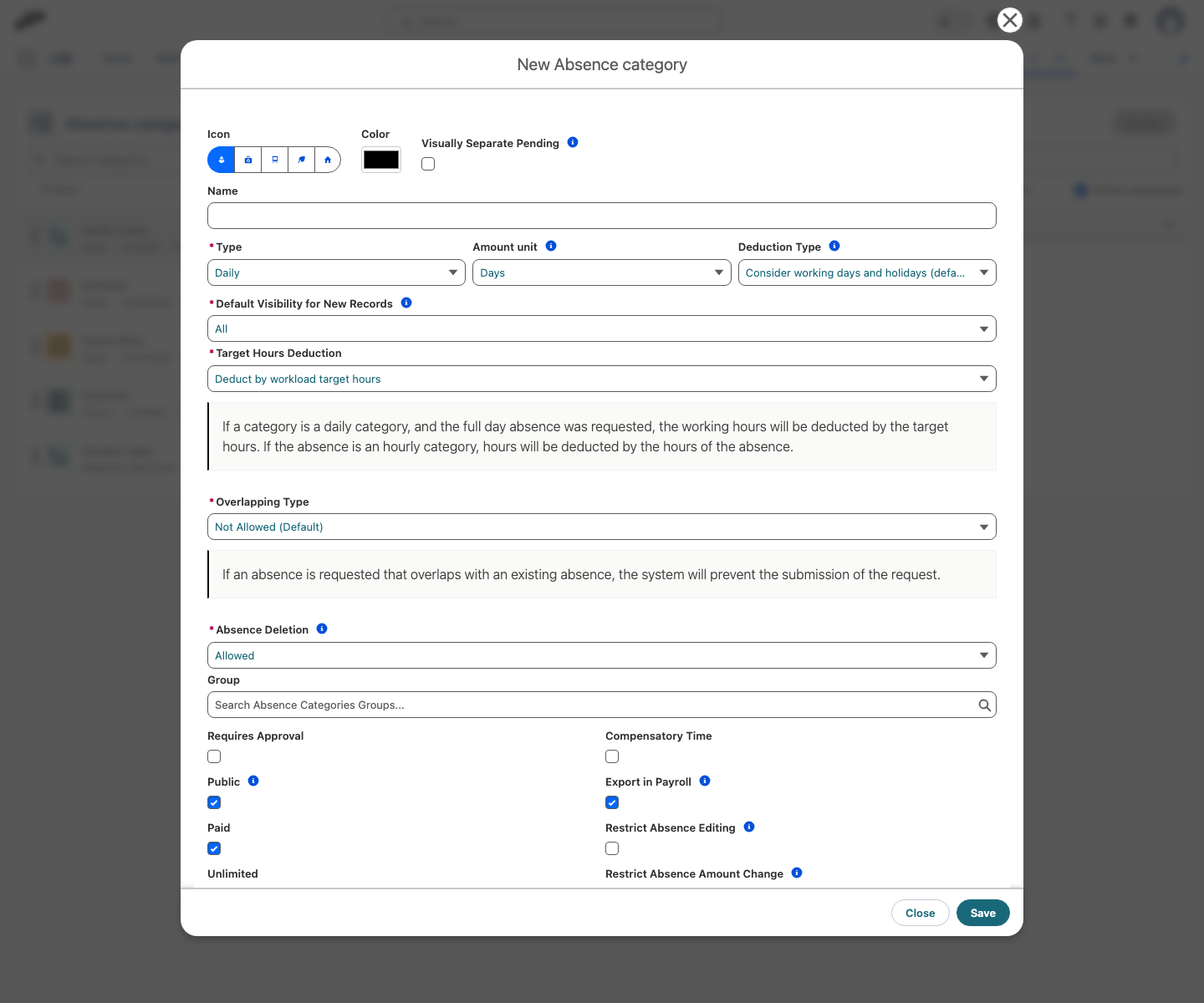
- In Absence Categories, click Create.
- Enter the category details, such as
Overtime compensation. - Select Compensatory Time. Accumulated overtime accrues in this category.
- Save the absence category.
Configure overtime in a Time Framework
- In HR Admin, open Time Frameworks.
- Create a Time Framework, or open an existing one.
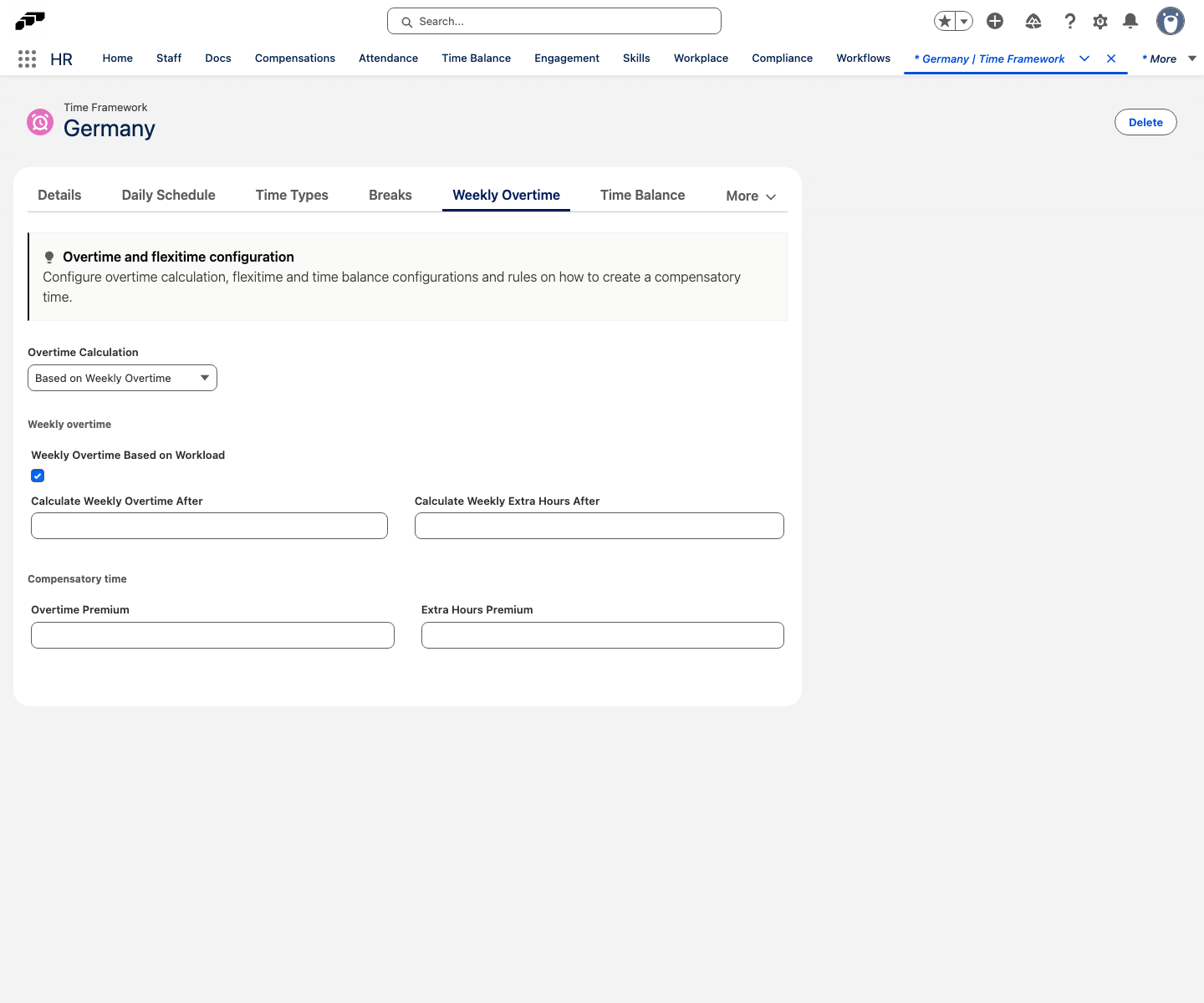
- Open the Weekly Overtime tab.
- In Overtime Calculation, select Based on Weekly Overtime. The other option, None, turns overtime calculation off.
- To calculate overtime beyond the employee's workload, select Weekly Overtime Based on Workload.
- Alternatively, in Calculate Weekly Overtime After, enter the weekly threshold, such as
40h. - Under Compensatory time, in Overtime Premium, enter the standard overtime percentage, such as
100%. - In Extra Hours Premium, enter the rate for hours beyond the standard threshold, such as
150%. - Click Save.
Assign a Time Framework
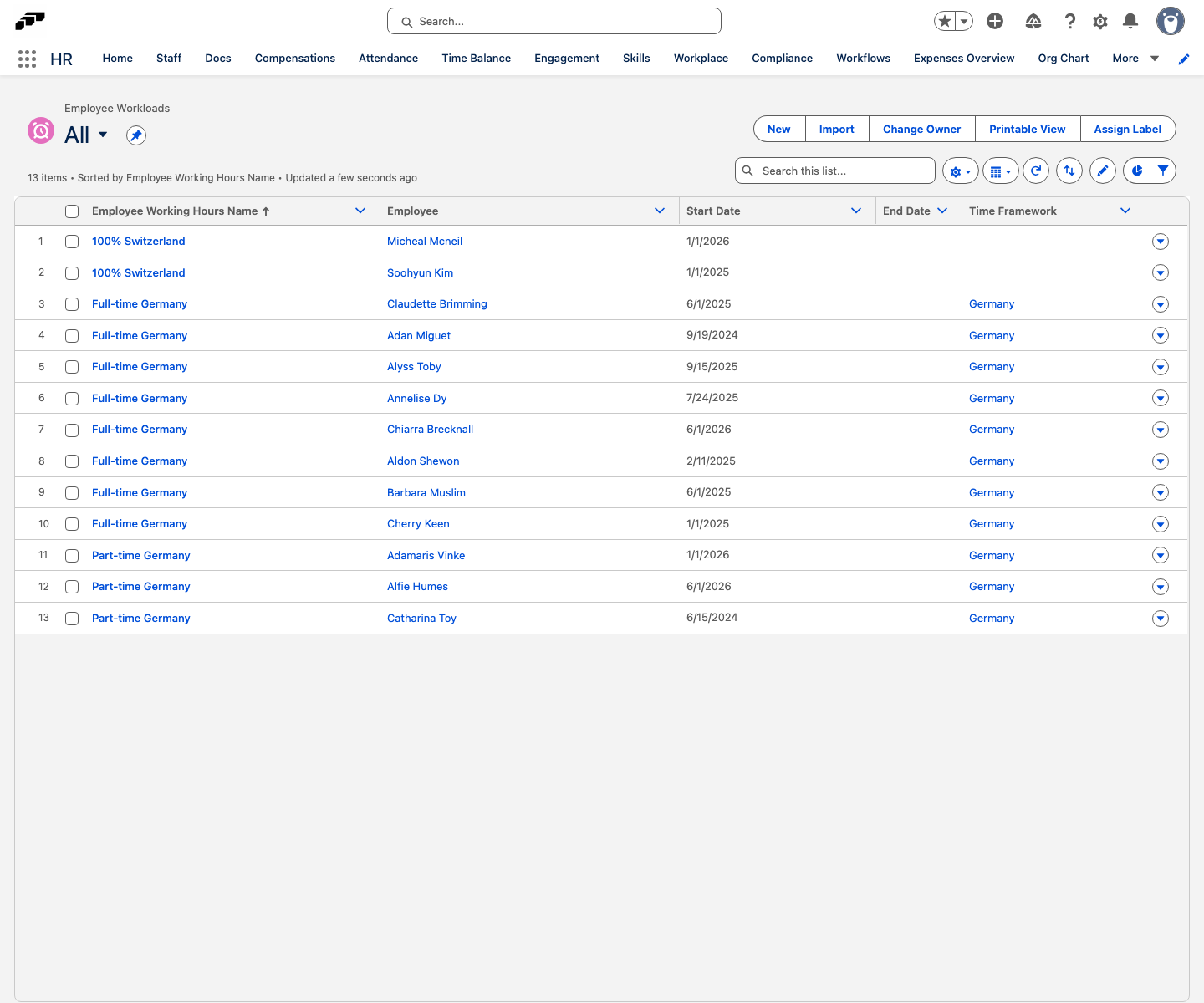
- In the flair HR app, open Employee Workloads.
- Select one employee, or use Select All to select a group.
- In Time Framework, select the framework.
- Click Apply.
- Click Save. The framework applies to the selected employees.
If Time Framework is hidden, click the settings cog beside the Employee Workloads search field, and display the field.
Create an Hourly Workload Template
An Hourly Workload Template supports shift workers, freelancers, working students, project workers, and other employees without fixed hours.
- In the flair HR app, open Attendance → Workload templates, and click New record.
- In Workload Model, select Hourly-based.
- Complete and save the template.

Configure balance withdrawal settings
On the Time Framework's Time Balance tab, configure how flair handles the overtime balance at the end of a period. Time balance describes every setting on this tab.
Select a compensation method
| Setting | What it does |
|---|---|
| No Compensation | Removes the accumulated balance without granting additional time off. |
| Compensatory time | Converts the accumulated balance into an absence allowance. |
| Monetary compensation | Pays the withdrawn time out as a one-time compensation. See Set the payout rate. |
Select an automatic reset period
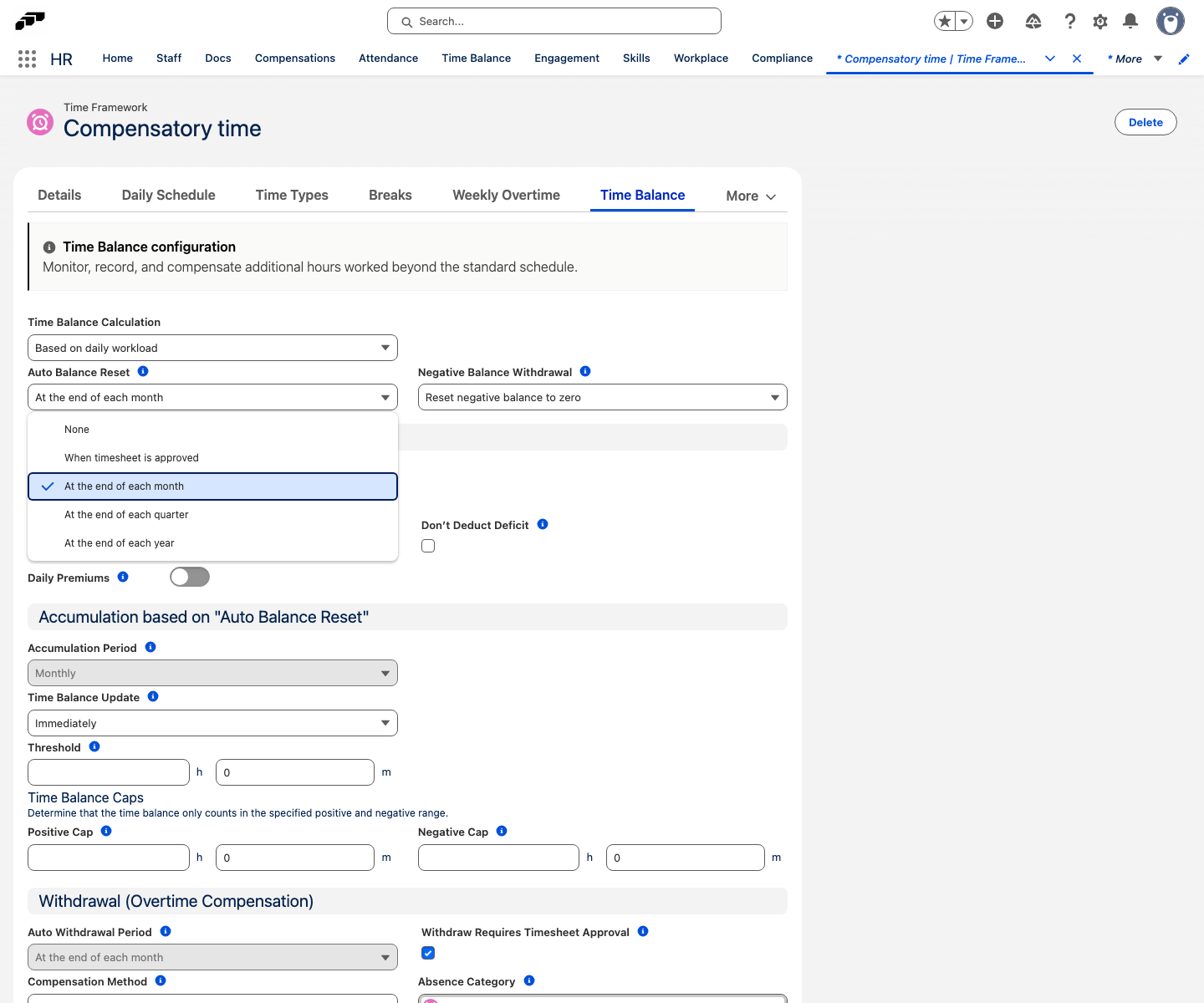
Auto Balance Reset determines when flair withdraws the balance and resets it to zero. Auto Withdrawal Period in the withdrawal settings is read-only and always matches it.
| Setting | What it does |
|---|---|
| At the end of each month | Resets the balance at the end of each month. |
| At the end of each quarter | Resets the balance at the end of each quarter. |
| At the end of each year | Resets the balance at the end of each year. |
| When timesheet is approved | Resets the balance when the timesheet is approved. |
| None | Doesn't reset the balance automatically, so it keeps accumulating. |
Handle a negative balance
In Negative Balance Withdrawal, choose what happens to a negative balance at the end of a period:
| Setting | What it does |
|---|---|
| Reset negative balance to zero | Clears the negative balance for the next period. |
| Withdraw negative balance to compensation and reset | Records the negative amount as a compensation entry, and resets the balance. |
| Carry over negative balance to next period | Carries the negative amount into the next period. |