Track your time
Record your workday from the Employee Hub, mobile app, or Slack, and review the time that flair sends to your timesheet.
Employees in the Employee Hub, mobile app, or Slack. Available surfaces depend on your organization's configuration.
Before you begin
- An HR Admin has configured time tracking.
- You have an active workload for the date you want to track.
Track time in the Employee Hub
- Sign in to the Employee Hub.
- Open Time Tracking.
- Click Start Tracking. flair begins recording your working time.
- To start a break, click Start Break.
- If prompted, select the break type.
- To resume work, click End Break.
- At the end of the workday, click Clock Out. A dialog asks you to confirm.
- Optional: In Notes, describe your workday.
- Click Confirm. flair ends the time entry.
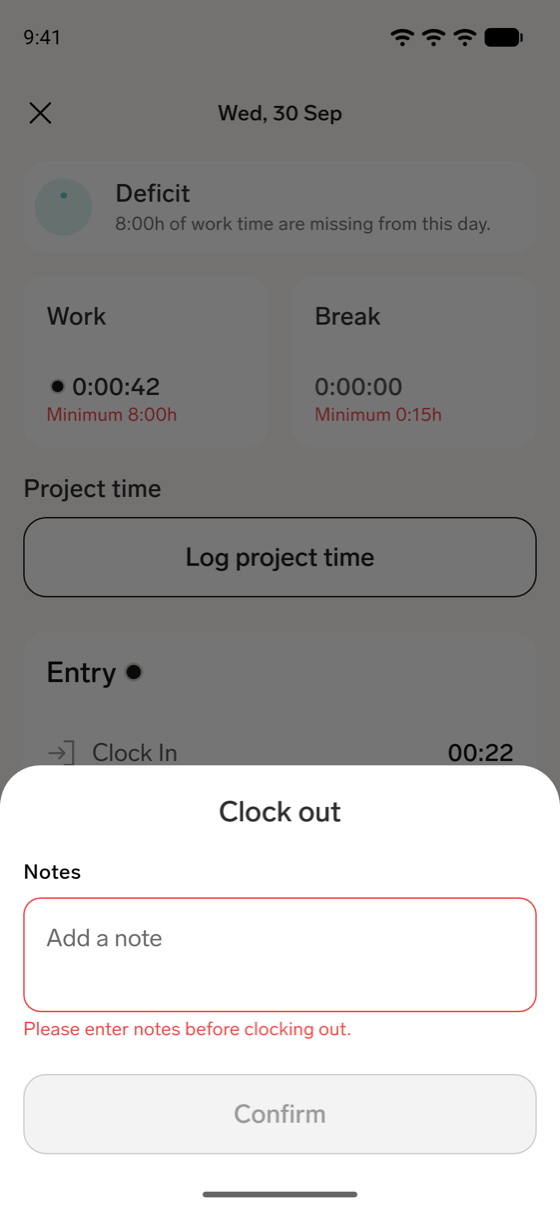
If your Time Framework requires notes on clock-out, the note isn't optional. Until you enter one, Confirm doesn't clock you out, and the dialog asks you to enter notes. An admin turns this requirement on in Configure time tracking.
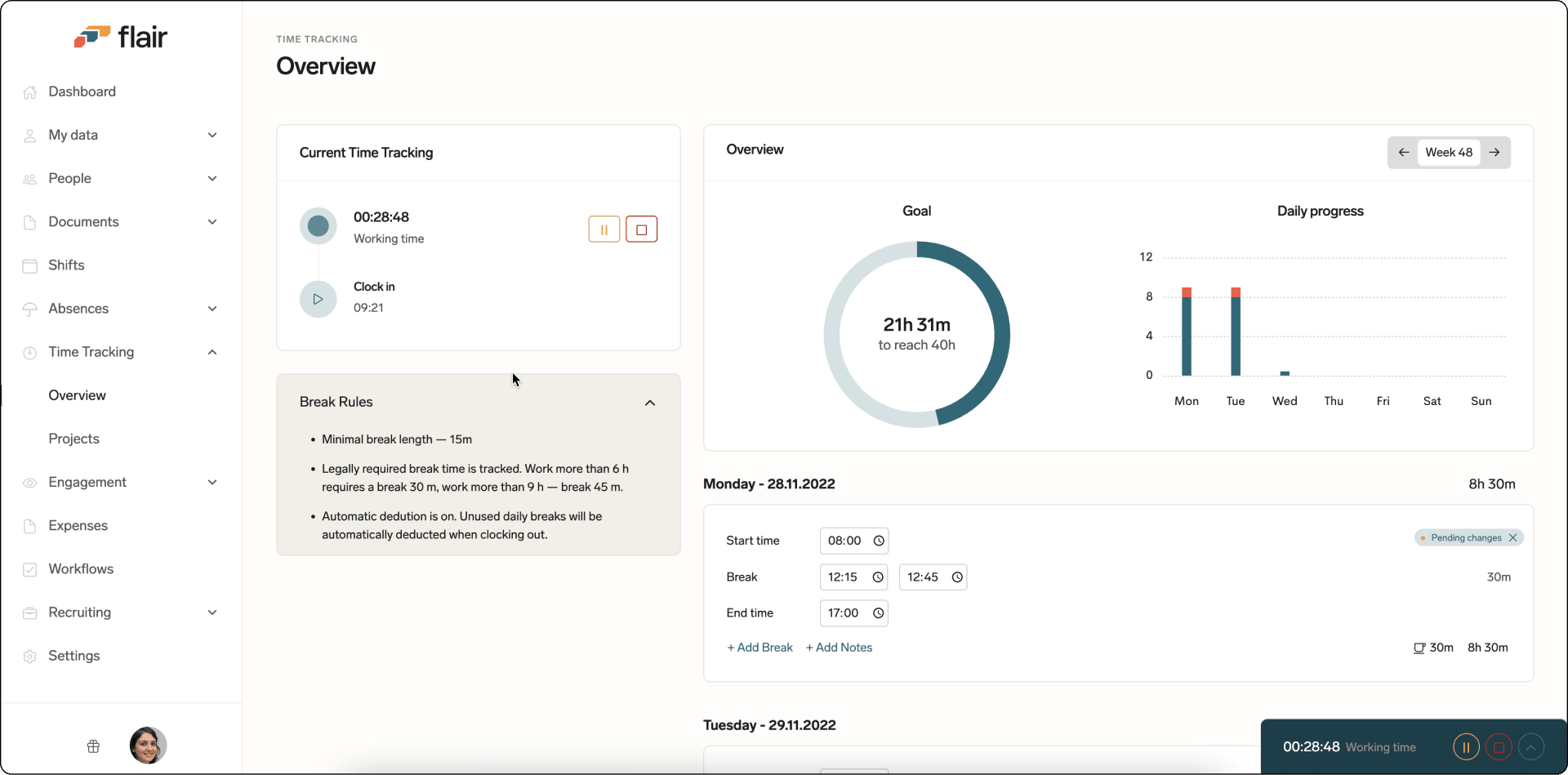
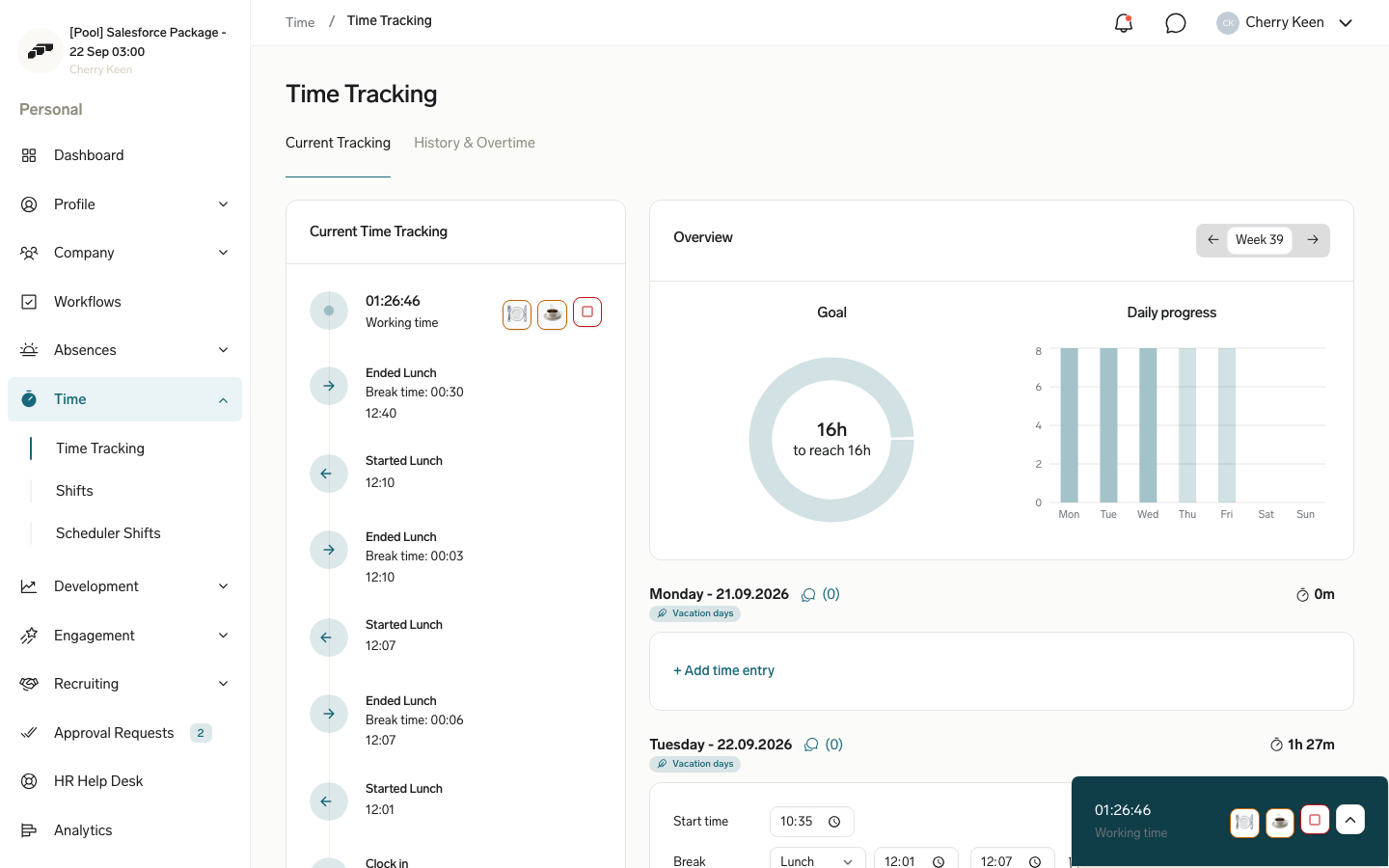
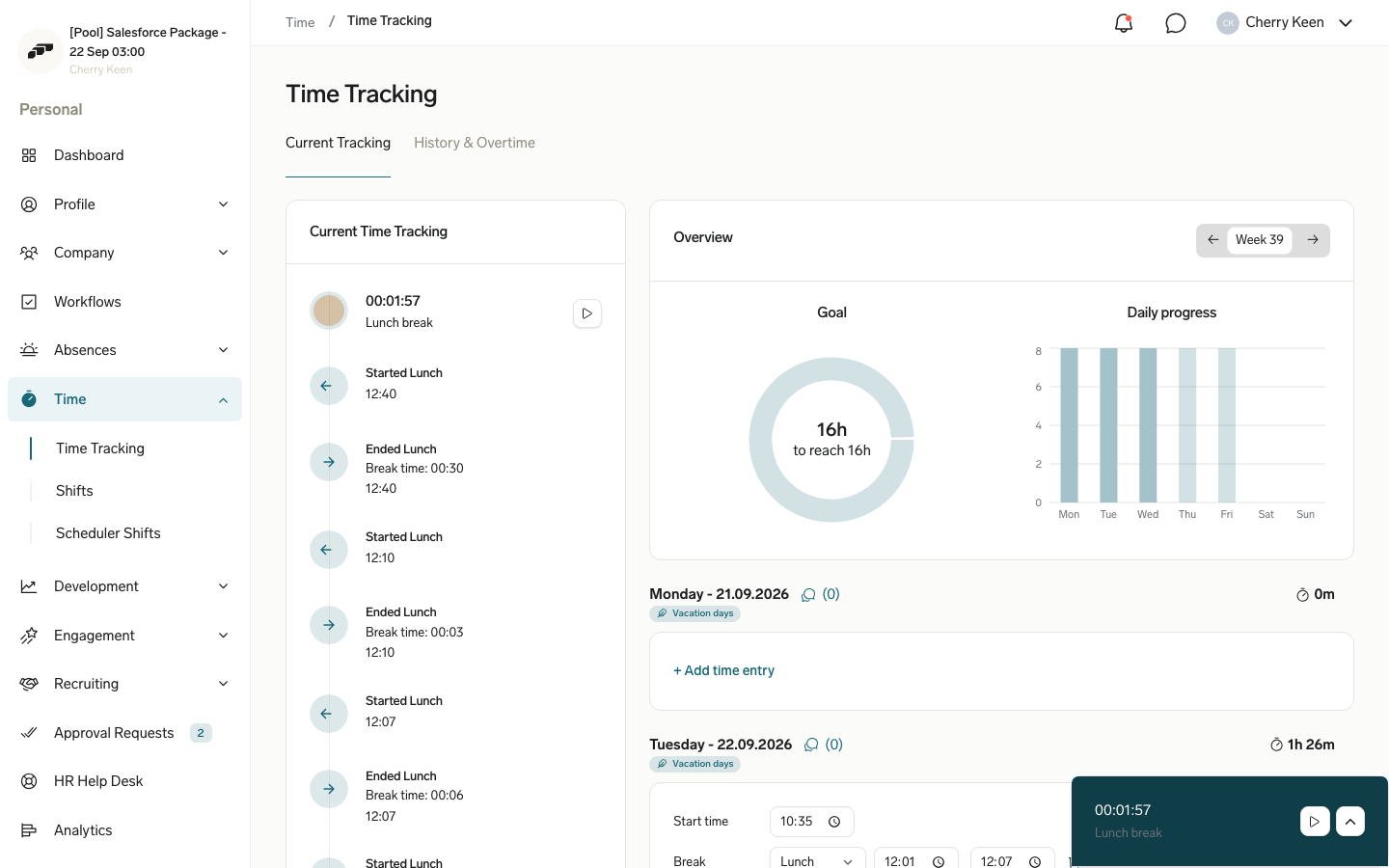
The tracker shows your current status, working time, break time, and expected end time based on your scheduled hours.
Add a missing time entry
- In the Employee Hub, open Time Tracking.
- On the day you want to add time to, click + Add time entry.
- Enter the Start time and End time.
- If the shift ends on a later day, such as an overnight shift, click the calendar icon (Ends on a different day) next to the end time. Then select the end date. The whole shift is saved as one entry.
- To explain the manual entry, click + Add Notes and enter a note.
- Click Save Changes.
What happens next depends on the Can change own time entries setting that your HR admin controls on your employee record:
- If it's off, flair saves the entry as a Change Request, and your manager must approve it.
- If it's on, flair saves the entry directly, without approval.
The same rule applies when you change an existing entry, in the Employee Hub and in the mobile app.
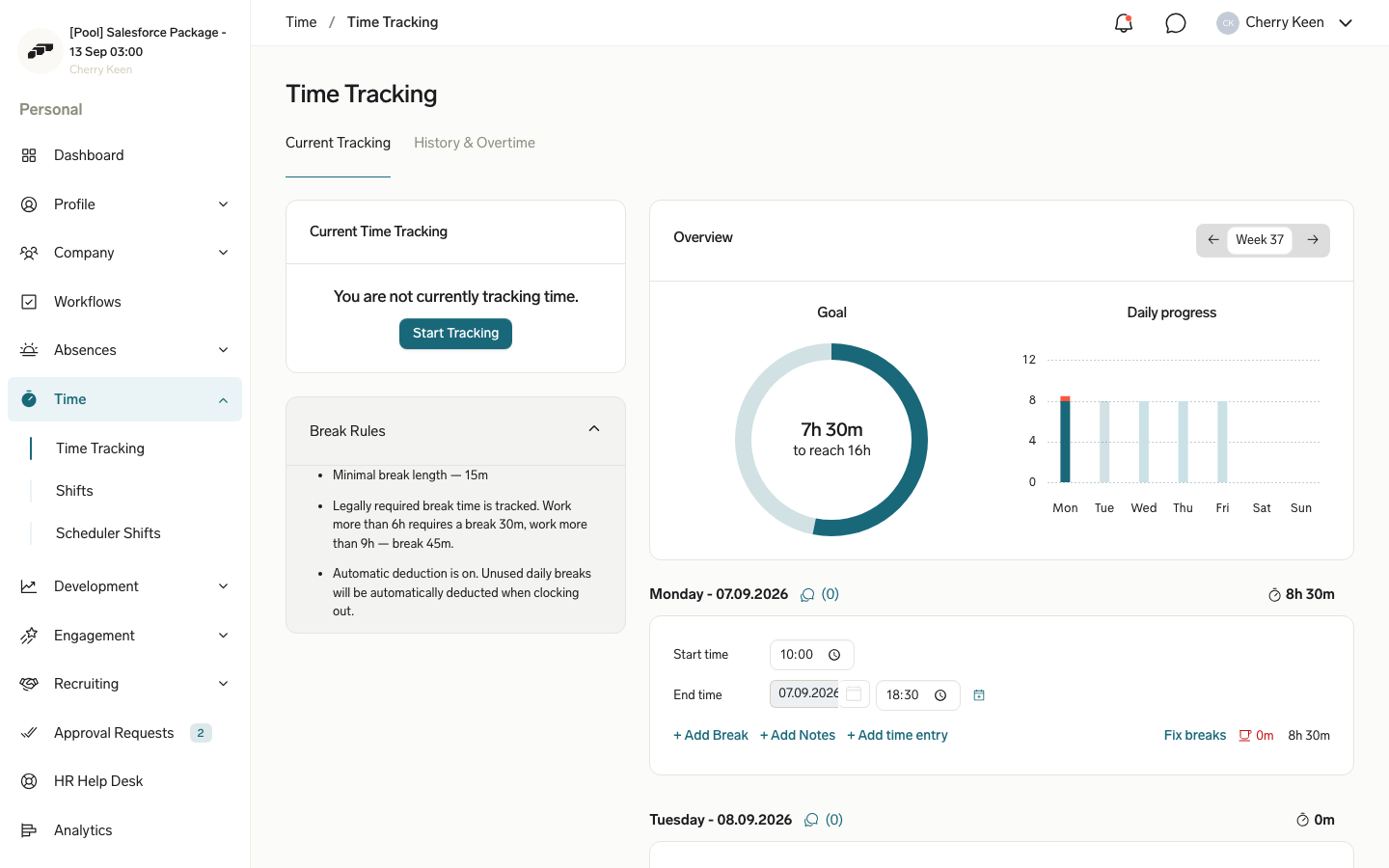
If you click the calendar icon again to turn it off, flair moves the end time and any breaks back to the start day.
To correct an existing entry, edit it the same way. Unless Can change own time entries is on for you, the correction becomes a Change Request for your manager.
Track time in the mobile app
- On the home screen, tap Clock In in the tracker bar. flair begins recording your working time.
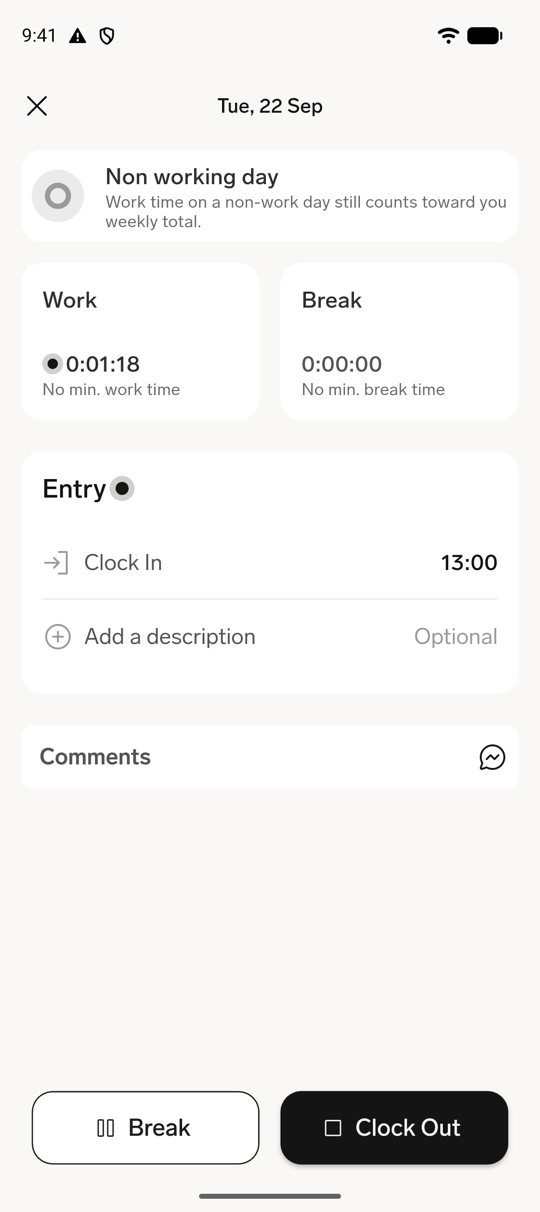
- Tap the tracker bar to open the day, where flair shows your work time, break time, and the entry it is recording.
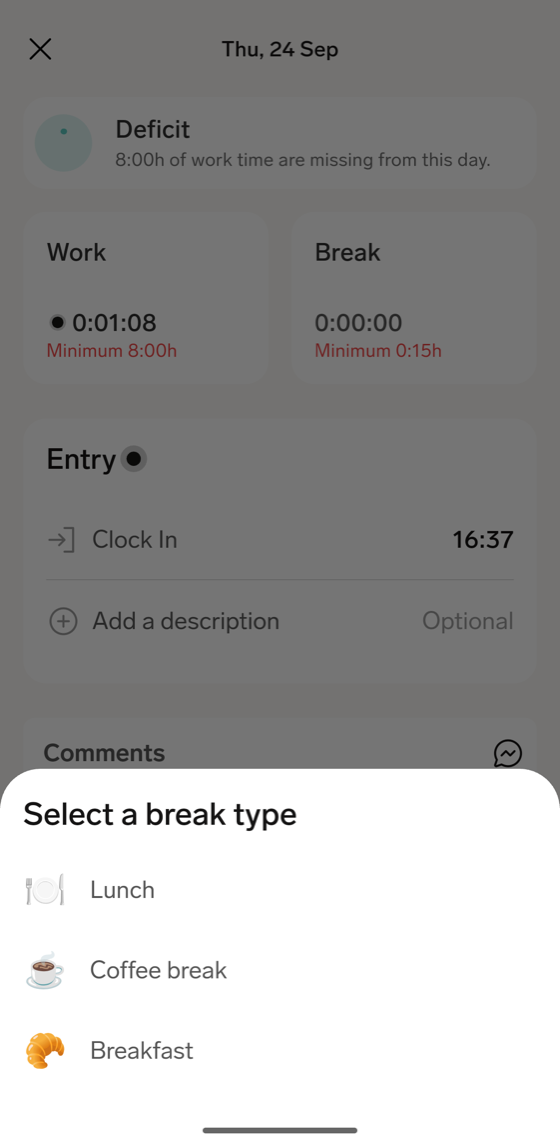
- To start a break, tap Break. If your Time Framework defines more than one break type, select one under Select a break type.
- To resume work, tap End break.
- At the end of the workday, tap Clock Out. When the app asks Are you sure you want to clock out now?, tap Confirm.
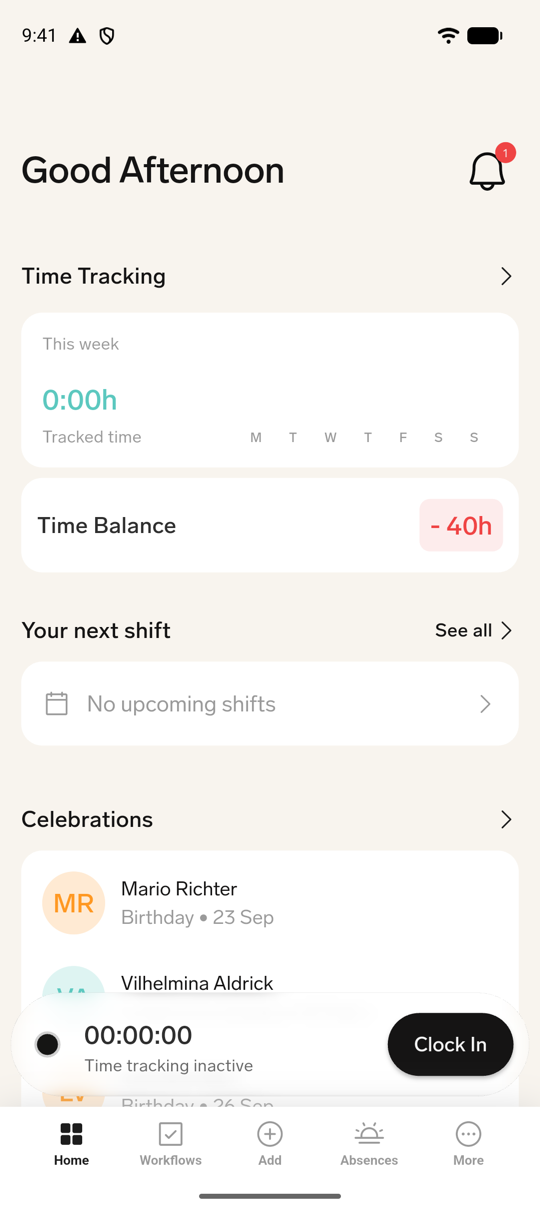
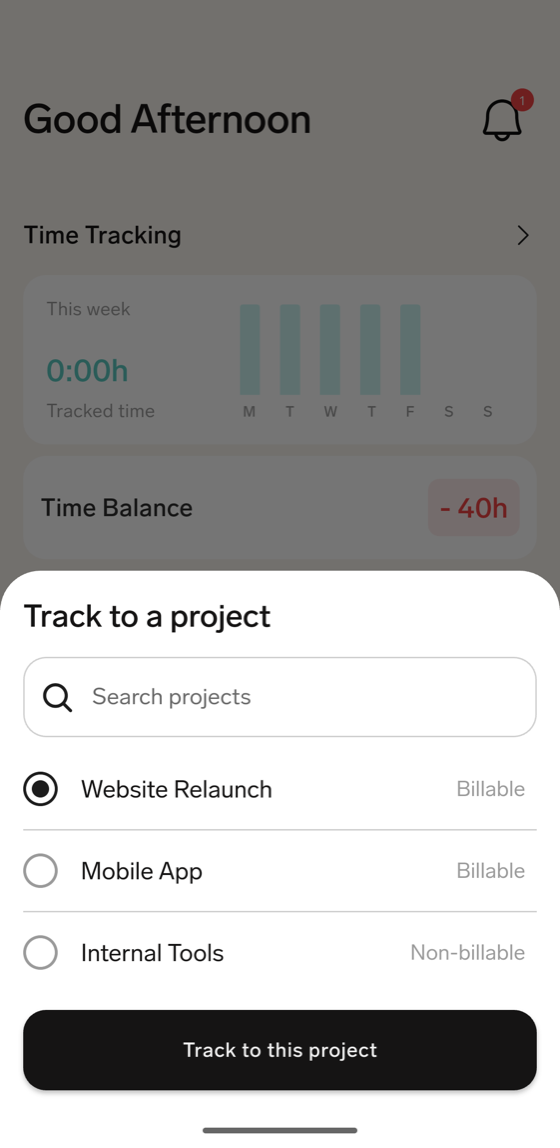
If your workload tracks time on projects, tap + Add project on the running tracker bar, select a project under Track to a project, and tap Track to this project. For details, see Track project time from a running timer.
Add notes when you clock out
If your Time Framework requires notes on clock-out, the app asks for a note before it clocks you out. An admin turns this on in Configure time tracking.
- Tap Clock Out. If your workload also requires a project at clock-out, select the project first. The Clock out sheet opens.
- In Notes, enter a note of up to 160 characters. If the entry already has notes, the field shows them. Confirm stays unavailable while the field is empty.
- Tap Confirm.
- When the app asks Are you sure you want to clock out now?, tap Confirm.
If you close the Clock out sheet without confirming, the app doesn't clock you out, and your time keeps running.
Add or correct a time entry
To add time for a day without an entry:
- On the Time Entries screen, under All days, tap the day.
- On the Entry card, tap the plus icon. The app adds an entry from 10:00 to 17:00.
- Adjust the clock-in and clock-out times, or tap Add new break. If the entry ends on a later day, such as an overnight shift, the clock-out time shows the end date and the number of days later.
- Optional: Tap Add a description, and enter a note.
- Tap Save changes.
To correct an existing entry:
- Open the day you want to change.
- On the Entry card, tap the pencil icon.
- Adjust the clock-in, break, or clock-out times, or tap Add new break.
- Optional: Tap Add a description, and enter a note.
- Tap Save changes.
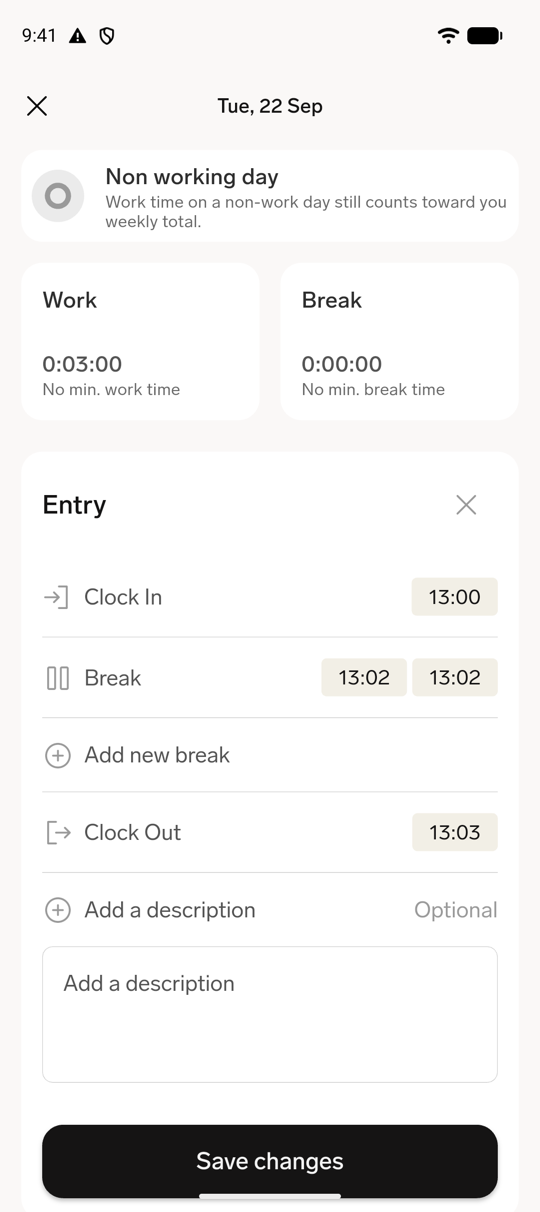
To cancel your edits, tap the close icon on the Entry card. If you changed something, the app asks Discard changes?. Tap Discard to drop the changes or Keep editing to go back.
Whether your change needs approval depends on the Can change own time entries setting on your employee record:
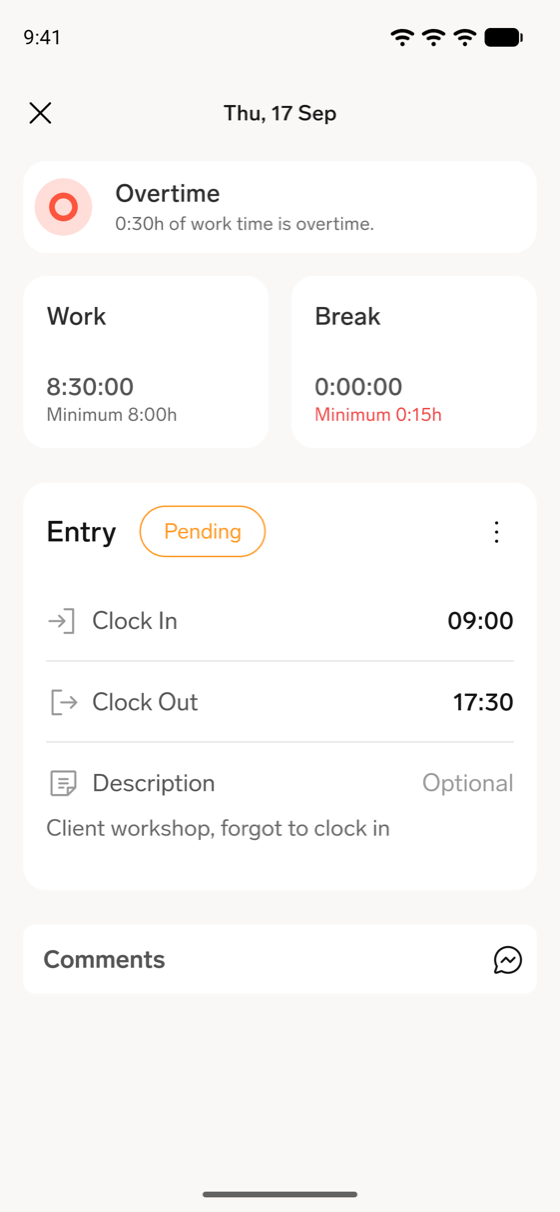
- If it's off, the app sends the new or changed times as a Change Request. The entry shows Pending until your manager approves it. To change or withdraw it, see Edit or delete a pending Change Request in the mobile app. A change to the description alone is saved directly.
- If it's on, the app saves the entry directly, without approval.
You can't edit an entry that is approved, locked, or included in a completed payroll. While your time tracker runs, today's entry is read-only.
Review your time entries
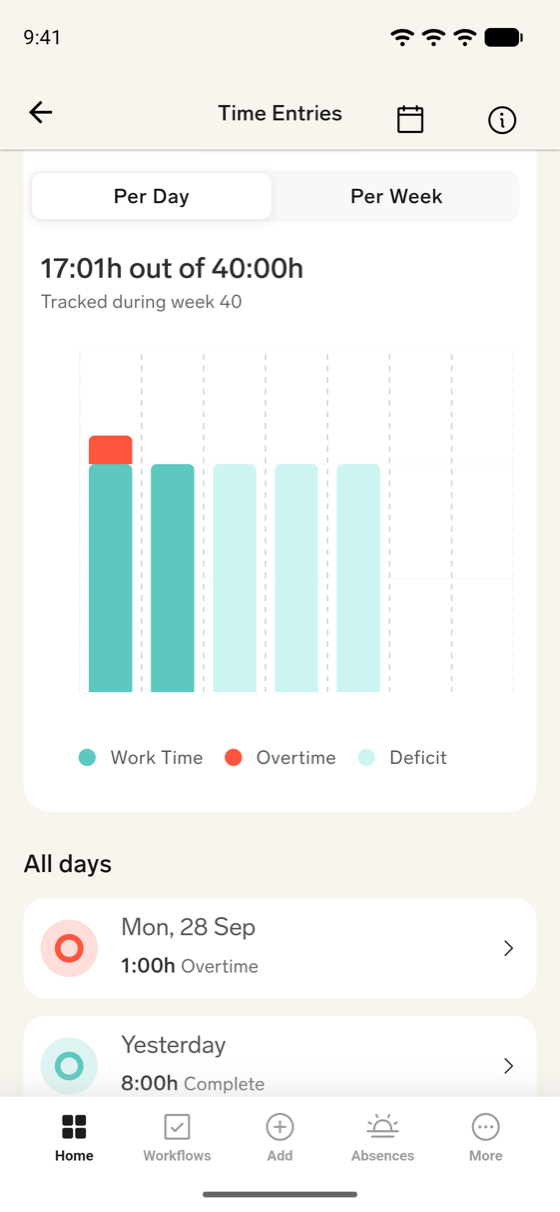
The Time Entries screen shows your current timesheet. To open it, tap Time Tracking on the home screen. If you have no active timesheet, the screen shows There is no active timesheet.
The Overview card summarizes the period:
- Your tracked time against the target, for example 32:00 out of 40:00, and Tracked during week or Tracked during a month, depending on your workload.
- A chart. Per Day shows each day's work time, overtime, and deficit. Per Week or Per Month shows the period total as work time, deficit, and overtime.
- Arrows to move to the previous or next timesheet. To jump to a date, tap the calendar icon in the top-right corner.
Under All days, each day shows a status. A complete day shows its tracked time; a day with overtime or a deficit shows that amount instead:
| Status | What it means |
|---|---|
| Complete | Your tracked time matches the day's target. |
| Overtime | You tracked more than the day's target. |
| Below target time | You tracked less than the day's target. |
| Non working day | The day has no target time. |
| Ongoing | Your time tracker is running on that day. |
A day with an absence shows the absence category instead.
Tap a day to open it. The top of the day shows Complete day, Deficit with the missing time, Overtime with the extra time, or Non working day. Below it, the Work and Break boxes show your tracked time and the minimum from your workload, or No min. work time and No min. break time when there is none.
If you're a manager, the screen also shows Team time tracking. See Review timesheets and Change Requests.
Control tracking from the lock screen on iOS
On iOS 16 or later, the app shows your running time tracker as a Live Activity on the lock screen and in the Dynamic Island. It appears when you clock in from the tracker bar on the home screen and disappears when you clock out.
The Live Activity shows Work Time or Break time, a running timer, and these controls:
- While you work, tap the pause button to start a break. The app doesn't ask you to pick a break type; it uses your default break type, if there is one.
- While you work, tap the stop button to clock out. The app opens and runs the usual clock-out steps, including a required project or note and the confirmation.
- During a break, tap End break. If your Time Framework blocks ending breaks early, the app asks you to confirm, as described in End a break early.
End a break early
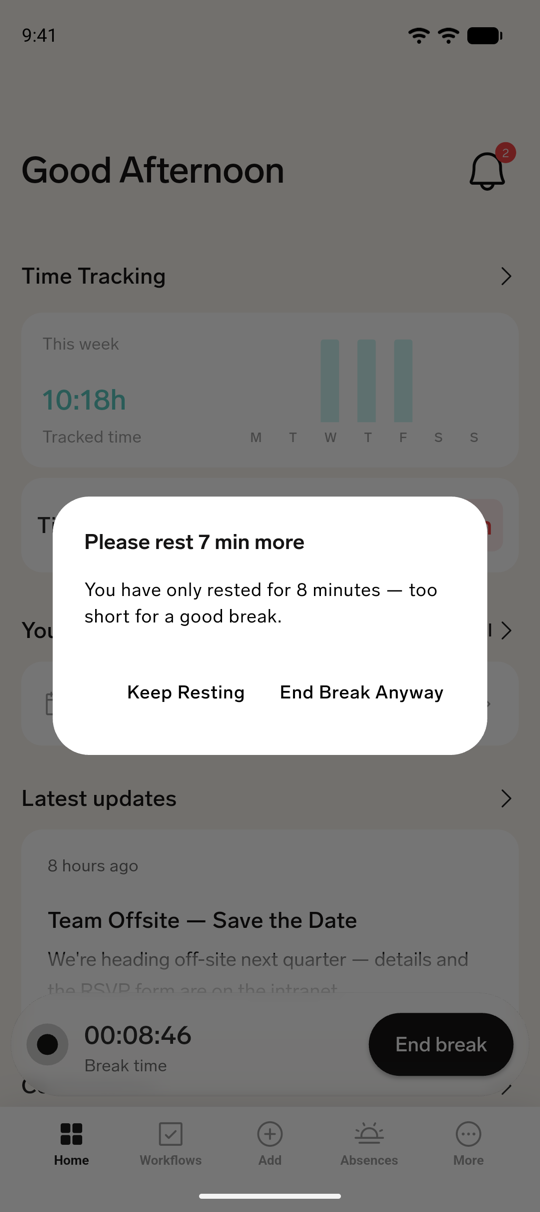
If your Time Framework blocks ending breaks early, the app asks you to confirm when you tap End break too soon:
- If your break is shorter than the minimal break length, a dialog asks you to rest for the remaining minutes and shows how long you have rested so far.
- If you are inside a break scheduled in your workload, the dialog Your break is going on shows the scheduled break time and the minutes left.
To keep the break running, tap Keep Resting. To end it anyway, tap End Break Anyway.
Check your break rules
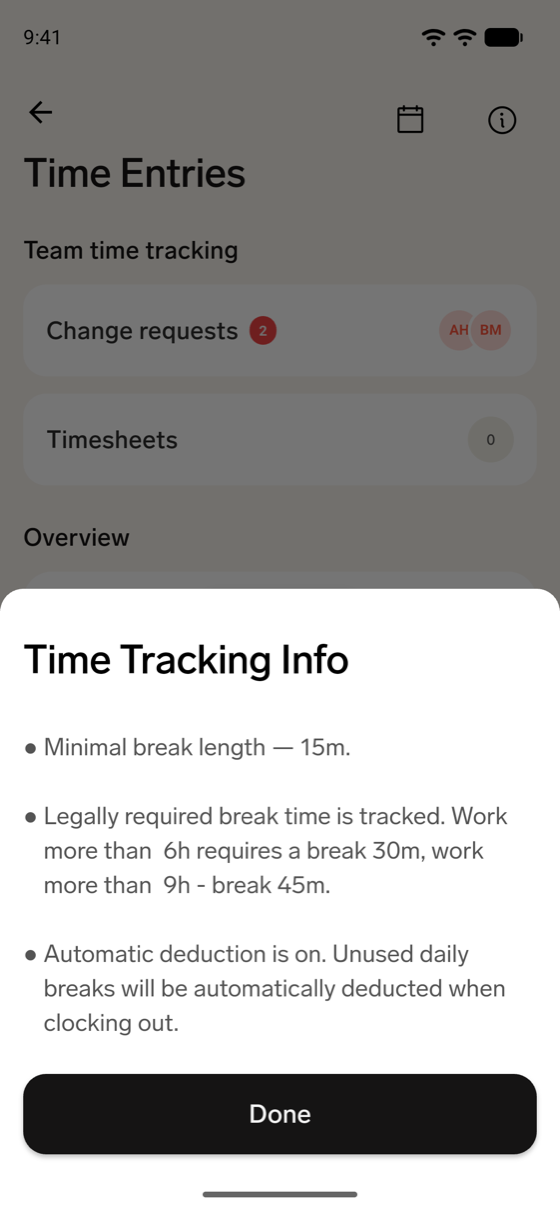
- On the home screen, tap Time Tracking. The Time Entries screen opens.
- Tap the info icon in the top-right corner. The Time Tracking Info sheet opens.
- Review the rules from your Time Framework: the minimal break length, the break time legally required after a set working time, and whether flair deducts unused break time automatically when you clock out.
- Tap Done.
If you have no Time Framework, the sheet says that no break rules are defined in your organization.
Track time without an internet connection
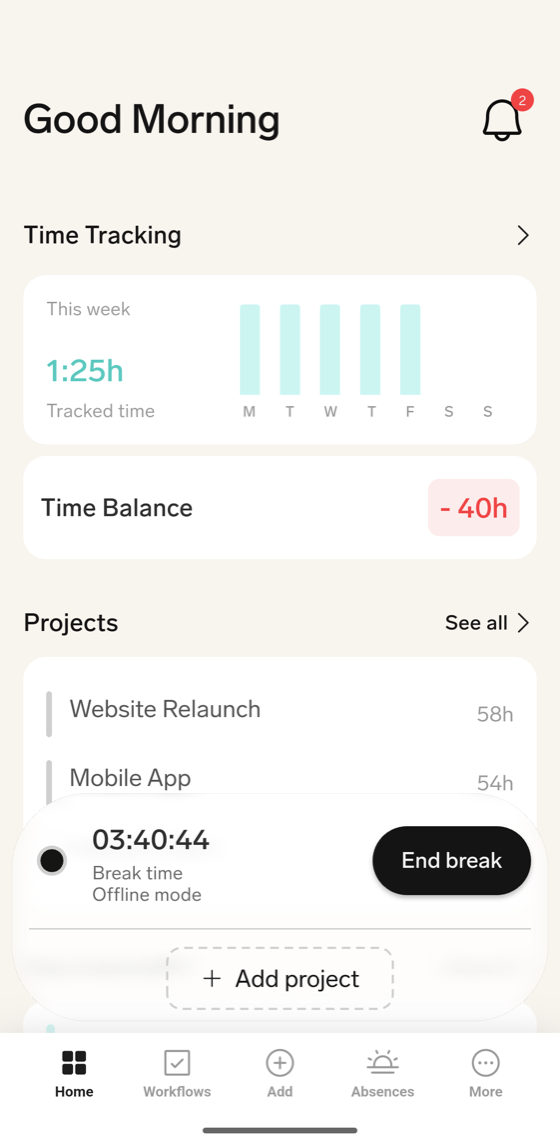
The mobile app keeps tracking your time when your device loses its connection. If you have signed in on the device before, the app also opens without a connection.
While you're offline:
- The tracker bar on the home screen shows Offline mode under its status.
- Clock in, breaks, and clock out work as usual. The app stores them on your device.
- Your days and timesheets don't load until you reconnect.
When the connection returns, the app sends the stored entries to flair and shows one of these messages:
| Message | What it means |
|---|---|
| TimeTracking data has been successfully synced. | flair saved your offline entries. |
| Offline sync failed for now. We will do it later. | The app couldn't send the entries after several attempts. The entries stay on your device, and the app tries again the next time your connection returns. |
Track time in Slack
Use these flair commands when your organization has connected Slack:
| Command | Action |
|---|---|
/flair clock-in | Start the workday. |
/flair break | Start or end a break. |
/flair clock-out | End the workday. |
/flair status | Check the current tracking status. |
Time recorded in Slack syncs with your flair account.
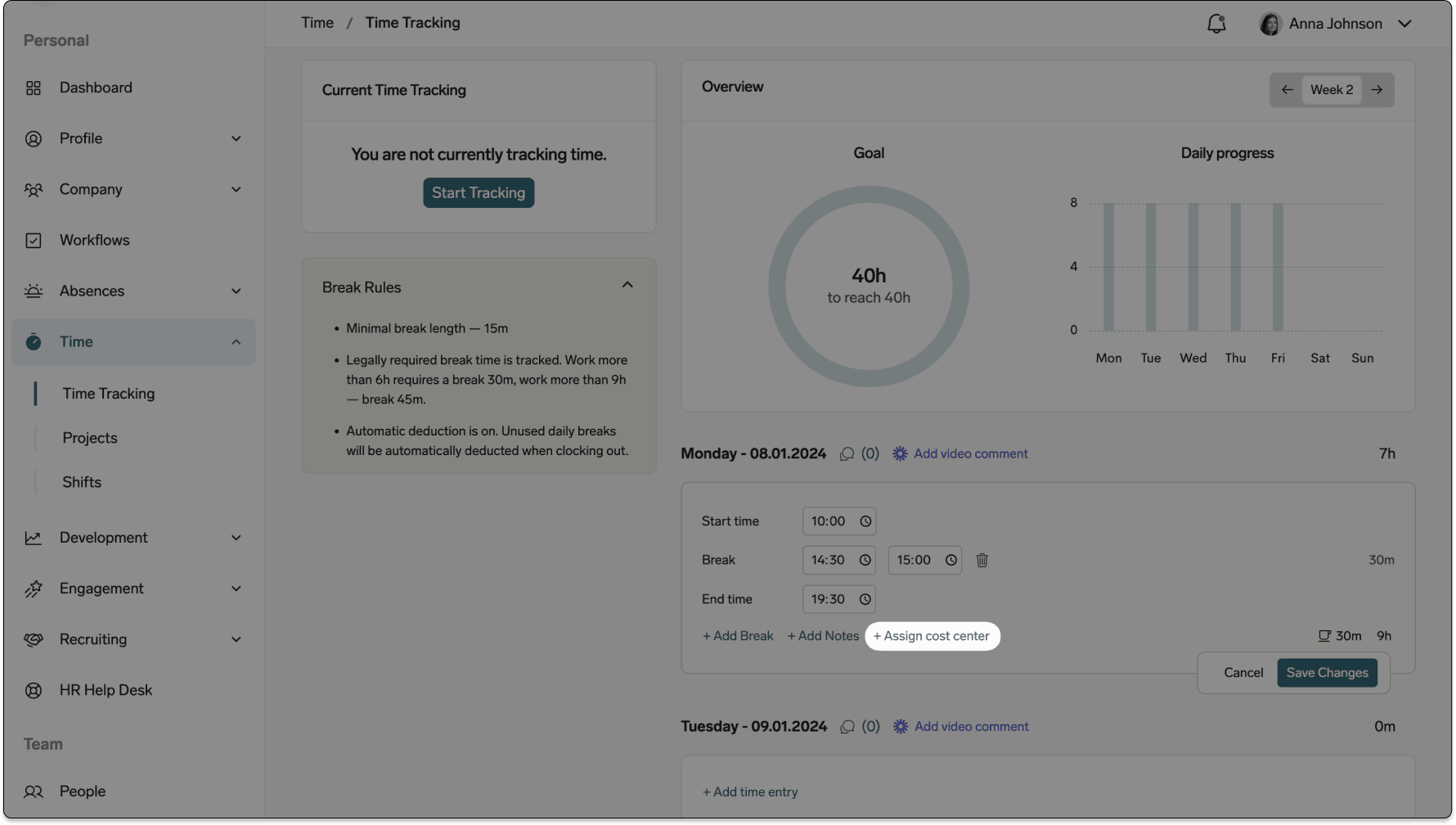
Assign a cost center
- In the Employee Hub, add or edit a time entry.
- Click Assign Cost Center.
- Select the cost center.
- Click Save.
Understand tracking restrictions
flair can block a clock-in during an approved absence. If an auto-tracking flow skips a day with an absence and you worked that day, add the entry manually.
You can create entries only within your active workload dates. If the selected date is outside that range, flair shows a warning and does not create the entry.
Your Time Framework can also restrict daily hours, future entries, retroactive entries, and minimum rest periods. When a limit blocks an action, the notification explains the applicable restriction.
If you clock in before your minimum rest period has passed, your company decides what happens. Either flair blocks the clock-in, or it lets you clock in and records a warning. The Employee Hub and the kiosk then show the required rest, and flair can also notify you, your manager, or a team. See Enforce a minimum rest period.