Configure Extra Form Fields
Use Extra Form Fields to add custom Salesforce fields to existing Employee Hub forms. Configure each field with flair__Extra_Form_Field__mdt without replacing the form's default field set.
Salesforce Admins who manage fields and the Flair Extra Form Field custom metadata type in Salesforce Setup. Employees see the fields in the Employee Hub.
Before you begin
- Create the custom field on the target Salesforce object.
- Record the object's API name and the field's API name.
- Identify the form ID if the field should appear in one form only.
Review supported forms
| Form | Form ID |
|---|---|
| Absence Request Form | flair__Absence__c.RequestAbsence |
| Absence Manager Details | flair__Absence__c.ManagerDetails |
| Expense Request Form | flair__Expense__c.RequestExpense |
| Expense Details | flair__Expense__c.Details |
| Expense Item Request Form | flair__Expense_Item__c.RequestExpenseItem |
| Project User Details | flair__Project__c.UserDetails |
| Project Manager Details | flair__Project__c.ManagerDetails |
| Projects Time Entry Edit | flair__Project_Time_Entry__c.Edit |
| Employee details panel | flair__Employee__c.DirectoryDetails |
| Certificate form | flair__Certificate_Association__c.Save |
| Inventory item details | flair__Inventory_Item__c.Details |
| Time entry form | flair__Time_Entry__c.Edit |
| Time entry form, manager-only fields | flair__Time_Entry__c.ManagerDetails |
| Time entry change request form | flair__Time_Entry_Change_Request__c.Edit |
| Time entry change request form, manager-only fields | flair__Time_Entry_Change_Request__c.ManagerDetails |
| New ticket form | flair__Ticket__c.CreateTicket |
| Ticket details | flair__Ticket__c.Details |
| Shift side panel | flair__Shift__c.Details |
| Candidate details | flair__Candidate__c.EvaluationForm |
| Approval request details | Object API name.ApprovalDetails, such as flair__Absence__c.ApprovalDetails |
| Absence category form in Salesforce | flair__Absence_Category__c.Edit |
Candidate details and approval request details show field values but do not let anyone edit them. For approval request details, use the API name of the object the approval request belongs to.
The absence category form runs in Salesforce, not the Employee Hub. Visibility Condition and Lookup SOQL Filter have no effect there, and Required has no effect on checkbox fields.
For time entries, see Configure time entry fields.
Supported Salesforce field types are Text Area, Long Text Area, Date, Time, DateTime, Picklist, Lookup Reference, and Number.
Create an Extra Form Field
- In Salesforce Setup, enter
Custom Metadata Typesin Quick Find. - Open Custom Metadata Types.
- Next to Flair Extra Form Field, click Manage Records.
- Click New.
- In Object API Name, enter the target object, such as
flair__Expense__corflair__Absence__c. - In Field API Name, enter the field to display, such as
flair__Amount__corflair__Description__c. - Configure any optional settings in Review Extra Form Field settings.
- Click Save.
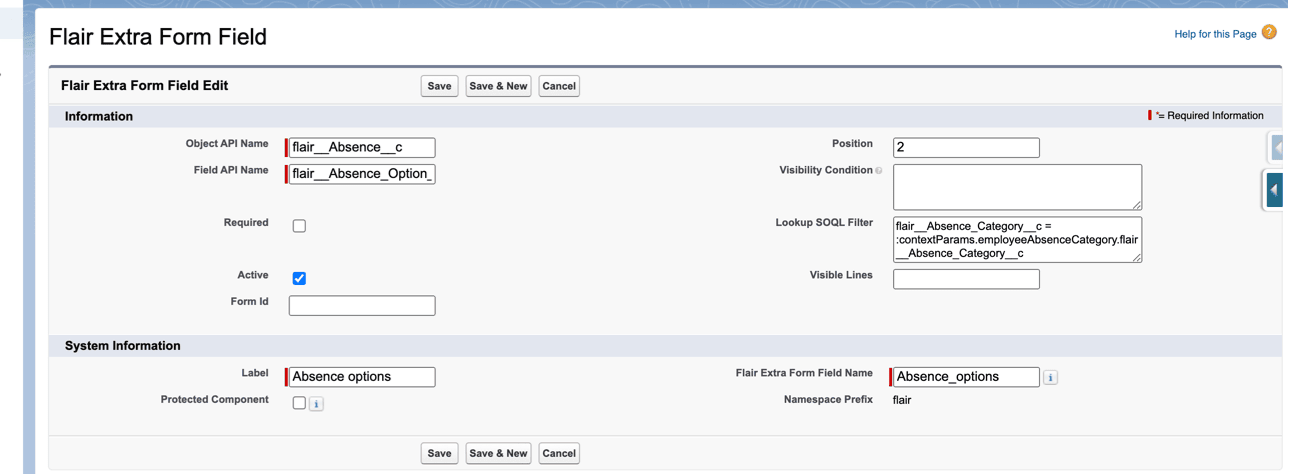
Review Extra Form Field settings
| Setting | What it does |
|---|---|
| Object API Name | Identifies the Salesforce object. This setting is required. |
| Field API Name | Identifies the custom field to display. This setting is required. |
| Required | Makes the field required in the Employee Hub form even when Salesforce does not require it. |
| Active | Shows the field. Clear it to hide the field without deleting the metadata record. |
| Form Id | Limits the field to one form. Leave it empty to show the field in every supported form for the object. |
| Position | Sets the display order. Lower numbers appear first. |
| Visibility Condition | Stores the JSON condition that controls when the field appears. |
| Lookup SOQL Filter | Stores a SOQL WHERE clause that filters lookup options. |
| Visible Lines | Sets the number of visible lines for a multiline Text Area. |
Configure a visibility condition
Visibility conditions use JSON criteria similar to MongoDB query syntax. They can read form values, record types, or context parameters.
Show a field for one record type
Use the Record Type Name API name, not the label:
{
  "$formValues.recordTypeName": "Travel_Expense"
}
Show a field for one absence category
{
  "$contextParams.absenceCategoryName": "Sickness"
}
Hide a field for selected values
{
  "$contextParams.absenceCategoryName": {"$ne": ["Sickness", "Home Leave"]}
}
Combine conditions
Use $or for either record type:
{
  "$or": [
    { "$formValues.recordTypeName": "Travel_Expense" },
    { "$formValues.recordTypeName": "Default_Expense" }
  ]
}
Use $or and $and for nested logic:
{
  "$or": [
    { "$formValues.recordTypeName": "Travel_Expense" },
    {
      "$and": [
        { "$contextParams.absenceCategoryName": { "$ne": ["Sickness", "Home Leave"] } },
        { "$formValues.recordTypeName": "Default_Expense" }
      ]
    }
  ]
}
The condition supports these operators and keys:
| Operator or key | What it does |
|---|---|
$eq | Tests equality. This is the default when no operator is present. |
$ne | Tests inequality. |
$or | Passes when one nested condition passes. |
$and | Passes when every nested condition passes. |
$formValues.recordTypeName | Reads the Record Type Name API name. |
$contextParams.absenceCategoryName | Reads the absence category in the Absence Request Form. |
$contextParams.employeeAbsenceCategory | Reads the employee absence category in the Absence Request Form. |
$contextParams.day | Reads the day in Projects Time Entry Edit. |
$contextParams.project | Reads the project in Projects Time Entry Edit. |
$contextParams.employee | Reads the employee in Projects Time Entry Edit. |
Configure a lookup filter
For a Lookup Reference field, enter a SOQL WHERE clause in Lookup SOQL Filter.
Filter employees by manager
flair__Manager__c = :currentEmployee.Manager__c
Filter with a context parameter
Absence_Category__c = :contextParams.employeeAbsenceCategory.flair__Absence_Category__c
Filter with LIKE
flair__Manager__r.Name LIKE '%:currentEmployee.flair__First_Name__c%'
Combine lookup criteria
Ensurance_Number__c LIKE ':currentEmployee.Ensurance_Number__c%'
AND Some_Employee__c = :currentEmployee.flair__Manager__r.flair__Manager__c
Lookup filters support these dynamic parameters:
| Parameter | What it references |
|---|---|
:currentEmployee | The current employee record, such as :currentEmployee.flair__First_Name__c or :currentEmployee.Manager__c. |
:contextParams | Values passed to the form, such as :contextParams.employeeAbsenceCategory.flair__Absence_Category__c. |
Configure time entry fields
Time entry changes that need approval are stored as time entry change requests (flair__Time_Entry_Change_Request__c) until they are approved. A time entry field therefore needs to exist on both objects.
Add a field to time entry forms
- In Salesforce Setup, create the custom field on
flair__Time_Entry__c. - Create a field with the same API name on
flair__Time_Entry_Change_Request__c. For a picklist, use the same values. - Grant the Employee Hub integration user access to the field on both objects.
- Create an Extra Form Field with Object API Name set to
flair__Time_Entry__c. - In Field API Name, enter the field's API name.
- Optional: In Form Id, enter a time entry form ID. Leave it empty to show the field in every time entry form.
- Click Save.
You only need the record on flair__Time_Entry__c. flair applies it to the matching change request form, as long as the change request object has the field. When a change request is approved, the value is copied to the time entry, including an empty one — if the field is left blank on the change request, approval clears it on the time entry.
To configure the change request form differently, create a separate record with Object API Name set to flair__Time_Entry_Change_Request__c, the same field, and the same Form Id. That record replaces the copied one. A record that exists only on flair__Time_Entry_Change_Request__c is not applied to flair__Time_Entry__c forms, and its value is not copied to the time entry on approval.
Show a field to managers only
Set Form Id to a ManagerDetails form ID to show a field only when a manager opens an employee's time entry from a manager view:
| Form Id | Who sees the field |
|---|---|
flair__Time_Entry__c.Edit | Employees and managers |
flair__Time_Entry__c.ManagerDetails | Managers |
flair__Time_Entry_Change_Request__c.Edit | Employees and managers |
flair__Time_Entry_Change_Request__c.ManagerDetails | Managers reviewing a change request, read-only |
When you configure manager-only fields, keep these rules in mind:
- A record with an empty Form Id shows the field in every time entry form, including the employee's. Enter the
ManagerDetailsform ID explicitly. - An employee with Can change own time entries selected edits their own entries in the same form but does not see
ManagerDetailsfields. - Managers see the
Editfields and theManagerDetailsfields together. When the same field has a record for both, theManagerDetailsrecord applies. - Extra fields are read-only while a manager reviews a change request. For a field managers fill in, use
flair__Time_Entry__c.ManagerDetails. - A
flair__Time_Entry__c.ManagerDetailsrecord also applies toflair__Time_Entry_Change_Request__c.ManagerDetailswhen the change request object has the field.
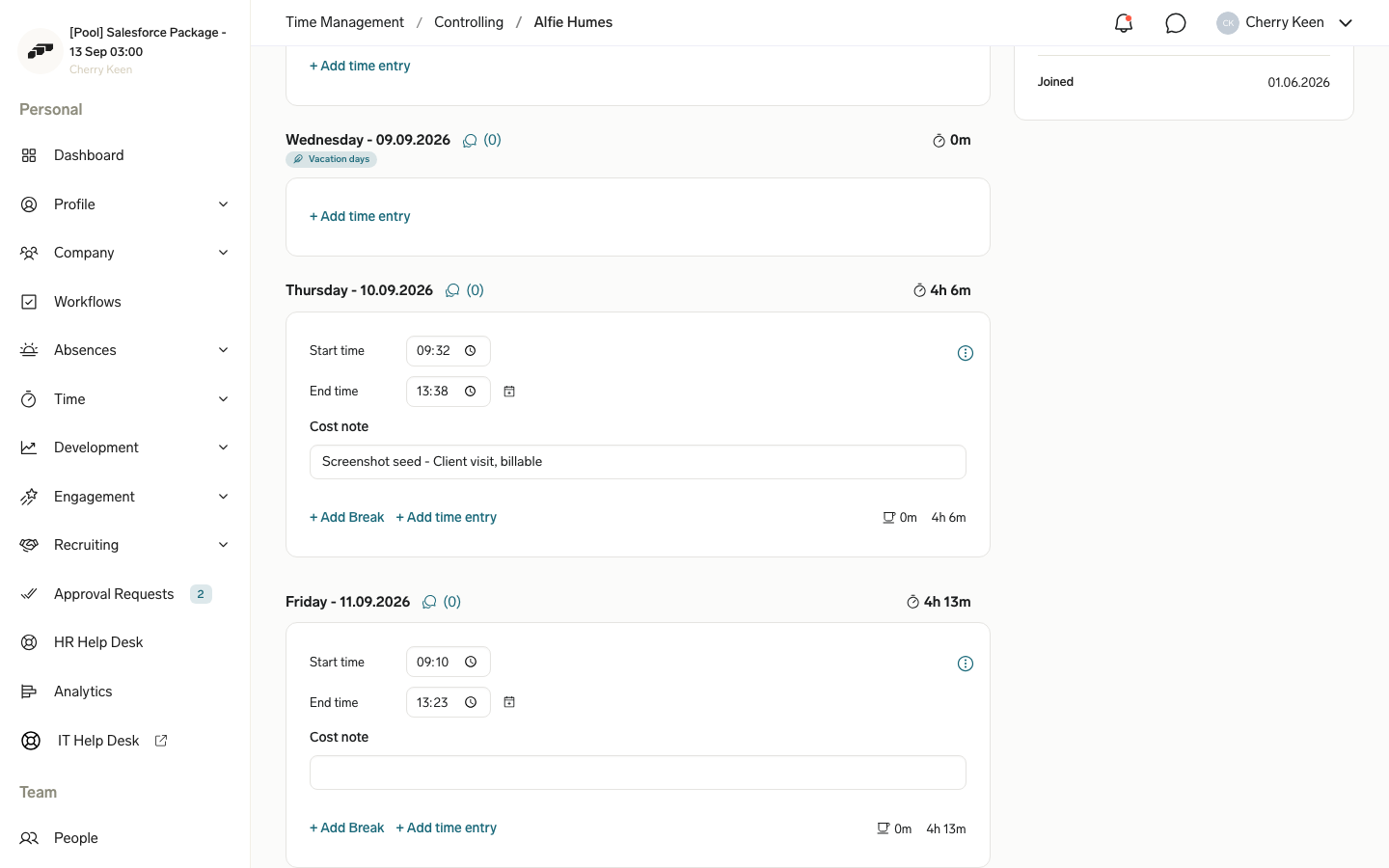
Manager-only fields are hidden in Employee Hub time entry forms only. They are not a Salesforce security setting: the value is stored on the time entry like any other field. Don't use them for data employees must never see.
Configure common field patterns
Show a medical certificate field for sickness
-
On
flair__Absence__c, createflair__Medical_Certificate_ID__c. -
Create an Extra Form Field with Object API Name set to
flair__Absence__c. -
Set Field API Name to
flair__Medical_Certificate_ID__c. -
Set Form Id to
flair__Absence__c.RequestAbsence. -
Enter this Visibility Condition:
{
  "$contextParams.absenceCategoryName": "Sickness"
} -
Click Save.
Filter an expense allowance by employee
-
On
flair__Expense__c, create the lookup fieldflair__Expense_Allowance__c. -
Create an Extra Form Field with Object API Name set to
flair__Expense__c. -
Set Field API Name to
flair__Expense_Allowance__c. -
Enter this Lookup SOQL Filter:
flair__Employee__c = :currentEmployee.Id -
Click Save.
Show a field for travel expenses
-
On
flair__Expense__c, createflair__Flight_Number__c. -
Create an Extra Form Field with Object API Name set to
flair__Expense__c. -
Set Field API Name to
flair__Flight_Number__c. -
Enter this Visibility Condition:
{
  "$formValues.recordTypeName": "Travel_Expense"
} -
Click Save.
Configure fields with inline JSON
Instead of custom metadata records, an object-level text field such as flair__Request_Form__c.flair__Extra_Fields_Config__c can store an array. Each item is a field API name or an object with field options.
Use an array of field names for a basic configuration:
["Name", "flair__Description__c"]
Add options to a field object:
["Name", {"flair__Description__c": {"visibleLines": 10}}]
Add a lookup filter:
["Name", {"Take_Over_Employee__c": {"lookupSOQLFilter": "flair__Manager__c = :currentEmployee.flair__Manager__c"}}]
Add a visibility condition:
["Name", {"flair__Usa_Notes__c": {"visibilityCondition": {"$formValues.recordTypeName": "Usa"}}}]
Inline JSON supports these options:
| Option | Type | What it does |
|---|---|---|
position | number | Sets the display order. |
required | boolean | Overrides the Salesforce required-field property. |
visibleLines | number | Sets the number of lines for multiline Text Areas. |
visibilityCondition | string or object | Sets a JSON visibility condition. |
lookupSOQLFilter | string | Sets a SOQL WHERE clause for a lookup. |
Advanced configurations also support fieldApiName, objectApiName, formId, and active.
Troubleshooting
A field does not appear
- Confirm that Active is selected.
- Confirm that Object API Name and Field API Name use API names, not labels.
- Confirm that the field exists on the Salesforce object.
- Validate the JSON in Visibility Condition.
- Confirm that Form Id matches the displayed form.
A lookup filter does not work
- Validate the SOQL syntax.
- Confirm that
:currentEmployeeand:contextParamsmatch the supported parameter names exactly. - Confirm that every referenced field exists.
- Test the SOQL query in Salesforce Developer Console.
A visibility condition does not work
- Validate the JSON syntax.
- Confirm that the record type value is the API name, not the label.
- Confirm that the selected form supplies the context parameter.
- Test one condition before adding nested logic.