Configure Extra Table Fields
Use Extra Table Fields to define the complete column structure for supported Employee Hub tables, and the filters employees can use above them. Configure each column and filter with flair__Extra_Table_Field__mdt.
Salesforce Admins who manage fields and the Flair Extra Table Field custom metadata type in Salesforce Setup. Employees see the columns and filters in the Employee Hub.
Before you begin
- Create the Salesforce field before adding it as a table column or filter, unless you use a supported
$customcolumn. - Record the object's API name and the field's API name.
- Identify the table ID when the column or filter should appear in one table only.
- Grant the Employee Hub integration user read access to any field you add, and for a filter also to the object it looks up and that object's Name field. A field you created yourself is not in the packaged Flair Hub permission set.
Review supported tables
| Table | Table ID |
|---|---|
| My Absences | flair__Absence__c.MyAbsences |
| Manager Absences | flair__Absence__c.ManagerAbsences |
| My Expenses | flair__Expense__c.MyExpenses |
| Manager Expenses | flair__Expense__c.ManagerExpenses |
| Directory | flair__Employee__c.Directory |
| Time Tracking History & Overtime (employee) | flair__Time_Entry__c.HistoryEmployee |
| Time Management timesheets (manager) | flair__Time_Entry__c.ControllingManager |
The two time-entry tables behave differently from the others: their columns are off by default. Each person turns them on per table with the gear icon above the table, under Customize columns. Values are shown per day, so when a day has several time entries the distinct values are listed together in one cell.
Create an Extra Table Field
-
In Salesforce Setup, enter
Custom Metadata Typesin Quick Find. -
Open Custom Metadata Types.
-
Next to Flair Extra Table Field, click Manage Records.
-
Optional: Under View, filter the existing records by object, such as
AbsenceorExpense.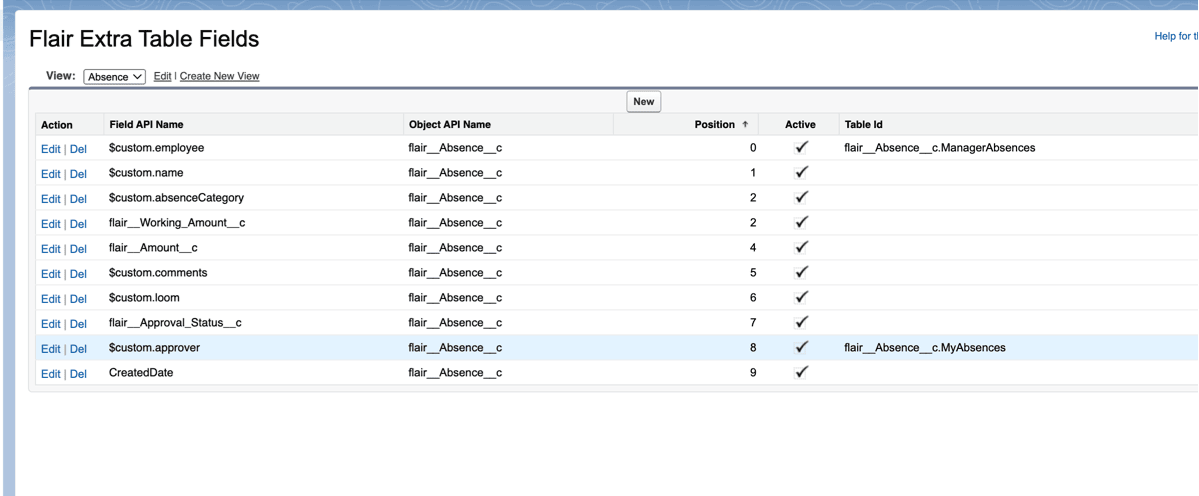
-
Click New.
-
In Object API Name, enter the target object, such as
flair__Absence__corflair__Expense__c. -
In Field API Name, enter the field or supported
$customcolumn. -
Configure any optional settings in Review Extra Table Field settings.
-
Click Save.
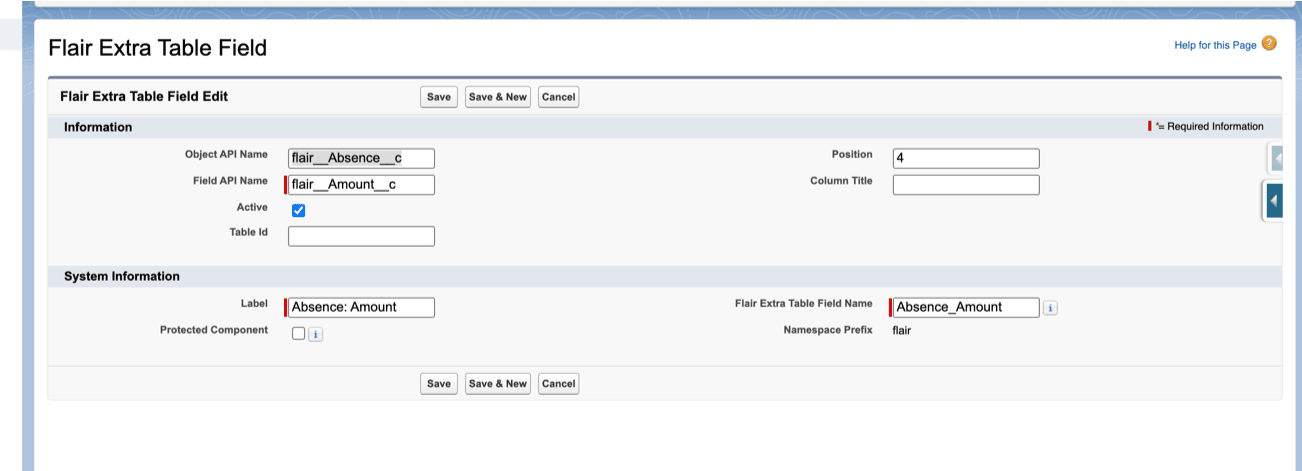
Review Extra Table Field settings
| Setting | What it does |
|---|---|
| Object API Name | Identifies the Salesforce object. This setting is required. |
| Field API Name | Identifies the field or $custom value to display. This setting is required. |
| Filter | Offers the field as a filter above the table instead of as a column. Only lookup fields can be filtered. |
| Active | Shows the column or filter. Clear it to hide it without deleting the metadata record. |
| Table Id | Limits the column or filter to one table. Leave it empty to show it in every supported table for the object. |
| Position | Sets the left-to-right order. Lower numbers appear first; the typical range is 0 through 9. |
| Column Title | Overrides the field label in the table header, or the placeholder of a filter's dropdown. Leave it empty to use the Salesforce field label. |
Assign a unique Position to each column for predictable ordering. Fields with the same position can appear in an undefined order.
Use a $custom column
$custom columns are computed or special Employee Hub values that do not exist as Salesforce fields.
| Object | Field API Name | Value |
|---|---|---|
| Absence | $custom.name | Absence name or title. |
| Absence | $custom.absenceCategory | Absence category. |
| Absence | $custom.approver | Approver information. |
| Absence | $custom.comments | Comments. |
| Absence | $custom.employee | Employee information. |
| Absence | $custom.loom | Loom video link. |
| Expense | $custom.comments | Comments. |
For example, to show employees in Manager Absences, configure these values:
| Setting | Value |
|---|---|
| Field API Name | $custom.employee |
| Object API Name | flair__Absence__c |
| Table Id | flair__Absence__c.ManagerAbsences |
Configure a filter above a table
A record with Filter selected becomes a dropdown in the table's Filter by: row instead of a column. Employees then narrow the table to the records that field points to.
Field API Name must name a lookup field, because the dropdown offers the records that field references. Any lookup field on the object works, including fields that have never had a filter before, as long as the Employee Hub integration user can read the field and the object it looks up. The dropdown lists the records employees are actually assigned to, so a location nobody is assigned to is not offered.
To let employees filter the Directory by manager, create a record with these values:
| Setting | Value |
|---|---|
| Object API Name | flair__Employee__c |
| Field API Name | flair__Manager__c |
| Table Id | flair__Employee__c.Directory |
| Filter | Selected |
| Position | 4 |
Position orders the filter row from left to right, and Column Title renames a dropdown, so Office can replace the Location field label. Clearing Active removes the dropdown, and a hidden filter stops filtering the table even when its record IDs are still in the page URL.
The same field can be both a column and a filter. Create two records: one with Filter selected, one without.
The Directory is the only table that reads filters today. On any other table, a record with Filter selected has no effect.
Review the Directory filters
flair ships three filters for the Directory, all active, so the filter row looks unchanged until you edit them:
| Filter | Field API Name |
|---|---|
| Location | flair__Location__c |
| Department | flair__Department__c |
| Team | $filter.team |
Team uses $filter.team because team membership lives on flair__Team_Member__c rather than in a field on flair__Employee__c. flair names filters like this one, so you can hide, reorder, and rename them, but you cannot create new ones. Organizations that do not use teams clear Active on this record.
A dropdown appears whenever its record is active, even when there is nothing to choose from. Clearing Active on every filter of a table removes the whole Filter by: row, including Clear Filters. The table and its search box keep working.
Configure columns for specific tables
Use Table Id when two tables of the same object need different columns, such as My Absences and Manager Absences, or the employee History & Overtime and manager Time Management timesheets.
For My Absences, create a record with these values:
| Setting | Value |
|---|---|
| Object API Name | flair__Absence__c |
| Field API Name | flair__Amount__c |
| Table Id | flair__Absence__c.MyAbsences |
| Position | 3 |
For Manager Absences, create another record:
| Setting | Value |
|---|---|
| Object API Name | flair__Absence__c |
| Field API Name | flair__Approval_Status__c |
| Table Id | flair__Absence__c.ManagerAbsences |
| Position | 3 |
To show a time-entry field to employees only, and not to managers:
| Setting | Value |
|---|---|
| Object API Name | flair__Time_Entry__c |
| Field API Name | flair__Onsite_or_Home_Office__c |
| Table Id | flair__Time_Entry__c.HistoryEmployee |
| Position | 3 |
Add a standard Salesforce field
Standard Salesforce fields such as CreatedDate can also appear in an Employee Hub table. For example:
| Setting | Value |
|---|---|
| Object API Name | flair__Absence__c |
| Field API Name | CreatedDate |
| Position | 9 |
| Column Title | Created Date or empty |
Troubleshooting
A column does not appear
- Confirm that Active is selected.
- Confirm that Object API Name and Field API Name use API names, not labels.
- Confirm that the Salesforce field exists or that the
$customvalue is supported. - Confirm that Table Id matches the displayed table.
- In a time-entry table, confirm that the column is enabled under Customize columns, and expand a week to see the daily values.
A filter does not appear
- Confirm that the Employee Hub integration user has read access to the field, to the object it looks up, and to that object's Name field. Without it the Employee Hub cannot read any extra field value for the table, so columns can disappear alongside the filter.
- Confirm that Filter and Active are both selected.
- Confirm that Field API Name names a lookup field. Other field types reach the Employee Hub, which renders no dropdown for them.
- Confirm that Table Id is
flair__Employee__c.Directory. - Confirm that at least one employee references a record through that field. A field nobody uses has no options to offer.