Pay a 13th or 14th salary
Pay a 13th or 14th salary by setting the months it's due on the employee's salary. flair Payroll Runs add a separate extra salary line in those months, with its own Pay Type, so you don't have to add the payment by hand each year. This guide also covers paying a salary only in specific months, such as a quarterly payment.
HR Admins and payroll teams in Salesforce, with the HR Manager, Payroll Manager, or Salary Manager custom permission, for example through the Flair Manager or Flair Payroll Manager permission set. Extra salaries and payment months work on Monthly and Annual salaries only.
Set up a 13th or 14th salary
- Open the employee record in Salesforce, then select the Salary tab.
- In Employee Salaries, open the salary and click Edit. To start a new salary, click New instead; see Add an employee salary.
- In Extra Salary Months, enter the month numbers in which the extra salary is paid, separated by commas:
12for a 13th salary paid in December.6,12for a 13th salary in June and a 14th in December.
- Optional: In Extra Salary Pay Type, select the Pay Type for the extra salary line. Extra salaries are usually taxed as one-off payments, so they often need their own wage type. Leave it empty to use the salary's Pay Type.
- Click Save. Draft Payroll Runs that cover one of these months update straight away.
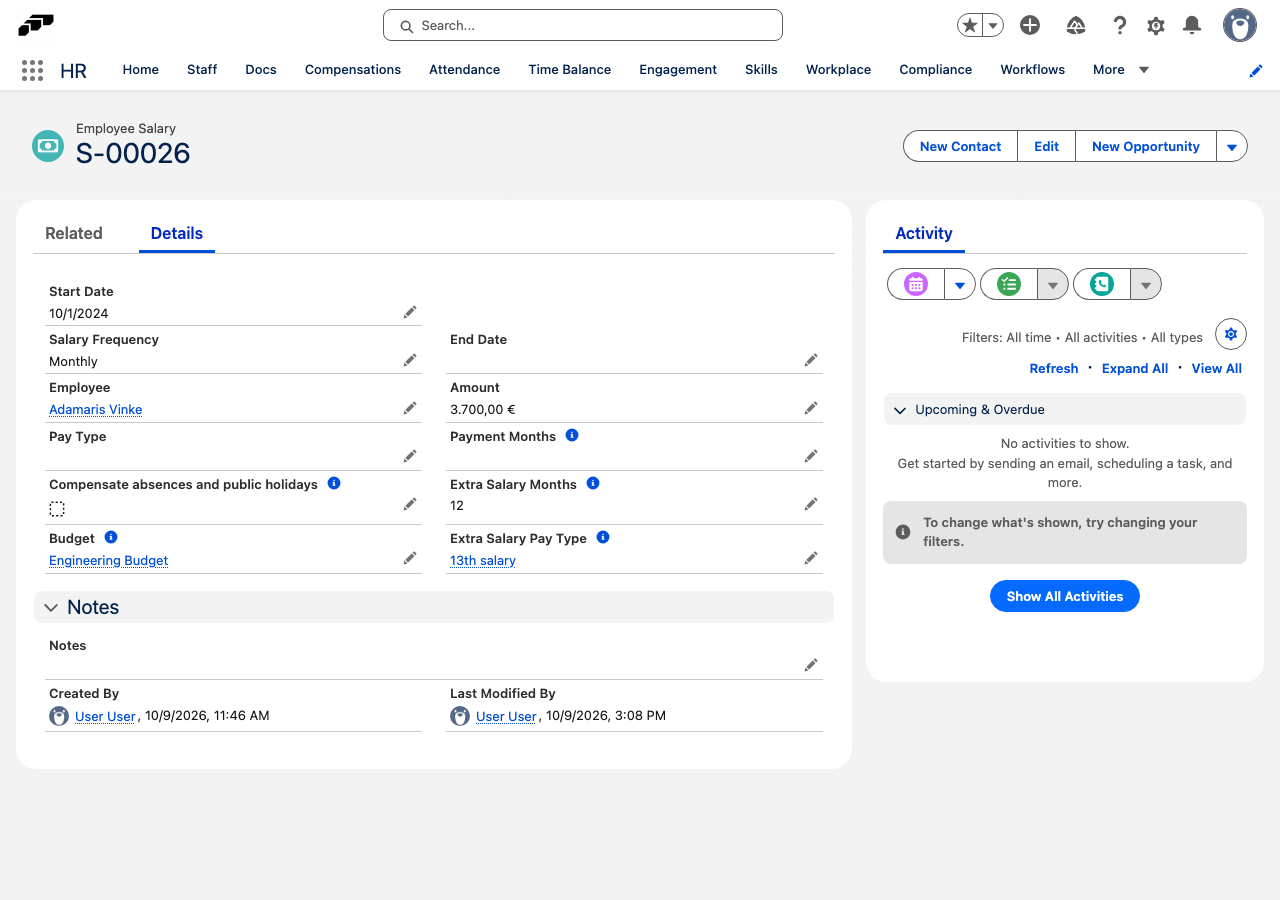
If you enter anything other than months from 1 to 12, separated by commas, or set the field on a salary that isn't Monthly or Annual, flair shows an error when you save.
When a raise goes through a Compensation Review or a salary change, the new salary keeps the previous salary's Extra Salary Months, Extra Salary Pay Type, and Payment Months. If you create a replacement salary yourself with New, set these fields on it again.
How payroll calculates an extra salary
In each month listed in Extra Salary Months, the Payroll Run adds a second salary line, named Extra salary, next to the regular one. The amount depends on the salary's frequency:
| Salary Frequency | Regular salary line | Extra salary line |
|---|---|---|
| Monthly | Amount, every month | Another full Amount |
| Annual | Amount divided by the number of payments in the year: 13 for a 13th salary, 14 for a 13th and 14th | The same share of Amount |
For example:
| Salary | Extra Salary Months | Each regular month | Extra salary |
|---|---|---|---|
| Monthly, 4,000 | 12 | 4,000 | 4,000 in December |
| Annual, 52,000 | 12 | 4,000 (52,000 ÷ 13) | 4,000 in December |
| Annual, 56,000 | 6,12 | 4,000 (56,000 ÷ 14) | 4,000 in June and in December |
So an Annual amount is the total pay for the year, extra salaries included. A Monthly amount is the regular monthly pay, and the extra salaries come on top.
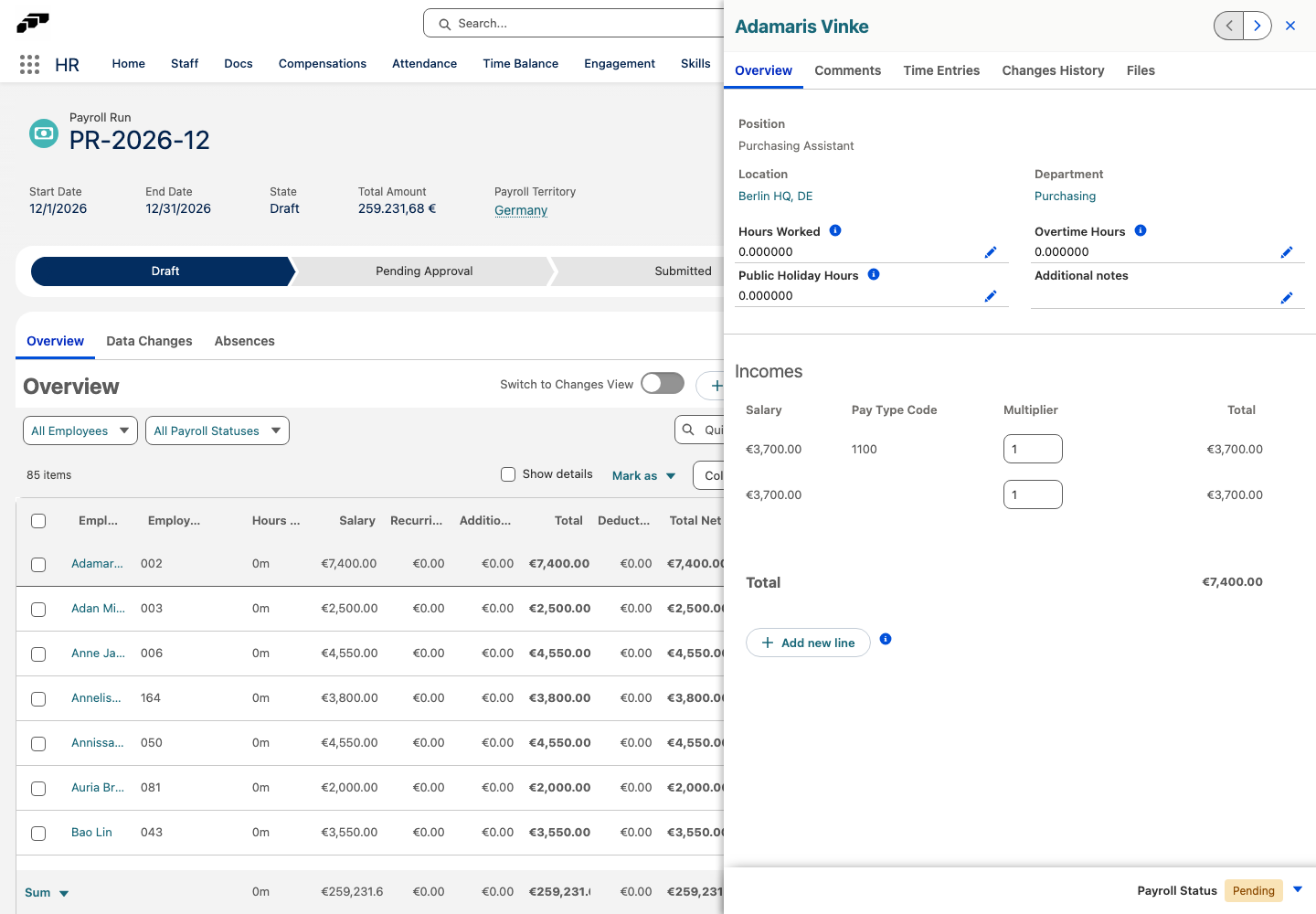
In the employee's panel, the extra salary is an additional row under Incomes → Salary. Tell it apart from the regular salary by its Pay Type Code: the code of the Extra Salary Pay Type, or of the salary's Pay Type when that's empty. In the DATEV LODAS export, it's sent as a one-off payment (transaction data) in the month it's paid, not as a fixed monthly value.
Employees who join, leave, or change salary during the year
The extra salary isn't prorated. The salary that is active on the last day of the Payroll Run's period pays the full amount; a salary that ends before that day pays none. So an employee who joins in October still gets a full 13th salary in December, and an employee who leaves in November gets none.
If your policy pays a share instead, change the extra salary line's Multiplier in the Draft Payroll Run, for example to 0.25 for a quarter, or add a correction line; see Add or correct a pay line. Saving the employee's salary again recalculates the line, so make the correction after your last salary change.
Pay gap analysis and pay band comparisons don't include extra salaries yet: a Monthly salary with a 13th salary is compared as 12 payments. An Annual salary is compared correctly, because its amount already includes the extra salaries.
Pay a salary only in specific months
Use Payment Months for pay that isn't due every month, such as a quarterly payment.
- Open the salary on the employee's Salary tab and click Edit.
- In Payment Months, enter the months in which the salary is paid, separated by commas, such as
1,4,7,10for January, April, July, and October. - Click Save.
Payroll Runs then include the salary only in those months:
- A Monthly salary pays its full Amount in each payment month and nothing in the other months.
- An Annual salary splits its Amount across the payment months. With
1,4,7,10, each payment is a quarter of Amount.
You can combine both fields. An Annual amount is then divided by the payment months plus the extra salaries. In the DATEV LODAS export, a salary with Payment Months is sent as a one-off payment in each month it's paid.