Prepare for pay transparency with flair
The EU Pay Transparency Directive, which Germany implements through its Entgelttransparenzgesetz (Pay Transparency Act), asks employers to make pay structures explainable and to measure pay differences between women and men. This article maps each of those topics to the flair feature that supports it and links to the setup steps.
HR Admins and Salesforce Admins in Salesforce. Managers meet pay bands in the Employee Hub during Compensation Reviews and salary changes.
Understand what the directive asks of employers
At a high level, the directive covers these topics:
- Pay structures built on objective, gender-neutral criteria, so that work of equal value is paid equally.
- Pay information for applicants, such as the starting salary or its range, before a contract is agreed.
- Employees' right to pay information about their own pay and the average pay of colleagues doing the same work or work of equal value, broken down by gender.
- Gender pay gap reporting, including the gap by category of worker and the share of women and men in each pay quartile.
- Follow-up on gaps that an employer can't justify with objective criteria.
This article describes product features, not legal requirements. flair shows what your data says. Which obligations, deadlines, and thresholds apply to your company, and how you meet them, remains your decision, ideally with legal advice.
The following table shows where flair supports each topic:
| Topic | flair feature | Where to set it up |
|---|---|---|
| Pay bands and salary ranges | Pay Groups, Pay Grades, and Pay Levels, linked to Career Levels | Manage compensation |
| Work of equal value | Worker Categories with four equal-value criteria | Manage compensation |
| Salary range in job postings | Salary range filled from the position's pay band | Create, advertise, and refer jobs |
| Gender pay gap reporting | Company pay gap analysis on the Equity Audits tab | Manage compensation |
| Employees' right to pay information | Pay analysis snapshot per Worker Category | Run a Compensation Review |
| Pay decisions | Pay-band indicators in Compensation Reviews and salary changes | Run a Compensation Review |
| Access to pay data | Permission sets and the Pay Transparency Manager permission | Manage permissions and access control |
Define pay bands and salary ranges
In Compensations → Compensation Management, you build a pay structure from Pay Groups, Pay Grades, and Pay Levels. A Pay Grade or Pay Level carries the pay band. You then set a Pay Configuration on each Career Level, and every linked Position inherits its pay band through its Role and Career Level.
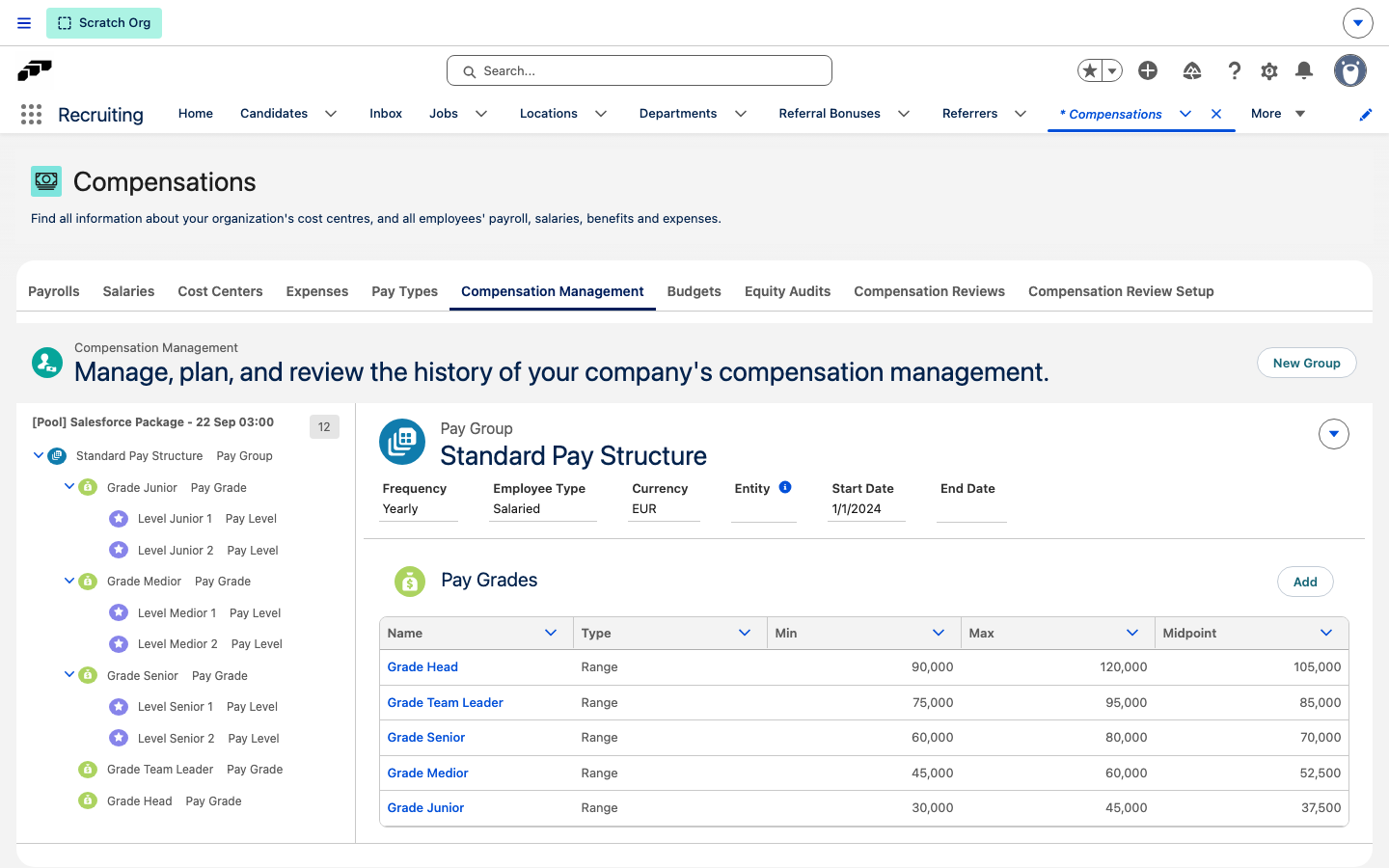
- To create the structure and connect it to Career Levels, see Build the pay structure and Connect pay configurations to Career Levels.
Document work of equal value
A Worker Category groups the Roles that do the same work or work of equal value, and it is the unit the pay gap analysis compares pay within. Each category records a description, a justification, and four equal-value criteria: Skills Criteria, Effort Criteria, Responsibility Criteria, and Working Conditions Criteria. flair tracks field history on these texts, so changes to this evidence stay traceable.
You set the category on a Role or a Position, and flair copies it to the employees. The Employees Without Worker Category list view names the active employees who still need one. With the flair AI integration active, flair can draft the description and criteria from the roles in the category for you to review before saving.
flair also stores a warning on a Worker Category when the pay bands of its roles share no amount or are incomplete, and lists those categories on the Equity Audits tab.
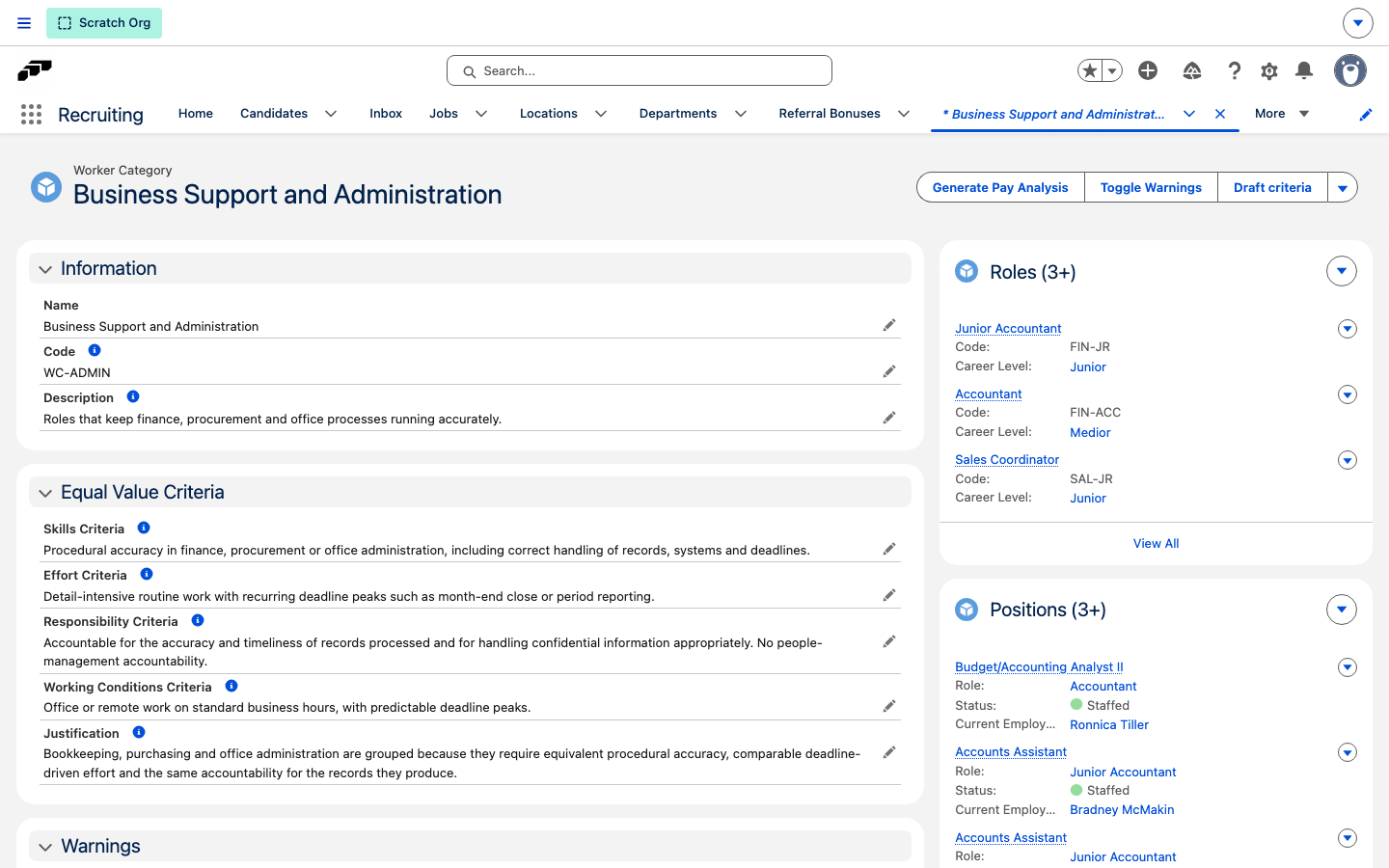
- To create and assign categories, see Group roles into Worker Categories, Assign a Worker Category, and Resolve pay band warnings on a worker category.
Show the salary range in job postings
When you create a job from a position, flair fills the salary range on the job form from the position's pay band. It fills Period, Minimum, and Maximum in the Salary section of Publishing Details, and you can still edit the values. When the position has no pay configuration or the band is incomplete, flair leaves the range blank for you to enter manually.
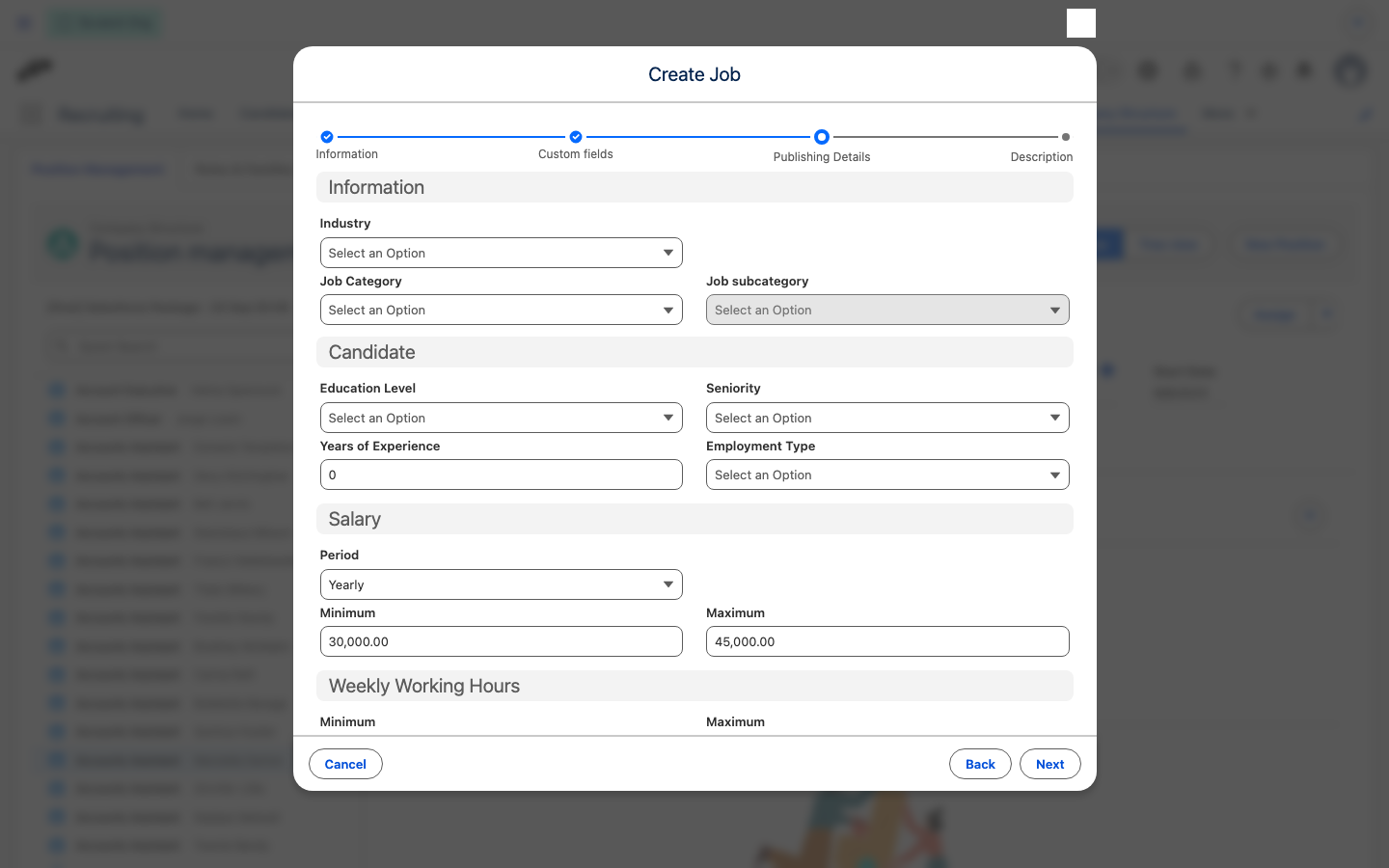
- To create the job and review the range, see Review the salary range from the position's pay band.
Report on the gender pay gap
The Equity Audits tab under Compensations runs a company-wide pay gap analysis for a date you choose. The result shows headcounts of women and men in the pay quartiles Q1 to Q4, the pay thresholds between the quartiles, and the average and median gap for each Worker Category. Results are aggregates and headcounts only, never individual salary amounts.
flair also does the following:
- Highlights a gap of 5% or more in a Worker Category.
- Withholds the gap for a category with fewer than six women or fewer than six men.
- Stores every completed run and exports it as a CSV that keeps reporting what was true on its run date.
- Runs the analysis once a year, for the whole company or per entity, after an admin schedules the job.
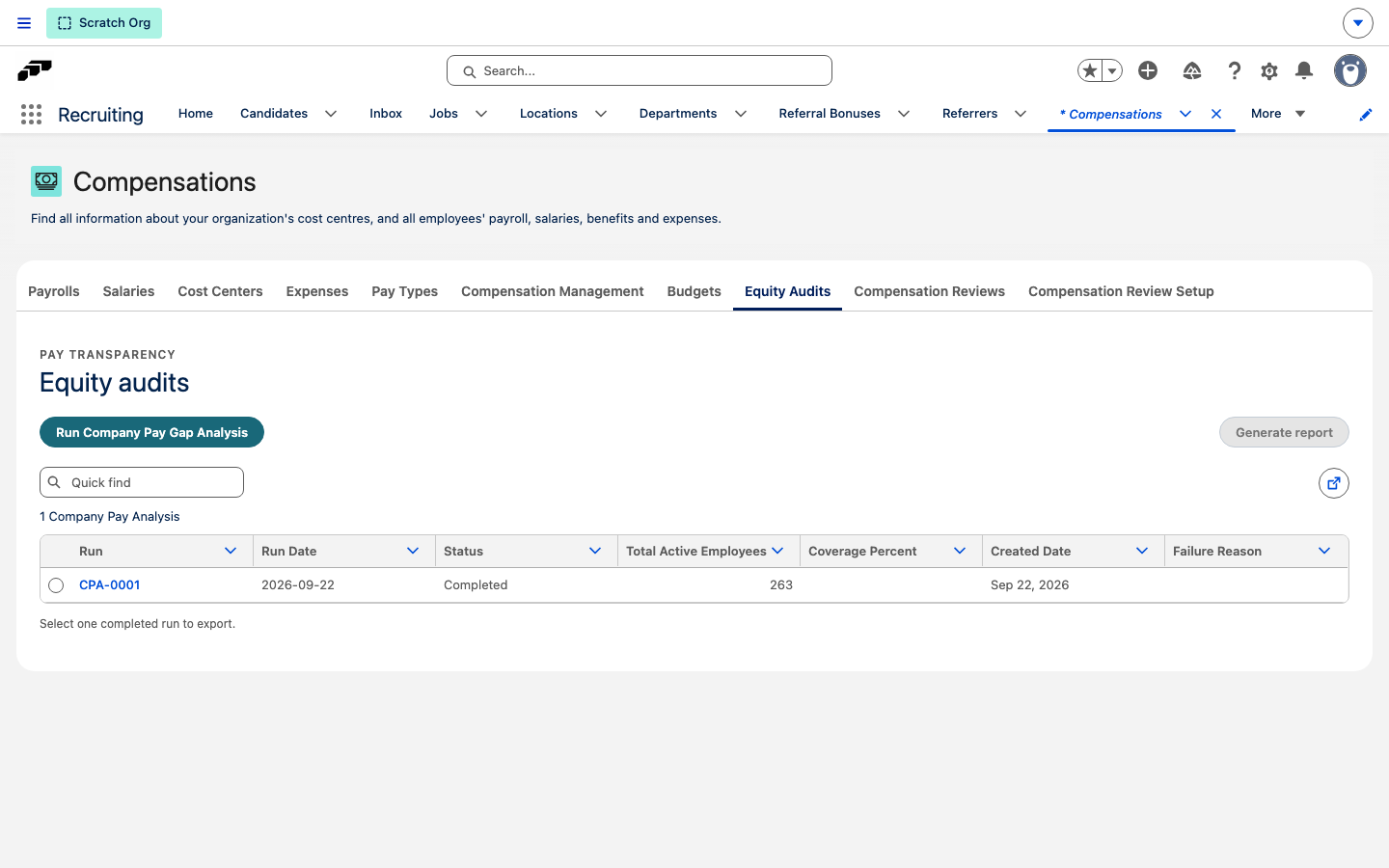
To start, export, or schedule an analysis, see Run a company pay gap analysis.
Prepare answers to employees' pay information requests
flair has no dedicated workflow for receiving or answering an employee's request for pay information. What flair provides is the data an HR Admin needs for the answer: a pay analysis snapshot for a single Worker Category as of a chosen date. The snapshot records the headcount by gender and the average and median pay for each gender, and it stays unchanged after the workforce changes.
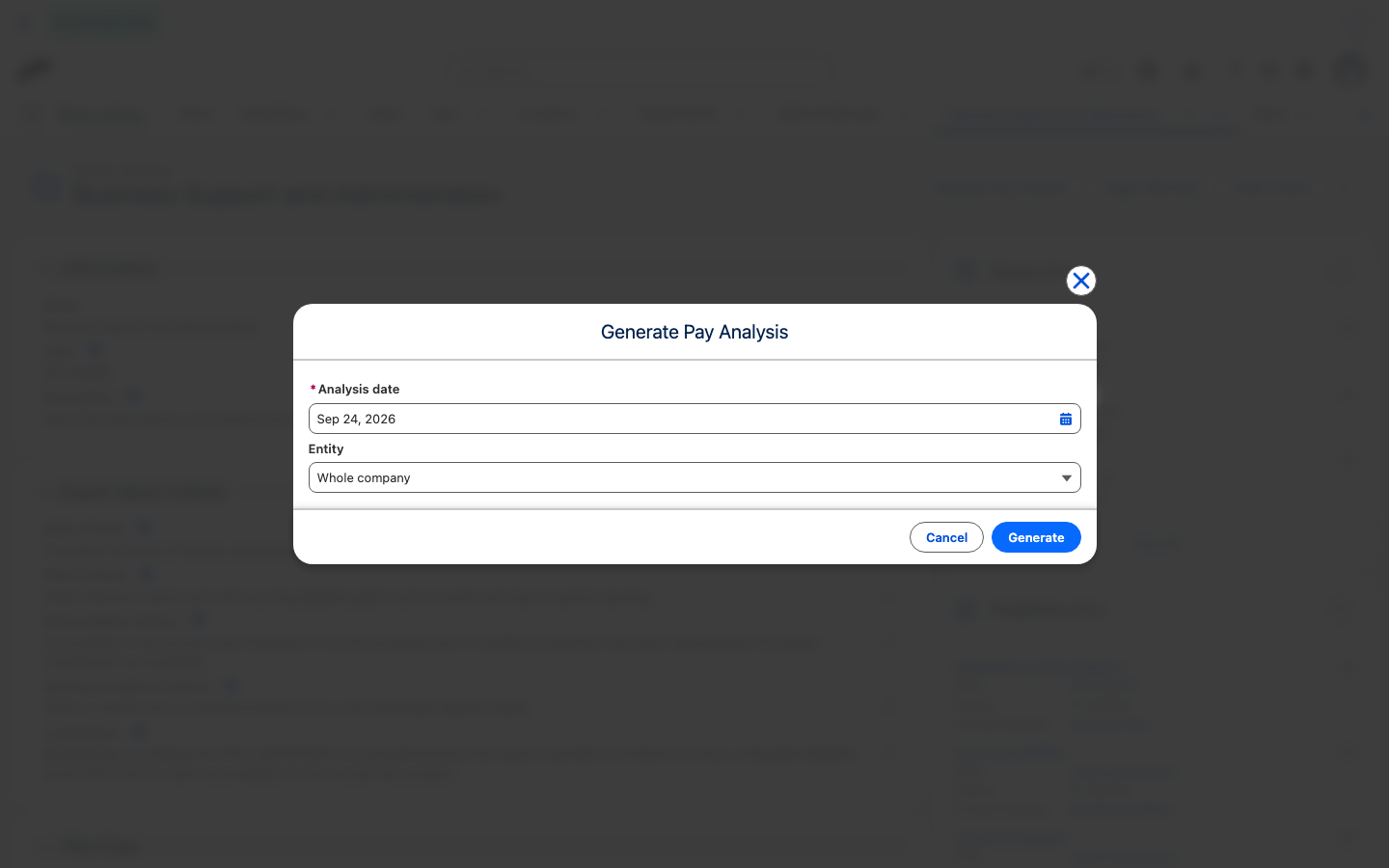
- To create a snapshot, see Generate a pay analysis snapshot.
Keep pay decisions within the pay band
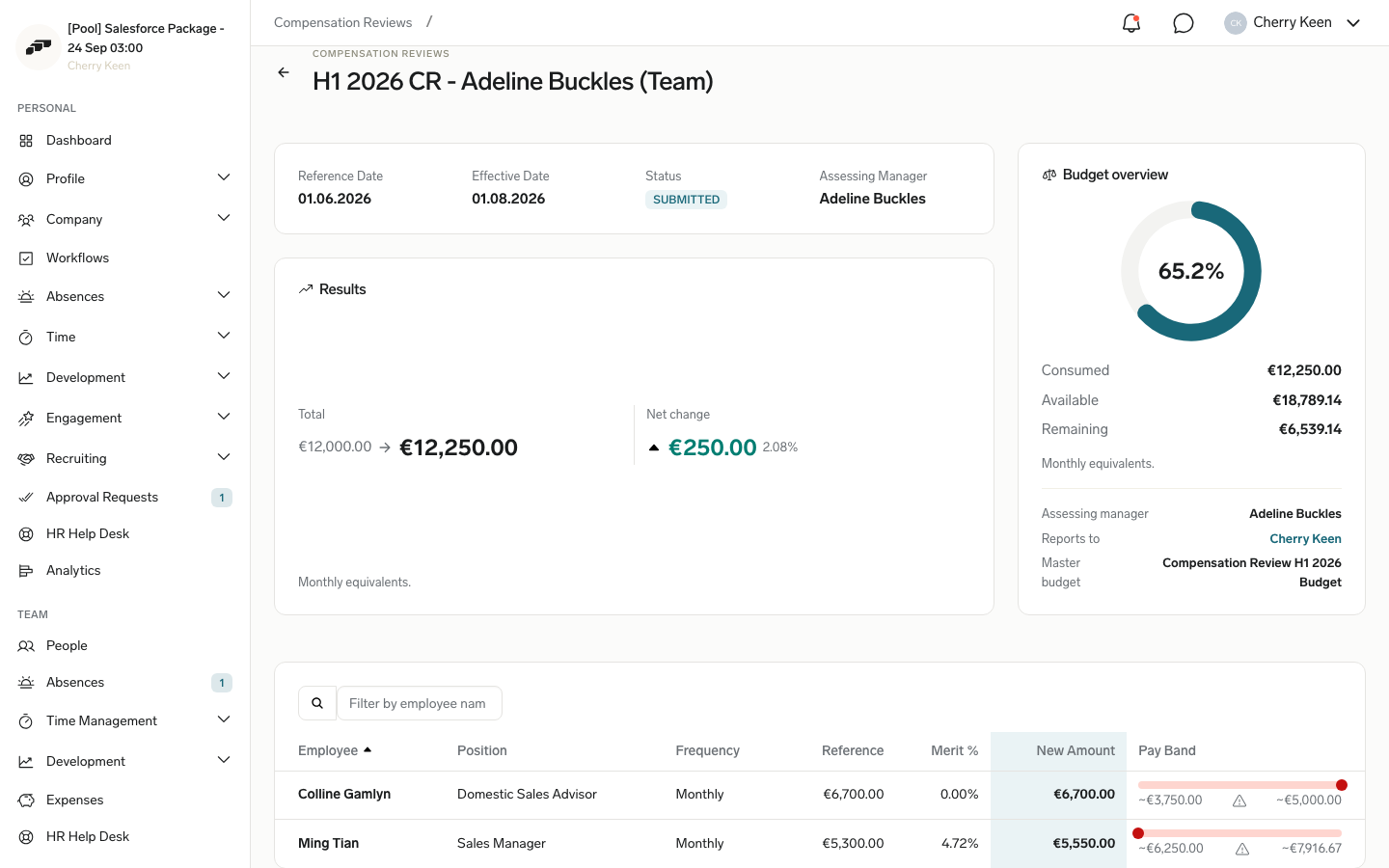
flair shows the pay band at the moment a salary is proposed:
- Compensation Reviews — each manager review lists the current salary, proposed salary, percentage change, and a pay-band indicator with out-of-band highlighting for every employee. The review runs through an approval process, and Salesforce records the approval history. See Run a Compensation Review.
- Single salary changes — in a Request Form with a salary change step, a pay band bar next to the amount shows where the new salary falls. See Change a salary.
- Rule-based pay components — a Compensation Rule assigns a recurring amount or a formula-based amount to the employees of a Payroll Territory, so allowances follow one documented rule. See Create Compensation Rules and Time Type Rates.
Control access to pay data
Pay data in flair is visible only to users with the matching permission:
| Permission | What it controls |
|---|---|
| Flair Compensation Management and Flair Compensation Management Read permission sets | Editing or reading pay configurations. |
| Pay Transparency Manager custom permission | The Equity Audits tab: running, reading, and exporting a company pay gap analysis. Included in Flair Manager, Flair Salary Manager, and Flair Budget Manager. |
| Flair Salary Manager permission set | Individual salary figures. |
| Hide Employee Salaries, Hide Recurring Compensation, and Hide One-Time Compensation on the Employee HUB Feature record | What managers see of their employees' pay in the Employee Hub. |
Worker Category records are private by default. To assign permissions, see Choose the right permission set and Control manager visibility.