Inviting Employees to the Employee Hub with Private Email Links
Overview
flair already invites employees to the Employee Hub through the automatic, flow-based invite covered in Automatic Hub invites. That invite is sent to the employee's company email.
The manual bulk action on this page is the way to reach people whose company email is not usable:
- New starters who do not have a mailbox yet
- Shift workers who only have a personal address
For these employees, you can send an Employee Hub login link to their private email address directly from the Employees list.
Where to Find the Action
The action lives on the Staff tab of the flair HR app in Salesforce. Select the employees you want, open the bulk-actions menu (the lightning-bolt button above the list), and you will find Send login link to private email next to the existing Invite to the Employee Hub action.
An older combined Staff & Docs tab still works, but the app marks it deprecated in favour of the separate Staff and Docs tabs. Use Staff.
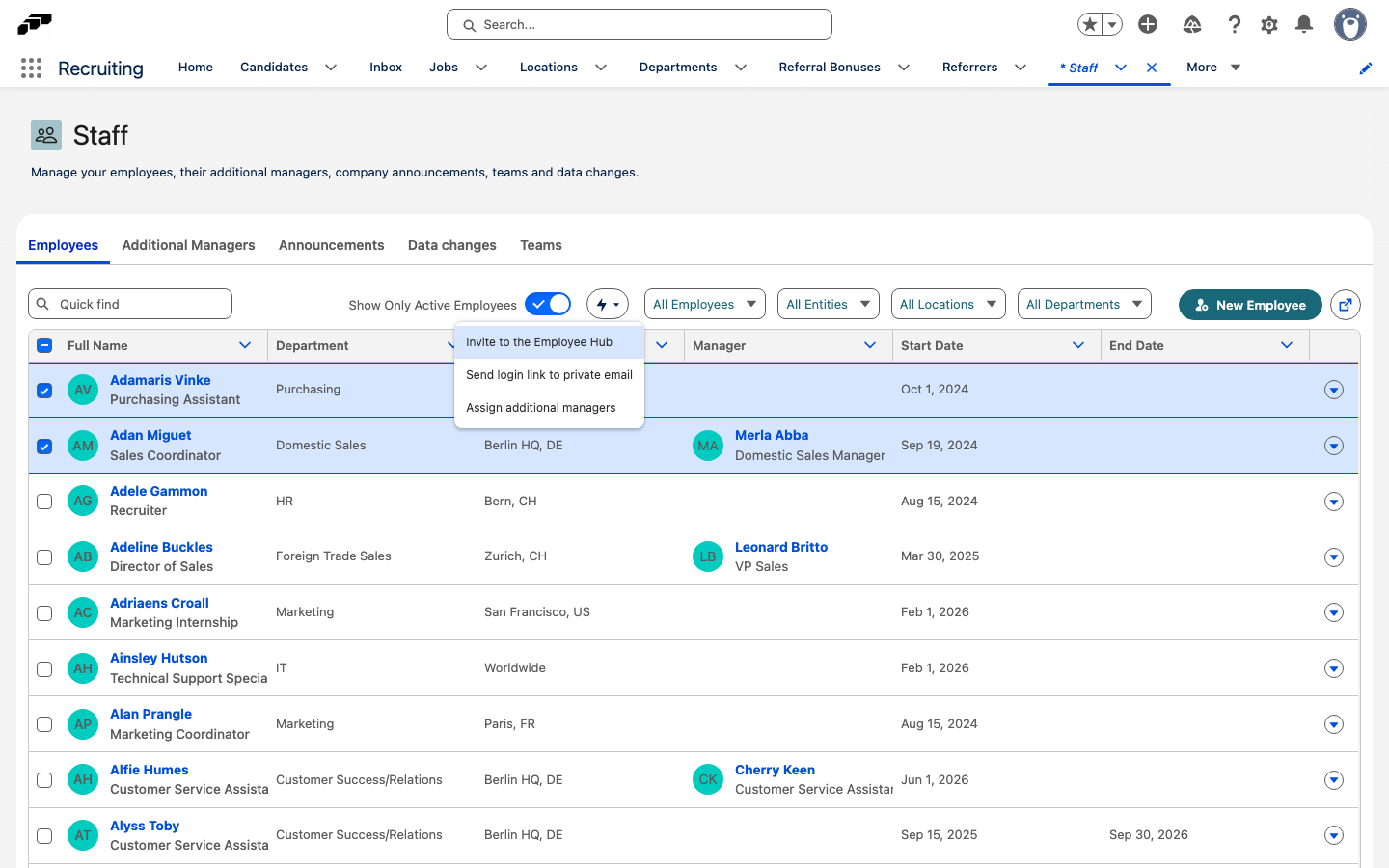
To send login links in bulk:
- Open the flair HR app in Salesforce and go to the Staff tab
- Open the Employees list
- Select the employees you want to reach
- Open the bulk-actions menu above the list and choose Send login link to private email
What Happens When You Run the Action
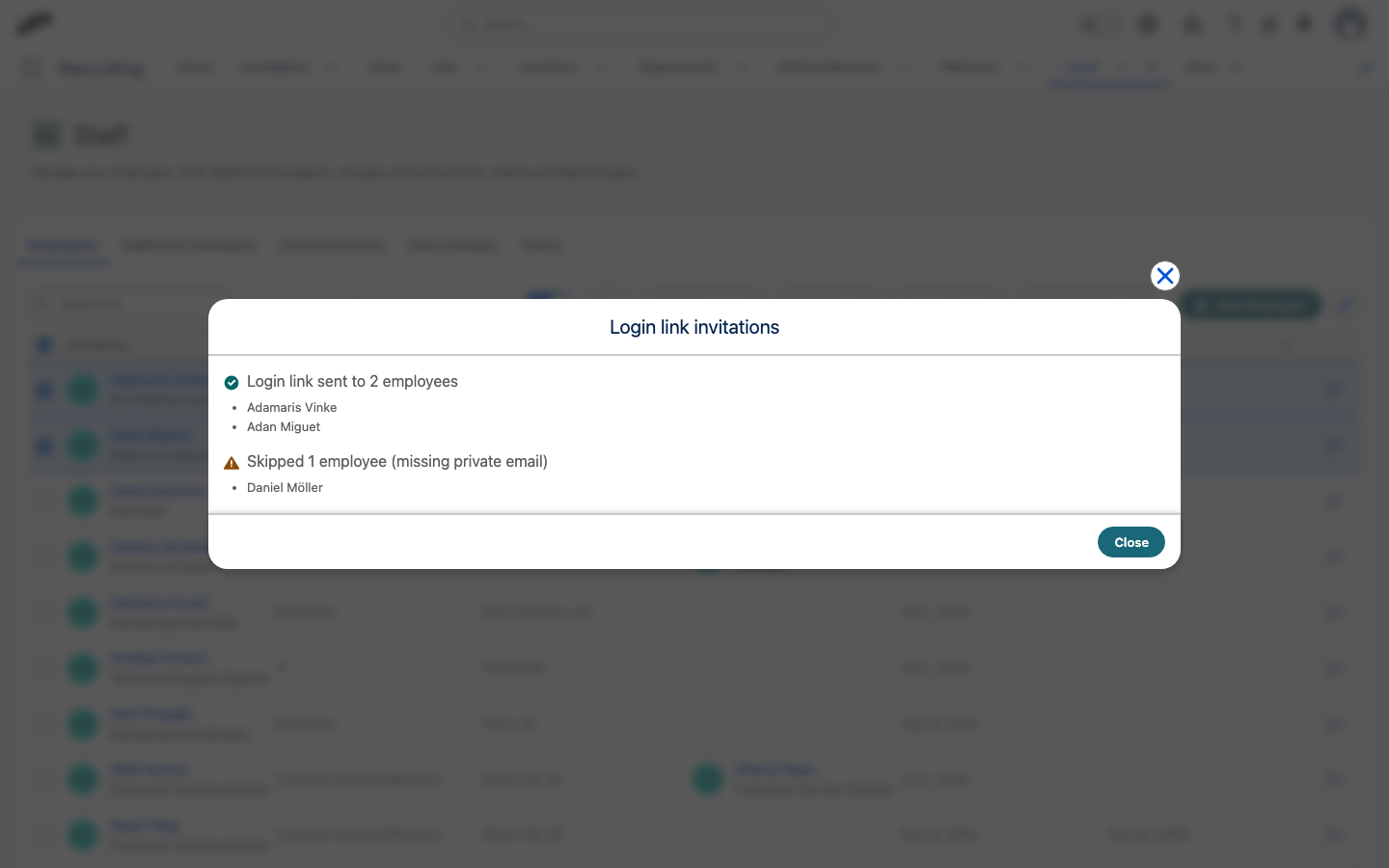
flair works through your selection and then opens a Login link invitations dialog reporting both outcomes together:
- Login link sent to N employees — the people who have a private email address on their record.
- Skipped N employee (missing private email) — the people in your selection without one.
Both sections name the employees they cover, so you can see who was reached and who still needs fixing. Nobody outside those two lists is contacted.
The dialog stays open until you choose Close, and it is the only place the results appear — so read the skipped list before you dismiss it.
Handling Skipped Employees
The skipped employees are named in the Login link invitations dialog shown above — flair reports the sent and skipped counts in that one dialog rather than in two separate messages. This is the same behavior as the existing Invite to the Employee Hub action when a company email is missing.
To reach the people who were skipped:
- Write down the employees named in the skipped list before you close the dialog
- Open each employee's record and fill in the private email address
- Re-run Send login link to private email for the people who were skipped
Tips
- Fill in the private email address first. Add the private email address to the employee record before you run the action, so nobody in your selection is skipped.
- Capture the skipped list before closing. The dialog is the only place the skipped employees are named, so write them down, fix each record, and run the action again for only those people.
- Pick the action that fits the employee. Use Invite to the Employee Hub when the company email is usable, and Send login link to private email when it is not.
Related Documentation
- Automatically invite new hires - Send invitations automatically when a company email is updated
- Employee Hub invitation troubleshooting - Troubleshoot Hub invitation problems