Configure MSAL sign-in for the mobile app
Set up Microsoft Authentication Library (MSAL) sign-in so employees can access the Employee Hub mobile app through the Microsoft platform broker, such as Microsoft Authenticator or Company Portal. MSAL signs employees in with their Microsoft Entra ID (formerly Azure Active Directory, or Azure AD) accounts. Use MSAL for organizations that require Microsoft Intune or Conditional Access enrollment on mobile devices.
MSAL sign-in applies to the Employee Hub mobile app. SAML SSO continues to handle browser sign-in for the web Employee Hub.
Register the MSAL application in Microsoft Entra ID
- In Microsoft Azure, open Microsoft Entra ID.
- In the left menu, select App registrations.
- Click New registration.
- Enter an app name, such as
flair Hub MSAL. - Click Register. Azure creates the registration and shows its Application (client) ID and Directory (tenant) ID.
- Copy the Application (client) ID and Directory (tenant) ID. You enter both in flair.

Add flair's redirect URIs to the app registration
The mobile app uses a different fixed redirect URI on each platform:
| Platform | Redirect URI |
|---|---|
| iOS/macOS | msauth.hr.flair.employee-hub://auth |
| Android | msauth://hr.flair.employeehub/fEvcYu6H%2FUwtRD%2FgbcT9%2BPplE1A%3D |
- In the Microsoft Entra ID app registration, open Authentication.
- Add
msauth.hr.flair.employee-hub://authas an iOS/macOS platform redirect URI. - Add
msauth://hr.flair.employeehub/fEvcYu6H%2FUwtRD%2FgbcT9%2BPplE1A%3Das an Android platform redirect URI. - Click Save.

Add the MSAL configuration to flair
- In the flair HR app, open the App Launcher (⋮⋮ grid icon).
- Open Hub SAML Configurations.
- Click New.
- Enter a Name, such as
Microsoft MSAL. - Select Enabled.
- In Type, enter
MSAL. - In MSAL Client Id, enter the Application (client) ID from Microsoft Entra ID.
- In MSAL Tenant Id, enter the Directory (tenant) ID from Microsoft Entra ID.
- In MSAL Redirect URI (Android), enter
msauth://hr.flair.employeehub/fEvcYu6H%2FUwtRD%2FgbcT9%2BPplE1A%3D. - In MSAL Redirect URI (Ios), enter
msauth.hr.flair.employee-hub://auth. - Optional: If your Salesforce org runs multiple Employee Hubs, set Hub to limit this login option to one Hub. Leave Hub empty to show it on every Hub.
- Keep Show In Mobile selected so the button appears in the mobile app. Show In Hub controls the Employee Hub login page in the browser; both are selected by default.
- Click Save.

What employees see
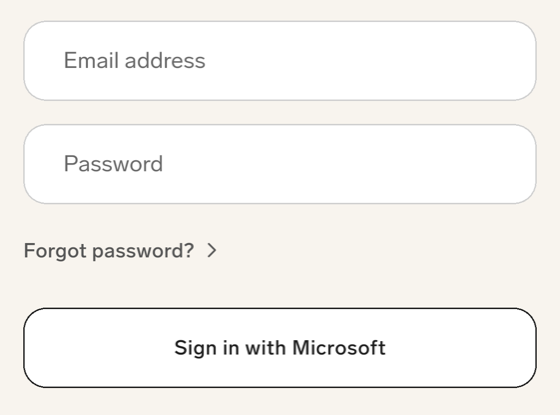
After employees enter your company domain in the mobile app, the sign-in screen shows a button labeled with the record's Name. Name the record Sign in with Microsoft to match the screenshot below. If MSAL is the only enabled record shown in the mobile app, the screen hides the email and password fields. To keep password sign-in available, also create an enabled Hub SAML Configuration record with Type PASSWORD and Show In Mobile selected.
If your organization also uses SAML SSO for the Employee Hub, the mobile app shows a button for each enabled record with Show In Mobile selected. To show only the Microsoft button in the app, clear Show In Mobile on the SAML record. For details, see Choose where a login option appears.