Manage employee profile photos
flair includes a flow action that sets an employee's profile photo from an image file you have already uploaded to Salesforce. Add it to a flow to import many employees' photos at once, for example when you onboard a new organization. You can also stop employees from changing or deleting their own profile photo in the Employee Hub and the flair mobile app.
Salesforce Admins who build flows and configure Employee HUB Feature records in Salesforce.
Before you begin
- Upload each employee's photo as a Salesforce File. Name the files so you can match each one to an employee, for example by their company email address.
- Confirm you can create and run flows in Setup.
Import profile photos with a flow
-
In Salesforce Setup, enter
Flowsin Quick Find and open Flows. -
Open the flow you want to add the action to, or click New Flow to start one that loops through your uploaded files.
-
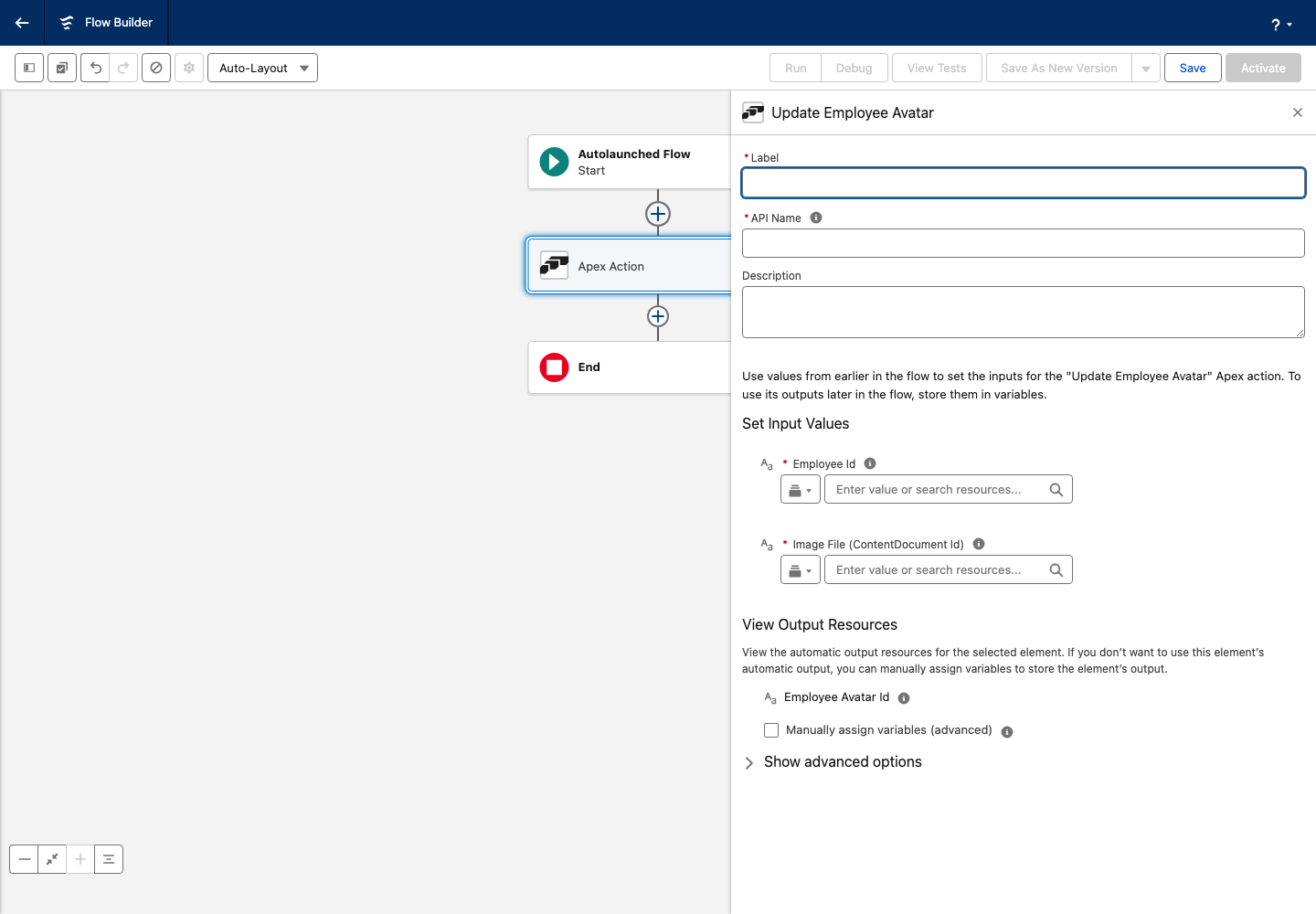
Add an Action element and search for Update Employee Avatar.
-
Set Employee Id to the employee whose photo you are setting.
-
Set Image File (ContentDocument Id) to the uploaded file's ID.
-
Save and run the flow. Each run sets the flow's Employee Avatar Id output to the ID of the created avatar record.
What the action does
- It accepts JPG, PNG, JPEG, and GIF files up to 4 MB. Files outside these limits are rejected.
- If the employee already has a profile photo, running the action replaces it.
- flair generates smaller versions of the photo in the background after the action runs. If your org has not configured image resizing, employees still see the original photo; only the smaller versions are unavailable.
- Each run queues two background resize jobs, so keep a single flow run to around 25 employees to stay within Salesforce's asynchronous job limits.
Stop employees from changing their own profile photo
Two checkboxes on Employee HUB Feature records control whether employees can change their own profile photo. Both are cleared by default. Each employee gets the settings of only one Employee HUB Feature record: a record for the employee, otherwise the record that best matches their entity, department, and location, otherwise a record without an audience. Set the restrictions on the record that applies to the employees.
-
In the flair HR app, open Employee HUB Features from the App Launcher (⋮⋮ grid icon).
-
Open an existing record, or click New, select the employees, departments, entities, or locations the record applies to, and save it. Leave the audience empty to apply the record to every employee.
-
On the record page, select the restrictions to enforce:
Setting What it does Block Avatar Upload Stops employees from uploading a new profile photo or replacing their current one. Block Avatar Deletion Stops employees from removing their profile photo. They can still replace it with a new one unless Block Avatar Upload is also selected. -
Save the record. The restrictions apply to the selected audience in the Employee Hub and the flair mobile app.

When a restriction applies to an employee:
- In the Employee Hub, the Change Avatar window hides the options the employee is not allowed to use. If no option is left, Change avatar no longer appears in the menu under the employee's name.
- In the flair mobile app, Take photo, Choose photo, and Delete photo follow the same rules. The edit icon on the profile photo disappears when none of them is available.
- If an employee still tries to make a blocked change, for example from an older app version, the change is rejected.
The restrictions only cover employees changing their own photo in the Employee Hub and the mobile app. Changes made in Salesforce, including the Update Employee Avatar flow action, are not affected.