Create an employee and their Employment Term
Create a new employee in flair HR and give them a position through an Employment Term. This guide covers the New Employee flow, adding the Employment Term with the employee's position, and giving the new employee Employee Hub access.
HR Admins and Salesforce Admins in Salesforce.
Create the employee record
-
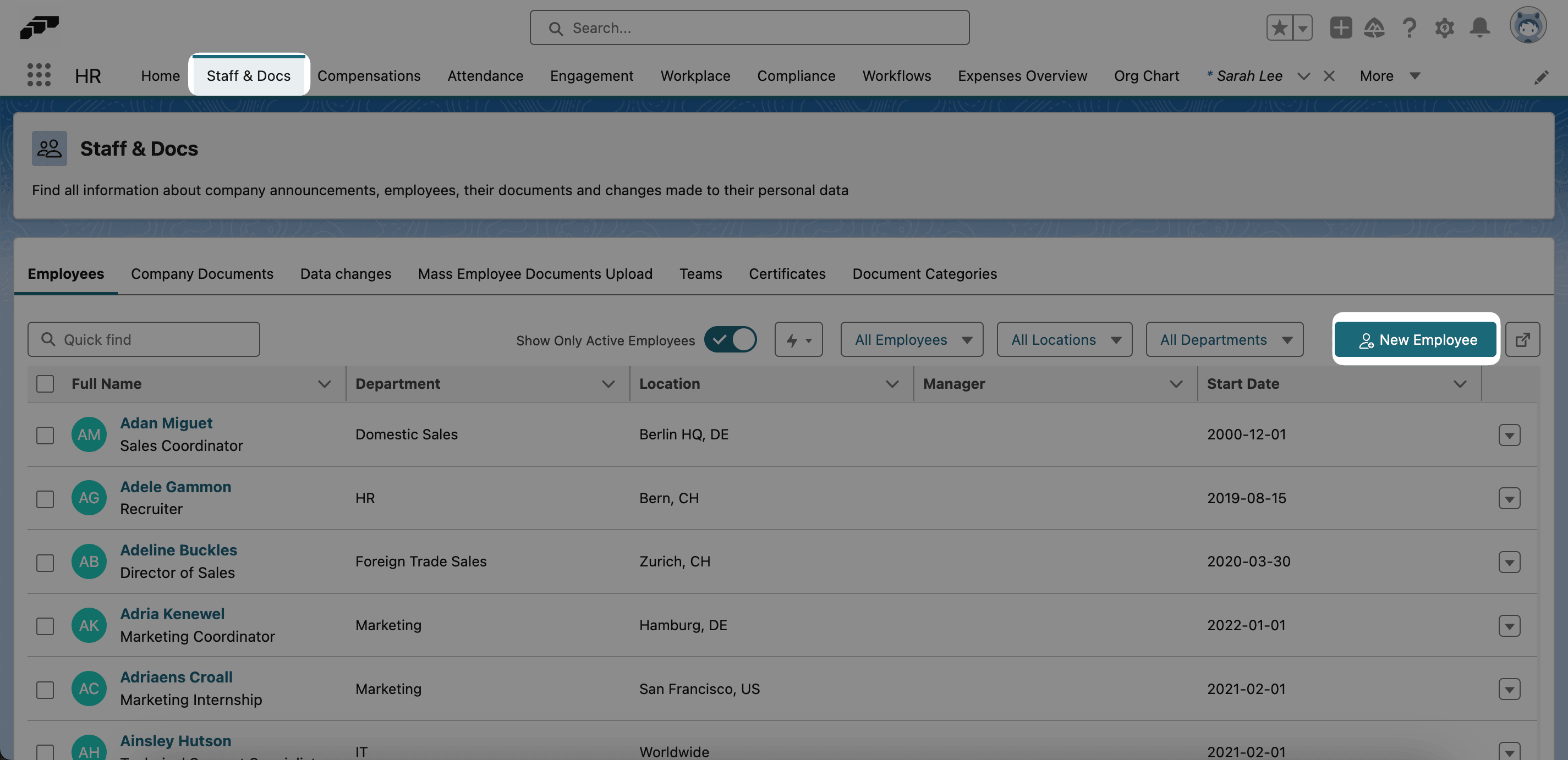
In flair HR, open Staff, and click New Employee. You can also click New on Employees.
-
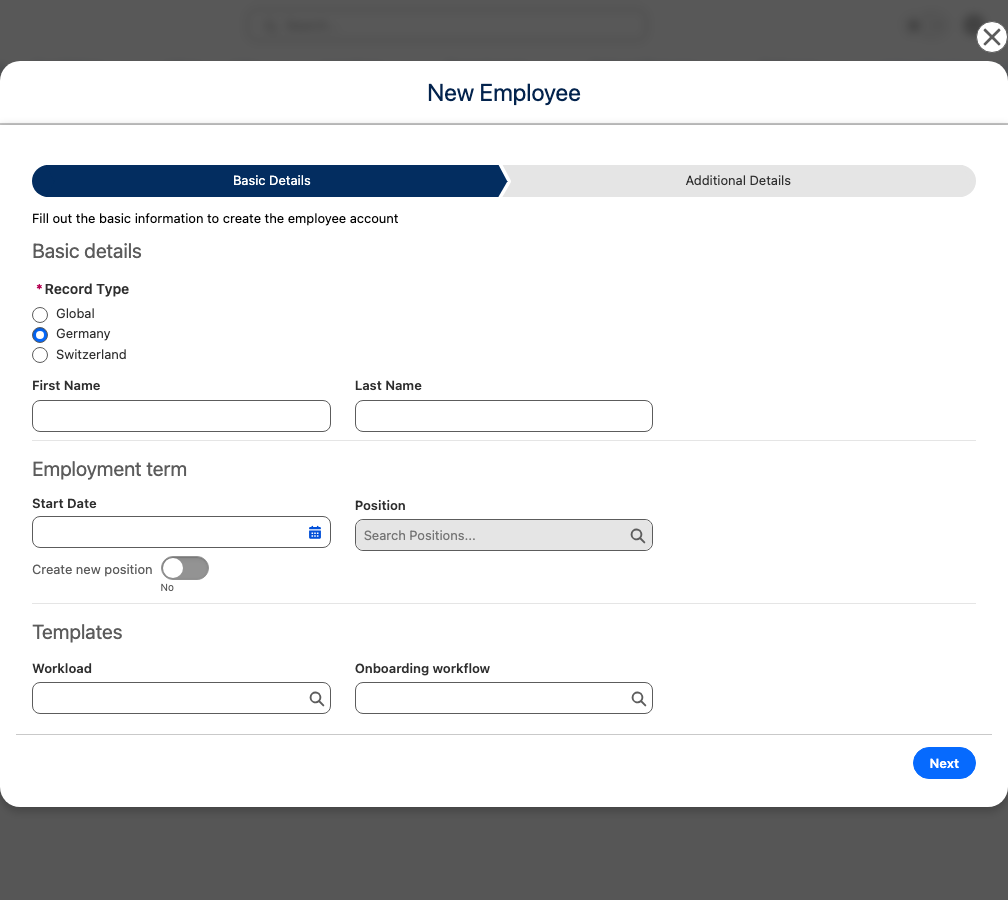
If your organization has more than one active Employee record type, select the employee's legislation in Record Type at the top of the first step. flair saves the selected record type on the new employee record, which then uses the page layout assigned to that record type. With a single active record type, flair applies it without showing Record Type.
-
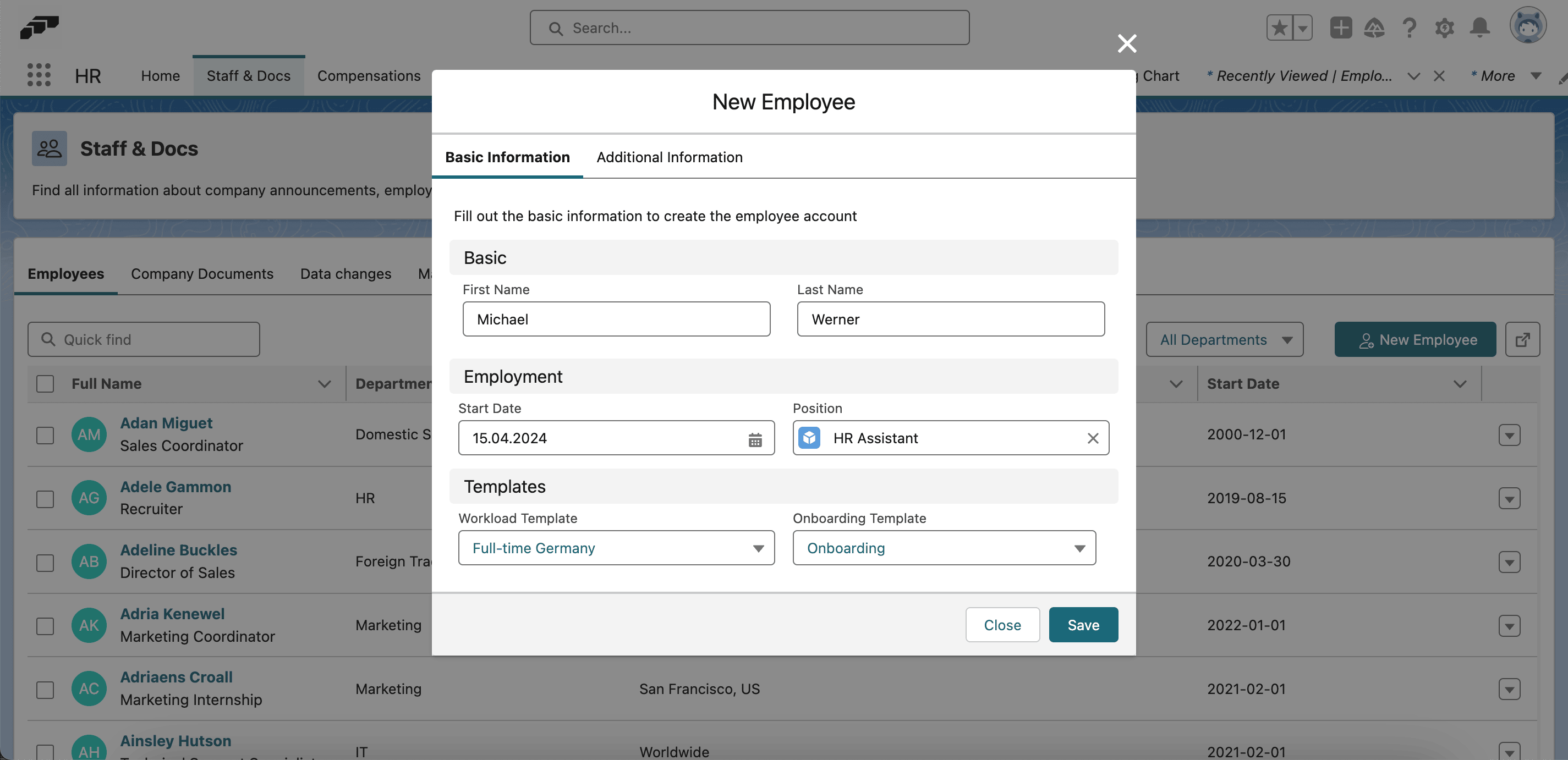
In Basic Details, enter the employee's First Name, Last Name, Start Date, and Position. Optional: Select a Workload and an Onboarding workflow.
-
On Additional Details, enter the employee's Company Email, which is required. Optional: enter a Company Phone Number.
-
Save the employee record.
Assign a position with an Employment Term
-
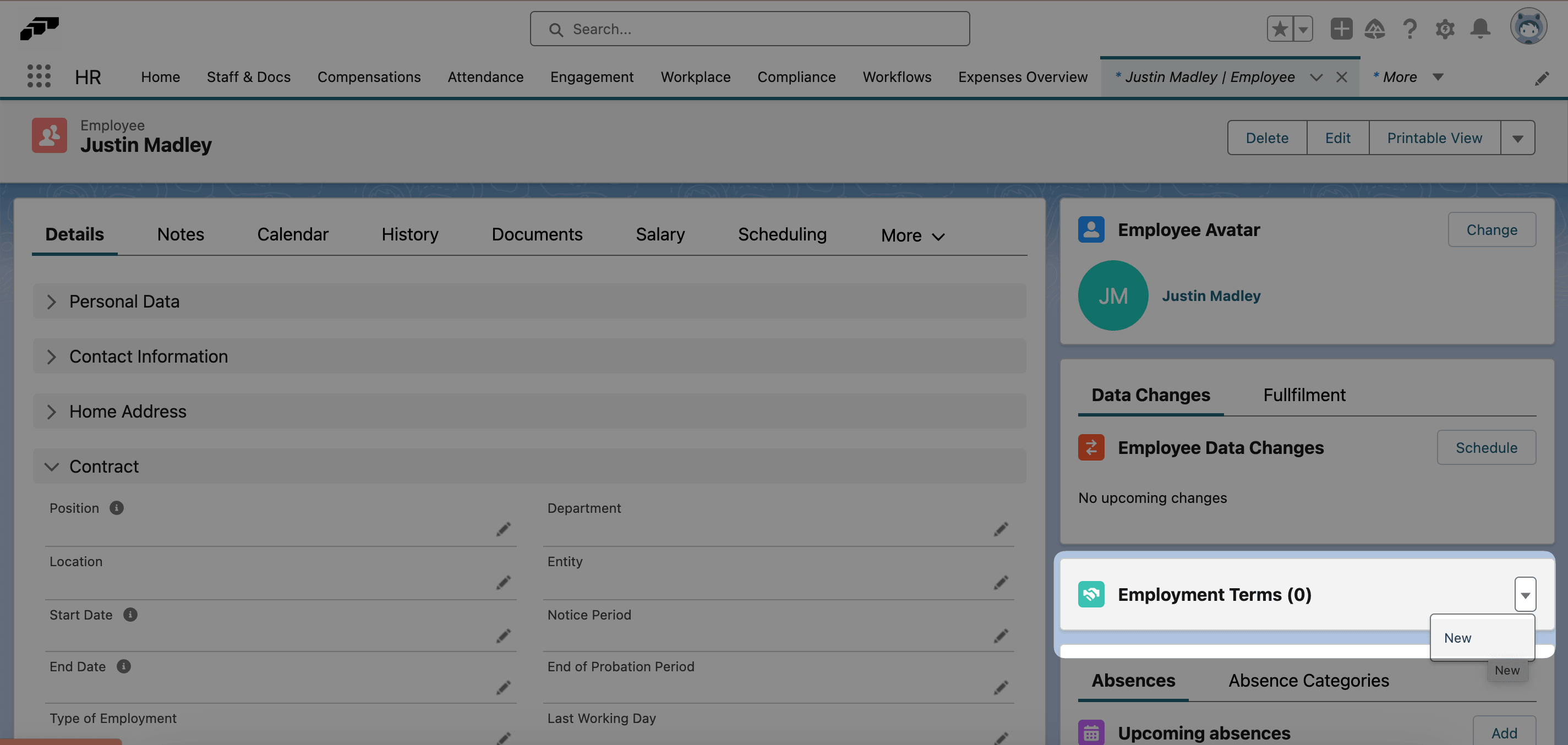
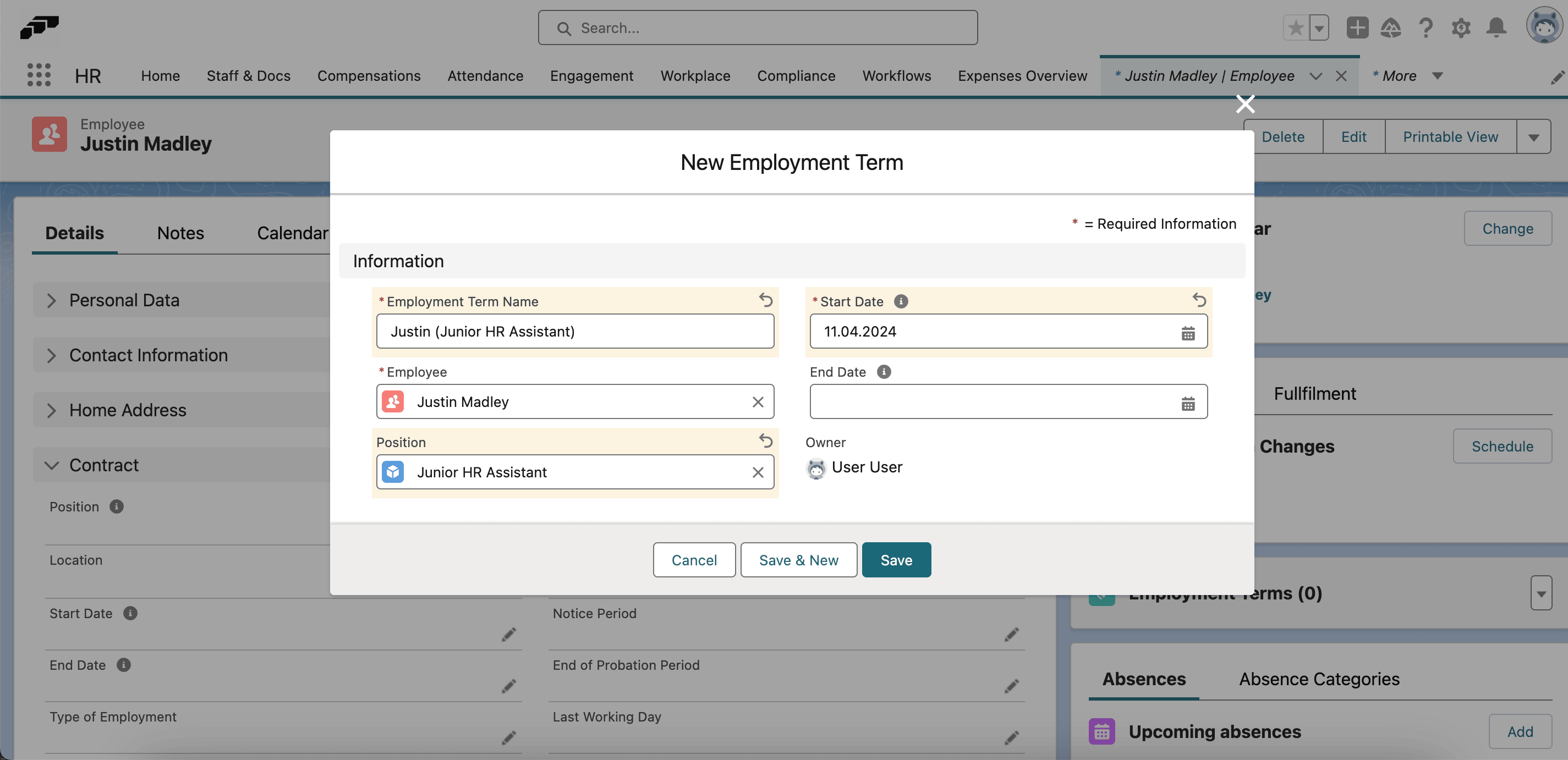
If the employee does not yet have a position, open the employee record, and click New in Employment Terms.
-
Enter a name and Start Date for the Employment Term.
-
In Position, select an unfilled position or New Position.
-
Click Save. The employee receives the position through the Employment Term.
Give the employee Employee Hub access
After the Integration User enables the Employee Hub in the Setup Assistant, add a valid company email address in Contact Information to give a new employee Hub access.