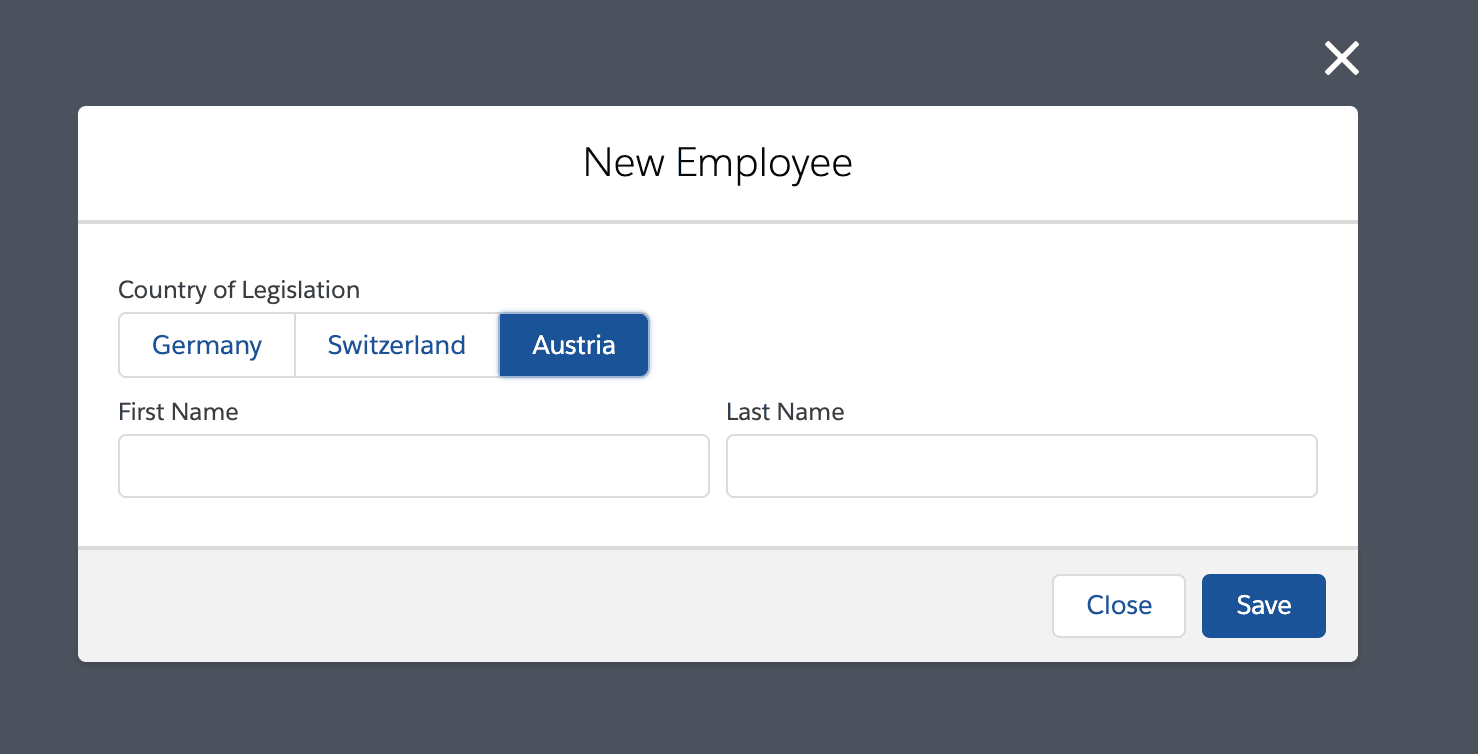
Configure employee legislations
Configure country-specific employee records with flair legislation extension packages or your own Salesforce record types. Extension packages include layouts, permission sets, record types, and required fields.
Salesforce Admins who manage the flair Employee object, permission sets, profiles, and page layouts in Salesforce.
Before you begin
- Confirm which countries need their own employee legislation.
- Make sure you can install Salesforce packages and manage the flair Employee object.
Choose a legislation extension package
flair provides these unlocked extension packages for Oceania and Southeast Asia:
| Legislation | Installation link | Included configuration |
|---|---|---|
| Oceania | Install the Oceania package | Record type: New_ZealandPermission set: Flair Manager (New Zealand)Fields: Tax_Code__c, Kiwisaver_Employer_Contribution__c, Kiwisaver_Employee_Contribution__c, IRD_Number__c, Bank_Account_Number__c, Bank_Account_Name__cLayout: Employee Layout: New Zealand |
| Southeast Asia | Install the Southeast Asia package | Record type: PhilippinesPermission set: Flair Manager (Philippines)Fields: Pagibig__c, Philhealth__c, SSS__c, TIN__c, Philippines_Bank_Account_Number__cLayout: Employee Layout: Philippines |
If no package matches your country, create a legislation with a Salesforce record type.
Install a legislation extension package
Install the package
-
Open the installation link for the required package.
-
Replace
login.salesforce.comin the package URL with your Salesforce domain. For example, the Oceania URL ends inp0=04t2p000001BrzvAAC. -
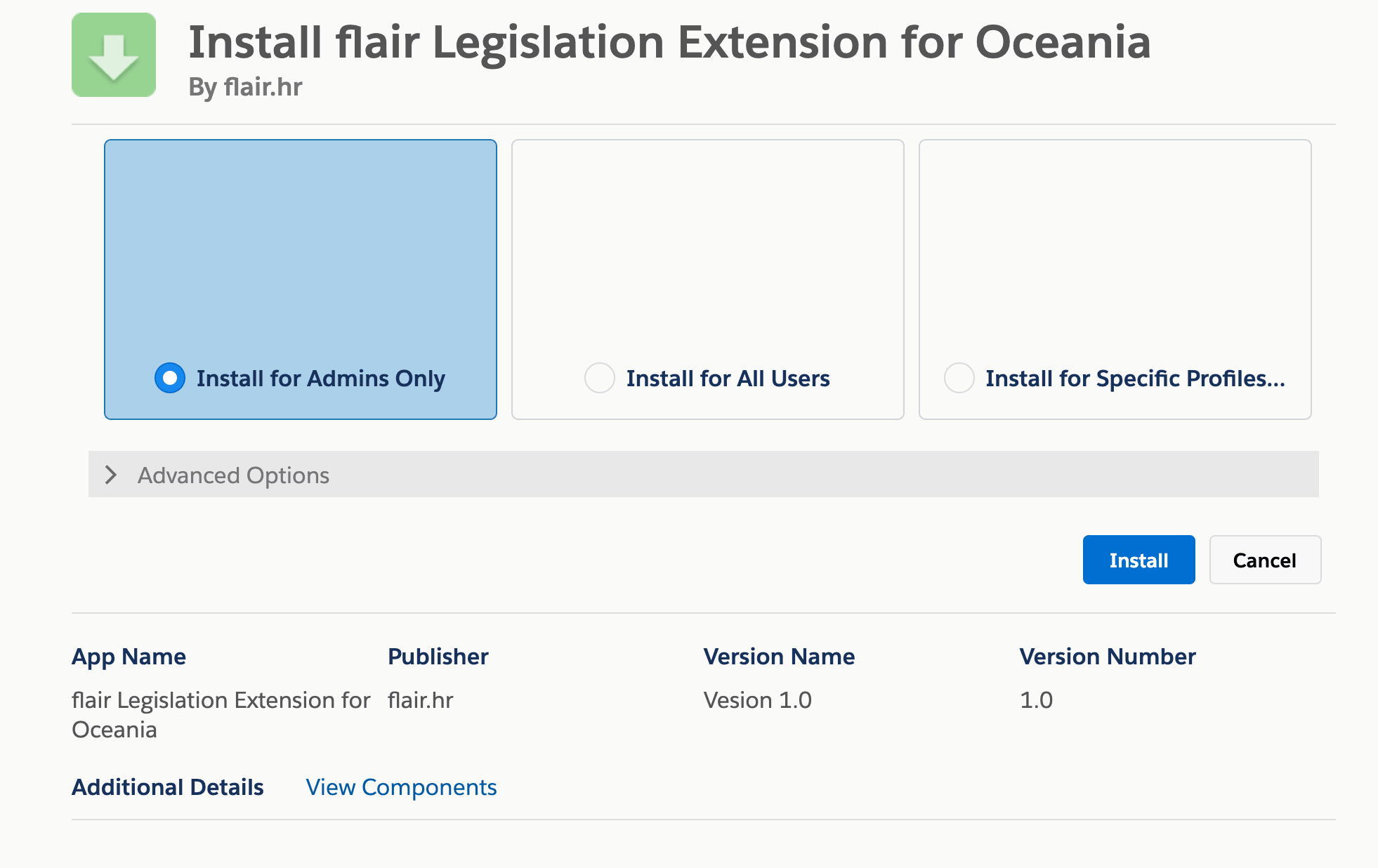
Select Install for Admins Only.
-
Complete the installation.
Assign the package permission set
-
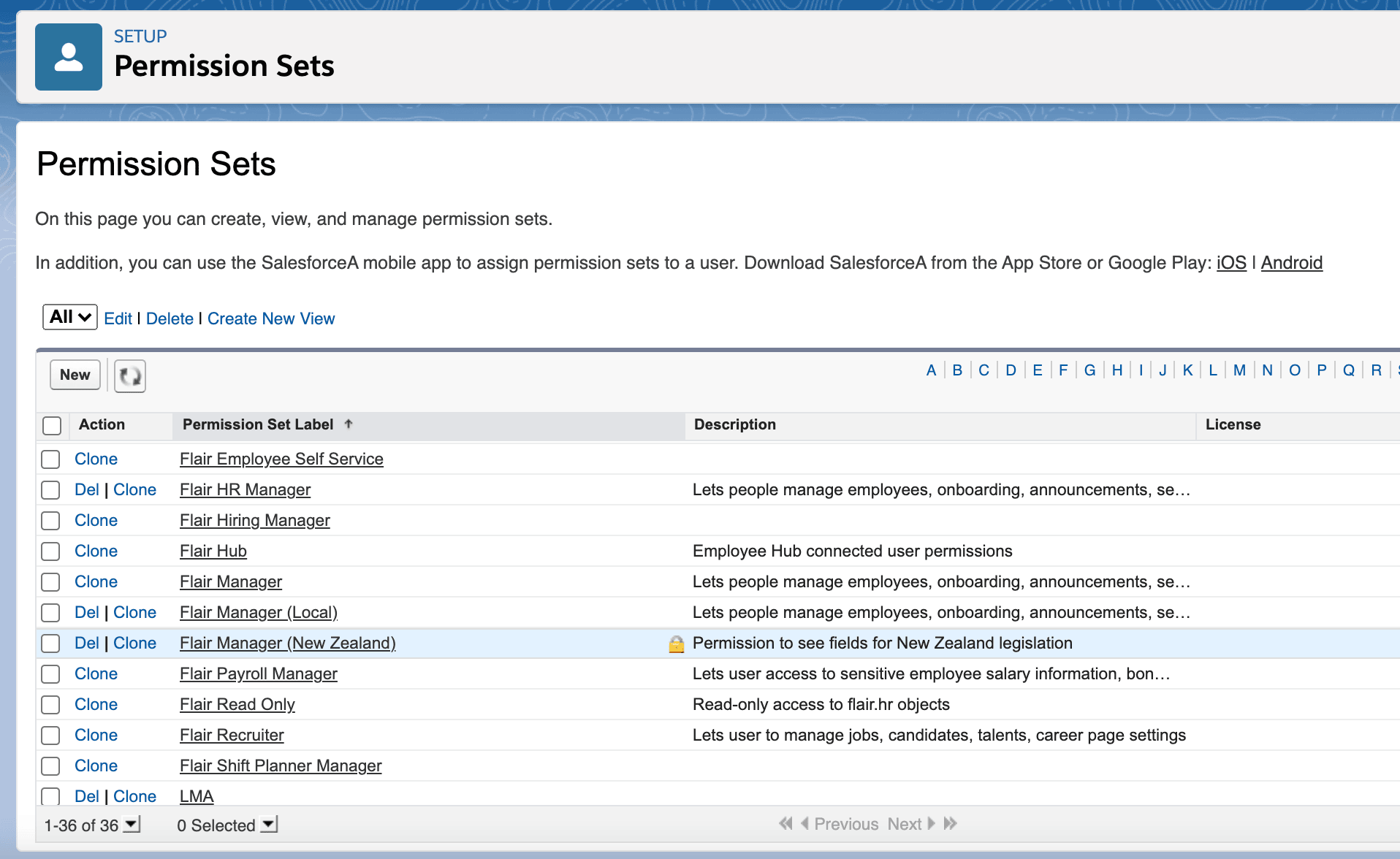
In Salesforce Setup, open Permission Sets.
-
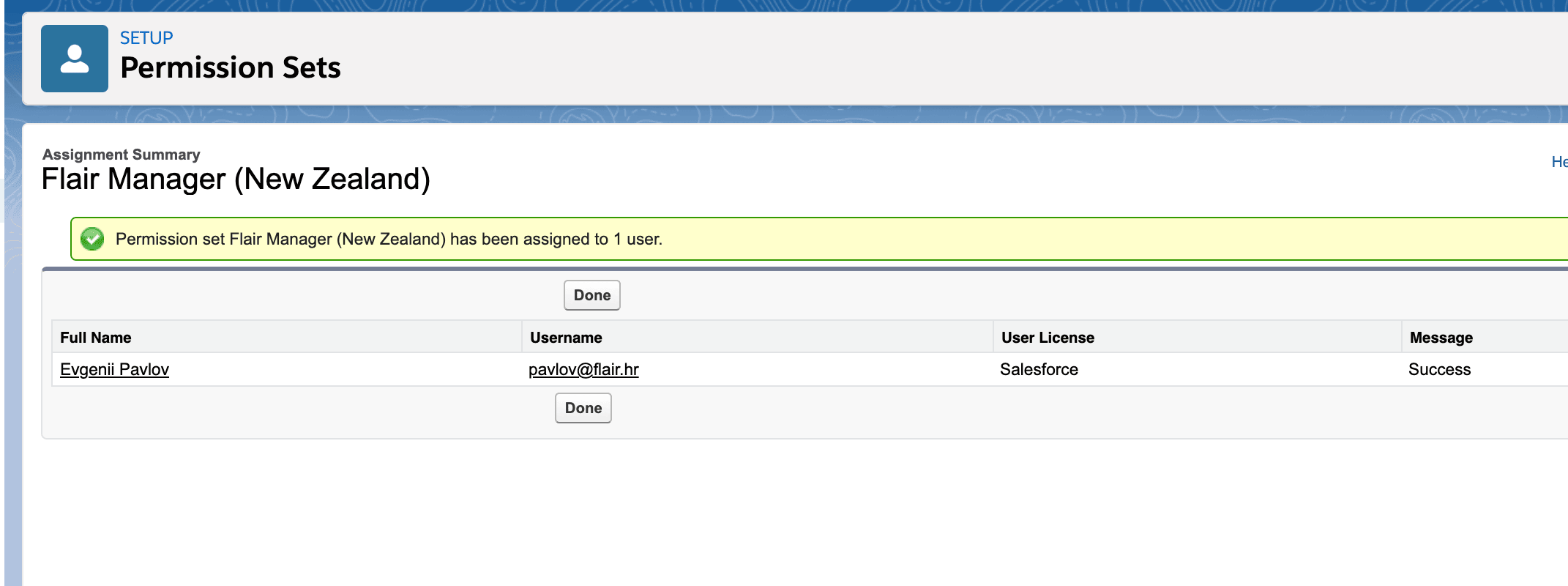
Open the permission set installed with the package. For Oceania, select flair Manager (New Zealand).
-
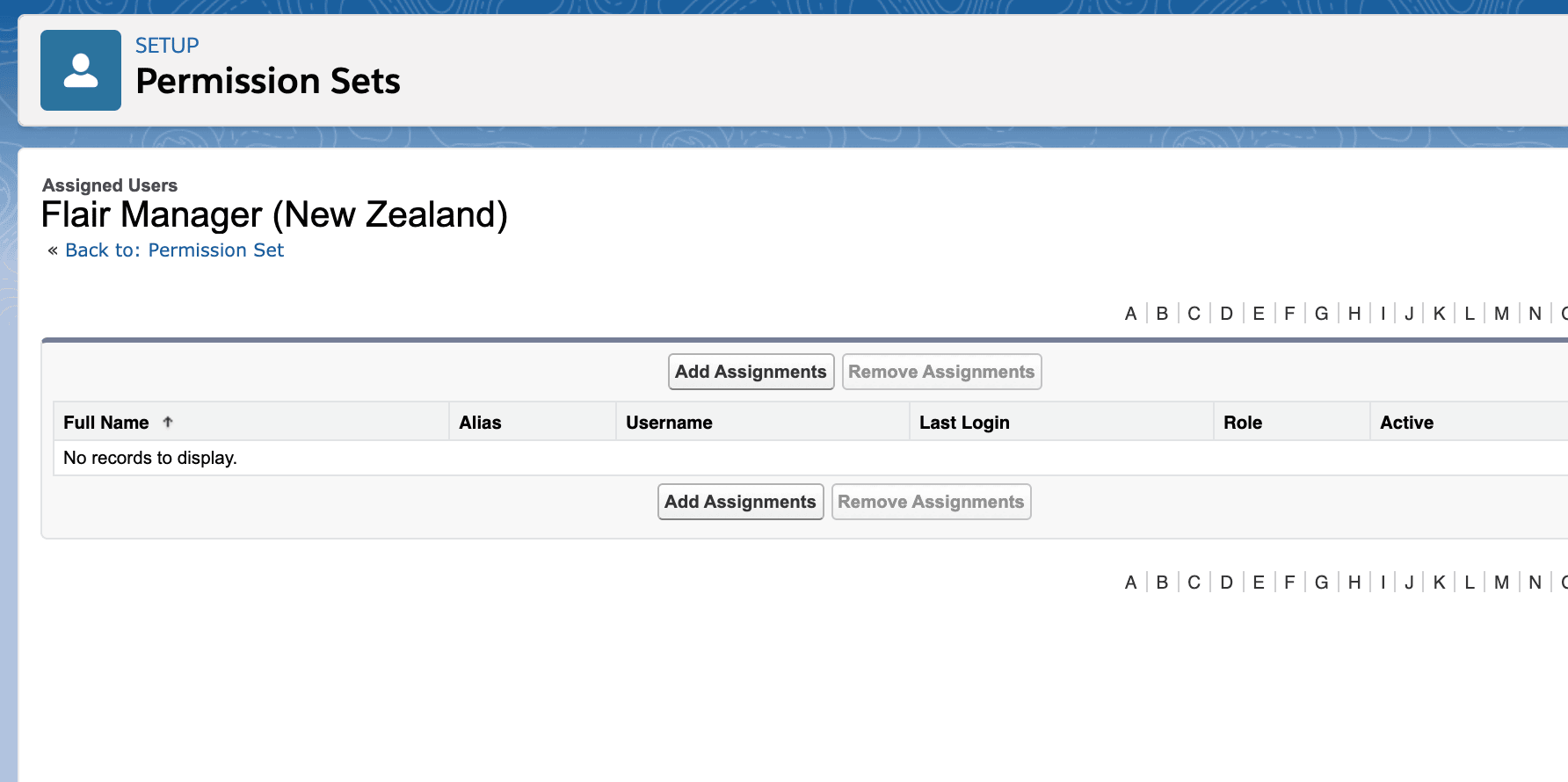
Click Manage Assignments.
-
Assign the permission set to every user who needs the legislation.
Assign the legislation page layout
-
In Salesforce Setup, open Object Manager → Employee (
flair__Employee__c) → Record Types.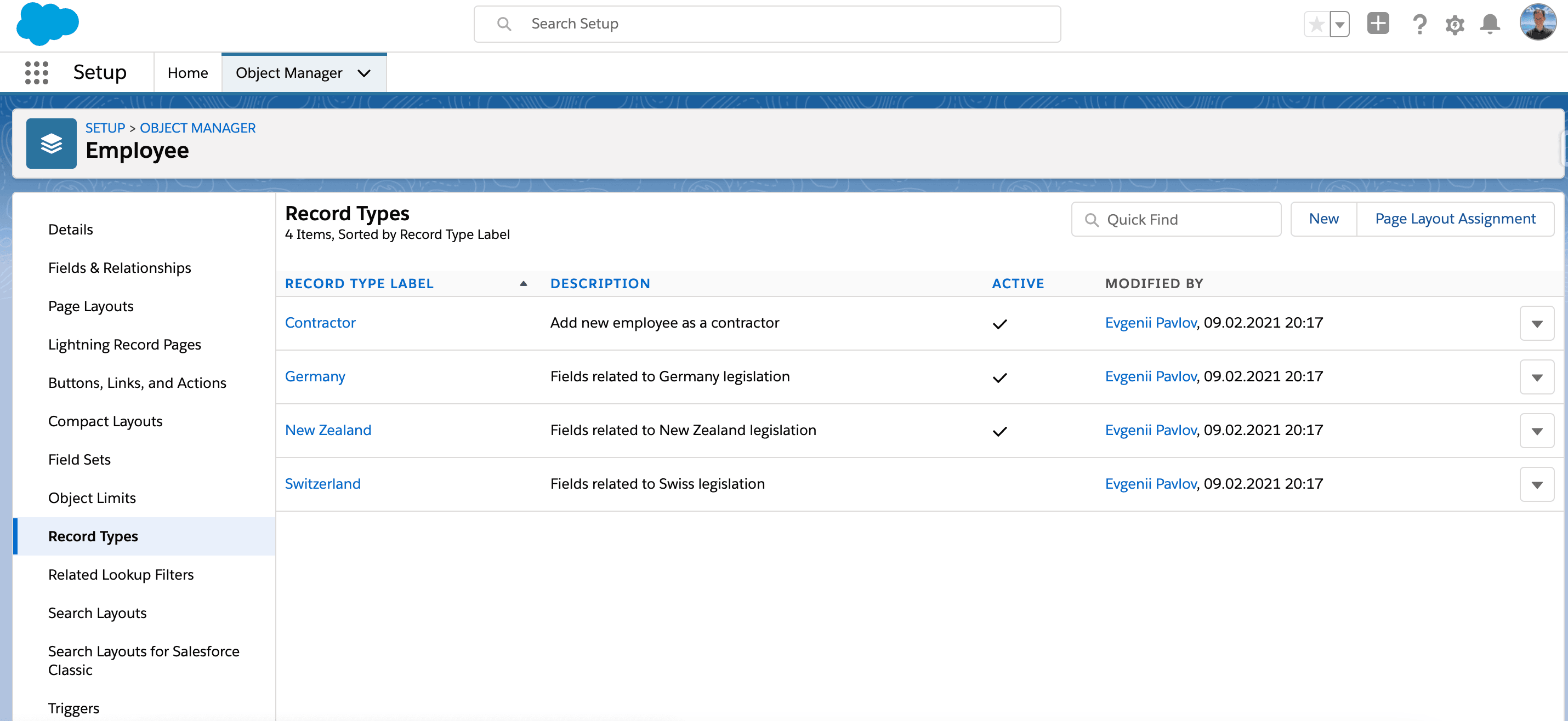
-
Confirm that the package record type is active.
-
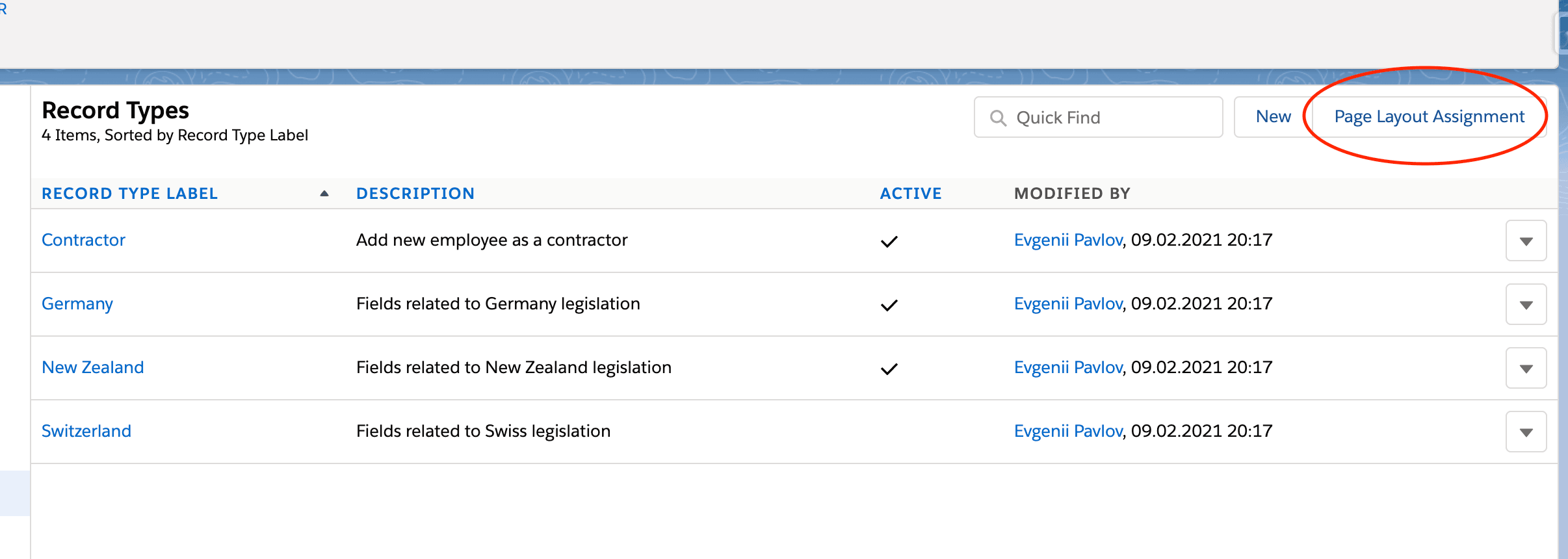
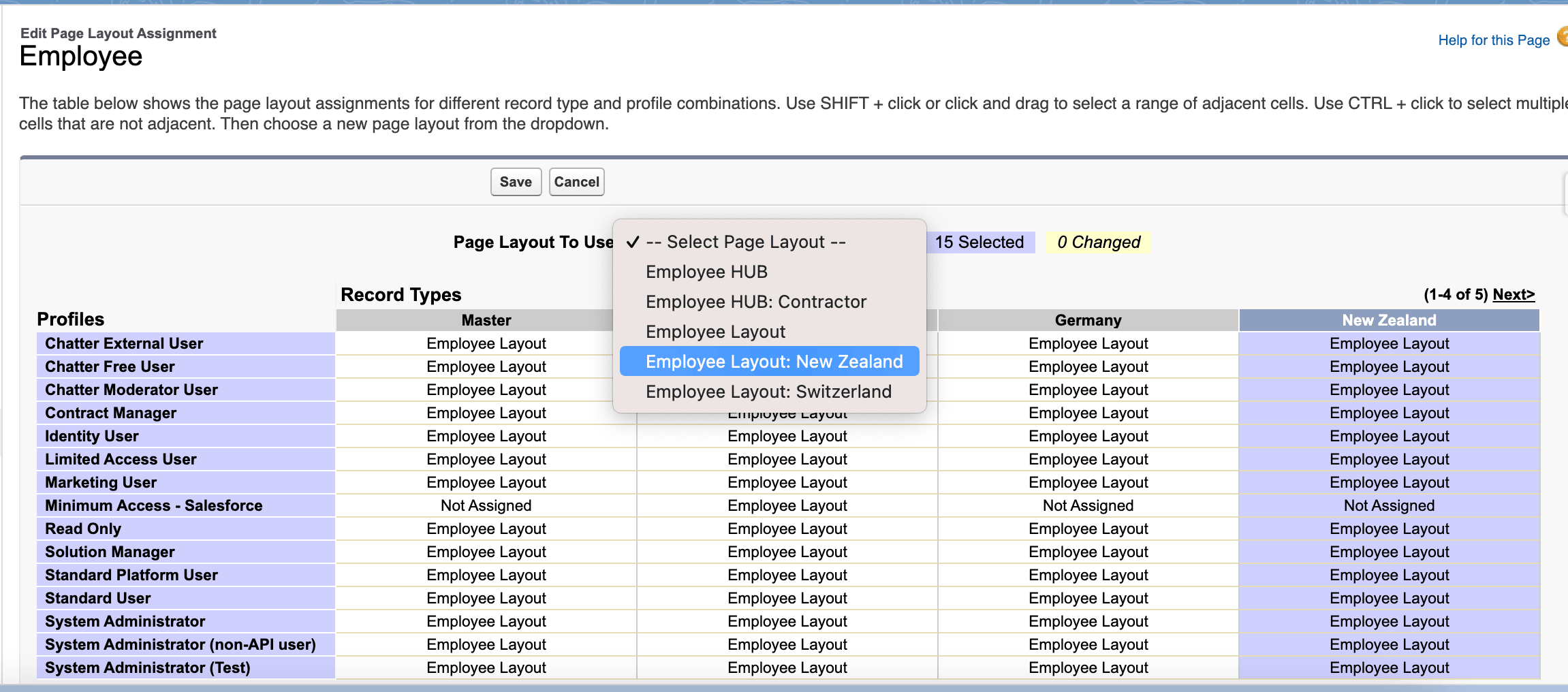
Click Page Layout Assignment.
-
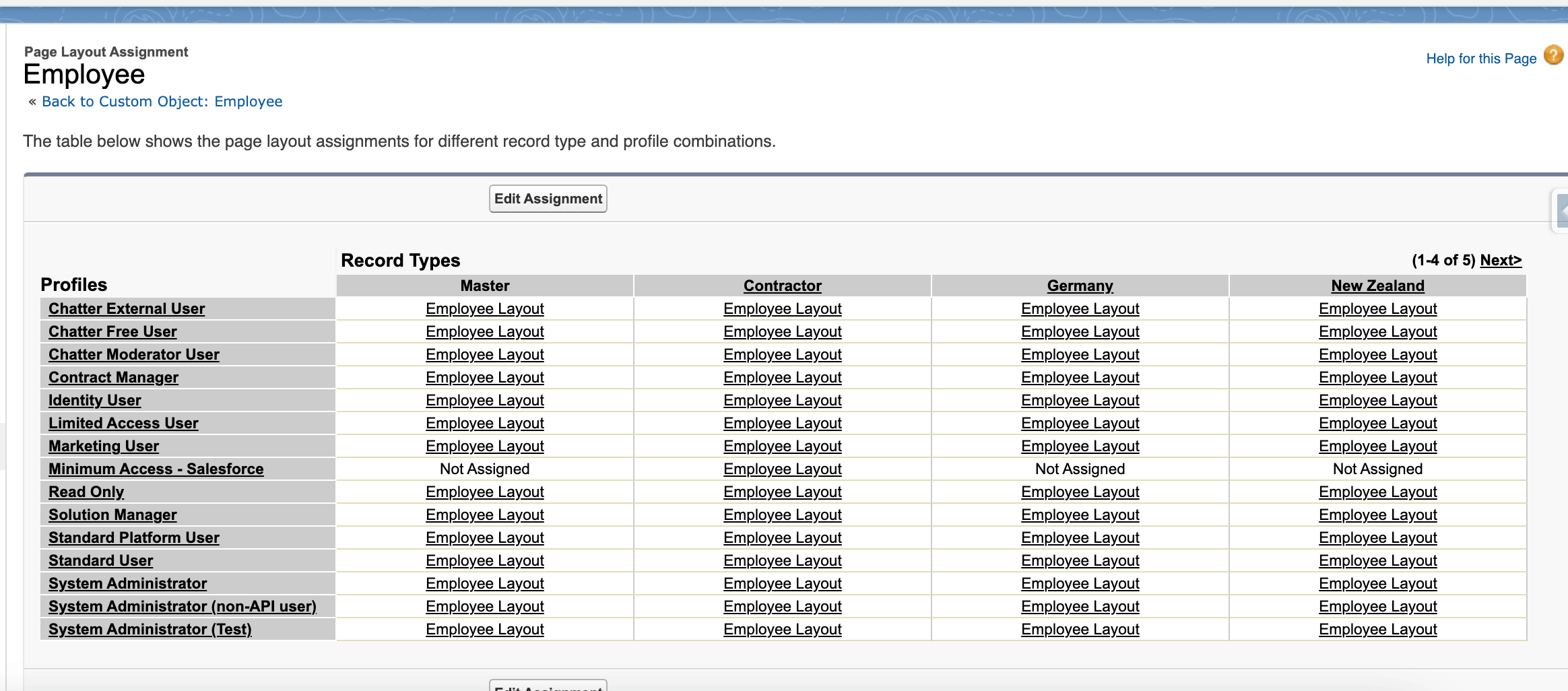
Review the assigned layouts.
-
Click Edit Assignment.
-
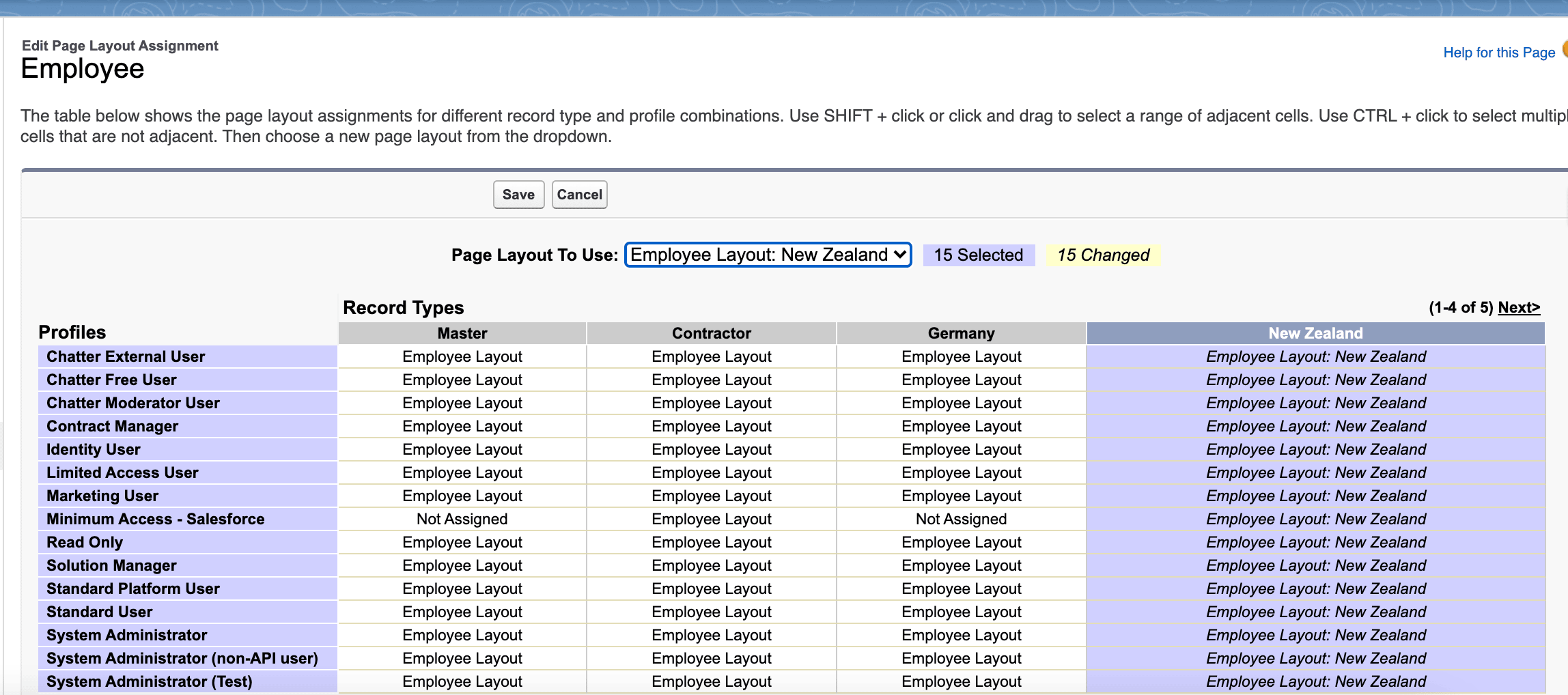
Assign the matching layout to the legislation record type. For Oceania, assign the New Zealand layout to the New Zealand record type.
-
Click Save.
Enable the record type for profiles
-
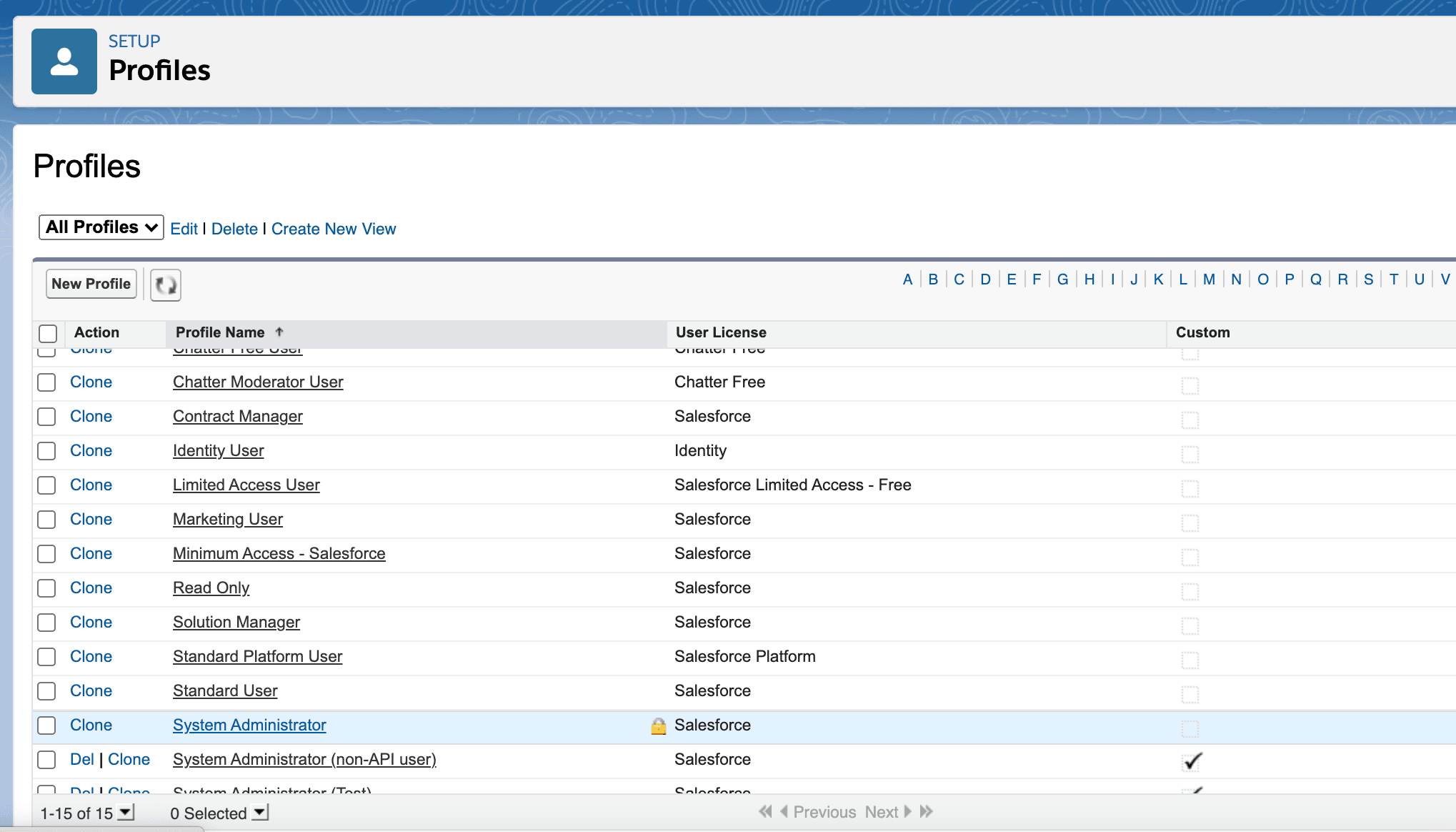
In Salesforce Setup, open Profiles.
-
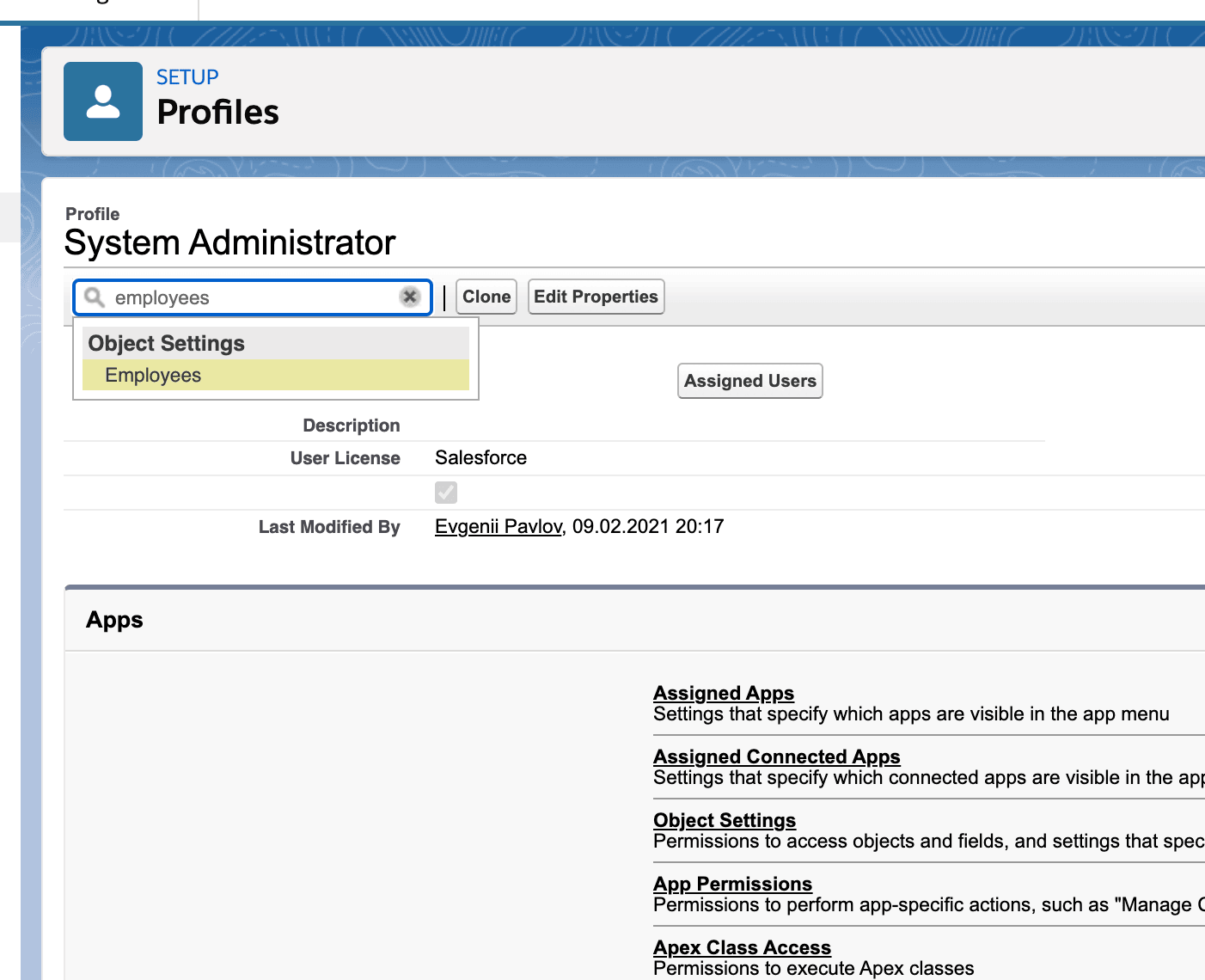
Select a profile that needs access to the legislation.
-
Under Object Settings, open Employees.
-
Enable the legislation record type.
-
Save the profile.
-
Repeat these steps for every Salesforce user profile that needs the legislation.
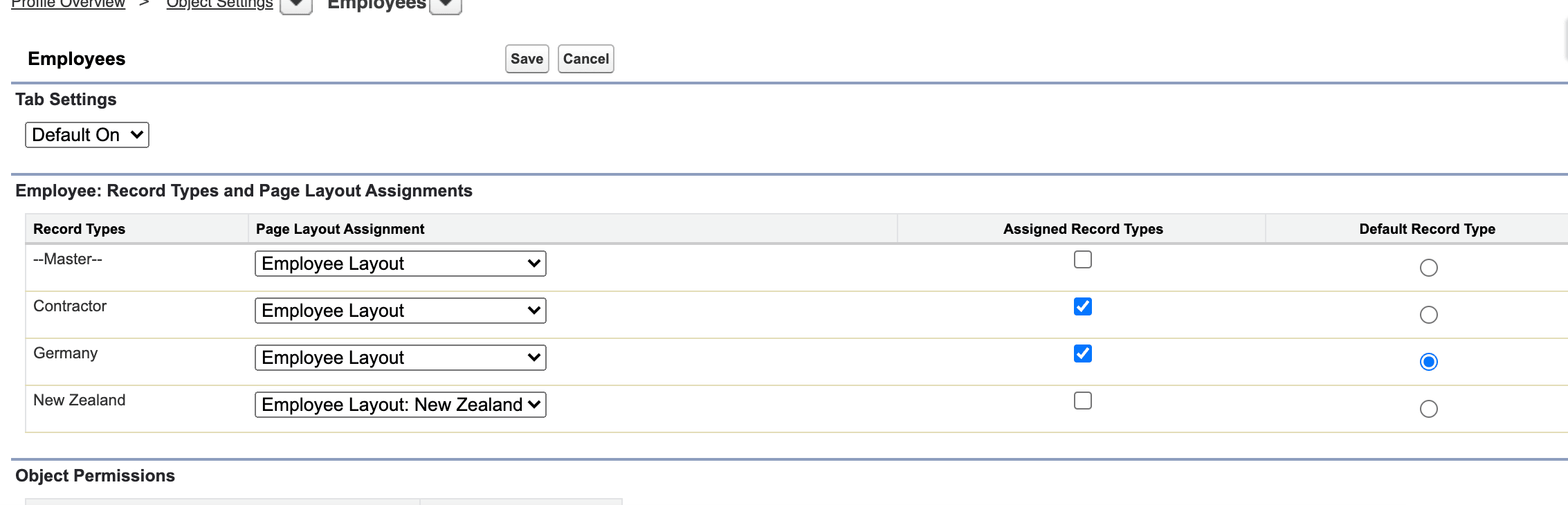
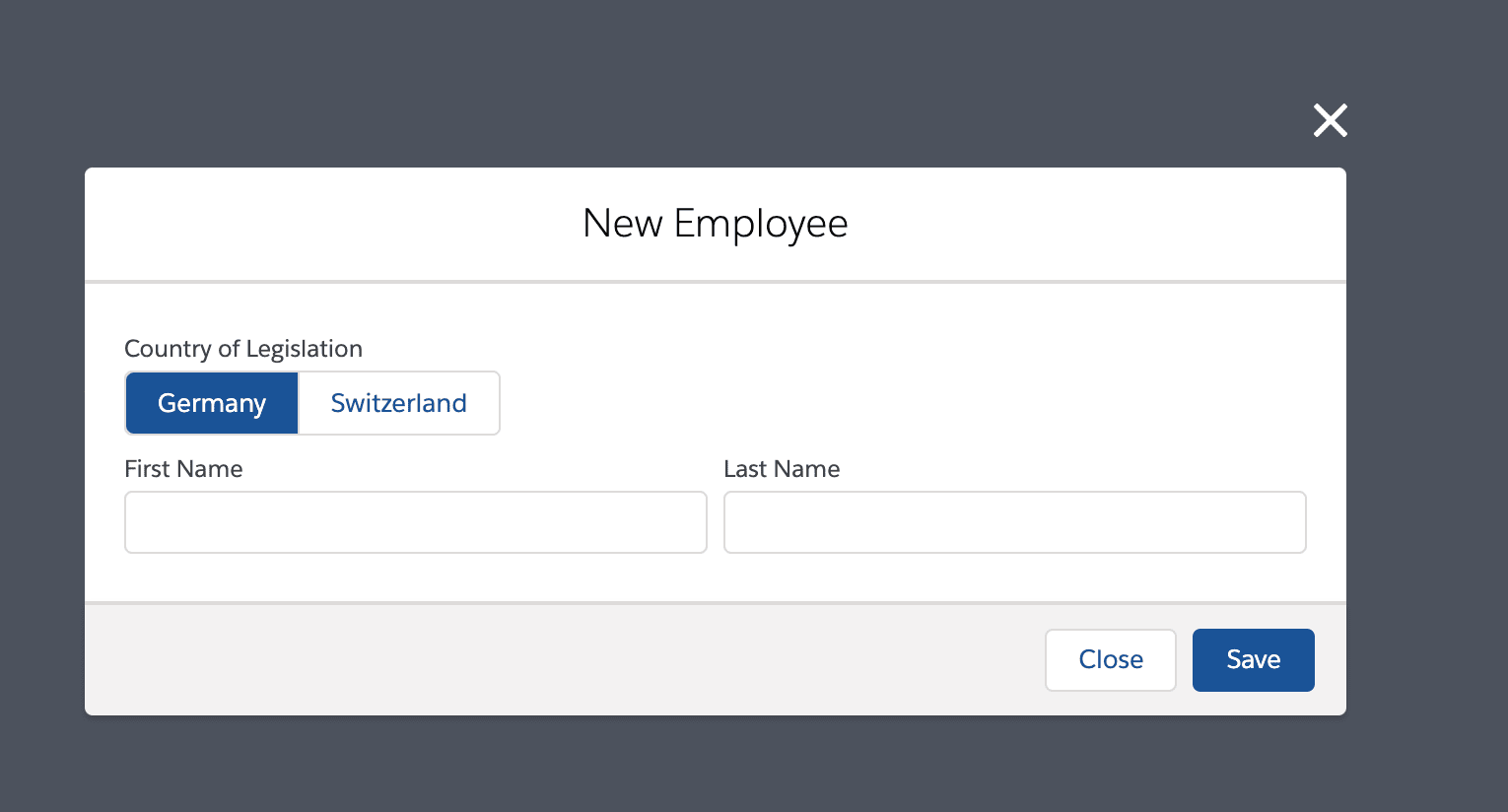
You can now create employee records with the installed legislation. When more than one Employee record type is active, users select it in Record Type when they create an employee.
Create a legislation
Create a Salesforce record type when a required country is not included in a flair extension package. For example, you can add Austria to an organization that already uses Germany and Switzerland.
-
In Salesforce Setup, open Object Manager → Employee (
flair__Employee__c) → Record Types.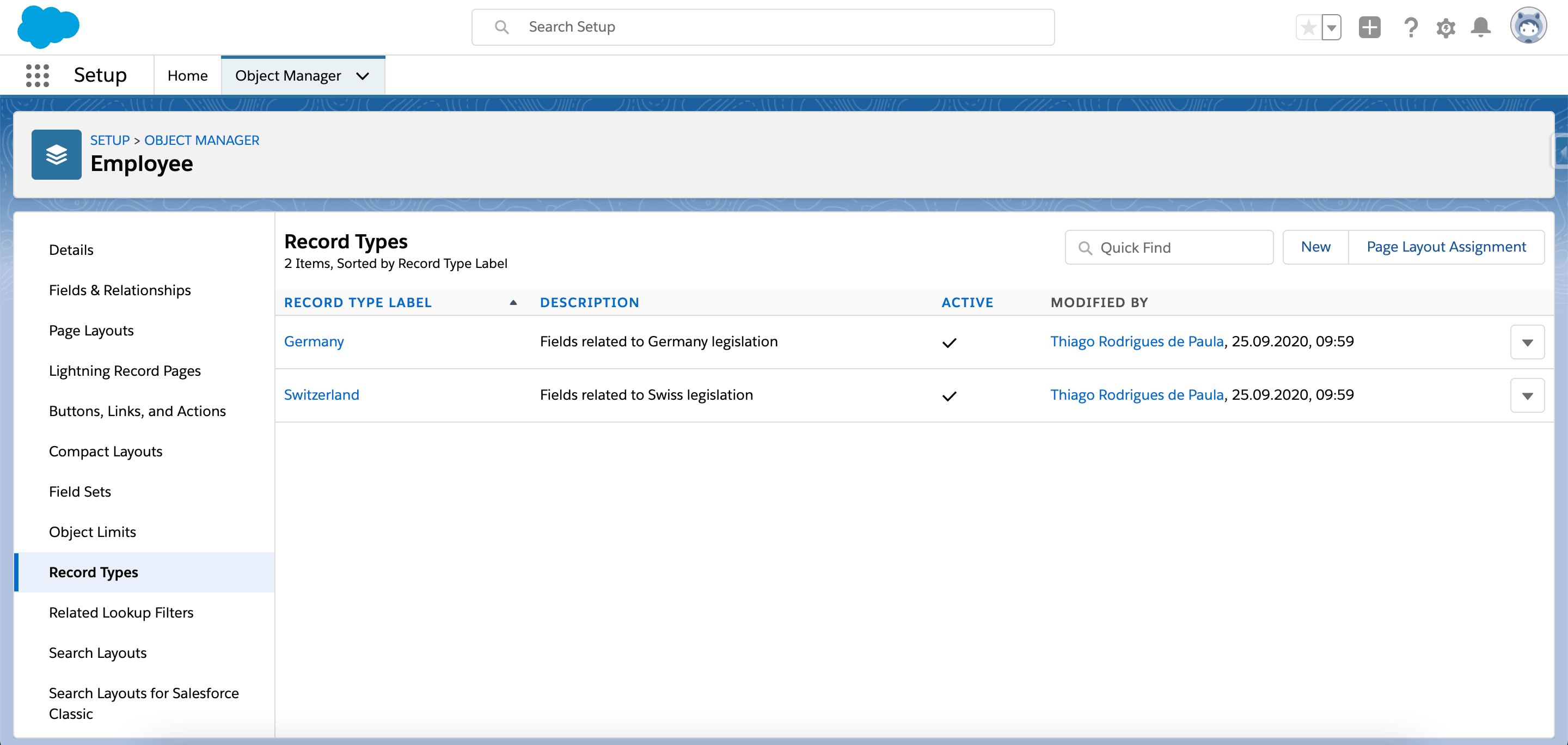
-
Click New.
-
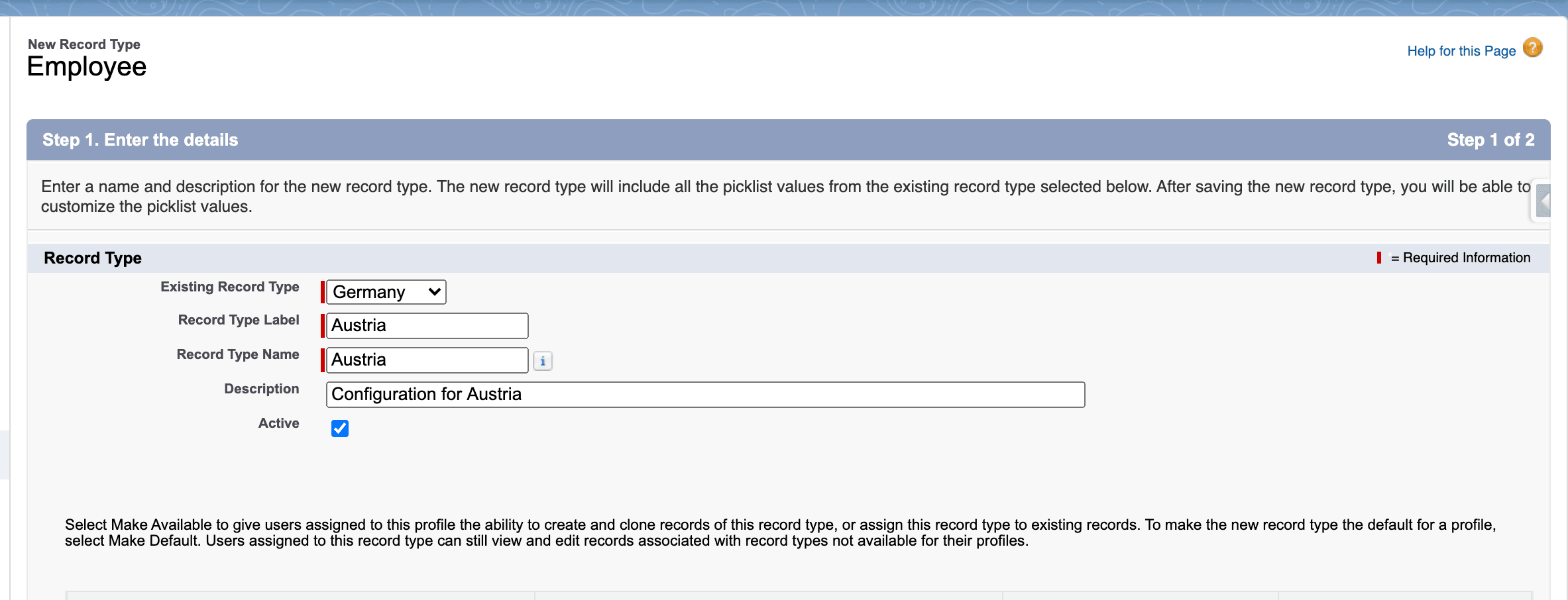
Optional: In Existing Record Type, select a legislation to copy.
-
Enter a Name, Label, and Description.
-
Select Active.
-
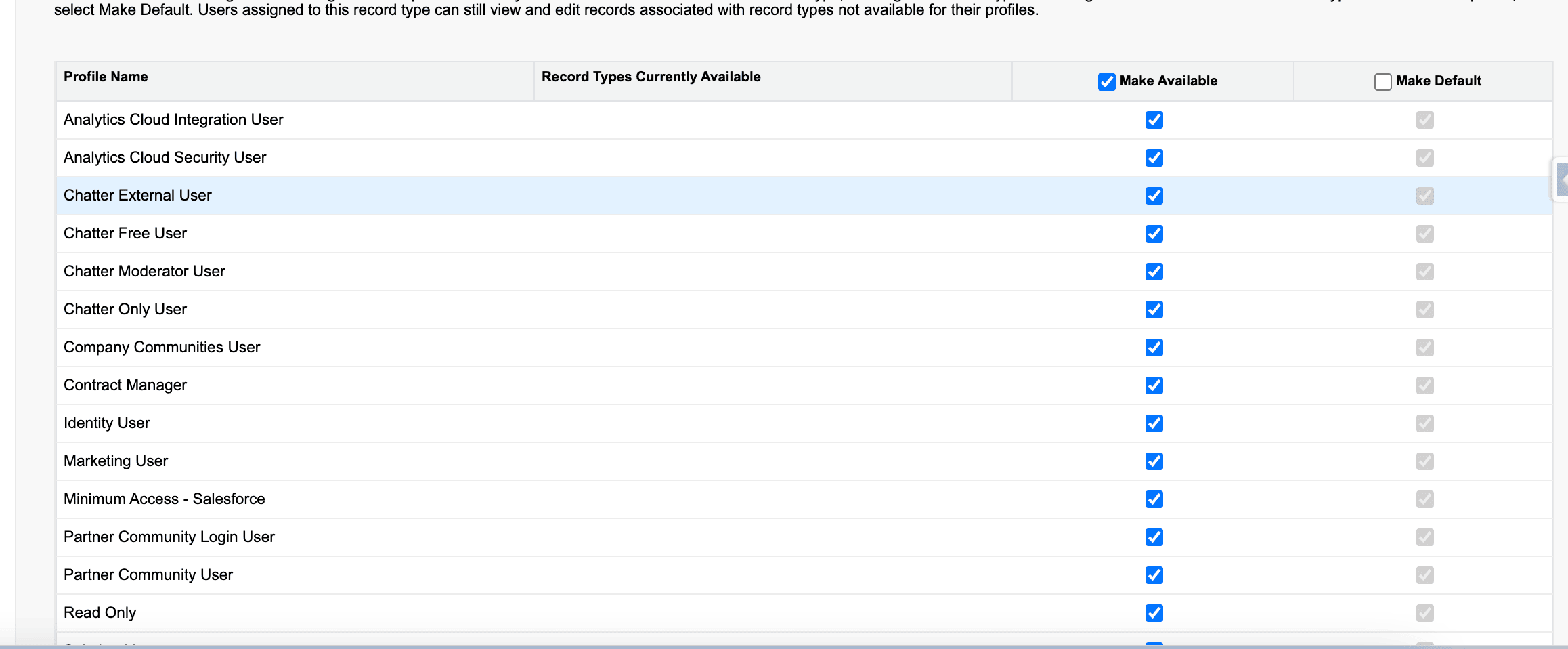
Enable the record type for each Salesforce profile that needs it. You can also complete the profile assignments later.
-
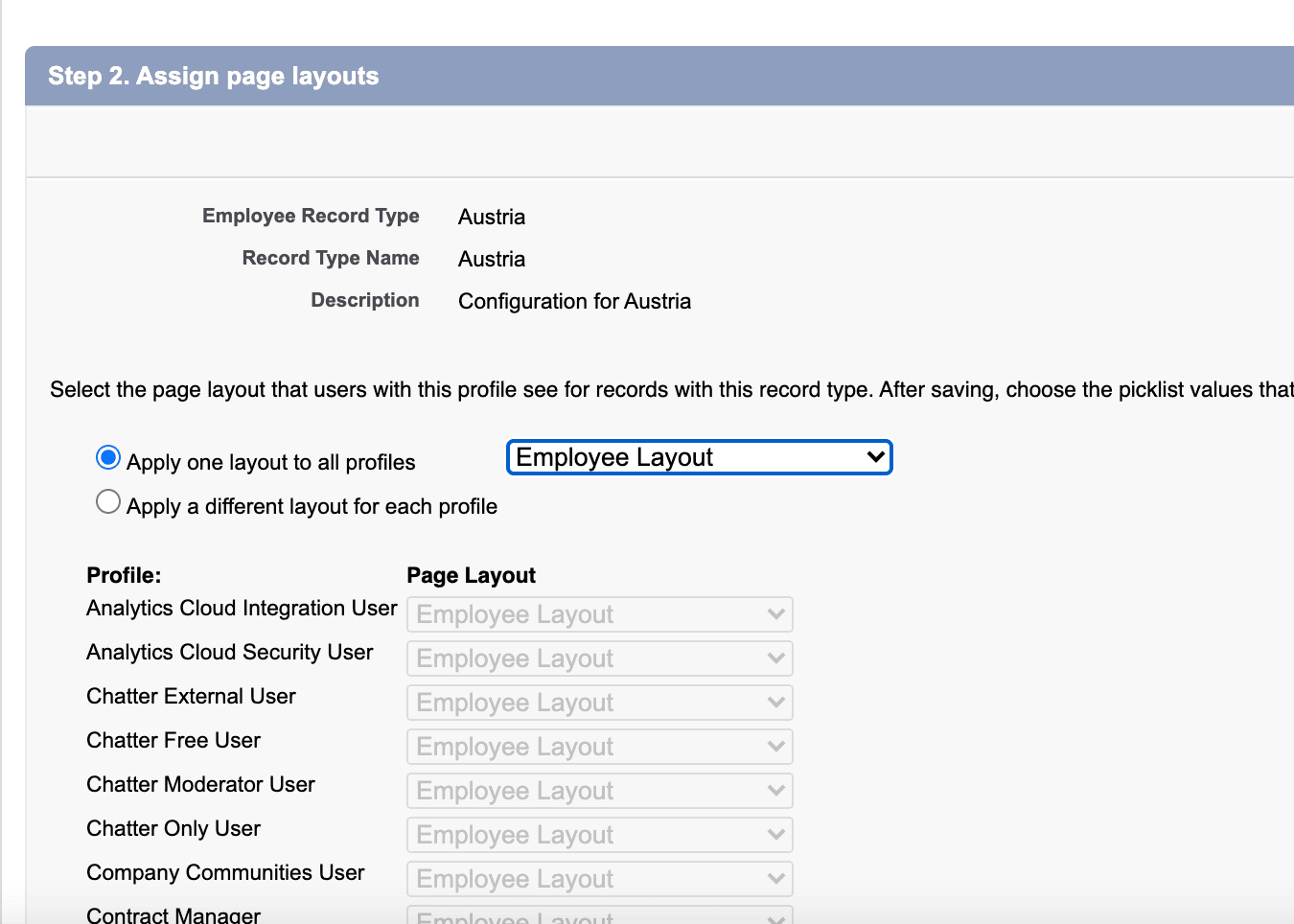
Select a page layout. Choose a different layout when the legislation needs its own sections and fields; you can create multiple layouts and record types.
-
Add any required fields to the assigned layout.
-
Configure the required picklist values.
-
Click Save. The new legislation becomes available as an Employee record type.