Audit your organization against German labor law
The Compliance tab checks your flair configuration and employee data against German labor law, such as the Working Hours Act (ArbZG), the Minimum Wage Act (MiLoG), and the Maternity Protection Act (MuSchG). This guide covers preparing the data the audit relies on, running the audit, and reviewing, exporting, and dismissing its findings.
HR Admins in the flair HR app in Salesforce. The Audit, Document categories, and Legal entities tabs require the HR Manager custom permission, which Flair Manager and Flair Employee Management include. The Protected employee data tab and findings that reveal health data require the View Sensitive Compliance Findings custom permission, which only Flair Manager includes.
The audit is a starting point, not legal advice. Collective agreements and works agreements can allow rules that differ from the statutory defaults the audit checks. The rules are fixed checks in flair; no AI is involved in a finding.
Before you begin
- Make sure each legal entity or payroll territory has a country. The audit only checks employees who work under German law. See Set the country and minimum wage sector.
- Classify your absence categories and your employment contract document category. Without a classification, the audit can't tell vacation from sick leave or find employment contracts, and it reports a Missing data finding instead.
Open the Compliance tab
- In Salesforce, open the flair HR app.
- Click the Compliance tab. The Audit tab opens with the result of the last audit.
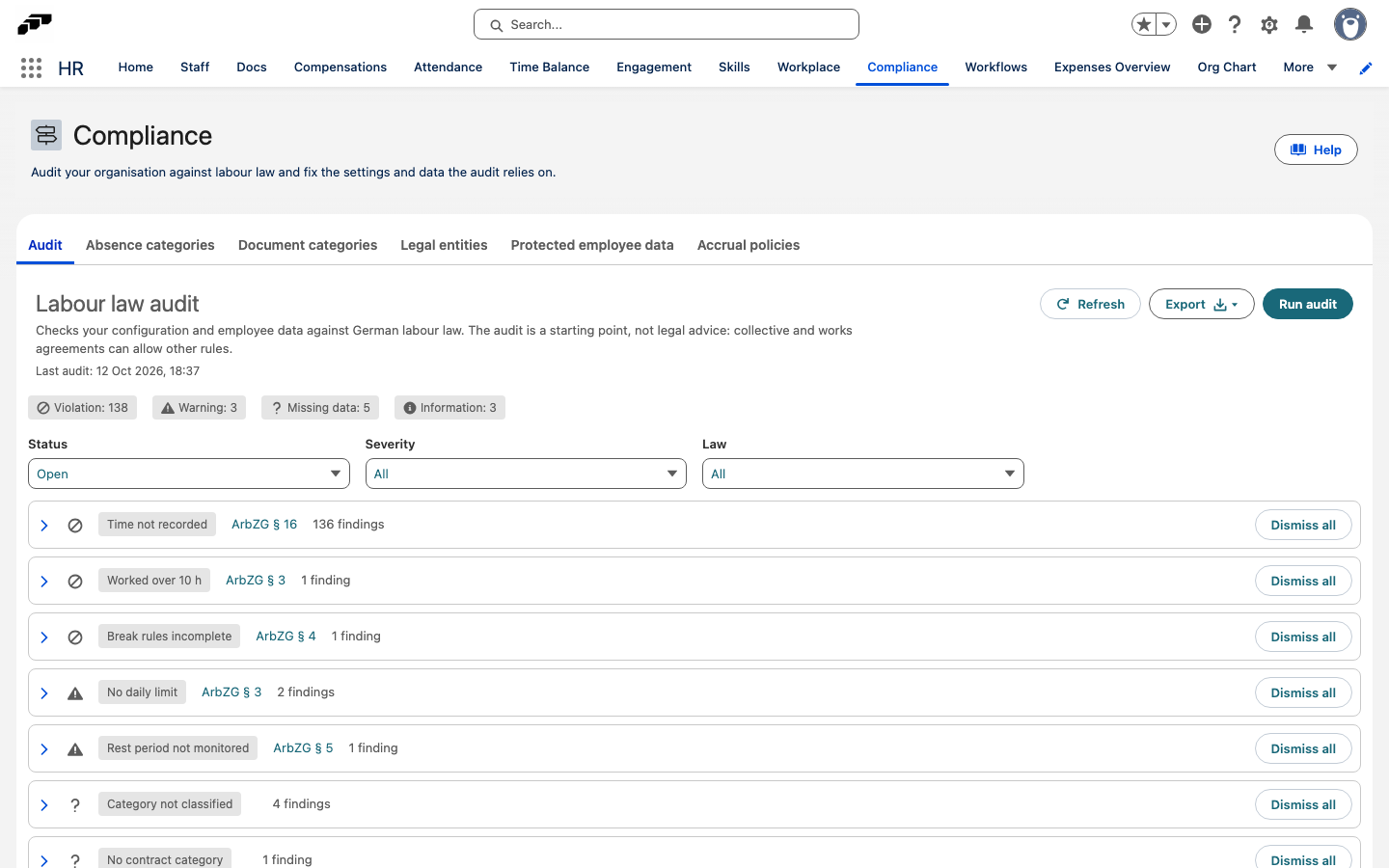
The Compliance tab has these tabs:
| Tab | What you do there | Who sees it |
|---|---|---|
| Audit | Run the audit and review its findings. | HR Manager custom permission |
| Absence categories | Classify each absence category, for example as vacation or sick leave. | Everyone with access to the Compliance tab, including Flair Absence Manager |
| Document categories | Mark the category that holds signed employment contracts. | HR Manager custom permission |
| Legal entities | Set the country of legal entities and payroll territories, and the minimum wage sector of legal entities. | HR Manager custom permission |
| Protected employee data | Record disability and pregnancy data for the protected-group checks. | View Sensitive Compliance Findings custom permission |
| Accrual policies | Create and edit accrual policies. | Everyone with access to the Compliance tab |
Prepare the data the audit relies on
Each tab under Compliance lists the records the audit reads. Change a value in the table, and then click Save. To discard your changes, click Cancel.
Classify absence categories
- On the Compliance tab, click the Absence categories tab.
- In the Classification column of each category, select what the category is: Vacation, Sick leave, Sick child, Maternity protection, Parental leave, Special leave, Unpaid leave, Business trip (not an absence), Home office (not an absence), Training, or Other.
- Click Save.
The audit uses the classification to find vacation policies, unpaid sick leave, and maternity protection absences. The Paid column is read-only here.
Classify the employment contract category
- On the Compliance tab, click the Document categories tab.
- In the Classification column of the category that holds signed employment contracts, select Employment contract.
- Click Save.
Archived document categories aren't listed.
Set the country and minimum wage sector
The audit decides per employee which country's law applies. It takes the country of the employee's payroll territory first, then the country of the legal entity, and then the employee's own country. Only employees resolved to Germany are audited.
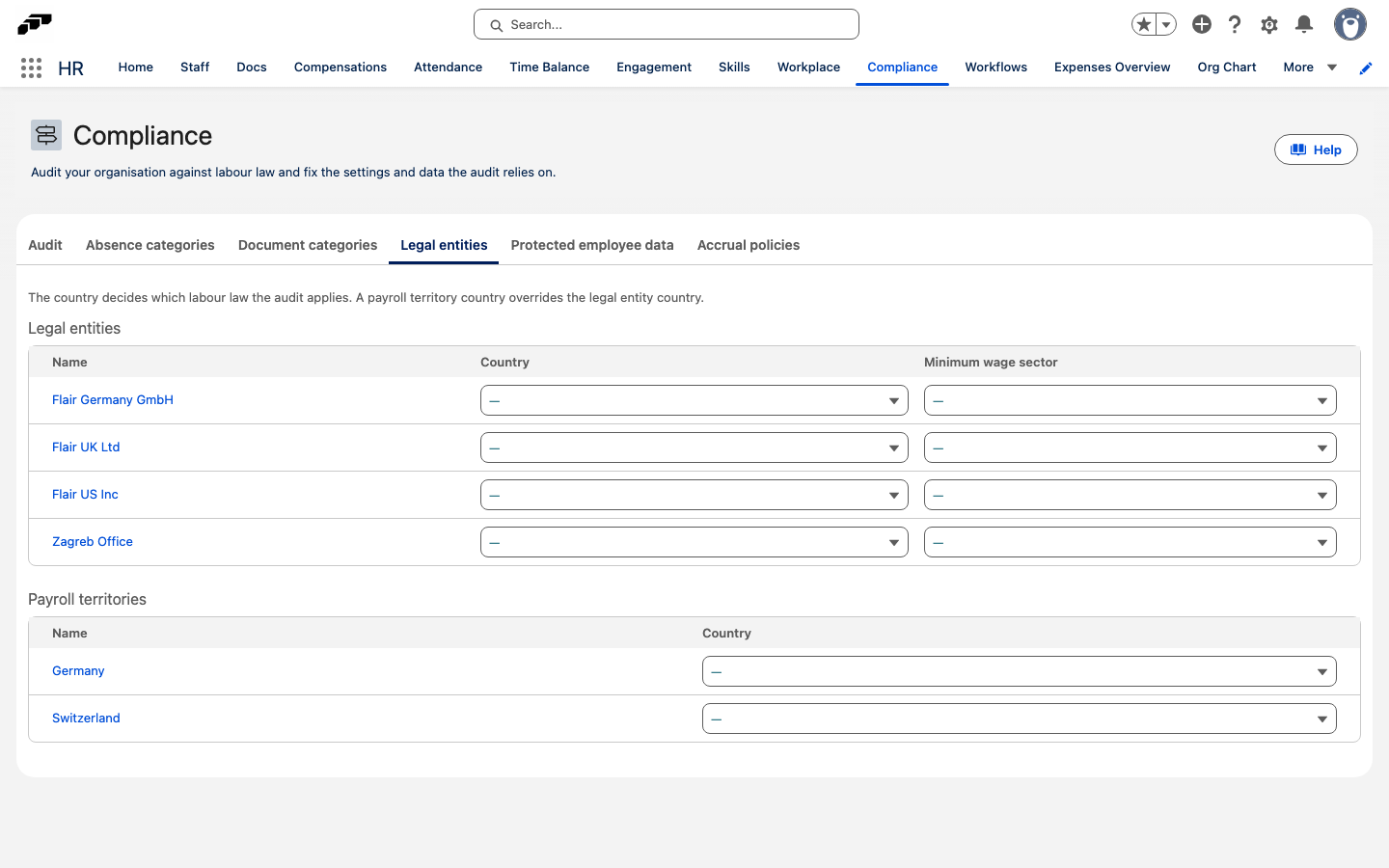
- On the Compliance tab, click the Legal entities tab.
- Under Legal entities, select a Country for each legal entity.
- Optional: If a legal entity is bound by a generally binding sector minimum wage, select it in Minimum wage sector.
- Under Payroll territories, select a Country for each payroll territory that needs one.
- Click Save. Each table has its own Save button, which appears once you change a value in that table.
The available sectors are Airport ground handling, Airport security, Building cleaning, Care, Electrical trades, Painting and varnishing, Roofing, and Scaffolding.
Record protected employee data
The Protected employee data tab holds health data. It lists every employee with a degree of disability, an equal status, or an expected delivery date.
- On the Compliance tab, click the Protected employee data tab.
- To add an employee who isn't listed yet, search for them in Add employee.
- Enter the employee's Degree of disability, Equal status, Valid until, or Expected delivery date.
- Click Save.
A degree of disability of 50 or more counts as a severe disability until the Valid until date passes. Employees with Equal status also count toward the disability employment quota. Set the Expected delivery date once the employee has told you about the pregnancy; it turns on the maternity protection checks for that employee.
Run the audit
When the Compliance audit job is scheduled, flair runs the audit every night at 03:00. The job is scheduled with the other flair jobs; you find it in HR Admin on the Scheduled Jobs tab. To check your data right away, run it yourself:
- On the Audit tab, click Run audit. The message The audit is running. Results appear here when it finishes. appears, and Run audit stays unavailable until the run ends.
- Wait for the run to finish. The tab refreshes every 10 seconds while the audit runs, and Last audit shows when the latest run completed.
The audit checks active employees whose start date has passed or isn't set. It doesn't start a second run while one is in progress.
If part of a run fails, a message under Last audit reports how many batches failed. The affected employees keep their findings from the previous audit, and no finding is removed until a run completes without errors.
Review findings
The badges at the top count the open findings per severity:
| Severity | Meaning |
|---|---|
| Violation | The configuration or data breaks a statutory rule. |
| Warning | The data may break a rule, or an exception may apply that you need to check. |
| Missing data | The audit can't run a check because data or a classification is missing. |
| Information | A statutory obligation to be aware of, such as the disability employment quota. |
Findings are grouped by rule, with violations first. Each group shows the rule, a link to the law on gesetze-im-internet.de, and the number of findings.
- Optional: Narrow the list with the Status, Severity, and Law filters. Status shows Open findings by default.
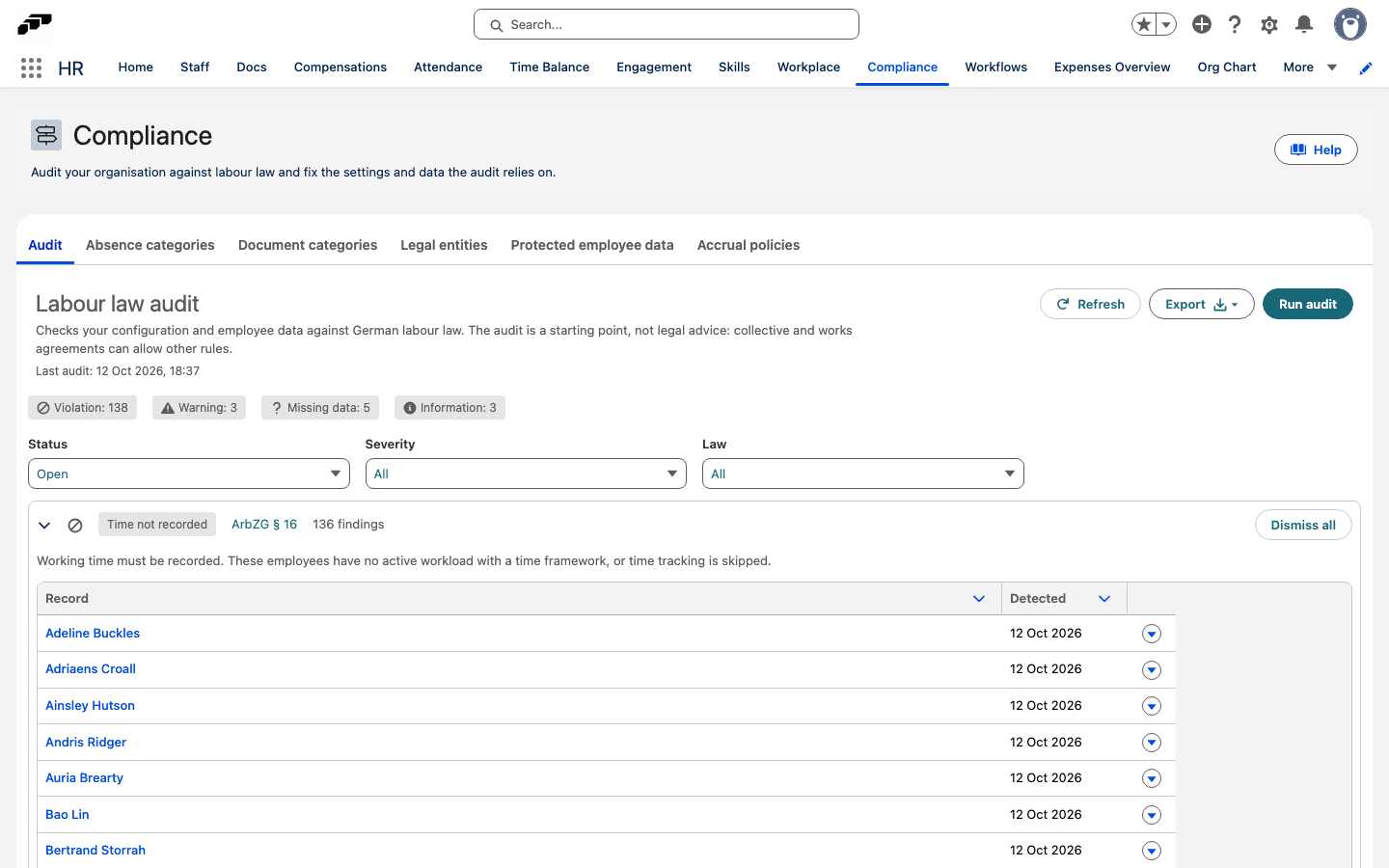
- To see the affected records, click the arrow next to a group. The group expands to show the rule's explanation and a table of the affected records with the Record and Detected columns. Rules that report values add a Details column, and dismissed findings add a Note column.
- To open a record, click its name in the Record column. Findings about the whole configuration show Whole organisation instead.
Details shows the values the rule found, for example the number of days and the last date. Detected is the date the audit first reported the finding. A group shows up to 2,000 findings.
When you fix the data behind a finding, the finding disappears after the next audit that no longer detects it.
Export findings
- On the Audit tab, set the filters you want the export to follow.
- Click Export, and then select CSV or Excel.
The file lists each finding with its severity, law, rule, record, details, status, dismissal data, and a link to the law. An export holds up to 10,000 findings.
Dismiss or reopen a finding
Dismiss a finding when it doesn't apply, for example because a collective agreement or works agreement allows it. A dismissed finding stays dismissed when the audit runs again.
- On the Audit tab, expand the group that contains the finding.
- In the finding's row, click the row action menu and select Dismiss.
- In Reason, enter why the finding doesn't apply. A reason is required.
- Click Dismiss.
To dismiss every open finding of a rule at once, click Dismiss all on the group, enter a Reason, and click Dismiss.
The Note column of a dismissed finding shows who dismissed it, when, and why. To see dismissed findings, set Status to Dismissed or All. To reopen one, select Reopen in its row action menu.
What the audit checks
The audit reads time entries and worked time from the last 6 months. Rules about young people use the employee's date of birth; rules about pregnancy and disability use the data on the Protected employee data tab. Findings from the rules marked Health data are visible only to users with the View Sensitive Compliance Findings custom permission.
Working time (ArbZG)
| Rule | Law | Severity | What the audit checks |
|---|---|---|---|
| No daily limit | ArbZG § 3 | Warning | The Time Framework's time limit settings enforce no daily maximum. |
| Daily limit above 10 h | ArbZG § 3 | Violation | The daily limit allows more than 10 hours. |
| Break rules incomplete | ArbZG § 4 | Violation | The Time Framework's break rules don't require 30 minutes after 6 hours and 45 minutes after 9 hours. |
| Rest period not monitored | ArbZG § 5 | Warning | The Time Framework doesn't monitor the daily rest period. |
| Rest period below 11 h | ArbZG § 5 | Violation | The configured daily rest period is shorter than 11 hours. |
| Time not recorded | ArbZG § 16 | Violation | The employee has no active workload with a Time Framework, or time tracking is skipped. |
| Planned day above 10 h | ArbZG § 3 | Violation | The workload plans a day longer than 10 hours. |
| Planned week above 48 h | ArbZG § 3 | Violation | The workload plans a week longer than 48 hours. |
| Seven-day week | ArbZG § 9 | Warning | The workload plans work on all seven days. |
| Worked over 10 h | ArbZG § 3 | Violation | The employee worked more than 10 hours on a day. |
| Average above 8 h | ArbZG § 3 | Violation | The average working day (Monday to Saturday) over the last 6 months was longer than 8 hours. Only checked for employees who started at least 6 months ago. |
| Breaks not taken | ArbZG § 4 | Violation | Time entries are marked as not meeting the break rules. |
| Rest under 11 h | ArbZG § 5 | Violation | The rest between two working days was shorter than 11 hours. |
Absences and vacation (EntgFG, BUrlG)
| Rule | Law | Severity | What the audit checks |
|---|---|---|---|
| Sick leave unpaid | EntgFG § 3 | Violation | An absence category classified as Sick leave isn't paid. |
| Category not classified | — | Missing data | An absence category assigned to an employee has no classification. |
| Vacation expires early | BUrlG § 7 | Warning | A vacation accrual policy lets the year's vacation expire before 31 March of the following year. |
| Vacation below minimum | BUrlG § 3 | Violation | The yearly vacation entitlement is below 24 working days on a six-day week (20 days on a five-day week), converted to the employee's working days per week. |
| No vacation policy | — | Missing data | The employee has no active vacation accrual policy, although an absence category is classified as Vacation. |
The vacation entitlement checks count day-based accrual policies and respect their workload proration. Employees with an hour-based vacation policy are skipped.
Young people (JArbSchG)
| Rule | Law | Severity | What the audit checks |
|---|---|---|---|
| Minor: planned hours too high | JArbSchG § 8 | Violation | The workload of an employee under 18 plans more than 8 hours a day or 40 hours a week. |
| Minor worked over 8 h | JArbSchG § 8 | Violation | The employee worked more than 8 hours on a day before turning 18. |
| Minor: rest under 12 h | JArbSchG § 13 | Violation | The rest between two working days was shorter than 12 hours before the employee turned 18. |
| Minor: more than 5 days | JArbSchG § 15 | Violation | The workload of an employee under 18 plans more than 5 days a week. |
| Minor: vacation below minimum | JArbSchG § 19 | Violation | The vacation entitlement is below 30, 27, or 25 working days on a six-day week for employees under 16, 17, or 18 at the start of the year, converted to the employee's working days per week. |
| Date of birth missing | — | Missing data | The employee has no date of birth, so the youth rules can't be checked. |
Pay and contracts (MiLoG, AEntG, TzBfG, NachwG)
| Rule | Law | Severity | What the audit checks |
|---|---|---|---|
| Below minimum wage | MiLoG § 1 | Violation | The hourly rate is below the statutory minimum wage: 13.90 € from 2026 and 14.60 € from 1 January 2027. |
| Below sector minimum wage | AEntG § 8 | Violation | The hourly rate is below the minimum wage of the sector set on the legal entity, when that rate is higher than the statutory one. |
| Check wage exemption | MiLoG § 22 | Warning | The hourly rate is below the minimum wage, but the employee is a minor, an apprentice, an intern, or in a comparable training employment, so an exemption may apply. |
| No contracted hours | — | Missing data | The active workload has no contracted hours, so a non-hourly salary can't be converted to an hourly rate. |
| Fixed term over 2 years | TzBfG § 14 | Warning | A chain of fixed-term employments lasts 2 years or longer. |
| Too many extensions | TzBfG § 14 | Warning | A chain of fixed-term employments was extended more than 3 times. |
| Fixed term after earlier job | TzBfG § 14 | Warning | The fixed-term chain started after an earlier employment with the employer. |
| Fixed term not signed in time | TzBfG § 14 | Warning | No employment contract was filed before the current fixed-term employment started. |
| No contract category | — | Missing data | No document category is classified as Employment contract. |
| Contract missing | NachwG § 2 | Warning | The employee has no employment contract on file. |
| Contract not signed | NachwG § 2 | Warning | None of the employee's employment contracts is signed. A contract without a sign request counts as signed outside flair. |
Both NachwG rules apply only to employees who started on or after 1 August 2022 and more than a month ago. The hourly rate comes from the employee's current salary and the contracted hours of their workload. A fixed-term chain treats consecutive fixed-term employments as one when no more than 4 days lie between the end of one and the start of the next.
Protected groups (SGB IX, MuSchG)
| Rule | Law | Severity | What the audit checks |
|---|---|---|---|
| Additional leave missing | SGB IX § 208 | Violation, Health data | A severely disabled employee doesn't get one additional week of vacation on top of the statutory minimum. |
| Disability quota not met | SGB IX § 154 | Information, Health data | A legal entity with 20 or more German employees fills fewer positions with severely disabled people than required (5 %). Checked once per legal entity at the end of each run. |
| Work during maternity protection | MuSchG § 3 | Violation, Health data | The employee worked during an approved maternity protection absence or in the 8 weeks after the expected delivery date. |
| Maternity protection too short | MuSchG § 3 | Violation, Health data | A finished maternity protection absence ends after the expected delivery date, but less than 8 weeks after it. |
| Pregnant: over 8.5 h a day | MuSchG § 4 | Violation, Health data | A pregnant employee worked more than 8.5 hours on a day. |
| Pregnant: over 8.5 h planned | MuSchG § 4 | Violation, Health data | The workload of a pregnant employee plans more than 8.5 hours a day. |
| Pregnant: night work | MuSchG § 5 | Violation, Health data | A pregnant employee worked between 20:00 and 06:00. |
| Pregnant: Sunday work | MuSchG § 6 | Violation, Health data | A pregnant employee worked on a Sunday. |