Create and review Payroll Runs
A Payroll Run collects each employee's salary, compensations, time-based pay lines, and deductions for one pay period. This guide covers creating a Payroll Run, reviewing it, automating recurring runs, adding stages, and reversing a completed run.
HR Admins and payroll teams in the flair HR app in Salesforce. Salesforce Admin access is required to add Payroll Run stages or use Developer Console.
Before you begin
- A Payroll Territory exists for the employees you pay. See Create a Payroll Territory.
- The employees have salaries. See Add an employee salary.
Create a Payroll Run
Create a Payroll Run manually when you need a one-off period. For recurring periods, configure automatic Payroll Run creation on the Payroll Territory.
- In the flair HR app, open Payroll Runs.
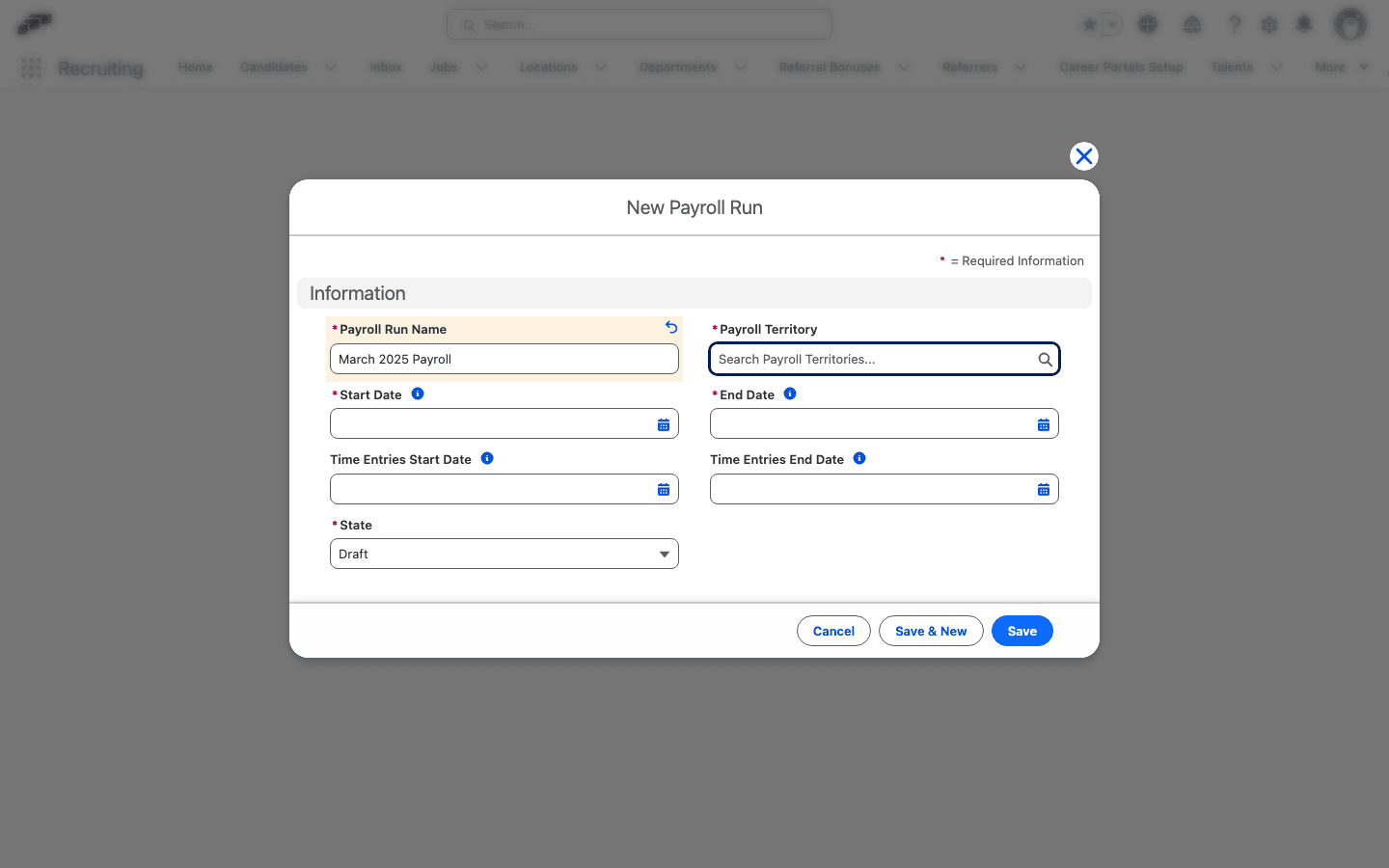
- Click New.
- Enter Name, Start Date, and End Date.
- Select Payroll Territory.
- Click Save.
- Click Add Employees, then select employees from the territory.
Payroll Runs use these default stages:
| Stage | What it means |
|---|---|
| Draft | You can add or remove employees and change data. |
| Pending Approval | The run is ready for review and approval. |
| Submitted | The run is approved, submitted, and locked for processing. |
| Completed | Payroll processing is finished when the territory's completion policy allows it. |
Review a Payroll Run
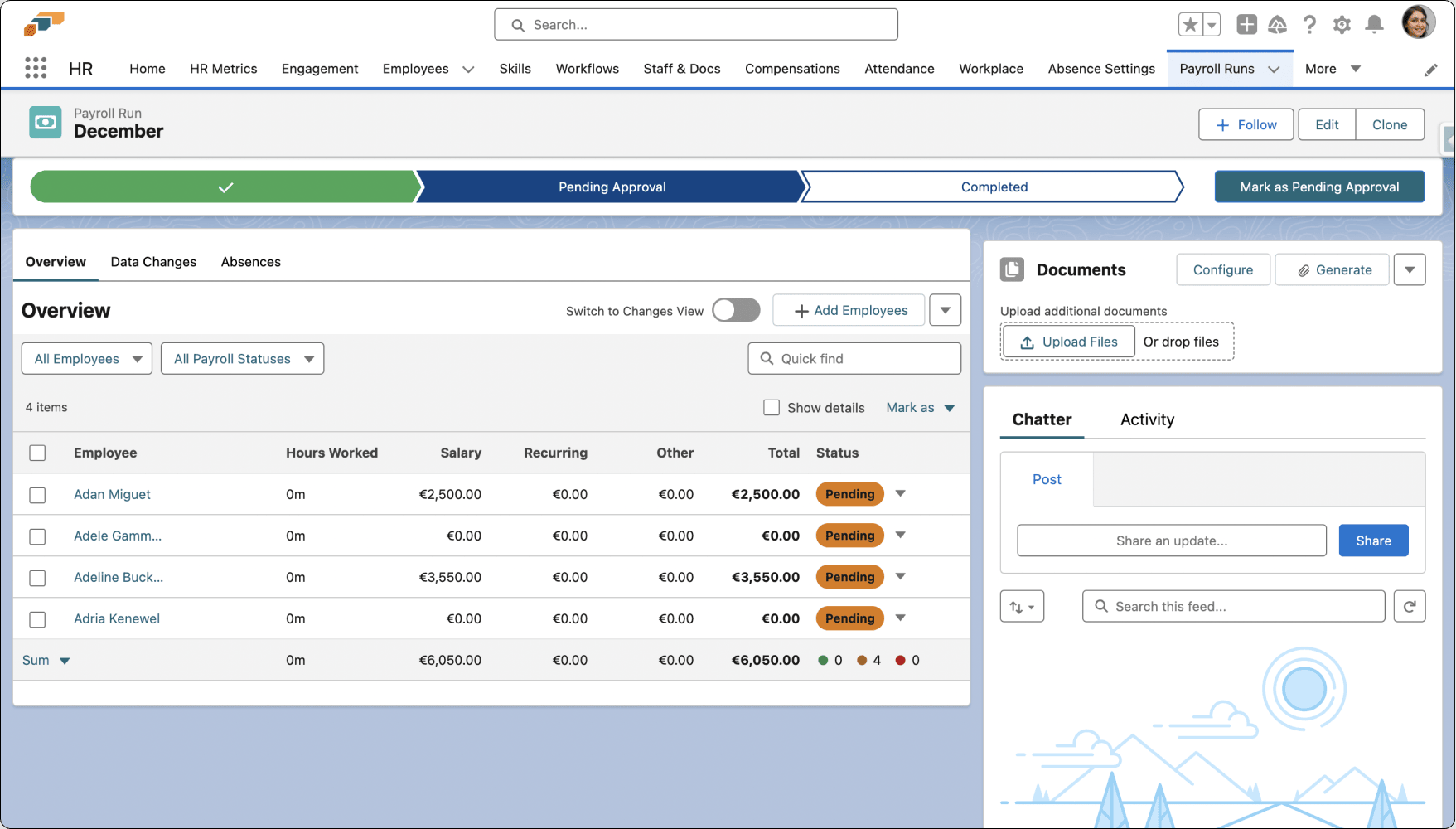
Check each employee's pay before you move the run on. The Payroll Run page shows every employee in the run, with their pay lines, changes, and a review status.
- In Payroll Runs, open the run.
- Check Payroll Health in the right sidebar. It counts line items that need attention, pending line items, pending absences, and pending time entries for the run, and shows Good when there are none. The card is hidden once the run is Completed.
- On the Overview tab, use the All Employees filter to narrow the list to New Hires, Leaving Employees, With Changes, With comments, or With notes. Each option appears only when at least one employee in the run matches it. Use All Payroll Statuses to filter by review status.
- Click an employee's name to open their panel. Use the arrows in the panel header to move to the previous or next employee.
- Review the employee's pay on the panel's Overview tab, and check the Comments, Time Entries, Changes History, and Files tabs as needed.
- In Payroll Status at the bottom of the panel, set the status to Reviewed or Needs Attention.
- To update several employees at once, select them in the list, click Mark as, and select Reviewed or Needs Attention.
- When the review is done, click Mark as followed by the next stage name in the path at the top of the page. Moving to Completed or to a locked stage asks you to confirm first.
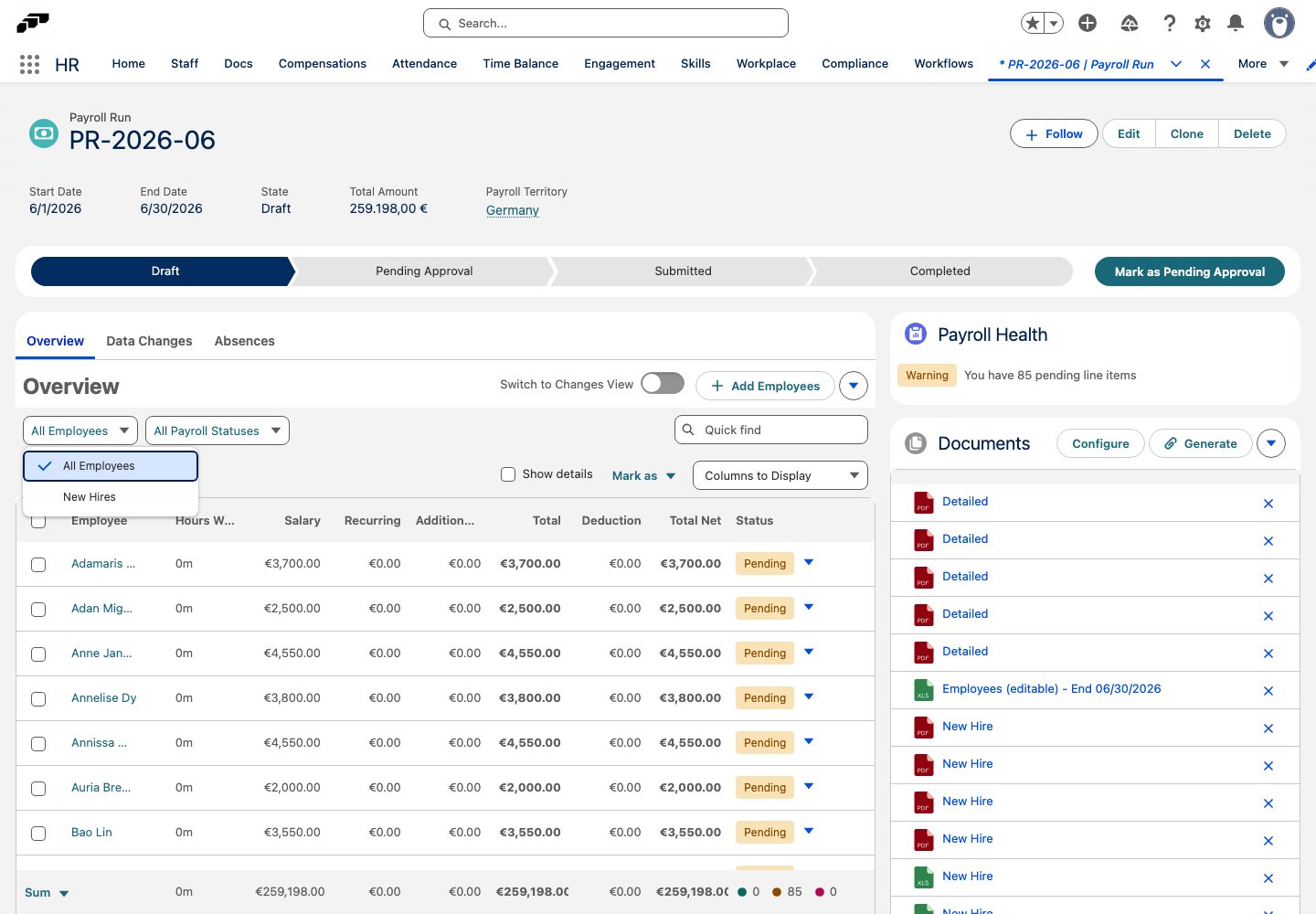
Each employee's review status is Pending, Reviewed, or Needs Attention. Payroll Health counts Pending employees as pending line items and Needs Attention employees as line items that require attention. Whether completion also requires every employee to be Reviewed depends on the territory's Completion Policy; see Configure automatic Payroll Runs.
The list's other controls:
| Control | What it does |
|---|---|
| Switch to Changes View | Replaces the pay columns with each employee's count of data changes and absences in the run. |
| Show details | Expands each employee into their individual pay lines. |
| Data Changes, Absences tabs | List the run's employee data changes and absences across all employees. |
| Add Employees | Adds employees from the Payroll Territory. Available until the run is locked or completed. |
Add or correct a pay line
Use the employee panel to add a one-off amount to this run only, such as a bonus or a correction.
- Open the employee's panel on the Overview tab.
- Under Incomes, click Add new line. A new row appears under Other compensations.
- Enter a name for the line.
- Optional: Select a Pay Type.
- Keep the multiplier at
1or change it, then enter the amount. A negative amount makes the line a deduction. - Click Save. The employee's totals update.
To change an existing other compensation or deduction, click its row, edit the values, and click Save. When a line comes from an Employee One-Time Compensation, saving a new amount also updates that compensation record. Pay lines can't be added or edited once the run is locked or completed.
Configure automatic Payroll Runs
Configure recurring Payroll Runs for each Payroll Territory. flair supports weekly, biweekly, and monthly periods, and skips a period when an overlapping Payroll Run already exists.
- Open a Payroll Territory, then select Automation.
- In Recurrence, select Weekly, Every two weeks, or Monthly.
- In Next start date, select the start date of the first period to generate.
- In Create in advance (days), enter how many days before the period starts flair should create the run. Enter
0to create it on the start date. - Optional: In Run name pattern, enter a name pattern. Leave it blank to use the payroll period.
- In Completion Policy, select Take no action, Mark all as reviewed, or Require all to be reviewed.
- Click Save. flair previews upcoming periods and creates due Payroll Runs automatically.
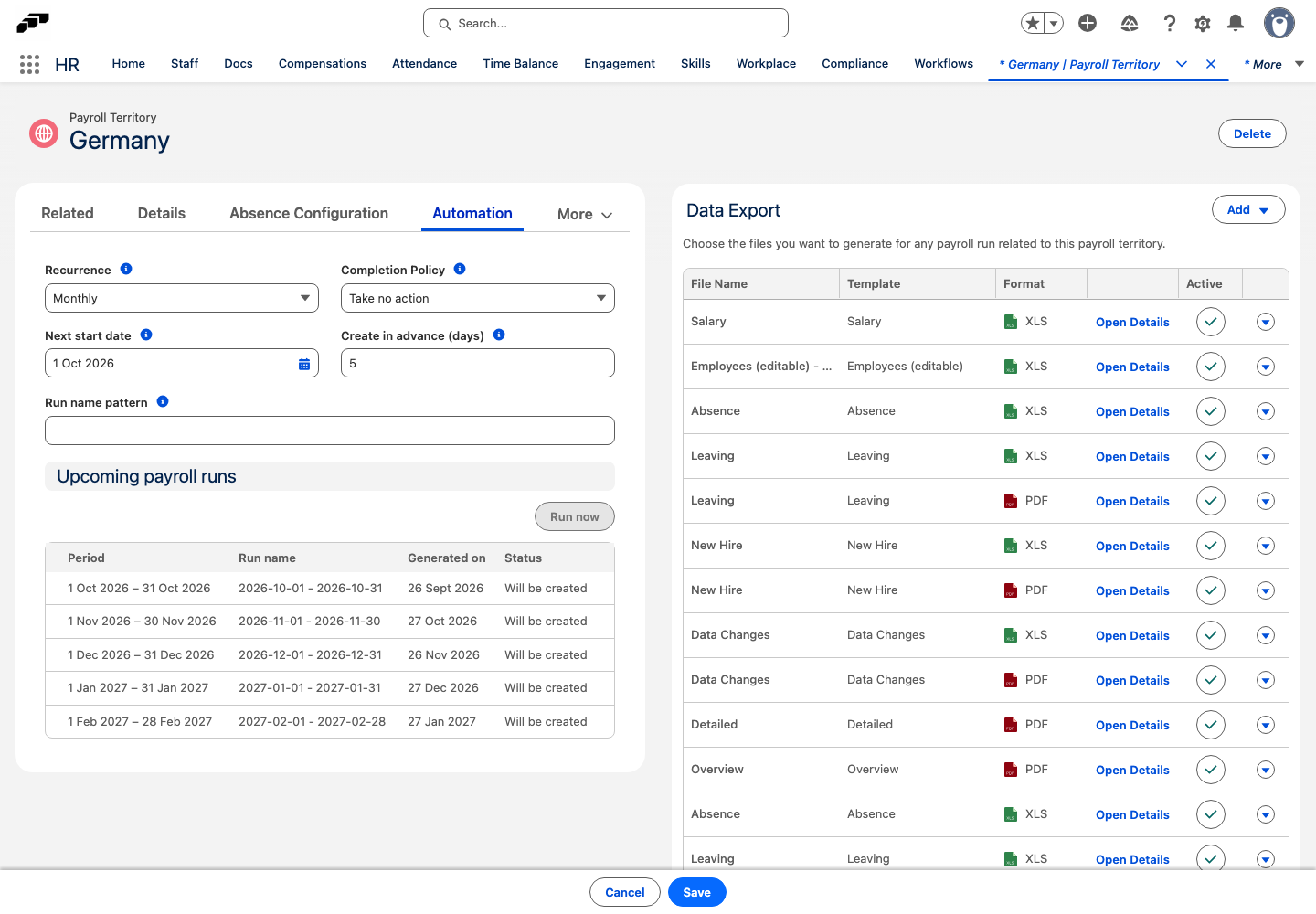
The scheduler checks enabled territories daily. If a period is overdue, flair catches up within the supported window and advances the next period. Existing overlapping Payroll Runs are not duplicated.
The completion policy controls what happens to Employee Payroll Runs when you move a Payroll Run to Completed:
| Policy | Result |
|---|---|
| Take no action | Their statuses stay unchanged. |
| Mark all as reviewed | flair marks them as reviewed. |
| Require all to be reviewed | flair blocks completion until every one is reviewed. |
Add a Payroll Run stage
- In Salesforce Setup, open Object Manager.
- Search for
Payroll Run, then open Payroll Run. - Open Fields & Relationships → State.
- Under Values, click New.
- Enter the stage name, then click Save.
- Optional: Click Reorder, then use Up, Down, Top, or Bottom to position the stage.
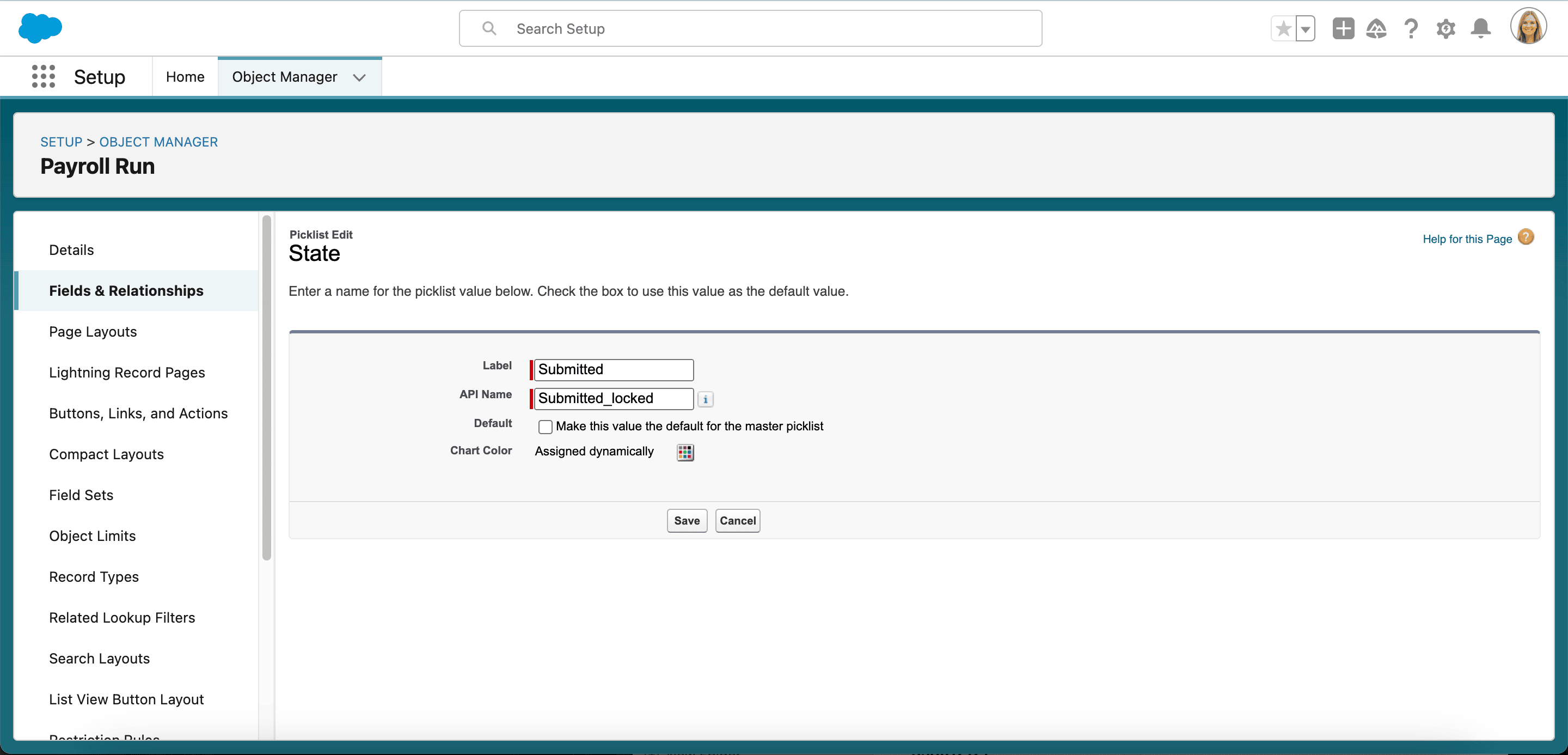
- To lock data in this stage, click Edit next to the value.
- Add
_lockedto the value's API name, then click Save.
The Completed stage is locked by default. For API deductions, use a locked stage named Submitted.
Reverse a completed Payroll Run
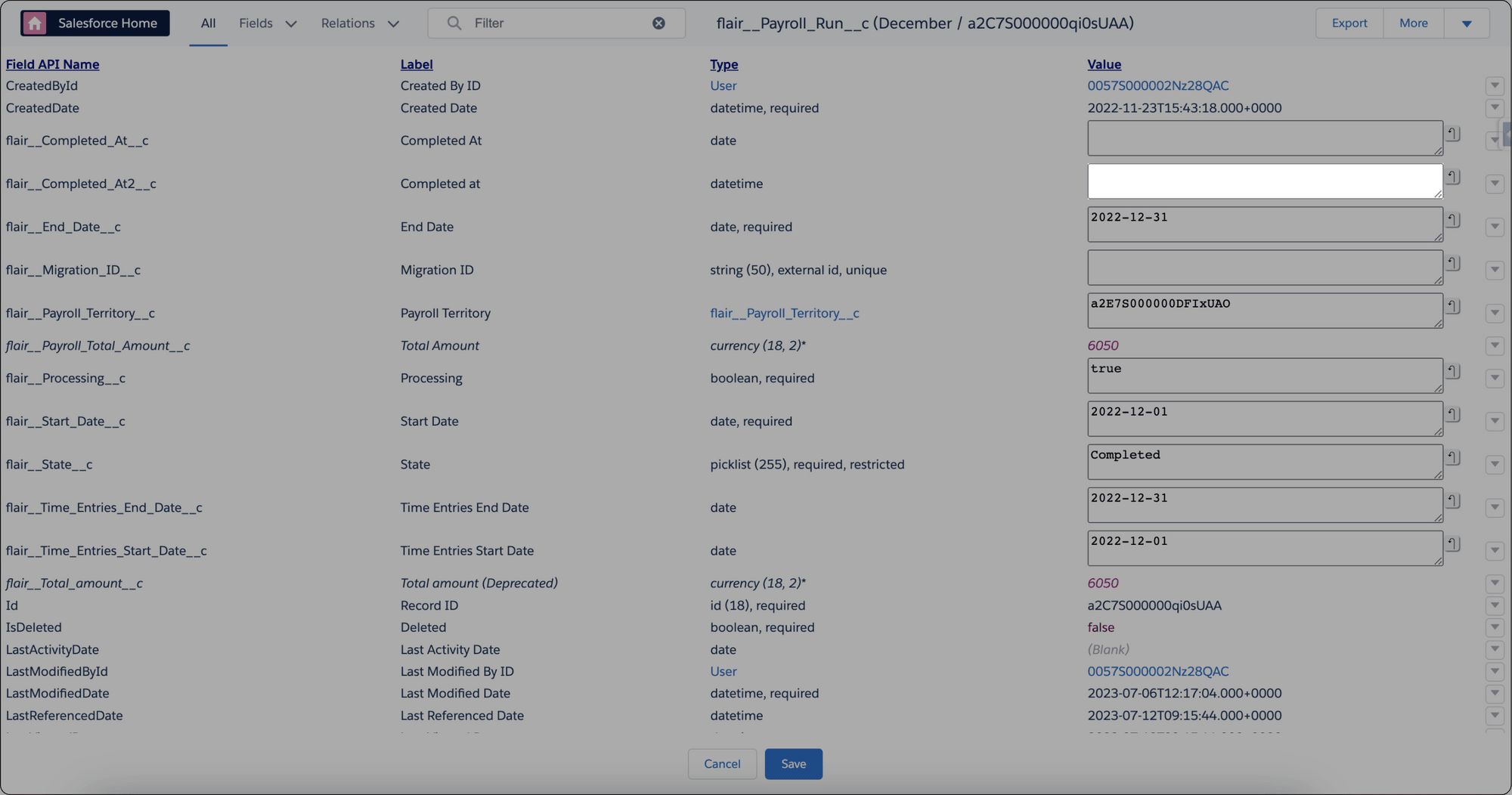
Clearing flair__Completed_At2__c returns a completed run to Pending Approval.
Use Salesforce Inspector
- Install the Salesforce Inspector browser extension.
- Open the Payroll Run.
- From Salesforce Inspector, click Show All Data.
- Find Completed At (
flair__Completed_At2__c). - Clear the field value, then click Save.
- Return to the Payroll Run. The run can move back to Pending Approval.
Use Developer Console
- From Salesforce settings, open Developer Console.
- Open Query Editor.
- Enter
SELECT Id, Name, flair__Completed_At2__c FROM flair__Payroll_Run__c. - Click Execute.
- Find the Payroll Run and clear its Completed At value.
- Save the change, then close Developer Console.
- Return to the Payroll Run. The run can move back to Pending Approval.