Pay night, Sunday, and public holiday supplements
Supplements, also called surcharges, pay extra for hours worked at certain times, such as at night, on Sundays, or on public holidays. In flair, a supplement reaches payroll as its own Payroll Run line with a Pay Type, so your payroll provider receives it under the right wage type code.
HR Admins and payroll teams in Salesforce. Employees track their time as usual; flair labels the hours, and employees don't select a Time Type.
Before you begin
- Employees track their time in flair, and their workloads use a Time Framework. See Configure a Time Framework.
- A Pay Type exists for each supplement, such as
Public holiday supplement. See Create a Pay Type.
Understand how flair pays a supplement
A supplement passes through three settings before it appears in a Payroll Run:
| Setting | Where | What it does |
|---|---|---|
| Time Type Definition | Time Framework → Time Types tab | Labels the hours that fall into a time window, on selected weekdays, or on the days of a calendar with a Time Type. |
| Time Type Rate | Payroll Territory → Time Type Rates tab | Links the Time Type to a Pay Type and a Salary Multiplier. |
| Payroll Run line | Payroll Run | Pays the labeled hours at the employee's hourly rate times the Salary Multiplier, on top of base pay. |
The Salary Multiplier is the surcharge itself: 25% adds a quarter of the employee's hourly rate for each matching hour, and 100% pays the hours a second time. For hours, the Time Types are Standard Hours, Overtime Hours, and Public Holiday Hours (the list also shows Salary, which is meant for Employee Rates), and each Time Type can have one Time Type Rate per Payroll Territory.
Label hours with a Time Type
- Open the Time Framework, then select the Time Types tab.
- Under Time Period Time Types, click Add new.
- Enter a name, then select the Time Type.
- To limit the Time Type to a time window, enter Start Time and End Time. The end time must be after the start time.
- To limit it to certain weekdays, click each weekday it should apply to. With no weekday selected, it applies to every day.
- Optional: To limit it to a date range, enter a Start Date and End Date.
- To match the days of a calendar instead, such as your public holiday calendar, select it in Calendar Days. A calendar replaces the date fields and the weekday buttons.
- Optional: In Overtime Level, select Overtime to label only the day's hours beyond the overtime threshold, or Non-overtime to label only hours before it. Ignore Overtime labels all matching hours.
- Optional: In Priority, enter a number. flair checks definitions from the lowest number up, and hours that one definition labels aren't labeled again by a later one. Definitions without a priority are checked first.
- Click the save icon.
flair applies the definitions when it calculates timesheet days from the employees' time entries. A time entry that only partly falls into a definition is split, so only the matching part gets the Time Type.
Set the supplement rate
- On the Payroll Territory's Time Type Rates tab, add a row with the Time Type, the supplement's Pay Type, and the surcharge as Salary Multiplier. For the full steps, see Add a Time Type Rate and Understand the Salary Multiplier.
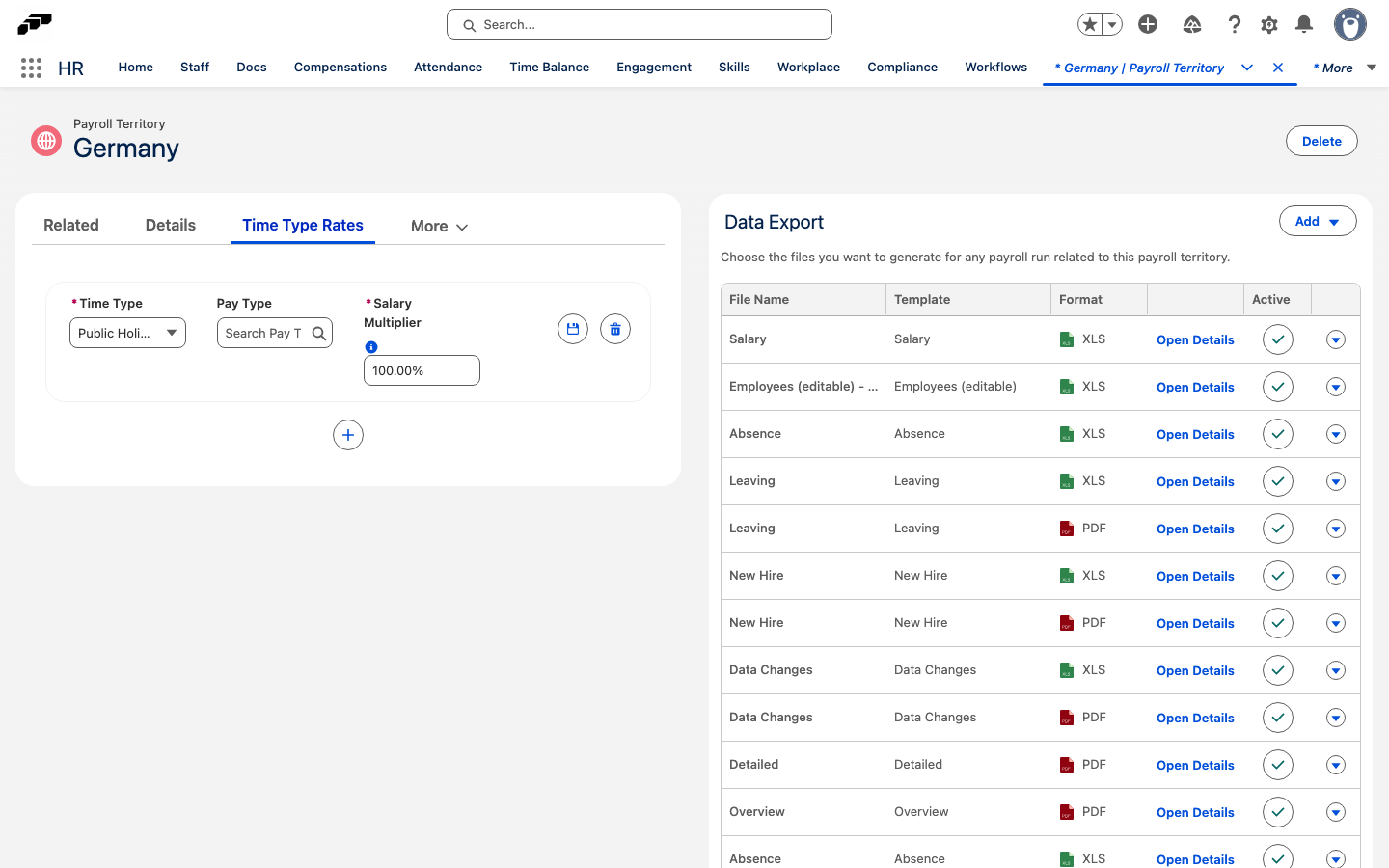
The next Payroll Run for the territory adds one line per Time Type that has a Time Type Rate and that the employee worked, named after the Time Type and carrying its Pay Type. To check the lines, open the run and click Show details; see Review a Payroll Run.
Pay a public holiday supplement
Use the Public Holiday Hours Time Type for work on public holidays:
- On the Time Framework's Time Types tab, add a definition with the Time Type Public Holiday Hours and your public holiday calendar in Calendar Days.
- On the Payroll Territory, add a Time Type Rate for Public Holiday Hours with your public holiday supplement Pay Type and the surcharge as Salary Multiplier.
To pay a fixed amount per public holiday hour instead of a percentage, use a Payroll Run Rule with the Rate Type Public Holiday Hours and an Employee Rate; see Create a Payroll Run Rule. Use only one of the two for the same hours, or the hours are paid twice.
The Compensate absences and public holidays option on an hourly salary is not a supplement. It pays hourly employees for public holiday hours they don't work; see Set Pay Types for absences and public holidays.
Pay a night or Sunday supplement
A Time Type Definition can match night hours with Start Time and End Time, or Sundays by selecting only Sunday. flair has no separate night or Sunday Time Type, though, so such a definition has to use Standard Hours, Overtime Hours, or Public Holiday Hours, and shares that Time Type's single rate.
To pay a night or Sunday supplement with its own Pay Type, add it to the Payroll Run as a pay line. See Add or correct a pay line.
Daily schedule periods on the Time Framework's Daily Schedule tab can also weight night or weekend hours, for example with a multiplier of 1.25 from 22:00. They change how much tracked time counts on the timesheet and in the time balance, but they don't add a Payroll Run line, carry a Pay Type, or change the hours an hourly salary pays. See Define daily schedule periods.
Time Type Rate lines use the tracked time recorded for each Time Type. A daily schedule multiplier on the same hours can change the hours that a Time Type Rate pays, for example raise them at 1.25 or drop them to zero outside every period.