Configure Slack notifications
Send scheduled flair notifications to a Slack channel. You can configure daily digests and absence notifications from Salesforce or HR Admin.
Who can use this?
HR Admins in Salesforce who can manage the flair Slack integration and Slack channel notification records.
Before you begin
- Connect your Slack workspace to your Salesforce organization.
- Confirm that your admin account can configure notifications and post to the target Slack channel.
Connect Slack to flair
Use these steps to connect or reconnect the integration:
- In the flair HR app, open HR Admin → Slack.
- Sign in with the admin account.
- Click Connect Slack. flair connects the Slack workspace.
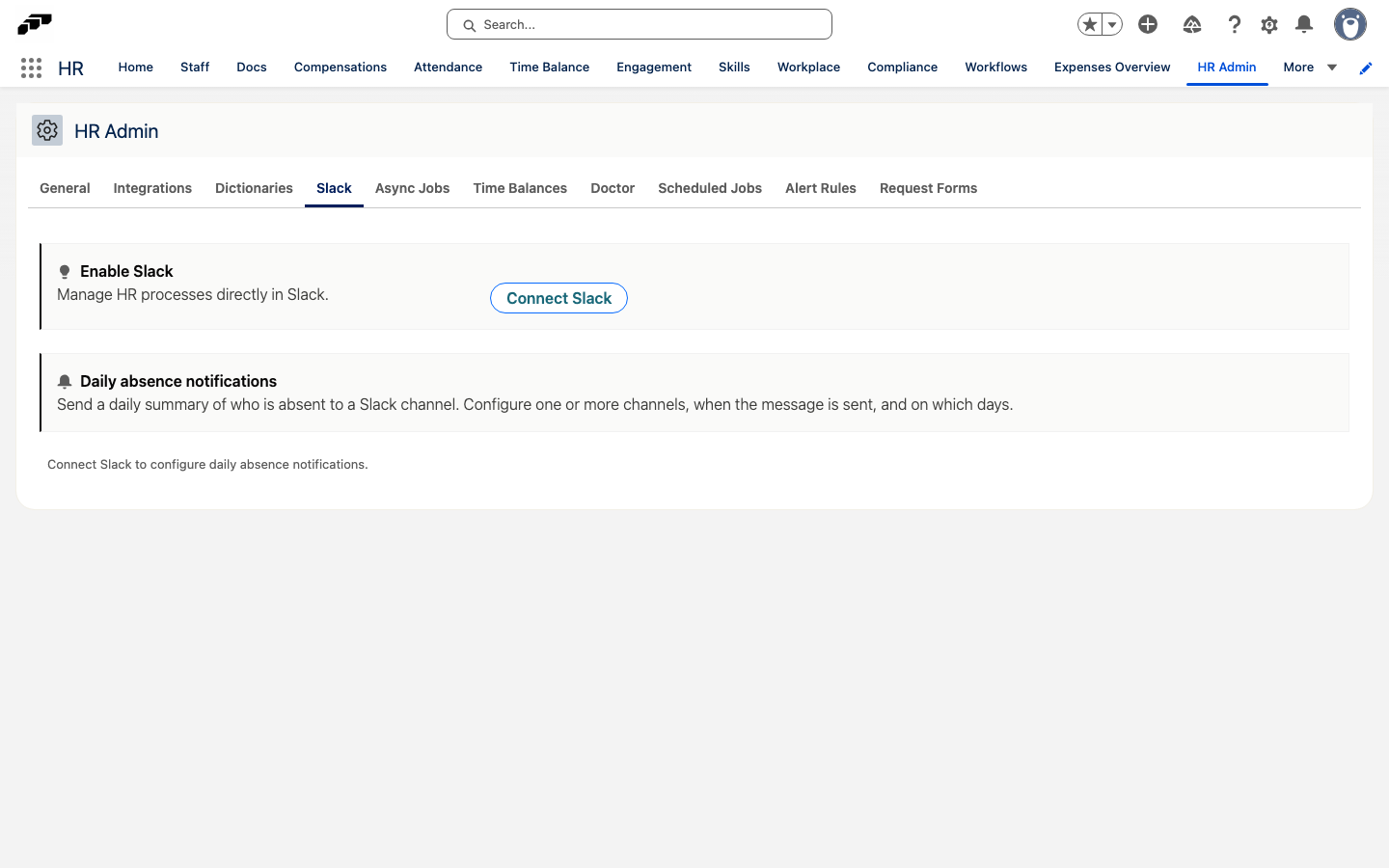
Create a scheduled channel notification
Select the Slack channel
- From the App Launcher (⋮⋮ grid icon), open Slack Channels.
- Select the channel that receives the notifications, such as
#development. - In Slack Daily Notifications, open the arrow menu.
- Click New.
Configure the schedule
- Under Notifications, click Create a New Notification.
- Under Days, select the delivery days.
- Under Time, enter the delivery time, such as
14:05. - Under Type, select Digest or another available notification type.
- Save the notification. flair sends it to the selected channel at the configured time.
Create an absence notification
- From the App Launcher (⋮⋮ grid icon), open Slack Channels.
- Select the channel that receives absence notifications.
- Create a notification.
- Under Type, select Absence.
- Configure the days and time.
- Save the notification. The channel receives updates when an absence request is submitted, approved, or requires action.
Configure the absence digest from HR Admin
- In the flair HR app, open HR Admin → Slack.
- Find the absence digest settings.
- Select the Slack channel.
- Select the time and delivery days.
- Save the settings.
When several employees share the same public holiday, the digest groups them on one line with the holiday name.
Troubleshooting
Notifications do not appear in Slack
- In HR Admin → Slack, confirm that the integration is connected.
- Confirm that the target channel allows flair to post notifications.
- Review the notification's days and time.
- Confirm that the notification type is enabled for the channel.