Document Categories
Document categories are the list employees and HR pick from when uploading or filing a document. Every document ends up filed under one of them, so the shape of this list decides how tidy — and how careful — your document handling is.
This page covers how admins manage that list in Salesforce. The employee side of document handling — uploading, viewing, and receiving documents in the Employee Hub — stays in Documents.
Where to Manage Document Categories
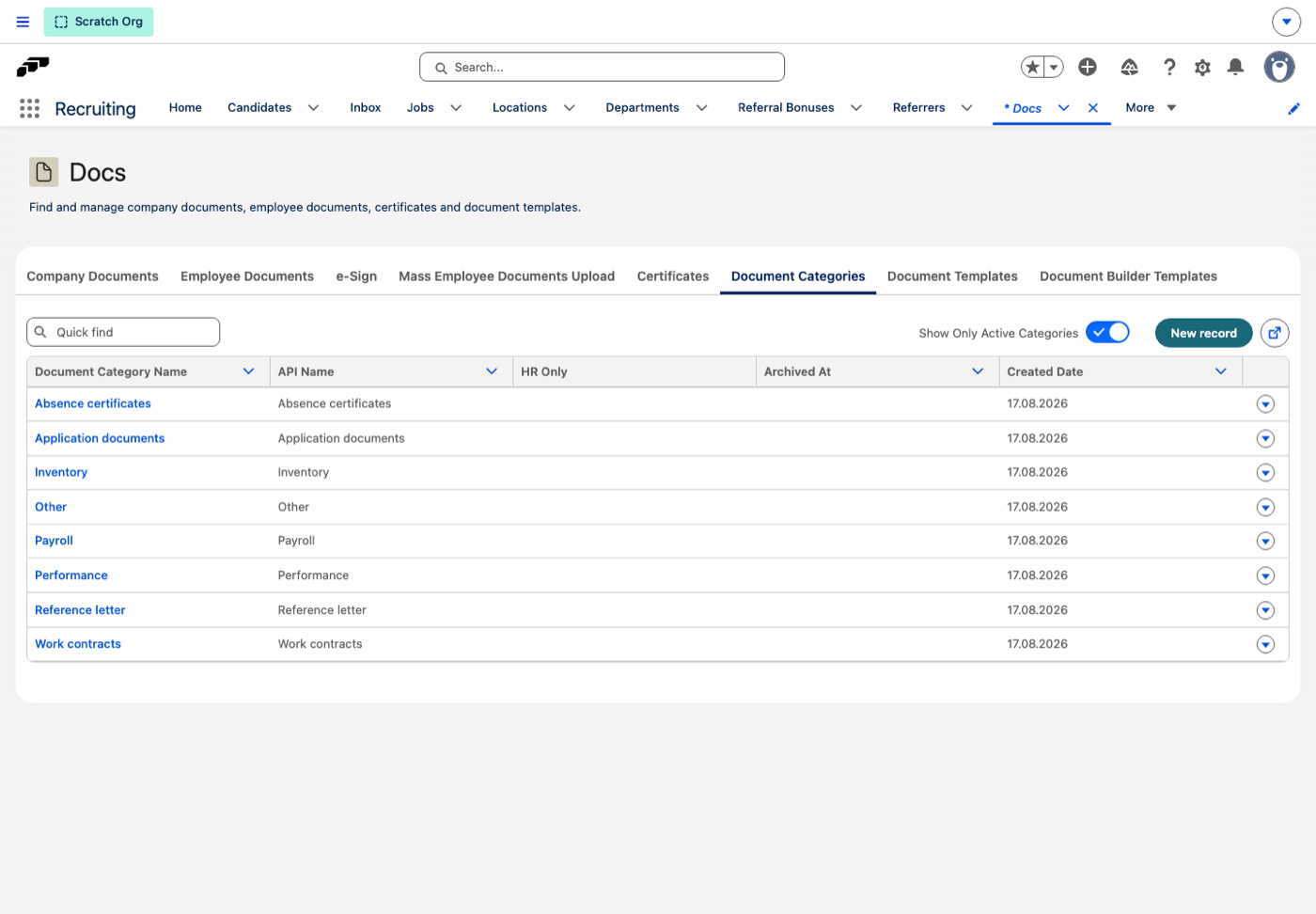
The document categories list lives on the Docs tab of the flair HR app, under Document Categories. From this list you can review your categories, edit them, and archive the ones you no longer need.
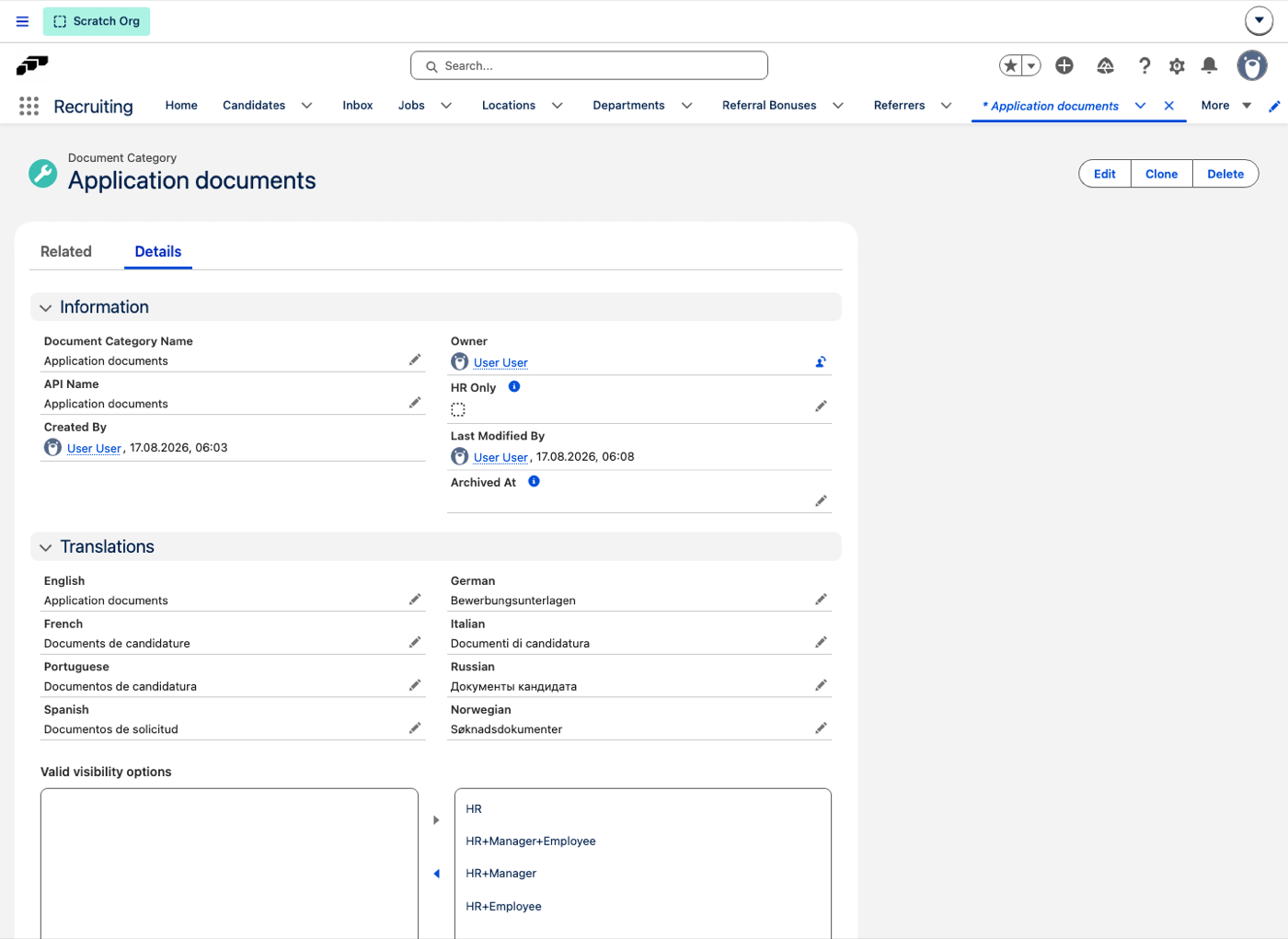
Each category also has its own record page, where its settings live.
Settings on a Category
| Setting | What it does |
|---|---|
| Document Category Name | The name shown wherever the category is picked. |
| HR Only | Keeps the category visible in Salesforce but hidden from the employee Hub. |
| Valid visibility options | Restricts which visibility choices can be picked for a document filed under this category. |
Document Category Name
The name is the label employees and HR see wherever the category is picked. Because it appears in every picker, give it a name that is short and unambiguous — the name is what keeps documents landing in the right place.
HR Only
Some categories are not for employee eyes. The setting's help text puts it plainly:
"HR-only categories are visible in Salesforce but hidden from the employee Hub."
Turn on HR Only for categories employees should never see. HR keeps working with the category in Salesforce, but employees won't come across it in the Employee Hub.
Valid visibility options
When a document is filed under a category, Valid visibility options restricts which visibility choices can be picked for it. Set it on a sensitive category so that a document filed there cannot accidentally be shared more widely than intended.
You move the options you want to allow into the selected list; the four to choose from are HR, HR+Manager+Employee, HR+Manager and HR+Employee. Leaving a category with only HR and HR+Employee, for example, means nobody can file a document there and share it with the employee's manager.
The visibility options themselves are documented on the Documents page.
Archiving a Category
When a category falls out of use, you don't need to delete it — archive it instead:
- In the categories list, each row has an Archive action.
- An archived category can be brought back at any time with Unarchive.
- The list shows active categories only. Switch off Show Only Active Categories to see archived ones alongside them, with the date in the Archived At column.
- Archived categories no longer appear in the pickers employees and HR use.
- The category record itself records when this happened, in Archived At.
Archiving is non-destructive. Documents already filed under an archived category keep their category, so nothing in your records changes — the category stops being offered for new filings.
If a category's existing documents should stay grouped together but nobody should file anything new under it, archiving does exactly that.
Categories flair Ships With
flair prevents deleting the categories it ships with, and prevents changing their API Name, because other records point at them.
That is why archiving, not deleting, is the supported way to take a category out of use — the categories list offers an Archive action on each row.
Translated Category Names
Each category record has a Translations section where you enter its name per language — English, German, French, Italian, Portuguese, Russian, Spanish and Norwegian. Employees then see the category in their own Employee Hub language, so one category reads Application documents for an English speaker and Bewerbungsunterlagen for a German speaker, without maintaining two categories for the same thing.
Where to Go Next
- Documents — how documents are uploaded, filed, and shared day to day.