Configure candidate and talent anonymization
Control when flair anonymizes candidate and talent records in Salesforce. You can configure retention periods, remove related data, include custom fields, or run anonymization manually.
Salesforce Admins who manage recruiting data, Custom Settings, and fields in Salesforce Setup.
Before you begin
- Confirm your organization's retention rules with your data privacy owner.
- Confirm that you can manage Candidate Setting, Talent Setting, and Candidate or Talent fields in Salesforce.
Understand automatic anonymization
Anonymization is enabled by default. A scheduled job runs daily at 1:00 AM and processes candidate or talent records that have reached their anonymization date:
- flair overwrites every field tagged with the GDPR compliance group with a value for its data type.
- flair marks the record as Anonymized.
- flair removes related activities, documents, and Chatter posts according to your settings.
Review anonymization rules
flair calculates the anonymization date from the record and its double opt-in status:
| Scenario | Anonymization period | Calculated from |
|---|---|---|
| Candidate without a linked talent | 6 months by default | Record creation date |
| Candidate with a linked talent | The talent's anonymization date | Not applicable |
| Talent without double opt-in | 6 months by default | Record creation or update date |
| Talent with double opt-in | 24 months by default | Record creation or update date |
| Hired candidate | Never anonymized | Not applicable |
When a candidate is linked to a talent, the candidate inherits the talent's anonymization date. Double Opted In Datetime records explicit consent to the longer default retention period of 24 months.
Review anonymized data
flair reads Compliance Categorization metadata and anonymizes every field tagged with GDPR. The default fields are:
- Candidate fields: First Name, Last Name, Email, Phone, LinkedIn, Cover Letter, and Coordinates.
- Talent fields: First Name, Last Name, Email, Phone, and LinkedIn.
Each supported field type receives this value:
| Field type | Anonymized value |
|---|---|
| Text or Text Area | Anonymized |
| Cleared | |
| URL | Cleared |
| Phone | Cleared |
| Date | January 1, 2000 |
| Currency | 0.00 |
| Number | 0 |
| Checkbox | Default value |
| Location (Geolocation) | 0.0, 0.0 |
Related-data removal is controlled by these settings, which are enabled by default:
| Data type | Applies to | Setting |
|---|---|---|
| Activities, including Tasks and Events | Candidates and Talents | Remove Activities on Anonymize |
| Recruiting Documents | Candidates and Talents | Remove Documents on Anonymize |
| Chatter Posts | Candidates only | Remove Chatter Posts on Anonymize |
Configure anonymization periods
You can also set the periods and cleanup options on the Privacy & Data Retention tab of Recruiting Admin.
- In Salesforce Setup, open Custom Settings.
- Open Candidate Setting.
- Click Manage.
- Click Edit.
- In No Talent Anonymization Period, enter the number of months for records without double opt-in. The default is
6. - In Double Opt In Anonymization Period, enter the number of months for records with double opt-in. The default is
24. - Click Save.
These values apply to candidates and talents. The talent anonymization flow reads the values from Candidate Setting.
Configure related-data cleanup
Configure candidate cleanup
- In Salesforce Setup, open Custom Settings.
- Open Candidate Setting.
- Click Manage.
- Click Edit.
- Select or clear Remove Activities on Anonymize, Remove Chatter Posts on Anonymize, and Remove Documents on Anonymize.
- Click Save.
Configure talent cleanup
- In Salesforce Setup, open Custom Settings.
- Open Talent Setting.
- Click Manage.
- Click Edit.
- Select or clear Remove Activities on Anonymize and Remove Documents on Anonymize.
- Click Save.
Include a custom field in anonymization
- In Salesforce Setup, open Object Manager.
- Select Candidate or Talent.
- Open Fields & Relationships.
- Select the custom field that contains personal data.
- Under Compliance Categorization, add GDPR to the compliance group.
- Click Save. flair includes the field in the next anonymization run.
Supported custom field types are Text, Text Area, Email, URL, Phone, Date, Currency, Number, Checkbox, and Geolocation. flair does not automatically anonymize an unsupported field type.
Anonymize records manually
Manual anonymization works even before a record reaches its anonymization date. Use it to fulfill an individual deletion request.
Anonymization overwrites personal fields and can delete related data. Confirm the selected records before you continue.
Anonymize one record
- Open the Candidate or Talent record.
- Click Anonymize.
- In the confirmation dialog, review the fields.
- Click Anonymize to process the record.
Anonymize records in bulk
- Open Candidates or Talents.
- Select Candidates to Anonymize or Talents to Anonymize.
- Select the records to process.
- Click Anonymize.
- Confirm the action.
Disable automatic anonymization
Turn off the scheduled job separately for candidates and talents when your organization's retention policy requires it.
Disabling automatic anonymization can retain personal data beyond your organization's standard retention periods. Confirm the change with your data privacy owner.
Disable candidate anonymization
-
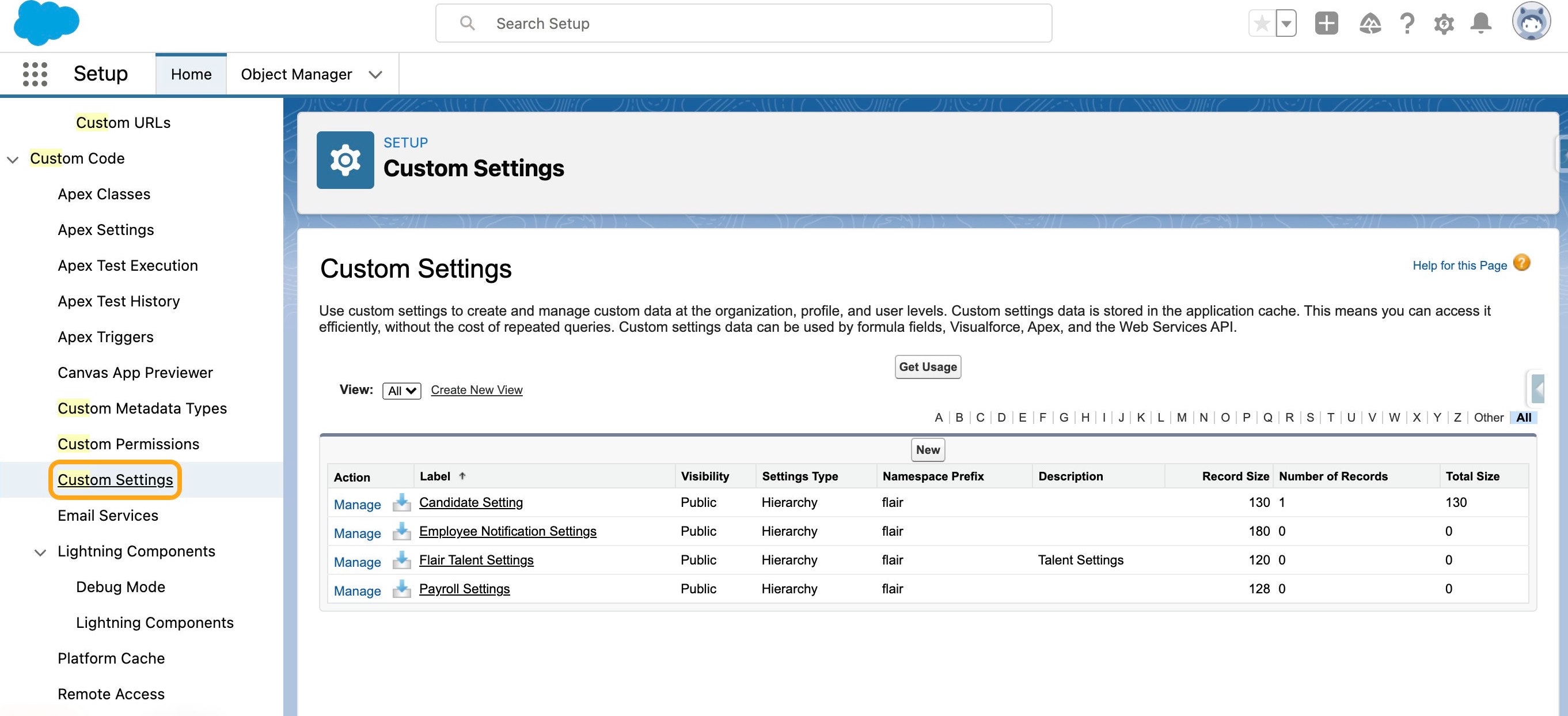
In Salesforce Setup, open Custom Settings.
-
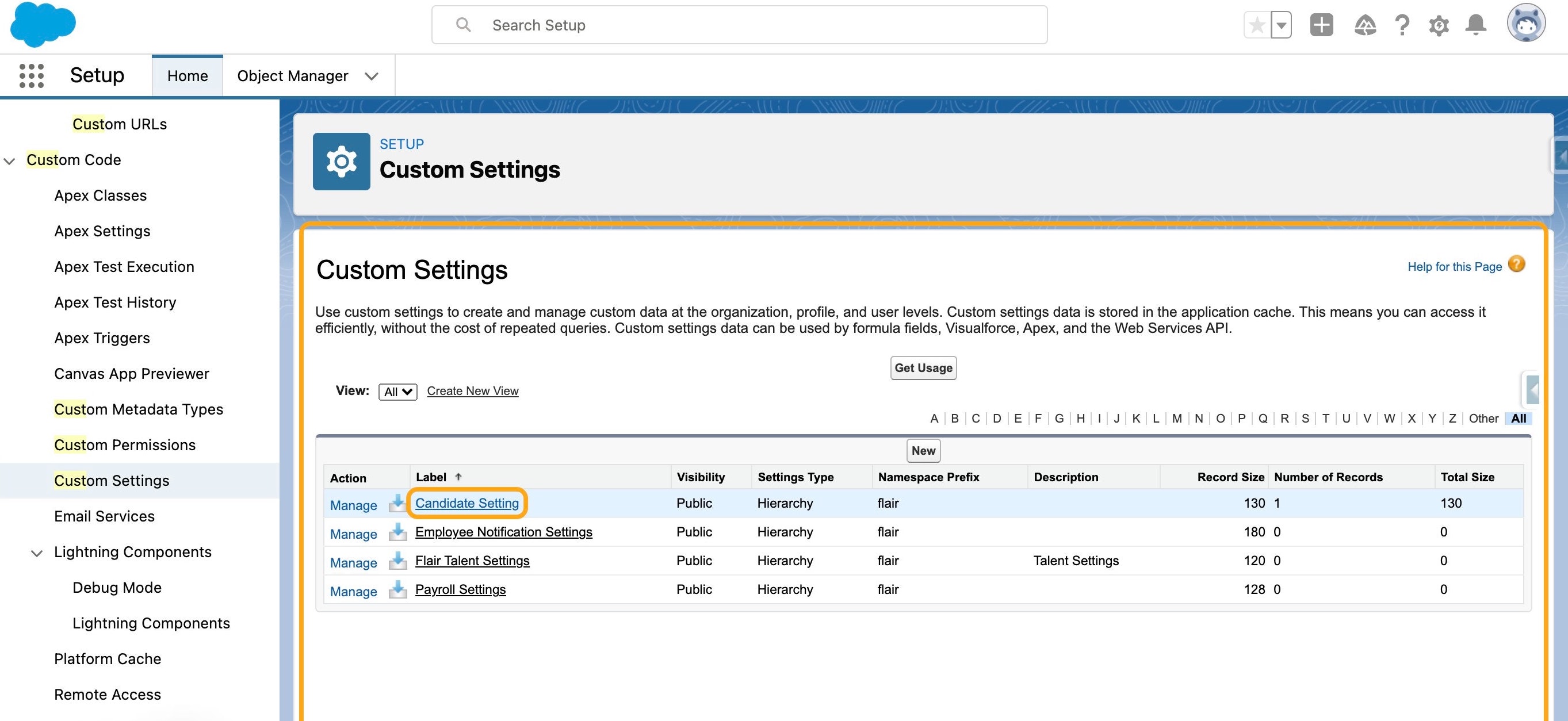
Open Candidate Setting.
-
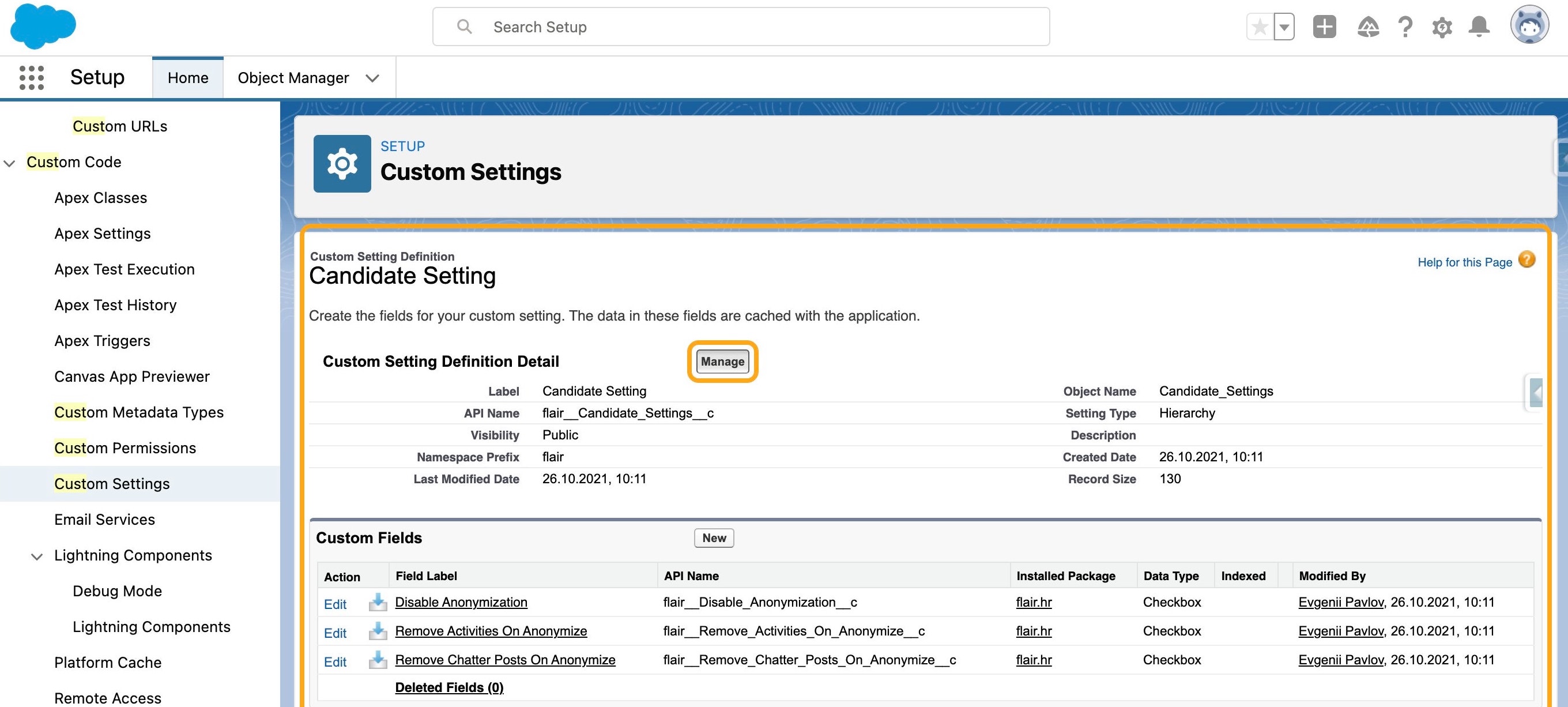
Click Manage.
-
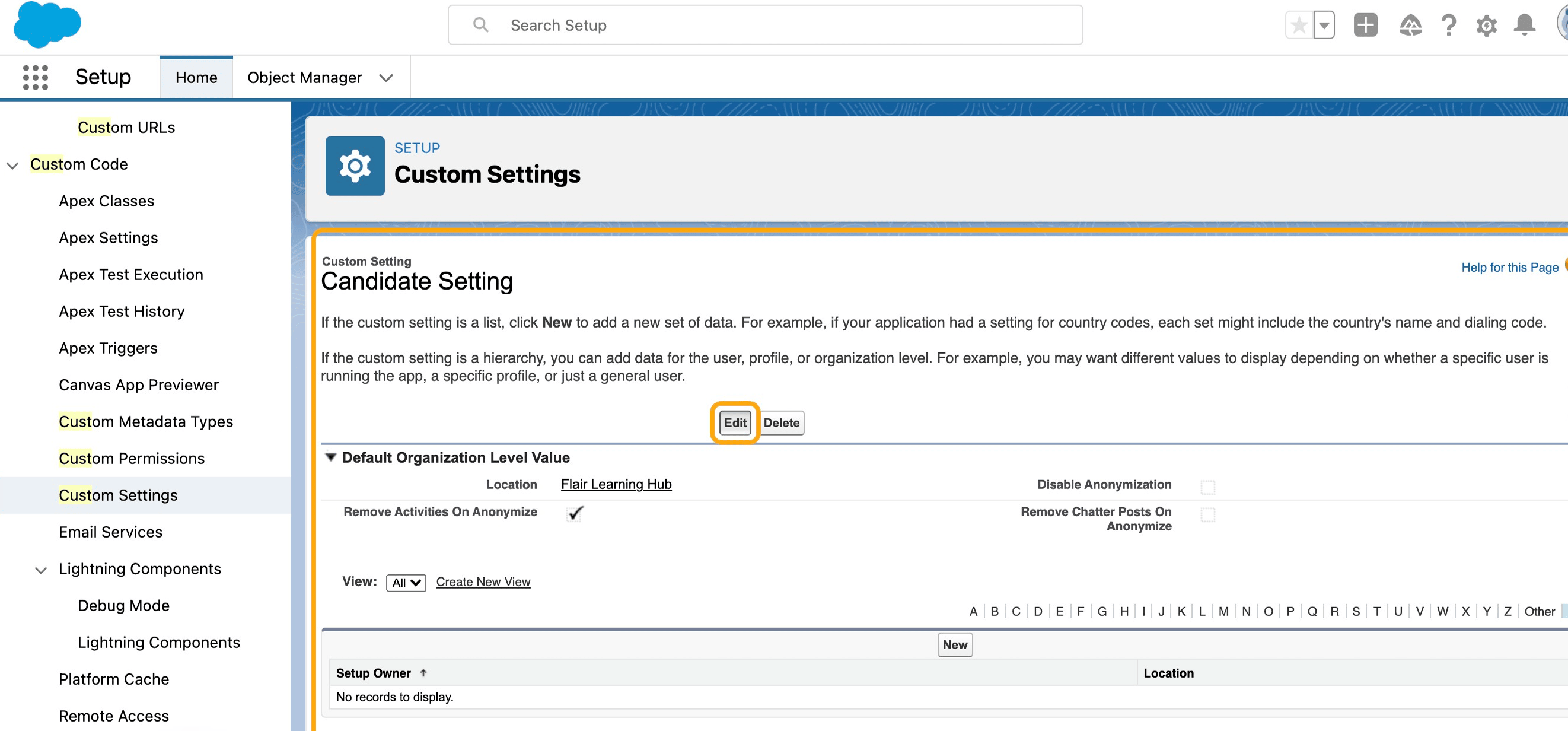
Click Edit.
-
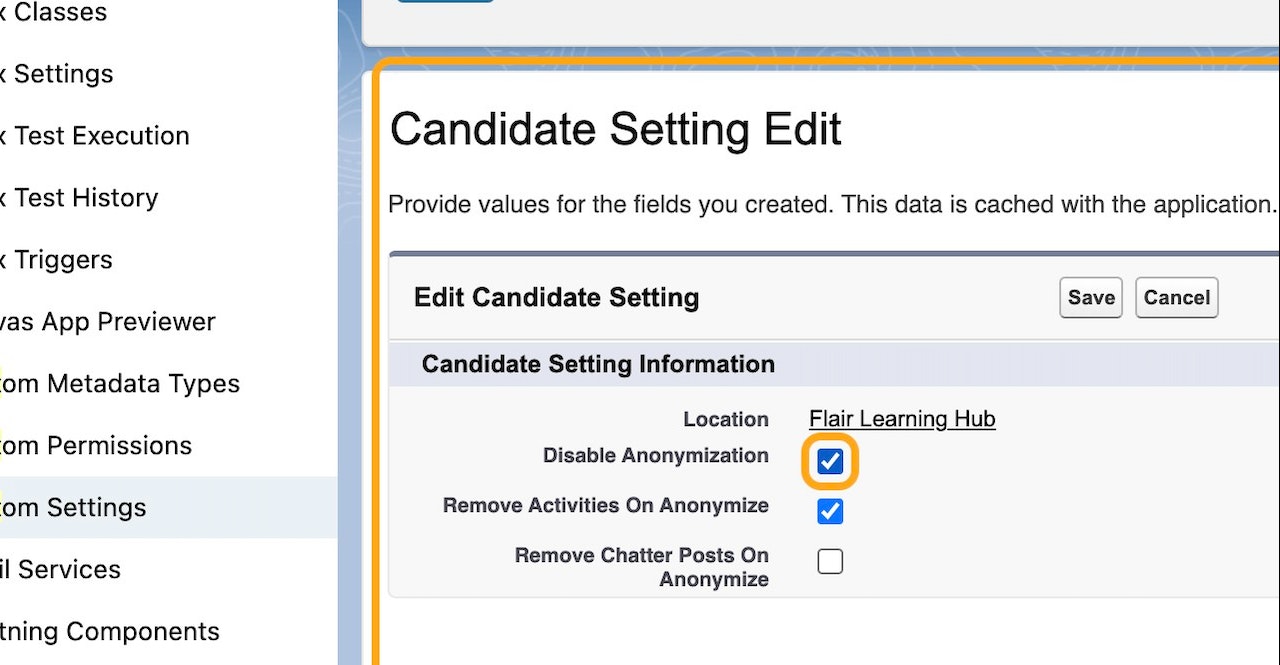
Select Disable Anonymization.
-
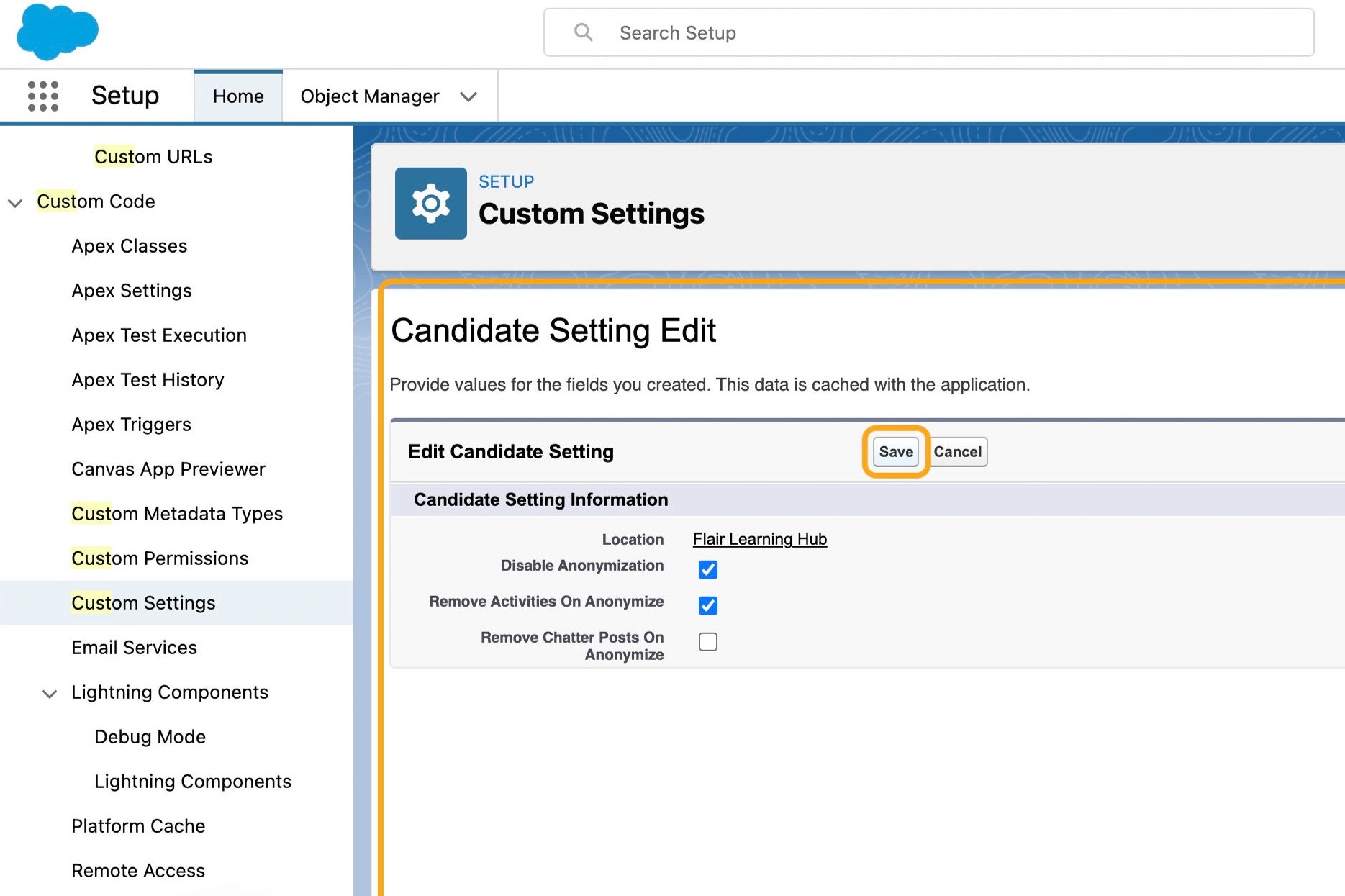
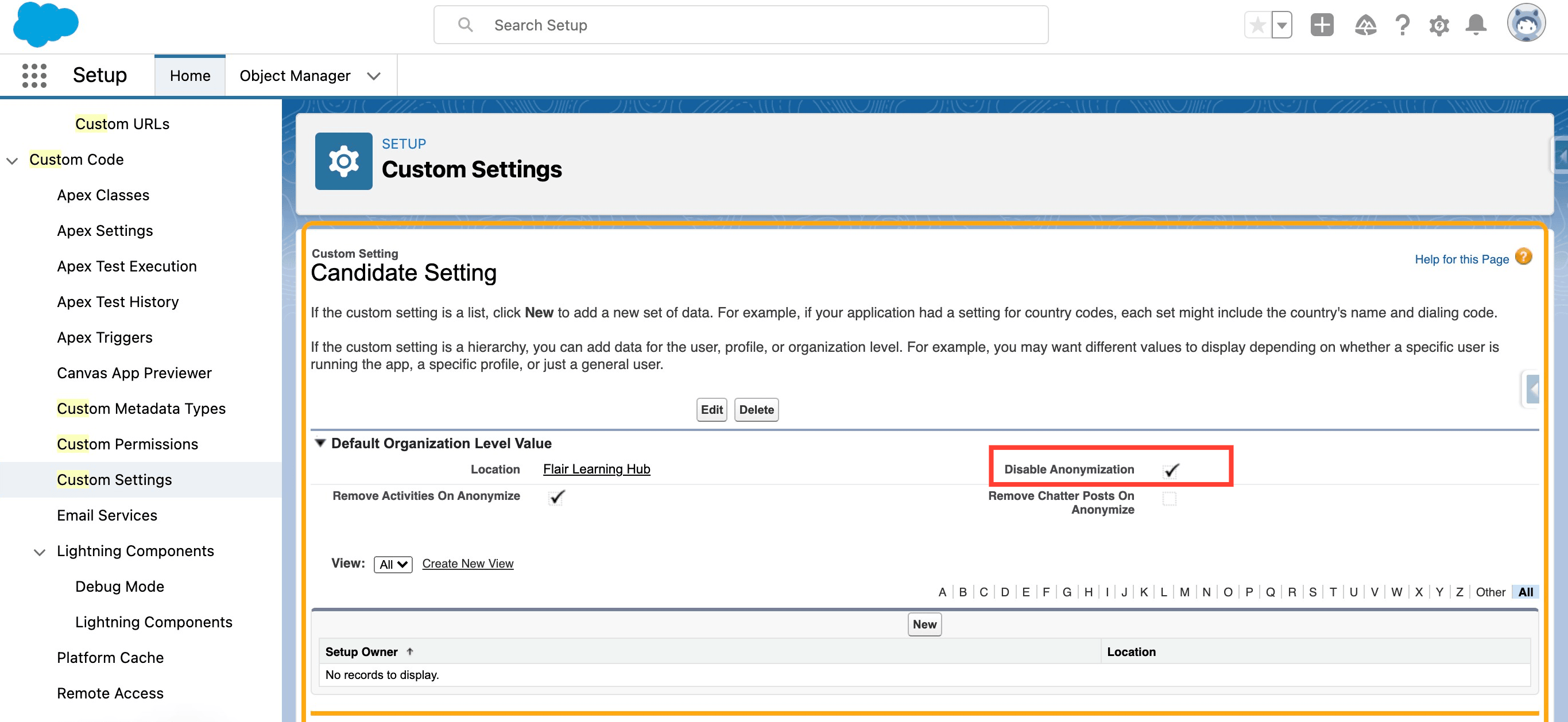
Click Save. Automatic candidate anonymization is disabled.
Disable talent anonymization
- In Salesforce Setup, open Custom Settings.
- Open Talent Setting.
- Click Manage.
- Click Edit.
- Select Disable Anonymization.
- Click Save. Automatic talent anonymization is disabled.